AddDrop Courses Tutorial Online Registration Stephen F Austin

- Slides: 16
Add/Drop Courses Tutorial Online Registration Stephen F. Austin State University
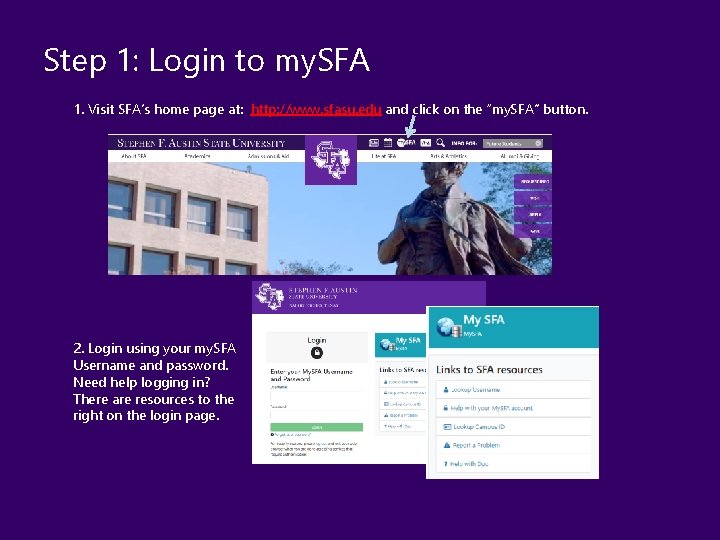
Step 1: Login to my. SFA 1. Visit SFA’s home page at: http: //www. sfasu. edu and click on the “my. SFA” button. 2. Login using your my. SFA Username and password. Need help logging in? There are resources to the right on the login page.
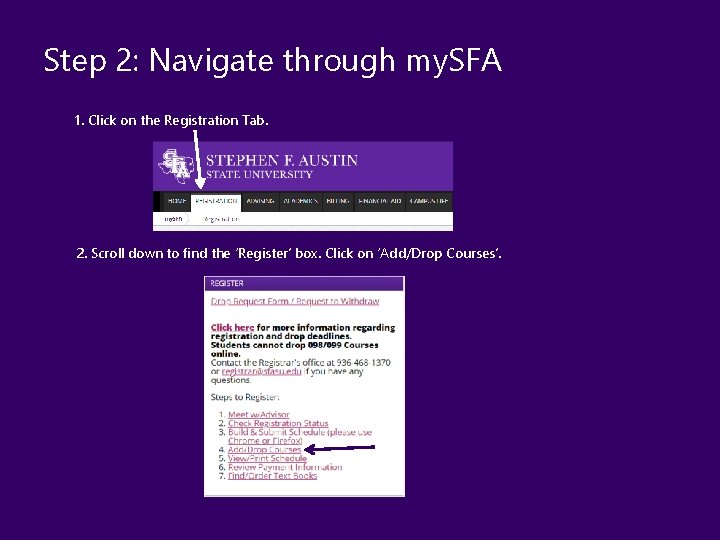
Step 2: Navigate through my. SFA 1. Click on the Registration Tab. 2. Scroll down to find the ‘Register’ box. Click on ‘Add/Drop Courses’.
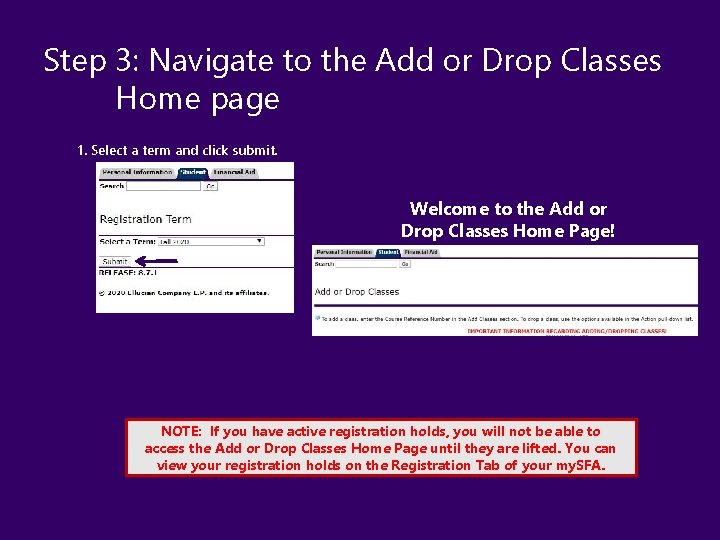
Step 3: Navigate to the Add or Drop Classes Home page 1. Select a term and click submit. Welcome to the Add or Drop Classes Home Page! NOTE: If you have active registration holds, you will not be able to access the Add or Drop Classes Home Page until they are lifted. You can view your registration holds on the Registration Tab of your my. SFA.
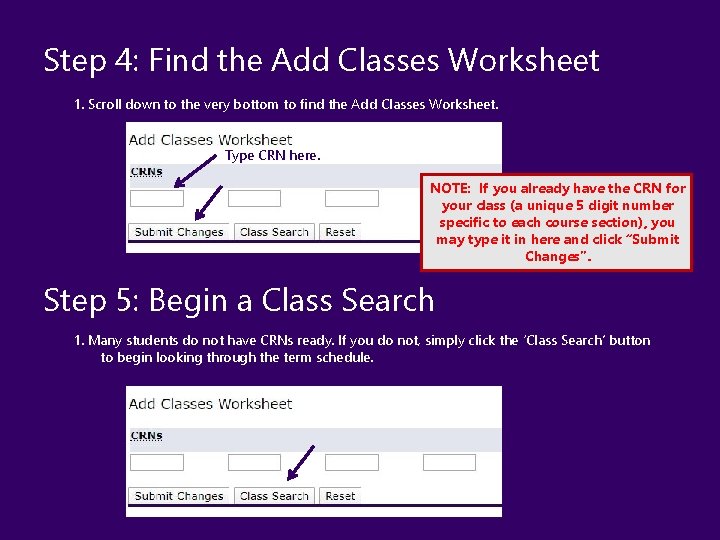
Step 4: Find the Add Classes Worksheet 1. Scroll down to the very bottom to find the Add Classes Worksheet. Type CRN here. NOTE: If you already have the CRN for your class (a unique 5 digit number specific to each course section), you may type it in here and click “Submit Changes”. Step 5: Begin a Class Search 1. Many students do not have CRNs ready. If you do not, simply click the ‘Class Search’ button to begin looking through the term schedule.
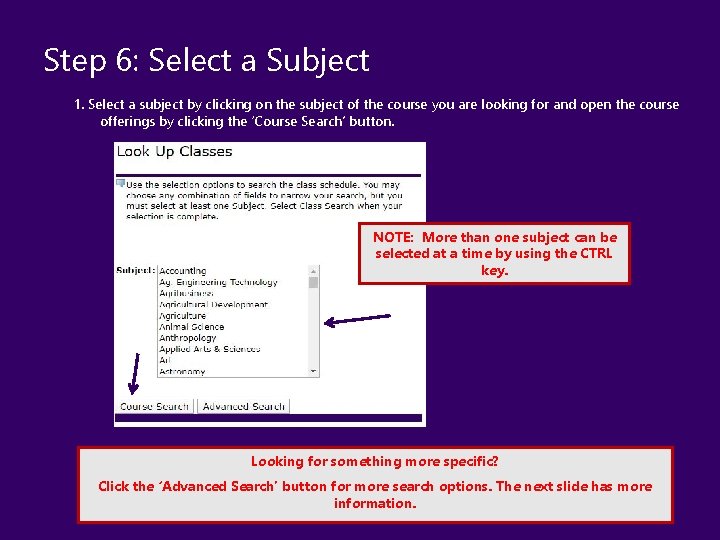
Step 6: Select a Subject 1. Select a subject by clicking on the subject of the course you are looking for and open the course offerings by clicking the ‘Course Search’ button. NOTE: More than one subject can be selected at a time by using the CTRL key. Looking for something more specific? Click the ‘Advanced Search’ button for more search options. The next slide has more information.
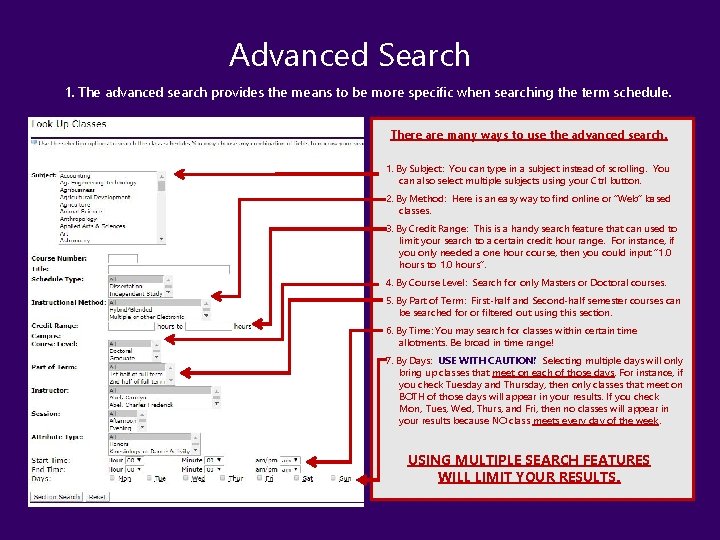
Advanced Search 1. The advanced search provides the means to be more specific when searching the term schedule. There are many ways to use the advanced search. 1. By Subject: You can type in a subject instead of scrolling. You can also select multiple subjects using your Ctrl button. 2. By Method: Here is an easy way to find online or “Web” based classes. 3. By Credit Range: This is a handy search feature that can used to limit your search to a certain credit hour range. For instance, if you only needed a one hour course, then you could input “ 1. 0 hours to 1. 0 hours”. 4. By Course Level: Search for only Masters or Doctoral courses. 5. By Part of Term: First-half and Second-half semester courses can be searched for or filtered out using this section. 6. By Time: You may search for classes within certain time allotments. Be broad in time range! 7. By Days: USE WITH CAUTION! Selecting multiple days will only bring up classes that meet on each of those days. For instance, if you check Tuesday and Thursday, then only classes that meet on BOTH of those days will appear in your results. If you check Mon, Tues, Wed, Thurs, and Fri, then no classes will appear in your results because NO class meets every day of the week. USING MULTIPLE SEARCH FEATURES WILL LIMIT YOUR RESULTS.
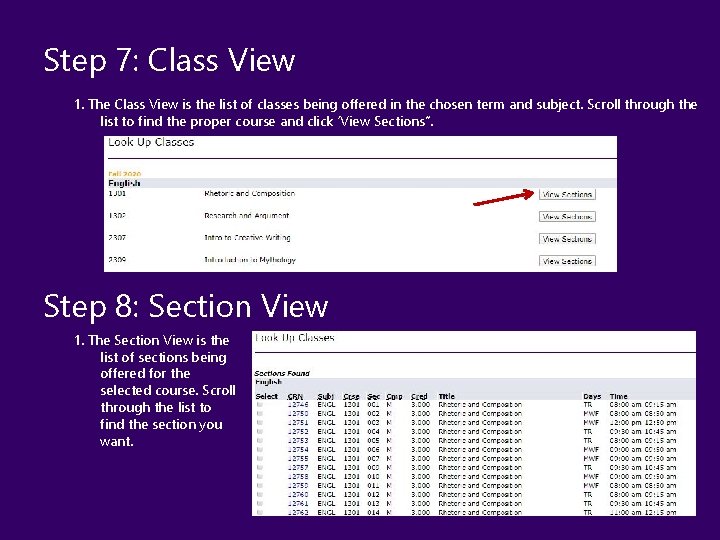
Step 7: Class View 1. The Class View is the list of classes being offered in the chosen term and subject. Scroll through the list to find the proper course and click ‘View Sections”. Step 8: Section View 1. The Section View is the list of sections being offered for the selected course. Scroll through the list to find the section you want.
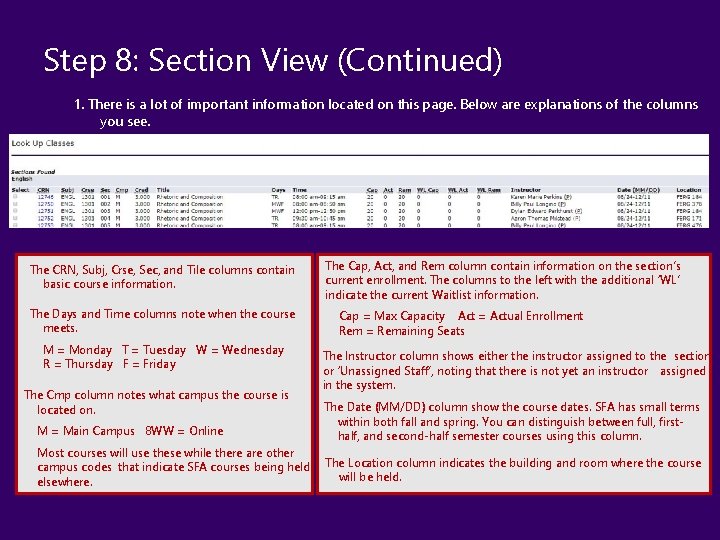
Step 8: Section View (Continued) 1. There is a lot of important information located on this page. Below are explanations of the columns you see. The CRN, Subj, Crse, Sec, and Tile columns contain basic course information. The Days and Time columns note when the course meets. M = Monday T = Tuesday W = Wednesday R = Thursday F = Friday The Cmp column notes what campus the course is located on. The Cap, Act, and Rem column contain information on the section’s current enrollment. The columns to the left with the additional ‘WL’ indicate the current Waitlist information. Cap = Max Capacity Act = Actual Enrollment Rem = Remaining Seats The Instructor column shows either the instructor assigned to the section or ‘Unassigned Staff’, noting that there is not yet an instructor assigned in the system. M = Main Campus 8 WW = Online The Date (MM/DD) column show the course dates. SFA has small terms within both fall and spring. You can distinguish between full, firsthalf, and second-half semester courses using this column. Most courses will use these while there are other campus codes that indicate SFA courses being held elsewhere. The Location column indicates the building and room where the course will be held.
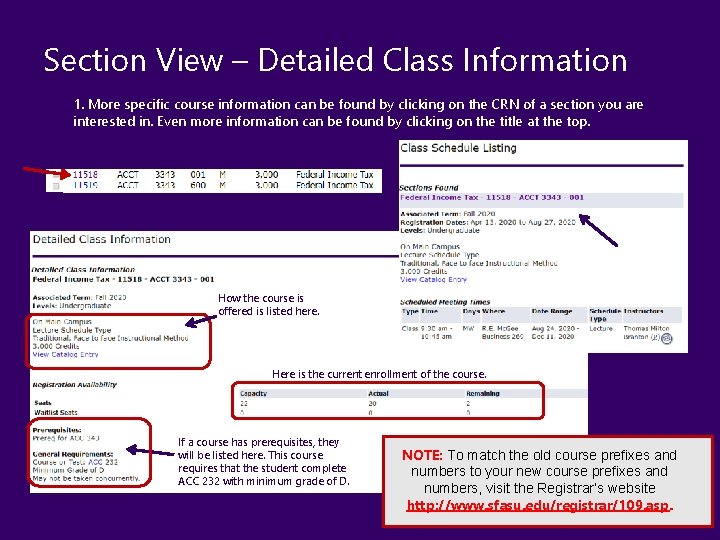
Section View – Detailed Class Information 1. More specific course information can be found by clicking on the CRN of a section you are interested in. Even more information can be found by clicking on the title at the top. How the course is offered is listed here. Here is the current enrollment of the course. If a course has prerequisites, they will be listed here. This course requires that the student complete ACC 232 with minimum grade of D. NOTE: To match the old course prefixes and numbers to your new course prefixes and numbers, visit the Registrar’s website http: //www. sfasu. edu/registrar/109. asp.
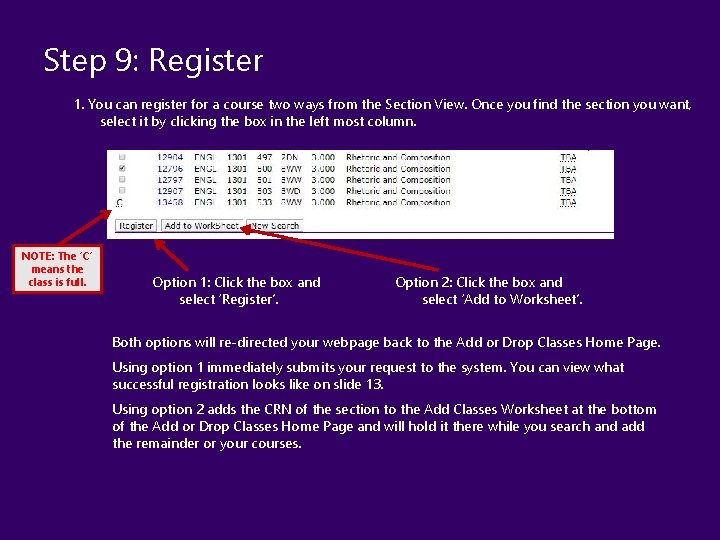
Step 9: Register 1. You can register for a course two ways from the Section View. Once you find the section you want, select it by clicking the box in the left most column. NOTE: The ‘C’ means the class is full. Option 1: Click the box and select ‘Register’. Option 2: Click the box and select ‘Add to Worksheet’. Both options will re-directed your webpage back to the Add or Drop Classes Home Page. Using option 1 immediately submits your request to the system. You can view what successful registration looks like on slide 13. Using option 2 adds the CRN of the section to the Add Classes Worksheet at the bottom of the Add or Drop Classes Home Page and will hold it there while you search and add the remainder or your courses.
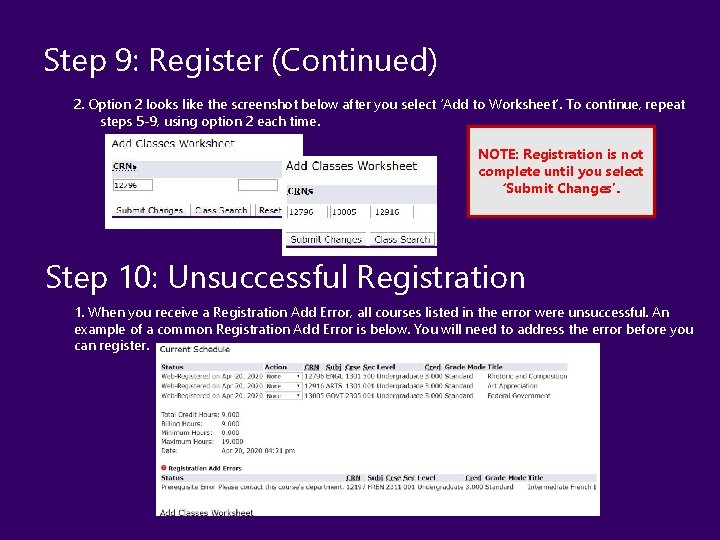
Step 9: Register (Continued) 2. Option 2 looks like the screenshot below after you select ‘Add to Worksheet’. To continue, repeat steps 5 -9, using option 2 each time. NOTE: Registration is not complete until you select ‘Submit Changes’. Step 10: Unsuccessful Registration 1. When you receive a Registration Add Error, all courses listed in the error were unsuccessful. An example of a common Registration Add Error is below. You will need to address the error before you can register.
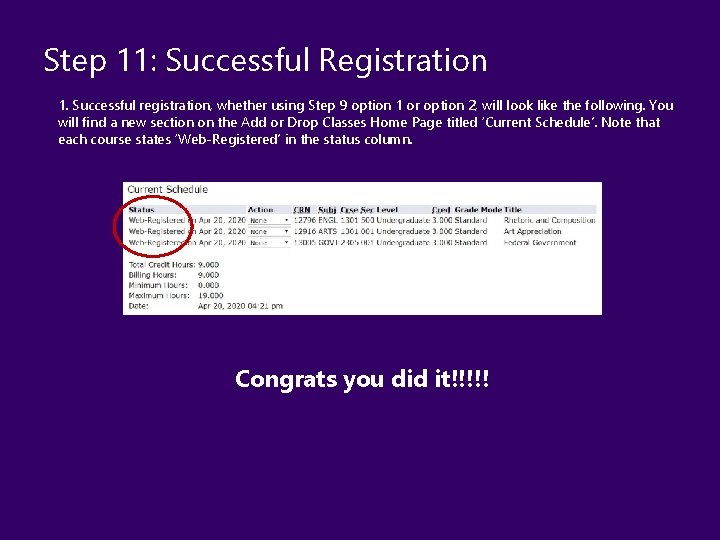
Step 11: Successful Registration 1. Successful registration, whether using Step 9 option 1 or option 2, will look like the following. You will find a new section on the Add or Drop Classes Home Page titled ‘Current Schedule’. Note that each course states ‘Web-Registered’ in the status column. Congrats you did it!!!!!
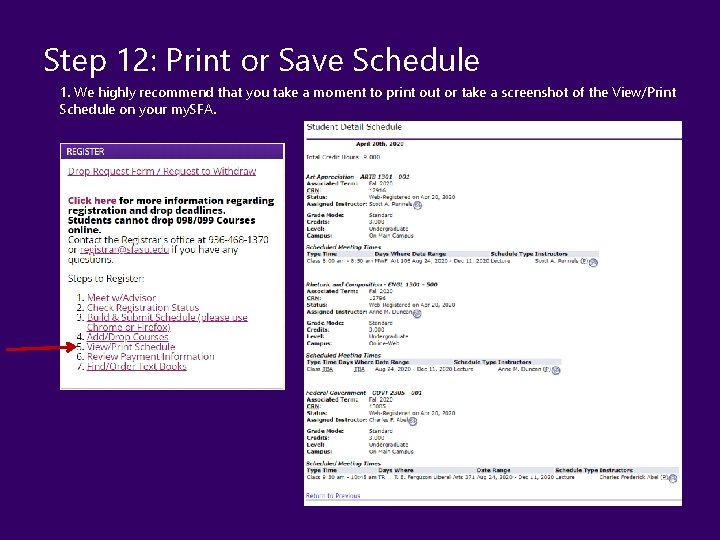
Step 12: Print or Save Schedule 1. We highly recommend that you take a moment to print out or take a screenshot of the View/Print Schedule on your my. SFA.
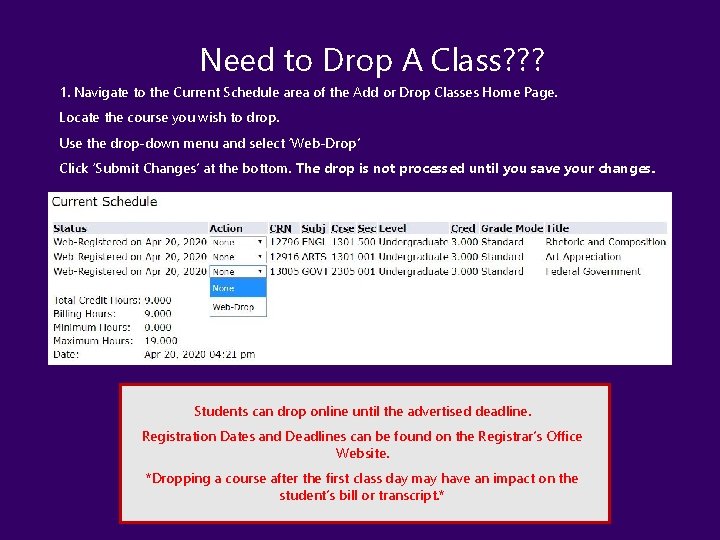
Need to Drop A Class? ? ? 1. Navigate to the Current Schedule area of the Add or Drop Classes Home Page. Locate the course you wish to drop. Use the drop-down menu and select ‘Web-Drop’ Click ‘Submit Changes’ at the bottom. The drop is not processed until you save your changes. Students can drop online until the advertised deadline. Registration Dates and Deadlines can be found on the Registrar’s Office Website. *Dropping a course after the first class day may have an impact on the student’s bill or transcript. *
Need Additional Assistance? Contact the Registrar’s Office at the information provided below. registrar@sfasu. edu 936. 468. 1370