Technology Overview Mr Curtis Lawson Training Document Imaging
- Slides: 13
Technology Overview Mr. Curtis Lawson Training & Document Imaging Supervisor | Professor of Information Technology Division of Information Services 08/25/2016
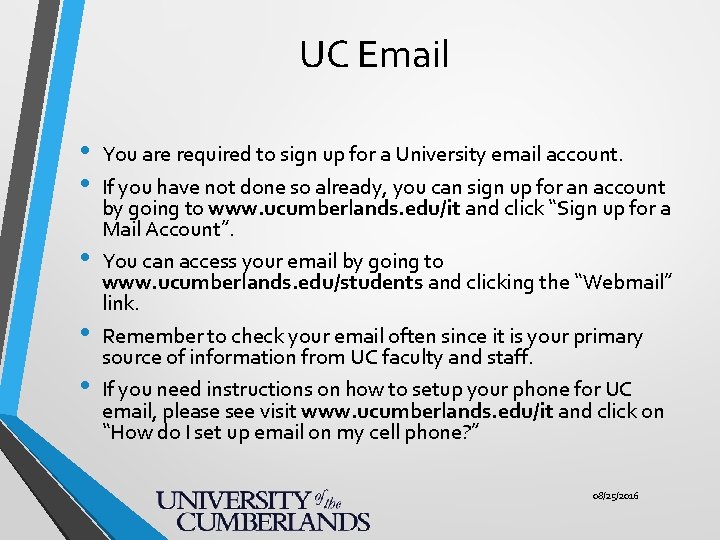
UC Email • • • You are required to sign up for a University email account. If you have not done so already, you can sign up for an account by going to www. ucumberlands. edu/it and click “Sign up for a Mail Account”. You can access your email by going to www. ucumberlands. edu/students and clicking the “Webmail” link. Remember to check your email often since it is your primary source of information from UC faculty and staff. If you need instructions on how to setup your phone for UC email, please see visit www. ucumberlands. edu/it and click on “How do I set up email on my cell phone? ” 08/25/2016
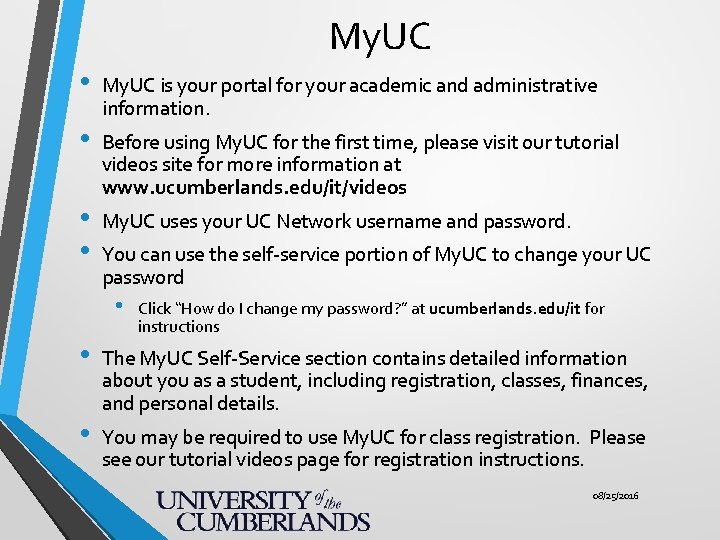
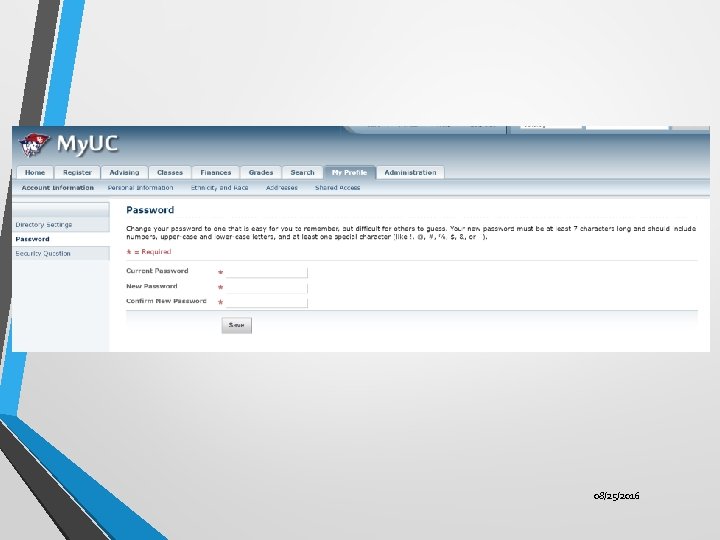
My. UC • My. UC is your portal for your academic and administrative information. • Before using My. UC for the first time, please visit our tutorial videos site for more information at www. ucumberlands. edu/it/videos • • My. UC uses your UC Network username and password. You can use the self-service portion of My. UC to change your UC password • Click “How do I change my password? ” at ucumberlands. edu/it for instructions • The My. UC Self-Service section contains detailed information about you as a student, including registration, classes, finances, and personal details. • You may be required to use My. UC for class registration. Please see our tutorial videos page for registration instructions. 08/25/2016
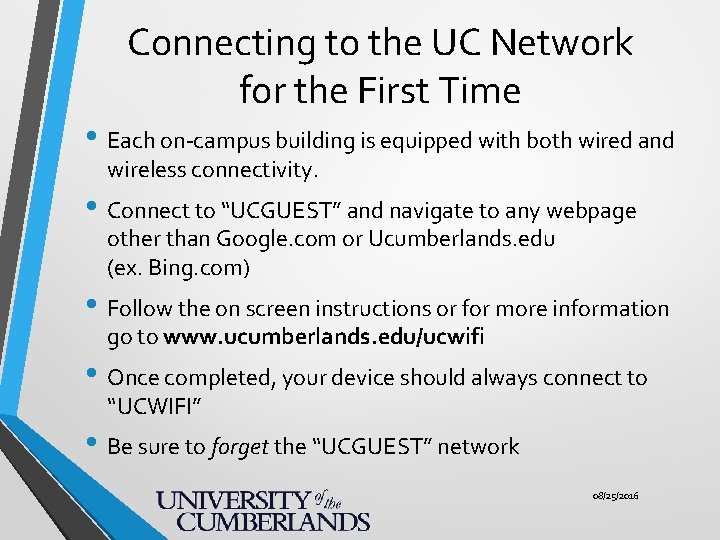
Connecting to the UC Network for the First Time • Each on-campus building is equipped with both wired and wireless connectivity. • Connect to “UCGUEST” and navigate to any webpage other than Google. com or Ucumberlands. edu (ex. Bing. com) • Follow the on screen instructions or for more information go to www. ucumberlands. edu/ucwifi • Once completed, your device should always connect to “UCWIFI” • Be sure to forget the “UCGUEST” network 08/25/2016
08/25/2016
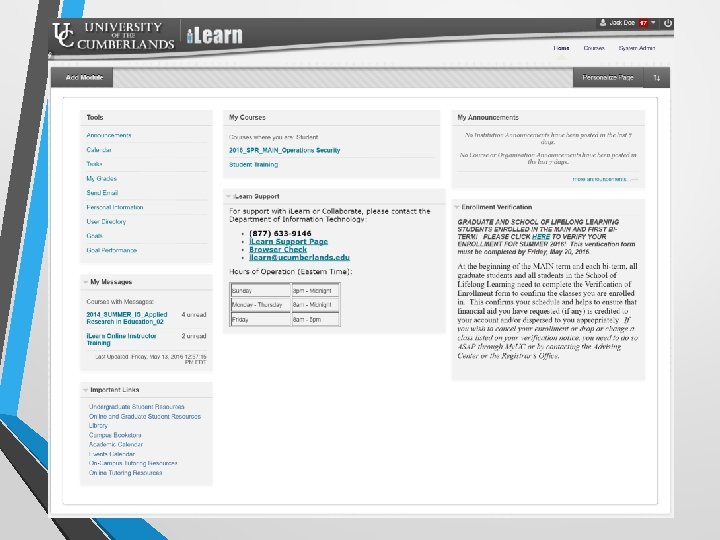
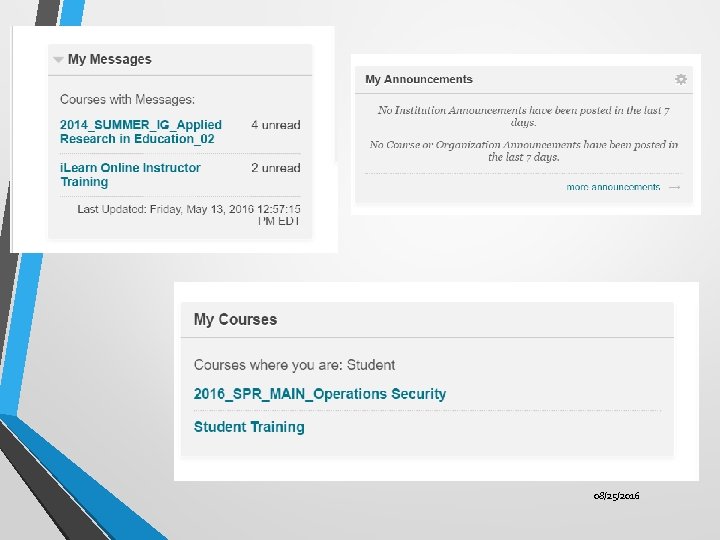
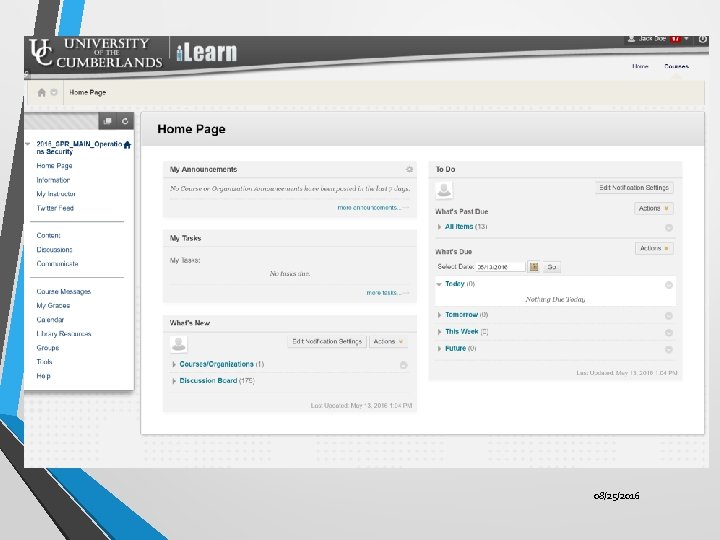
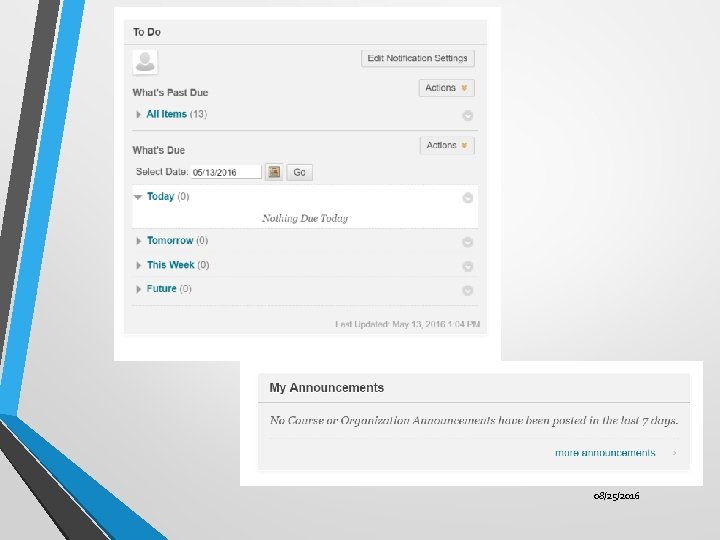
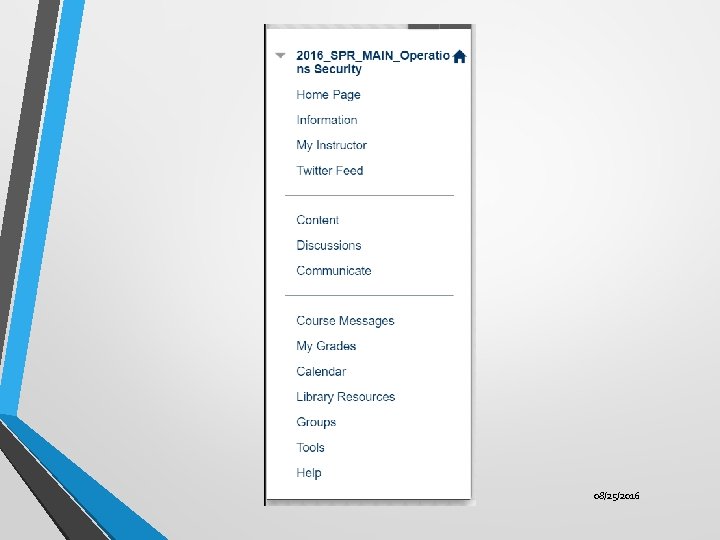
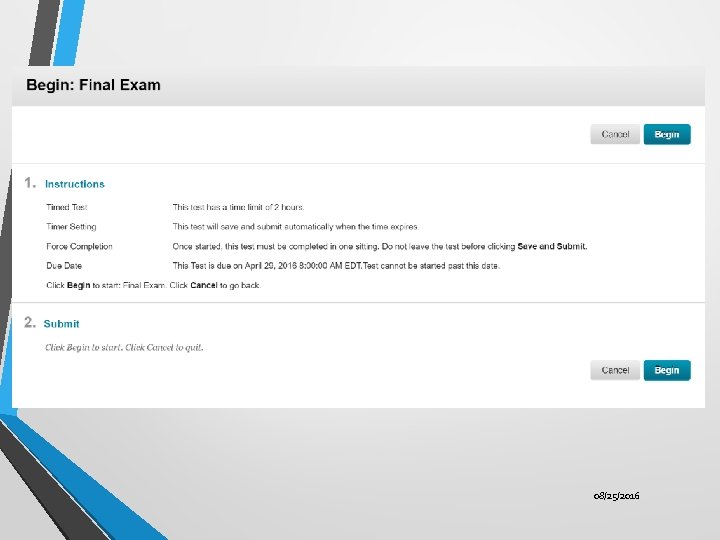
i. Learn • i. Learn is a Learning Management System that is your portal for online classes at UC. • • i. Learn uses your UC Network email address and password. • You can access i. Learn by navigating to www. ucumberlands. edu, clicking on the “Students” link, and clicking “i. Learn” If you would like to see a quick overview video about i. Learn, please go to www. ucumberlands. edu/ilearn. 08/25/2016
5/13/2016
08/25/2016
08/25/2016
08/25/2016
08/25/2016
08/25/2016
How do I get help? • The Division of Information Services is located on the • • • lower level of the Gatliff Building. Our office hours are Monday – Friday 8 am-5 pm EST. Please feel free to stop by and visit us during our office hours with any technology-related issues. You can get help several other ways: • Toll-Free Helpdesk: 877. 633. 9146 • On-Campus Extension: x 4197 • Off-Campus Local: 606. 539. 4197 • Email: it@ucumberlands. edu • Helpdesk portal: https: //helpdesk. ucumberlands. edu 08/25/2016