
Scatter Plots on the Graphing Calculator 1 1
- Slides: 12
Scatter Plots on the Graphing Calculator 1
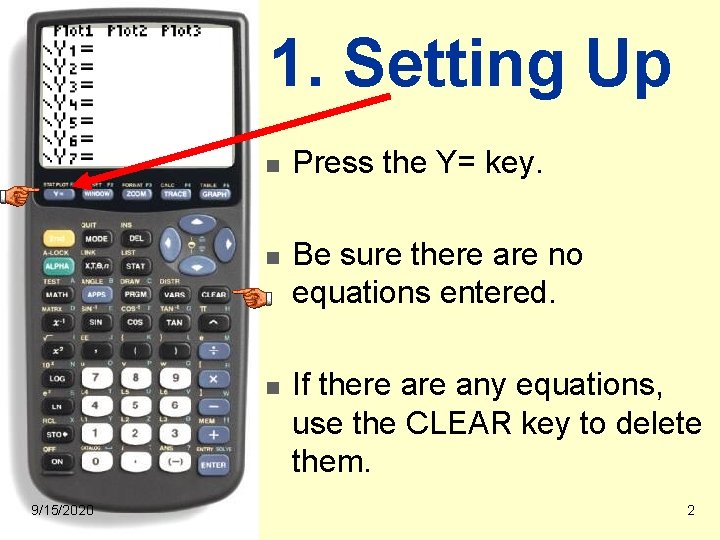
1. Setting Up n n n 9/15/2020 Press the Y= key. Be sure there are no equations entered. If there any equations, use the CLEAR key to delete them. 2
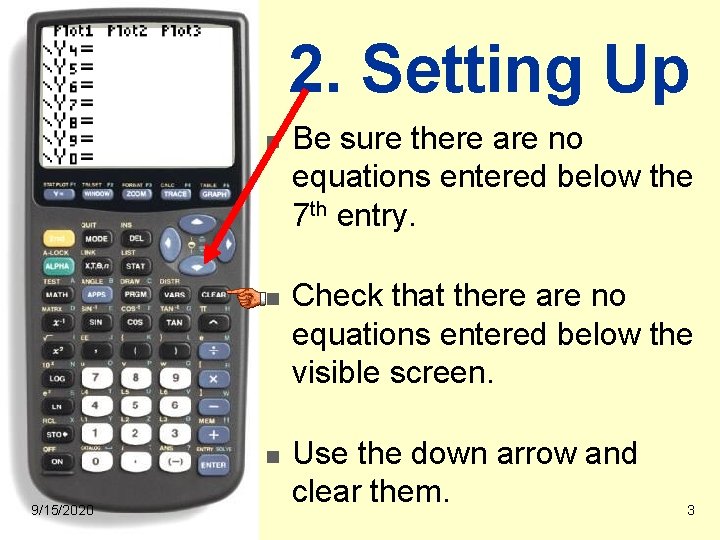
2. Setting Up n n n 9/15/2020 Be sure there are no equations entered below the 7 th entry. Check that there are no equations entered below the visible screen. Use the down arrow and clear them. 3
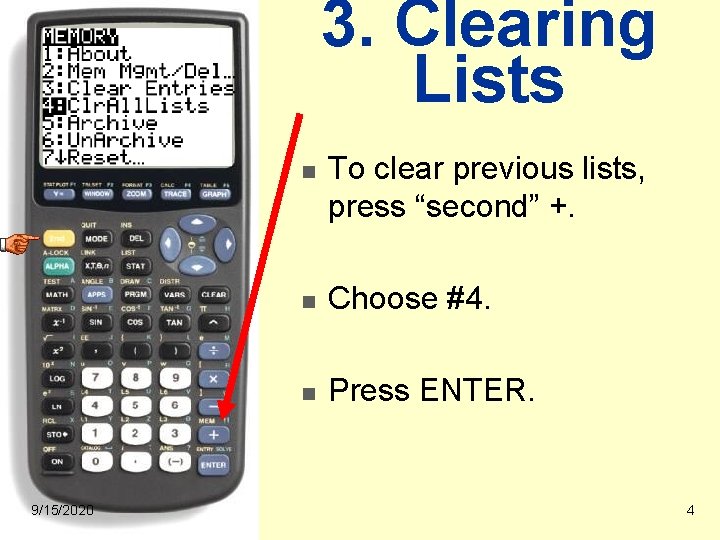
3. Clearing Lists n 9/15/2020 To clear previous lists, press “second” +. n Choose #4. n Press ENTER. 4
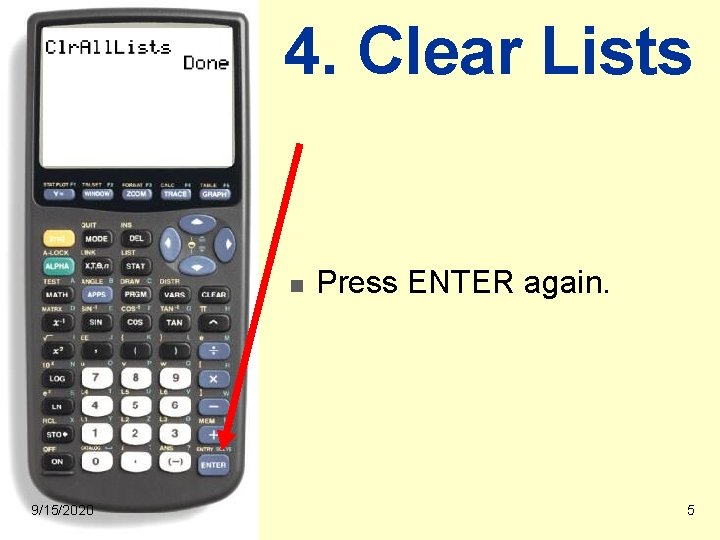
4. Clear Lists n 9/15/2020 Press ENTER again. 5
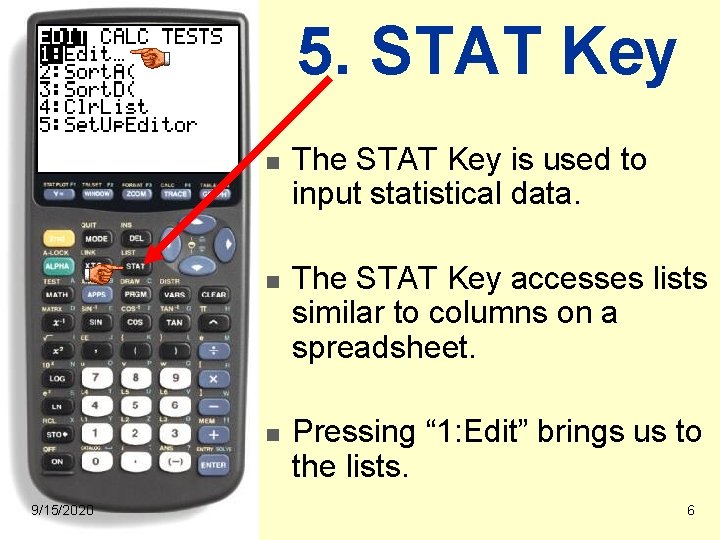
5. STAT Key n n n 9/15/2020 The STAT Key is used to input statistical data. The STAT Key accesses lists similar to columns on a spreadsheet. Pressing “ 1: Edit” brings us to the lists. 6
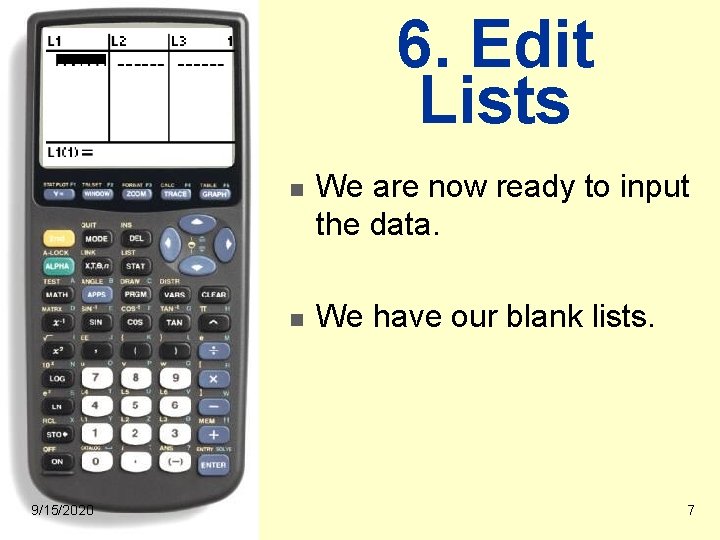
6. Edit Lists n n 9/15/2020 We are now ready to input the data. We have our blank lists. 7
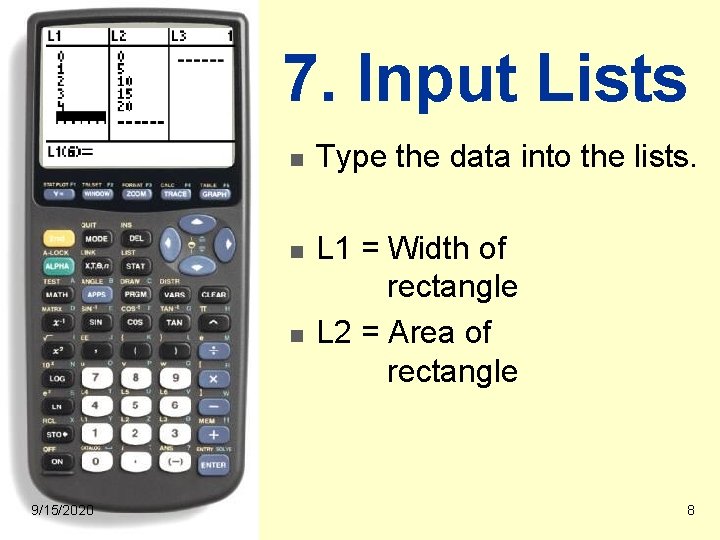
7. Input Lists n n n 9/15/2020 Type the data into the lists. L 1 = Width of rectangle L 2 = Area of rectangle 8
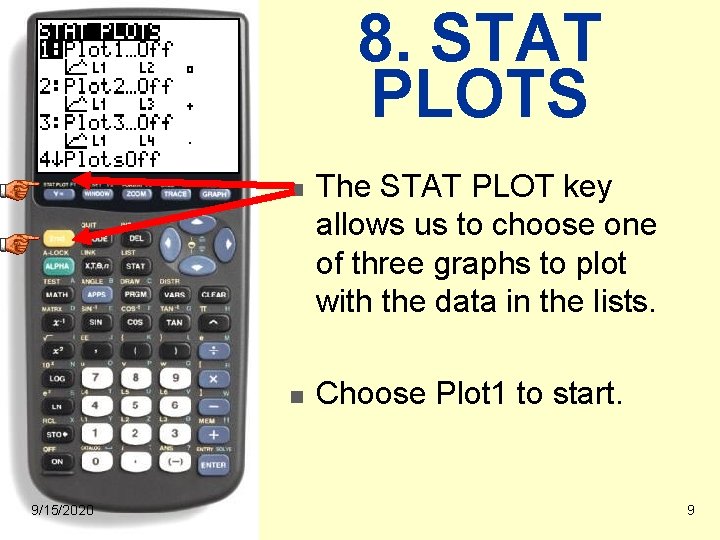
8. STAT PLOTS n n 9/15/2020 The STAT PLOT key allows us to choose one of three graphs to plot with the data in the lists. Choose Plot 1 to start. 9
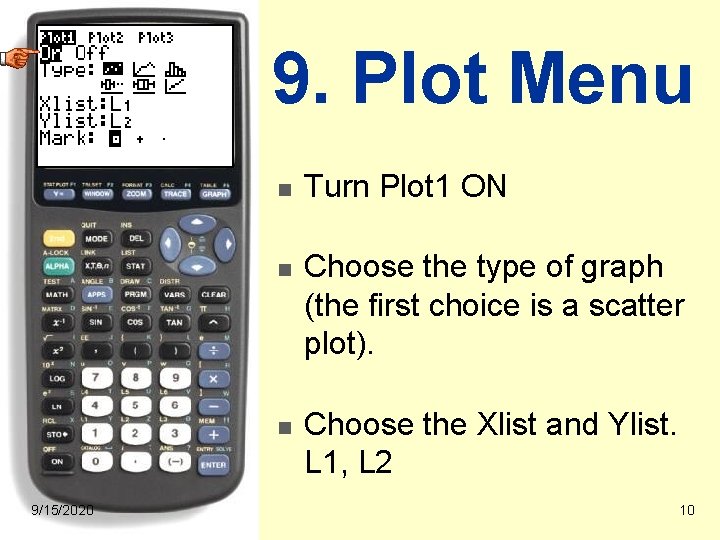
9. Plot Menu n n n 9/15/2020 Turn Plot 1 ON Choose the type of graph (the first choice is a scatter plot). Choose the Xlist and Ylist. L 1, L 2 10
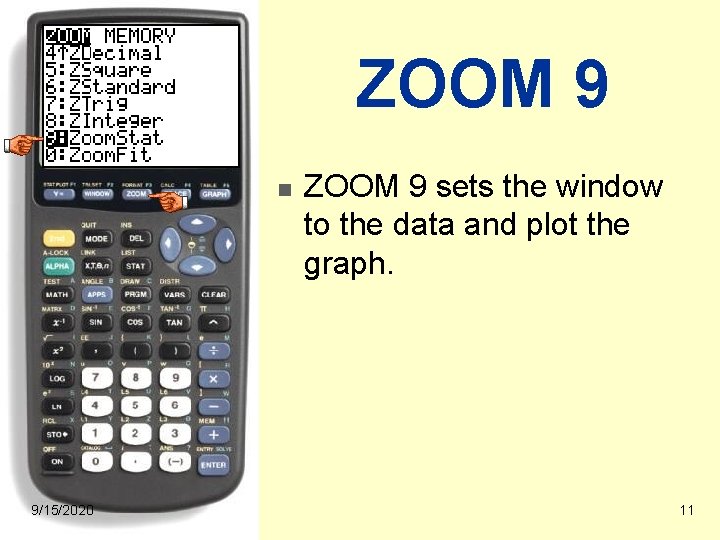
ZOOM 9 n 9/15/2020 ZOOM 9 sets the window to the data and plot the graph. 11
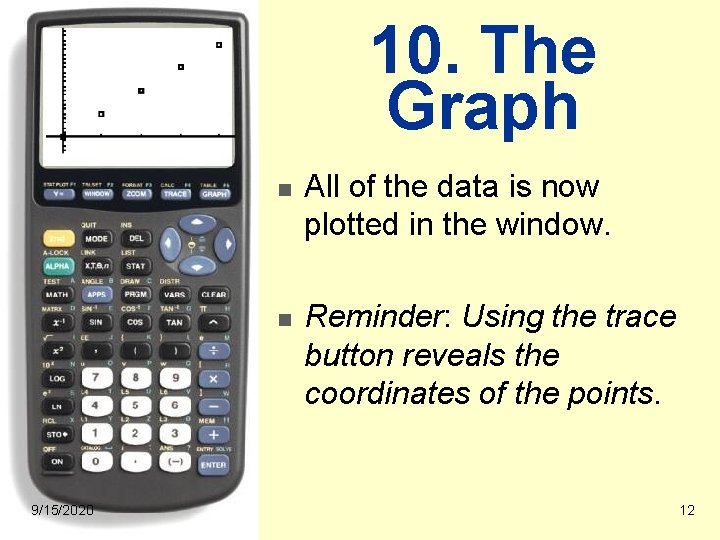
10. The Graph n n 9/15/2020 All of the data is now plotted in the window. Reminder: Using the trace button reveals the coordinates of the points. 12