Retiring Assets Automatically Concept Retiring Assets Automatically Retiring
- Slides: 31
Retiring Assets Automatically Concept
Retiring Assets Automatically
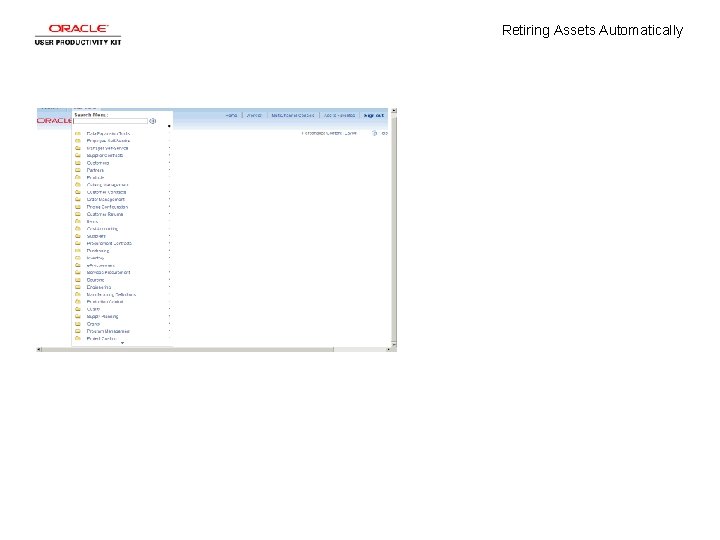
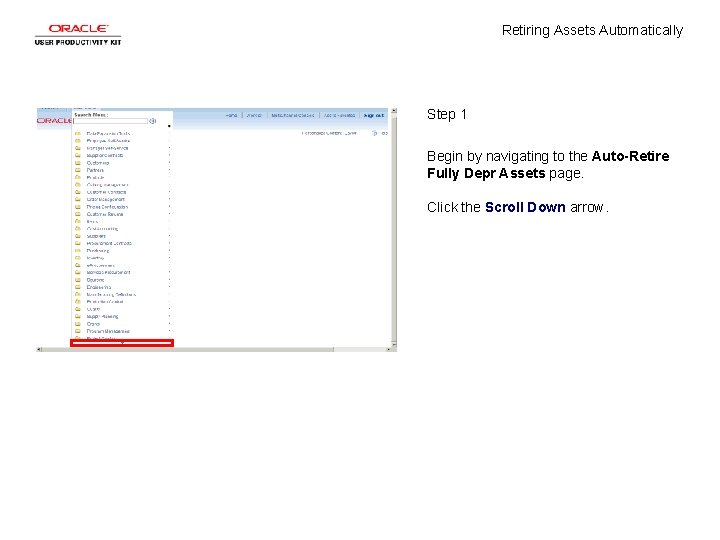
Retiring Assets Automatically Step 1 Begin by navigating to the Auto-Retire Fully Depr Assets page. Click the Scroll Down arrow.
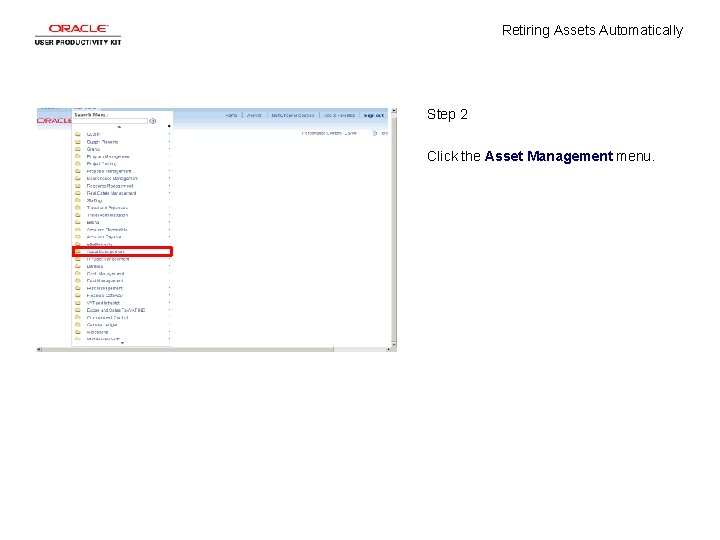
Retiring Assets Automatically Step 2 Click the Asset Management menu.
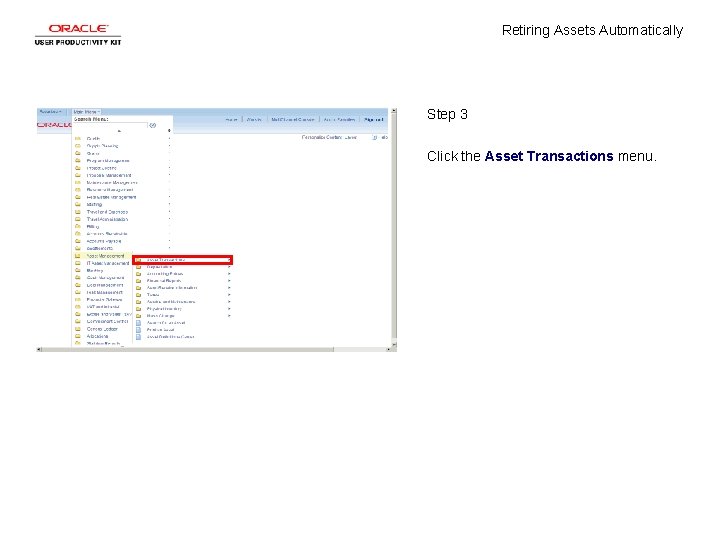
Retiring Assets Automatically Step 3 Click the Asset Transactions menu.
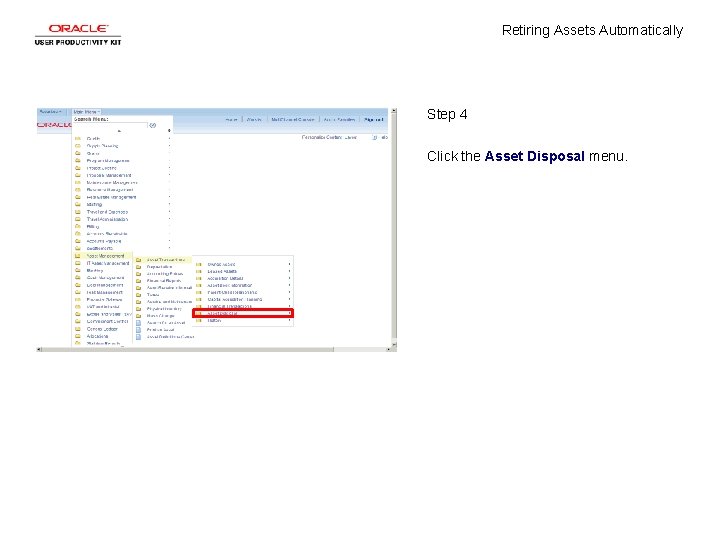
Retiring Assets Automatically Step 4 Click the Asset Disposal menu.
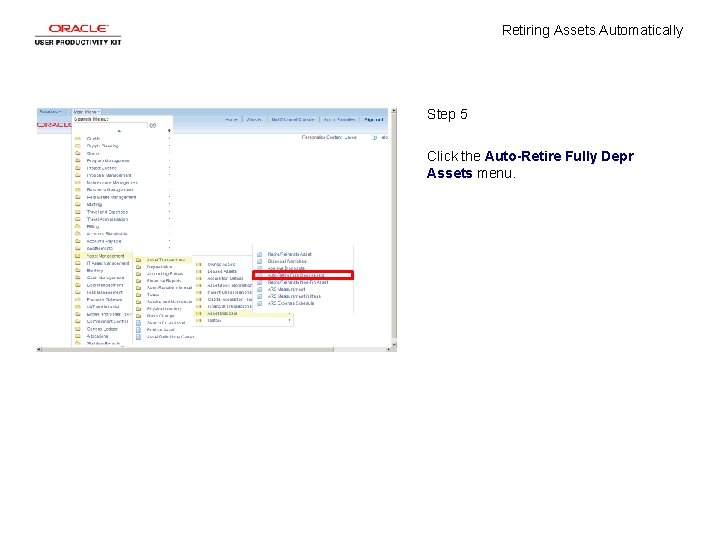
Retiring Assets Automatically Step 5 Click the Auto-Retire Fully Depr Assets menu.
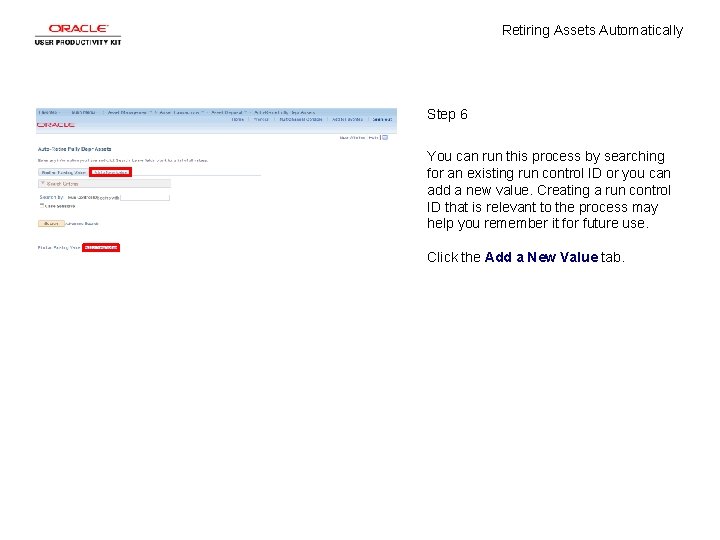
Retiring Assets Automatically Step 6 You can run this process by searching for an existing run control ID or you can add a new value. Creating a run control ID that is relevant to the process may help you remember it for future use. Click the Add a New Value tab.
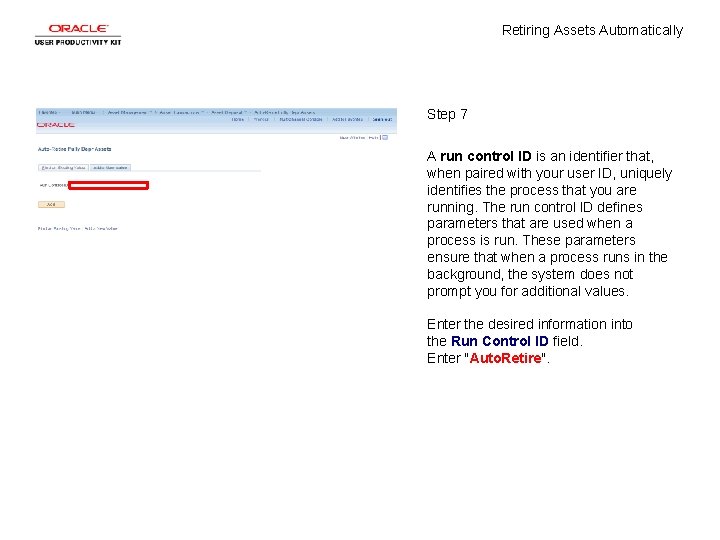
Retiring Assets Automatically Step 7 A run control ID is an identifier that, when paired with your user ID, uniquely identifies the process that you are running. The run control ID defines parameters that are used when a process is run. These parameters ensure that when a process runs in the background, the system does not prompt you for additional values. Enter the desired information into the Run Control ID field. Enter "Auto. Retire".
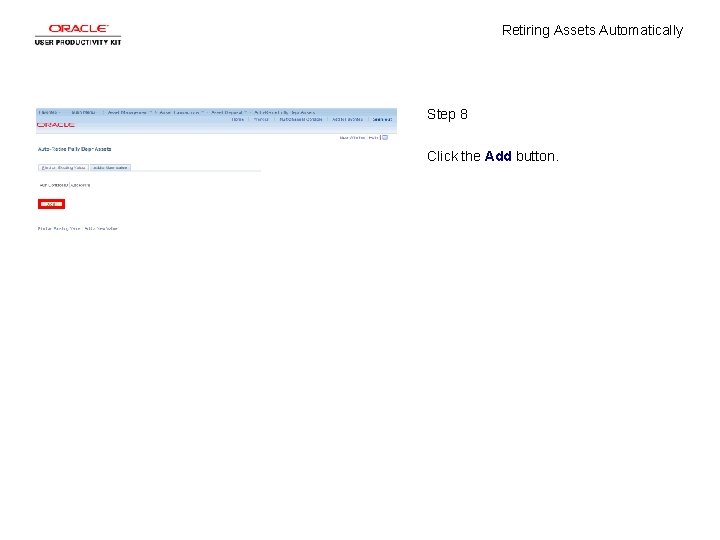
Retiring Assets Automatically Step 8 Click the Add button.
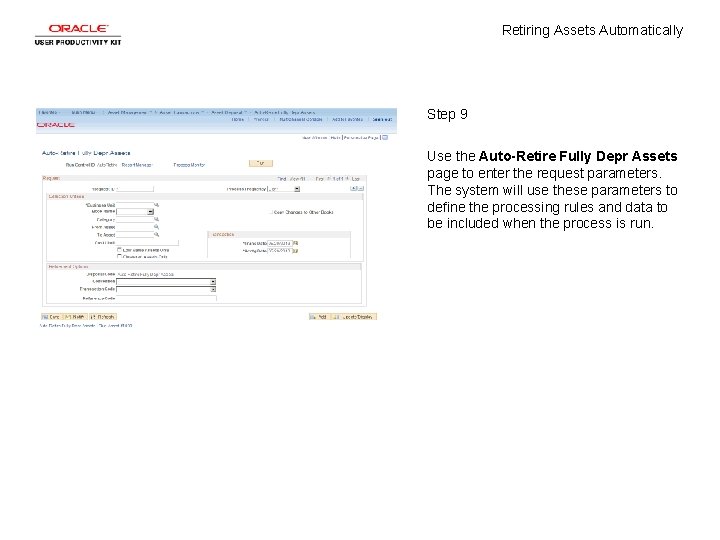
Retiring Assets Automatically Step 9 Use the Auto-Retire Fully Depr Assets page to enter the request parameters. The system will use these parameters to define the processing rules and data to be included when the process is run.
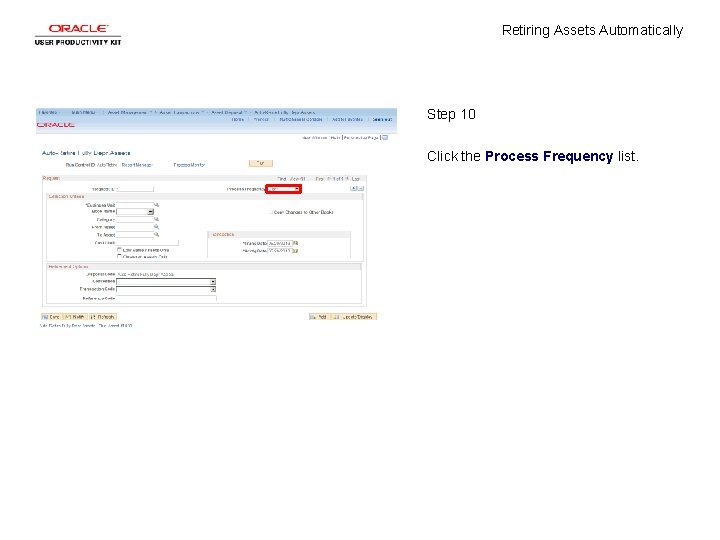
Retiring Assets Automatically Step 10 Click the Process Frequency list.
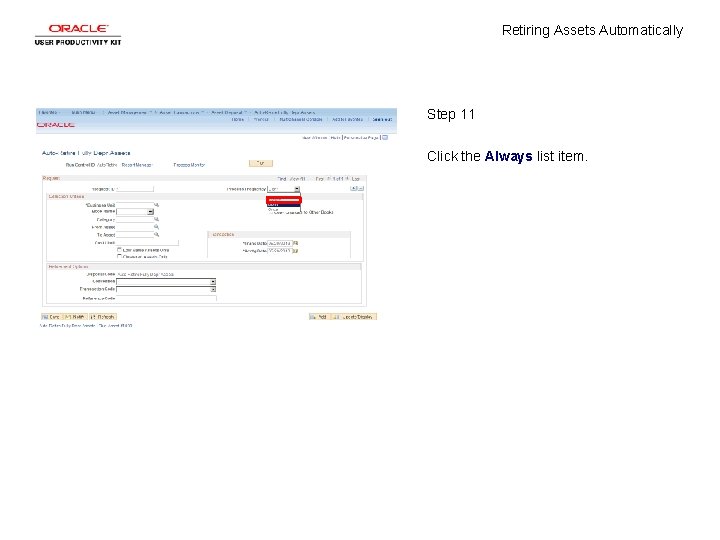
Retiring Assets Automatically Step 11 Click the Always list item.
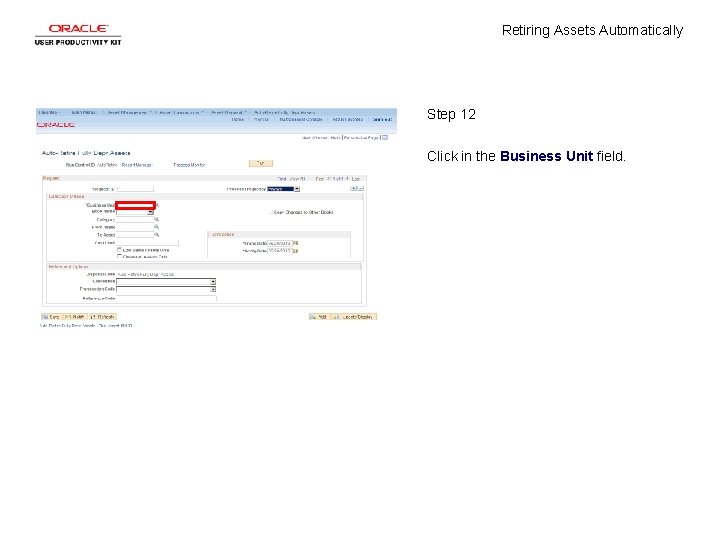
Retiring Assets Automatically Step 12 Click in the Business Unit field.
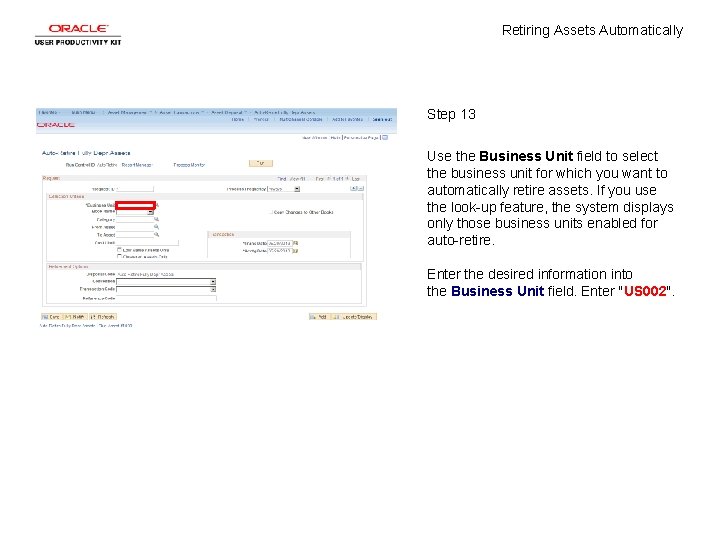
Retiring Assets Automatically Step 13 Use the Business Unit field to select the business unit for which you want to automatically retire assets. If you use the look-up feature, the system displays only those business units enabled for auto-retire. Enter the desired information into the Business Unit field. Enter "US 002".
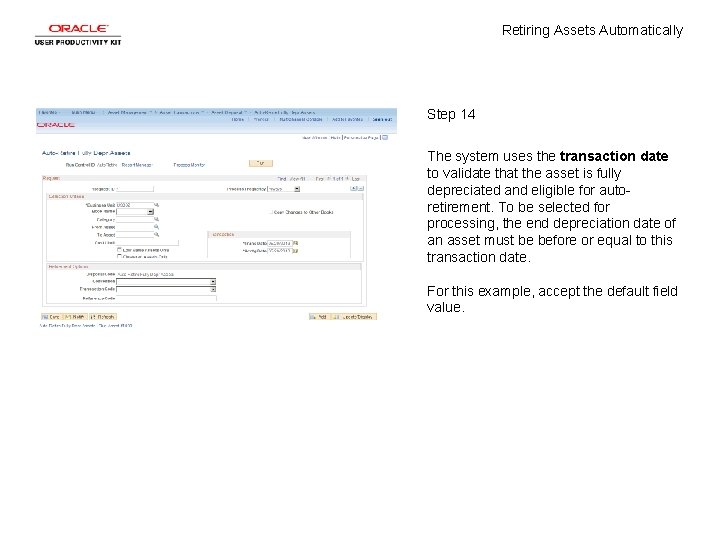
Retiring Assets Automatically Step 14 The system uses the transaction date to validate that the asset is fully depreciated and eligible for autoretirement. To be selected for processing, the end depreciation date of an asset must be before or equal to this transaction date. For this example, accept the default field value.
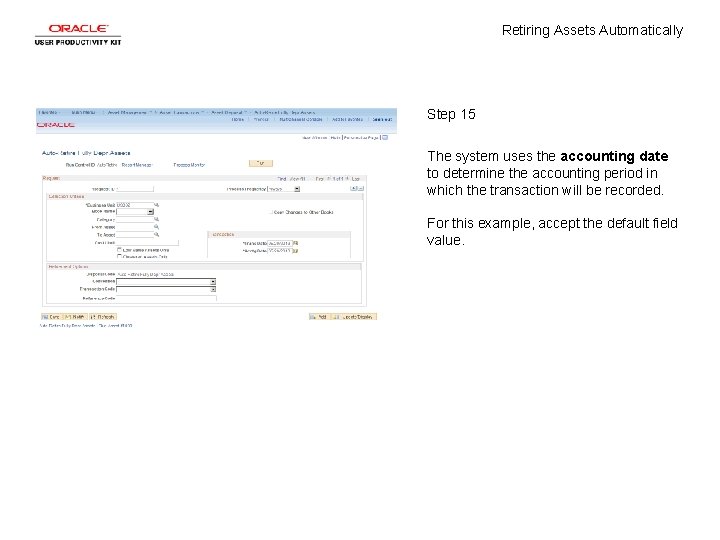
Retiring Assets Automatically Step 15 The system uses the accounting date to determine the accounting period in which the transaction will be recorded. For this example, accept the default field value.
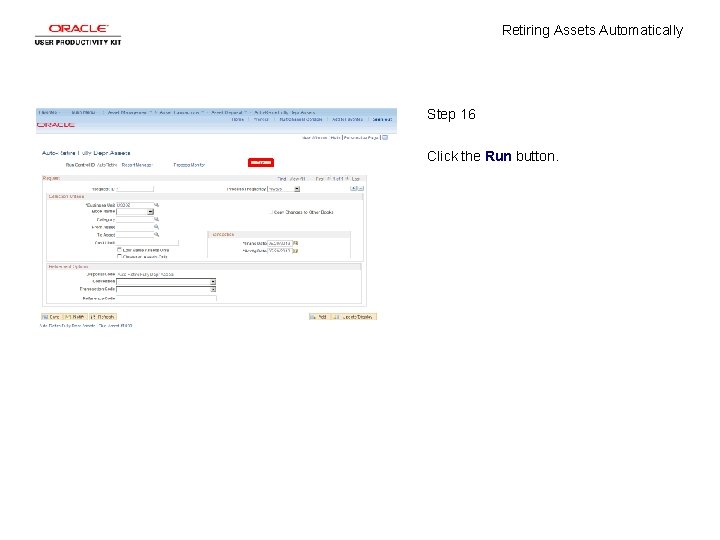
Retiring Assets Automatically Step 16 Click the Run button.
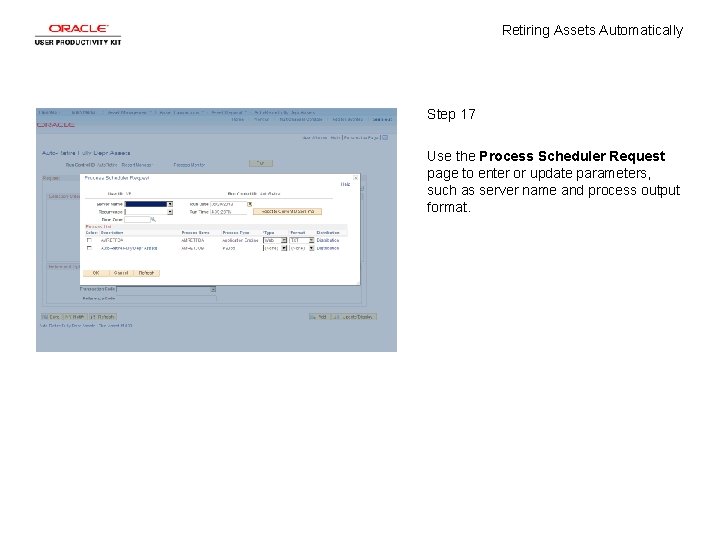
Retiring Assets Automatically Step 17 Use the Process Scheduler Request page to enter or update parameters, such as server name and process output format.
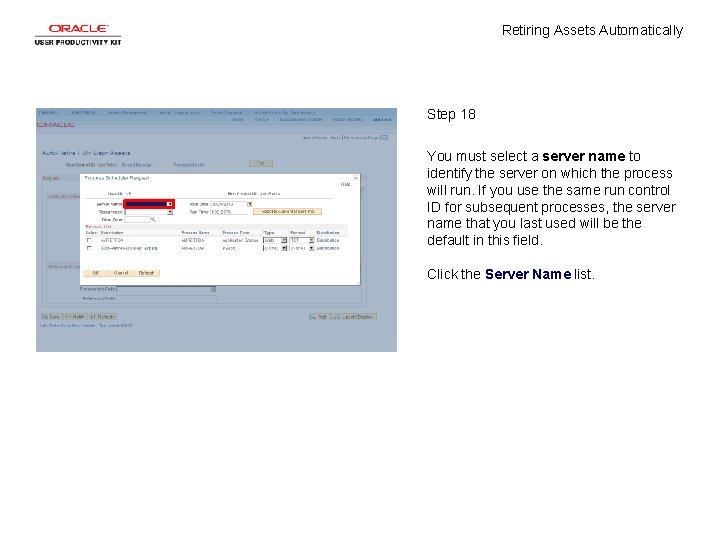
Retiring Assets Automatically Step 18 You must select a server name to identify the server on which the process will run. If you use the same run control ID for subsequent processes, the server name that you last used will be the default in this field. Click the Server Name list.
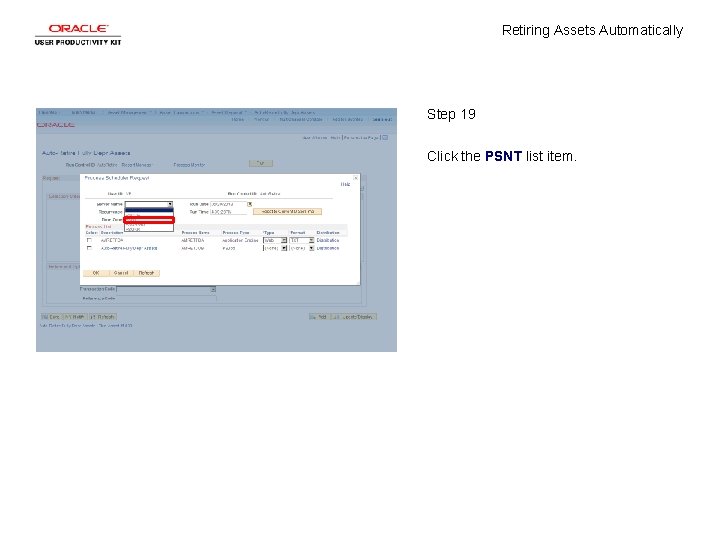
Retiring Assets Automatically Step 19 Click the PSNT list item.
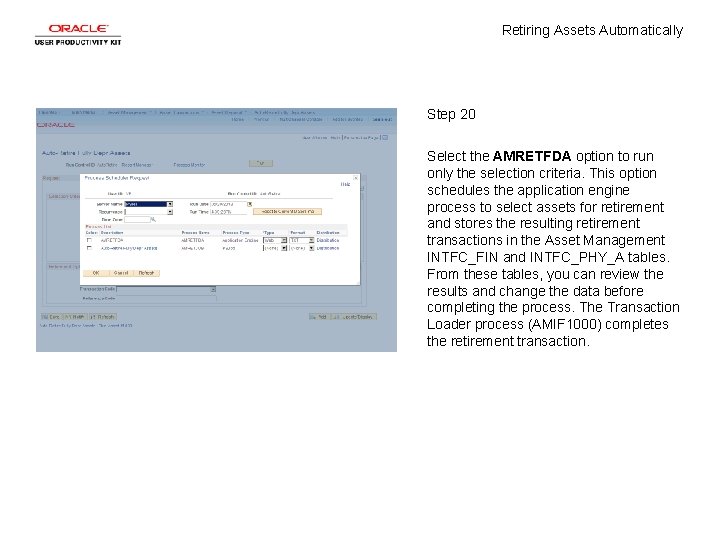
Retiring Assets Automatically Step 20 Select the AMRETFDA option to run only the selection criteria. This option schedules the application engine process to select assets for retirement and stores the resulting retirement transactions in the Asset Management INTFC_FIN and INTFC_PHY_A tables. From these tables, you can review the results and change the data before completing the process. The Transaction Loader process (AMIF 1000) completes the retirement transaction.
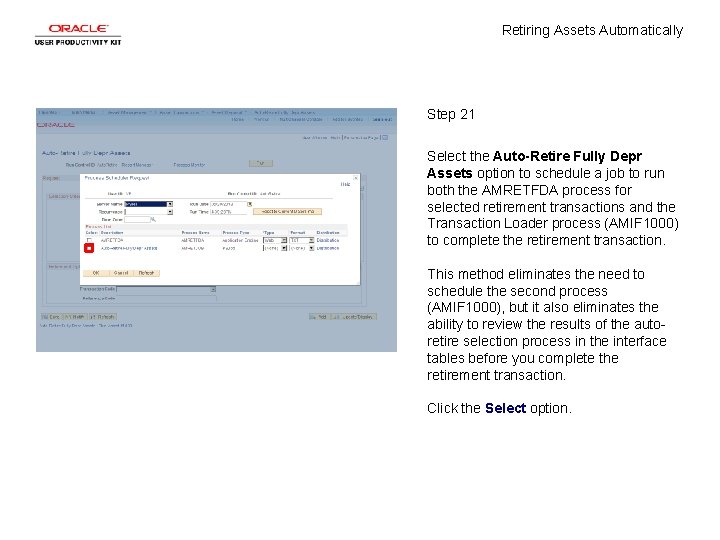
Retiring Assets Automatically Step 21 Select the Auto-Retire Fully Depr Assets option to schedule a job to run both the AMRETFDA process for selected retirement transactions and the Transaction Loader process (AMIF 1000) to complete the retirement transaction. This method eliminates the need to schedule the second process (AMIF 1000), but it also eliminates the ability to review the results of the autoretire selection process in the interface tables before you complete the retirement transaction. Click the Select option.
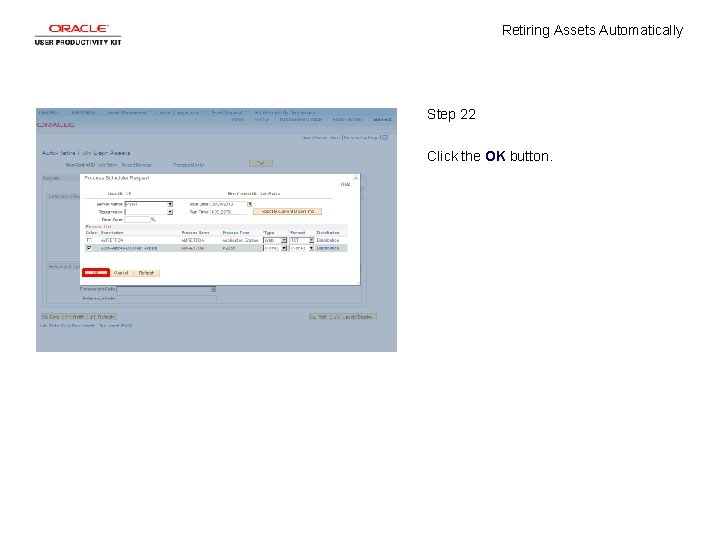
Retiring Assets Automatically Step 22 Click the OK button.
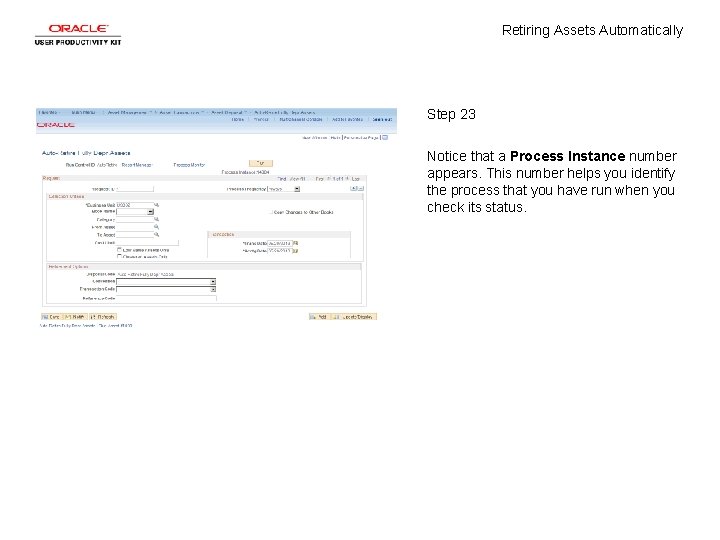
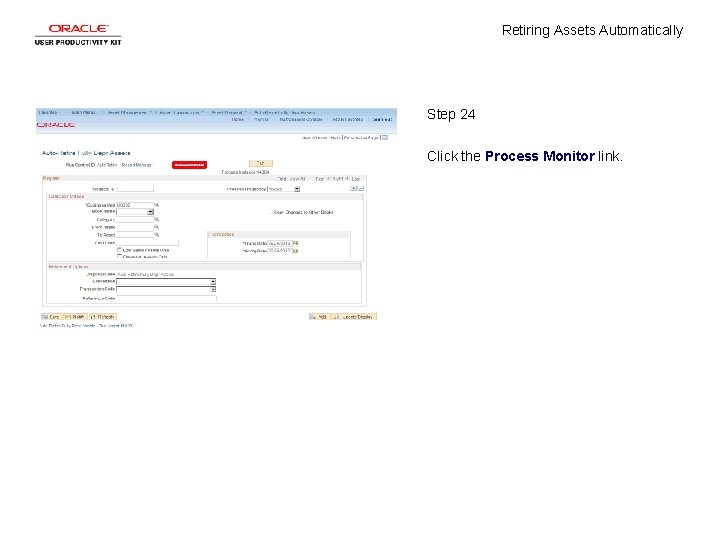
Retiring Assets Automatically Step 23 Notice that a Process Instance number appears. This number helps you identify the process that you have run when you check its status.
Retiring Assets Automatically Step 24 Click the Process Monitor link.
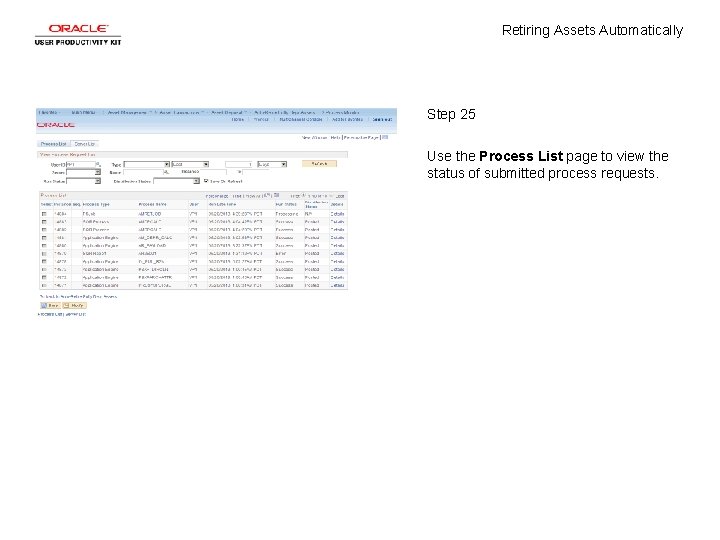
Retiring Assets Automatically Step 25 Use the Process List page to view the status of submitted process requests.
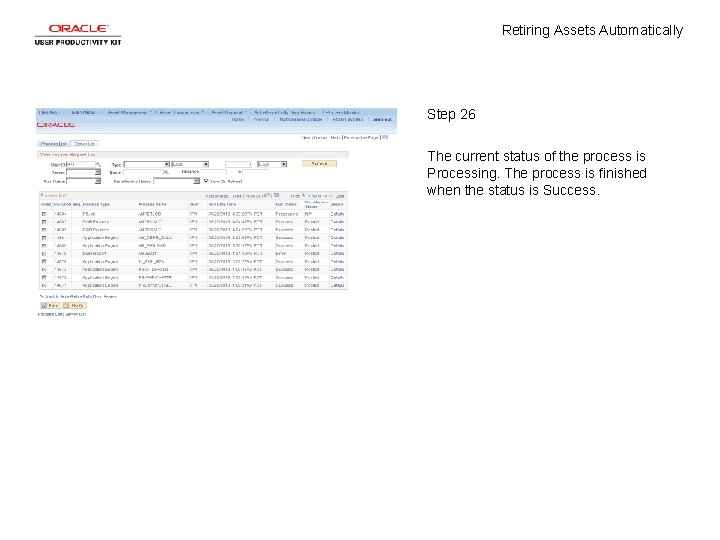
Retiring Assets Automatically Step 26 The current status of the process is Processing. The process is finished when the status is Success.
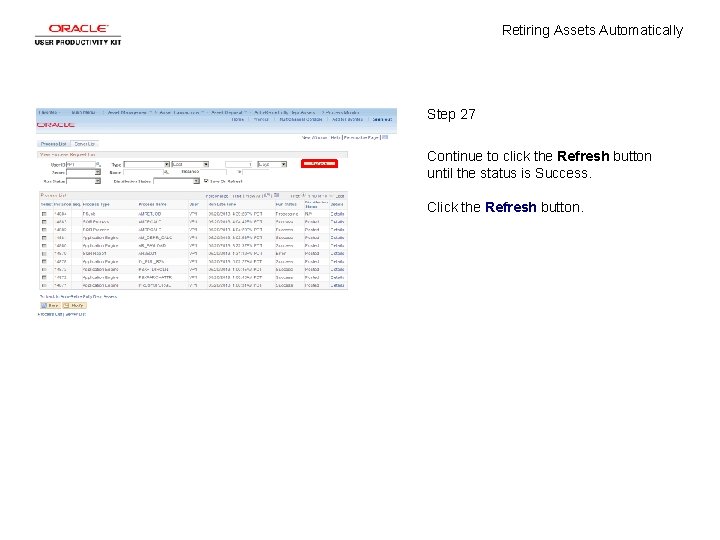
Retiring Assets Automatically Step 27 Continue to click the Refresh button until the status is Success. Click the Refresh button.
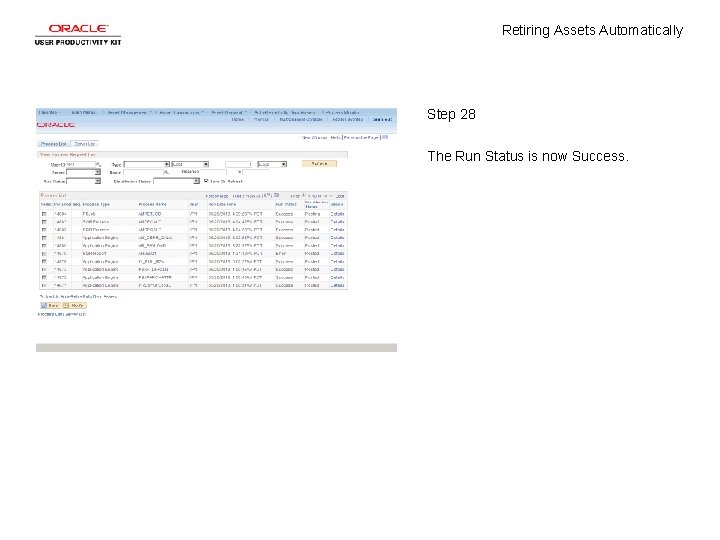
Retiring Assets Automatically Step 28 The Run Status is now Success.
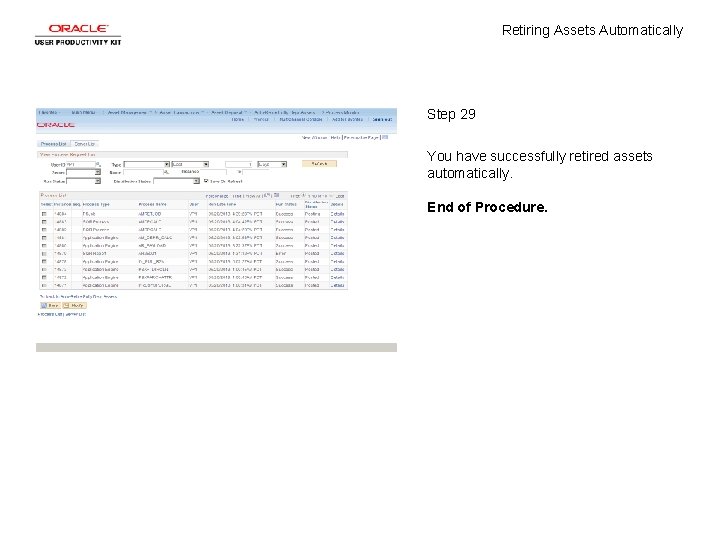
Retiring Assets Automatically Step 29 You have successfully retired assets automatically. End of Procedure.