LMS 365 ODATA overview Open Data Protocol OData
- Slides: 25
LMS 365 ® ODATA overview
Open Data Protocol OData (Open Data Protocol) is an ISO/IEC approved, OASIS standard that defines a set of best practices for building and consuming RESTful APIs. OData helps you focus on your business logic while building RESTful APIs without having to worry about the various approaches to define request and response headers, status codes, HTTP methods, URL conventions, media types, payload formats, query options, etc. OData also provides guidance for tracking changes, defining functions/actions for reusable procedures, and sending asynchronous/batch requests. OData RESTful APIs are easy to consume. The OData metadata, a machine-readable description of the data model of the APIs, enables the creation of powerful generic client proxies and tools. © ELEARNINGFORCE International, 2017
Three Laws of Data Protection Your Data is Yours We provide a ‘read-only’ OData service with available customer’s datasets* Your Data is Protected https only end point https: //api. 365. systems/odata/v 2 Access by API Secret Key** Your Data is Portable You can consume data from any devices and services which support OData * Current limitation: only one level of expand is supported ** To get your API Key please contact our support. After you have received your API key you can use it for Basic authentication to LMS 365 API end points. This method of authentication is useful when you want to access all tenant’s data. © ELEARNINGFORCE International, 2017
Data structure Particular top-level entities* : • • • Course Catalog Course User Enrollment Assignment SCORM • • SCORM Statuses Quiz User Statuses Learning Module User Statuses And so on. . . * For more detailed information please visit the Data Structure Description © ELEARNINGFORCE International, 2017
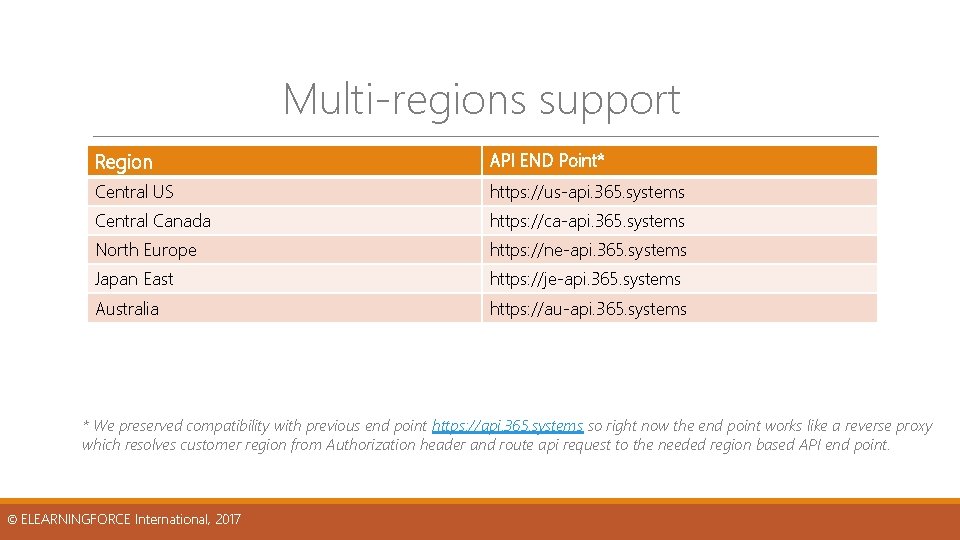
Multi-regions support LMS 365 is resided in multiple datacenter to provide the best performance to the customers. At present we support 5 regions. Depending on the region you have selected for your tenant you can access the corresponding LMS 365 API end point to get the best performance. © ELEARNINGFORCE International, 2017
Multi-regions support Region API END Point* Central US https: //us-api. 365. systems Central Canada https: //ca-api. 365. systems North Europe https: //ne-api. 365. systems Japan East https: //je-api. 365. systems Australia https: //au-api. 365. systems * We preserved compatibility with previous end point https: //api. 365. systems so right now the end point works like a reverse proxy which resolves customer region from Authorization header and route api request to the needed region based API end point. © ELEARNINGFORCE International, 2017
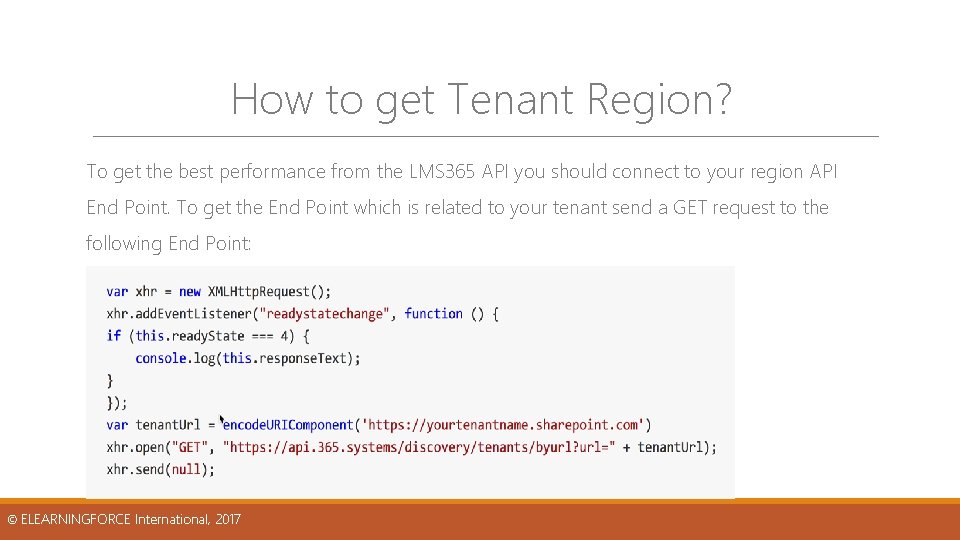
How to get Tenant Region? To get the best performance from the LMS 365 API you should connect to your region API End Point. To get the End Point which is related to your tenant send a GET request to the following End Point: © ELEARNINGFORCE International, 2017
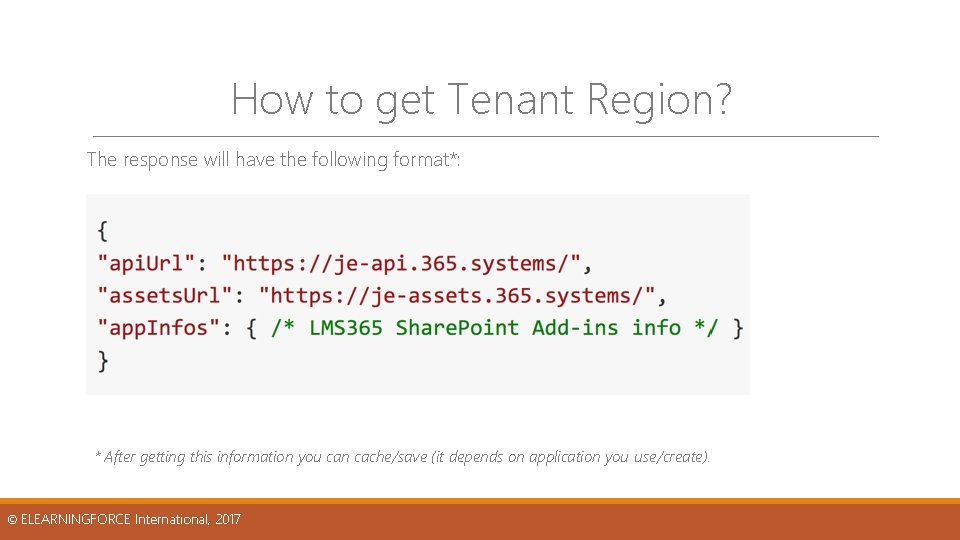
How to get Tenant Region? The response will have the following format*: * After getting this information you can cache/save (it depends on application you use/create). © ELEARNINGFORCE International, 2017
How to create connection to OData service v 2 in Power BI? In order to get ‘Data from LMS 365 Cloud you will need the Power BI client for preferred platform and API Secret Key for your tenant (provided by support request - please don't forget to mention your tenant address). Steps below describe interaction with desktop client. © ELEARNINGFORCE International, 2017
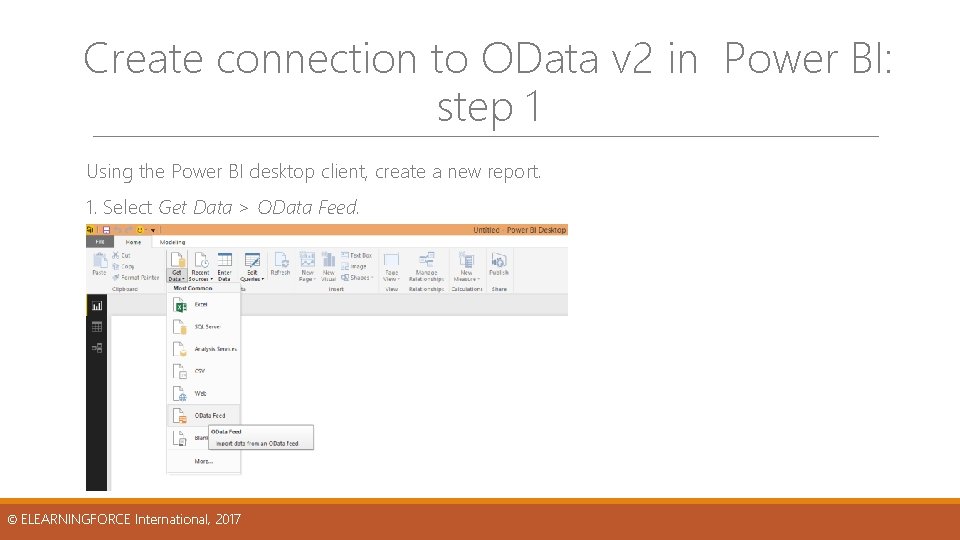
Create connection to OData v 2 in Power BI: step 1 Using the Power BI desktop client, create a new report. 1. Select Get Data > OData Feed. © ELEARNINGFORCE International, 2017
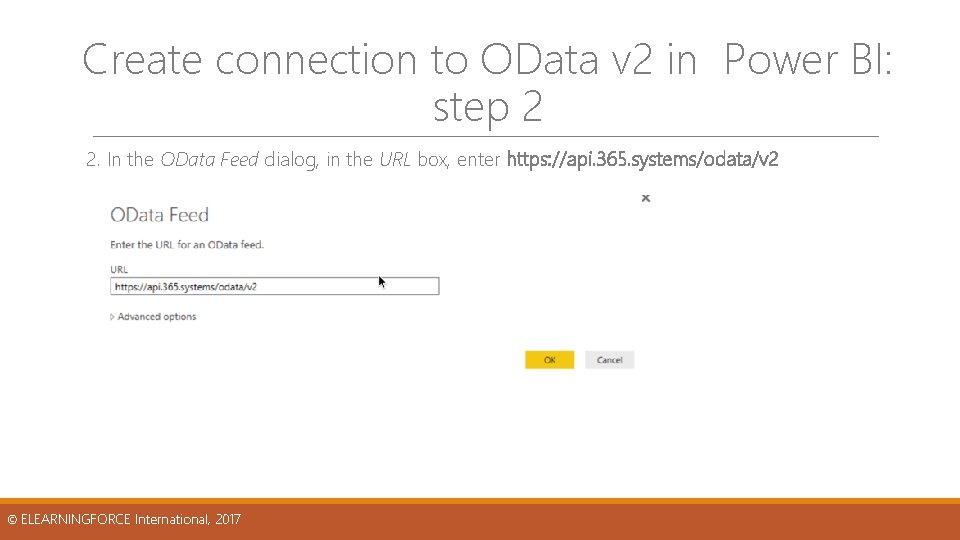
Create connection to OData v 2 in Power BI: step 2 2. In the OData Feed dialog, in the URL box, enter https: //api. 365. systems/odata/v 2 © ELEARNINGFORCE International, 2017
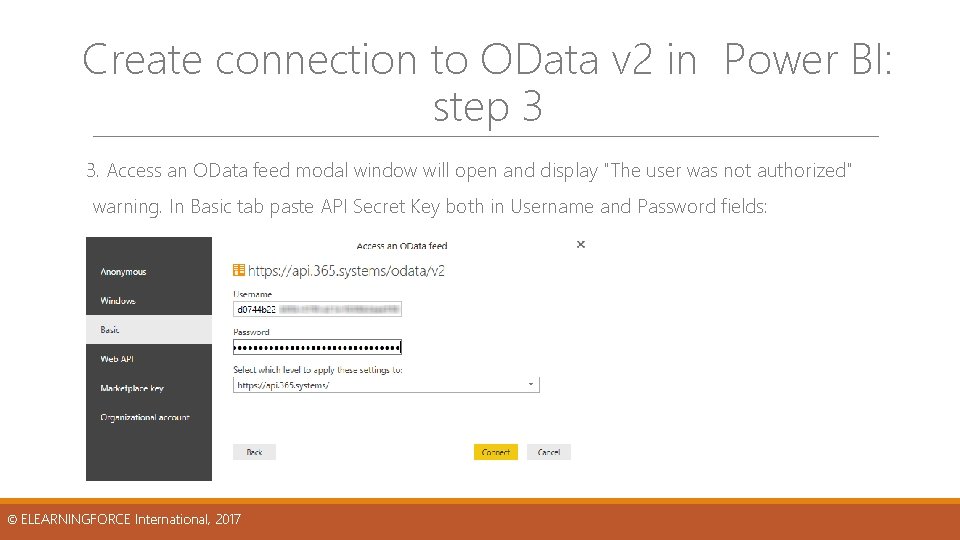
Create connection to OData v 2 in Power BI: step 3 3. Access an OData feed modal window will open and display "The user was not authorized" warning. In Basic tab paste API Secret Key both in Username and Password fields: © ELEARNINGFORCE International, 2017
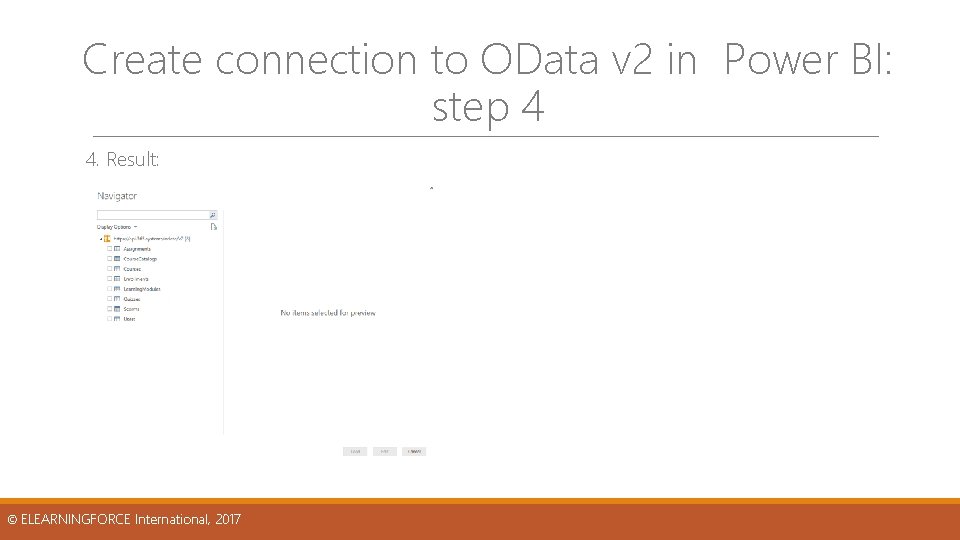
Create connection to OData v 2 in Power BI: step 4 4. Result: © ELEARNINGFORCE International, 2017
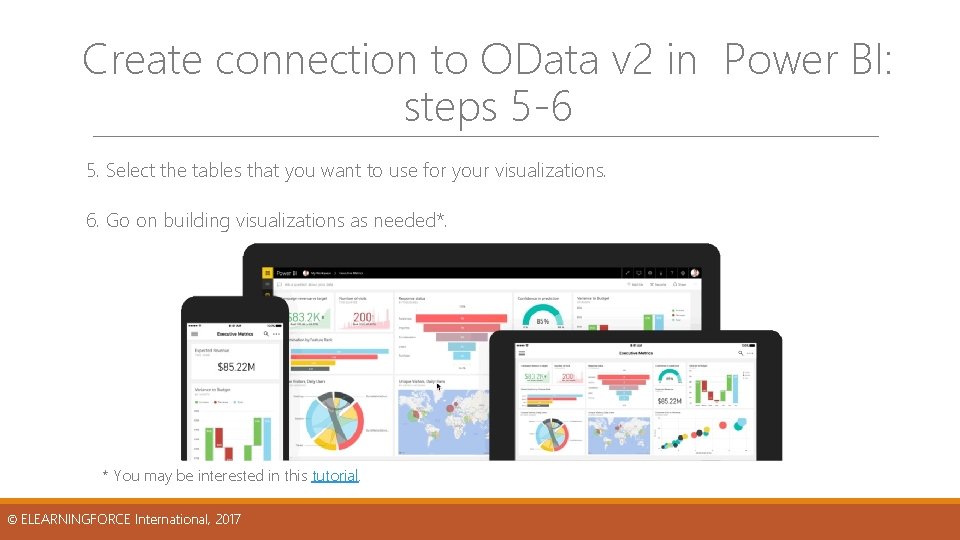
Create connection to OData v 2 in Power BI: steps 5 -6 5. Select the tables that you want to use for your visualizations. 6. Go on building visualizations as needed*. * You may be interested in this tutorial. © ELEARNINGFORCE International, 2017
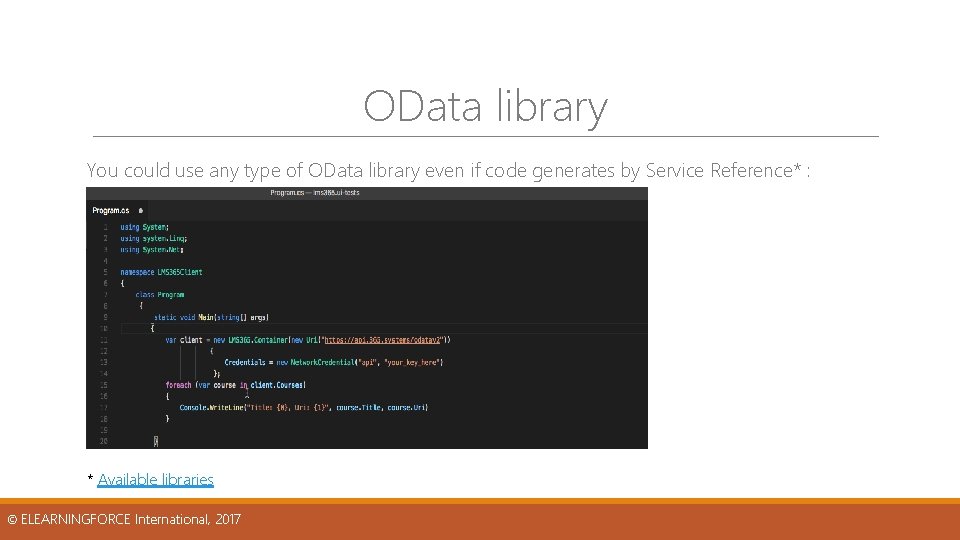
OData library You could use any type of OData library even if code generates by Service Reference* : * Available libraries © ELEARNINGFORCE International, 2017
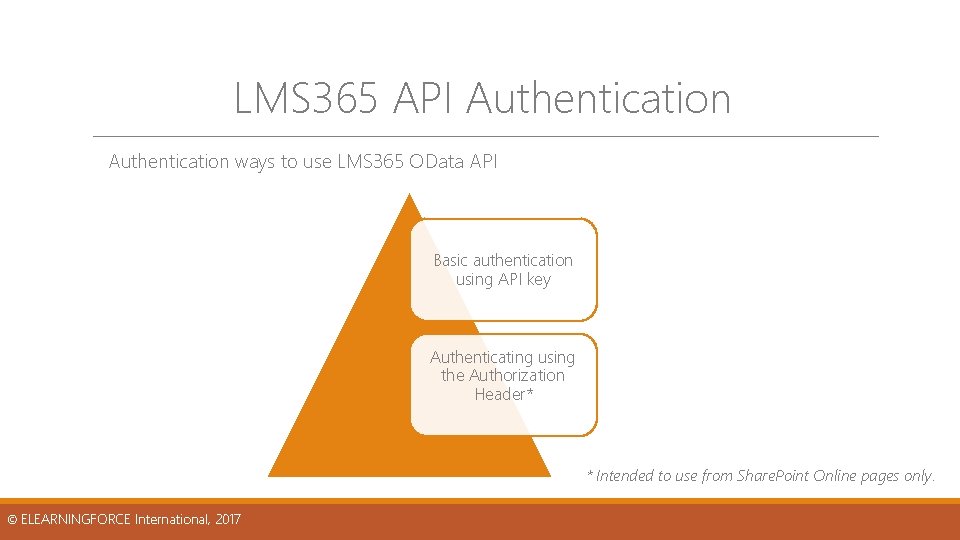
LMS 365 API Authentication ways to use LMS 365 OData API Basic authentication using API key Authenticating using the Authorization Header* * Intended to use from Share. Point Online pages only. © ELEARNINGFORCE International, 2017
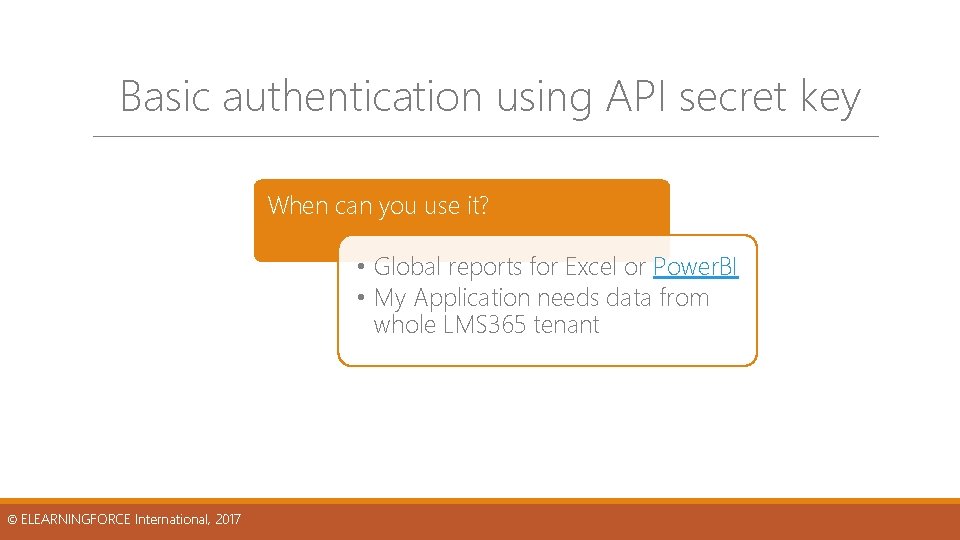
Basic authentication using API secret key When can you use it? • Global reports for Excel or Power. BI • My Application needs data from whole LMS 365 tenant © ELEARNINGFORCE International, 2017
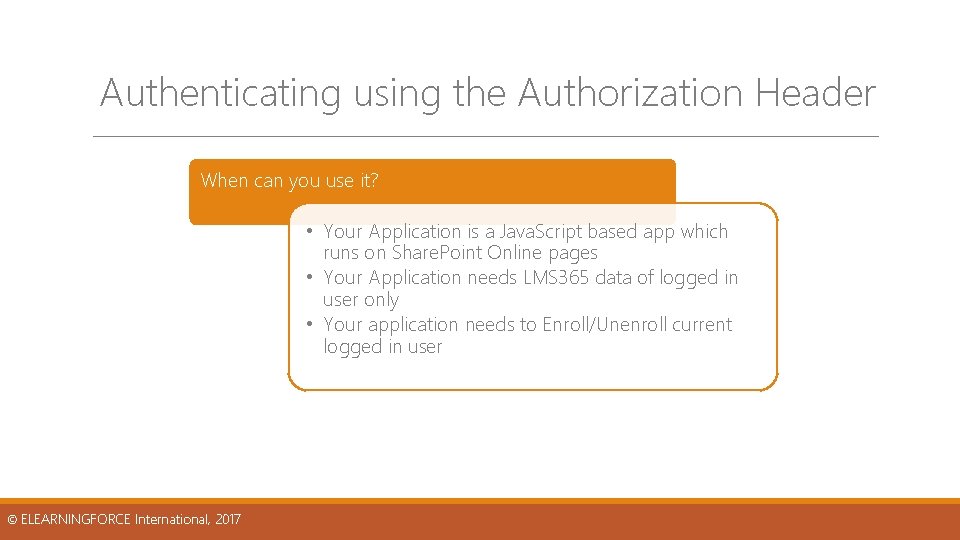
Authenticating using the Authorization Header When can you use it? • Your Application is a Java. Script based app which runs on Share. Point Online pages • Your Application needs LMS 365 data of logged in user only • Your application needs to Enroll/Unenroll current logged in user © ELEARNINGFORCE International, 2017
Authenticating using the Authorization Header This method is intended to use for Share. Point Online pages on the same tenant where app is installed, via Java. Script. The method provides ability to request API under current logged-in user(in Share. Point Online). © ELEARNINGFORCE International, 2017
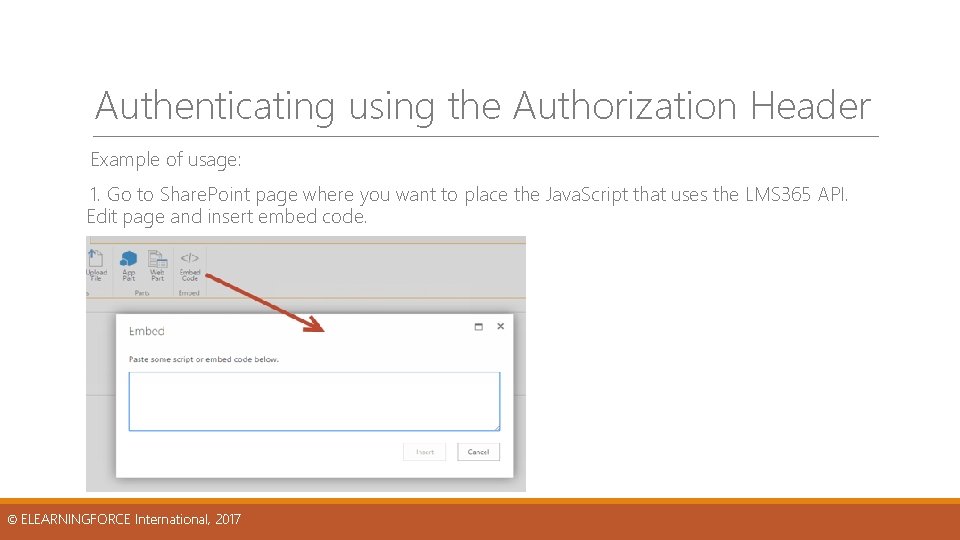
Authenticating using the Authorization Header Example of usage: 1. Go to Share. Point page where you want to place the Java. Script that uses the LMS 365 API. Edit page and insert embed code. © ELEARNINGFORCE International, 2017
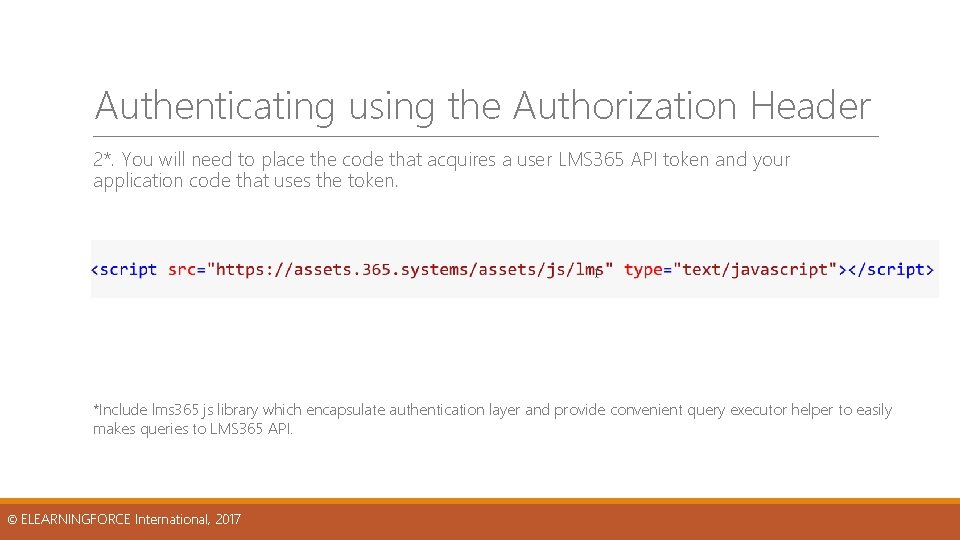
Authenticating using the Authorization Header 2*. You will need to place the code that acquires a user LMS 365 API token and your application code that uses the token. *Include lms 365 js library which encapsulate authentication layer and provide convenient query executor helper to easily makes queries to LMS 365 API. © ELEARNINGFORCE International, 2017
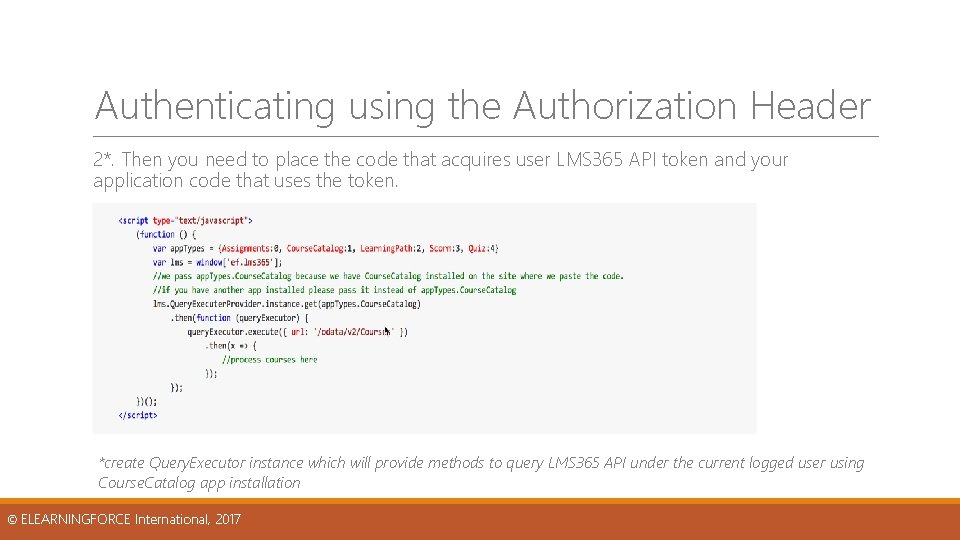
Authenticating using the Authorization Header 2*. Then you need to place the code that acquires user LMS 365 API token and your application code that uses the token. *create Query. Executor instance which will provide methods to query LMS 365 API under the current logged user using Course. Catalog app installation © ELEARNINGFORCE International, 2017
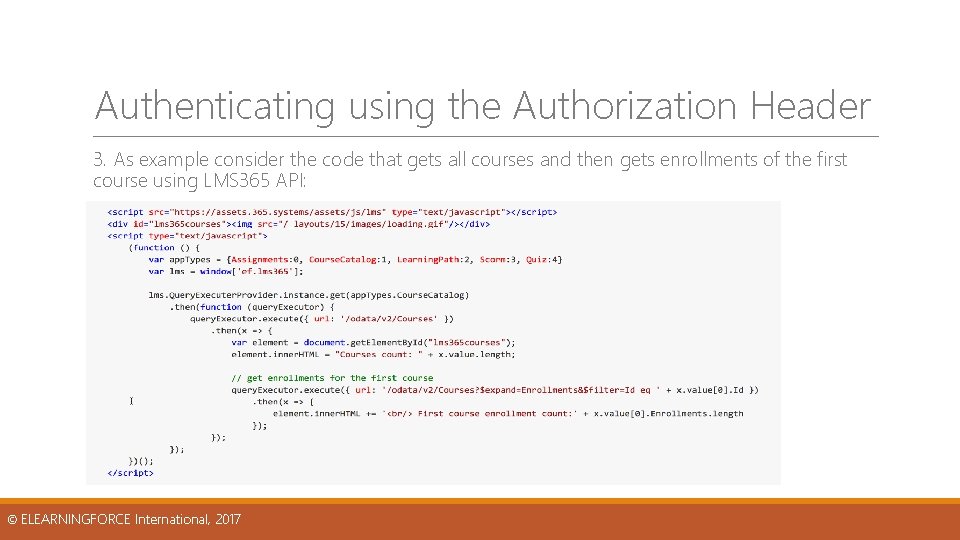
Authenticating using the Authorization Header 3. As example consider the code that gets all courses and then gets enrollments of the first course using LMS 365 API: © ELEARNINGFORCE International, 2017
Authenticating using the Authorization Header 4. Request to API will be performed under current logged-in user account and some API endpoints will return current user specific data and not all, like in case of API key authentication. That's the key difference between these two approaches. © ELEARNINGFORCE International, 2017
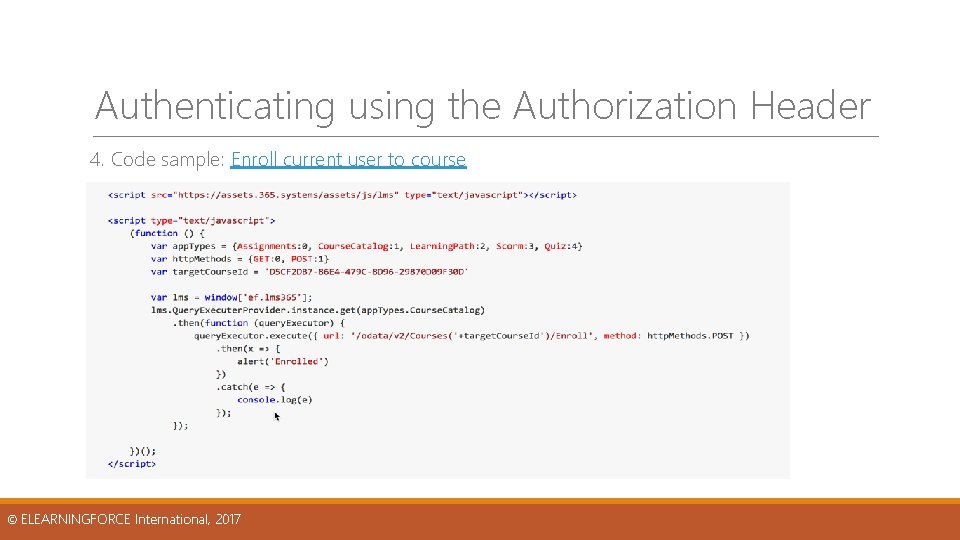
Authenticating using the Authorization Header 4. Code sample: Enroll current user to course © ELEARNINGFORCE International, 2017