JUX Java Universal e Xplorer Pascal Calvat Workshop

- Slides: 24
JUX (Java Universal e. Xplorer) Pascal Calvat Workshop on Interoperability of Digital Repositories
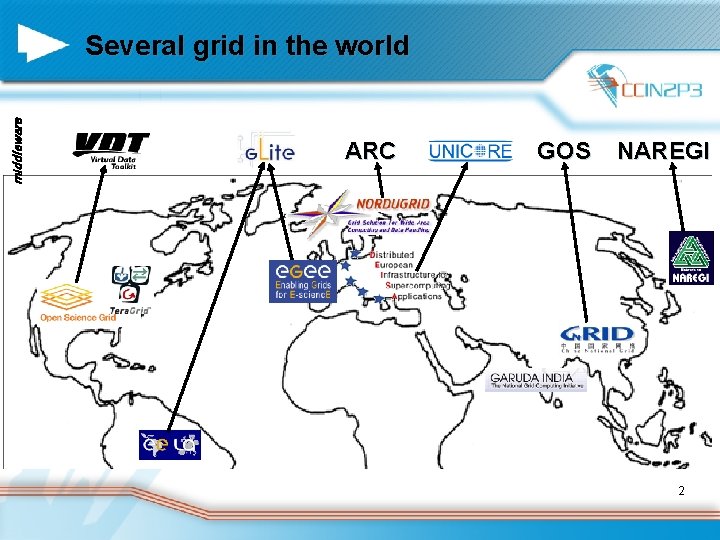
middleware Several grid in the world ARC GOS NAREGI 2
JUX – A single GUI for the grid n The main purpose of JUX is to provide a single GUI for accessing and managing data on the grids With uncluttered interfaces, JUX tries to be intuitive and easy to use for non-expert users. Only few menus, drag-and-drop for copying data… n The ergonomics is close to widely used explorer like the famous Windows explorer n Similar tools exist n – HERMES (Australia) – VBrowser (Holland) based on Apache Commons VFS 3
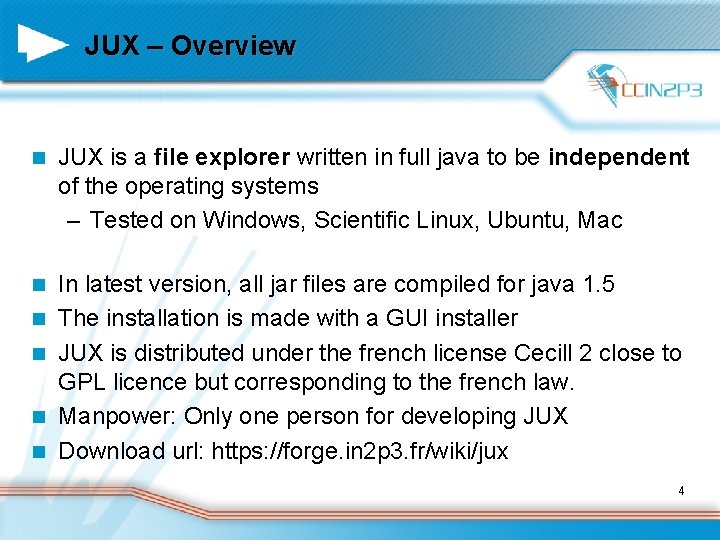
JUX – Overview n JUX is a file explorer written in full java to be independent of the operating systems – Tested on Windows, Scientific Linux, Ubuntu, Mac n In latest version, all jar files are compiled for java 1. 5 The installation is made with a GUI installer JUX is distributed under the french license Cecill 2 close to GPL licence but corresponding to the french law. Manpower: Only one person for developing JUX Download url: https: //forge. in 2 p 3. fr/wiki/jux n n 4
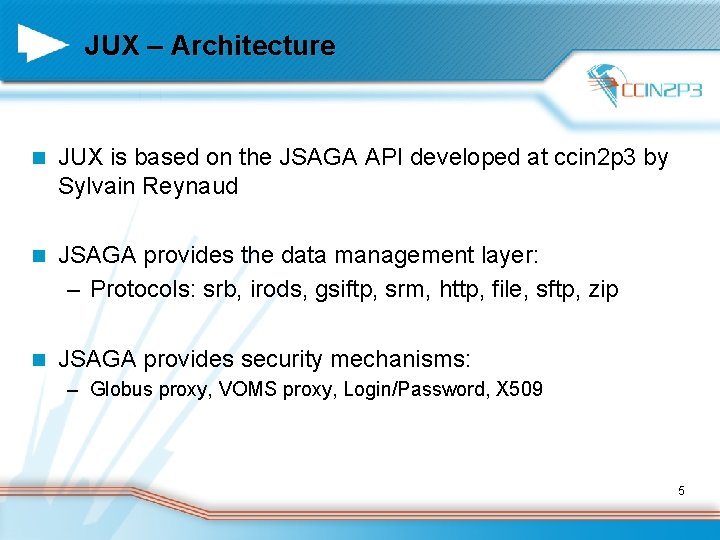
JUX – Architecture n JUX is based on the JSAGA API developed at ccin 2 p 3 by Sylvain Reynaud n JSAGA provides the data management layer: – Protocols: srb, irods, gsiftp, srm, http, file, sftp, zip n JSAGA provides security mechanisms: – Globus proxy, VOMS proxy, Login/Password, X 509 5
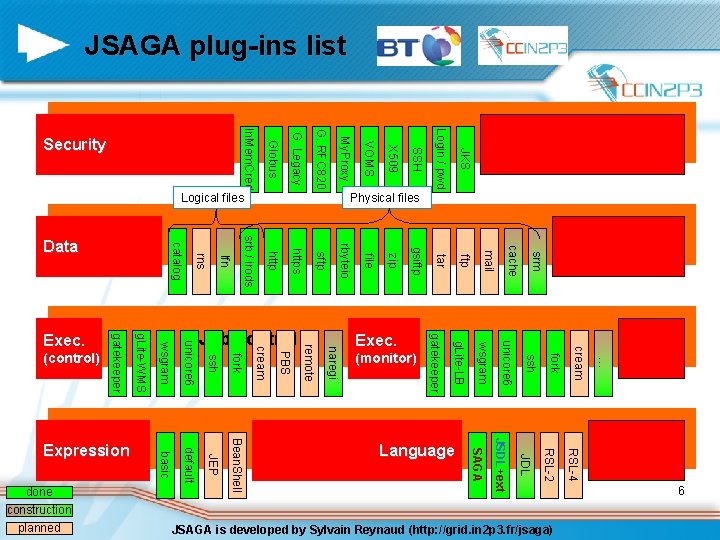
JSAGA plug-ins list srm cache ftp mail JKS tar https sftp rbyteio file zip gsiftp Login / pwd SSH X 509 VOMS My. Proxy G. RFC 820 G. Legacy Globus srb / irods lfn … RSL-4 RSL-2 JDL JSDL+ext SAGA Bean. Shell JSAGA is developed by Sylvain Reynaud (http: //grid. in 2 p 3. fr/jsaga) cream fork ssh unicore 6 wsgram g. Lite-LB gatekeeper fork basic default JEP gatekeeper g. Lite-WMS wsgram unicore 6 ssh cream PBS remote naregi Exec. 6 done construction planned rns Language Expression Physical files Logical files (monitor) (control) catalog Data Job control Exec. In. Mem. Cred Security
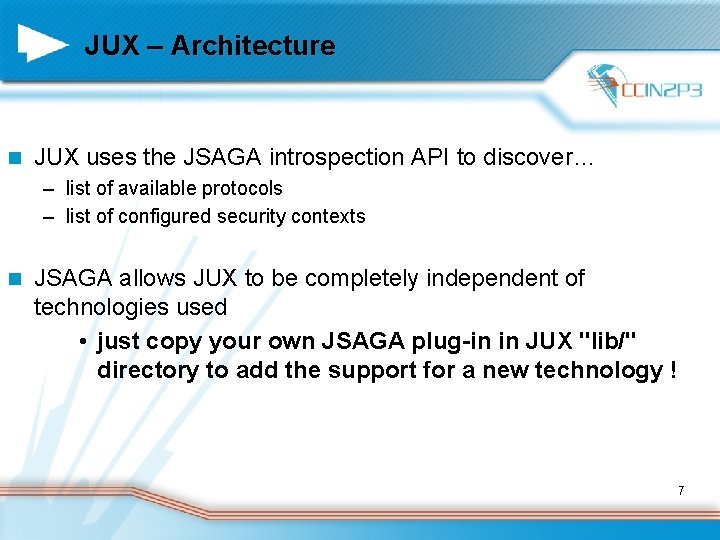
JUX – Architecture n JUX uses the JSAGA introspection API to discover… – list of available protocols – list of configured security contexts n JSAGA allows JUX to be completely independent of technologies used • just copy your own JSAGA plug-in in JUX "lib/" directory to add the support for a new technology ! 7
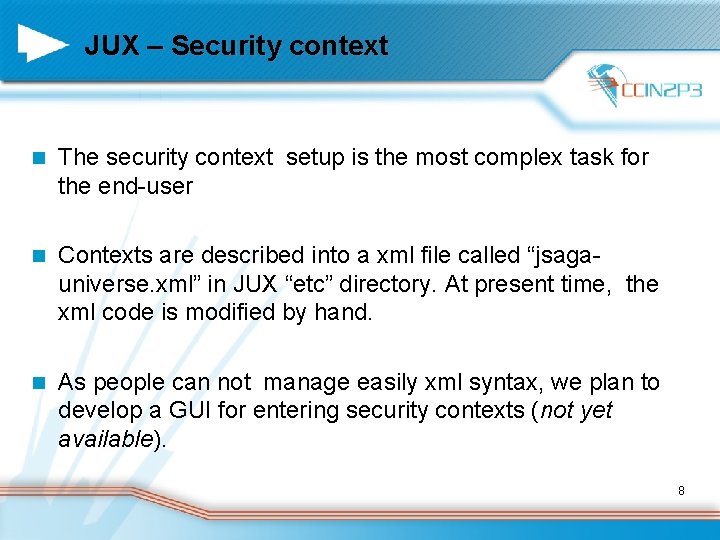
JUX – Security context n The security context setup is the most complex task for the end-user n Contexts are described into a xml file called “jsagauniverse. xml” in JUX “etc” directory. At present time, the xml code is modified by hand. n As people can not manage easily xml syntax, we plan to develop a GUI for entering security contexts (not yet available). 8
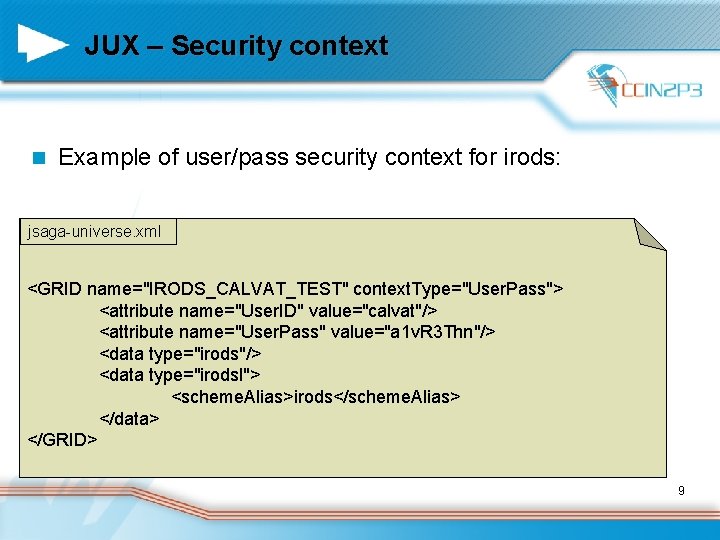
JUX – Security context n Example of user/pass security context for irods: jsaga-universe. xml <GRID name="IRODS_CALVAT_TEST" context. Type="User. Pass"> <attribute name="User. ID" value="calvat"/> <attribute name="User. Pass" value="a 1 v. R 3 Thn"/> <data type="irodsl"> <scheme. Alias>irods</scheme. Alias> </data> </GRID> 9
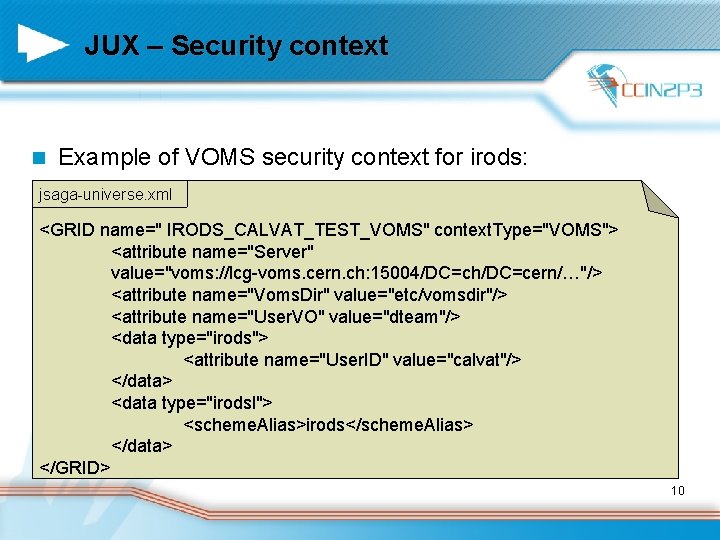
JUX – Security context n Example of VOMS security context for irods: jsaga-universe. xml <GRID name=" IRODS_CALVAT_TEST_VOMS" context. Type="VOMS"> <attribute name="Server" value="voms: //lcg-voms. cern. ch: 15004/DC=ch/DC=cern/…"/> <attribute name="Voms. Dir" value="etc/vomsdir"/> <attribute name="User. VO" value="dteam"/> <data type="irods"> <attribute name="User. ID" value="calvat"/> </data> <data type="irodsl"> <scheme. Alias>irods</scheme. Alias> </data> </GRID> 10
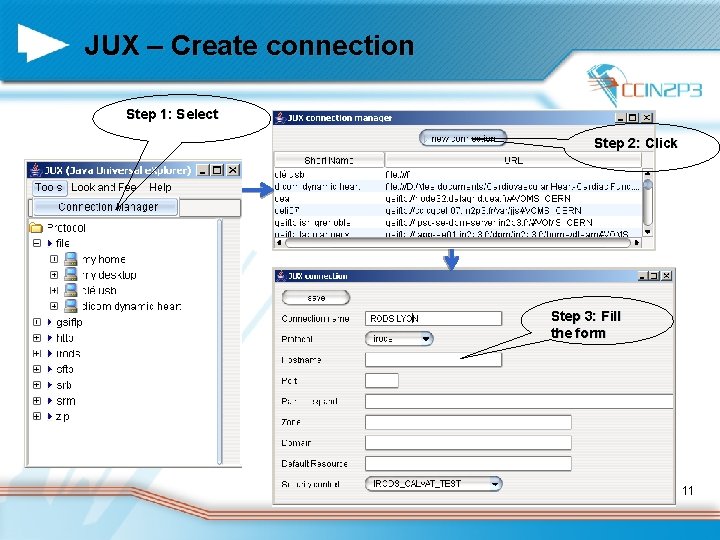
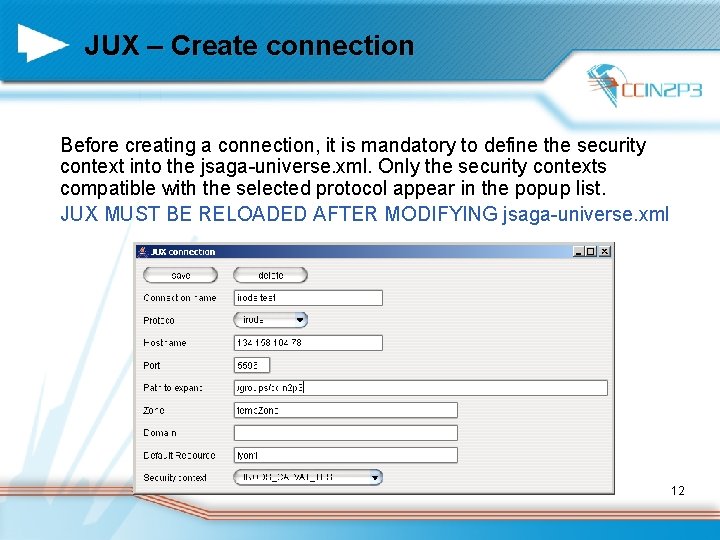
JUX – Create connection Step 1: Select Step 2: Click Step 3: Fill the form 11
JUX – Create connection Before creating a connection, it is mandatory to define the security context into the jsaga-universe. xml. Only the security contexts compatible with the selected protocol appear in the popup list. JUX MUST BE RELOADED AFTER MODIFYING jsaga-universe. xml 12
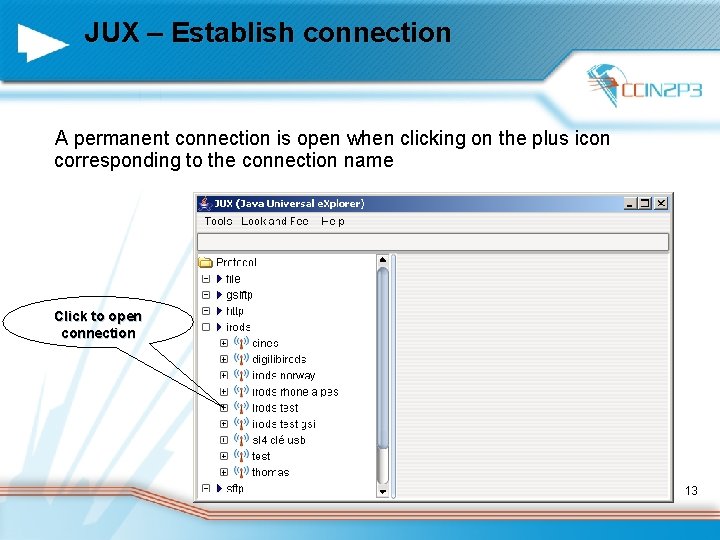
JUX – Establish connection A permanent connection is open when clicking on the plus icon corresponding to the connection name Click to open connection 13
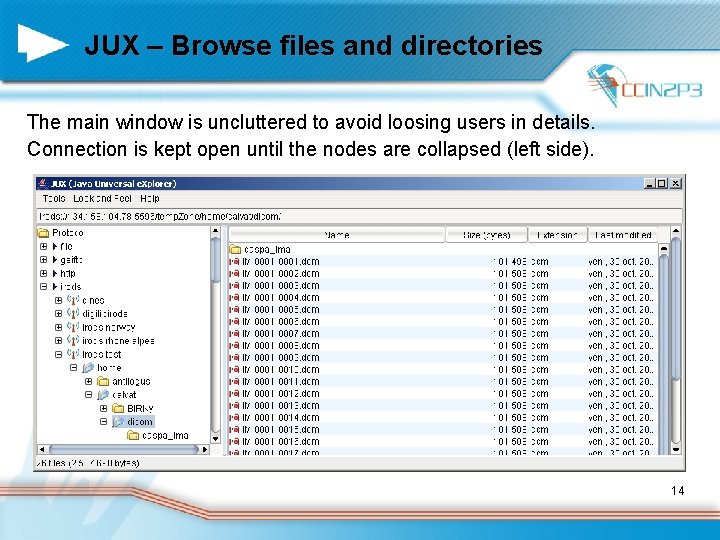
JUX – Browse files and directories The main window is uncluttered to avoid loosing users in details. Connection is kept open until the nodes are collapsed (left side). 14
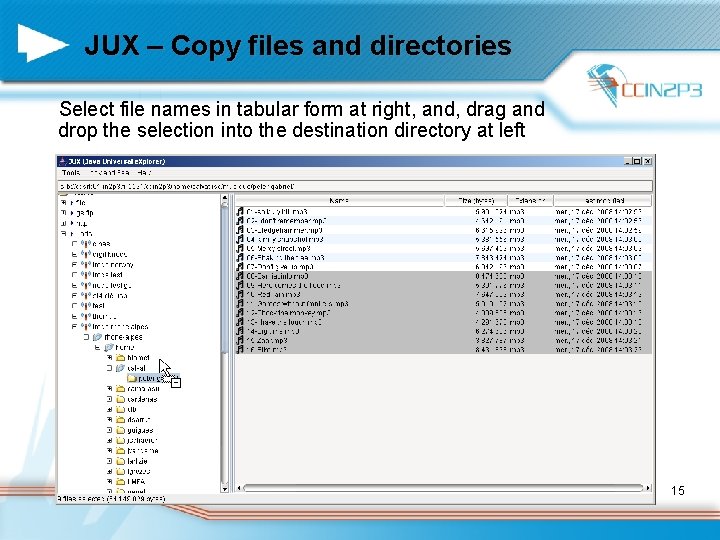
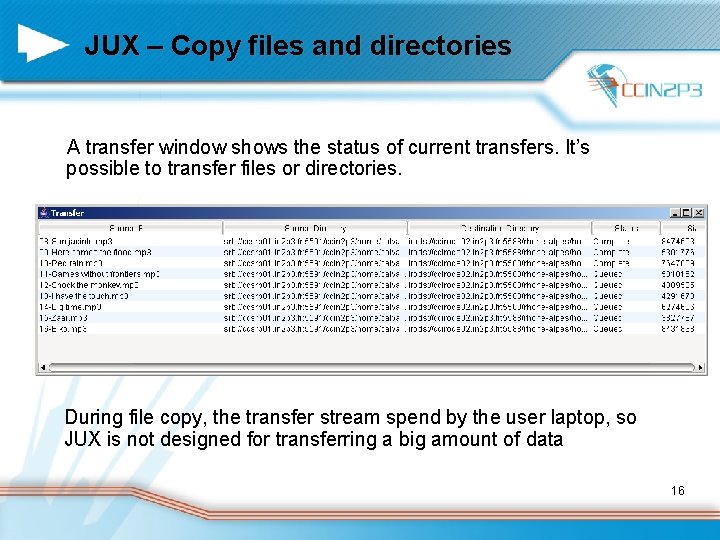
JUX – Copy files and directories Select file names in tabular form at right, and, drag and drop the selection into the destination directory at left 15
JUX – Copy files and directories A transfer window shows the status of current transfers. It’s possible to transfer files or directories. During file copy, the transfer stream spend by the user laptop, so JUX is not designed for transferring a big amount of data 16
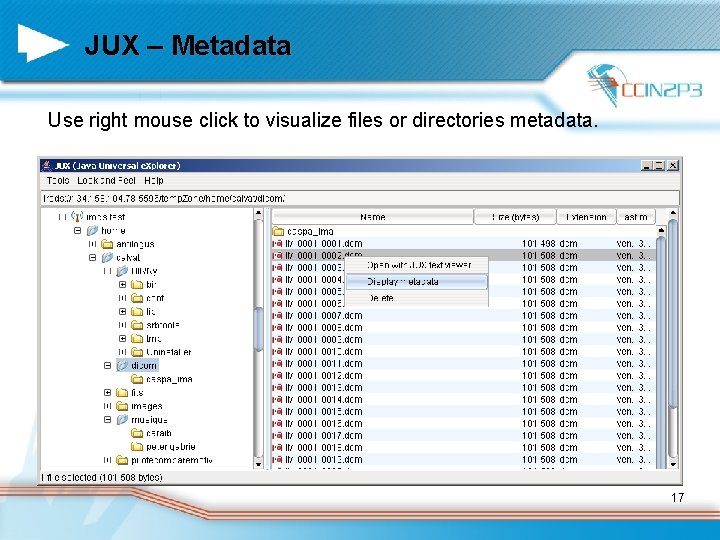
JUX – Metadata Use right mouse click to visualize files or directories metadata. 17
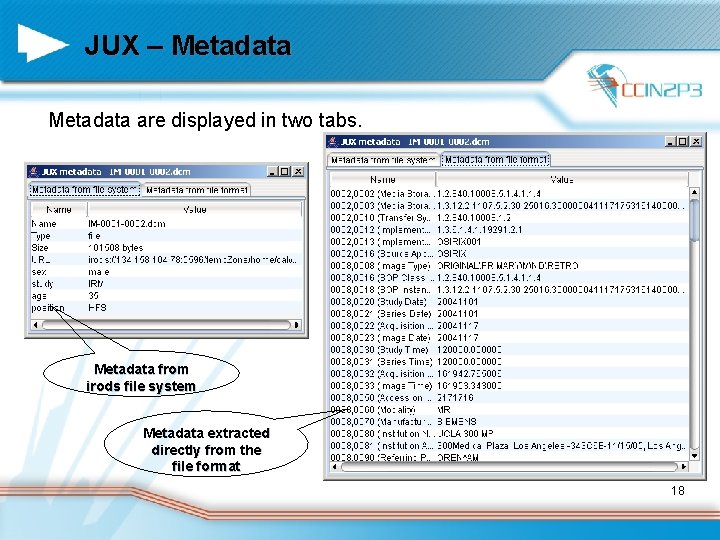
JUX – Metadata are displayed in two tabs. Metadata from irods file system Metadata extracted directly from the file format 18
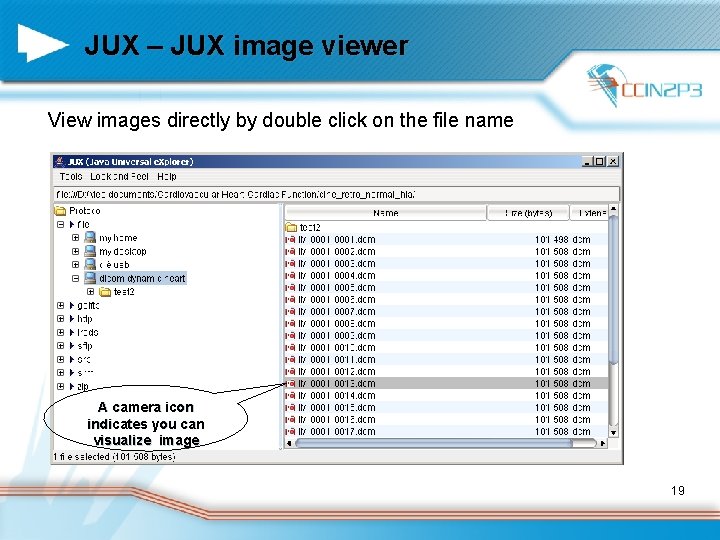
JUX – JUX image viewer View images directly by double click on the file name A camera icon indicates you can visualize image 19
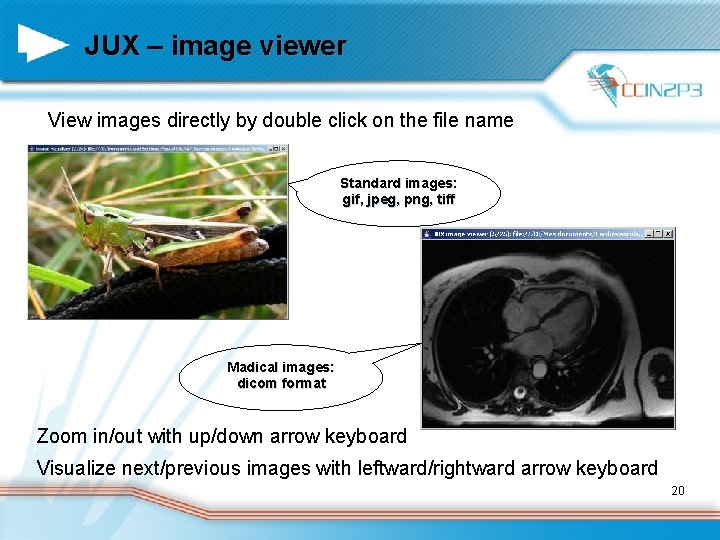
JUX – image viewer View images directly by double click on the file name Standard images: gif, jpeg, png, tiff Madical images: dicom format Zoom in/out with up/down arrow keyboard Visualize next/previous images with leftward/rightward arrow keyboard 20
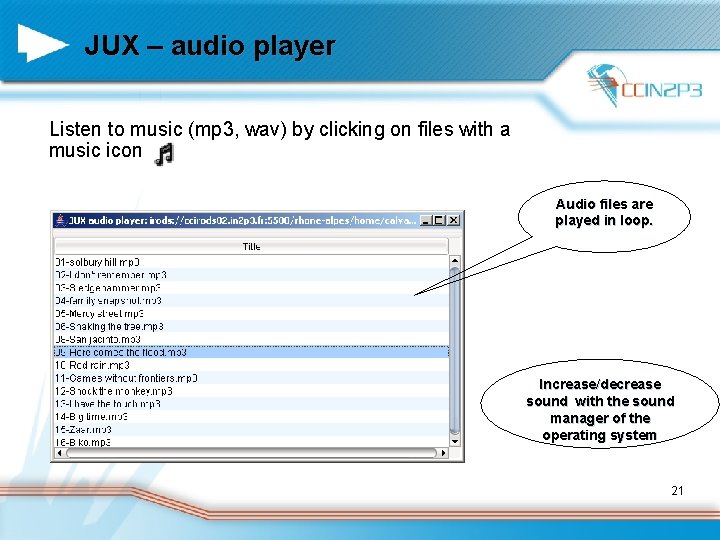
JUX – audio player Listen to music (mp 3, wav) by clicking on files with a music icon Audio files are played in loop. Increase/decrease sound with the sound manager of the operating system 21
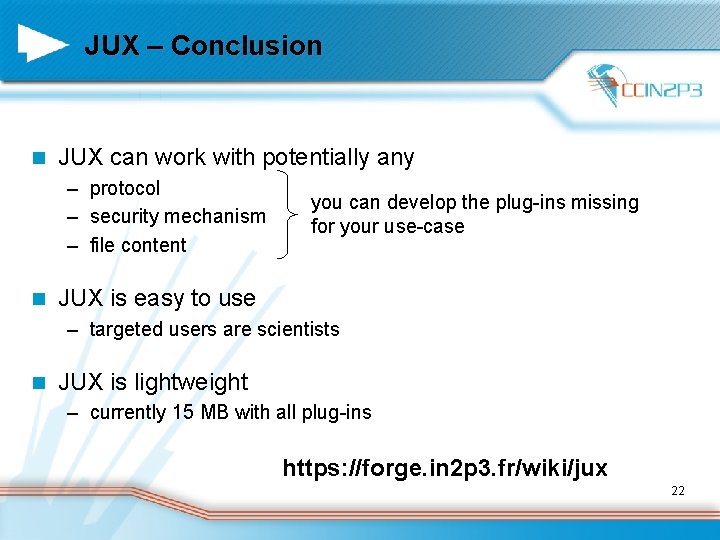
JUX – Conclusion n JUX can work with potentially any – protocol – security mechanism – file content n you can develop the plug-ins missing for your use-case JUX is easy to use – targeted users are scientists n JUX is lightweight – currently 15 MB with all plug-ins https: //forge. in 2 p 3. fr/wiki/jux 22
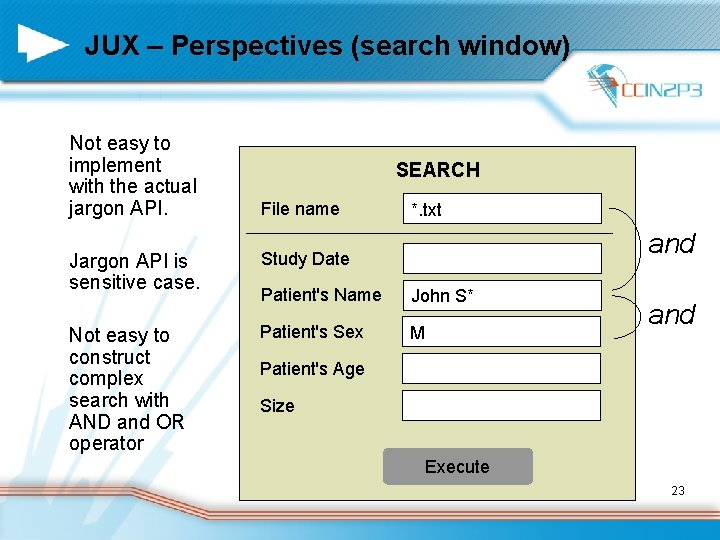
JUX – Perspectives (search window) Not easy to implement with the actual jargon API. Jargon API is sensitive case. Not easy to construct complex search with AND and OR operator SEARCH File name *. txt and Study Date Patient's Name John S* Patient's Sex M and Patient's Age Size Execute 23
Questions ? 24