egk Rek xkakh jkVh xzkeh k jkstxkj xkja


- Slides: 42
egk. Rek xka/kh jk"Vªh; xzkeh. k jkstxkj xkja. Vh ; kstuk e-FMS dk fdz; k. Uo; u 22 -04 -2013 jk; iqj ftyk&/kerjh
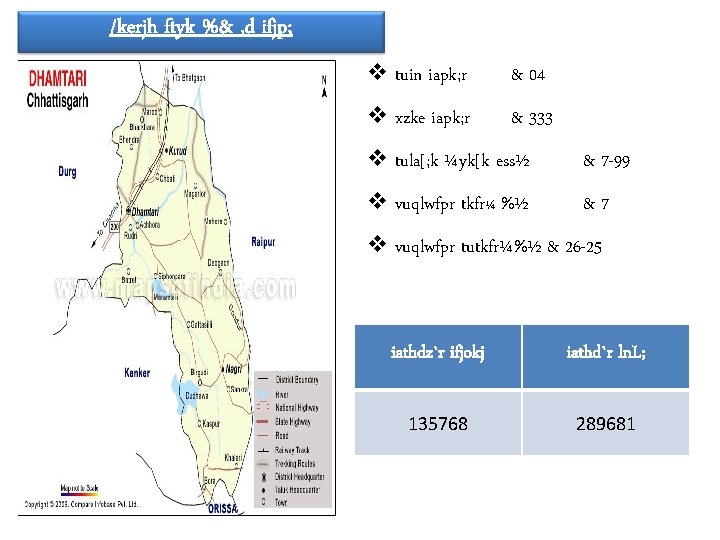
/kerjh ftyk %& , d ifjp; v tuin iapk; r & 04 v xzke iapk; r & 333 v tula[; k ¼yk[k ess½ & 7 -99 v vuqlwfpr tkfr¼ %½ &7 v vuqlwfpr tutkfr¼%½ & 26 -25 iathdz`r ifjokj iathd`r ln. L; 135768 289681
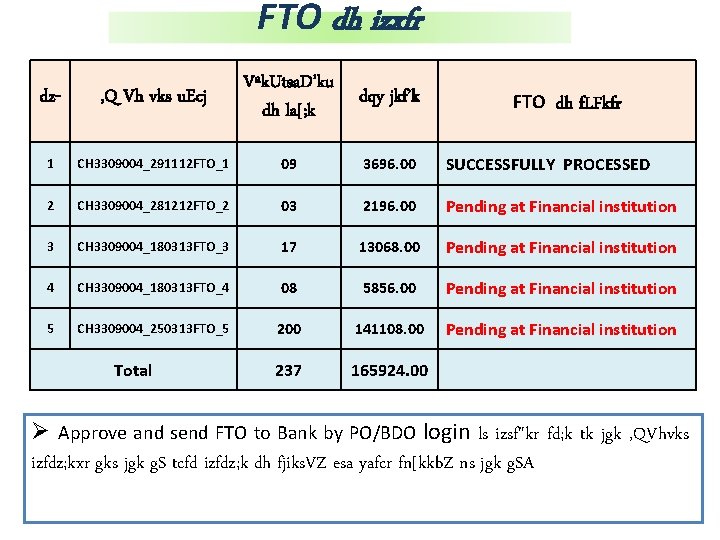
e-FMS vc rd dh izxfr %& ♦ ftys ds exjyks. M tuin dk b. Z&, Q, e, l gsrq p; u ♦ jk. T; , oa ftyk ln. L; ksa dk b. Z&, Q, e, l gsrq vk; ksftr dk; Z'kkyk fnukad 28@05@2012 ub. Z fn. Yyh esa lg. Hkkfxrk ♦ le. Lr tuin iapk; r lhb. Zvks , oa ihvksa dk Mh, llh iath; u ♦ b. Z&, Q, e, l & KEY BANK AXIS BANK ♦ [kkrk l. R; kiu , oa Qzhftax dh izfdz; k ♦ FTO tkjh] dqy jkf'k 165924 -00 : -
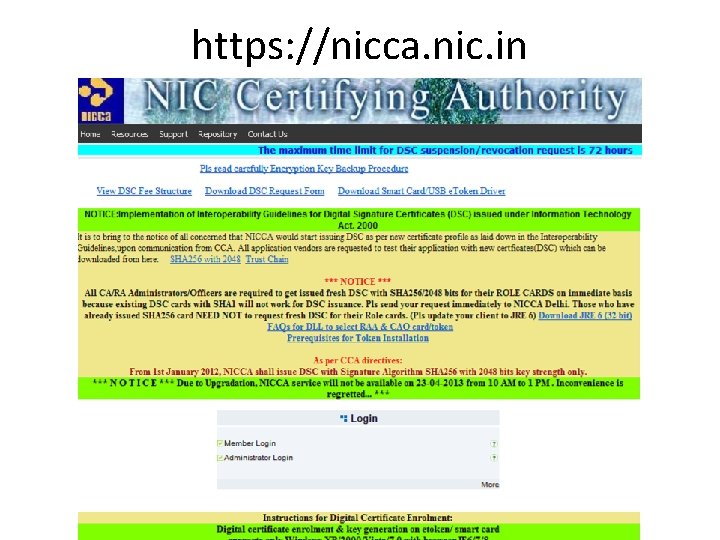
DSC-Adoption • Digital Signature Certificate form can be downloaded from https: //nicca. nic. in , • Dully filled DSC registration form submitted to NIC. • After getting the DSC token for designated person (CEO, PO/Accountant), Digital Signature Certificate token installation is to be done.
https: //nicca. nic. in
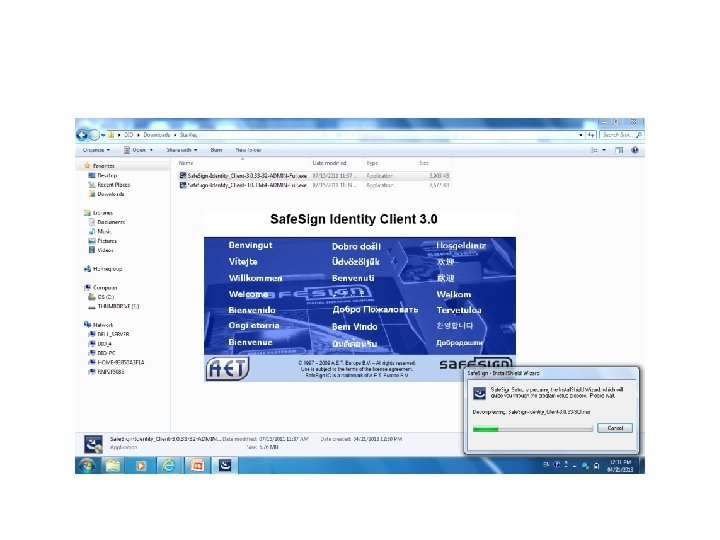
DSC token installation process • Download appropriate token driver from https: //nicca. nic. in link “Download Smart Card/USB e. Token Driver “. • If using Starkey USBe. Token download the following driver from list of tokens • 7. Star. Key/G&D Safe. Sign identity-client Download [. zip format] (for all Windows XP/Vista/7 - 32/64 bit OS)
DSC token installation process • After download the e. Token Driver, extract and install the e. Token driver on your PC.
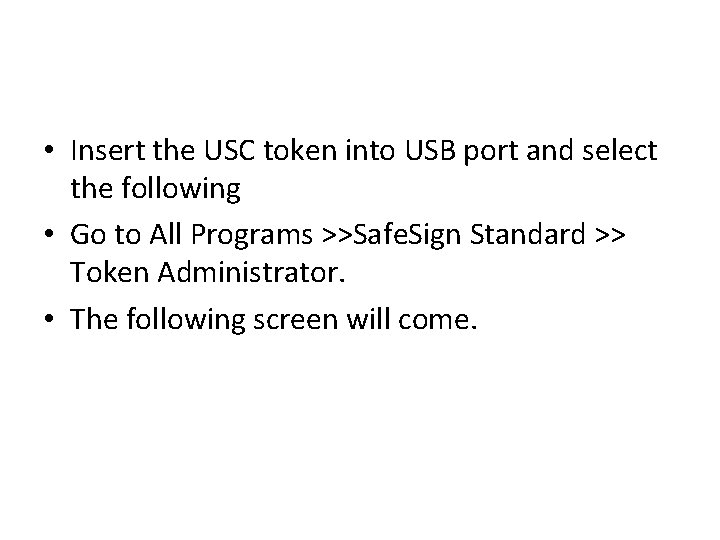
• Insert the USC token into USB port and select the following • Go to All Programs >>Safe. Sign Standard >> Token Administrator. • The following screen will come.
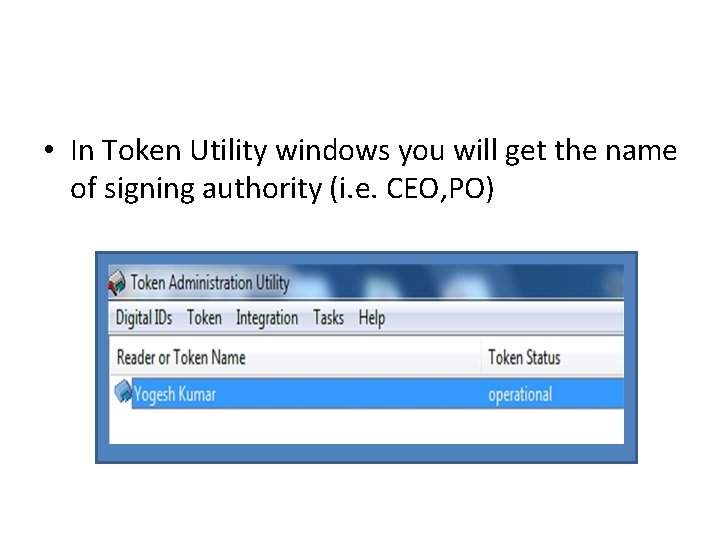
• In Token Utility windows you will get the name of signing authority (i. e. CEO, PO)
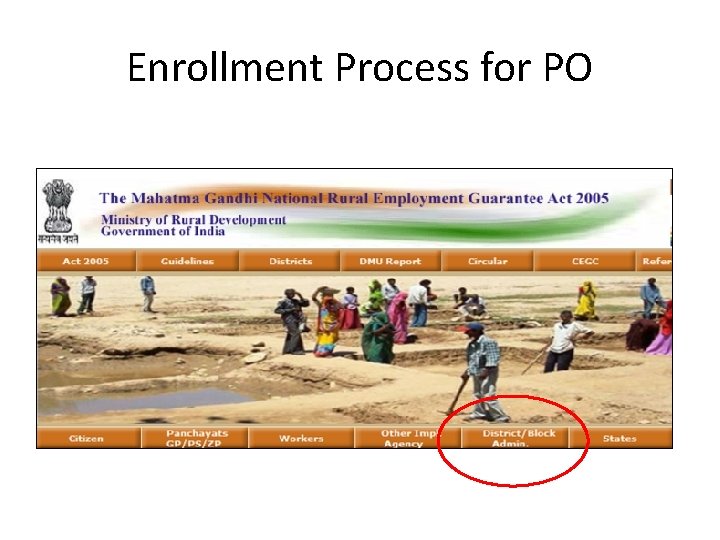
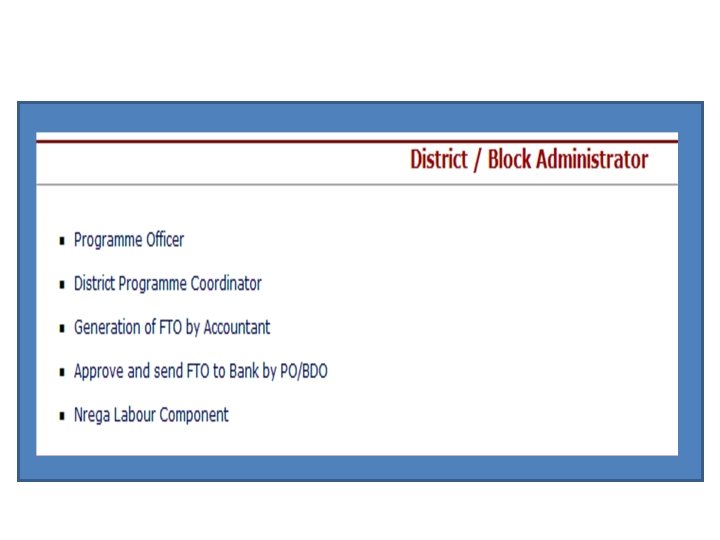
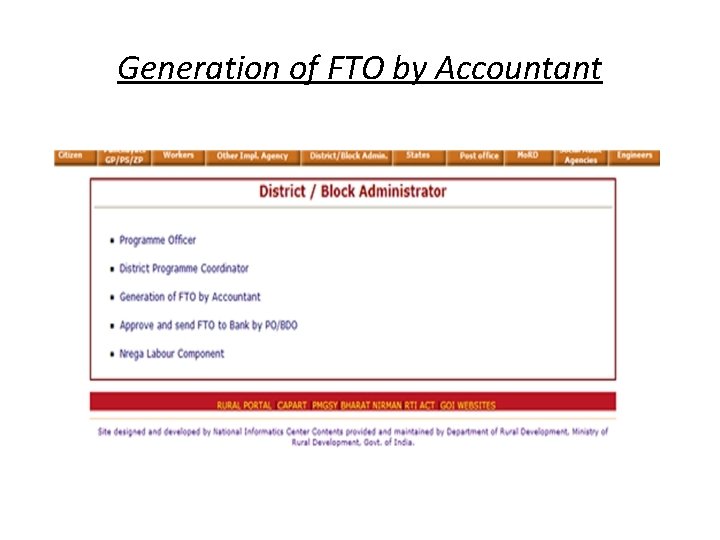
DSC Enrollment • After successfully installation of USB token driver, next is to enroll the DSC in http: //nrega. nic. in for FTO generation. • In nrega MIS to different login are available in District/Block Admin.
Enrollment Process for PO
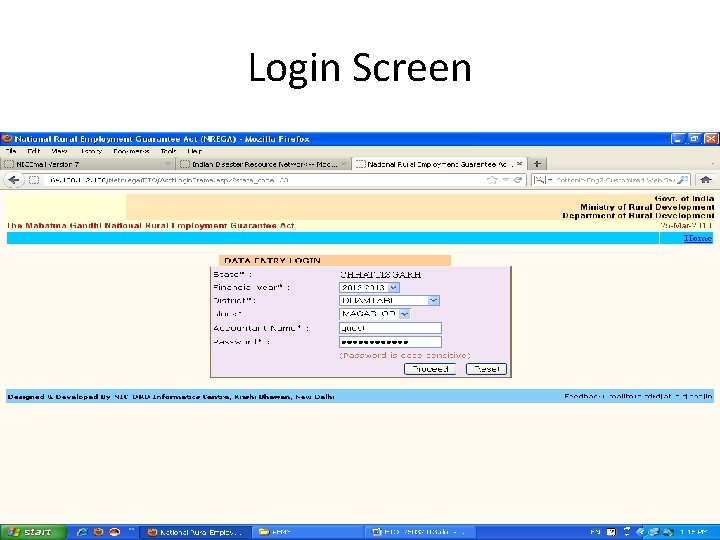
• Select login for “Generation of FTO by Accountant”. • Insert e. Token into USB port. MIS will prompt to login into MIS (user id /password will be given by NIC Delhi).
Login Screen
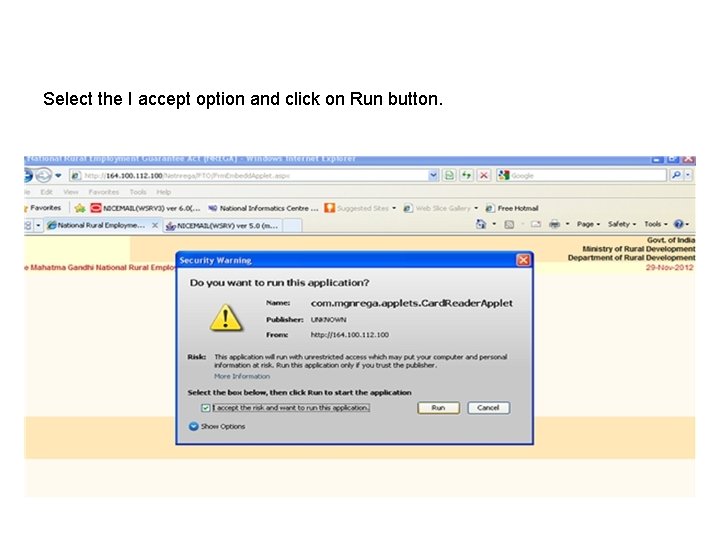
Select the I accept option and click on Run button.
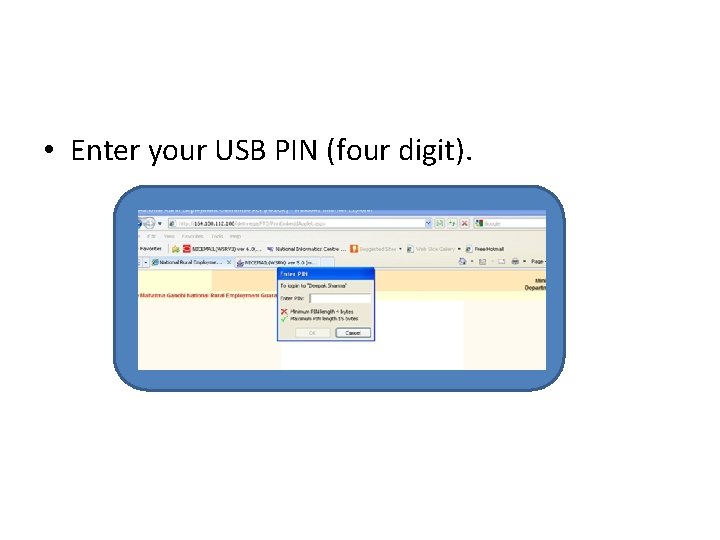
• Enter your USB PIN (four digit).
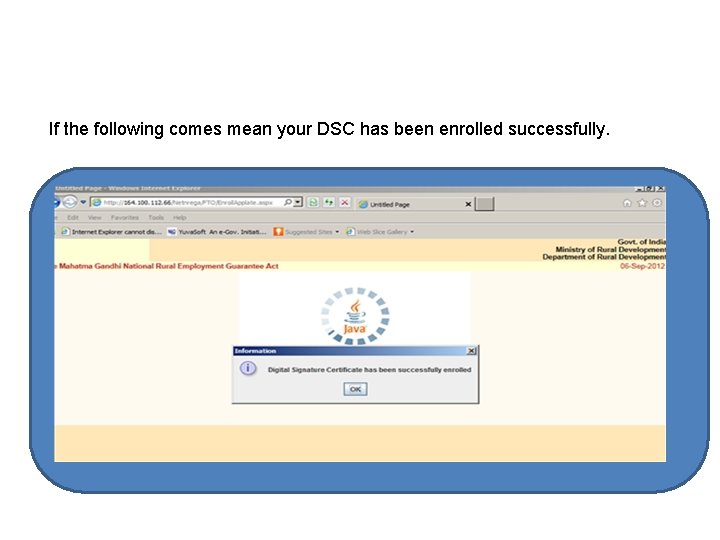
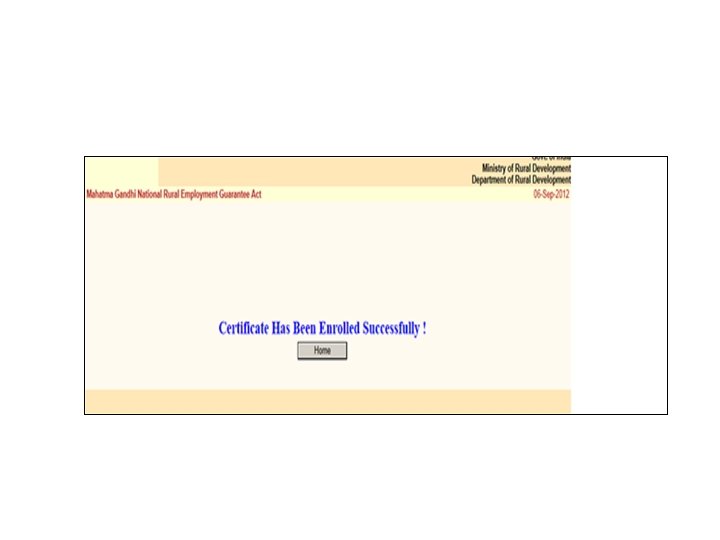
If the following comes mean your DSC has been enrolled successfully.
• Repeat the same process for PO/BDO login.
FTO generation • To generate FTO the following activities must be done at District level. – Updation /verification & Freezing of bank accounts. – opening of one Central Account at the State level or different Central Accounts for each District for e-FMS. – Credit e. FMS account from DPC login. – Generation of online wage list with mode of payment option chosen as e-FMS.
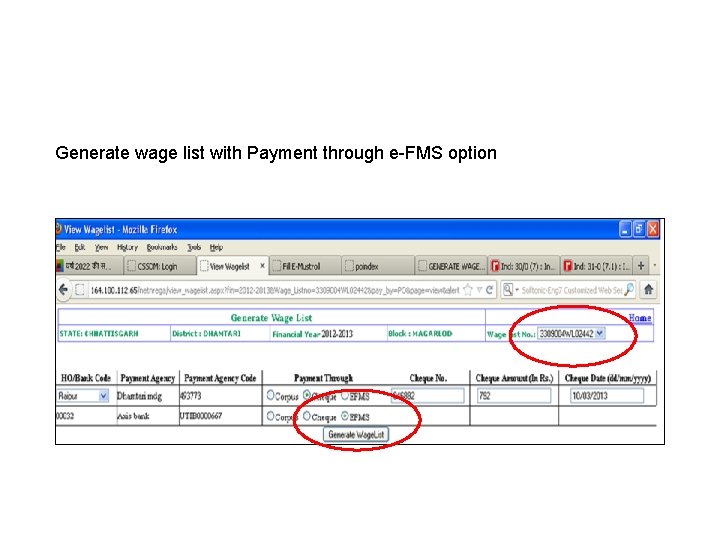
Generate wage list with Payment through e-FMS option
Generation of FTO by Accountant
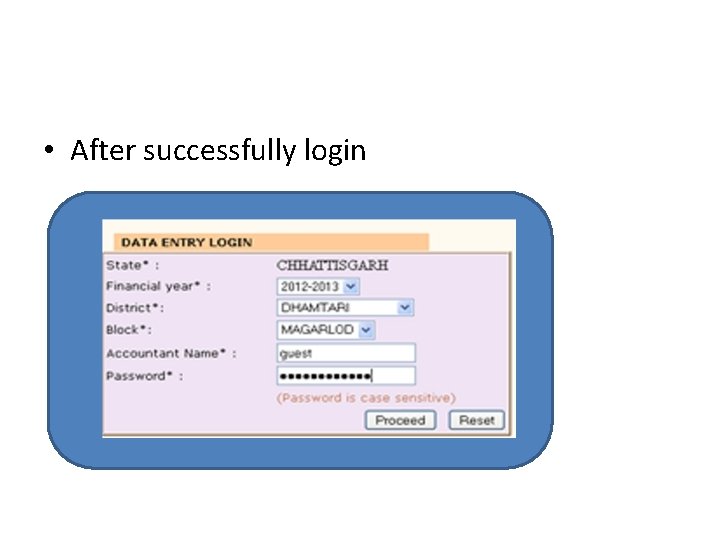
• After successfully login
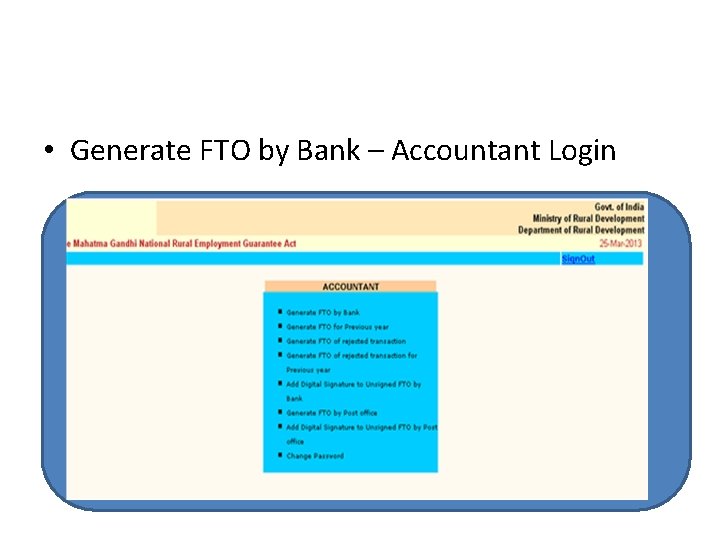
• Generate FTO by Bank – Accountant Login
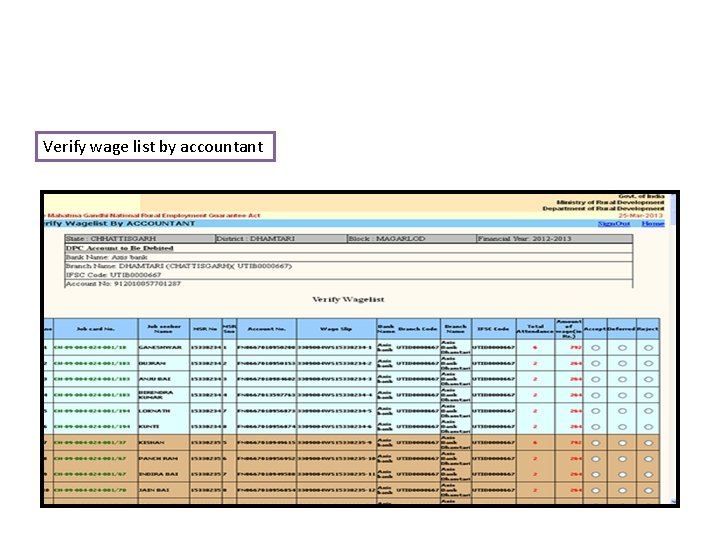
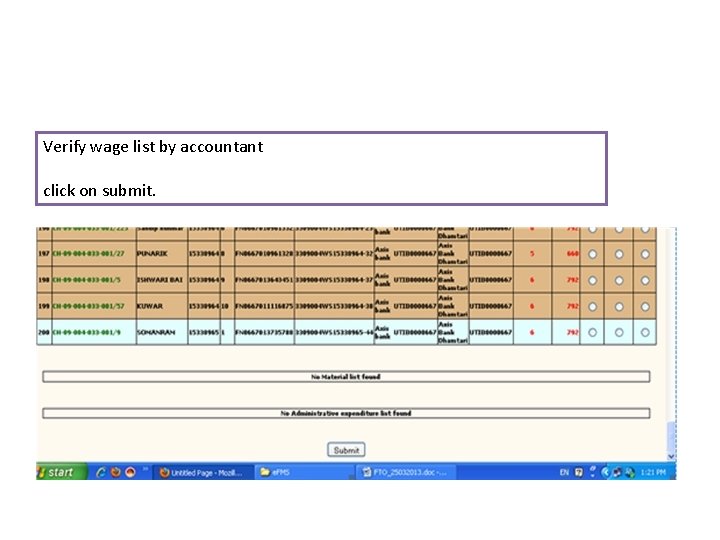
Verify wage list by accountant
Verify wage list by accountant click on submit.
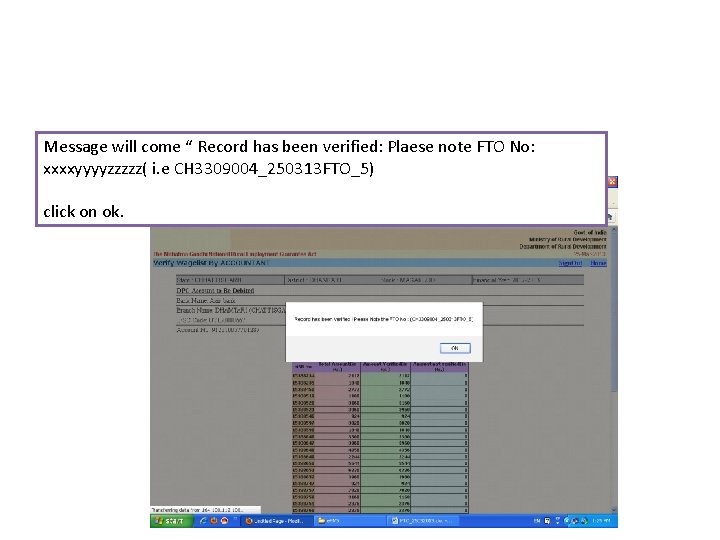
Message will come “ Record has been verified: Plaese note FTO No: xxxxyyyyzzzzz( i. e CH 3309004_250313 FTO_5) click on ok.
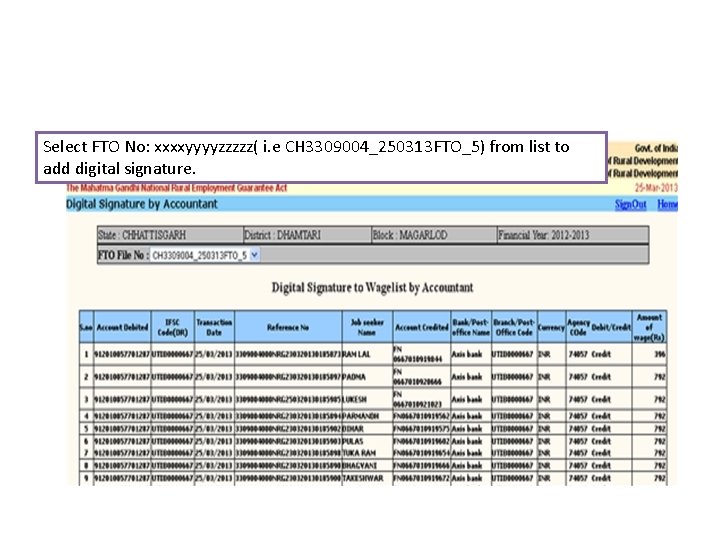
Select FTO No: xxxxyyyyzzzzz( i. e CH 3309004_250313 FTO_5) from list to add digital signature.
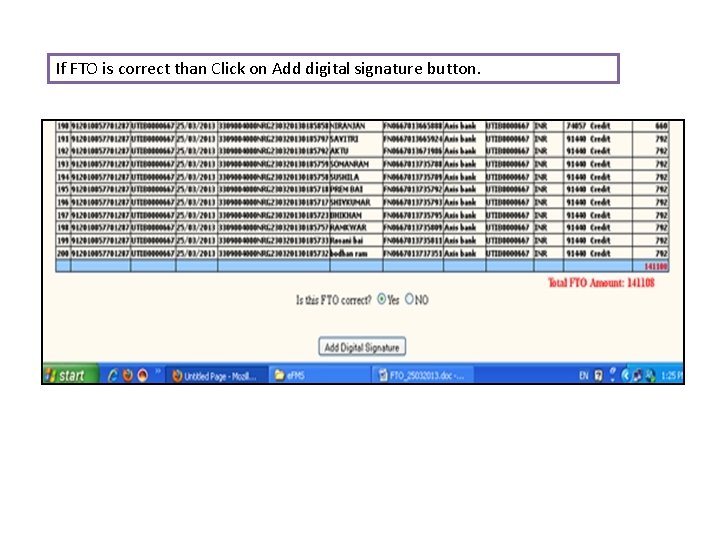
If FTO is correct than Click on Add digital signature button.
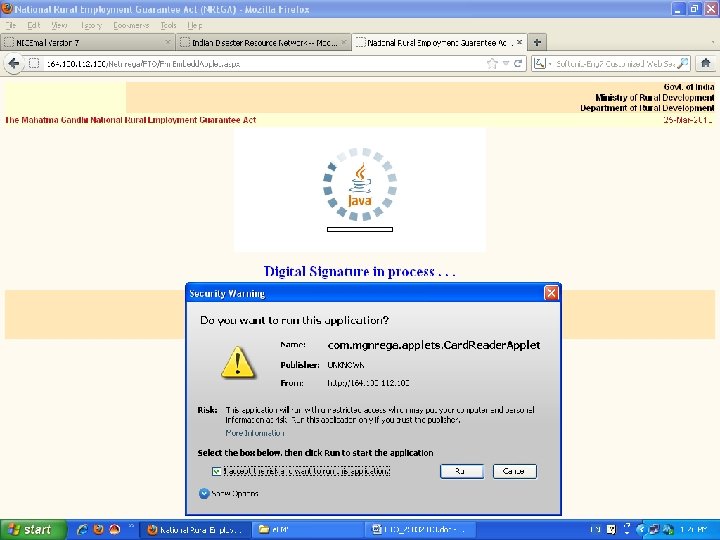
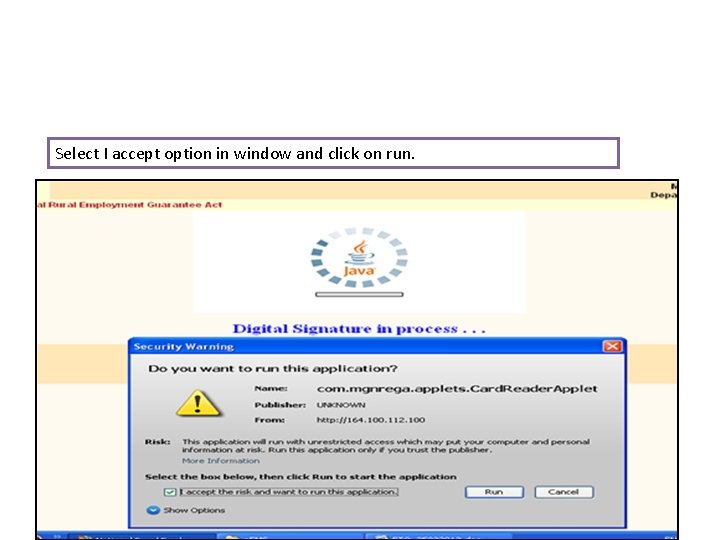
Select I accept option in window and click on run.
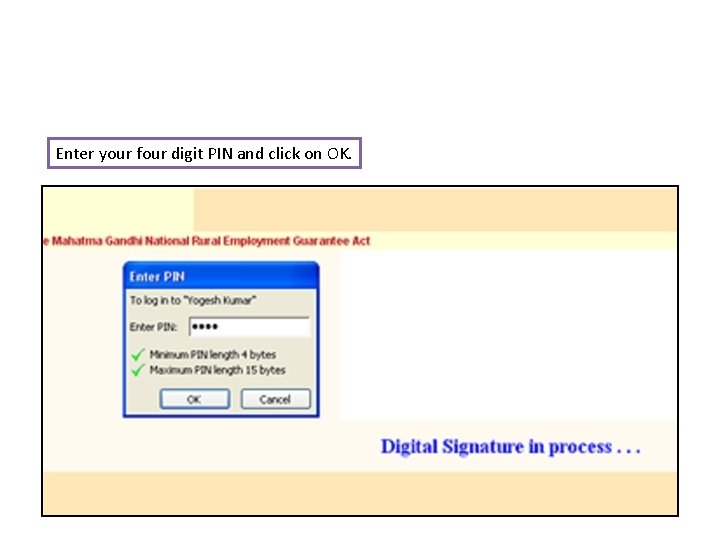
Enter your four digit PIN and click on OK.
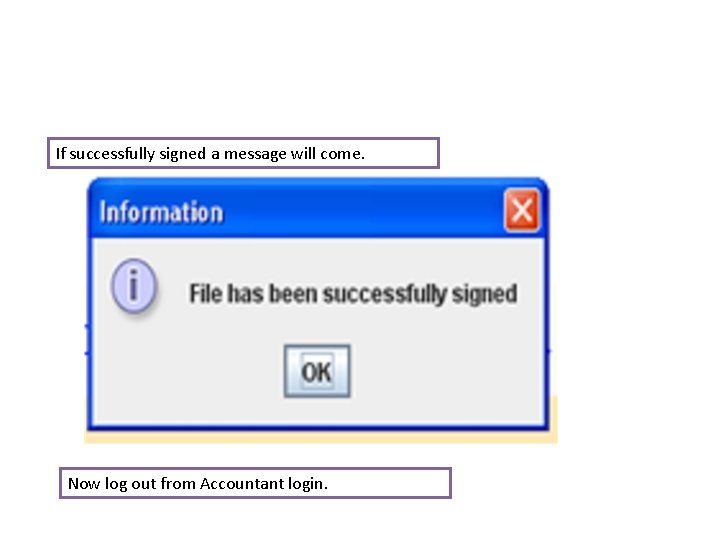
If successfully signed a message will come. Now log out from Accountant login.
Approve and send FTO to Bank by PO/BDO • Generated FTO will be available on PO/BDO login. • Logged into PO/BDO login with given user id and password.
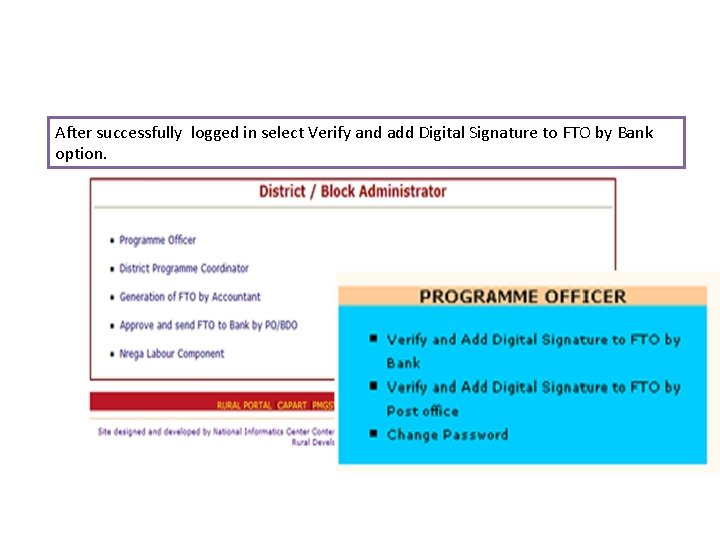
After successfully logged in select Verify and add Digital Signature to FTO by Bank option.
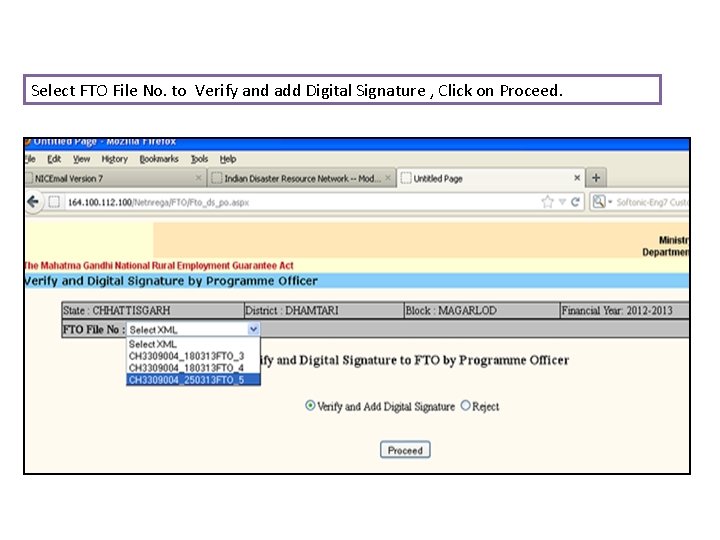
Select FTO File No. to Verify and add Digital Signature , Click on Proceed.
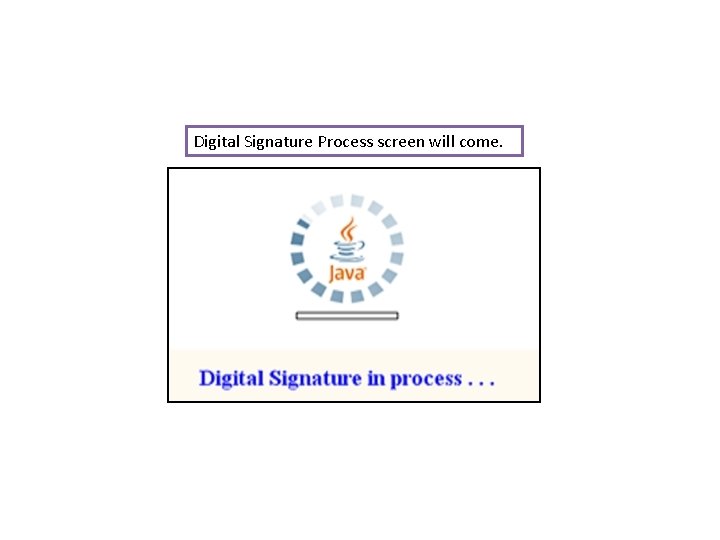
Digital Signature Process screen will come.
Enter four digit PIN and click on OK.
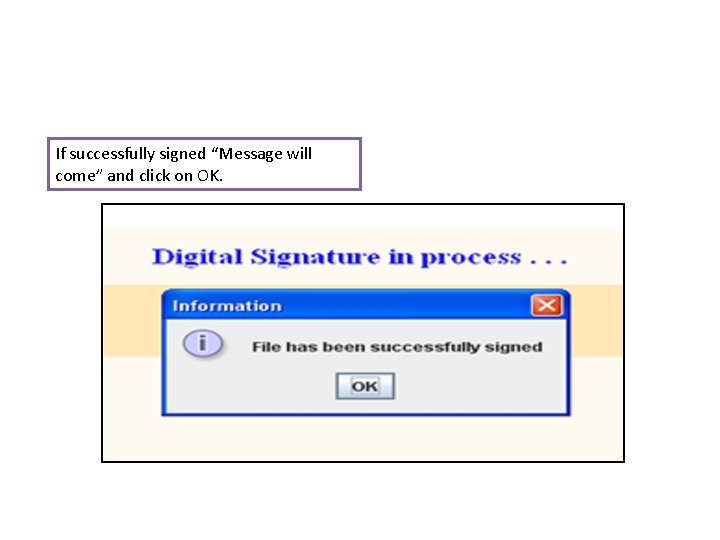
If successfully signed “Message will come” and click on OK.
FTO dh izxfr dz- , Q Vh vks u. Ecj Vªk. Utsa. D’ku dh la[; k 1 CH 3309004_291112 FTO_1 09 3696. 00 SUCCESSFULLY PROCESSED 2 CH 3309004_281212 FTO_2 03 2196. 00 Pending at Financial institution 3 CH 3309004_180313 FTO_3 17 13068. 00 Pending at Financial institution 4 CH 3309004_180313 FTO_4 08 5856. 00 Pending at Financial institution 5 CH 3309004_250313 FTO_5 200 141108. 00 Pending at Financial institution 237 165924. 00 Total dqy jkf’k FTO dh f. LFkfr Ø Approve and send FTO to Bank by PO/BDO login ls izsf"kr fd; k tk jgk , QVhvks izfdz; kxr gks jgk g. S tcfd izfdz; k dh fjiks. VZ esa yafcr fn[kkb. Z ns jgk g. SA
/k. U; okn---