cont from tkinter import tkinter def process OK
![이미지 데모 - cont canvas. create_image(90, 50, image = china. Image) canvas["width"] = 200](https://slidetodoc.com/presentation_image_h/d391ecd4c4a49452578555c6bde094a6/image-17.jpg "이미지 데모 - cont canvas. create_image(90, 50, image = china. Image) canvas[\"width\"] = 200")
- Slides: 27
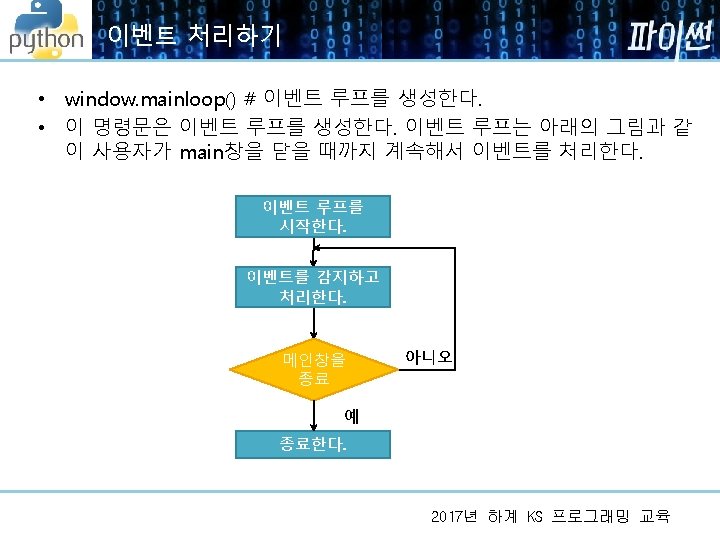
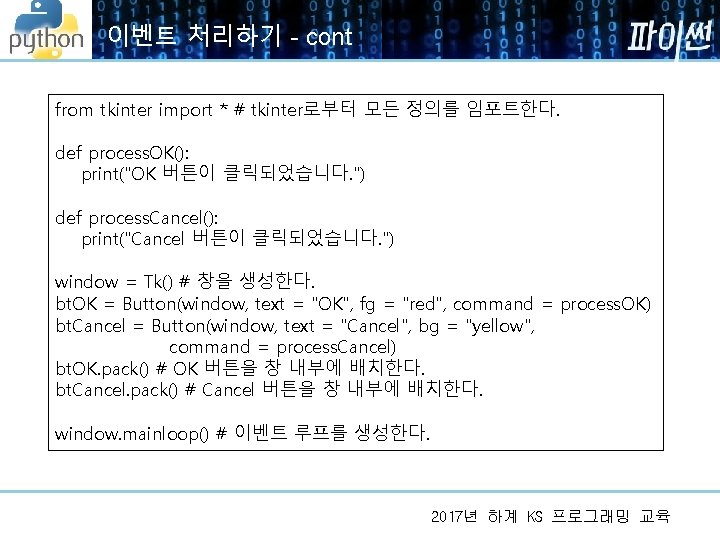
이벤트 처리하기 - cont from tkinter import * # tkinter로부터 모든 정의를 임포트한다. def process. OK(): print("OK 버튼이 클릭되었습니다. ") def process. Cancel(): print("Cancel 버튼이 클릭되었습니다. ") window = Tk() # 창을 생성한다. bt. OK = Button(window, text = "OK", fg = "red", command = process. OK) bt. Cancel = Button(window, text = "Cancel", bg = "yellow", command = process. Cancel) bt. OK. pack() # OK 버튼을 창 내부에 배치한다. bt. Cancel. pack() # Cancel 버튼을 창 내부에 배치한다. window. mainloop() # 이벤트 루프를 생성한다. 2017년 하계 KS 프로그래밍 교육
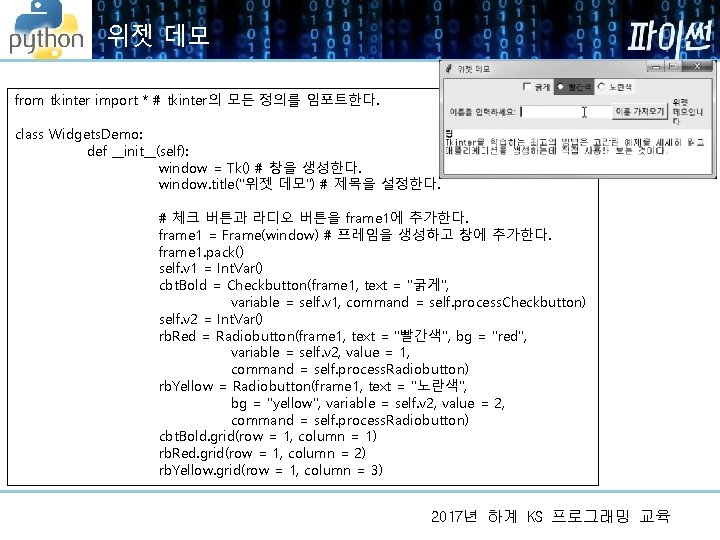
위젯 데모 from tkinter import * # tkinter의 모든 정의를 임포트한다. class Widgets. Demo: def __init__(self): window = Tk() # 창을 생성한다. window. title("위젯 데모") # 제목을 설정한다. # 체크 버튼과 라디오 버튼을 frame 1에 추가한다. frame 1 = Frame(window) # 프레임을 생성하고 창에 추가한다. frame 1. pack() self. v 1 = Int. Var() cbt. Bold = Checkbutton(frame 1, text = "굵게", variable = self. v 1, command = self. process. Checkbutton) self. v 2 = Int. Var() rb. Red = Radiobutton(frame 1, text = "빨간색", bg = "red", variable = self. v 2, value = 1, command = self. process. Radiobutton) rb. Yellow = Radiobutton(frame 1, text = "노란색", bg = "yellow", variable = self. v 2, value = 2, command = self. process. Radiobutton) cbt. Bold. grid(row = 1, column = 1) rb. Red. grid(row = 1, column = 2) rb. Yellow. grid(row = 1, column = 3) 2017년 하계 KS 프로그래밍 교육
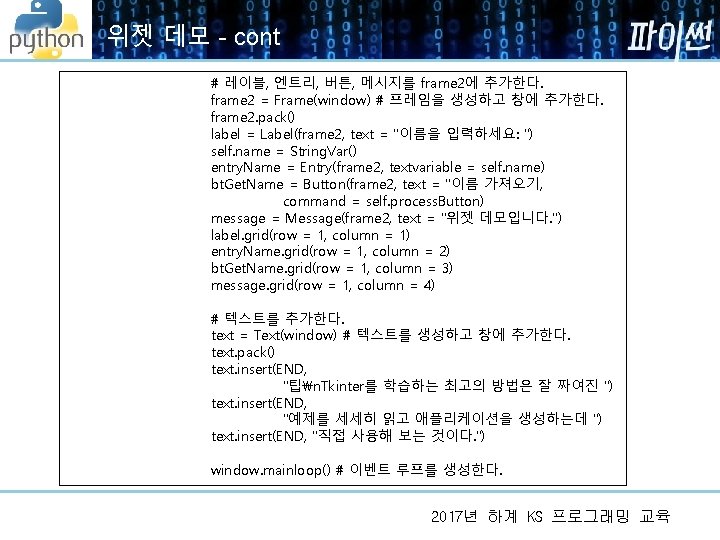
위젯 데모 - cont # 레이블, 엔트리, 버튼, 메시지를 frame 2에 추가한다. frame 2 = Frame(window) # 프레임을 생성하고 창에 추가한다. frame 2. pack() label = Label(frame 2, text = "이름을 입력하세요: ") self. name = String. Var() entry. Name = Entry(frame 2, textvariable = self. name) bt. Get. Name = Button(frame 2, text = "이름 가져오기, command = self. process. Button) message = Message(frame 2, text = "위젯 데모입니다. ") label. grid(row = 1, column = 1) entry. Name. grid(row = 1, column = 2) bt. Get. Name. grid(row = 1, column = 3) message. grid(row = 1, column = 4) # 텍스트를 추가한다. text = Text(window) # 텍스트를 생성하고 창에 추가한다. text. pack() text. insert(END, "팁n. Tkinter를 학습하는 최고의 방법은 잘 짜여진 ") text. insert(END, "예제를 세세히 읽고 애플리케이션을 생성하는데 ") text. insert(END, "직접 사용해 보는 것이다. ") window. mainloop() # 이벤트 루프를 생성한다. 2017년 하계 KS 프로그래밍 교육
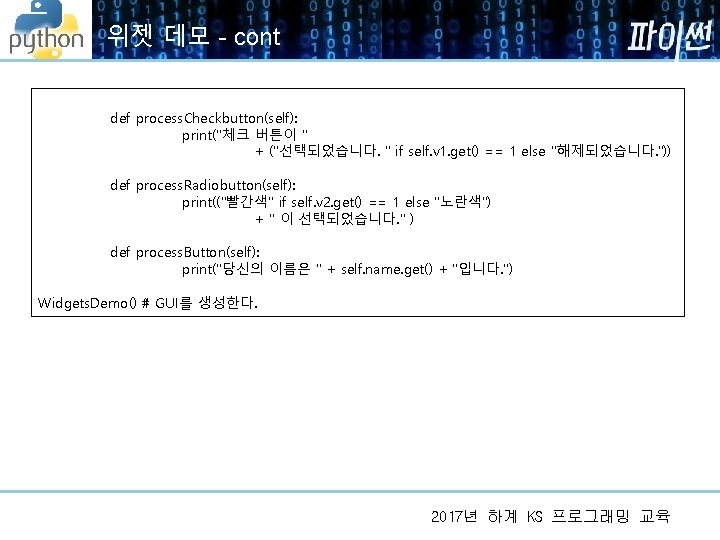
위젯 데모 - cont def process. Checkbutton(self): print("체크 버튼이 " + ("선택되었습니다. " if self. v 1. get() == 1 else "해제되었습니다. ")) def process. Radiobutton(self): print(("빨간색" if self. v 2. get() == 1 else "노란색") + " 이 선택되었습니다. " ) def process. Button(self): print("당신의 이름은 " + self. name. get() + "입니다. ") Widgets. Demo() # GUI를 생성한다. 2017년 하계 KS 프로그래밍 교육
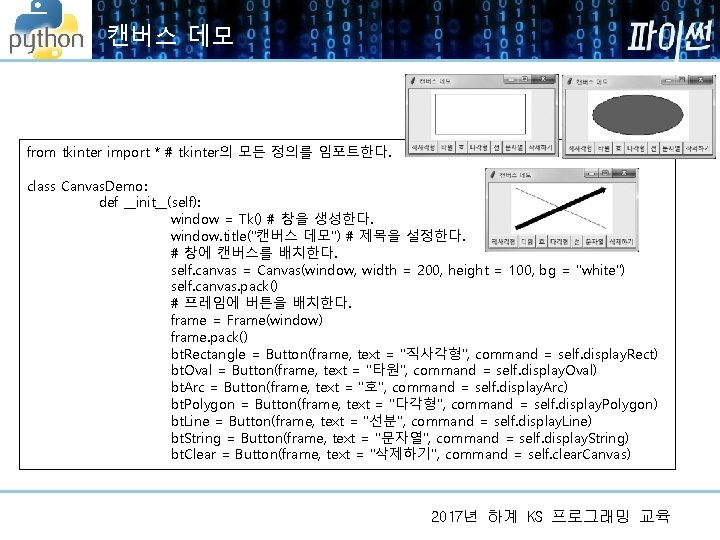
캔버스 데모 from tkinter import * # tkinter의 모든 정의를 임포트한다. class Canvas. Demo: def __init__(self): window = Tk() # 창을 생성한다. window. title("캔버스 데모") # 제목을 설정한다. # 창에 캔버스를 배치한다. self. canvas = Canvas(window, width = 200, height = 100, bg = "white") self. canvas. pack() # 프레임에 버튼을 배치한다. frame = Frame(window) frame. pack() bt. Rectangle = Button(frame, text = "직사각형", command = self. display. Rect) bt. Oval = Button(frame, text = "타원", command = self. display. Oval) bt. Arc = Button(frame, text = "호", command = self. display. Arc) bt. Polygon = Button(frame, text = "다각형", command = self. display. Polygon) bt. Line = Button(frame, text = "선분", command = self. display. Line) bt. String = Button(frame, text = "문자열", command = self. display. String) bt. Clear = Button(frame, text = "삭제하기", command = self. clear. Canvas) 2017년 하계 KS 프로그래밍 교육
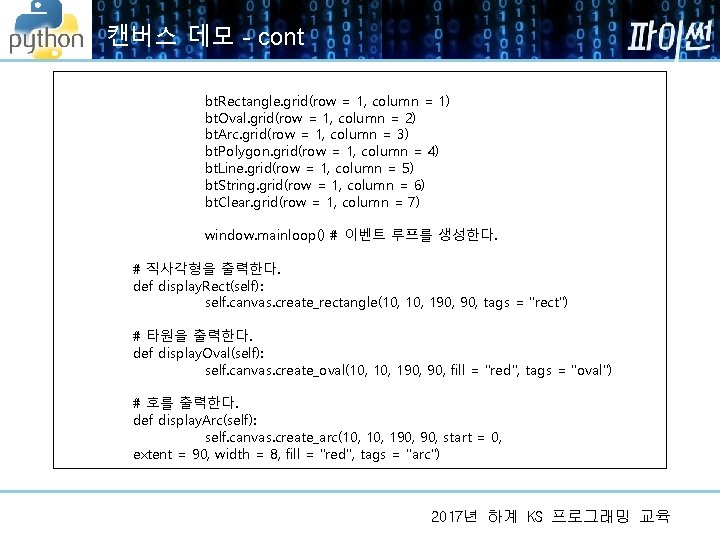
캔버스 데모 - cont bt. Rectangle. grid(row = 1, column = 1) bt. Oval. grid(row = 1, column = 2) bt. Arc. grid(row = 1, column = 3) bt. Polygon. grid(row = 1, column = 4) bt. Line. grid(row = 1, column = 5) bt. String. grid(row = 1, column = 6) bt. Clear. grid(row = 1, column = 7) window. mainloop() # 이벤트 루프를 생성한다. # 직사각형을 출력한다. def display. Rect(self): self. canvas. create_rectangle(10, 190, tags = "rect") # 타원을 출력한다. def display. Oval(self): self. canvas. create_oval(10, 190, fill = "red", tags = "oval") # 호를 출력한다. def display. Arc(self): self. canvas. create_arc(10, 190, start = 0, extent = 90, width = 8, fill = "red", tags = "arc") 2017년 하계 KS 프로그래밍 교육
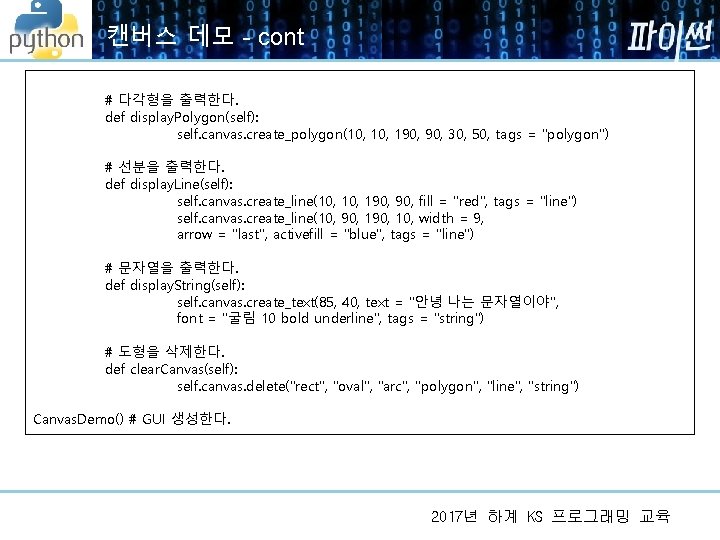
캔버스 데모 - cont # 다각형을 출력한다. def display. Polygon(self): self. canvas. create_polygon(10, 190, 30, 50, tags = "polygon") # 선분을 출력한다. def display. Line(self): self. canvas. create_line(10, 190, fill = "red", tags = "line") self. canvas. create_line(10, 90, 10, width = 9, arrow = "last", activefill = "blue", tags = "line") # 문자열을 출력한다. def display. String(self): self. canvas. create_text(85, 40, text = "안녕 나는 문자열이야", font = "굴림 10 bold underline", tags = "string") # 도형을 삭제한다. def clear. Canvas(self): self. canvas. delete("rect", "oval", "arc", "polygon", "line", "string") Canvas. Demo() # GUI 생성한다. 2017년 하계 KS 프로그래밍 교육
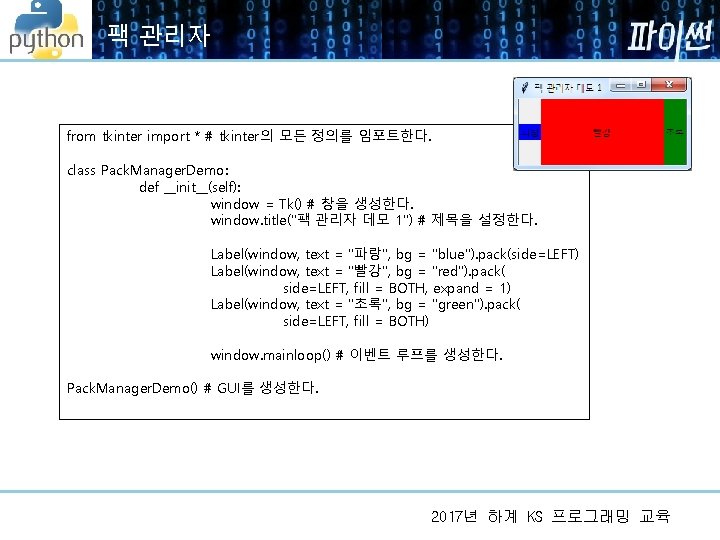
팩 관리자 from tkinter import * # tkinter의 모든 정의를 임포트한다. class Pack. Manager. Demo: def __init__(self): window = Tk() # 창을 생성한다. window. title("팩 관리자 데모 1") # 제목을 설정한다. Label(window, text = "파랑", bg = "blue"). pack(side=LEFT) Label(window, text = "빨강", bg = "red"). pack( side=LEFT, fill = BOTH, expand = 1) Label(window, text = "초록", bg = "green"). pack( side=LEFT, fill = BOTH) window. mainloop() # 이벤트 루프를 생성한다. Pack. Manager. Demo() # GUI를 생성한다. 2017년 하계 KS 프로그래밍 교육
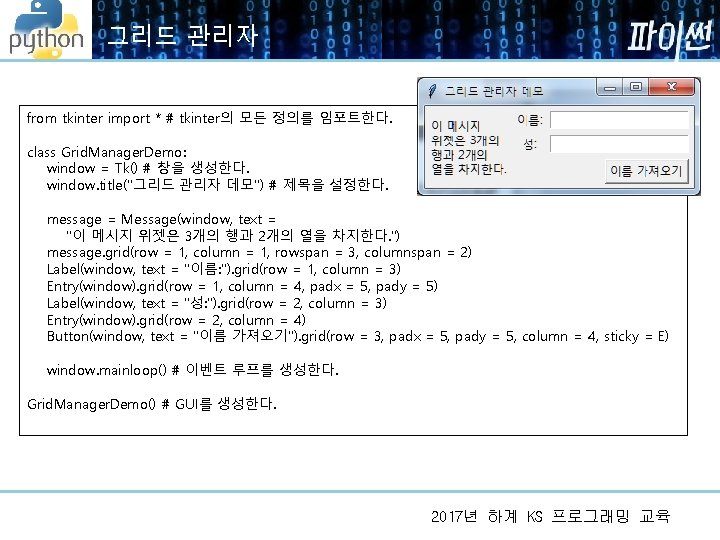
그리드 관리자 from tkinter import * # tkinter의 모든 정의를 임포트한다. class Grid. Manager. Demo: window = Tk() # 창을 생성한다. window. title("그리드 관리자 데모") # 제목을 설정한다. message = Message(window, text = "이 메시지 위젯은 3개의 행과 2개의 열을 차지한다. ") message. grid(row = 1, column = 1, rowspan = 3, columnspan = 2) Label(window, text = "이름: "). grid(row = 1, column = 3) Entry(window). grid(row = 1, column = 4, padx = 5, pady = 5) Label(window, text = "성: "). grid(row = 2, column = 3) Entry(window). grid(row = 2, column = 4) Button(window, text = "이름 가져오기"). grid(row = 3, padx = 5, pady = 5, column = 4, sticky = E) window. mainloop() # 이벤트 루프를 생성한다. Grid. Manager. Demo() # GUI를 생성한다. 2017년 하계 KS 프로그래밍 교육
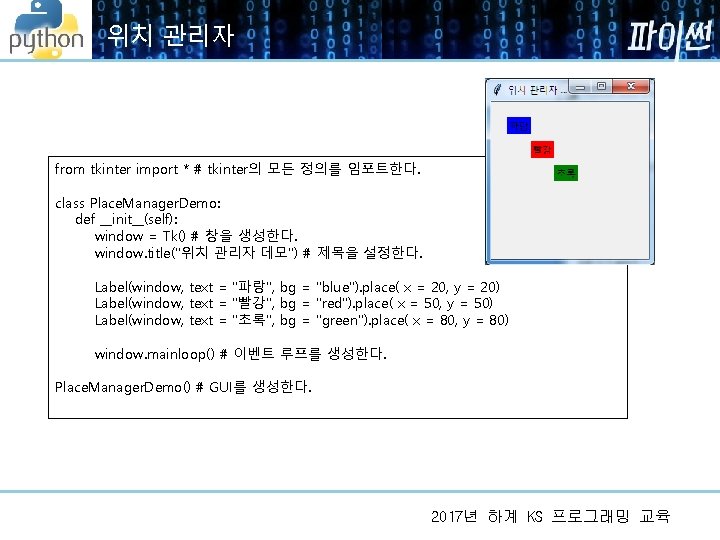
위치 관리자 from tkinter import * # tkinter의 모든 정의를 임포트한다. class Place. Manager. Demo: def __init__(self): window = Tk() # 창을 생성한다. window. title("위치 관리자 데모") # 제목을 설정한다. Label(window, text = "파랑", bg = "blue"). place( x = 20, y = 20) Label(window, text = "빨강", bg = "red"). place( x = 50, y = 50) Label(window, text = "초록", bg = "green"). place( x = 80, y = 80) window. mainloop() # 이벤트 루프를 생성한다. Place. Manager. Demo() # GUI를 생성한다. 2017년 하계 KS 프로그래밍 교육
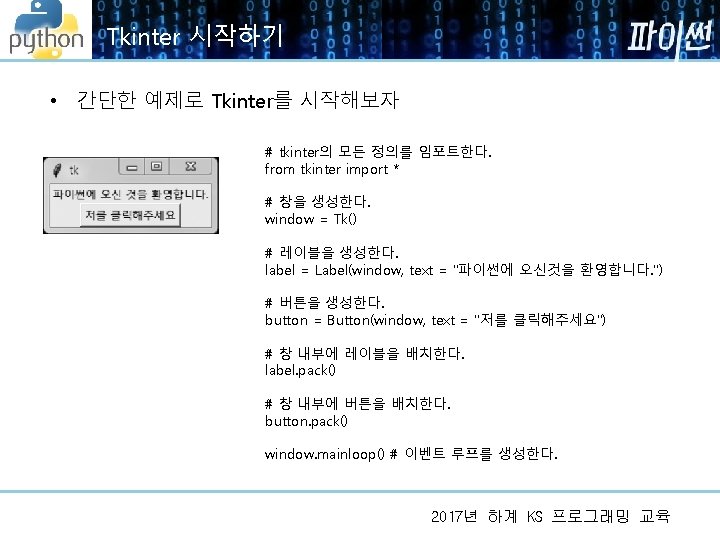
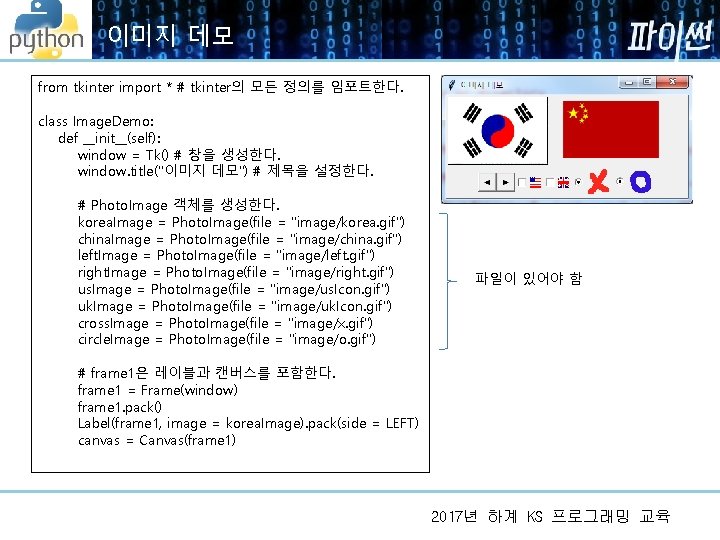
이미지 데모 from tkinter import * # tkinter의 모든 정의를 임포트한다. class Image. Demo: def __init__(self): window = Tk() # 창을 생성한다. window. title("이미지 데모") # 제목을 설정한다. # Photo. Image 객체를 생성한다. korea. Image = Photo. Image(file = "image/korea. gif") china. Image = Photo. Image(file = "image/china. gif") left. Image = Photo. Image(file = "image/left. gif") right. Image = Photo. Image(file = "image/right. gif") us. Image = Photo. Image(file = "image/us. Icon. gif") uk. Image = Photo. Image(file = "image/uk. Icon. gif") cross. Image = Photo. Image(file = "image/x. gif") circle. Image = Photo. Image(file = "image/o. gif") 파일이 있어야 함 # frame 1은 레이블과 캔버스를 포함한다. frame 1 = Frame(window) frame 1. pack() Label(frame 1, image = korea. Image). pack(side = LEFT) canvas = Canvas(frame 1) 2017년 하계 KS 프로그래밍 교육
이미지 데모 - cont canvas. create_image(90, 50, image = china. Image) canvas["width"] = 200 canvas["height"] = 100 canvas. pack(side = LEFT) # frame 2는 버튼, 체크 버튼, 라디오 버튼을 포함한다. frame 2 = Frame(window) frame 2. pack() Button(frame 2, image = left. Image). pack(side = LEFT) Button(frame 2, image = right. Image). pack(side = LEFT) Checkbutton(frame 2, image = us. Image). pack(side = LEFT) Checkbutton(frame 2, image = uk. Image). pack(side = LEFT) Radiobutton(frame 2, image = cross. Image). pack(side = LEFT) Radiobutton(frame 2, image = circle. Image). pack(side = LEFT) window. mainloop() # 이벤트 루프를 생성한다. Image. Demo() # GUI를 생성한다. 2017년 하계 KS 프로그래밍 교육
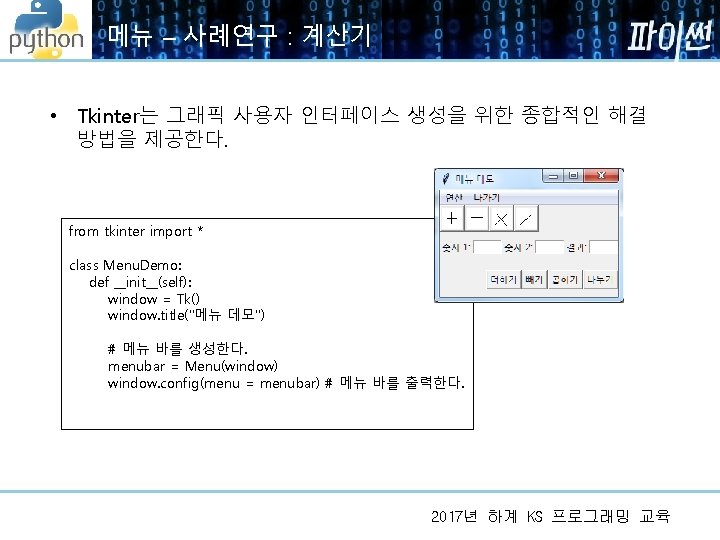
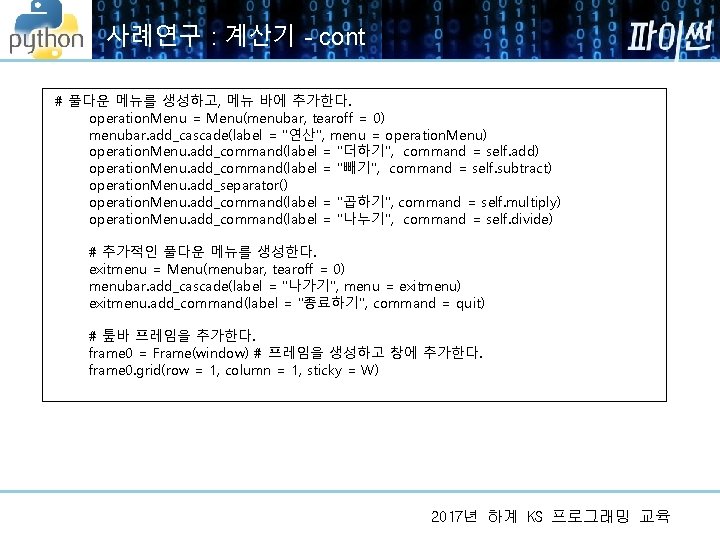
사례연구 : 계산기 - cont # 풀다운 메뉴를 생성하고, 메뉴 바에 추가한다. operation. Menu = Menu(menubar, tearoff = 0) menubar. add_cascade(label = "연산", menu = operation. Menu) operation. Menu. add_command(label = "더하기", command = self. add) operation. Menu. add_command(label = "빼기", command = self. subtract) operation. Menu. add_separator() operation. Menu. add_command(label = "곱하기", command = self. multiply) operation. Menu. add_command(label = "나누기", command = self. divide) # 추가적인 풀다운 메뉴를 생성한다. exitmenu = Menu(menubar, tearoff = 0) menubar. add_cascade(label = "나가기", menu = exitmenu) exitmenu. add_command(label = "종료하기", command = quit) # 퉆바 프레임을 추가한다. frame 0 = Frame(window) # 프레임을 생성하고 창에 추가한다. frame 0. grid(row = 1, column = 1, sticky = W) 2017년 하계 KS 프로그래밍 교육
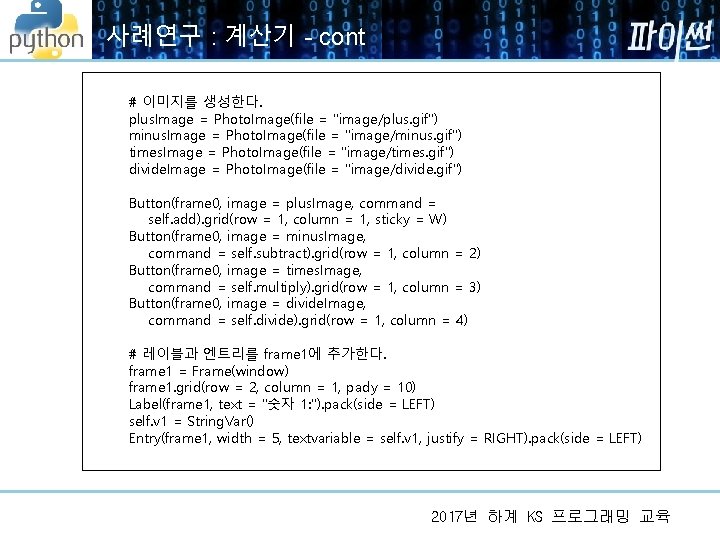
사례연구 : 계산기 - cont # 이미지를 생성한다. plus. Image = Photo. Image(file = "image/plus. gif") minus. Image = Photo. Image(file = "image/minus. gif") times. Image = Photo. Image(file = "image/times. gif") divide. Image = Photo. Image(file = "image/divide. gif") Button(frame 0, image = plus. Image, command = self. add). grid(row = 1, column = 1, sticky = W) Button(frame 0, image = minus. Image, command = self. subtract). grid(row = 1, column = 2) Button(frame 0, image = times. Image, command = self. multiply). grid(row = 1, column = 3) Button(frame 0, image = divide. Image, command = self. divide). grid(row = 1, column = 4) # 레이블과 엔트리를 frame 1에 추가한다. frame 1 = Frame(window) frame 1. grid(row = 2, column = 1, pady = 10) Label(frame 1, text = "숫자 1: "). pack(side = LEFT) self. v 1 = String. Var() Entry(frame 1, width = 5, textvariable = self. v 1, justify = RIGHT). pack(side = LEFT) 2017년 하계 KS 프로그래밍 교육
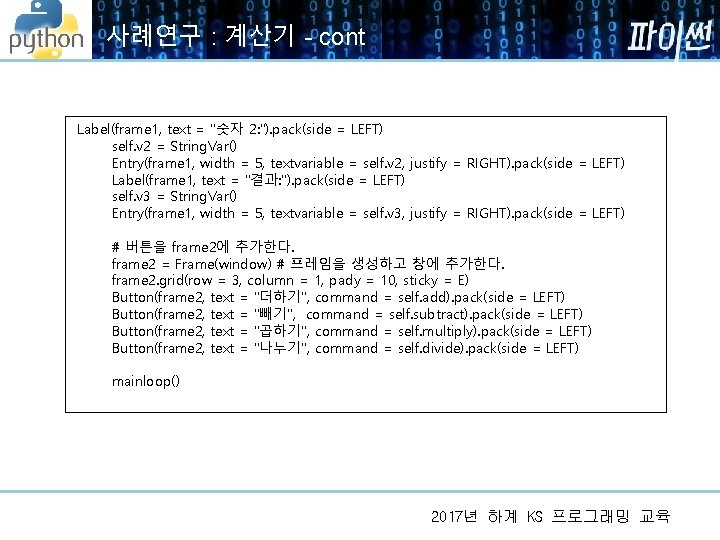
사례연구 : 계산기 - cont Label(frame 1, text = "숫자 2: "). pack(side = LEFT) self. v 2 = String. Var() Entry(frame 1, width = 5, textvariable = self. v 2, justify = RIGHT). pack(side = LEFT) Label(frame 1, text = "결과: "). pack(side = LEFT) self. v 3 = String. Var() Entry(frame 1, width = 5, textvariable = self. v 3, justify = RIGHT). pack(side = LEFT) # 버튼을 frame 2에 추가한다. frame 2 = Frame(window) # 프레임을 생성하고 창에 추가한다. frame 2. grid(row = 3, column = 1, pady = 10, sticky = E) Button(frame 2, text = "더하기", command = self. add). pack(side = LEFT) Button(frame 2, text = "빼기", command = self. subtract). pack(side = LEFT) Button(frame 2, text = "곱하기", command = self. multiply). pack(side = LEFT) Button(frame 2, text = "나누기", command = self. divide). pack(side = LEFT) mainloop() 2017년 하계 KS 프로그래밍 교육
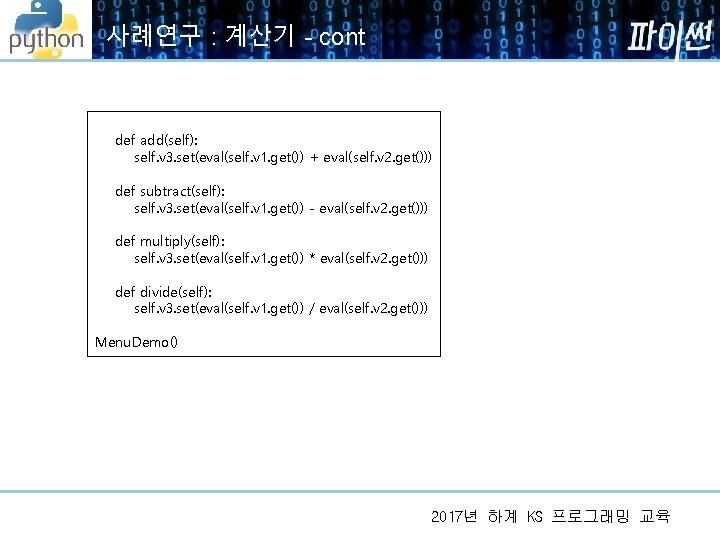
사례연구 : 계산기 - cont def add(self): self. v 3. set(eval(self. v 1. get()) + eval(self. v 2. get())) def subtract(self): self. v 3. set(eval(self. v 1. get()) - eval(self. v 2. get())) def multiply(self): self. v 3. set(eval(self. v 1. get()) * eval(self. v 2. get())) def divide(self): self. v 3. set(eval(self. v 1. get()) / eval(self. v 2. get())) Menu. Demo() 2017년 하계 KS 프로그래밍 교육
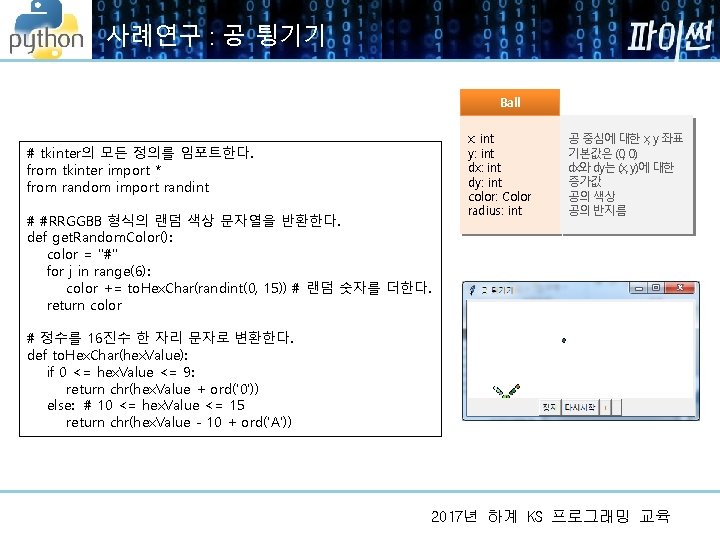
사례연구 : 공 튕기기 Ball # tkinter의 모든 정의를 임포트한다. from tkinter import * from random import randint # #RRGGBB 형식의 랜덤 색상 문자열을 반환한다. def get. Random. Color(): color = "#" for j in range(6): color += to. Hex. Char(randint(0, 15)) # 랜덤 숫자를 더한다. return color x: int y: int dx: int dy: int color: Color radius: int 공 중심에 대한 x, y 좌표 기본값은 (0, 0) dx와 dy는 (x, y)에 대한 증가값 공의 색상 공의 반지름 # 정수를 16진수 한 자리 문자로 변환한다. def to. Hex. Char(hex. Value): if 0 <= hex. Value <= 9: return chr(hex. Value + ord('0')) else: # 10 <= hex. Value <= 15 return chr(hex. Value - 10 + ord('A')) 2017년 하계 KS 프로그래밍 교육
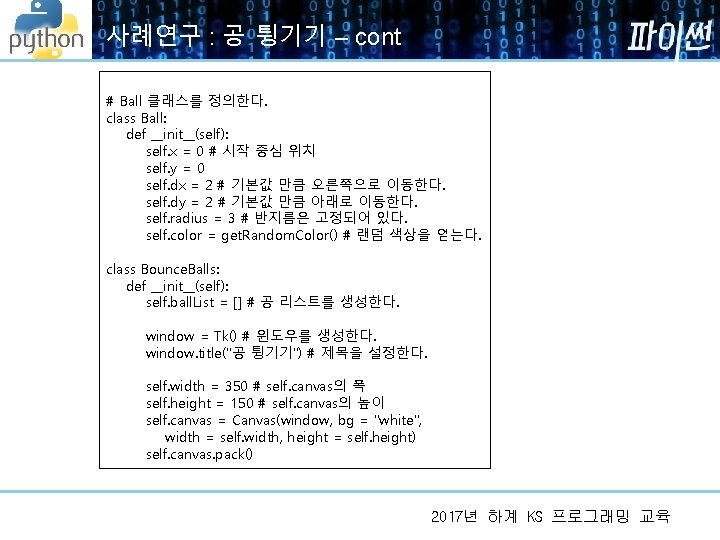
사례연구 : 공 튕기기 – cont # Ball 클래스를 정의한다. class Ball: def __init__(self): self. x = 0 # 시작 중심 위치 self. y = 0 self. dx = 2 # 기본값 만큼 오른쪽으로 이동한다. self. dy = 2 # 기본값 만큼 아래로 이동한다. self. radius = 3 # 반지름은 고정되어 있다. self. color = get. Random. Color() # 랜덤 색상을 얻는다. class Bounce. Balls: def __init__(self): self. ball. List = [] # 공 리스트를 생성한다. window = Tk() # 윈도우를 생성한다. window. title("공 튕기기") # 제목을 설정한다. self. width = 350 # self. canvas의 폭 self. height = 150 # self. canvas의 높이 self. canvas = Canvas(window, bg = "white", width = self. width, height = self. height) self. canvas. pack() 2017년 하계 KS 프로그래밍 교육
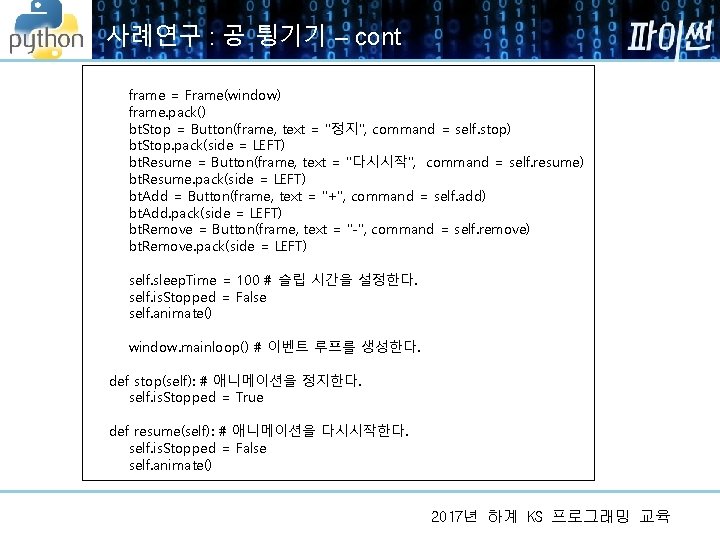
사례연구 : 공 튕기기 – cont frame = Frame(window) frame. pack() bt. Stop = Button(frame, text = "정지", command = self. stop) bt. Stop. pack(side = LEFT) bt. Resume = Button(frame, text = "다시시작", command = self. resume) bt. Resume. pack(side = LEFT) bt. Add = Button(frame, text = "+", command = self. add) bt. Add. pack(side = LEFT) bt. Remove = Button(frame, text = "-", command = self. remove) bt. Remove. pack(side = LEFT) self. sleep. Time = 100 # 슬립 시간을 설정한다. self. is. Stopped = False self. animate() window. mainloop() # 이벤트 루프를 생성한다. def stop(self): # 애니메이션을 정지한다. self. is. Stopped = True def resume(self): # 애니메이션을 다시시작한다. self. is. Stopped = False self. animate() 2017년 하계 KS 프로그래밍 교육
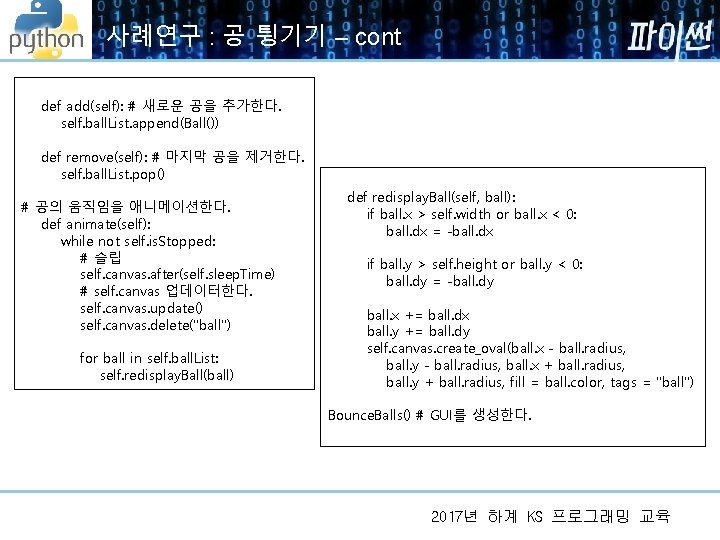
사례연구 : 공 튕기기 – cont def add(self): # 새로운 공을 추가한다. self. ball. List. append(Ball()) def remove(self): # 마지막 공을 제거한다. self. ball. List. pop() # 공의 움직임을 애니메이션한다. def animate(self): while not self. is. Stopped: # 슬립 self. canvas. after(self. sleep. Time) # self. canvas 업데이터한다. self. canvas. update() self. canvas. delete("ball") for ball in self. ball. List: self. redisplay. Ball(ball) def redisplay. Ball(self, ball): if ball. x > self. width or ball. x < 0: ball. dx = -ball. dx if ball. y > self. height or ball. y < 0: ball. dy = -ball. dy ball. x += ball. dx ball. y += ball. dy self. canvas. create_oval(ball. x - ball. radius, ball. y - ball. radius, ball. x + ball. radius, ball. y + ball. radius, fill = ball. color, tags = "ball") Bounce. Balls() # GUI를 생성한다. 2017년 하계 KS 프로그래밍 교육
Reference • 파이썬, Y. Daniel Liang 저, 길준민, 정재화 역, 생능출판 • Introduction to Programming Using Python, Y. Daniel Liang – 저자 사이트 : http: //www. cs. armstrong. edu/liang/py/ 2017년 하계 KS 프로그래밍 교육