ZOOM ACCOUNT MEETING AND SET UP CONTINGENCY PLAN
- Slides: 10
ZOOM ACCOUNT MEETING AND SET UP CONTINGENCY PLAN FOR DISRUPTION TO COURSES THAT MEET ON CAMPUS DCE Web Conference Team (617) 998 -8571 webconference@dce. harvard. edu ZOOM TRAINING
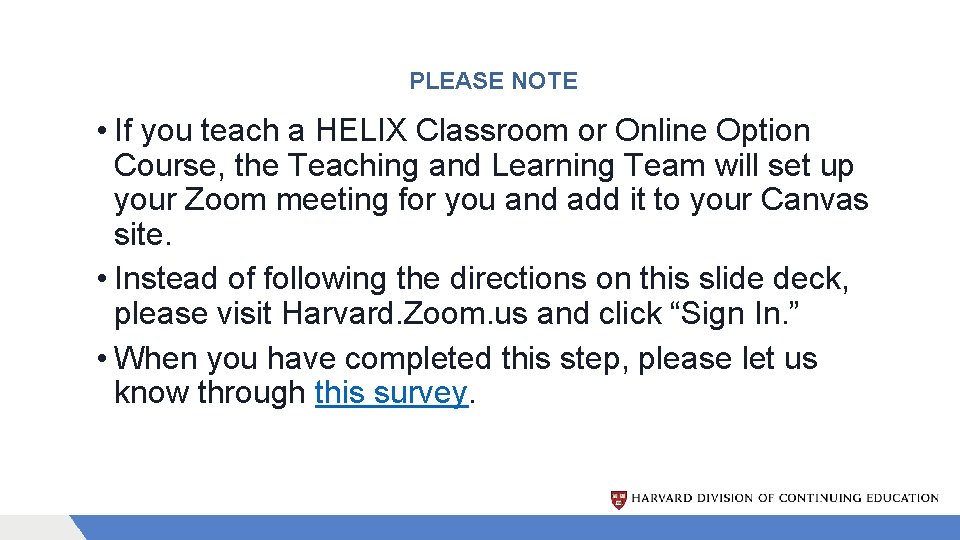
PLEASE NOTE • If you teach a HELIX Classroom or Online Option Course, the Teaching and Learning Team will set up your Zoom meeting for you and add it to your Canvas site. • Instead of following the directions on this slide deck, please visit Harvard. Zoom. us and click “Sign In. ” • When you have completed this step, please let us know through this survey.
WEBSITE FOR HARVARD EXTENSION SCHOOL DISRUPTION CONTINGENCY PLAN Please visit the DCE contingency planning website for further help docs, trainings, and more information.
SUGGESTIONS • Test your link well before class time to make sure you can start the class • Practice using Zoom well before class time. If you have co-instructors and/or TAs, you should practice together • Do not put the link to your meeting in your syllabus since the syllabus page on Canvas is world-viewable • Make student expectations clear • Have students mute their mics when they’re not speaking • Contact the web conference team for help: (617) 998 -8571, webconference@dce. harvard. edu
CREATING AN ACCOUNT AND MEETING • You need a Zoom account to create a meeting for your class. • If you already have a Zoom account through Harvard, you do need to create an account. Skip slides 6 -8.
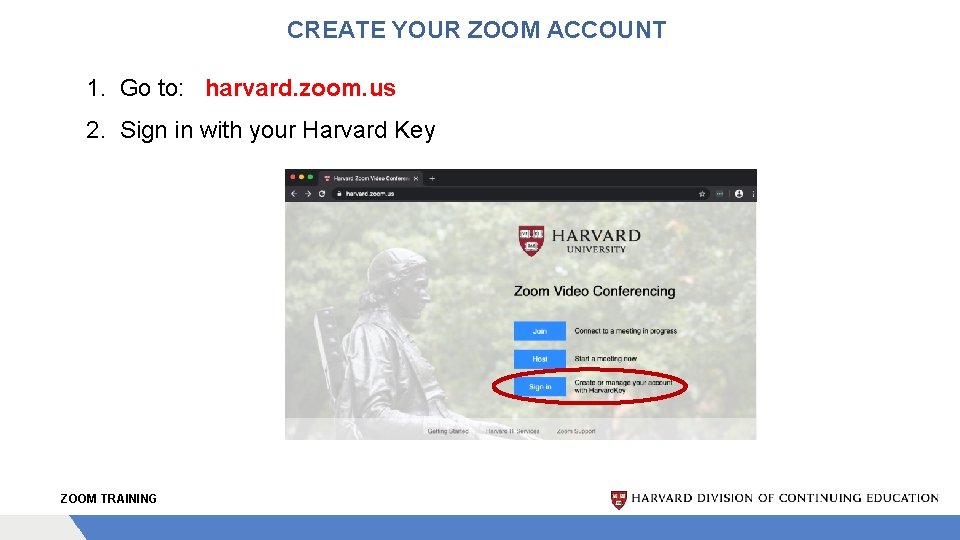
CREATE YOUR ZOOM ACCOUNT 1. Go to: harvard. zoom. us 2. Sign in with your Harvard Key ZOOM TRAINING
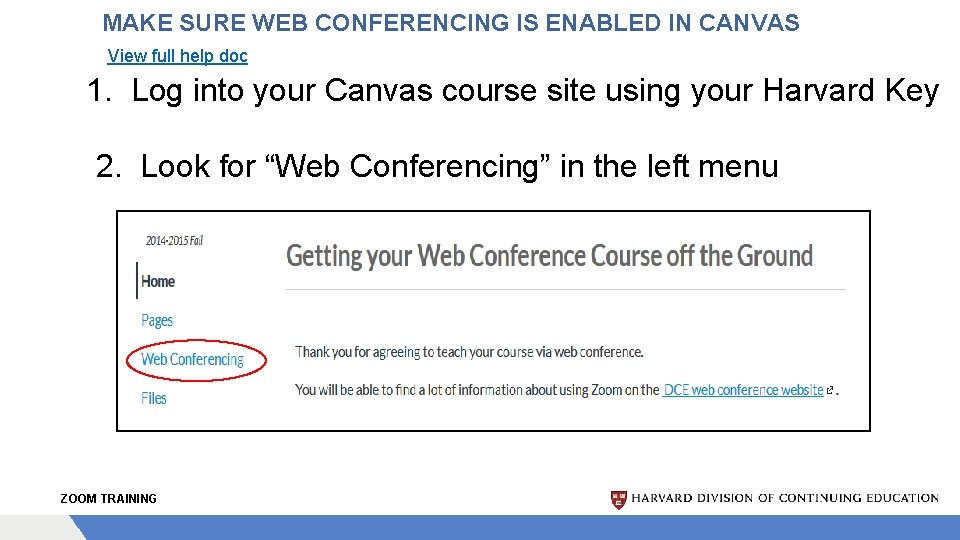
MAKE SURE WEB CONFERENCING IS ENABLED IN CANVAS View full help doc 1. Log into your Canvas course site using your Harvard Key 2. Look for “Web Conferencing” in the left menu ZOOM TRAINING
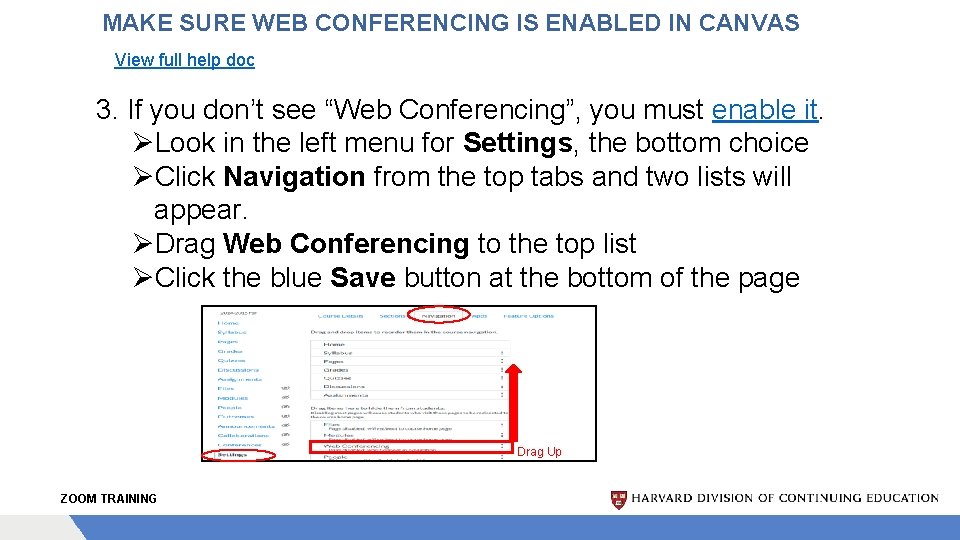
MAKE SURE WEB CONFERENCING IS ENABLED IN CANVAS View full help doc 3. If you don’t see “Web Conferencing”, you must enable it. ØLook in the left menu for Settings, the bottom choice ØClick Navigation from the top tabs and two lists will appear. ØDrag Web Conferencing to the top list ØClick the blue Save button at the bottom of the page Drag Up ZOOM TRAINING
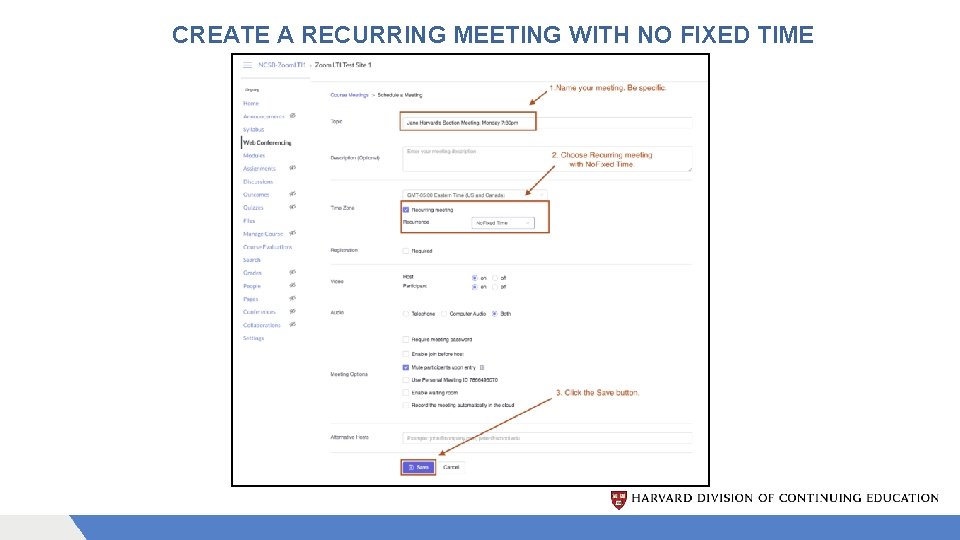
CREATE YOUR MEETING CREATE A RECURRING MEETING WITH NO FIXED TIME View full help doc 1. Click on Web Conferencing from the left menu 2. Click on the Schedule a New Meeting button in the top right corner 3. Name your meeting. Be descriptive, such as ECON E-123 Mon. 5: 30 -7: 30 4. IMPORTANT: Click the box for a Recurring meeting then, and under recurrence, choose no fixed time 5. Click the box next to Mute participants upon entry The next page has a picture of what you’ll see during this process. ZOOM TRAINING
CREATE A RECURRING MEETING WITH NO FIXED TIME