Training Flow Charts Non RFI Turnin RFI Offload
- Slides: 7
Training Flow Charts • Non RFI Turn-in • RFI Offload • Other Processing • Manifesting • Update POS/POD • CLF Module TARP Website: https: //www. tarp. navicp. navy. mil/ TARP Toll Free Help Line: 866 -ICPTARP (427 -8277) e. RMS Website: https: //mril. navsisa. navy. mil/erms
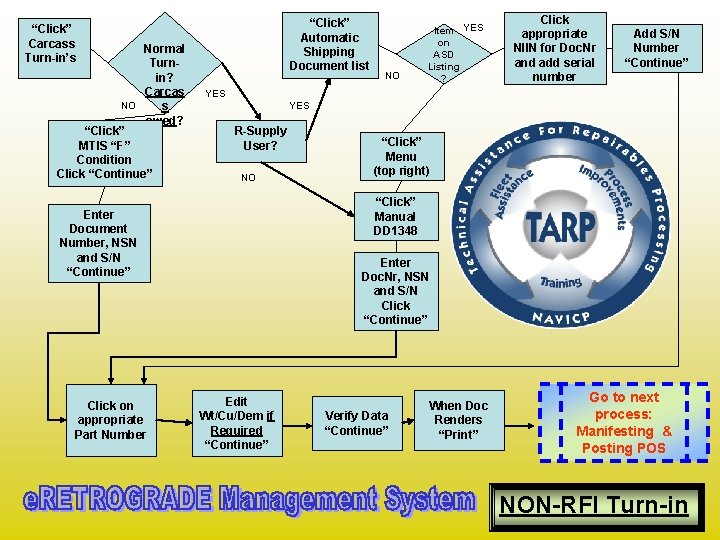
“Click” Automatic Shipping Document list “Click” Carcass Turn-in’s Normal Turnin? Carcas NO s owed? “Click” MTIS “F” Condition Click “Continue” Click appropriate NIIN for Doc. Nr and add serial number Add S/N Number “Continue” YES R-Supply User? NO “Click” Menu (top right) “Click” Manual DD 1348 Enter Document Number, NSN and S/N “Continue” Click on appropriate Part Number NO Item YES on ASD Listing ? Enter Doc. Nr, NSN and S/N Click “Continue” Edit Wt/Cu/Dem if Required “Continue” Verify Data “Continue” When Doc Renders “Print” Go to next process: Manifesting & Posting POS NON-RFI Turn-in
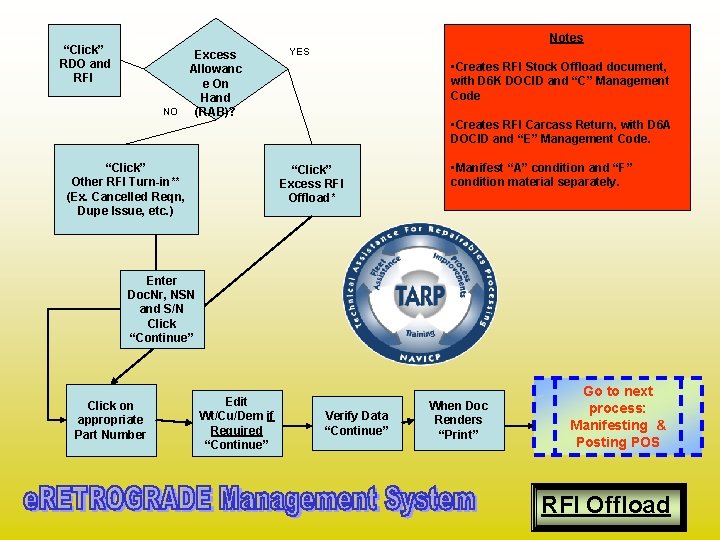
Notes “Click” RDO and RFI Excess Allowanc e On Hand NO (RAB)? “Click” Other RFI Turn-in** (Ex. Cancelled Reqn, Dupe Issue, etc. ) YES • Creates RFI Stock Offload document, with D 6 K DOCID and “C” Management Code • Creates RFI Carcass Return, with D 6 A DOCID and “E” Management Code. “Click” Excess RFI Offload* • Manifest “A” condition and “F” condition material separately. Enter Doc. Nr, NSN and S/N Click “Continue” Click on appropriate Part Number Edit Wt/Cu/Dem if Required “Continue” Verify Data “Continue” When Doc Renders “Print” Go to next process: Manifesting & Posting POS RFI Offload
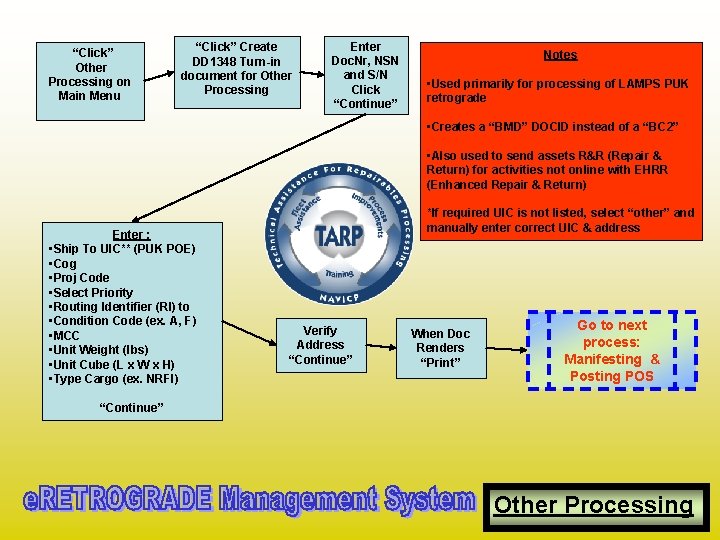
“Click” Other Processing on Main Menu “Click” Create DD 1348 Turn-in document for Other Processing Enter Doc. Nr, NSN and S/N Click “Continue” Notes • Used primarily for processing of LAMPS PUK retrograde • Creates a “BMD” DOCID instead of a “BC 2” • Also used to send assets R&R (Repair & Return) for activities not online with EHRR (Enhanced Repair & Return) Enter : • Ship To UIC** (PUK POE) • Cog • Proj Code • Select Priority • Routing Identifier (RI) to • Condition Code (ex. A, F) • MCC • Unit Weight (lbs) • Unit Cube (L x W x H) • Type Cargo (ex. NRFI) *If required UIC is not listed, select “other” and manually enter correct UIC & address Verify Address “Continue” When Doc Renders “Print” Go to next process: Manifesting & Posting POS “Continue” Other Processing
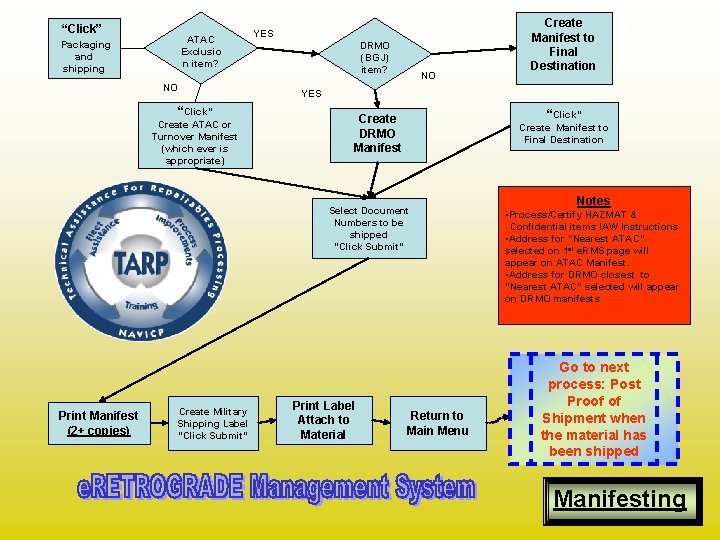
“Click” ATAC Exclusio n item? Packaging and shipping NO “Click” Create ATAC or Turnover Manifest (which ever is appropriate) YES DRMO (BGJ) item? NO YES “Click” Create Manifest to Final Destination Create DRMO Manifest Select Document Numbers to be shipped “Click Submit” Print Manifest (2+ copies) Create Military Shipping Label “Click Submit” Create Manifest to Final Destination Print Label Attach to Material Return to Main Menu Notes • Process/Certify HAZMAT & Confidential items IAW Instructions • Address for “Nearest ATAC” selected on 1 st e. RMS page will appear on ATAC Manifest. • Address for DRMO closest to “Nearest ATAC” selected will appear on DRMO manifests Go to next process: Post Proof of Shipment when the material has been shipped Manifesting
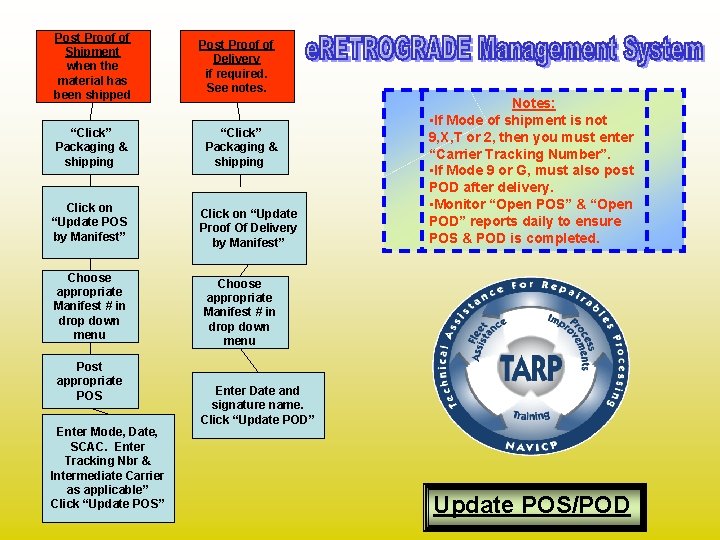
Post Proof of Shipment when the material has been shipped “Click” Packaging & shipping Click on “Update POS by Manifest” Choose appropriate Manifest # in drop down menu Post appropriate POS Enter Mode, Date, SCAC. Enter Tracking Nbr & Intermediate Carrier as applicable” Click “Update POS” Post Proof of Delivery if required. See notes. “Click” Packaging & shipping Click on “Update Proof Of Delivery by Manifest” Notes: • If Mode of shipment is not 9, X, T or 2, then you must enter “Carrier Tracking Number”. • If Mode 9 or G, must also post POD after delivery. • Monitor “Open POS” & “Open POD” reports daily to ensure POS & POD is completed. Choose appropriate Manifest # in drop down menu Enter Date and signature name. Click “Update POD” Update POS/POD
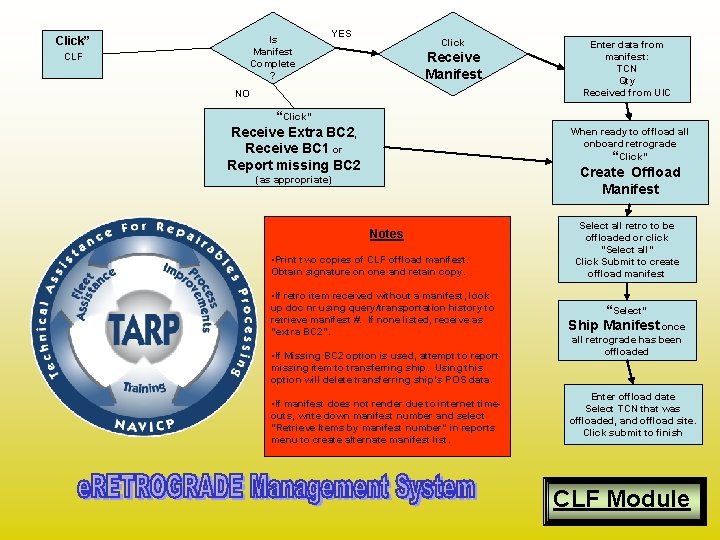
Is Manifest Complete ? Click” CLF YES Click Receive Manifest NO Enter data from manifest: TCN Qty Received from UIC “Click” Receive Extra BC 2, Receive BC 1 or Report missing BC 2 When ready to offload all onboard retrograde “Click” Create Offload Manifest (as appropriate) Notes • Print two copies of CLF offload manifest. Obtain signature on one and retain copy. • If retro item received without a manifest, look up doc nr using query/transportation history to retrieve manifest #. If none listed, receive as “extra BC 2”. • If Missing BC 2 option is used, attempt to report missing item to transferring ship. Using this option will delete transferring ship’s POS data. • If manifest does not render due to internet timeouts, write down manifest number and select “Retrieve Items by manifest number” in reports menu to create alternate manifest list. Select all retro to be offloaded or click “Select all” Click Submit to create offload manifest “Select” Ship Manifest once all retrograde has been offloaded Enter offload date Select TCN that was offloaded, and offload site. Click submit to finish CLF Module