Student Orientation to ALEKS Higher Ed Agenda 1







- Slides: 22
Student Orientation to ALEKS Higher Ed
Agenda 1 What is ALEKS? 2 Getting Started 3 Learning in ALEKS 4 Key Tips for Success 5 Registration and Resources
1 What is ALEKS?
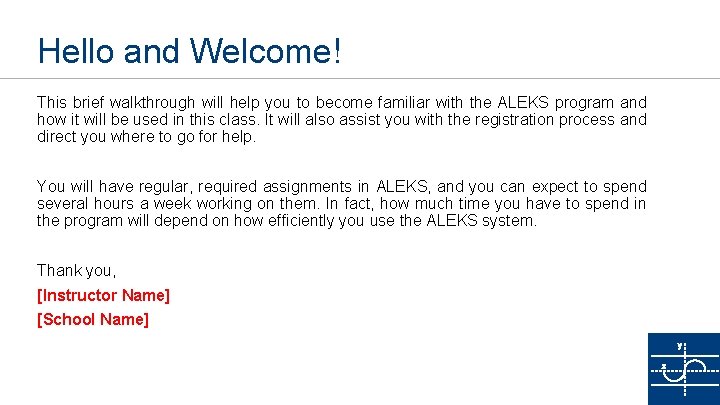
Hello and Welcome! This brief walkthrough will help you to become familiar with the ALEKS program and how it will be used in this class. It will also assist you with the registration process and direct you where to go for help. You will have regular, required assignments in ALEKS, and you can expect to spend several hours a week working on them. In fact, how much time you have to spend in the program will depend on how efficiently you use the ALEKS system. Thank you, [Instructor Name] [School Name]
What is the ALEKS system? ALEKS stands for Assessment and Learning in Knowledge Spaces. It is an individualized, adaptive learning tool that is unlike any other online program available today. Think of it as a human tutor designed to help you learn math. ALEKS uses artificial intelligence to determine what you know, what you don’t know, and what you are most ready to learn. ALEKS then creates a personalized learning plan that gets you to the finish line in the most efficient way. To make sure that you remember what you learn, ALEKS will check your knowledge. These Knowledge Checks are designed to help you, so take them seriously! Treat ALEKS well and it will treat you well.
2 Getting Started
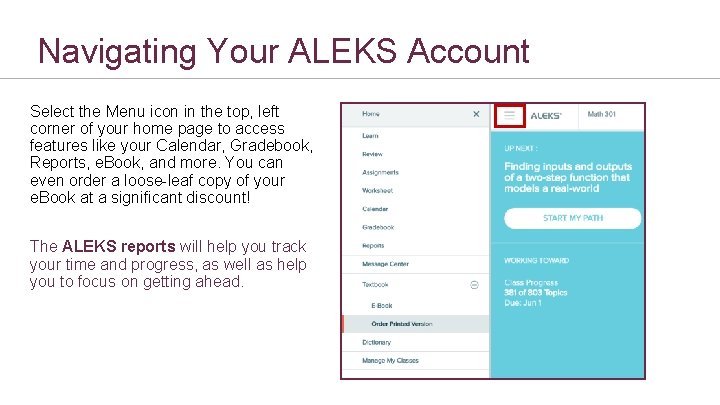
Navigating Your ALEKS Account Select the Menu icon in the top, left corner of your home page to access features like your Calendar, Gradebook, Reports, e. Book, and more. You can even order a loose-leaf copy of your e. Book at a significant discount! The ALEKS reports will help you track your time and progress, as well as help you to focus on getting ahead.
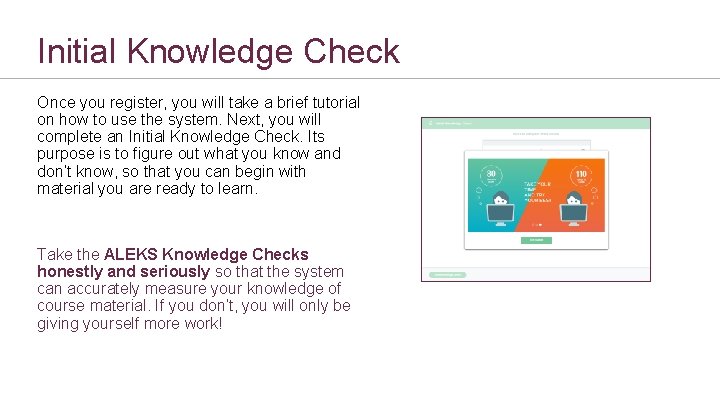
Initial Knowledge Check Once you register, you will take a brief tutorial on how to use the system. Next, you will complete an Initial Knowledge Check. Its purpose is to figure out what you know and don’t know, so that you can begin with material you are ready to learn. Take the ALEKS Knowledge Checks honestly and seriously so that the system can accurately measure your knowledge of course material. If you don’t, you will only be giving yourself more work!
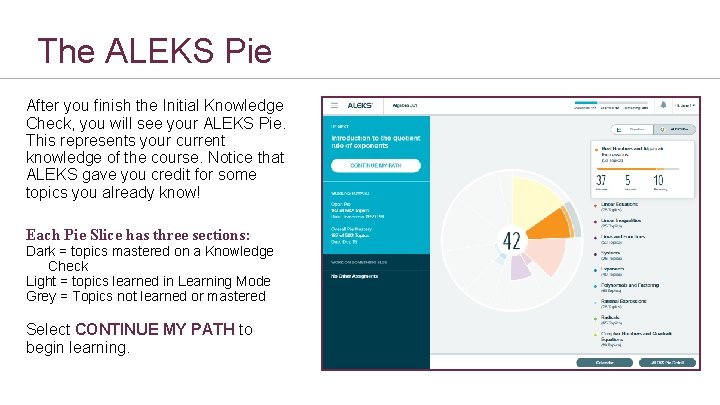
The ALEKS Pie After you finish the Initial Knowledge Check, you will see your ALEKS Pie. This represents your current knowledge of the course. Notice that ALEKS gave you credit for some topics you already know! Each Pie Slice has three sections: Dark = topics mastered on a Knowledge Check Light = topics learned in Learning Mode Grey = Topics not learned or mastered Select CONTINUE MY PATH to begin learning.
3 Learning in ALEKS
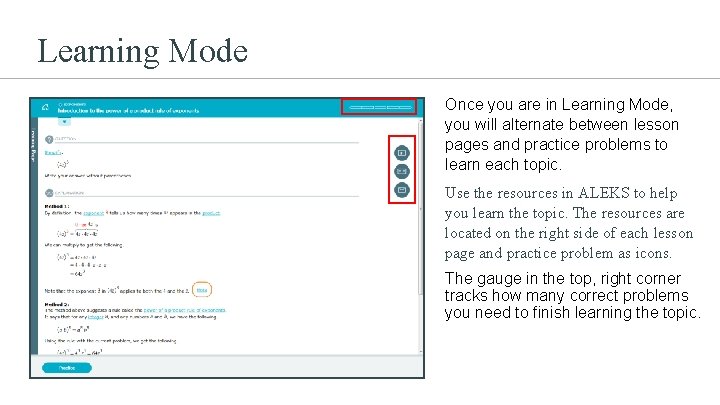
Learning Mode Once you are in Learning Mode, you will alternate between lesson pages and practice problems to learn each topic. Use the resources in ALEKS to help you learn the topic. The resources are located on the right side of each lesson page and practice problem as icons. The gauge in the top, right corner tracks how many correct problems you need to finish learning the topic.
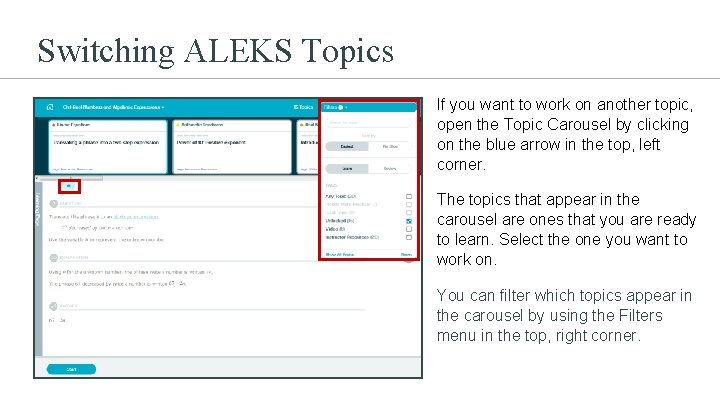
Switching ALEKS Topics If you want to work on another topic, open the Topic Carousel by clicking on the blue arrow in the top, left corner. The topics that appear in the carousel are ones that you are ready to learn. Select the one you want to work on. You can filter which topics appear in the carousel by using the Filters menu in the top, right corner.
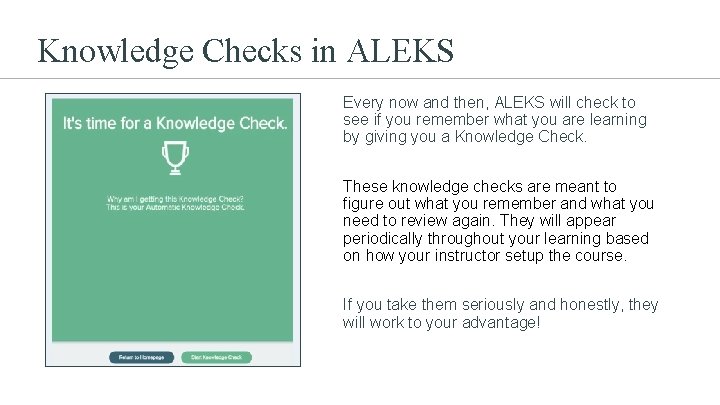
Knowledge Checks in ALEKS Every now and then, ALEKS will check to see if you remember what you are learning by giving you a Knowledge Check. These knowledge checks are meant to figure out what you remember and what you need to review again. They will appear periodically throughout your learning based on how your instructor setup the course. If you take them seriously and honestly, they will work to your advantage!
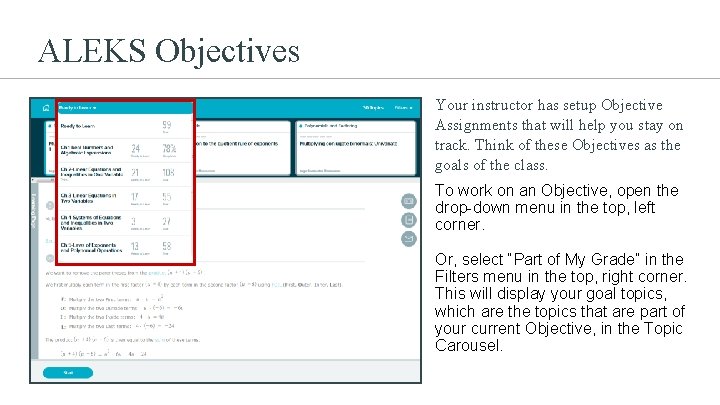
ALEKS Objectives Your instructor has setup Objective Assignments that will help you stay on track. Think of these Objectives as the goals of the class. To work on an Objective, open the drop-down menu in the top, left corner. Or, select “Part of My Grade” in the Filters menu in the top, right corner. This will display your goal topics, which are the topics that are part of your current Objective, in the Topic Carousel.
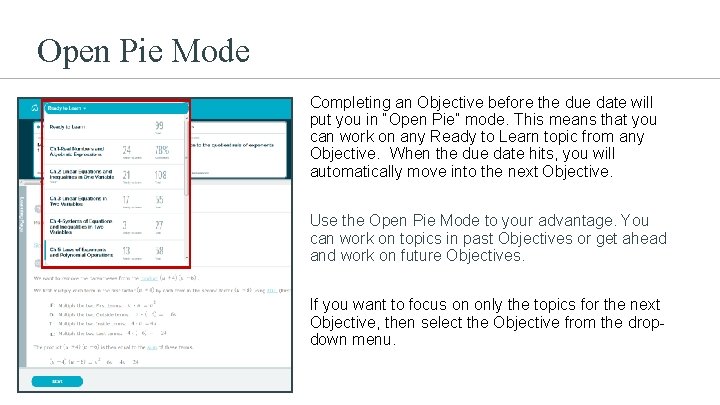
Open Pie Mode Completing an Objective before the due date will put you in “Open Pie” mode. This means that you can work on any Ready to Learn topic from any Objective. When the due date hits, you will automatically move into the next Objective. Use the Open Pie Mode to your advantage. You can work on topics in past Objectives or get ahead and work on future Objectives. If you want to focus on only the topics for the next Objective, then select the Objective from the dropdown menu.
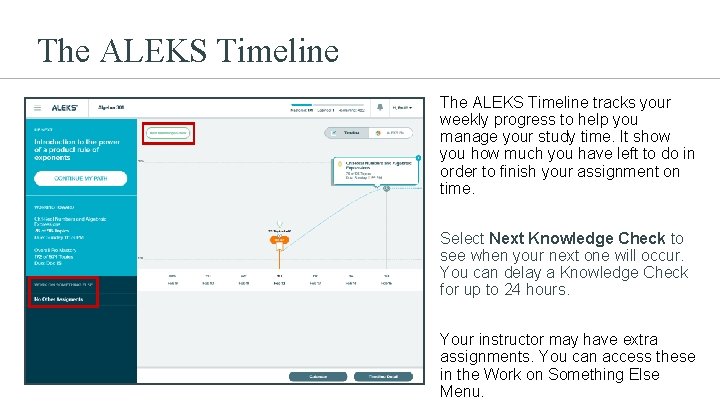
The ALEKS Timeline tracks your weekly progress to help you manage your study time. It show you how much you have left to do in order to finish your assignment on time. Select Next Knowledge Check to see when your next one will occur. You can delay a Knowledge Check for up to 24 hours. Your instructor may have extra assignments. You can access these in the Work on Something Else Menu.
4 Key Tips for Success
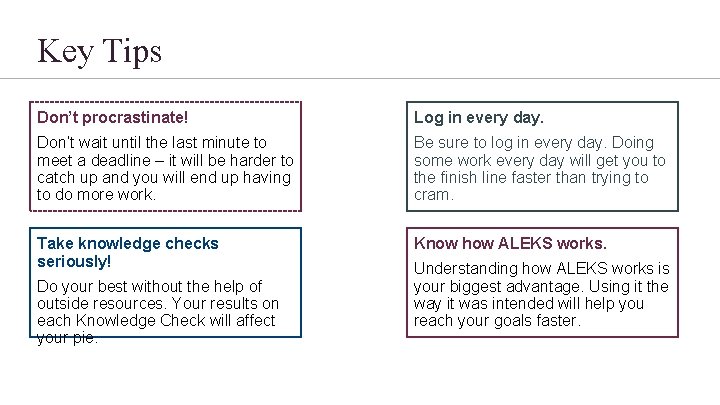
Key Tips Don’t procrastinate! Log in every day. Don’t wait until the last minute to meet a deadline – it will be harder to catch up and you will end up having to do more work. Be sure to log in every day. Doing some work every day will get you to the finish line faster than trying to cram. Take knowledge checks seriously! Know how ALEKS works. Do your best without the help of outside resources. Your results on each Knowledge Check will affect your pie. Understanding how ALEKS works is your biggest advantage. Using it the way it was intended will help you reach your goals faster.
5 Registration and Resources
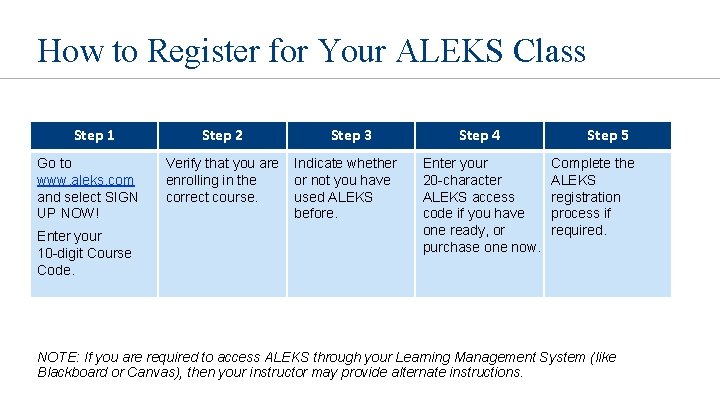
How to Register for Your ALEKS Class Step 1 Go to www. aleks. com and select SIGN UP NOW! Enter your 10 -digit Course Code. Step 2 Verify that you are enrolling in the correct course. Step 3 Indicate whether or not you have used ALEKS before. Step 4 Enter your 20 -character ALEKS access code if you have one ready, or purchase one now. Step 5 Complete the ALEKS registration process if required. NOTE: If you are required to access ALEKS through your Learning Management System (like Blackboard or Canvas), then your instructor may provide alternate instructions.
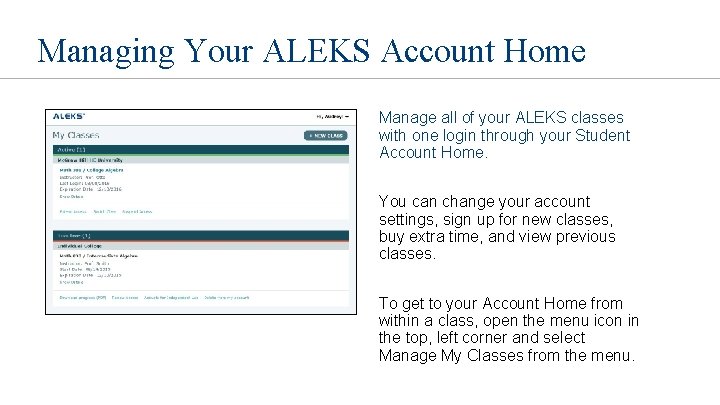
Managing Your ALEKS Account Home Manage all of your ALEKS classes with one login through your Student Account Home. You can change your account settings, sign up for new classes, buy extra time, and view previous classes. To get to your Account Home from within a class, open the menu icon in the top, left corner and select Manage My Classes from the menu.
Help and Resources Find helpful resources, such as printable tutorials and how-to videos, by visiting the Student Resources Page (www. aleks. com/highered/students) on the ALEKS website. Contact ALEKS Technical Support: Email: http: //support. aleks. com (be sure to select your market on the form!) Phone: 714 -619 -7090 Hours (Eastern Time): Monday through Thursday, 7 am – 1 am Friday, 7 am – 9 pm Sunday, 4 pm – 1 am