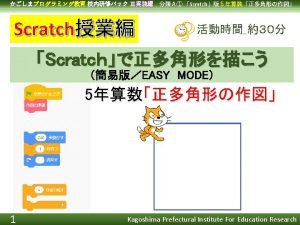
Scratch For Kids Programming for Fourth Graders Lesson
- Slides: 15
Scratch For Kids Programming for Fourth Graders Lesson 1
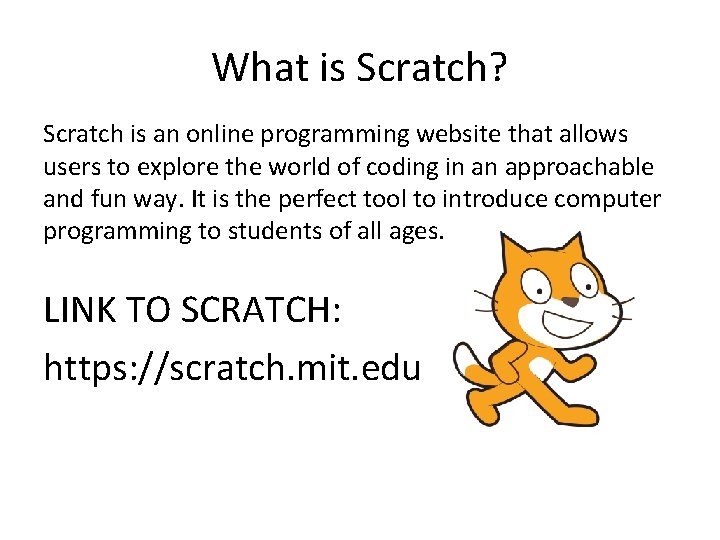
What is Scratch? Scratch is an online programming website that allows users to explore the world of coding in an approachable and fun way. It is the perfect tool to introduce computer programming to students of all ages. LINK TO SCRATCH: https: //scratch. mit. edu
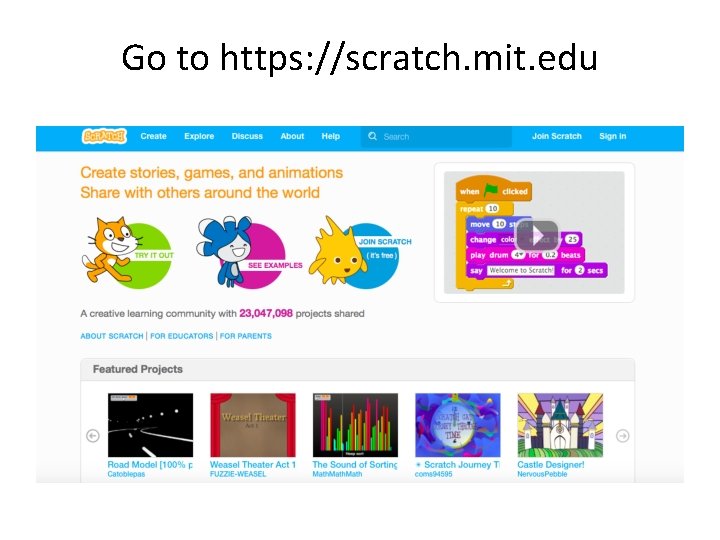
Go to https: //scratch. mit. edu
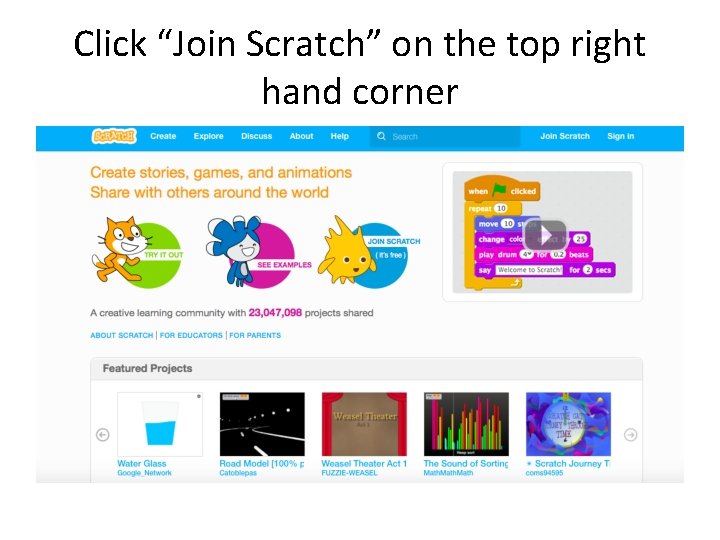
Click “Join Scratch” on the top right hand corner
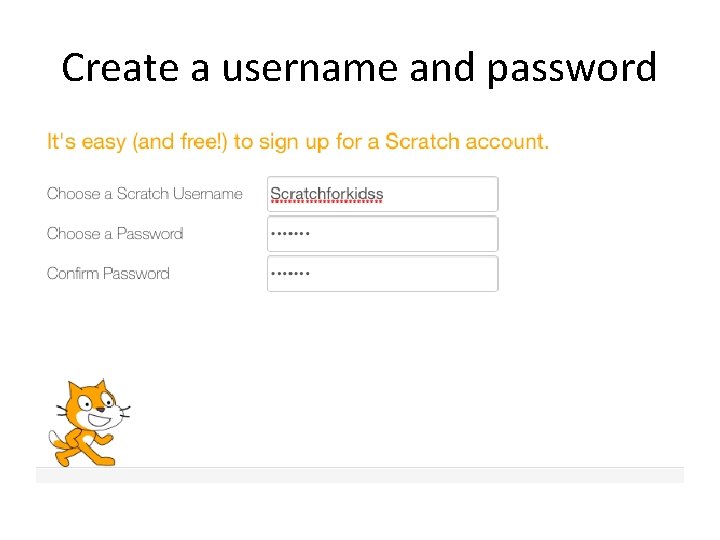
Create a username and password
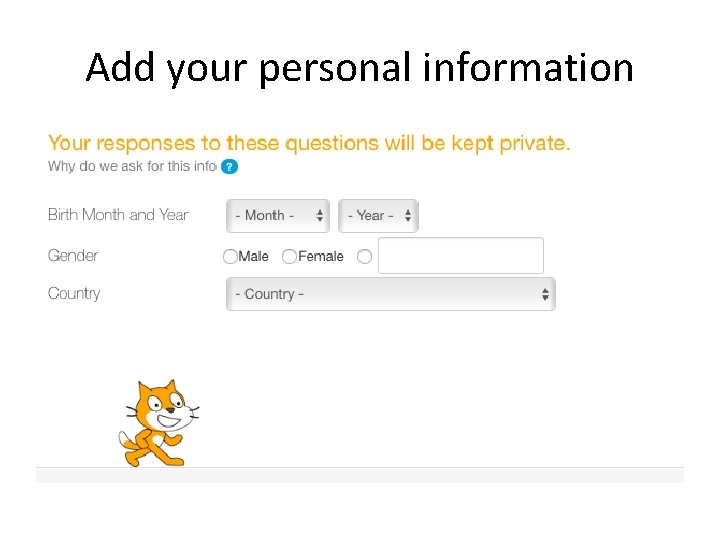
Add your personal information
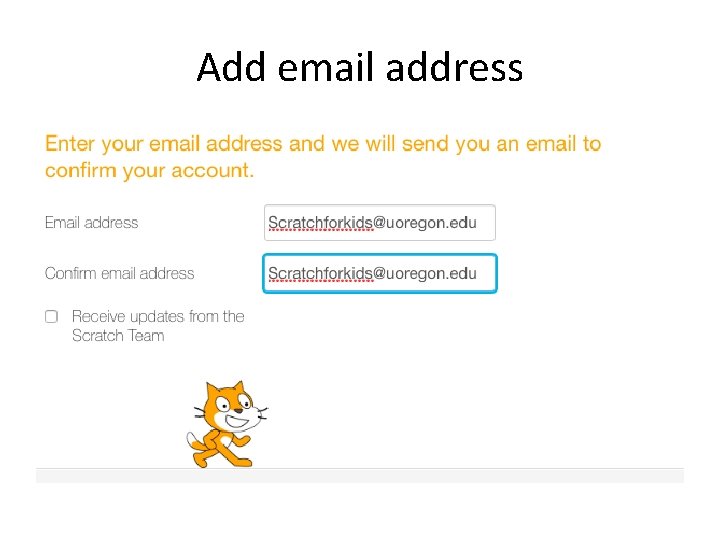
Add email address
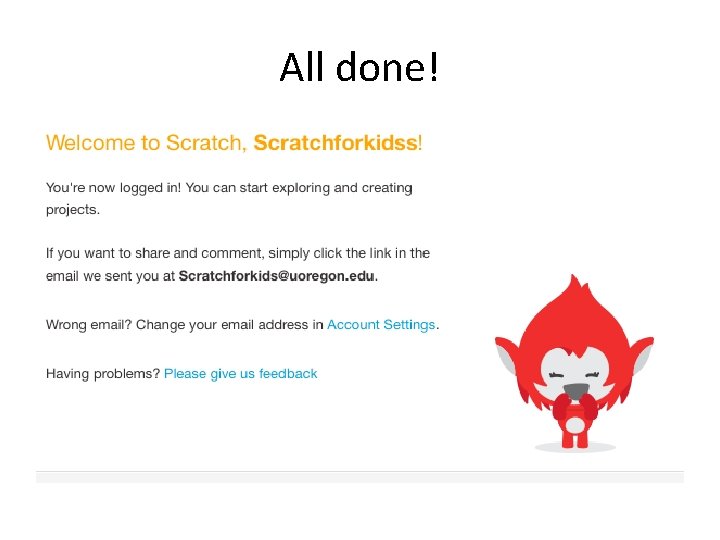
All done!
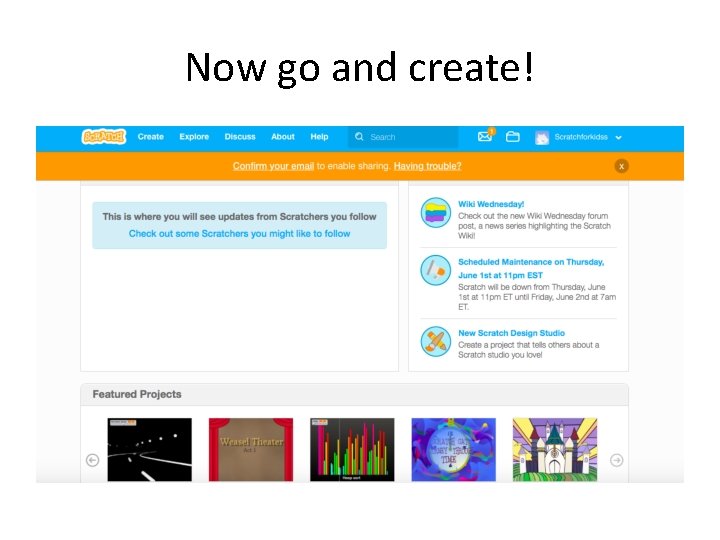
Now go and create!
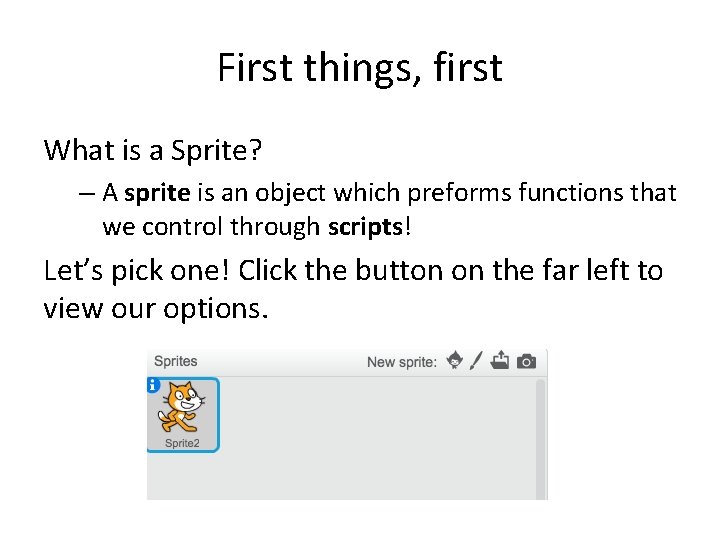
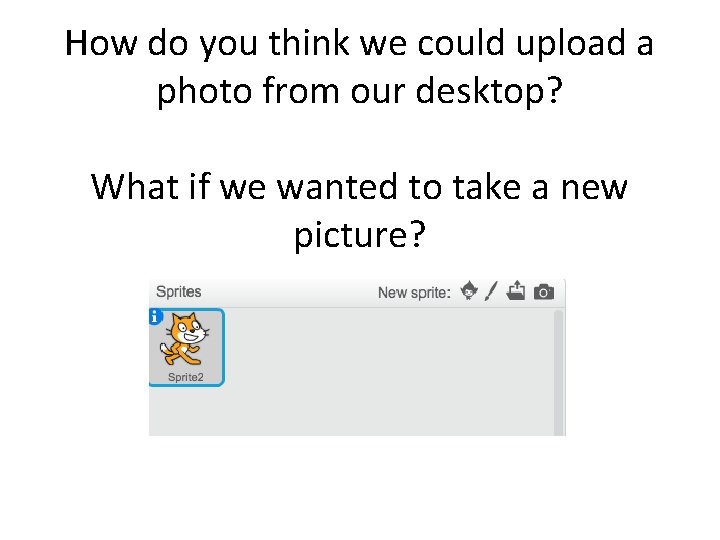
First things, first What is a Sprite? – A sprite is an object which preforms functions that we control through scripts! Let’s pick one! Click the button on the far left to view our options.
How do you think we could upload a photo from our desktop? What if we wanted to take a new picture?
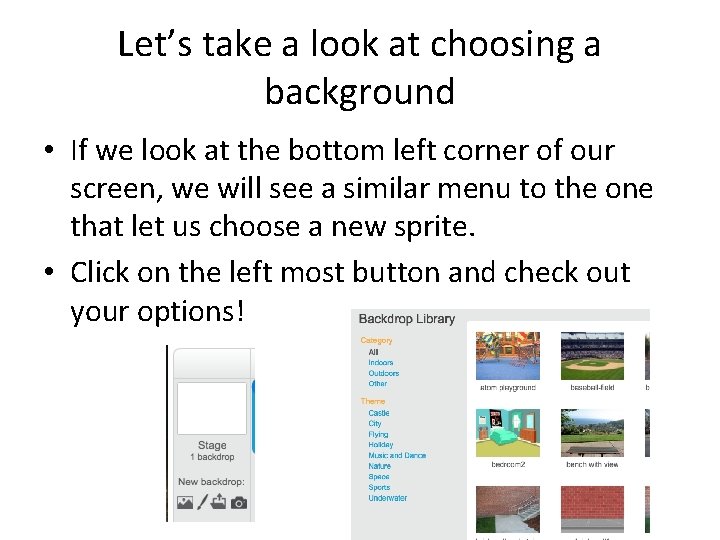
Let’s take a look at choosing a background • If we look at the bottom left corner of our screen, we will see a similar menu to the one that let us choose a new sprite. • Click on the left most button and check out your options!
Ready to play? Take 15 minutes to get a feel for the program Start looking at some of the other features of the program and see what you can find. We will continue to learn more next week!
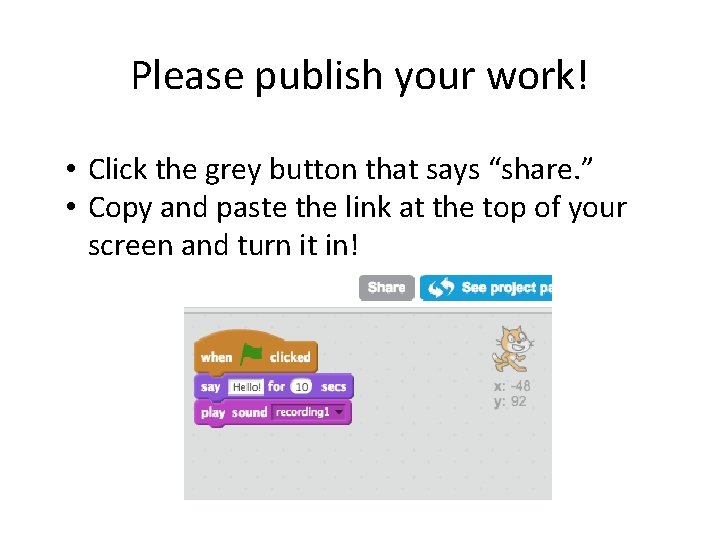
Please publish your work! • Click the grey button that says “share. ” • Copy and paste the link at the top of your screen and turn it in!
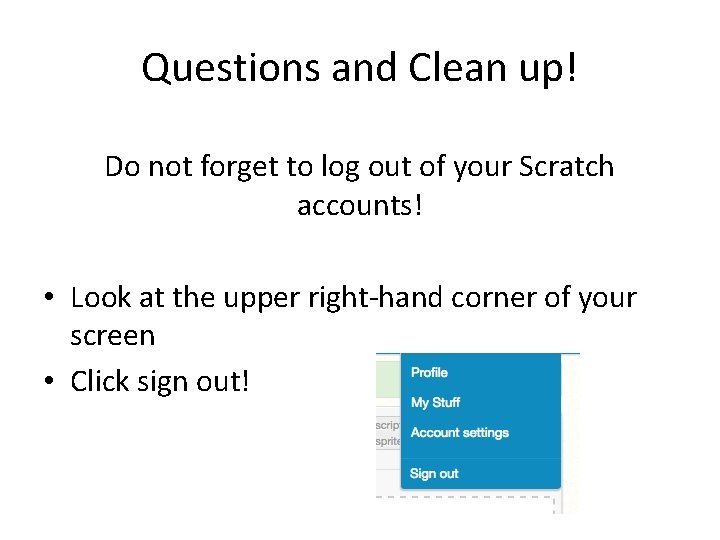
Questions and Clean up! Do not forget to log out of your Scratch accounts! • Look at the upper right-hand corner of your screen • Click sign out!