SC MASTER GARDENER REPORTING SYSTEM Helps your MG



- Slides: 17
SC MASTER GARDENER REPORTING SYSTEM
Helps your MG Coordinator Provides accurate program data An effective and convenient way to report Helps us promote the impacts of the SC Master Gardener Program For Students and Interns: This is where you document your 40 hours of educational service to become a certified Master Gardener. BENEFITS
https: //www. clemson. edu/extension/mg/ Online Reporting in the menu on the left Reporting System Login OR http: //cumastergrdner. wpengine. com/? page_id=126 NOTE: “grdner” not “gardener” in this URL WHERE IS IT?
Did you receive an email with your username and a link to set your password? Username: You can use your email address or you can use lastname_firstname Create your password when prompted Log in on smartphone, tablet, computer TO GET INTO THE REPORTING SYSTEM
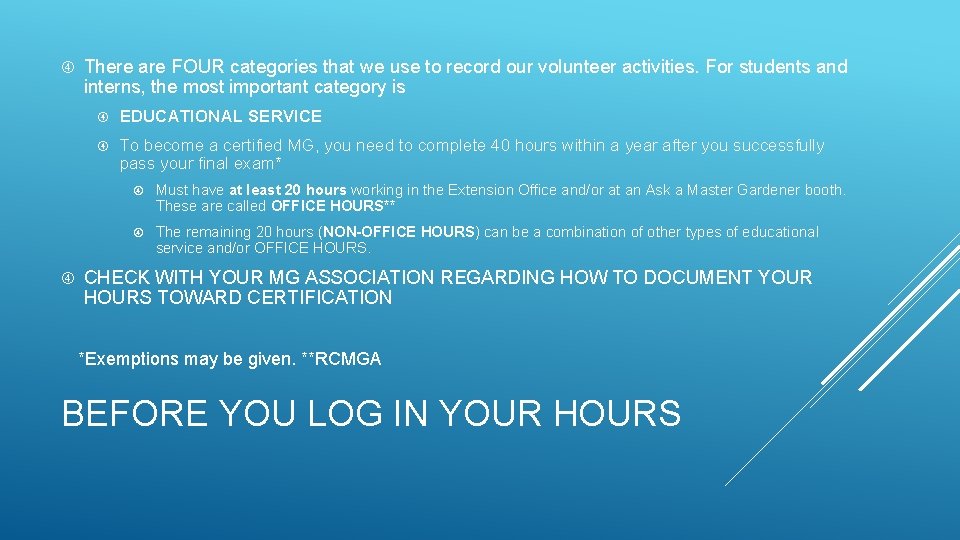
There are FOUR categories that we use to record our volunteer activities. For students and interns, the most important category is EDUCATIONAL SERVICE To become a certified MG, you need to complete 40 hours within a year after you successfully pass your final exam* Must have at least 20 hours working in the Extension Office and/or at an Ask a Master Gardener booth. These are called OFFICE HOURS** The remaining 20 hours (NON-OFFICE HOURS) can be a combination of other types of educational service and/or OFFICE HOURS. CHECK WITH YOUR MG ASSOCIATION REGARDING HOW TO DOCUMENT YOUR HOURS TOWARD CERTIFICATION *Exemptions may be given. **RCMGA BEFORE YOU LOG IN YOUR HOURS
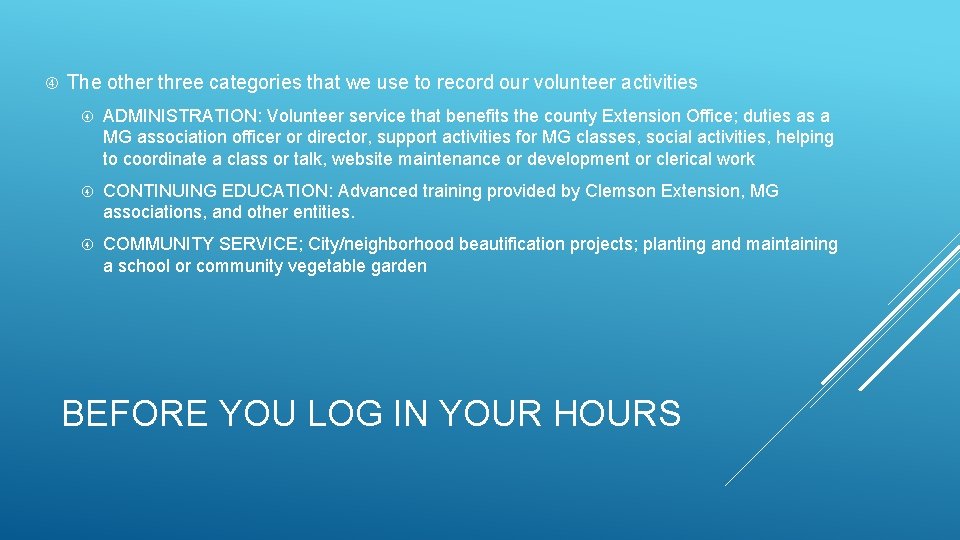
The other three categories that we use to record our volunteer activities ADMINISTRATION: Volunteer service that benefits the county Extension Office; duties as a MG association officer or director, support activities for MG classes, social activities, helping to coordinate a class or talk, website maintenance or development or clerical work CONTINUING EDUCATION: Advanced training provided by Clemson Extension, MG associations, and other entities. COMMUNITY SERVICE; City/neighborhood beautification projects; planting and maintaining a school or community vegetable garden BEFORE YOU LOG IN YOUR HOURS
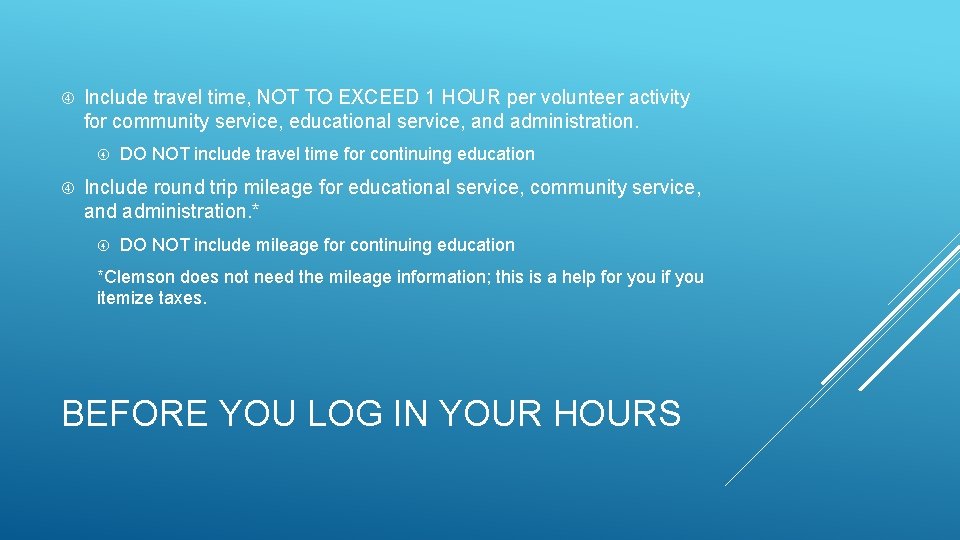
Include travel time, NOT TO EXCEED 1 HOUR per volunteer activity for community service, educational service, and administration. DO NOT include travel time for continuing education Include round trip mileage for educational service, community service, and administration. * DO NOT include mileage for continuing education *Clemson does not need the mileage information; this is a help for you if you itemize taxes. BEFORE YOU LOG IN YOUR HOURS
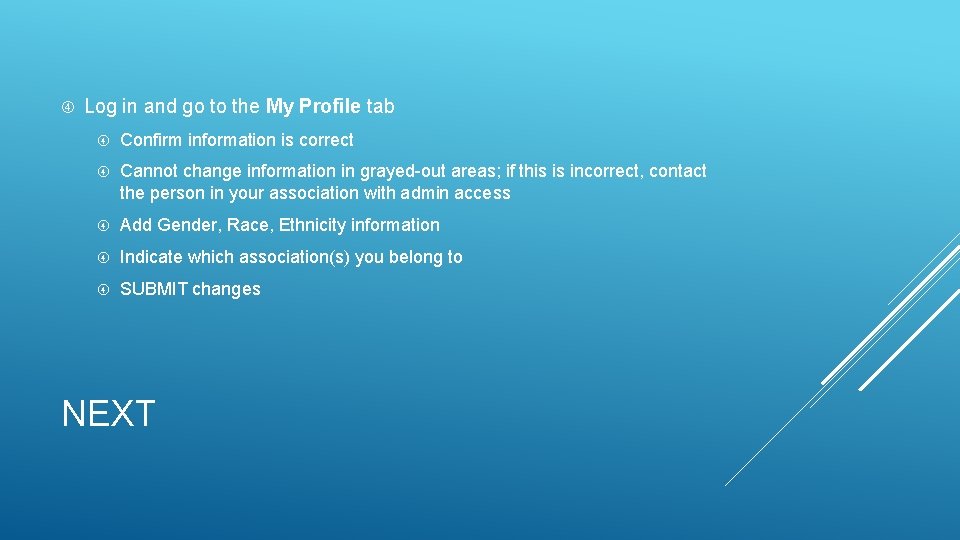
Log in and go to the My Profile tab Confirm information is correct Cannot change information in grayed-out areas; if this is incorrect, contact the person in your association with admin access Add Gender, Race, Ethnicity information Indicate which association(s) you belong to SUBMIT changes NEXT
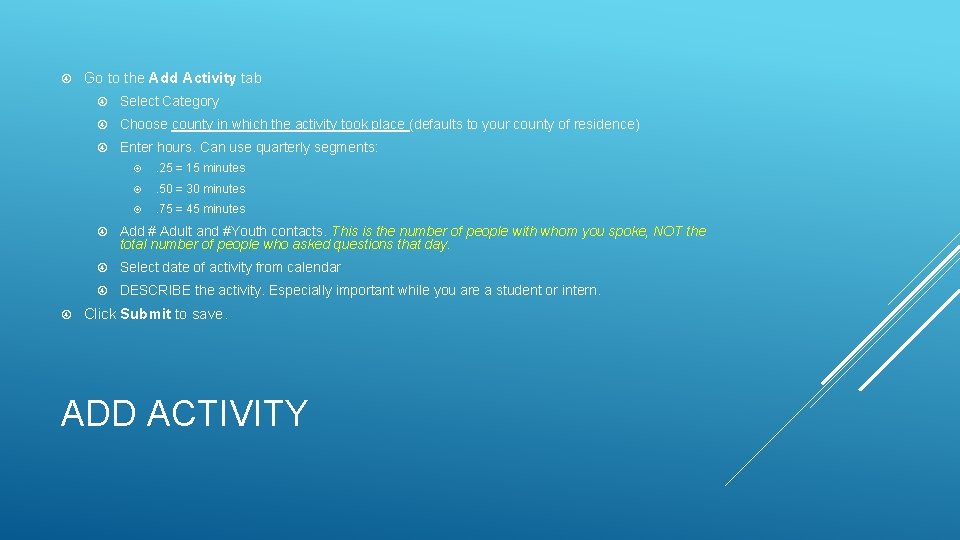
Go to the Add Activity tab Select Category Choose county in which the activity took place (defaults to your county of residence) Enter hours. Can use quarterly segments: . 25 = 15 minutes . 50 = 30 minutes . 75 = 45 minutes Add # Adult and #Youth contacts. This is the number of people with whom you spoke, NOT the total number of people who asked questions that day. Select date of activity from calendar DESCRIBE the activity. Especially important while you are a student or intern. Click Submit to save. ADD ACTIVITY
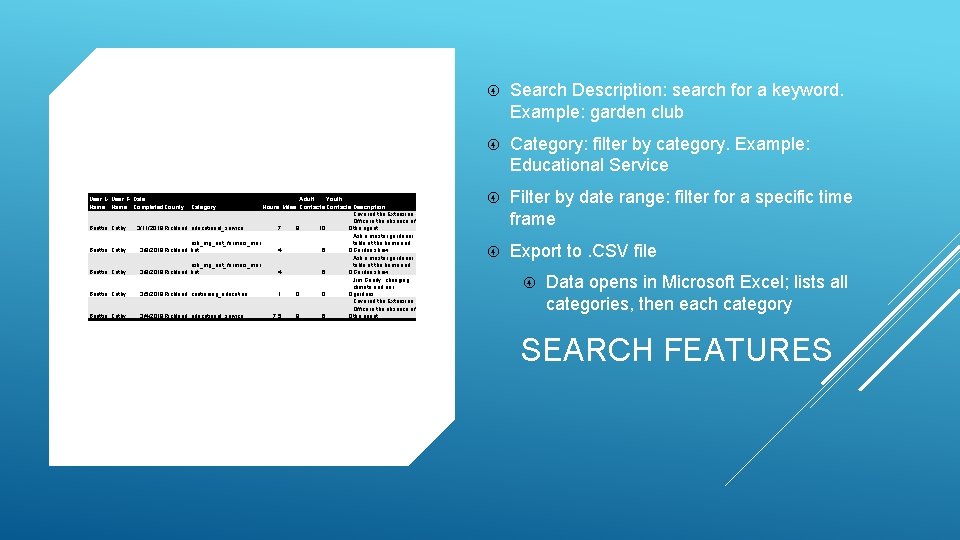
User L- User F- Date Name Completed County Category Beattie Cathy Beattie Cathy Adult Youth Hours Miles Contacts Description Covered the Extension Office in the absence of 3/11/2019 Richland educational_service 7 8 10 0 the agent. Ask a master gardener ask_mg_not_farmers_mar table at the home and 3/8/2019 Richland ket 4 6 0 Garden show Jim Gandy, changing climate and our 3/5/2019 Richland continuing_education 1 0 0 0 gardens Covered the Extension Office in the absence of 3/4/2019 Richland educational_service 7. 5 8 6 0 the agent Search Description: search for a keyword. Example: garden club Category: filter by category. Example: Educational Service Filter by date range: filter for a specific time frame Export to. CSV file Data opens in Microsoft Excel; lists all categories, then each category SEARCH FEATURES
At the end of documentation for each activity Update to save changes EDIT/DELETE
Navigate to the website you want to add to your Bookmarks Bar Click on the Bookmarks menu and choose Bookmark this Page… BOOKMARK IT! CHROME ON MACINTOSH
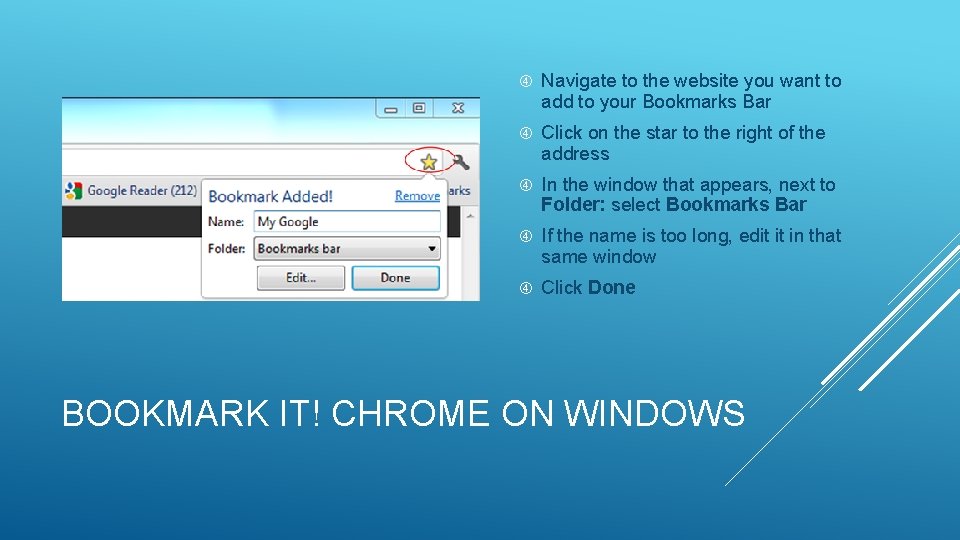
Navigate to the website you want to add to your Bookmarks Bar Click on the star to the right of the address In the window that appears, next to Folder: select Bookmarks Bar If the name is too long, edit it in that same window Click Done BOOKMARK IT! CHROME ON WINDOWS
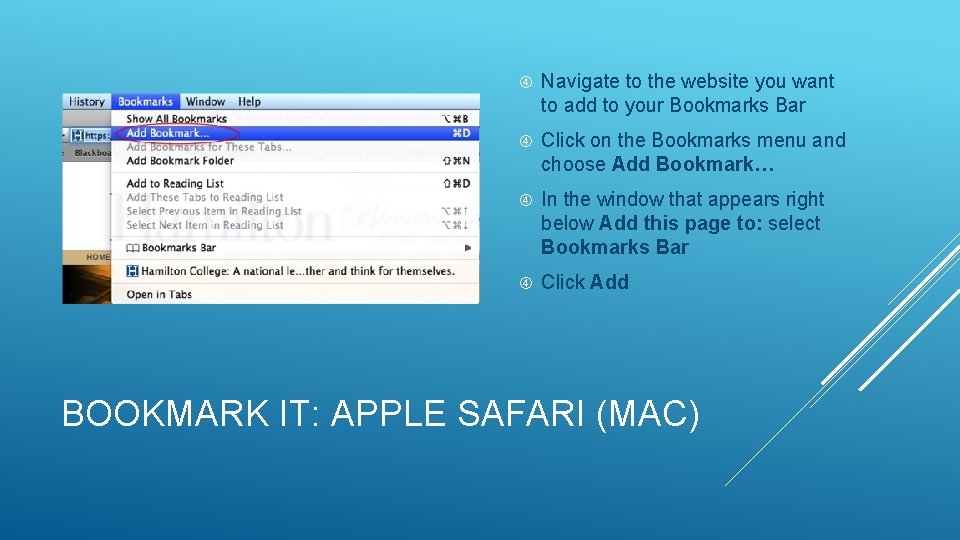
Navigate to the website you want to add to your Bookmarks Bar Click on the Bookmarks menu and choose Add Bookmark… In the window that appears right below Add this page to: select Bookmarks Bar Click Add BOOKMARK IT: APPLE SAFARI (MAC)
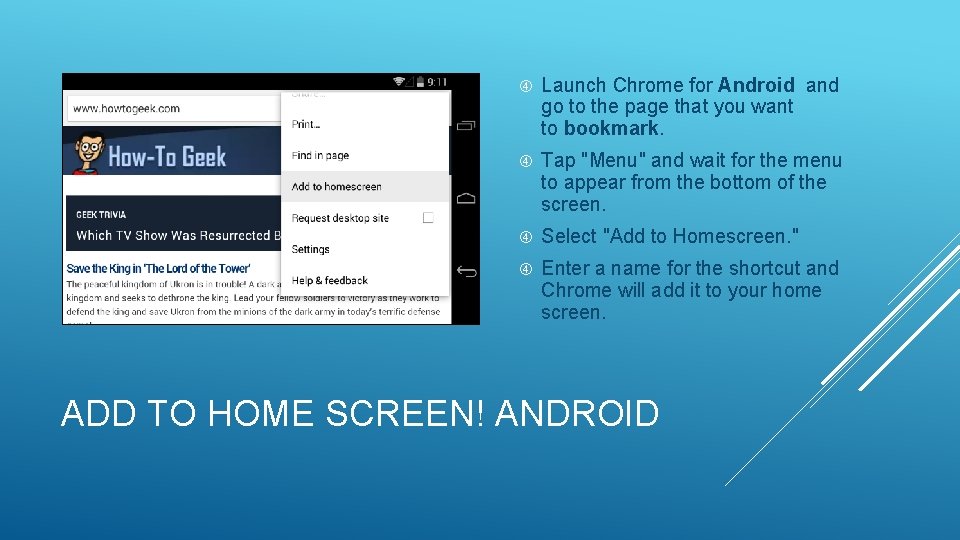
Launch Chrome for Android and go to the page that you want to bookmark. Tap "Menu" and wait for the menu to appear from the bottom of the screen. Select "Add to Homescreen. " Enter a name for the shortcut and Chrome will add it to your home screen. ADD TO HOME SCREEN! ANDROID
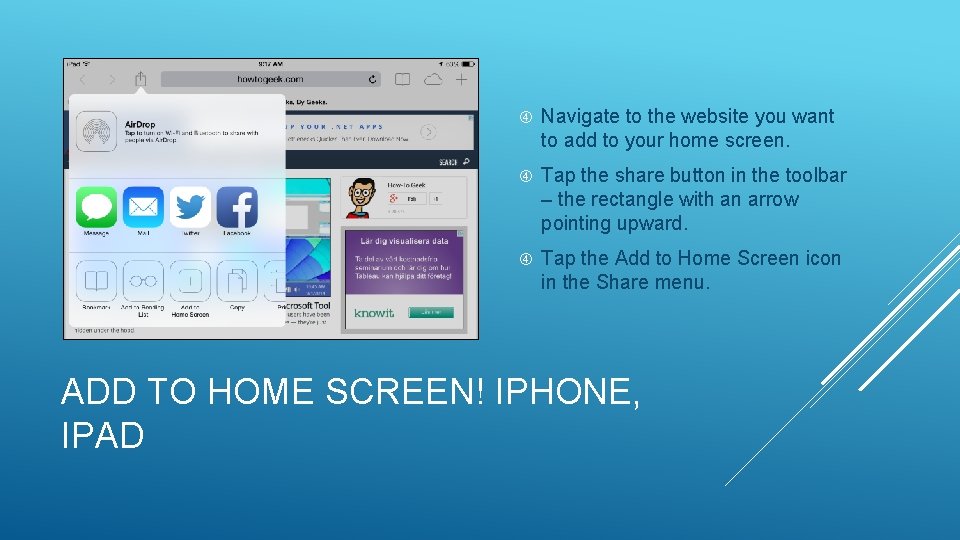
Navigate to the website you want to add to your home screen. Tap the share button in the toolbar – the rectangle with an arrow pointing upward. Tap the Add to Home Screen icon in the Share menu. ADD TO HOME SCREEN! IPHONE, IPAD
This Photo by Unknown Author is licensed under CC BY-NC-ND