Real Time training new IEP program for Gen
- Slides: 14
Real. Time training (new IEP program) for Gen Ed teachers Presented by Kathy Sobeck, Director of Educational Apps & Training November 2015
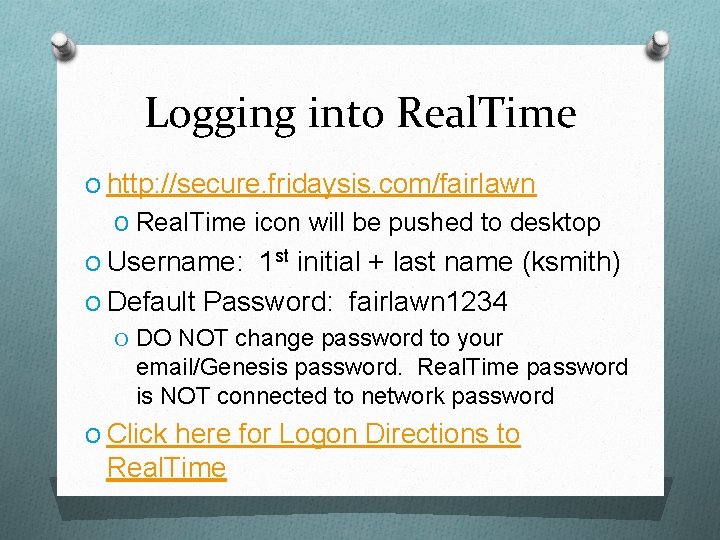
Logging into Real. Time O http: //secure. fridaysis. com/fairlawn O Real. Time icon will be pushed to desktop O Username: 1 st initial + last name (ksmith) O Default Password: fairlawn 1234 O DO NOT change password to your email/Genesis password. Real. Time password is NOT connected to network password O Click here for Logon Directions to Real. Time
Notifications O Child Study Team will occasionally send notices to attend meetings or to request input from a student’s teacher(s). O may be related to Present Levels of Academic Achievement & Functional Performance (PLAFF), Behavior, or Modifications O All requests will be FORWARDED to your @fairlawnschools. org email. O Just click the link in the email
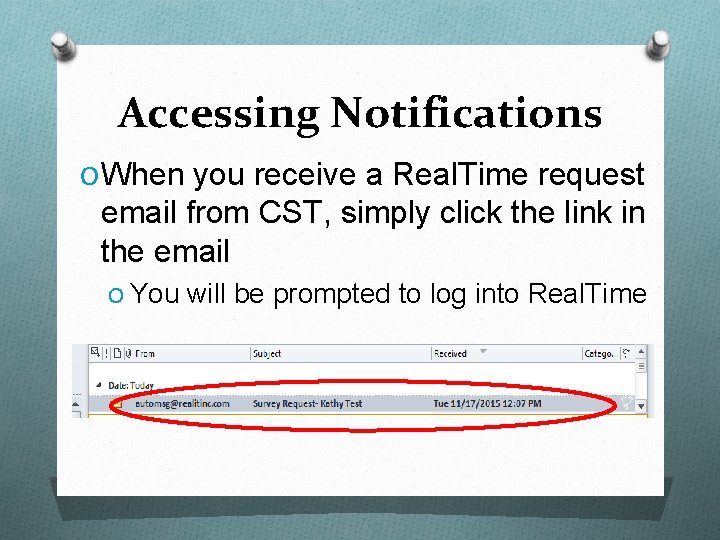
Accessing Notifications O When you receive a Real. Time request email from CST, simply click the link in the email O You will be prompted to log into Real. Time
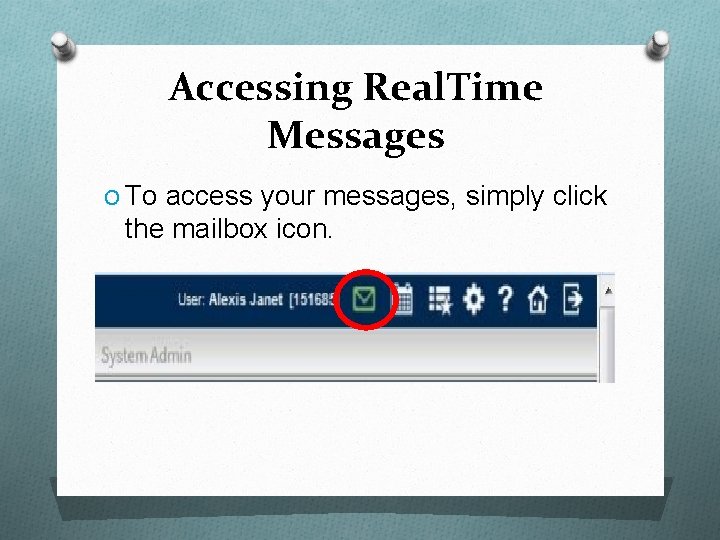
Accessing Real. Time Messages O To access your messages, simply click the mailbox icon.
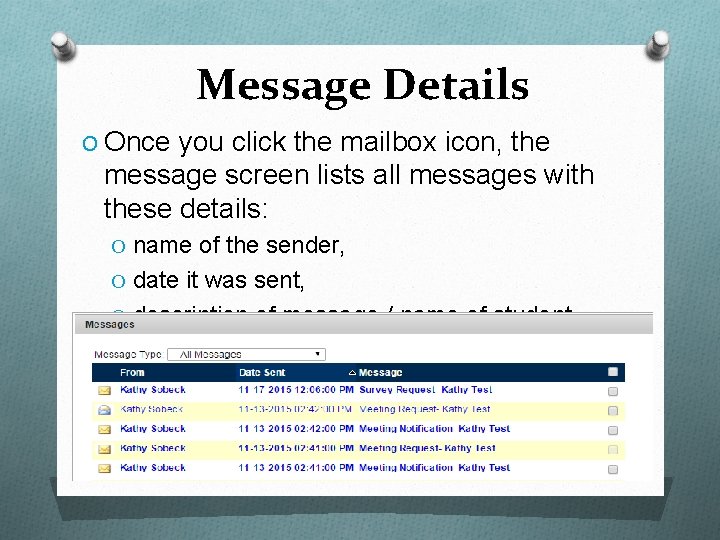
Message Details O Once you click the mailbox icon, the message screen lists all messages with these details: O name of the sender, O date it was sent, O description of message / name of student
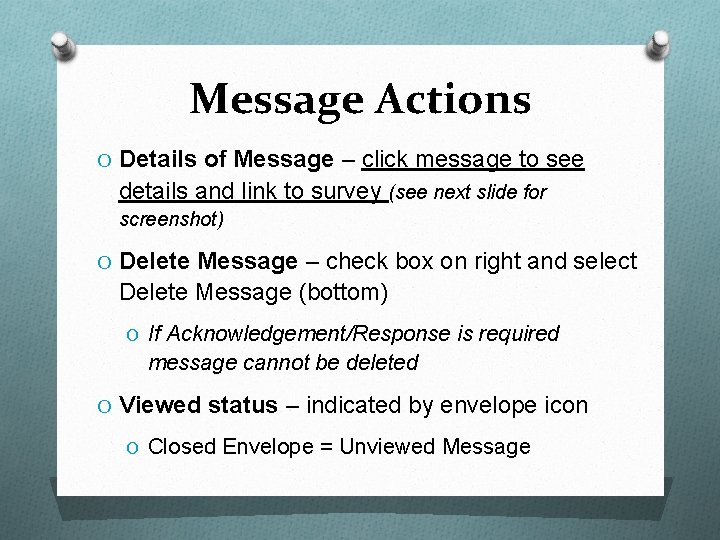
Message Actions O Details of Message – click message to see details and link to survey (see next slide for screenshot) O Delete Message – check box on right and select Delete Message (bottom) O If Acknowledgement/Response is required message cannot be deleted O Viewed status – indicated by envelope icon O Closed Envelope = Unviewed Message
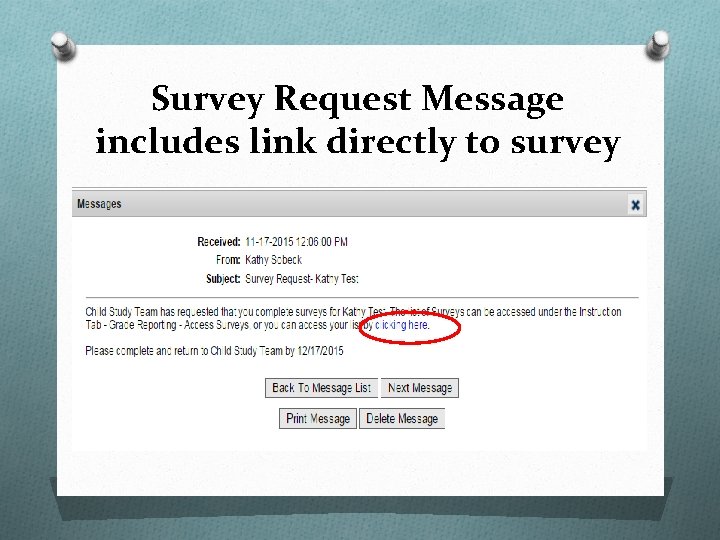
Survey Request Message includes link directly to survey
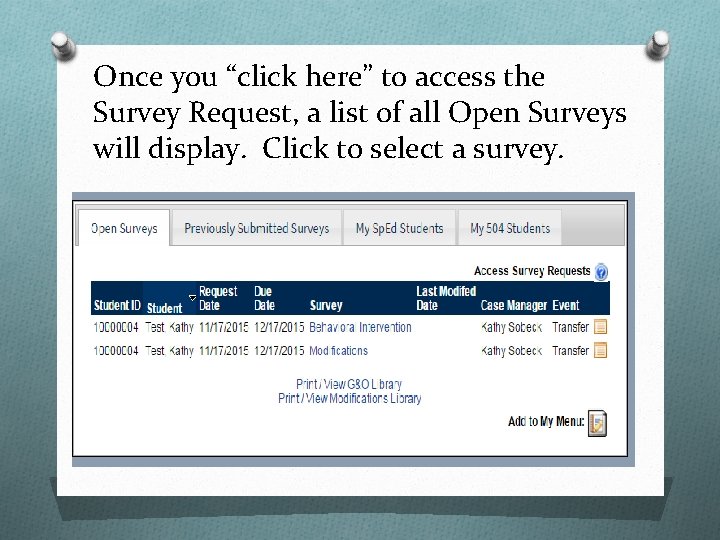
Once you “click here” to access the Survey Request, a list of all Open Surveys will display. Click to select a survey.
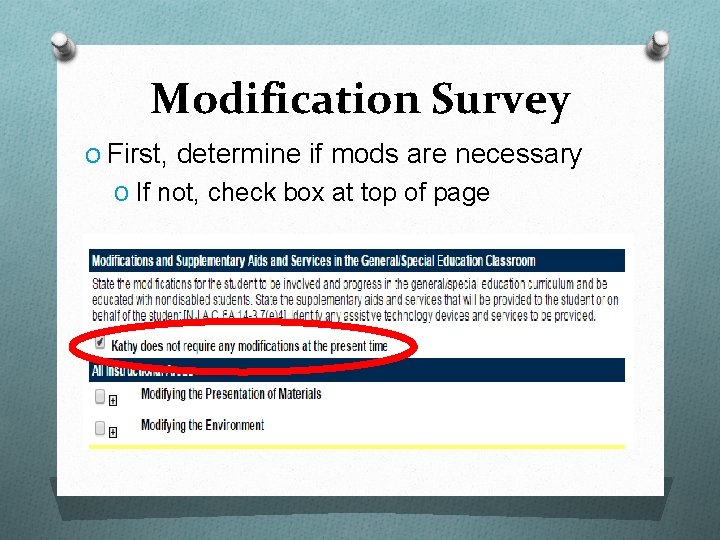
Modification Survey O First, determine if mods are necessary O If not, check box at top of page
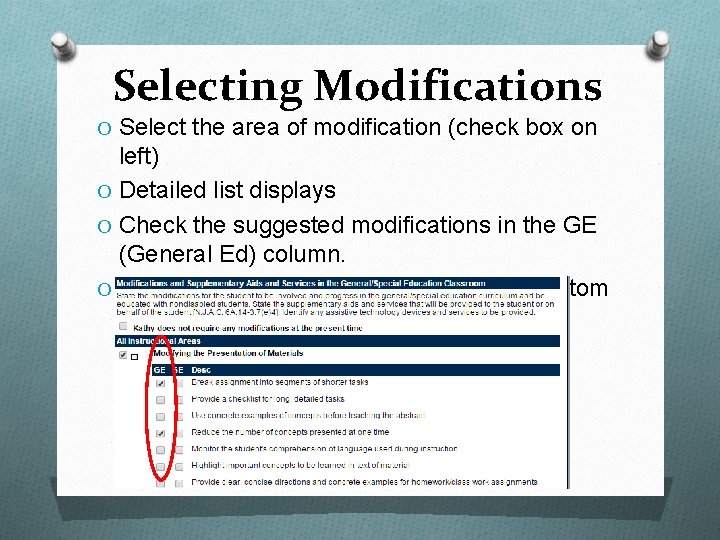
Selecting Modifications O Select the area of modification (check box on left) O Detailed list displays O Check the suggested modifications in the GE (General Ed) column. O Comments can be added in text box at bottom
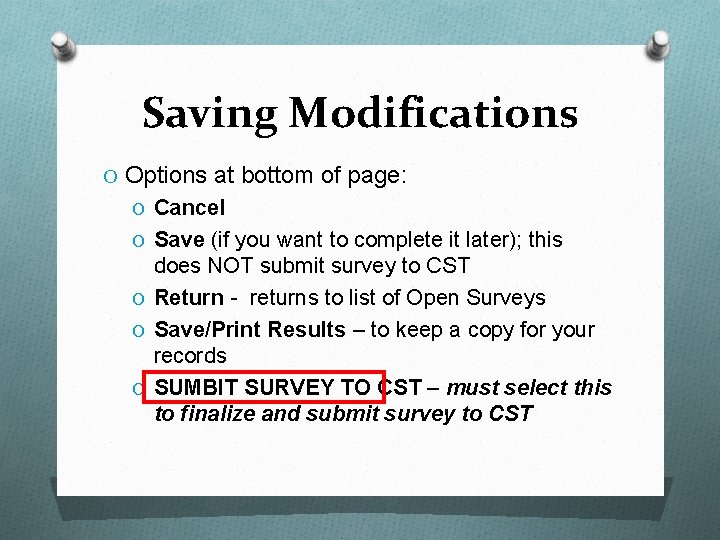
Saving Modifications O Options at bottom of page: O Cancel O Save (if you want to complete it later); this does NOT submit survey to CST O Return - returns to list of Open Surveys O Save/Print Results – to keep a copy for your records O SUMBIT SURVEY TO CST – must select this to finalize and submit survey to CST
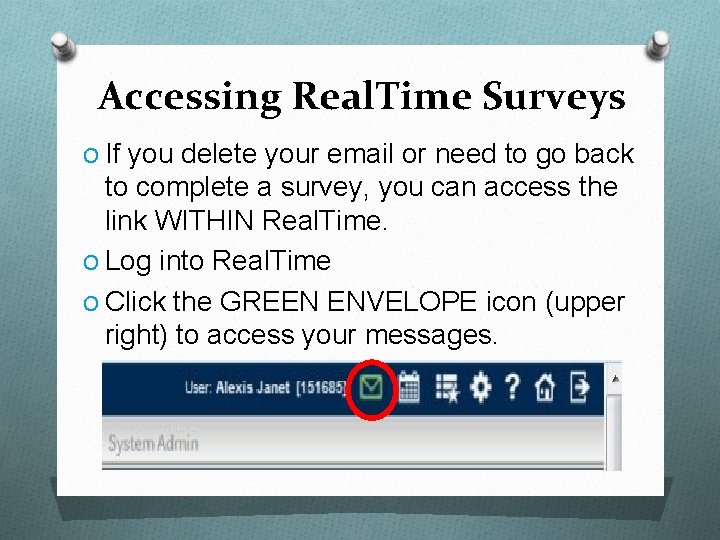
Accessing Real. Time Surveys O If you delete your email or need to go back to complete a survey, you can access the link WITHIN Real. Time. O Log into Real. Time O Click the GREEN ENVELOPE icon (upper right) to access your messages.
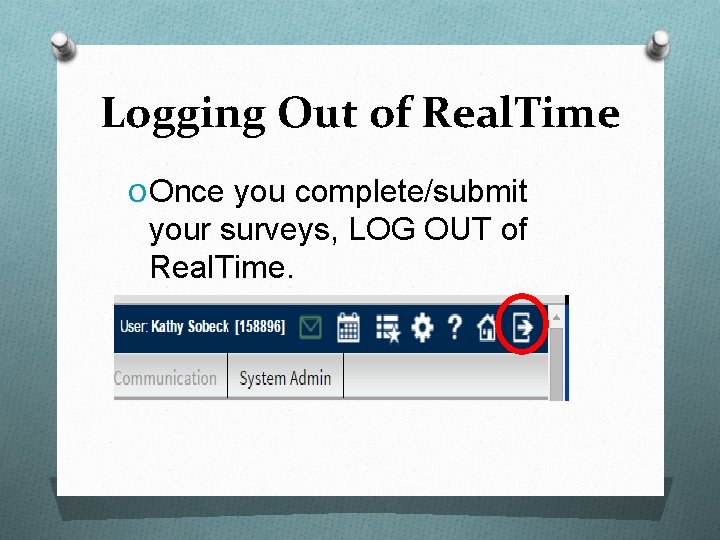
Logging Out of Real. Time O Once you complete/submit your surveys, LOG OUT of Real. Time.