
Practical Installation Process of New Gen Lib OSS
Practical Installation Process of New. Gen. Lib OSS on Windows XP for Library automation Goutam Biswas Department of Library & Information Science University of Kalyani, Nadia, West Bengal INDIA Email: goutambiswas 8@gmail. com Mobile No. +91 9831092149 Call: +91 9831092149
NOTE The following slides demonstrate the installation of New. Gen. Lib software on a local machine. This presentation is limited to installation only. For further assistance, please refer to New. Gen. Lib User Manual (User. Manual. All. Modules. pdf) available at http: //www. sourceforge. net/projects/newgenlib Call: +91 9831092149
Thanks To Dr. L J Haravu Kesavan Institute of Information and Knowledge Management, Hyderabad Verus Solutions Pvt. Ltd. , Hyderabad Everyone else involved in the development of New. Gen. Lib and making it open source Call: +91 9831092149
What is New. Gen. Lib? “New. Gen. Lib is a metadata content management software solution” An integrated library management software A web-based application that uses RDBMS technology to manage databases Compliant with International Standards: MARC, XML, UNICODE & Dublincore Installable on LAN/Intranet and Standalone computers Uses many open source components New. Gen. Lib is now Open Source !!! Free download at http: //www. sourceforge. net/projects/newgenlib Take a 20 -minute multimedia tour at www. newgenlib. com Let’s Install & Use it Call: +91 9831092149
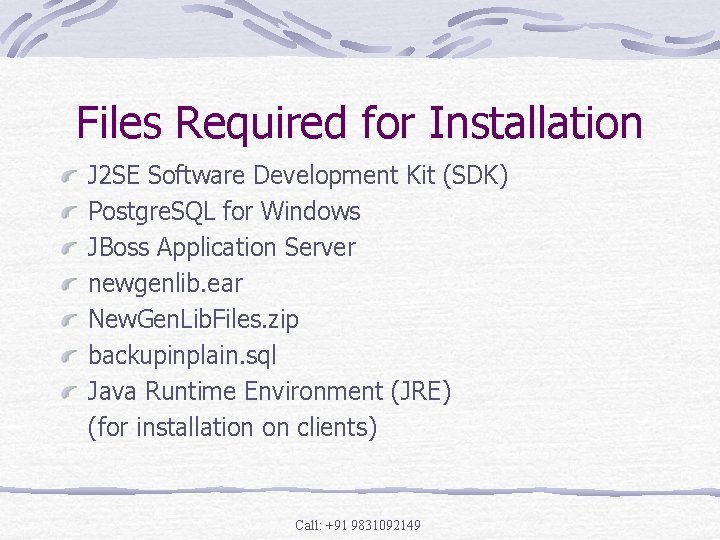
Files Required for Installation J 2 SE Software Development Kit (SDK) Postgre. SQL for Windows JBoss Application Server newgenlib. ear New. Gen. Lib. Files. zip backupinplain. sql Java Runtime Environment (JRE) (for installation on clients) Call: +91 9831092149
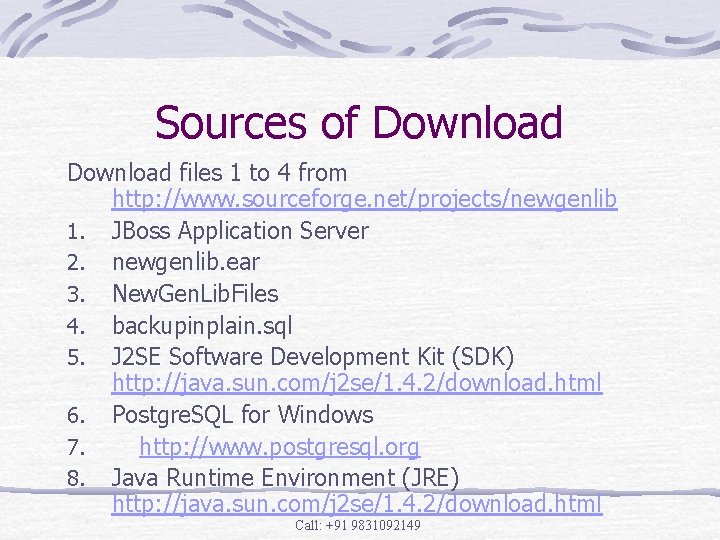
Sources of Download files 1 to 4 from http: //www. sourceforge. net/projects/newgenlib 1. JBoss Application Server 2. newgenlib. ear 3. New. Gen. Lib. Files 4. backupinplain. sql 5. J 2 SE Software Development Kit (SDK) http: //java. sun. com/j 2 se/1. 4. 2/download. html 6. Postgre. SQL for Windows 7. http: //www. postgresql. org 8. Java Runtime Environment (JRE) http: //java. sun. com/j 2 se/1. 4. 2/download. html Call: +91 9831092149
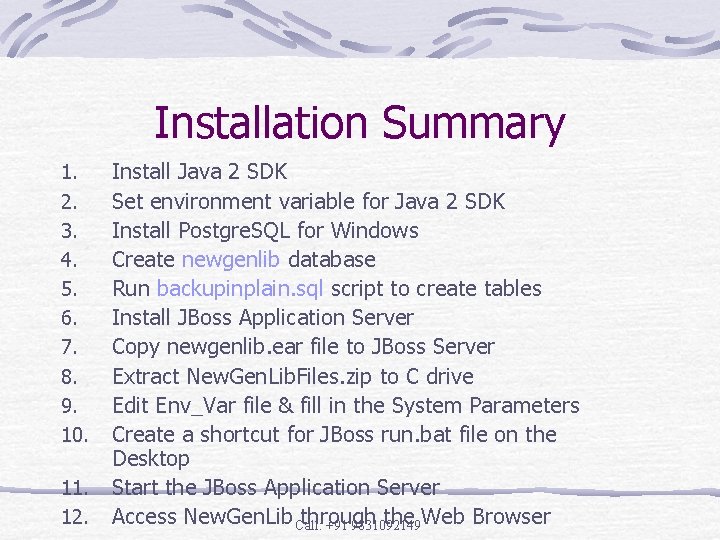
Installation Summary 1. 2. 3. 4. 5. 6. 7. 8. 9. 10. 11. 12. Install Java 2 SDK Set environment variable for Java 2 SDK Install Postgre. SQL for Windows Create newgenlib database Run backupinplain. sql script to create tables Install JBoss Application Server Copy newgenlib. ear file to JBoss Server Extract New. Gen. Lib. Files. zip to C drive Edit Env_Var file & fill in the System Parameters Create a shortcut for JBoss run. bat file on the Desktop Start the JBoss Application Server Access New. Gen. Lib Call: through the Web Browser +91 9831092149
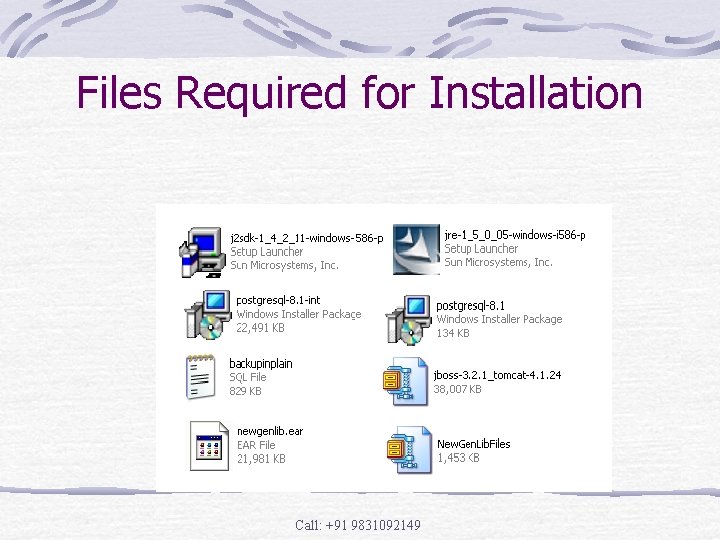
Files Required for Installation Call: +91 9831092149
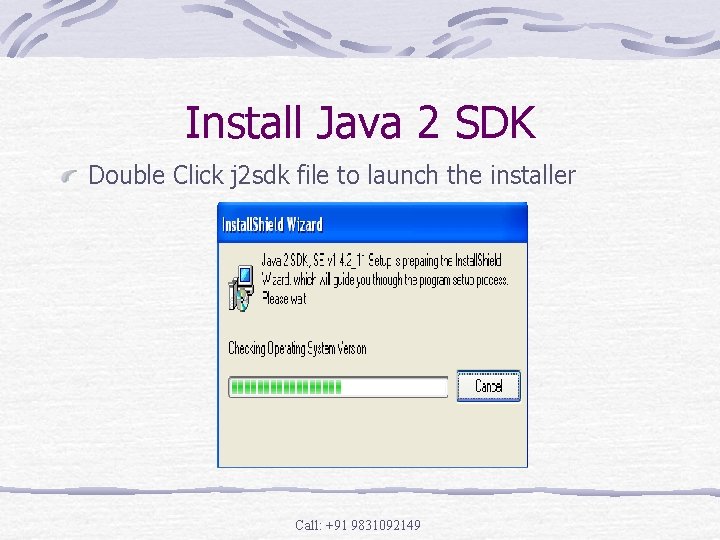
Install Java 2 SDK Double Click j 2 sdk file to launch the installer Call: +91 9831092149
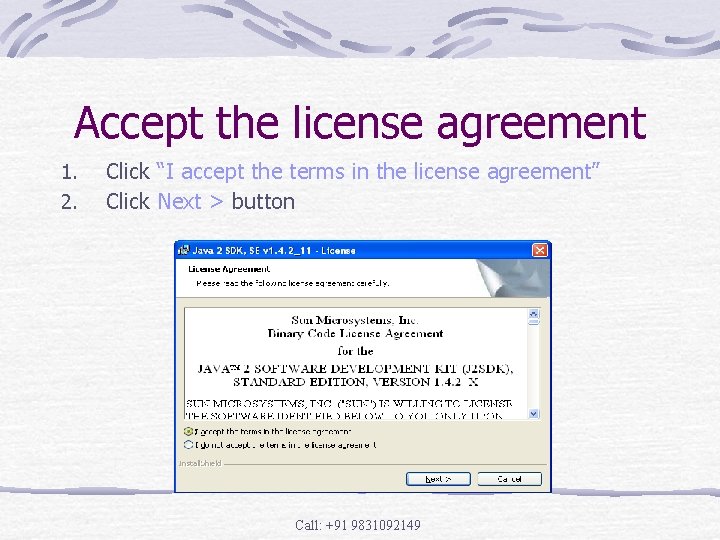
Accept the license agreement 1. 2. Click “I accept the terms in the license agreement” Click Next > button Call: +91 9831092149
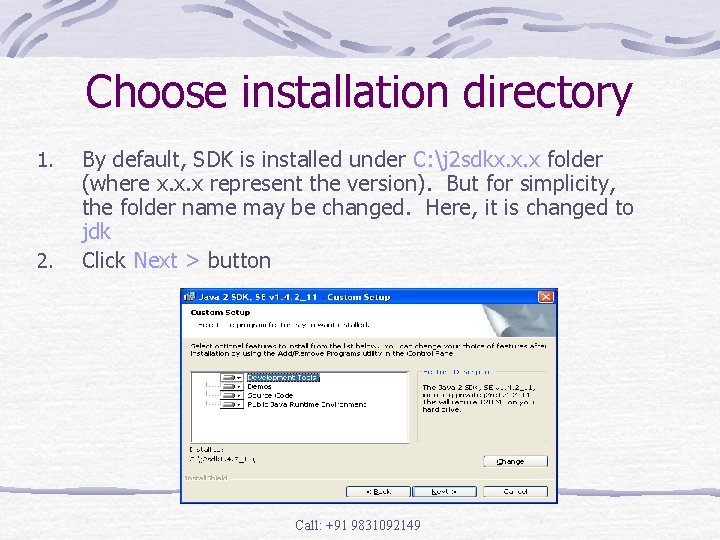
Choose installation directory 1. 2. By default, SDK is installed under C: j 2 sdkx. x. x folder (where x. x. x represent the version). But for simplicity, the folder name may be changed. Here, it is changed to jdk Click Next > button Call: +91 9831092149
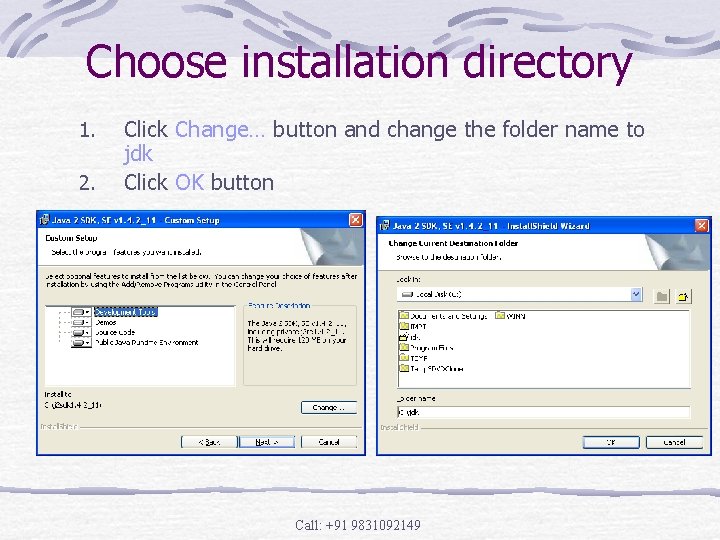
Choose installation directory 1. 2. Click Change… button and change the folder name to jdk Click OK button Call: +91 9831092149
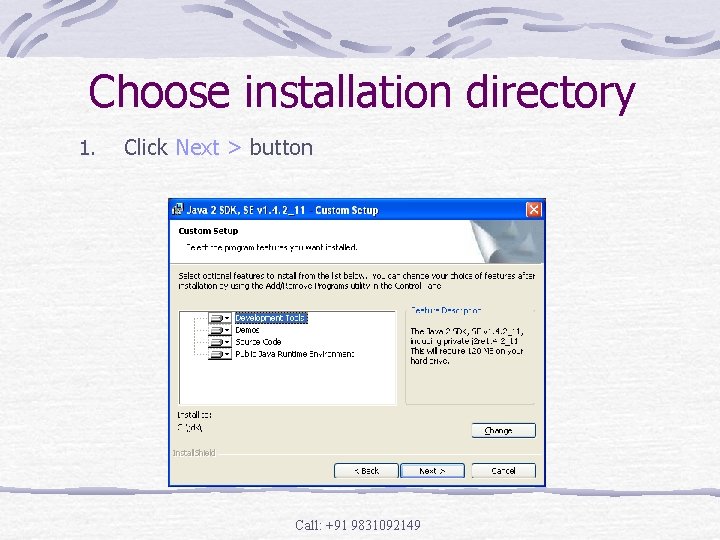
Choose installation directory 1. Click Next > button Call: +91 9831092149
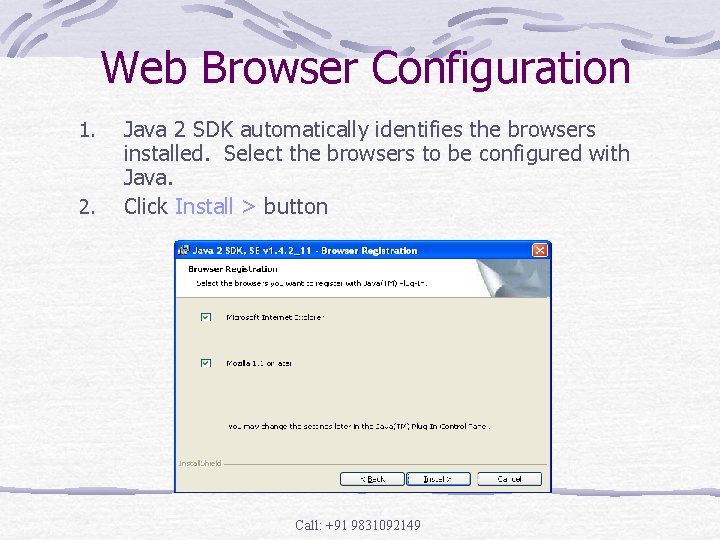
Web Browser Configuration 1. 2. Java 2 SDK automatically identifies the browsers installed. Select the browsers to be configured with Java. Click Install > button Call: +91 9831092149
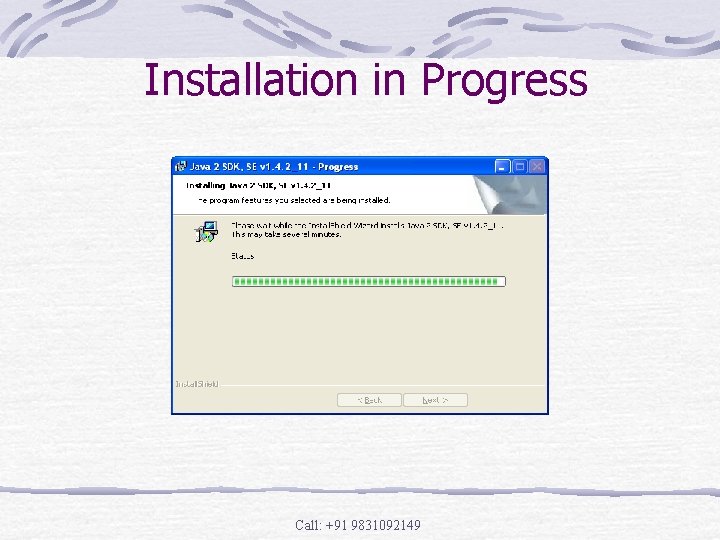
Installation in Progress Call: +91 9831092149
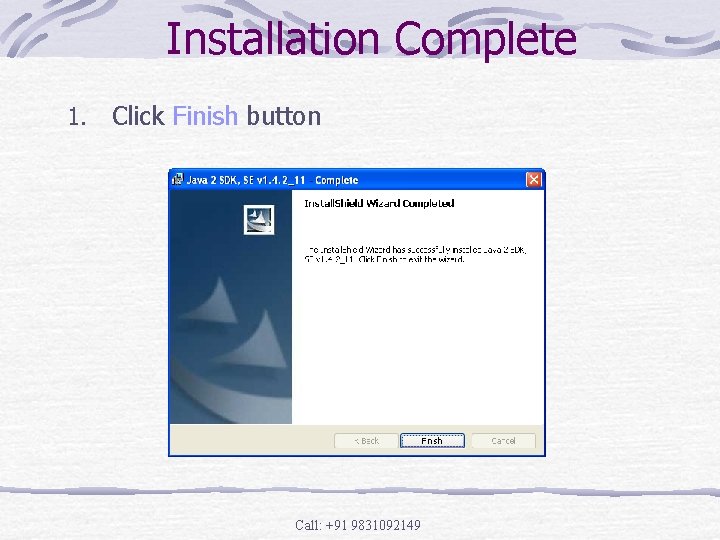
Installation Complete 1. Click Finish button Call: +91 9831092149
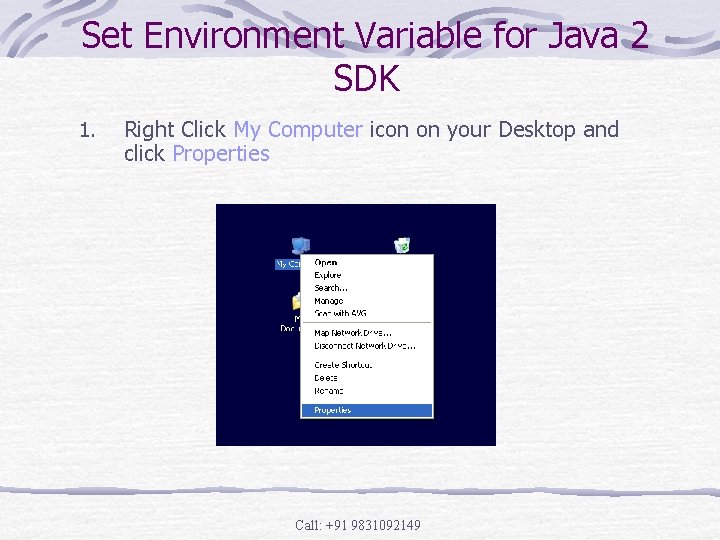
Set Environment Variable for Java 2 SDK 1. Right Click My Computer icon on your Desktop and click Properties Call: +91 9831092149
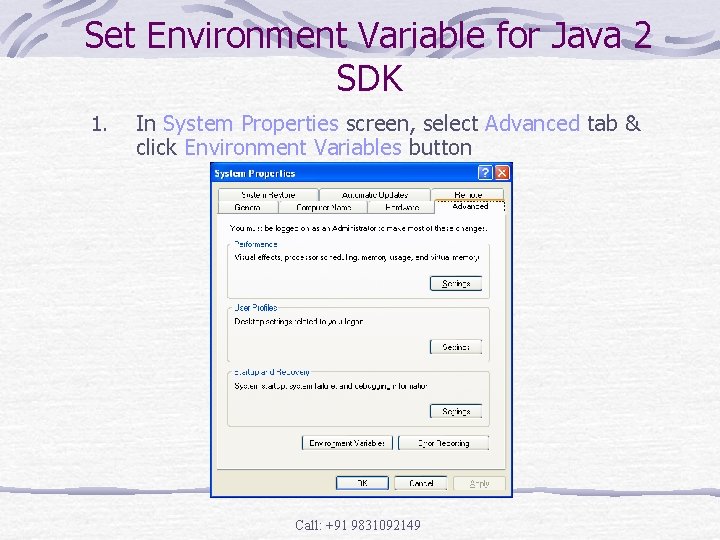
Set Environment Variable for Java 2 SDK 1. In System Properties screen, select Advanced tab & click Environment Variables button Call: +91 9831092149
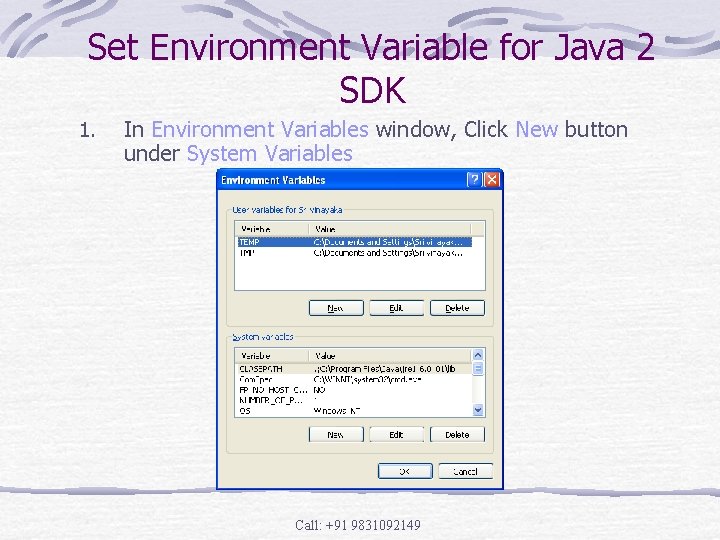
Set Environment Variable for Java 2 SDK 1. In Environment Variables window, Click New button under System Variables Call: +91 9831092149
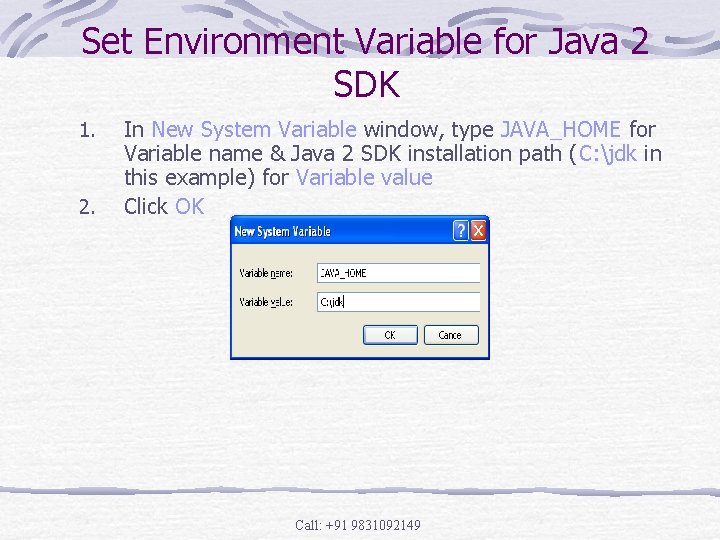
Set Environment Variable for Java 2 SDK 1. 2. In New System Variable window, type JAVA_HOME for Variable name & Java 2 SDK installation path (C: jdk in this example) for Variable value Click OK Call: +91 9831092149
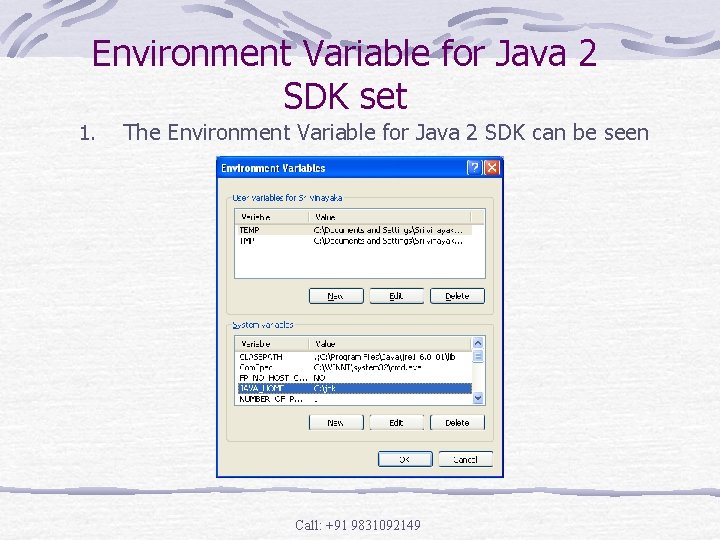
Environment Variable for Java 2 SDK set 1. The Environment Variable for Java 2 SDK can be seen Call: +91 9831092149
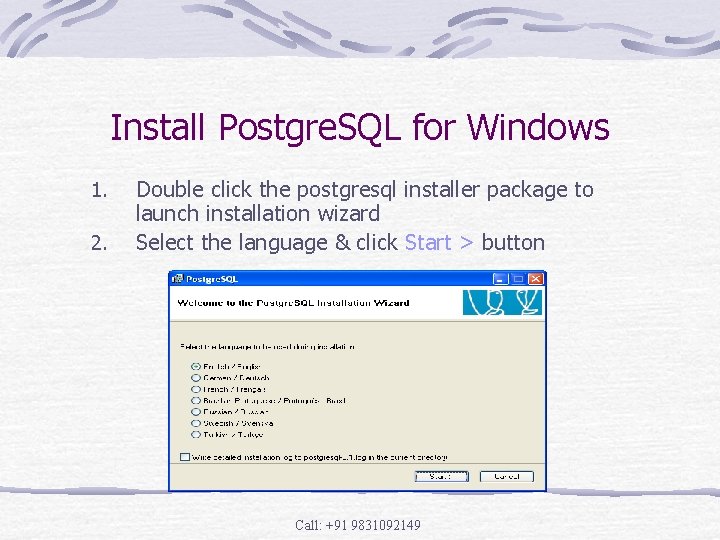
Install Postgre. SQL for Windows 1. 2. Double click the postgresql installer package to launch installation wizard Select the language & click Start > button Call: +91 9831092149
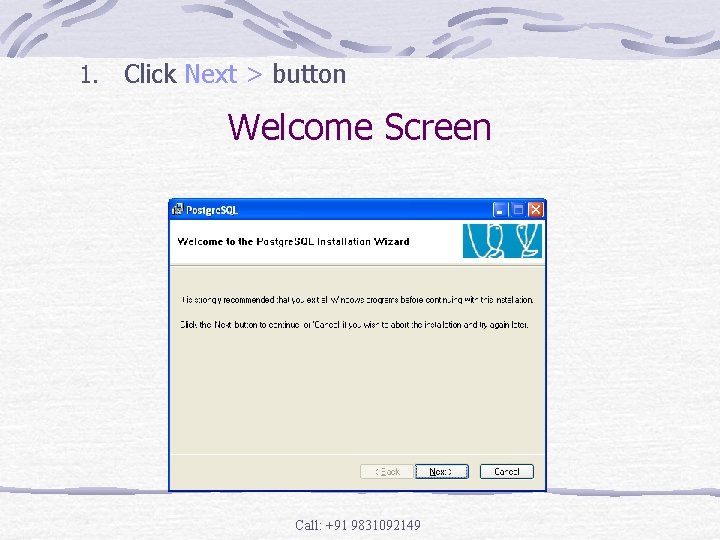
1. Click Next > button Welcome Screen Call: +91 9831092149
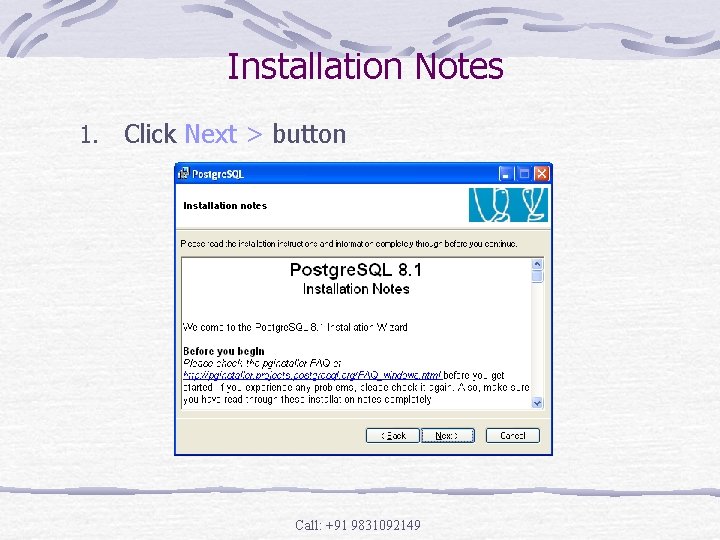
Installation Notes 1. Click Next > button Call: +91 9831092149
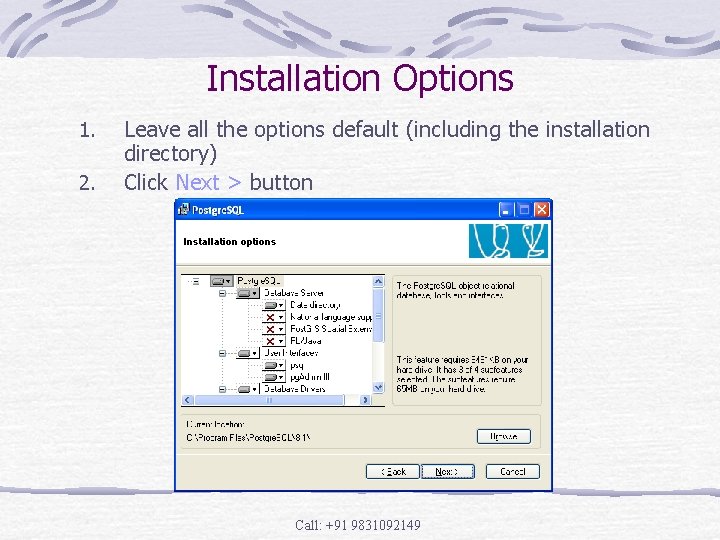
Installation Options 1. 2. Leave all the options default (including the installation directory) Click Next > button Call: +91 9831092149
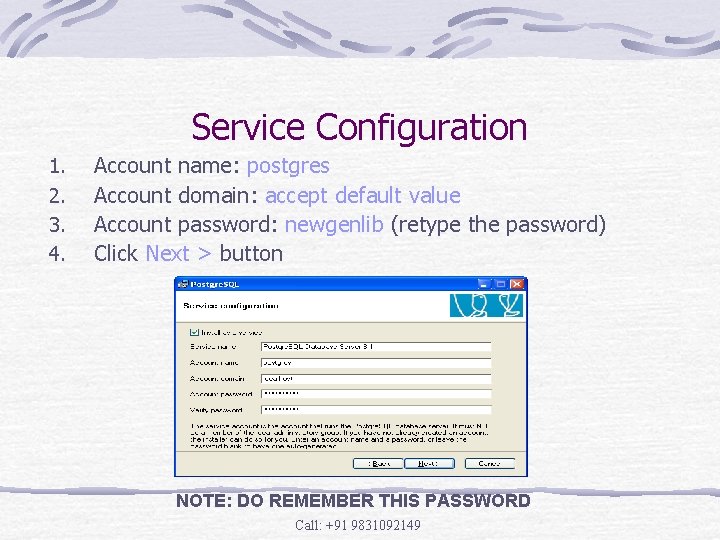
Service Configuration 1. 2. 3. 4. Account name: postgres Account domain: accept default value Account password: newgenlib (retype the password) Click Next > button NOTE: DO REMEMBER THIS PASSWORD Call: +91 9831092149
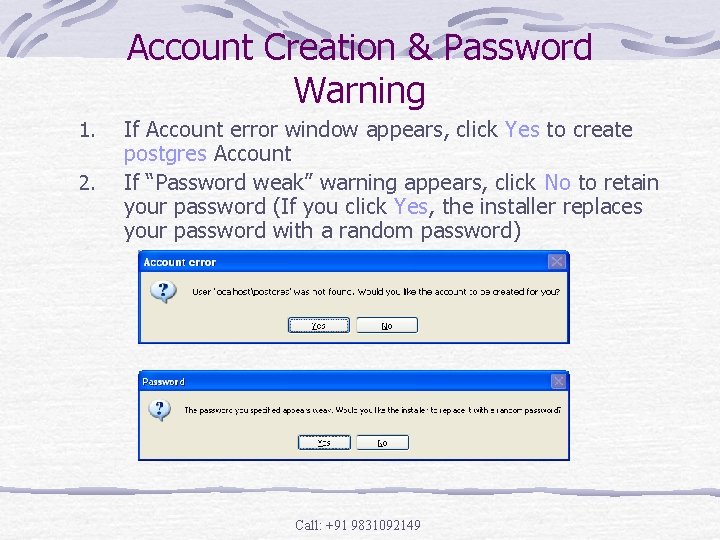
Account Creation & Password Warning 1. 2. If Account error window appears, click Yes to create postgres Account If “Password weak” warning appears, click No to retain your password (If you click Yes, the installer replaces your password with a random password) Call: +91 9831092149
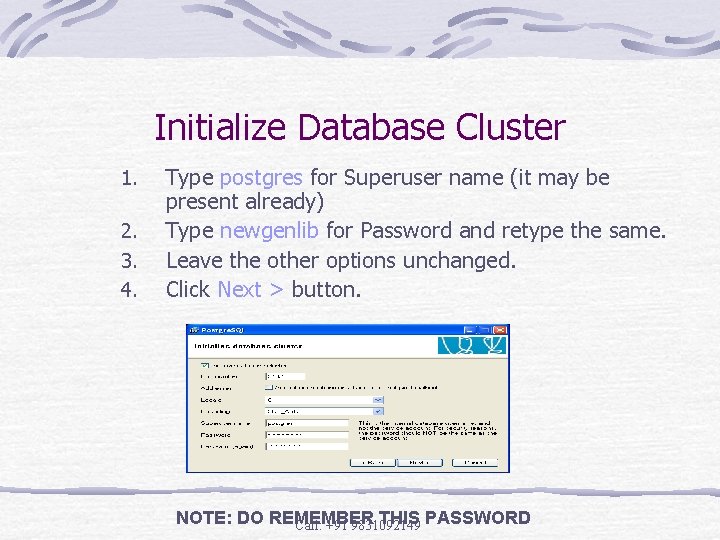
Initialize Database Cluster 1. 2. 3. 4. Type postgres for Superuser name (it may be present already) Type newgenlib for Password and retype the same. Leave the other options unchanged. Click Next > button. NOTE: DO REMEMBER THIS PASSWORD Call: +91 9831092149
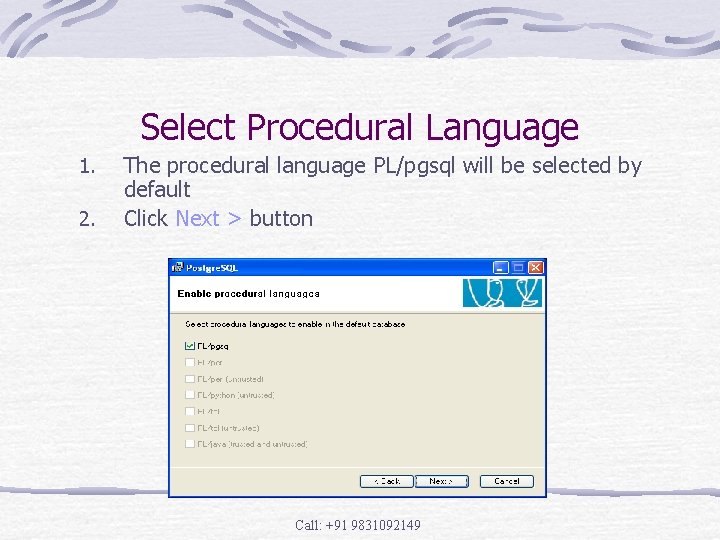
Select Procedural Language 1. 2. The procedural language PL/pgsql will be selected by default Click Next > button Call: +91 9831092149
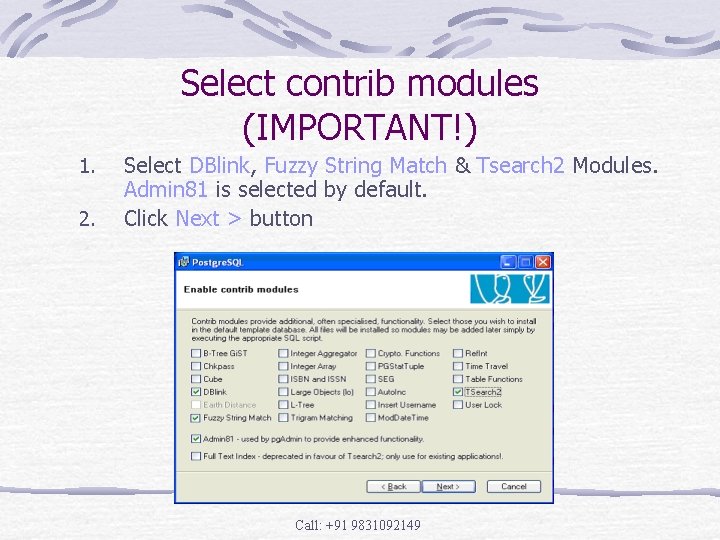
Select contrib modules (IMPORTANT!) 1. 2. Select DBlink, Fuzzy String Match & Tsearch 2 Modules. Admin 81 is selected by default. Click Next > button Call: +91 9831092149
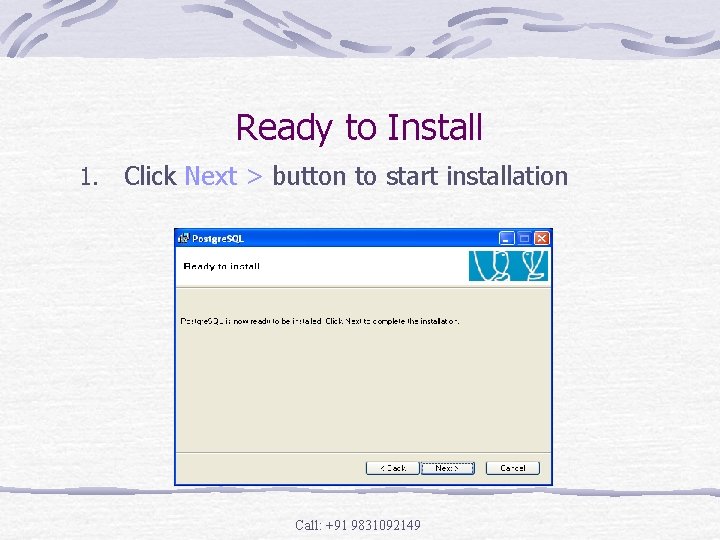
Ready to Install 1. Click Next > button to start installation Call: +91 9831092149
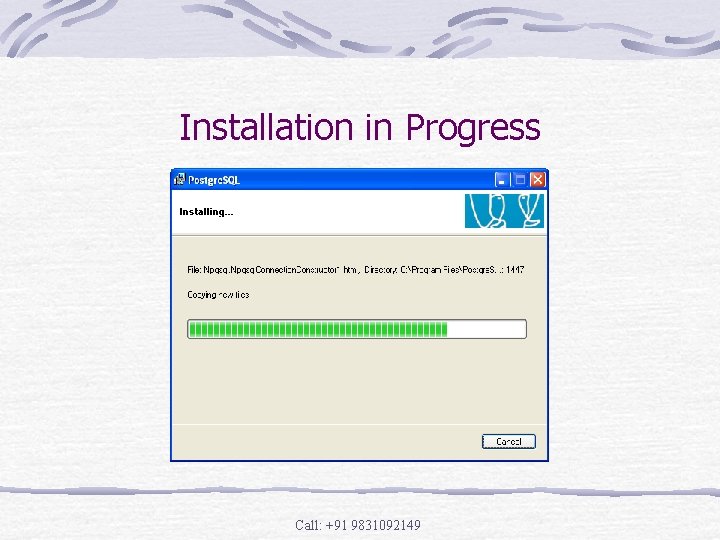
Installation in Progress Call: +91 9831092149
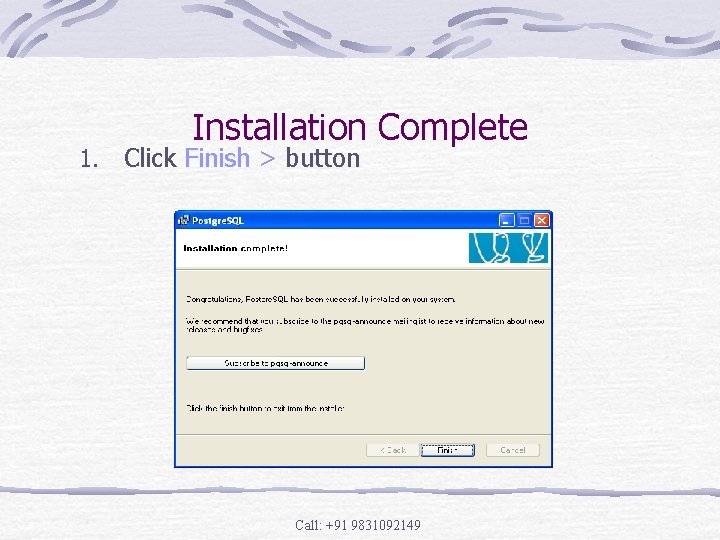
1. Installation Complete Click Finish > button Call: +91 9831092149
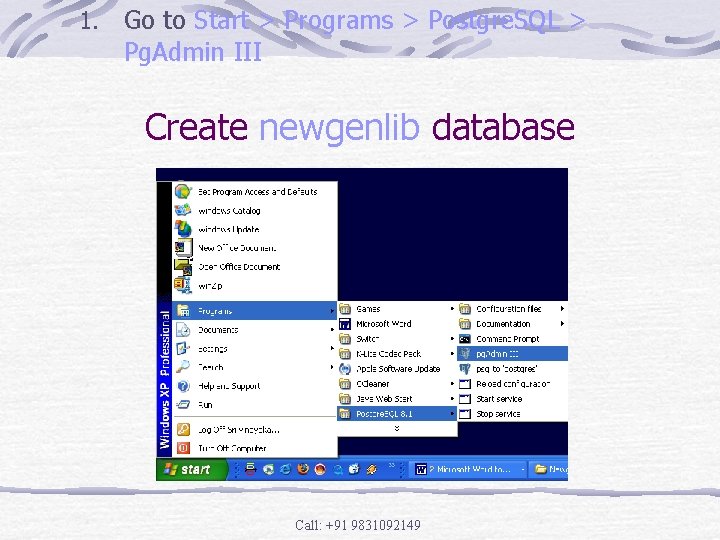
1. Go to Start > Programs > Postgre. SQL > Pg. Admin III Create newgenlib database Call: +91 9831092149
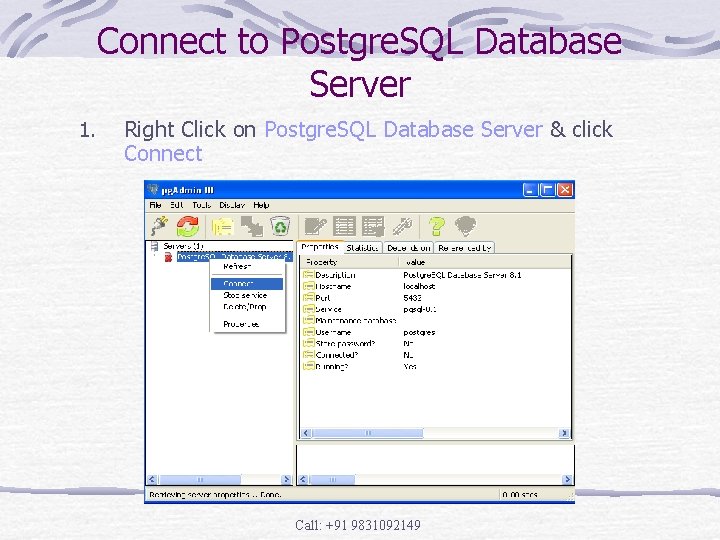
Connect to Postgre. SQL Database Server 1. Right Click on Postgre. SQL Database Server & click Connect Call: +91 9831092149
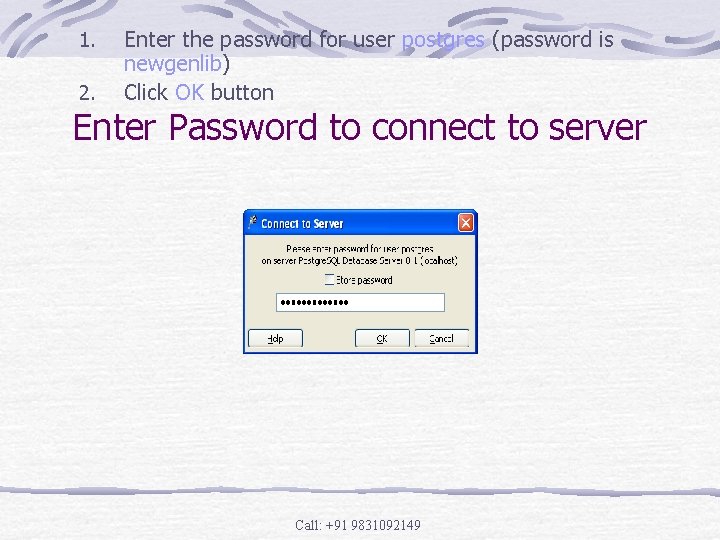
1. 2. Enter the password for user postgres (password is newgenlib) Click OK button Enter Password to connect to server Call: +91 9831092149
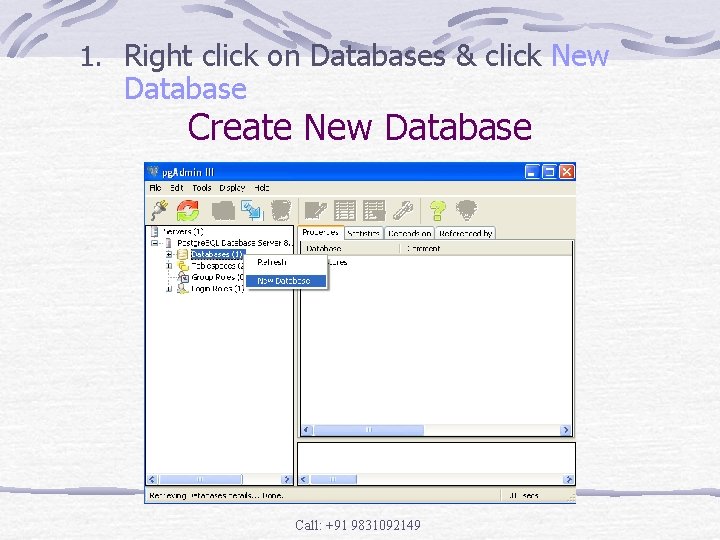
1. Right click on Databases & click New Database Create New Database Call: +91 9831092149
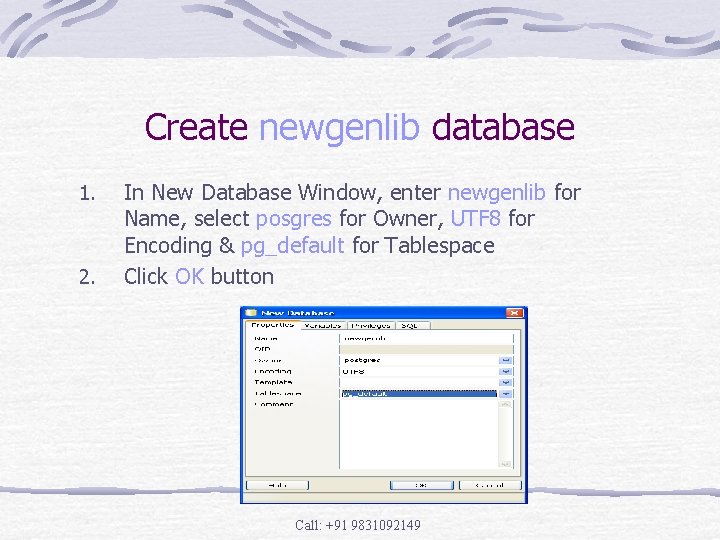
Create newgenlib database 1. 2. In New Database Window, enter newgenlib for Name, select posgres for Owner, UTF 8 for Encoding & pg_default for Tablespace Click OK button Call: +91 9831092149
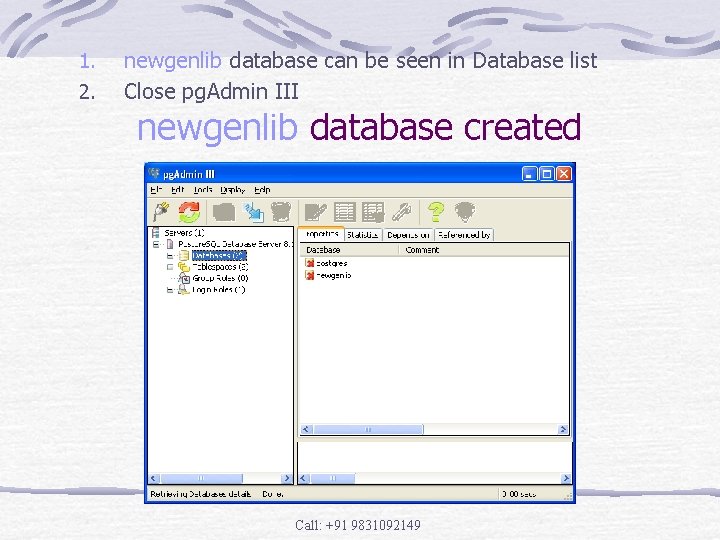
1. 2. newgenlib database can be seen in Database list Close pg. Admin III newgenlib database created Call: +91 9831092149
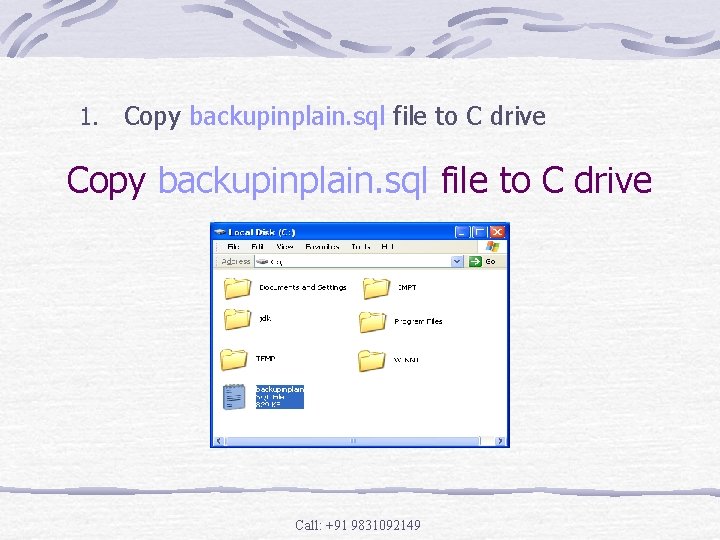
1. Copy backupinplain. sql file to C drive Call: +91 9831092149
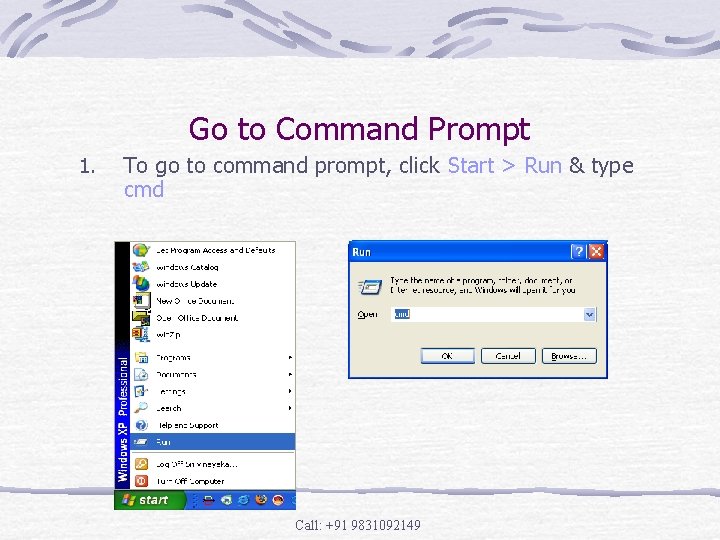
Go to Command Prompt 1. To go to command prompt, click Start > Run & type cmd Call: +91 9831092149
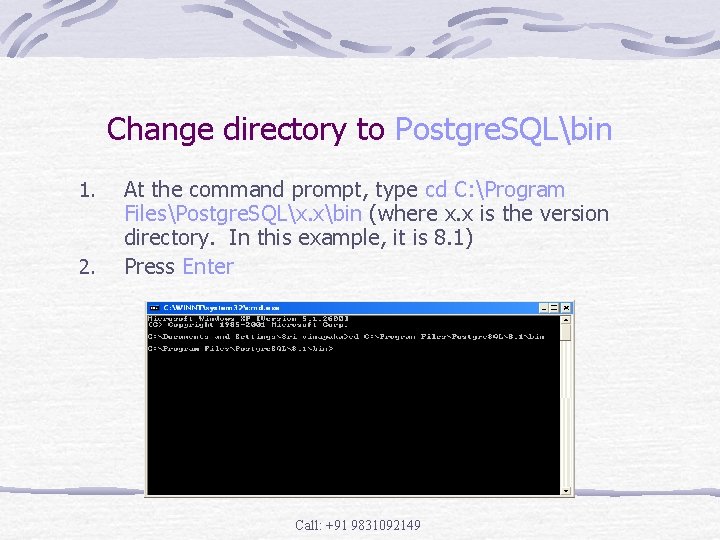
Change directory to Postgre. SQLbin 1. 2. At the command prompt, type cd C: Program FilesPostgre. SQLx. xbin (where x. x is the version directory. In this example, it is 8. 1) Press Enter Call: +91 9831092149
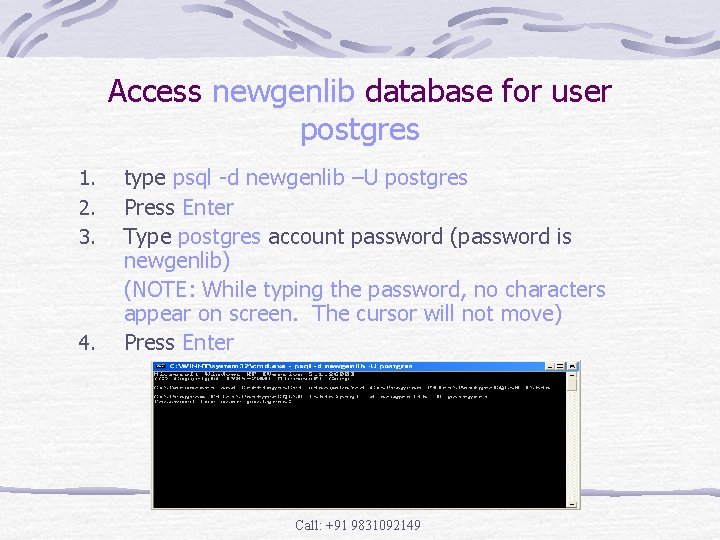
Access newgenlib database for user postgres 1. 2. 3. 4. type psql -d newgenlib –U postgres Press Enter Type postgres account password (password is newgenlib) (NOTE: While typing the password, no characters appear on screen. The cursor will not move) Press Enter Call: +91 9831092149
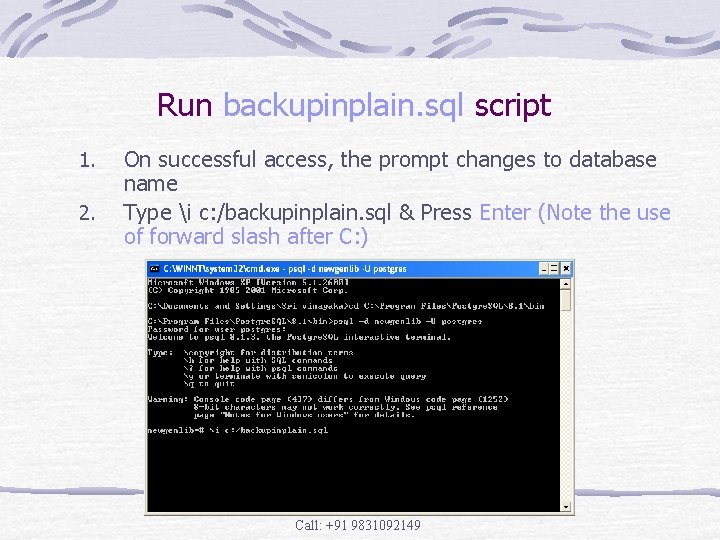
Run backupinplain. sql script 1. 2. On successful access, the prompt changes to database name Type i c: /backupinplain. sql & Press Enter (Note the use of forward slash after C: ) Call: +91 9831092149
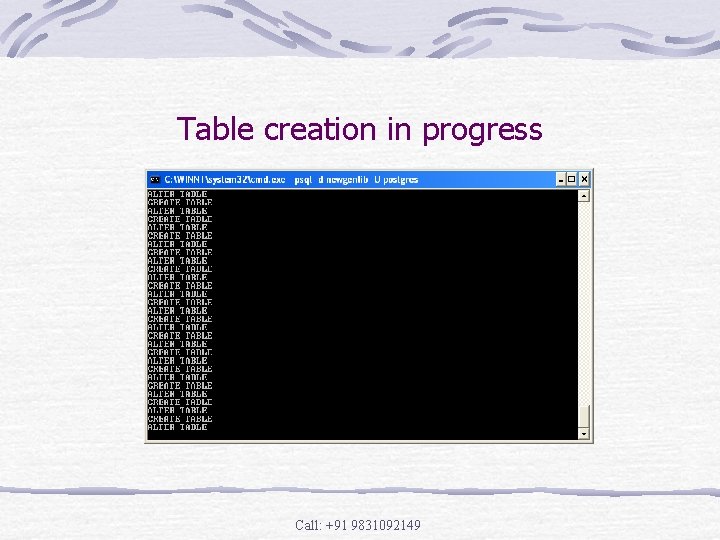
Table creation in progress Call: +91 9831092149
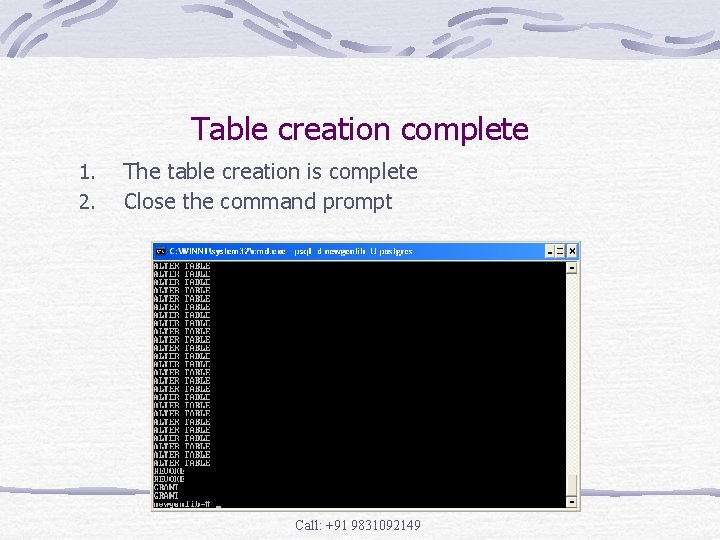
Table creation complete 1. 2. The table creation is complete Close the command prompt Call: +91 9831092149
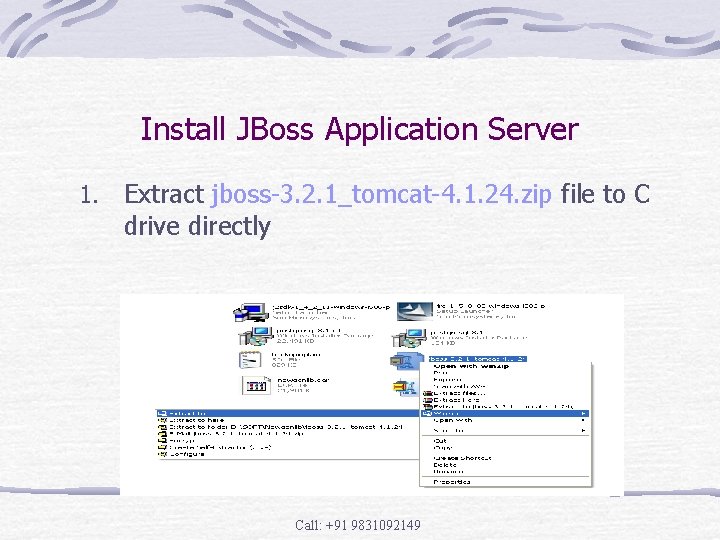
Install JBoss Application Server 1. Extract jboss-3. 2. 1_tomcat-4. 1. 24. zip file to C drive directly Call: +91 9831092149
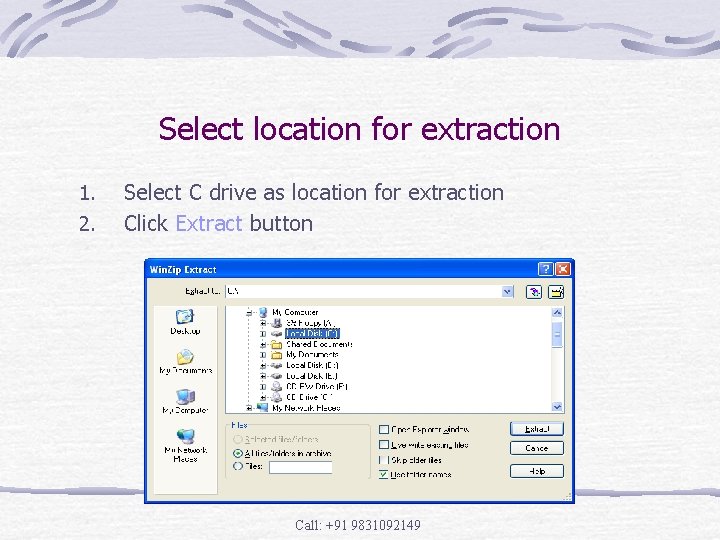
Select location for extraction 1. 2. Select C drive as location for extraction Click Extract button Call: +91 9831092149
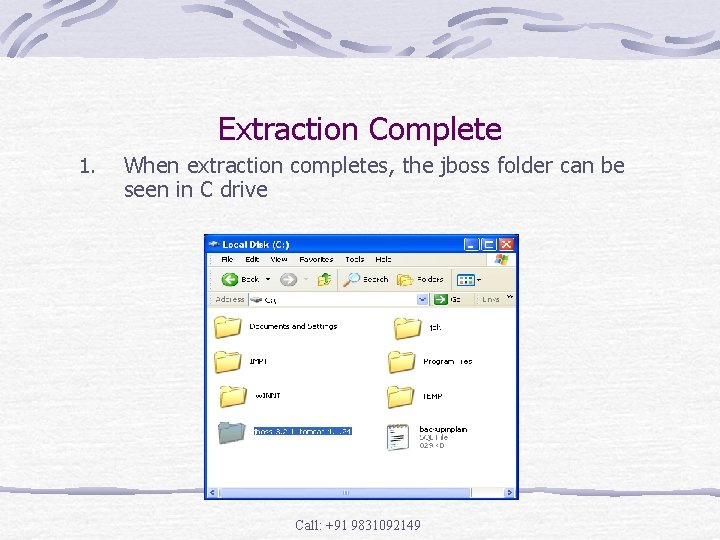
Extraction Complete 1. When extraction completes, the jboss folder can be seen in C drive Call: +91 9831092149
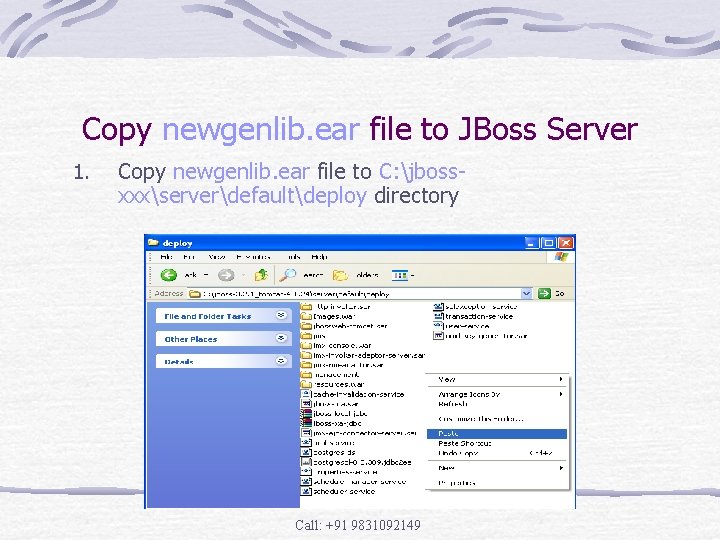
Copy newgenlib. ear file to JBoss Server 1. Copy newgenlib. ear file to C: jbossxxxserverdefaultdeploy directory Call: +91 9831092149
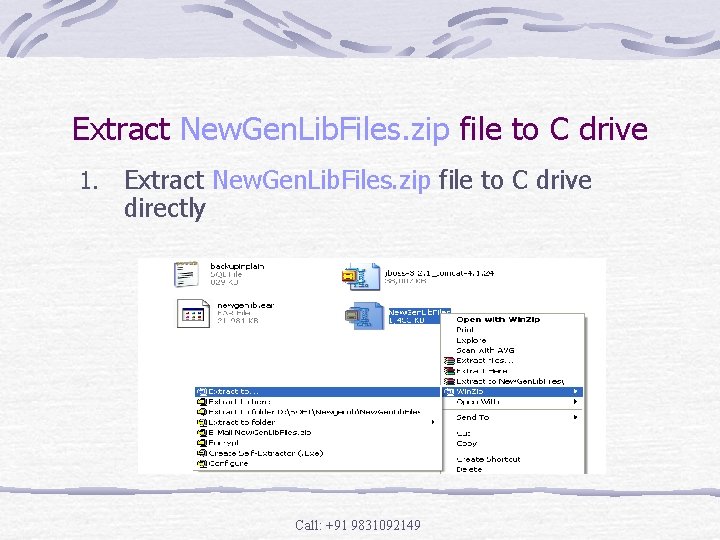
Extract New. Gen. Lib. Files. zip file to C drive 1. Extract New. Gen. Lib. Files. zip file to C drive directly Call: +91 9831092149
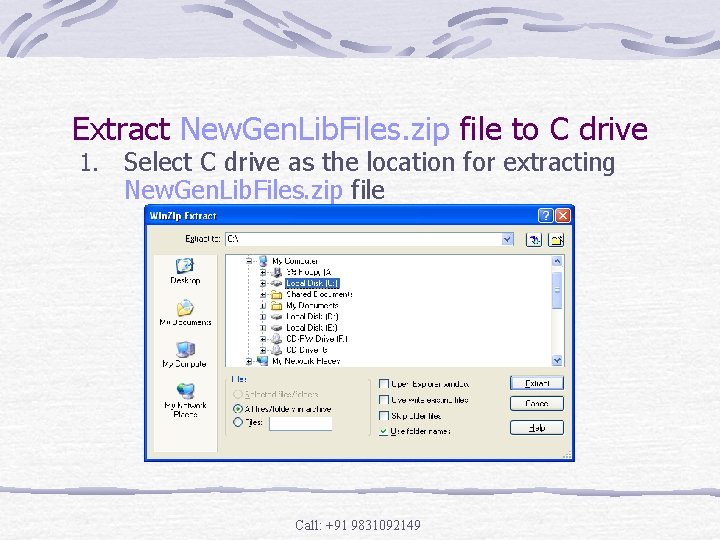
Extract New. Gen. Lib. Files. zip file to C drive 1. Select C drive as the location for extracting New. Gen. Lib. Files. zip file Call: +91 9831092149
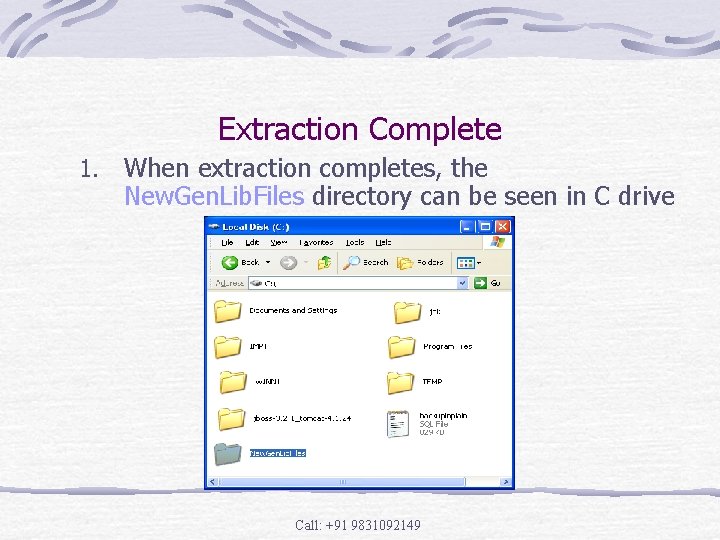
Extraction Complete 1. When extraction completes, the New. Gen. Lib. Files directory can be seen in C drive Call: +91 9831092149
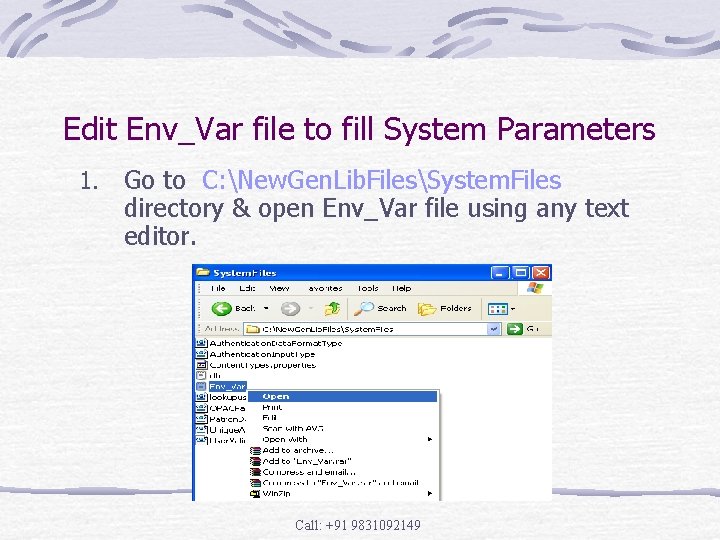
Edit Env_Var file to fill System Parameters 1. Go to C: New. Gen. Lib. FilesSystem. Files directory & open Env_Var file using any text editor. Call: +91 9831092149
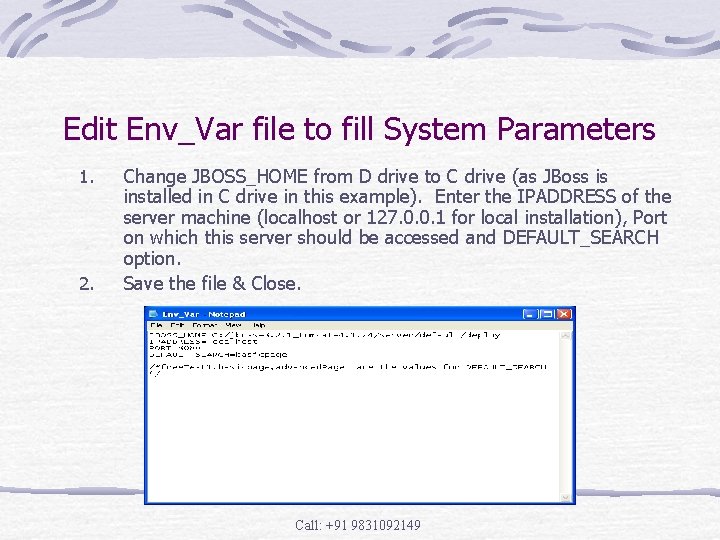
Edit Env_Var file to fill System Parameters 1. 2. Change JBOSS_HOME from D drive to C drive (as JBoss is installed in C drive in this example). Enter the IPADDRESS of the server machine (localhost or 127. 0. 0. 1 for local installation), Port on which this server should be accessed and DEFAULT_SEARCH option. Save the file & Close. Call: +91 9831092149
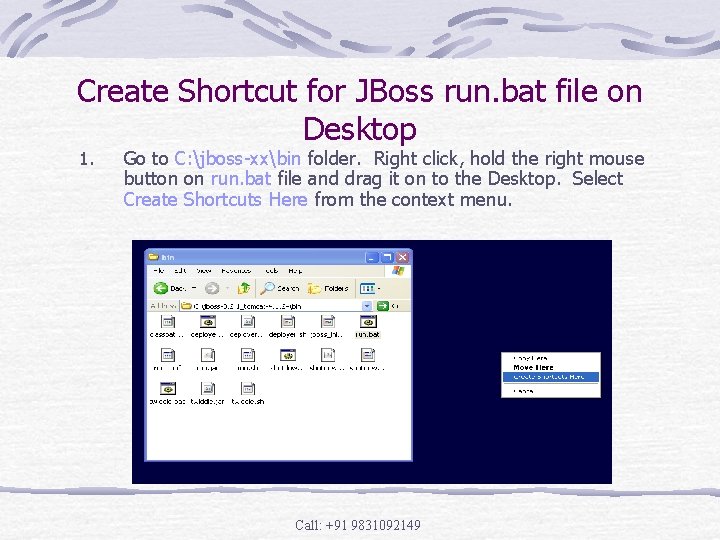
Create Shortcut for JBoss run. bat file on Desktop 1. Go to C: jboss-xxbin folder. Right click, hold the right mouse button on run. bat file and drag it on to the Desktop. Select Create Shortcuts Here from the context menu. Call: +91 9831092149
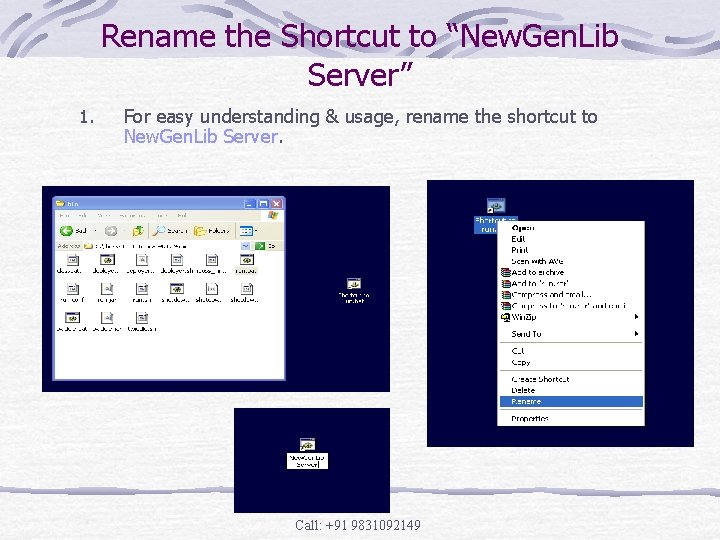
Rename the Shortcut to “New. Gen. Lib Server” 1. For easy understanding & usage, rename the shortcut to New. Gen. Lib Server. Call: +91 9831092149
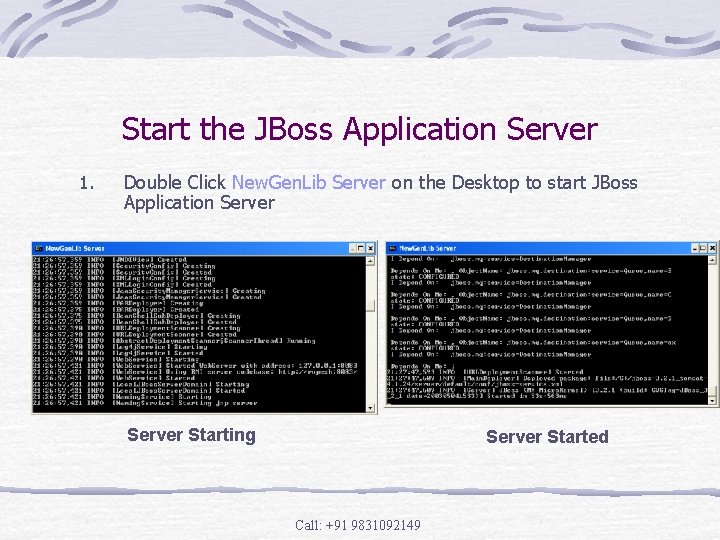
Start the JBoss Application Server 1. Double Click New. Gen. Lib Server on the Desktop to start JBoss Application Server Starting Server Started Call: +91 9831092149
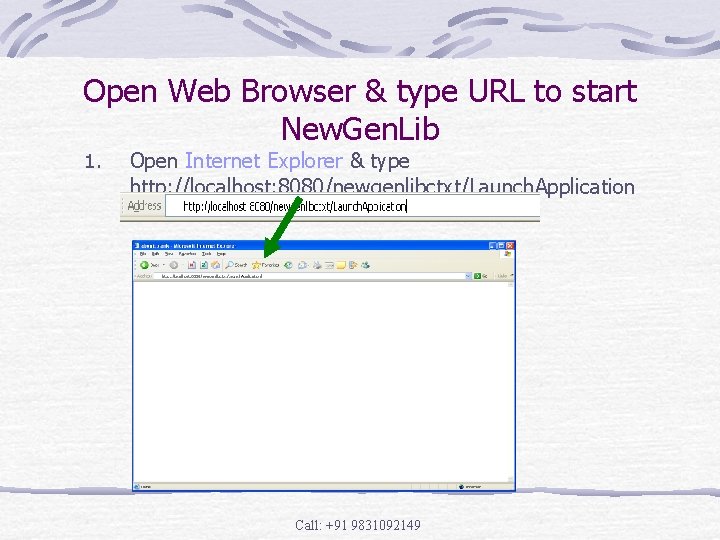
Open Web Browser & type URL to start New. Gen. Lib 1. Open Internet Explorer & type http: //localhost: 8080/newgenlibctxt/Launch. Application Call: +91 9831092149
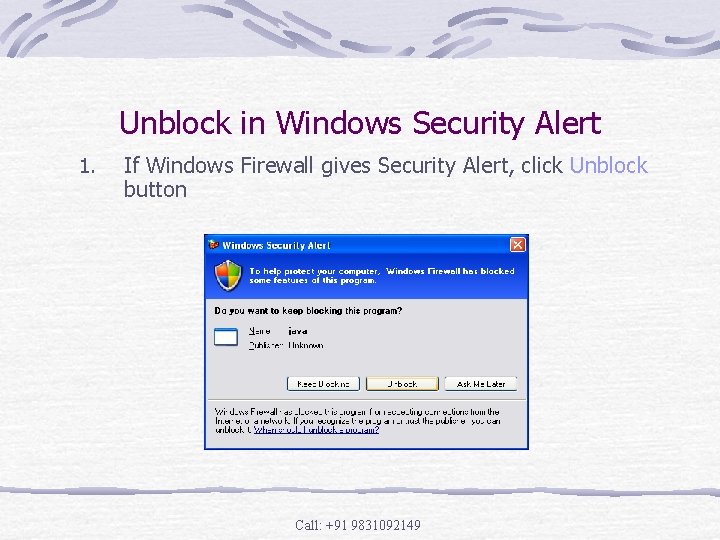
Unblock in Windows Security Alert 1. If Windows Firewall gives Security Alert, click Unblock button Call: +91 9831092149
Java Starting… Call: +91 9831092149
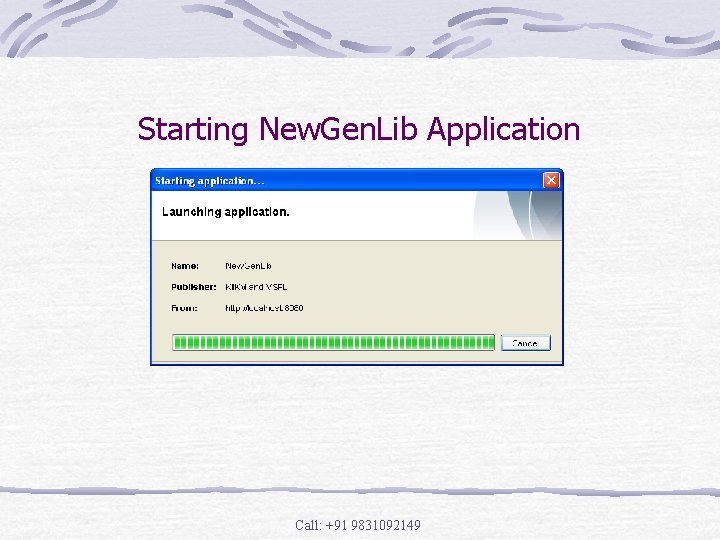
Starting New. Gen. Lib Application Call: +91 9831092149
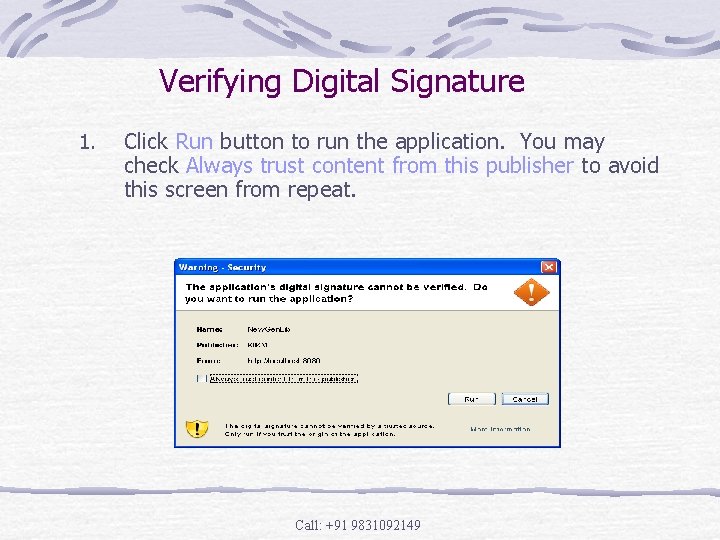
Verifying Digital Signature 1. Click Run button to run the application. You may check Always trust content from this publisher to avoid this screen from repeat. Call: +91 9831092149
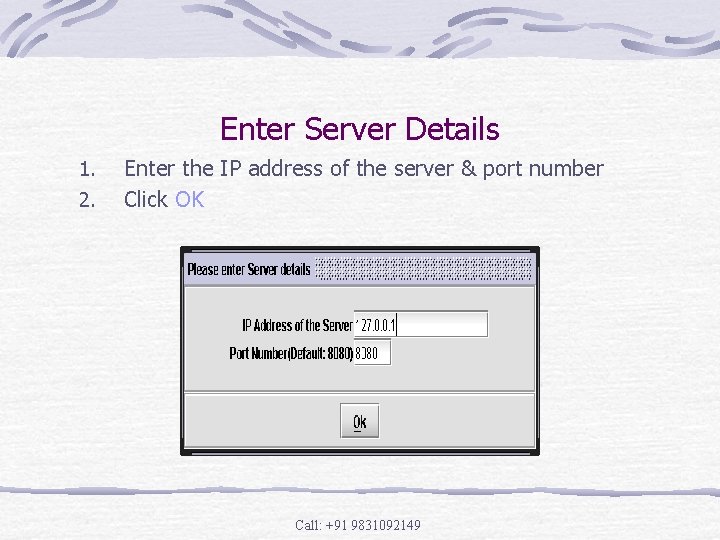
Enter Server Details 1. 2. Enter the IP address of the server & port number Click OK Call: +91 9831092149
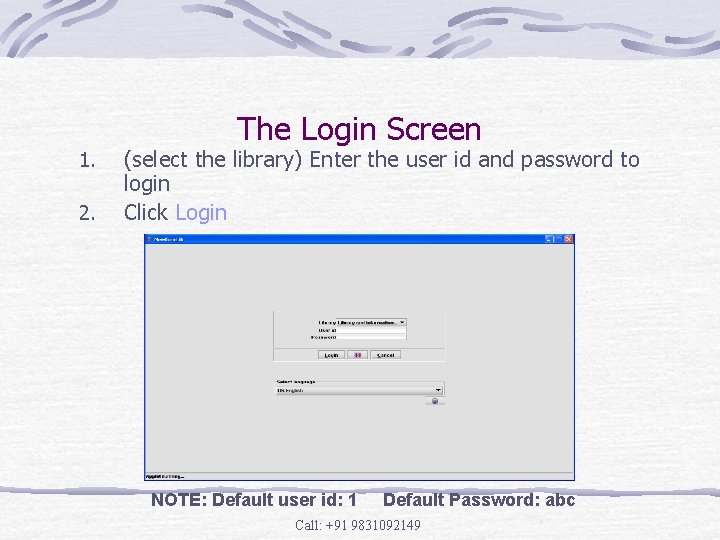
The Login Screen 1. 2. (select the library) Enter the user id and password to login Click Login NOTE: Default user id: 1 Default Password: abc Call: +91 9831092149
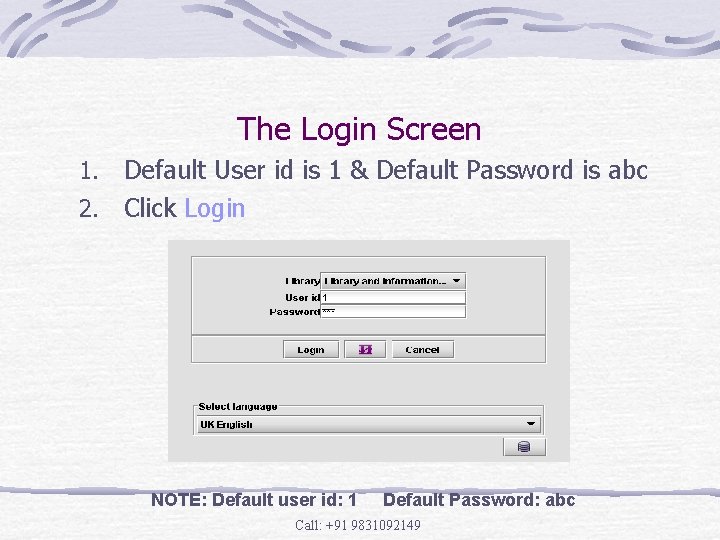
The Login Screen Default User id is 1 & Default Password is abc 2. Click Login 1. NOTE: Default user id: 1 Default Password: abc Call: +91 9831092149
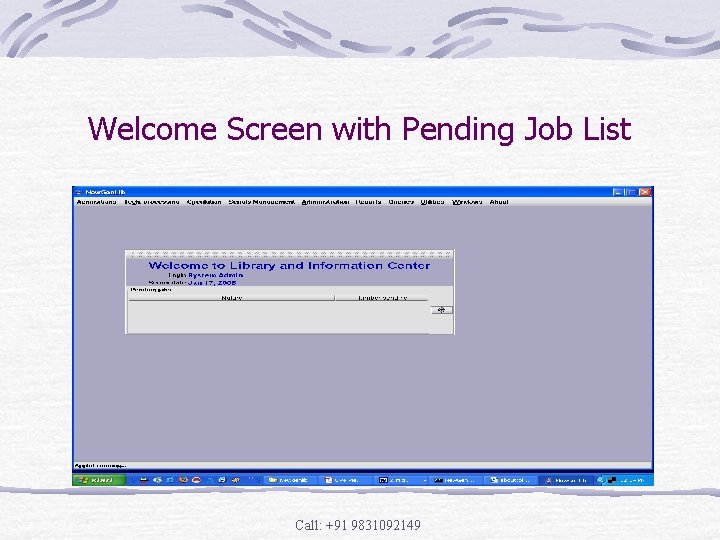
Welcome Screen with Pending Job List Call: +91 9831092149
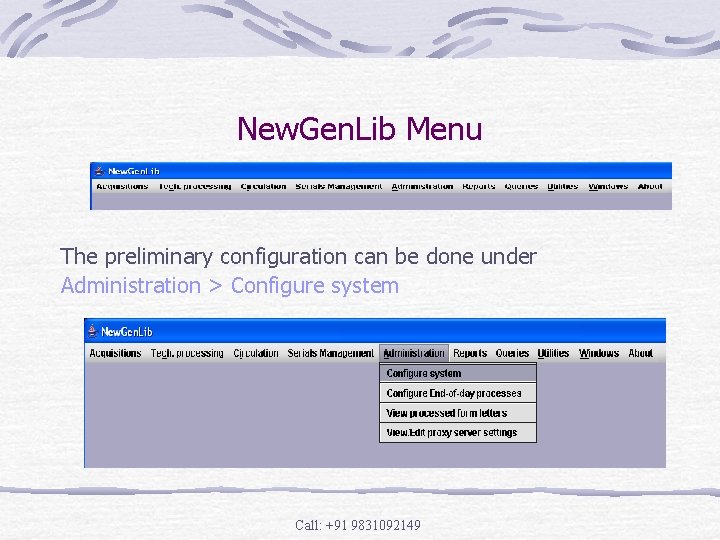
New. Gen. Lib Menu The preliminary configuration can be done under Administration > Configure system Call: +91 9831092149
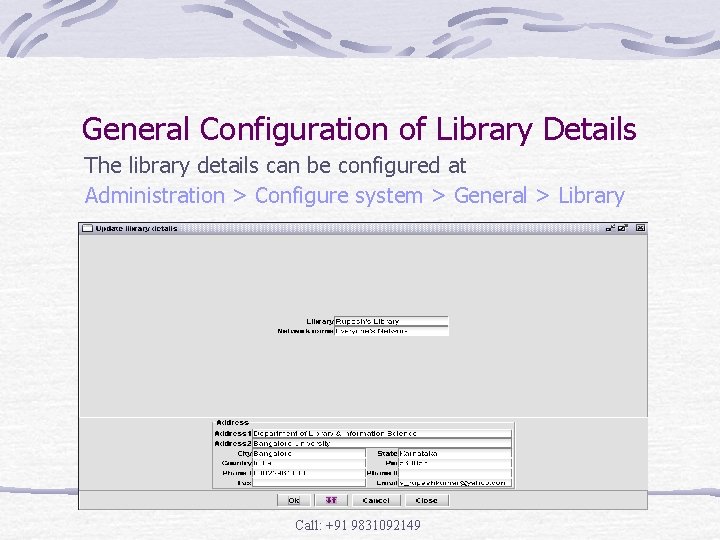
General Configuration of Library Details The library details can be configured at Administration > Configure system > General > Library Call: +91 9831092149
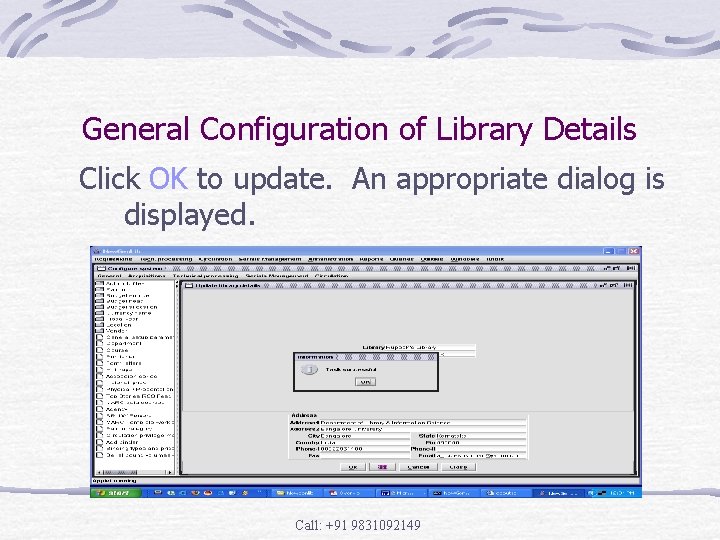
General Configuration of Library Details Click OK to update. An appropriate dialog is displayed. Call: +91 9831092149
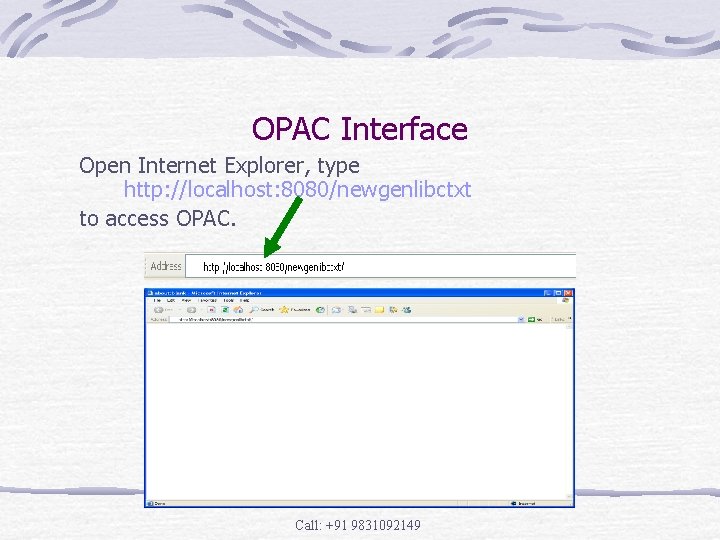
OPAC Interface Open Internet Explorer, type http: //localhost: 8080/newgenlibctxt to access OPAC. Call: +91 9831092149
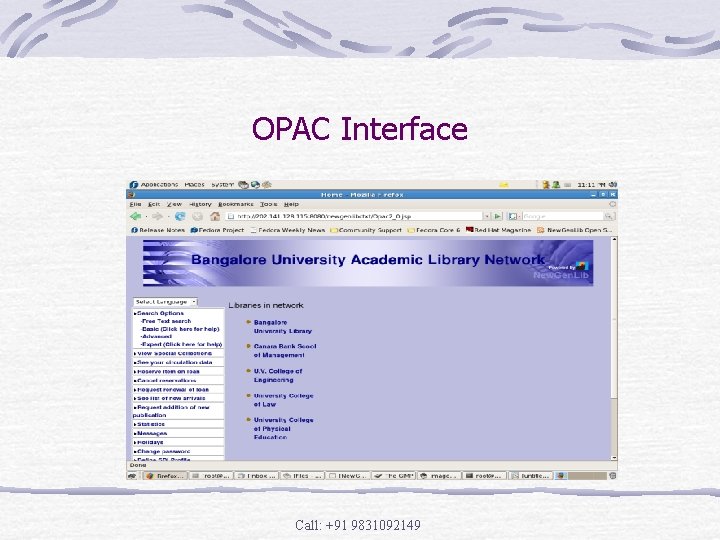
OPAC Interface Call: +91 9831092149
New. Gen. Lib User Manual for assistance on installation available at http: //www. sourceforge. net/projects/newgenlib Call: +91 9831092149
Thanks Please send in your comments & suggestions to Email: goutambiswas 8@gmail. com Website: goutambiswasresearch. yolasite. com Call: +91 9831092149
- Slides: 74