NS 5 Session 3 Unplanned Maintenance New Work
- Slides: 14
NS 5 Session #3 Unplanned Maintenance New Work Orders Oct 2015
By now you should all be familiar with creating, completing and closing work orders from the standard jobs in the Maintenance Time plan. However, there are many unplanned repairs that also need to be documented in NS 5.
Unplanned maintenance to equipment or systems needs to be documented in NS 5 as a new Work Order. If the hull springs a leak, the generator needs replacing, the bow thruster fails to work properly or the water maker needs repair– a New Work Order is required.
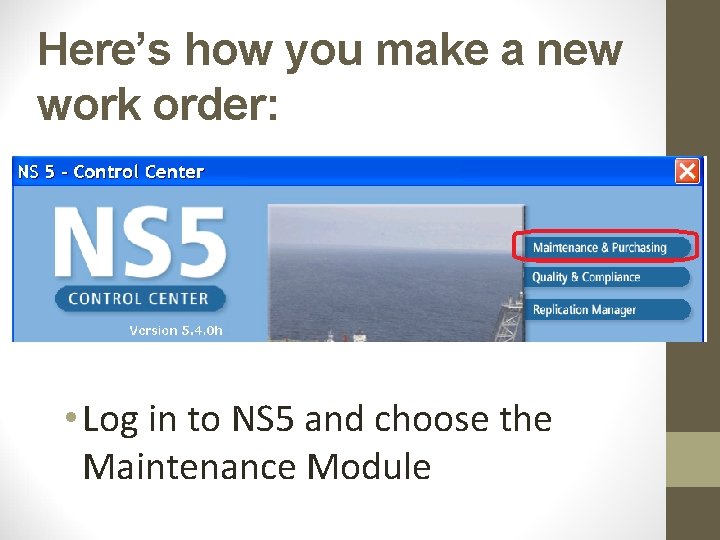
Here’s how you make a new work order: • Log in to NS 5 and choose the Maintenance Module
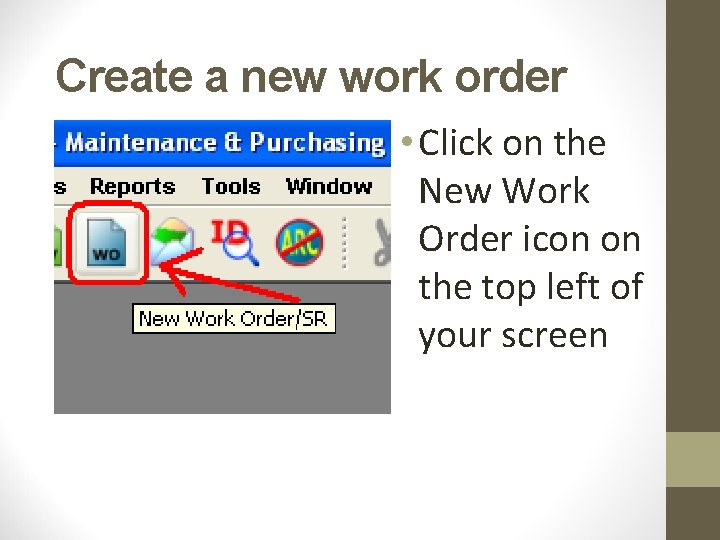
Create a new work order • Click on the New Work Order icon on the top left of your screen
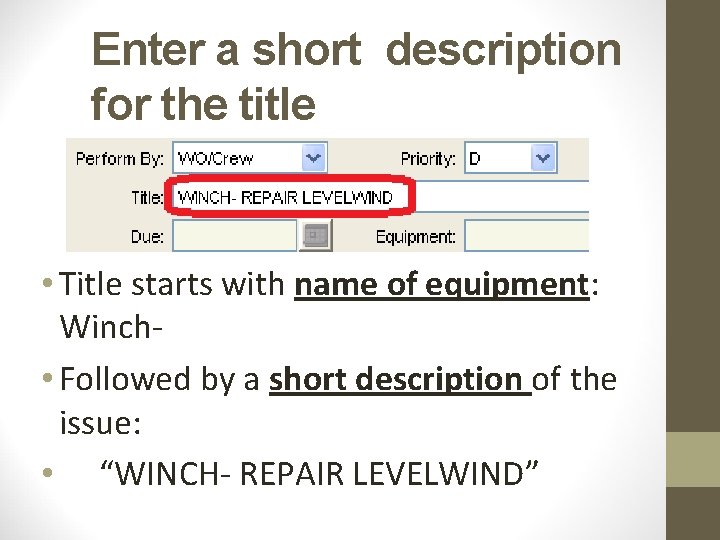
Enter a short description for the title • Title starts with name of equipment: Winch • Followed by a short description of the issue: • “WINCH- REPAIR LEVELWIND”
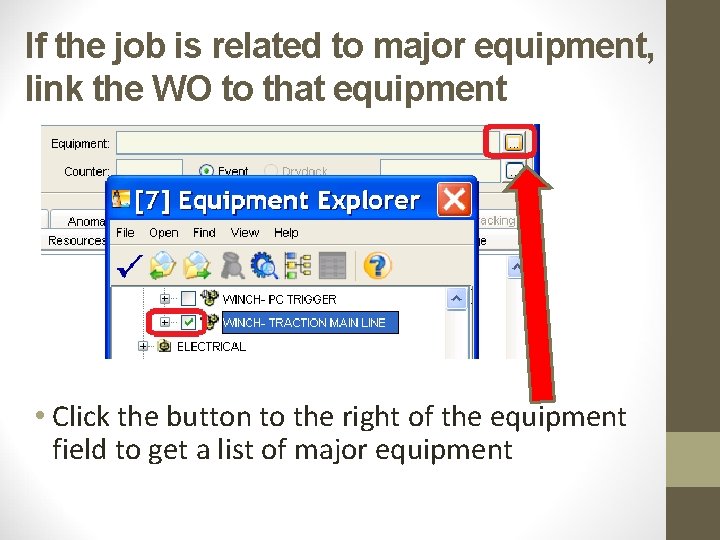
If the job is related to major equipment, link the WO to that equipment • Click the button to the right of the equipment field to get a list of major equipment
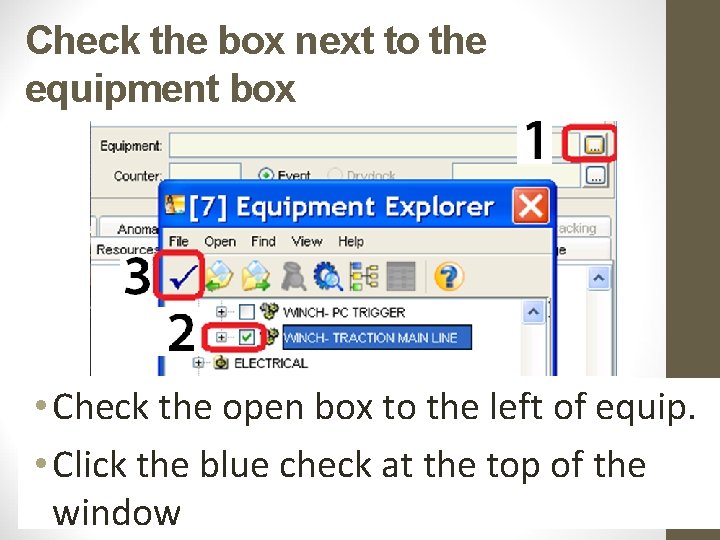
Check the box next to the equipment box • Check the open box to the left of equip. • Click the blue check at the top of the window
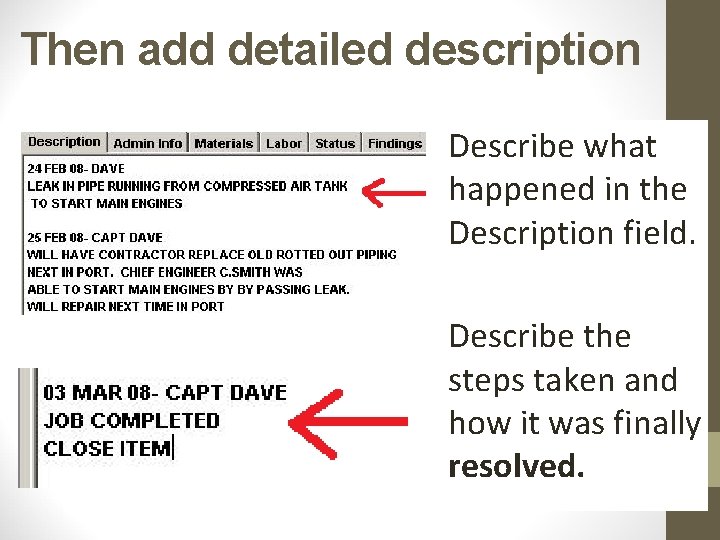
Then add detailed description Describe what happened in the Description field. Describe the steps taken and how it was finally resolved.
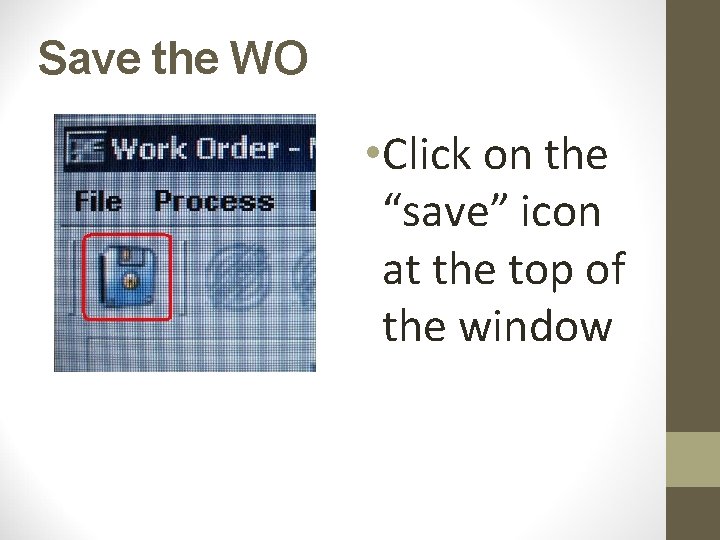
Save the WO • Click on the “save” icon at the top of the window
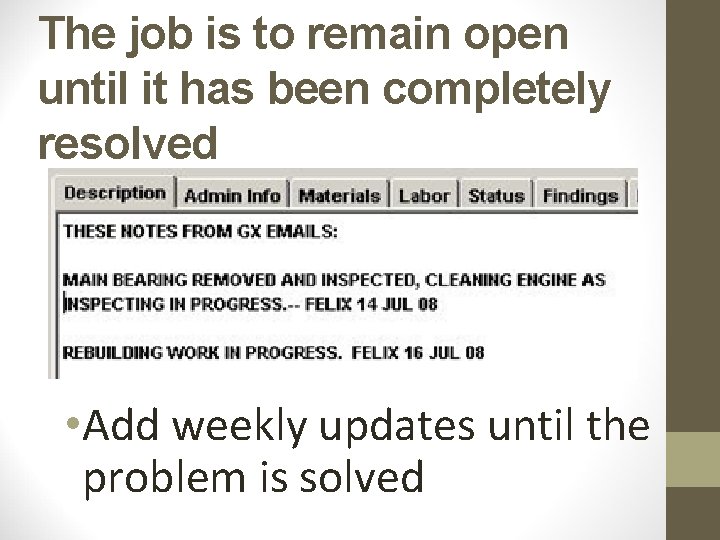
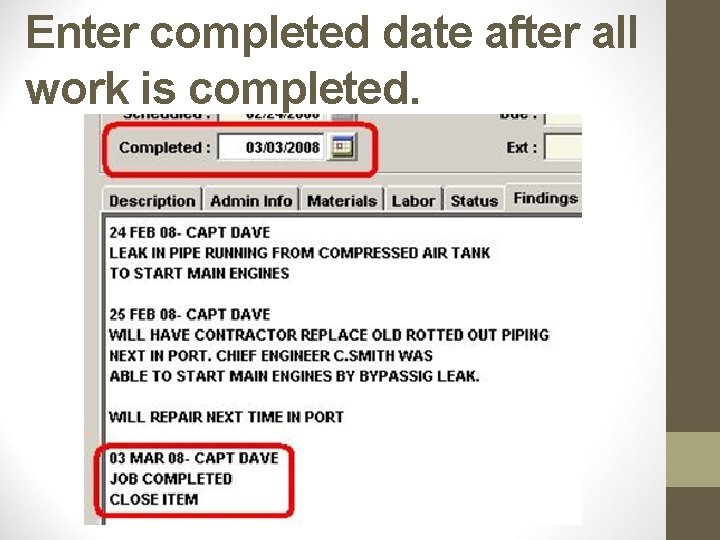
The job is to remain open until it has been completely resolved • Add weekly updates until the problem is solved
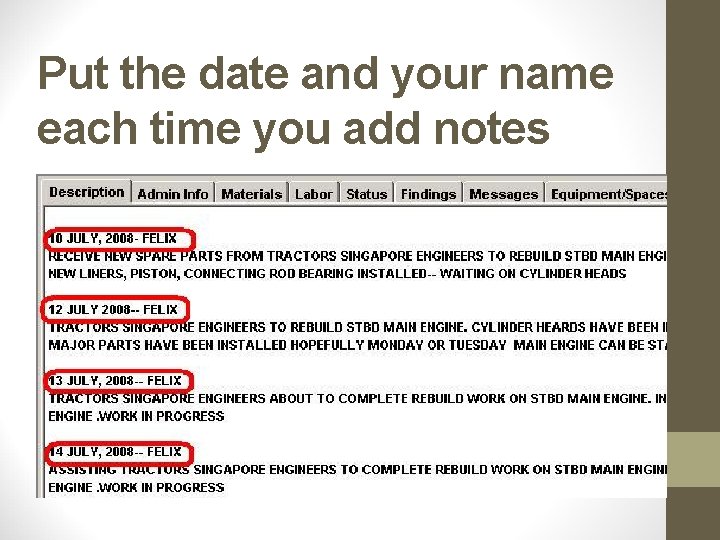
Put the date and your name each time you add notes
Enter completed date after all work is completed.
NS 5 Cheat Sheet #5 provides step-by-step instructions you can print out and take with you on how to create work orders for unplanned maintenance. It is located on the Ship Web Pages & the TDI Forms page.