Module Title Module Code XXXX 1111 Unit X



- Slides: 16
Module Title Module Code: XXXX 1111 Unit X: Topic Title Presenter Version: 2019. 1
Lecture Outline
Lecture Topic
Lecture Summary / Quick Quiz
Advice Notes • This above draft template support a basic approach to facilitating universal access to information through Power. Point slides for lectures, PCs and portable electronic readers • Key considerations are highlighted in the following slides • Links to more further resources are also provided in the last three slides below
Power. Point for Universal Access • These slides are 16: 9 ratio. What are the projector native settings? • Avoid a glaringly reflective surface where a screen is unavailable • Dim lighting in the room to reduce glare • Slides: Keep them clear, simple and uncrowded • Use minimal text: cover one subject per slide, ideally using no more than six bullet points
Power. Point for Universal Access • Be consistent when using a font, colour and background • Use a sans-serif font, such as Tahoma, Arial or Verdana • Use a large font size, 24 -28 point is ideal • Maintain a line spacing of 1. 5, with 6 point “before spacing” • Timing: Show slides long enough for slower readers to process the content
Power. Point for Universal Access • Use bold for emphasis, rather than highlights, underlines or italics • Align text to the left or centrally; do not justify both sides • Dark text on a pastel background works best; dark blue text on cream suits many students with dyslexia • Provide high colour contrast between text and background • https: //webaim. org/resources/contrastchecker/
Power. Point for Universal Access • Present information diagrammatically; Smart. Art can be useful • Place images alongside text, rather than behind it • Stagger the release of complex information by using the ‘appear’ function to gradually reveal bullet points or elements in Smart. Art • Keep slide transitions consistent and simple
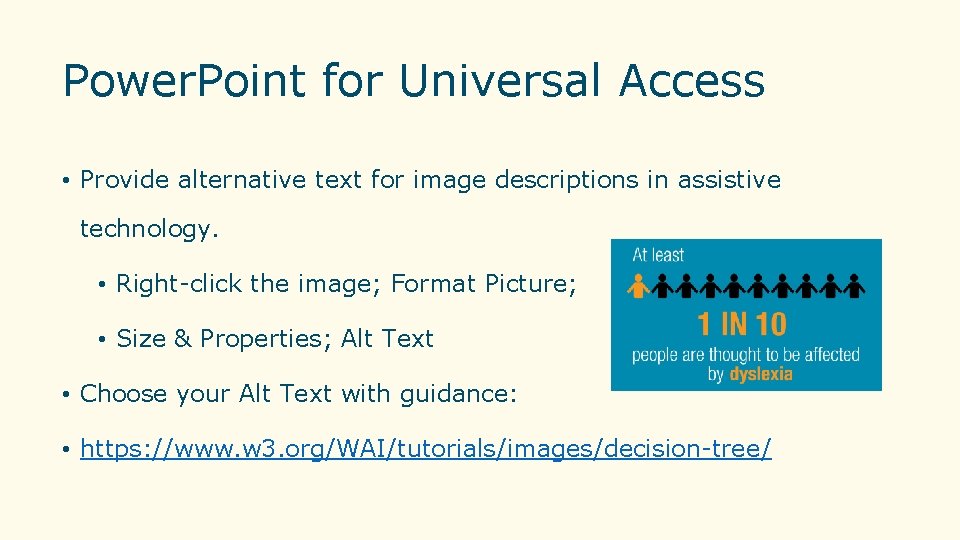
Power. Point for Universal Access • Provide alternative text for image descriptions in assistive technology. • Right-click the image; Format Picture; • Size & Properties; Alt Text • Choose your Alt Text with guidance: • https: //www. w 3. org/WAI/tutorials/images/decision-tree/
Power. Point for Universal Access • Make the presentation as multi-sensory as possible; use audiovisual elements to reinforce information • Beforehand: Make the slides available on Brightspace VLE • Handouts: Print slides three to a page on pastel or cream paper • Source: https: //www. yorksj. ac. uk/media/content-assets/studentservices/documents/A-Guide-to-Dyslexia-(Power. Point)-A 5. pdf
Power. Point for Universal Access • Avoid colour combinations (green/red) which may cause visual stress • Avoid text which is angled or uses special effects, such as shadows • Avoid complex visual effects; moving, flashing or dissolving images and graphics are distracting and cause visual distortion • Avoid white writing on a dark background • Avoid slide designs with patterned backgrounds
Links to Accessibility Resources • Dyslexia Association of Ireland - https: //www. dyslexia. ie/ • As. Iam (Autism Supports) - https: //asiam. ie/ • Association for Higher Education Access & Disability https: //ahead. ie/ • https: //www. dit. ie/computing/aboutourschool/accessiblelearningm aterials/ • https: //www. tcd. ie/disability/teaching-info/TIC. php
Links to Accessibility Resources • TU Dublin Document Accessibility Guidelines: Link • https: //github. com/UKHome. Office/posters/blob/master/accessibilit y/dos-donts/posters_en-UK/accessibility-posters-set. pdf • W 3 C Web Accessibility Initiative Website • WEBAIMS WAVE Tool is a useful Automatic Accessibility Web Page • Checker - Simply submit URL for Audit
Links to Accessibility Resources • Centre for Excellence in Universal Design Web Accessibility Techniques • Universal Design for Learning CAST • Universal Design for Learning Centre • MOOCAP Open Educational Resources