HTML 1 SGML and XML HTML is a
![The <!DOCTYPE> syntax <!DOCTYPE Root-element Publicity “[Registration]//[Organization]//[Type] [Name]//[Language]” “[URL]”> Parameters: Root-element defines document root-element.](https://slidetodoc.com/presentation_image_h/043dbd6bf4e42c5c5fc29107e4575810/image-8.jpg "The <!DOCTYPE> syntax <!DOCTYPE Root-element Publicity “[Registration]//[Organization]//[Type] [Name]//[Language]” “[URL]”> Parameters: Root-element defines document root-element.")
![Data Entry Template d [0 -9] One digit from 0 to 9 D [^0](https://slidetodoc.com/presentation_image_h/043dbd6bf4e42c5c5fc29107e4575810/image-62.jpg "Data Entry Template d [0 -9] One digit from 0 to 9 D [^0")
- Slides: 81
HTML 1
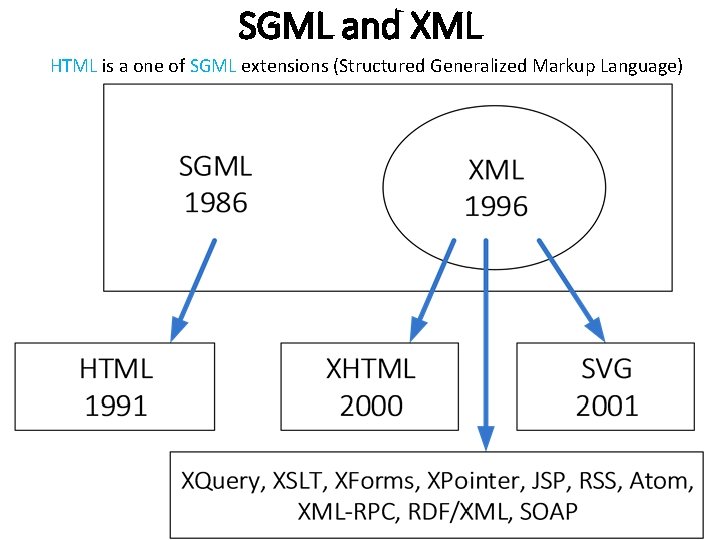
SGML and XML HTML is a one of SGML extensions (Structured Generalized Markup Language)
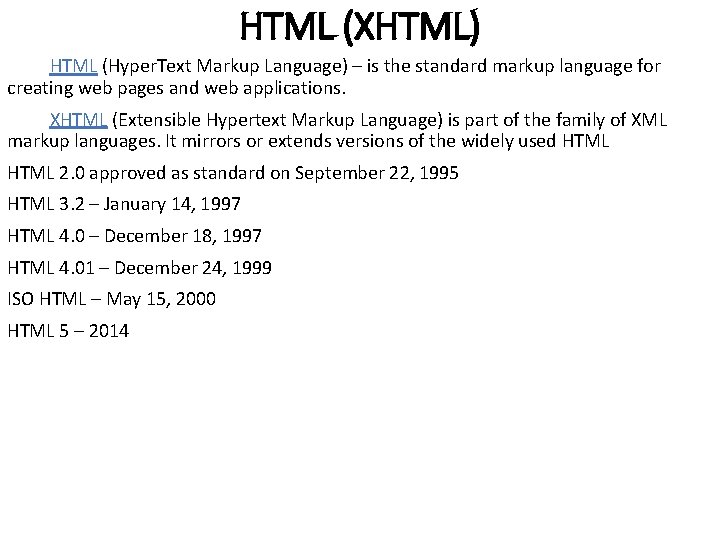
HTML (XHTML) HTML (Hyper. Text Markup Language) – is the standard markup language for creating web pages and web applications. XHTML (Extensible Hypertext Markup Language) is part of the family of XML markup languages. It mirrors or extends versions of the widely used HTML 2. 0 approved as standard on September 22, 1995 HTML 3. 2 – January 14, 1997 HTML 4. 0 – December 18, 1997 HTML 4. 01 – December 24, 1999 ISO HTML – May 15, 2000 HTML 5 – 2014
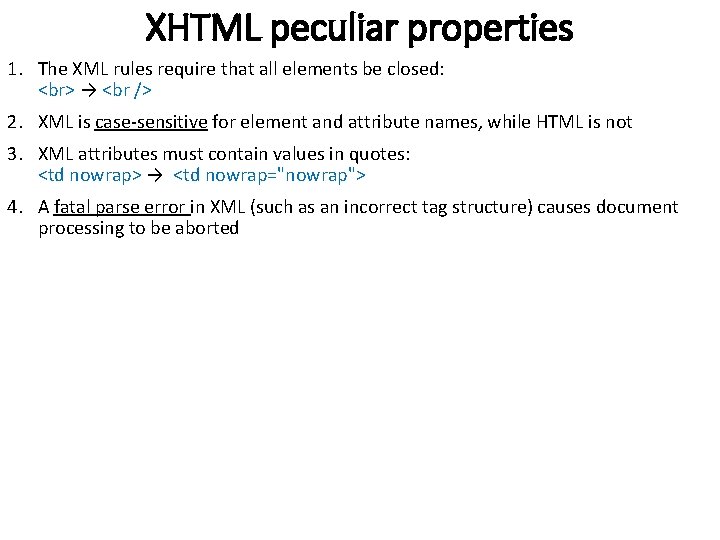
XHTML peculiar properties 1. The XML rules require that all elements be closed: → <br /> 2. XML is case-sensitive for element and attribute names, while HTML is not 3. XML attributes must contain values in quotes: <td nowrap> → <td nowrap="nowrap"> 4. A fatal parse error in XML (such as an incorrect tag structure) causes document processing to be aborted
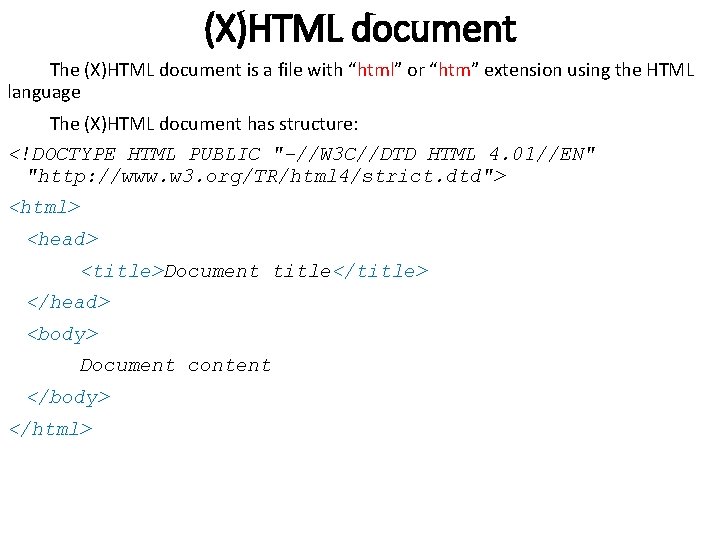
(X)HTML document The (X)HTML document is a file with “html” or “htm” extension using the HTML language The (X)HTML document has structure: <!DOCTYPE HTML PUBLIC "-//W 3 C//DTD HTML 4. 01//EN" "http: //www. w 3. org/TR/html 4/strict. dtd"> <html> <head> <title>Document title</title> </head> <body> Document content </body> </html>
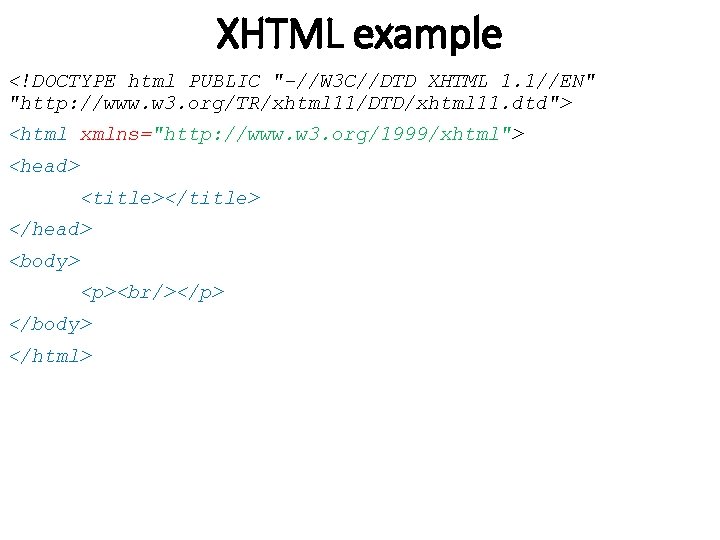
XHTML example <!DOCTYPE html PUBLIC "-//W 3 C//DTD XHTML 1. 1//EN" "http: //www. w 3. org/TR/xhtml 11/DTD/xhtml 11. dtd"> <html xmlns="http: //www. w 3. org/1999/xhtml"> <head> <title></title> </head> <body> <p><br/></p> </body> </html>
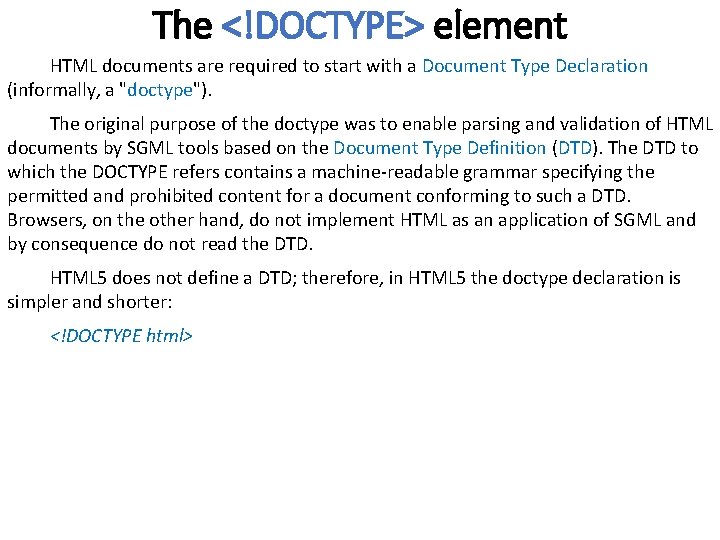
The <!DOCTYPE> element HTML documents are required to start with a Document Type Declaration (informally, a "doctype"). The original purpose of the doctype was to enable parsing and validation of HTML documents by SGML tools based on the Document Type Definition (DTD). The DTD to which the DOCTYPE refers contains a machine-readable grammar specifying the permitted and prohibited content for a document conforming to such a DTD. Browsers, on the other hand, do not implement HTML as an application of SGML and by consequence do not read the DTD. HTML 5 does not define a DTD; therefore, in HTML 5 the doctype declaration is simpler and shorter: <!DOCTYPE html>
The <!DOCTYPE> syntax <!DOCTYPE Root-element Publicity “[Registration]//[Organization]//[Type] [Name]//[Language]” “[URL]”> Parameters: Root-element defines document root-element. In HTML is the tag <html> Publicity informs that the object is a public (PUBLIC) or a system resource (SYSTEM) Registration informs that a DTD developer is registered in the international organization on standardization (ISO). Takes on of two values: plus (+) or minus (-). For W 3 C the value sets to “-”. Organization the unique name of an organization that developed DTD. Name is the unique document name for DTD description. Language defines an object description language. Consists of two letters in uppercase. For (X)HTML this value is set to EN. URL is an document DTD URL address.
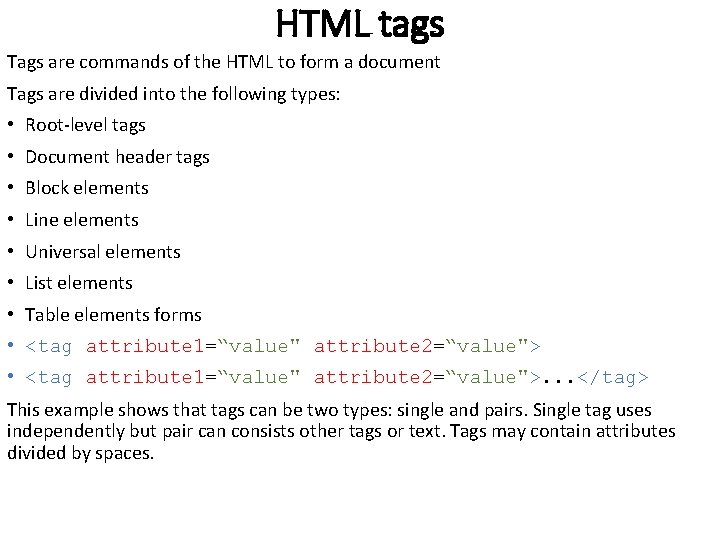
HTML tags Tags are commands of the HTML to form a document Tags are divided into the following types: • Root-level tags • Document header tags • Block elements • Line elements • Universal elements • List elements • Table elements forms • <tag attribute 1=“value" attribute 2=“value">. . . </tag> This example shows that tags can be two types: single and pairs. Single tag uses independently but pair can consists other tags or text. Tags may contain attributes divided by spaces.
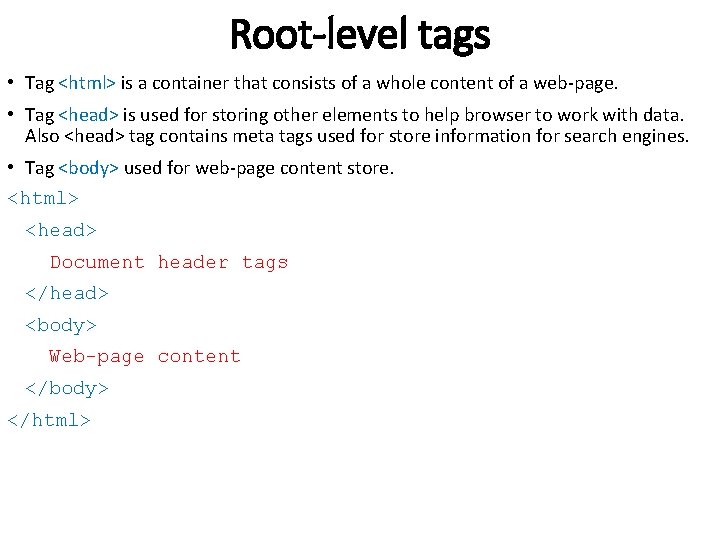
Root-level tags • Tag <html> is a container that consists of a whole content of a web-page. • Tag <head> is used for storing other elements to help browser to work with data. Also <head> tag contains meta tags used for store information for search engines. • Tag <body> used for web-page content store. <html> <head> Document header tags </head> <body> Web-page content </body> </html>
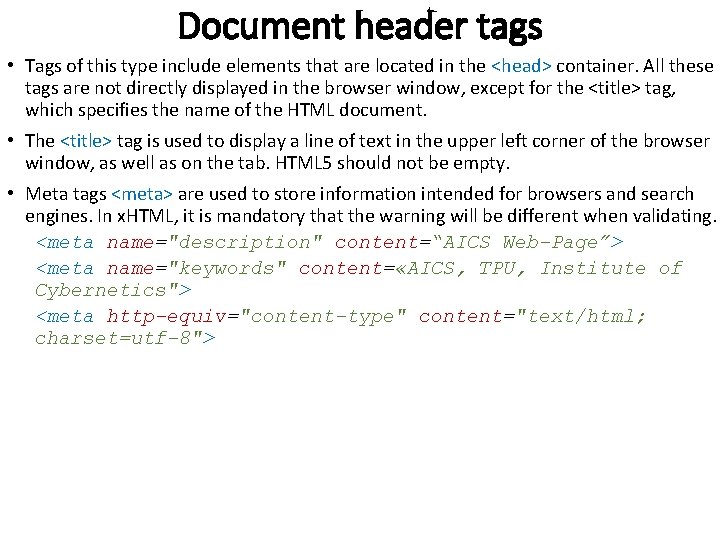
Document header tags • Tags of this type include elements that are located in the <head> container. All these tags are not directly displayed in the browser window, except for the <title> tag, which specifies the name of the HTML document. • The <title> tag is used to display a line of text in the upper left corner of the browser window, as well as on the tab. HTML 5 should not be empty. • Meta tags <meta> are used to store information intended for browsers and search engines. In x. HTML, it is mandatory that the warning will be different when validating. <meta name="description" content=“AICS Web-Page”> <meta name="keywords" content= «AICS, TPU, Institute of Cybernetics"> <meta http-equiv="content-type" content="text/html; charset=utf-8">
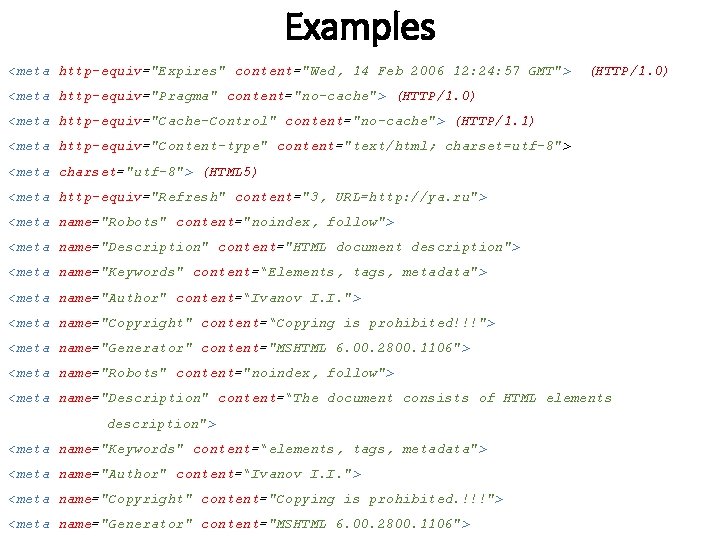
Examples <meta http-equiv="Expires" content="Wed, 14 Feb 2006 12: 24: 57 GMT"> (HTTP/1. 0) <meta http-equiv="Pragma" content="no-cache"> (HTTP/1. 0) <meta http-equiv="Cache-Control" content="no-cache"> (HTTP/1. 1) <meta http-equiv="Content-type" content="text/html; charset=utf-8"> <meta charset="utf-8"> (HTML 5) <meta http-equiv="Refresh" content="3, URL=http: //ya. ru"> <meta name="Robots" content="noindex, follow"> <meta name="Description" content="HTML document description"> <meta name="Keywords" content=“Elements, tags, metadata"> <meta name="Author" content=“Ivanov I. I. "> <meta name="Copyright" content=“Copying is prohibited!!!"> <meta name="Generator" content="MSHTML 6. 00. 2800. 1106"> <meta name="Robots" content="noindex, follow"> <meta name="Description" content=“The document consists of HTML elements description"> <meta name="Keywords" content=“elements, tags, metadata"> <meta name="Author" content=“Ivanov I. I. "> <meta name="Copyright" content="Copying is prohibited. !!!"> <meta name="Generator" content="MSHTML 6. 00. 2800. 1106">
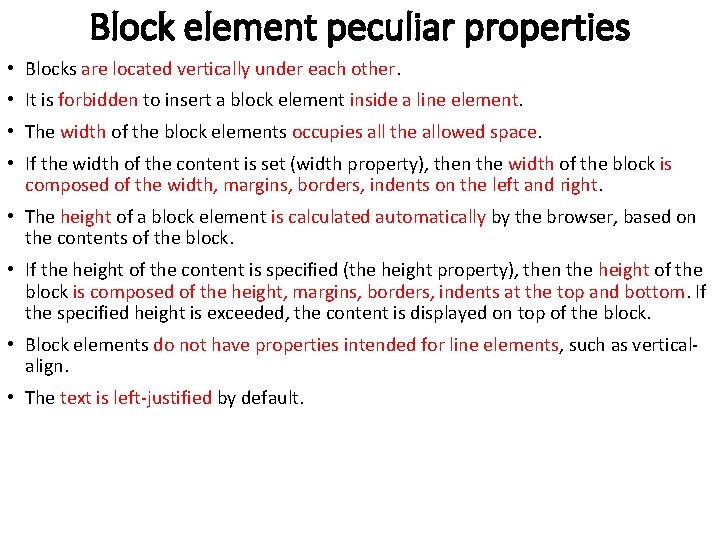
Block element peculiar properties • Blocks are located vertically under each other. • It is forbidden to insert a block element inside a line element. • The width of the block elements occupies all the allowed space. • If the width of the content is set (width property), then the width of the block is composed of the width, margins, borders, indents on the left and right. • The height of a block element is calculated automatically by the browser, based on the contents of the block. • If the height of the content is specified (the height property), then the height of the block is composed of the height, margins, borders, indents at the top and bottom. If the specified height is exceeded, the content is displayed on top of the block. • Block elements do not have properties intended for line elements, such as verticalalign. • The text is left-justified by default.
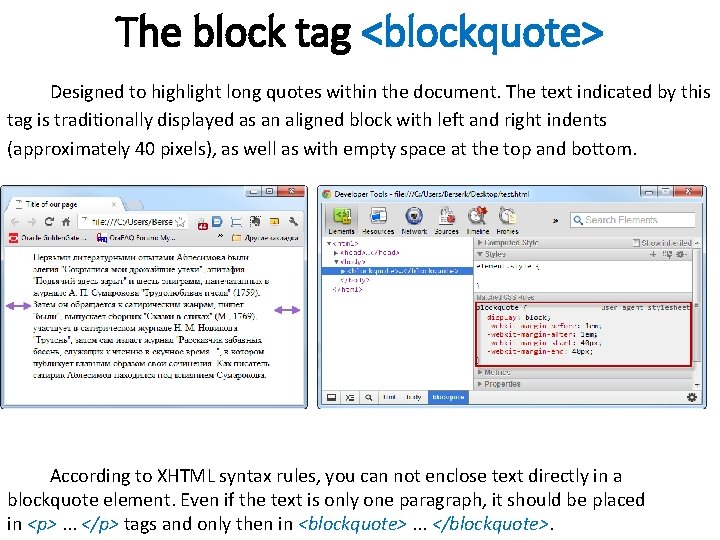
The block tag <blockquote> Designed to highlight long quotes within the document. The text indicated by this tag is traditionally displayed as an aligned block with left and right indents (approximately 40 pixels), as well as with empty space at the top and bottom. According to XHTML syntax rules, you can not enclose text directly in a blockquote element. Even if the text is only one paragraph, it should be placed in <p>. . . </p> tags and only then in <blockquote>. . . </blockquote>.
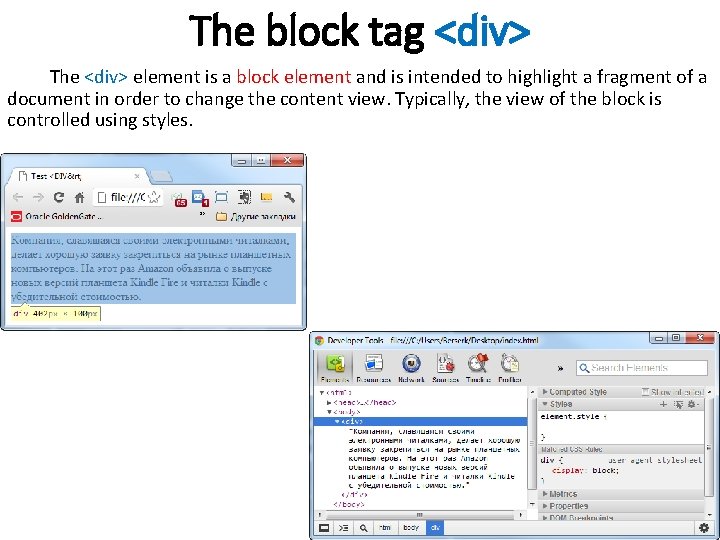
The block tag <div> The <div> element is a block element and is intended to highlight a fragment of a document in order to change the content view. Typically, the view of the block is controlled using styles.
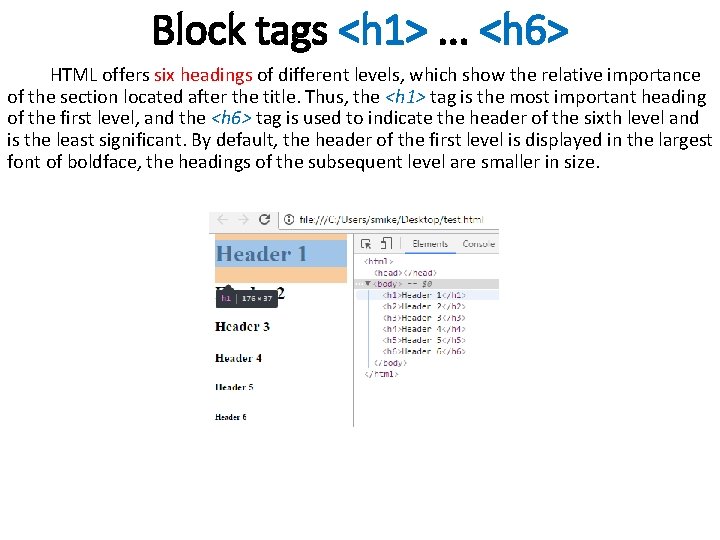
Block tags <h 1>. . . <h 6> HTML offers six headings of different levels, which show the relative importance of the section located after the title. Thus, the <h 1> tag is the most important heading of the first level, and the <h 6> tag is used to indicate the header of the sixth level and is the least significant. By default, the header of the first level is displayed in the largest font of boldface, the headings of the subsequent level are smaller in size.
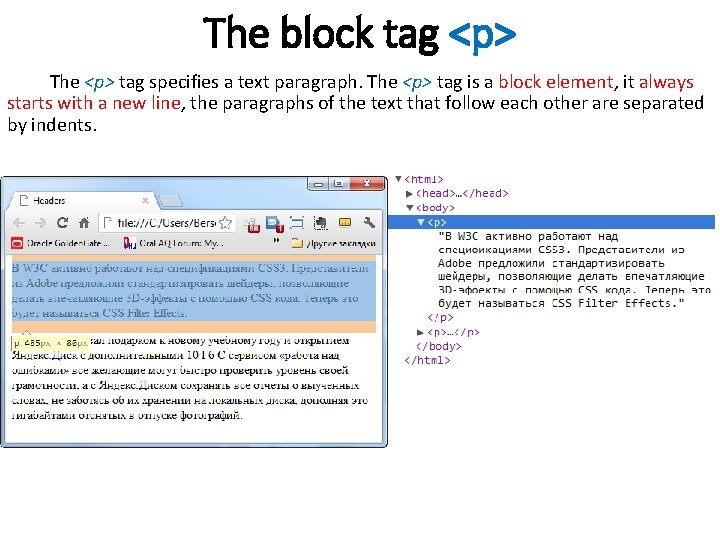
The block tag <p> The <p> tag specifies a text paragraph. The <p> tag is a block element, it always starts with a new line, the paragraphs of the text that follow each other are separated by indents.
String tags The elements of a web page are called strings, which are a direct part of another element, for example, a text paragraph. Basically, they are used to change the appearance of a text or its logical selection.
The <a> string tag The <a> tag is one of the important elements of HTML and is designed to create links. Depending on the presence of the name or href attributes, the <a> tag establishes a link or anchor. Basic attributes: • href: specifies the address of the document to be migrated to. • name: sets the name of the anchor within the document. • rel: the relationship between the referenced document and the current document. • rev: the relationship between the current document and the referenced document. • target: the name of the window or frame where the browser will load the document The address of the link can be either absolute or relative. Absolute addresses must begin with a protocol (usually http: //) and contain the name of the site. Relative references count from the root of the site or the current document.
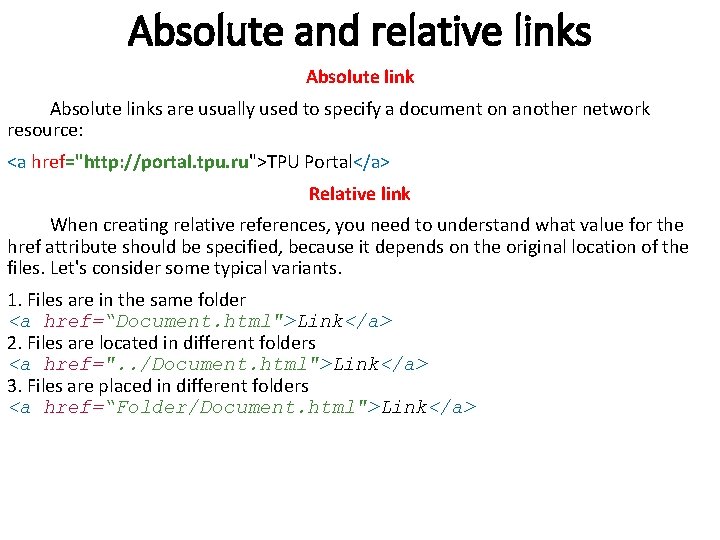
Absolute and relative links Absolute links are usually used to specify a document on another network resource: <a href="http: //portal. tpu. ru">TPU Portal</a> Relative link When creating relative references, you need to understand what value for the href attribute should be specified, because it depends on the original location of the files. Let's consider some typical variants. 1. Files are in the same folder <a href=“Document. html">Link</a> 2. Files are located in different folders <a href=". . /Document. html">Link</a> 3. Files are placed in different folders <a href=“Folder/Document. html">Link</a>
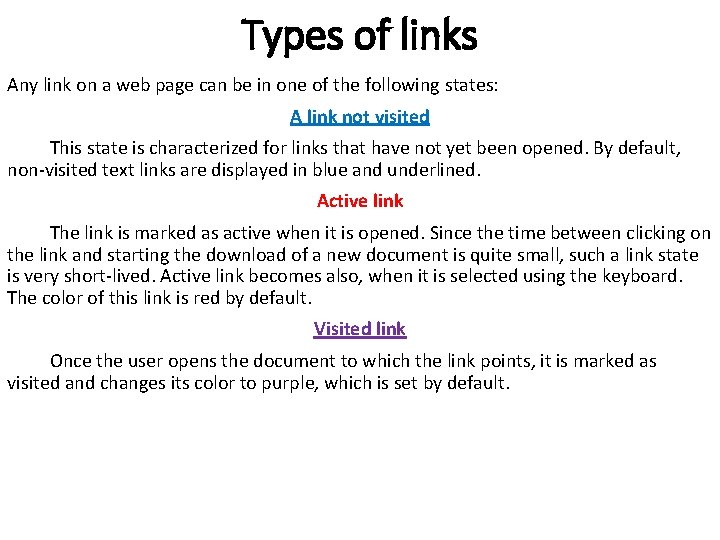
Types of links Any link on a web page can be in one of the following states: A link not visited This state is characterized for links that have not yet been opened. By default, non-visited text links are displayed in blue and underlined. Active link The link is marked as active when it is opened. Since the time between clicking on the link and starting the download of a new document is quite small, such a link state is very short-lived. Active link becomes also, when it is selected using the keyboard. The color of this link is red by default. Visited link Once the user opens the document to which the link points, it is marked as visited and changes its color to purple, which is set by default.
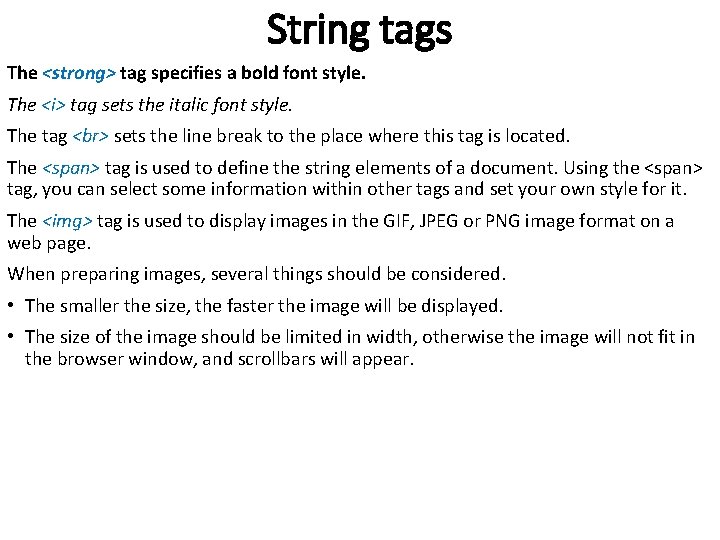
String tags The <strong> tag specifies a bold font style. The <i> tag sets the italic font style. The tag sets the line break to the place where this tag is located. The <span> tag is used to define the string elements of a document. Using the <span> tag, you can select some information within other tags and set your own style for it. The <img> tag is used to display images in the GIF, JPEG or PNG image format on a web page. When preparing images, several things should be considered. • The smaller the size, the faster the image will be displayed. • The size of the image should be limited in width, otherwise the image will not fit in the browser window, and scrollbars will appear.
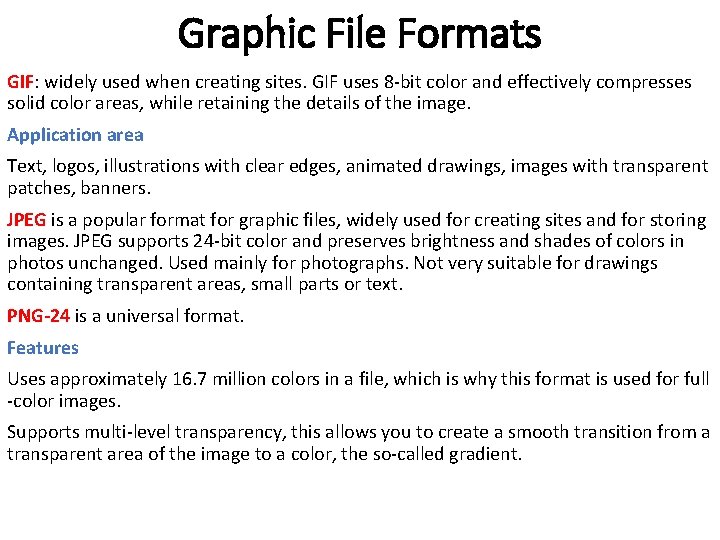
Graphic File Formats GIF: widely used when creating sites. GIF uses 8 -bit color and effectively compresses solid color areas, while retaining the details of the image. Application area Text, logos, illustrations with clear edges, animated drawings, images with transparent patches, banners. JPEG is a popular format for graphic files, widely used for creating sites and for storing images. JPEG supports 24 -bit color and preserves brightness and shades of colors in photos unchanged. Used mainly for photographs. Not very suitable for drawings containing transparent areas, small parts or text. PNG-24 is a universal format. Features Uses approximately 16. 7 million colors in a file, which is why this format is used for full -color images. Supports multi-level transparency, this allows you to create a smooth transition from a transparent area of the image to a color, the so-called gradient.
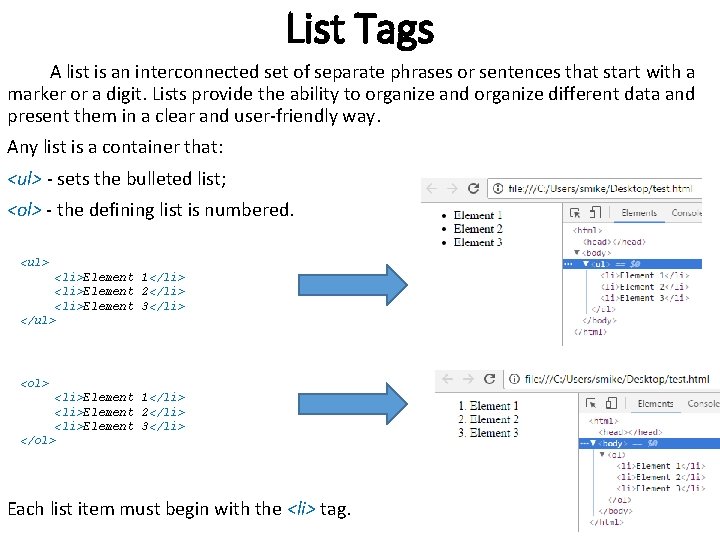
List Tags A list is an interconnected set of separate phrases or sentences that start with a marker or a digit. Lists provide the ability to organize and organize different data and present them in a clear and user-friendly way. Any list is a container that: <ul> - sets the bulleted list; <ol> - the defining list is numbered. <ul> <li>Element 1</li> <li>Element 2</li> <li>Element 3</li> </ul> <ol> <li>Element 1</li> <li>Element 2</li> <li>Element 3</li> </ol> Each list item must begin with the <li> tag.
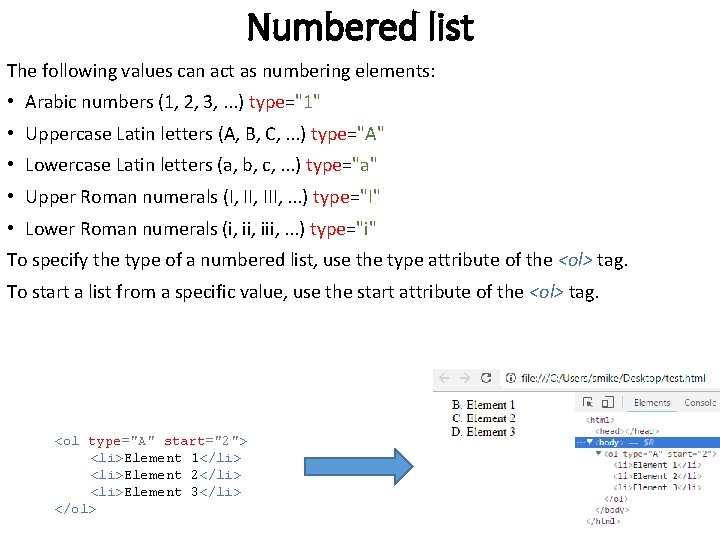
Numbered list The following values can act as numbering elements: • Arabic numbers (1, 2, 3, . . . ) type="1" • Uppercase Latin letters (A, B, C, . . . ) type="A" • Lowercase Latin letters (a, b, c, . . . ) type="a" • Upper Roman numerals (I, III, . . . ) type="I" • Lower Roman numerals (i, iii, . . . ) type="i" To specify the type of a numbered list, use the type attribute of the <ol> tag. To start a list from a specific value, use the start attribute of the <ol> tag. <ol type="A" start="2"> <li>Element 1</li> <li>Element 2</li> <li>Element 3</li> </ol>
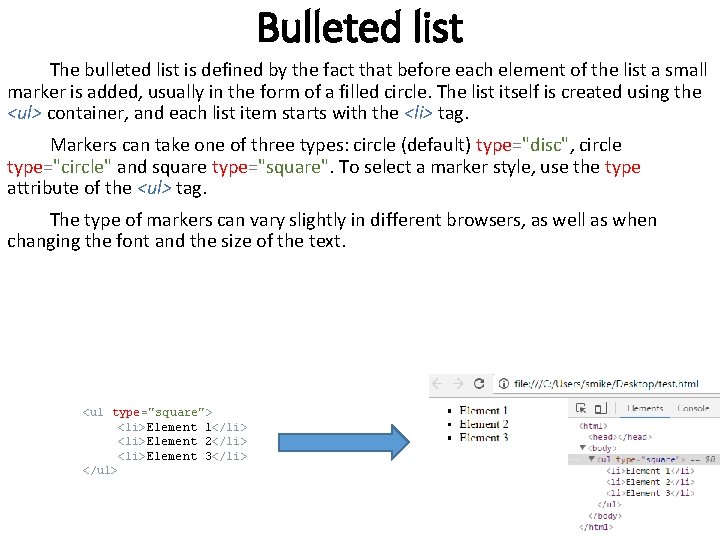
Bulleted list The bulleted list is defined by the fact that before each element of the list a small marker is added, usually in the form of a filled circle. The list itself is created using the <ul> container, and each list item starts with the <li> tag. Markers can take one of three types: circle (default) type="disc", circle type="circle" and square type="square". To select a marker style, use the type attribute of the <ul> tag. The type of markers can vary slightly in different browsers, as well as when changing the font and the size of the text. <ul type="square"> <li>Element 1</li> <li>Element 2</li> <li>Element 3</li> </ul>
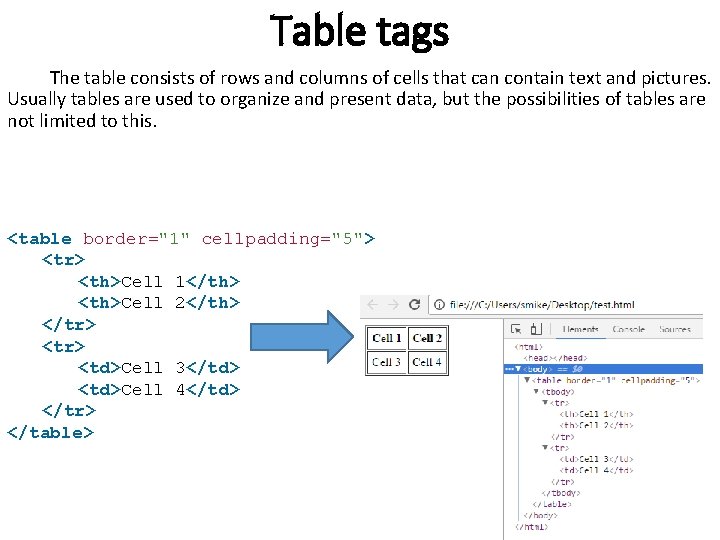
Table tags The table consists of rows and columns of cells that can contain text and pictures. Usually tables are used to organize and present data, but the possibilities of tables are not limited to this. <table border="1" cellpadding="5"> <tr> <th>Cell 1</th> <th>Cell 2</th> </tr> <td>Cell 3</td> <td>Cell 4</td> </tr> </table>
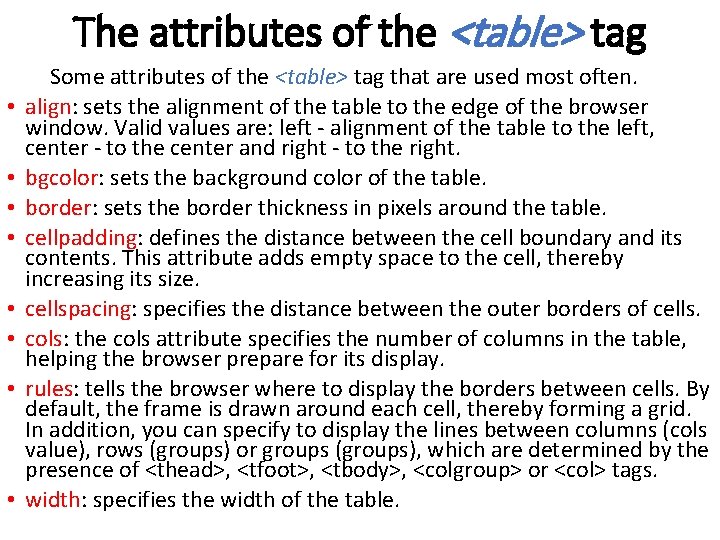
The attributes of the <table> tag • • Some attributes of the <table> tag that are used most often. align: sets the alignment of the table to the edge of the browser window. Valid values are: left - alignment of the table to the left, center - to the center and right - to the right. bgcolor: sets the background color of the table. border: sets the border thickness in pixels around the table. cellpadding: defines the distance between the cell boundary and its contents. This attribute adds empty space to the cell, thereby increasing its size. cellspacing: specifies the distance between the outer borders of cells. cols: the cols attribute specifies the number of columns in the table, helping the browser prepare for its display. rules: tells the browser where to display the borders between cells. By default, the frame is drawn around each cell, thereby forming a grid. In addition, you can specify to display the lines between columns (cols value), rows (groups) or groups (groups), which are determined by the presence of <thead>, <tfoot>, <tbody>, <colgroup> or <col> tags. width: specifies the width of the table.
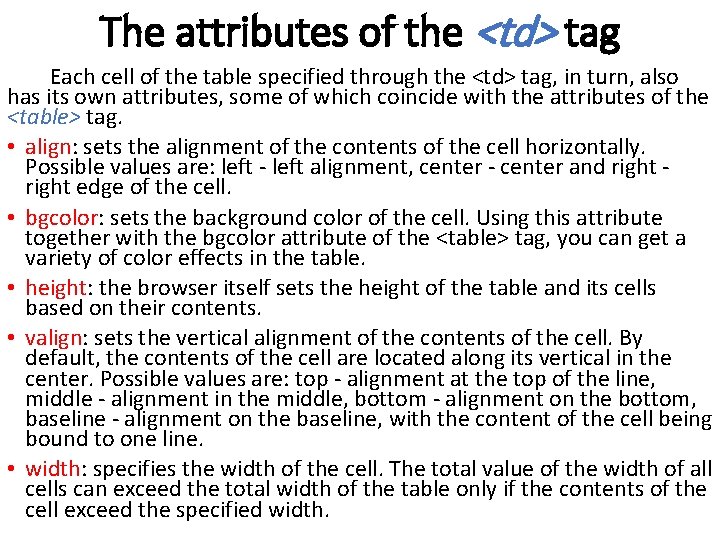
The attributes of the <td> tag Each cell of the table specified through the <td> tag, in turn, also has its own attributes, some of which coincide with the attributes of the <table> tag. • align: sets the alignment of the contents of the cell horizontally. Possible values are: left - left alignment, center - center and right - right edge of the cell. • bgcolor: sets the background color of the cell. Using this attribute together with the bgcolor attribute of the <table> tag, you can get a variety of color effects in the table. • height: the browser itself sets the height of the table and its cells based on their contents. • valign: sets the vertical alignment of the contents of the cell. By default, the contents of the cell are located along its vertical in the center. Possible values are: top - alignment at the top of the line, middle - alignment in the middle, bottom - alignment on the bottom, baseline - alignment on the baseline, with the content of the cell being bound to one line. • width: specifies the width of the cell. The total value of the width of all cells can exceed the total width of the table only if the contents of the cell exceed the specified width.
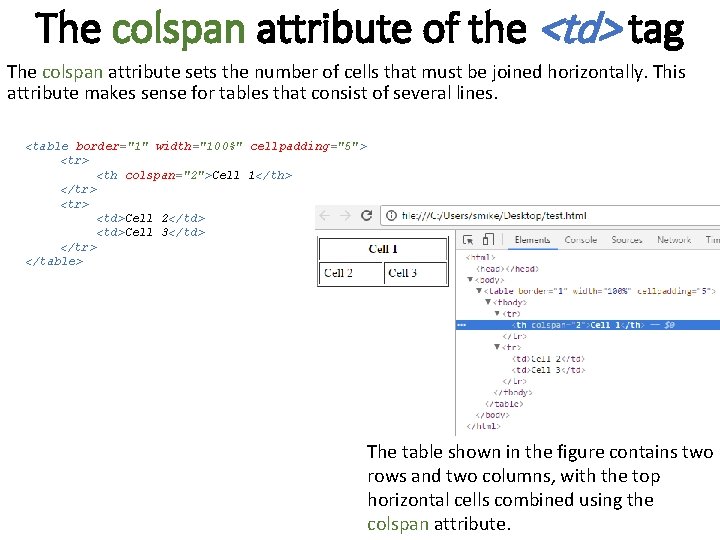
The colspan attribute of the <td> tag The colspan attribute sets the number of cells that must be joined horizontally. This attribute makes sense for tables that consist of several lines. <table border="1" width="100%" cellpadding="5"> <tr> <th colspan="2">Cell 1</th> </tr> <td>Cell 2</td> <td>Cell 3</td> </tr> </table> The table shown in the figure contains two rows and two columns, with the top horizontal cells combined using the colspan attribute.
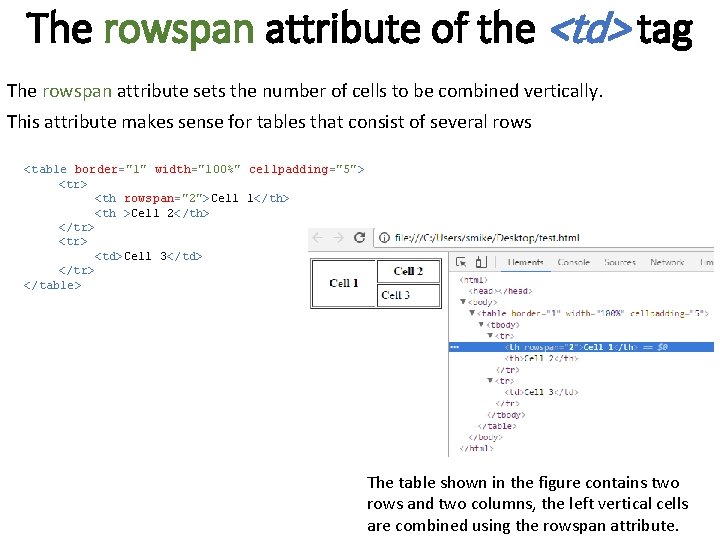
The rowspan attribute of the <td> tag The rowspan attribute sets the number of cells to be combined vertically. This attribute makes sense for tables that consist of several rows <table border="1" width="100%" cellpadding="5"> <tr> <th rowspan="2">Cell 1</th> <th >Cell 2</th> </tr> <td>Cell 3</td> </tr> </table> The table shown in the figure contains two rows and two columns, the left vertical cells are combined using the rowspan attribute.
Table Features • Each table parameter has its own default value. This means that if some attribute is omitted, it is implicitly present, and with some meaning. • One table is allowed to be placed inside the cell of another table. • If the table is given its width in percent or pixels, then the contents of the table are adjusted to the specified sizes. So, the browser automatically adds line breaks to the text so that it fits perfectly into the cell, and the width of the table remains unchanged. • Until the table is fully loaded, its contents will not be displayed. The fact is that the browser, before showing the contents of the table, must calculate the required cell sizes, their width and height. And for this it is necessary to know what is in these cells. • The browser automatically complements the table with the <tbody> tag (if it is not set) after the <table> tag *
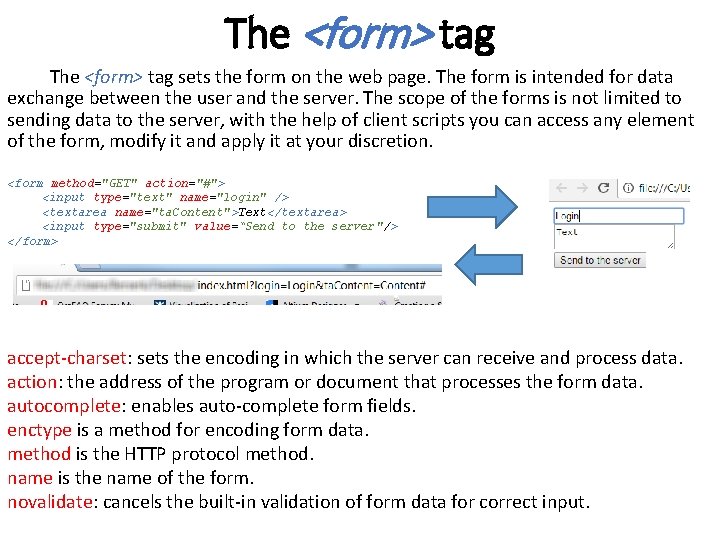
The <form> tag sets the form on the web page. The form is intended for data exchange between the user and the server. The scope of the forms is not limited to sending data to the server, with the help of client scripts you can access any element of the form, modify it and apply it at your discretion. <form method="GET" action="#"> <input type="text" name="login" /> <textarea name="ta. Content">Text</textarea> <input type="submit" value=“Send to the server"/> </form> accept-charset: sets the encoding in which the server can receive and process data. action: the address of the program or document that processes the form data. autocomplete: enables auto-complete form fields. enctype is a method for encoding form data. method is the HTTP protocol method. name is the name of the form. novalidate: cancels the built-in validation of form data for correct input.
Creating forms Before sending data, the browser prepares the information in the form of a pair "name=value", where the name is determined by the name attribute of the <input> tag or by another tag valid in the form, and the value is entered by the user or set in the form field by default. After the user clicks the submit button, the form handler is called, which receives the information entered in the form, and then does what the developer assumes with it. As a form handler, the program specified by the action attribute of the <form> tag is usually used. The program can be written in any server language like PHP, Python, C #, etc. It is allowed to use several forms on the page, but they should not be put one into another !!!!
Form elements • Single-line text box • E-mail address • Password field • Web address • Multiline text • Color selection • Buttons • Entering numbers • Dependent Switches • Slider • Independent switches • The calendar • Combo Box • date and time • Hidden field • Search field • Image field • Phone field • Uploading files
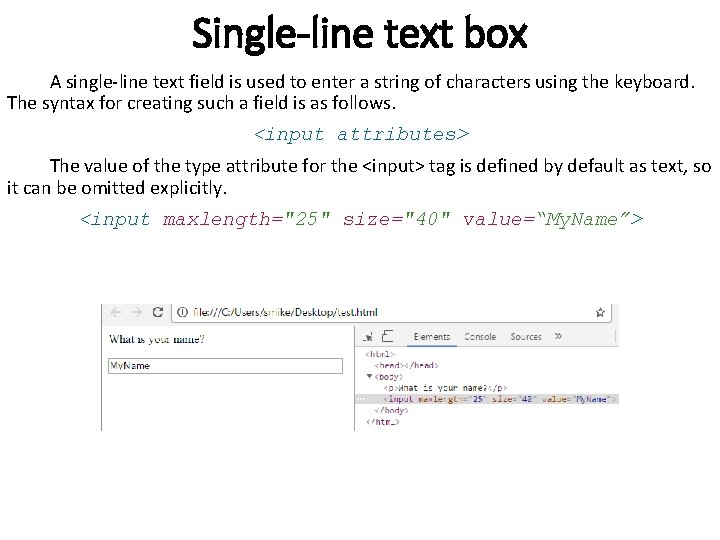
Single-line text box A single-line text field is used to enter a string of characters using the keyboard. The syntax for creating such a field is as follows. <input attributes> The value of the type attribute for the <input> tag is defined by default as text, so it can be omitted explicitly. <input maxlength="25" size="40" value=“My. Name”>
Single-line text box attributes size: the width of the text field, which is determined by the number of characters in the monospaced font. In other words, the width is given by the number of adjacent letters of the same width along the horizontal maxlength: sets the maximum number of characters that can be entered by the user in the text box. When this amount is reached when typing, further input becomes impossible. If you omit this attribute, you can enter a string that is longer than the field itself. name: the field name is intended for the form handler to be able to identify it value: text displayed in the field
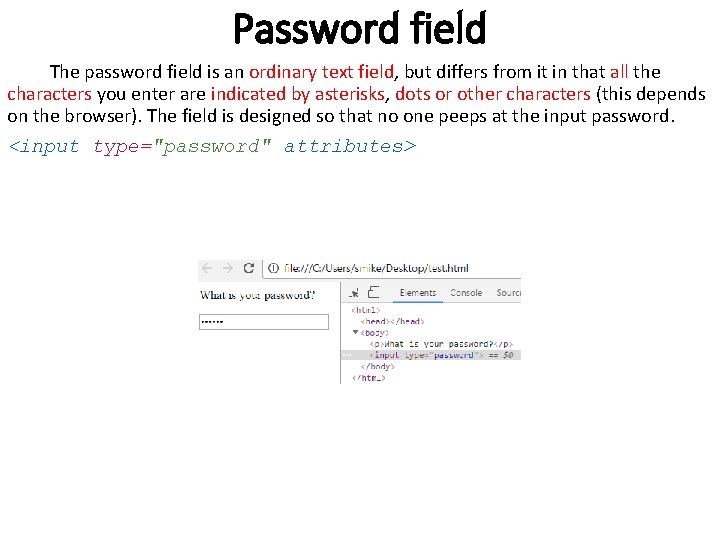
Password field The password field is an ordinary text field, but differs from it in that all the characters you enter are indicated by asterisks, dots or other characters (this depends on the browser). The field is designed so that no one peeps at the input password. <input type="password" attributes>
Multi-line text box The form element is intended to create an area in which you can enter several lines of text. In this text box, it is possible to do line transfers, they are saved when sending data to the server. cols: the width of the field in characters. disabled: block access and change an item maxlength: the maximum number of characters of text that can be entered name: the field name is intended for the form handler to be able to identify it readonly: sets that the field can not be changed by the user rows: height of field in lines of text wrap: string wrapping parameters
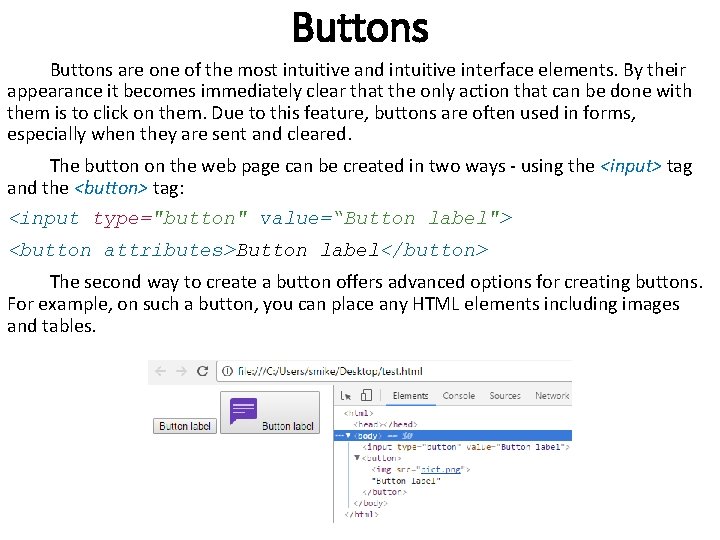
Buttons are one of the most intuitive and intuitive interface elements. By their appearance it becomes immediately clear that the only action that can be done with them is to click on them. Due to this feature, buttons are often used in forms, especially when they are sent and cleared. The button on the web page can be created in two ways - using the <input> tag and the <button> tag: <input type="button" value=“Button label"> <button attributes>Button label</button> The second way to create a button offers advanced options for creating buttons. For example, on such a button, you can place any HTML elements including images and tables.
Submit and reset buttons Submit button A special Submit button is used to send data to the server. Its appearance is no different from the usual buttons, but when you click on it, the server program specified by the action attribute of the <form> tag is executed. The syntax for creating the Submit button depends on the <input> or <button> tag being used. <input type="submit" attributes> <button type="submit">Button label</button> Reset button When you click the Reset button, the form data is returned to its original value. Typically, this button is used to clear the information entered in the form fields. The syntax for creating the specified button is simple and similar to other buttons. <input type="reset" attributes> <button type="reset">Button label</button>
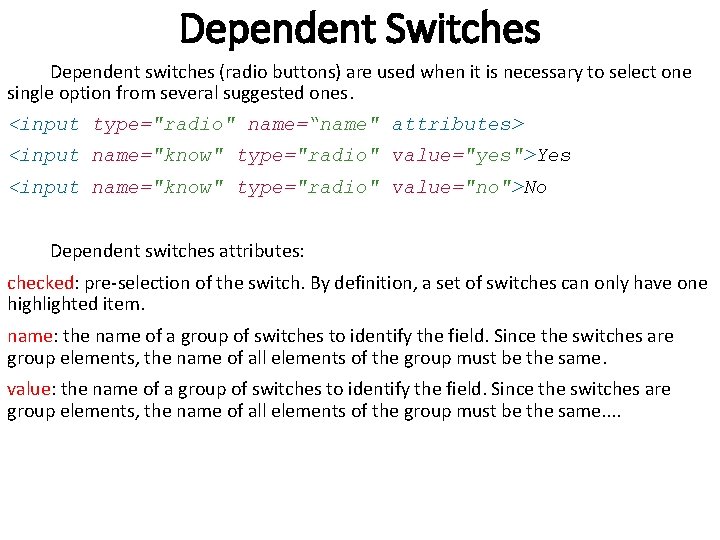
Dependent Switches Dependent switches (radio buttons) are used when it is necessary to select one single option from several suggested ones. <input type="radio" name=“name" attributes> <input name="know" type="radio" value="yes">Yes <input name="know" type="radio" value="no">No Dependent switches attributes: checked: pre-selection of the switch. By definition, a set of switches can only have one highlighted item. name: the name of a group of switches to identify the field. Since the switches are group elements, the name of all elements of the group must be the same. value: the name of a group of switches to identify the field. Since the switches are group elements, the name of all elements of the group must be the same. .
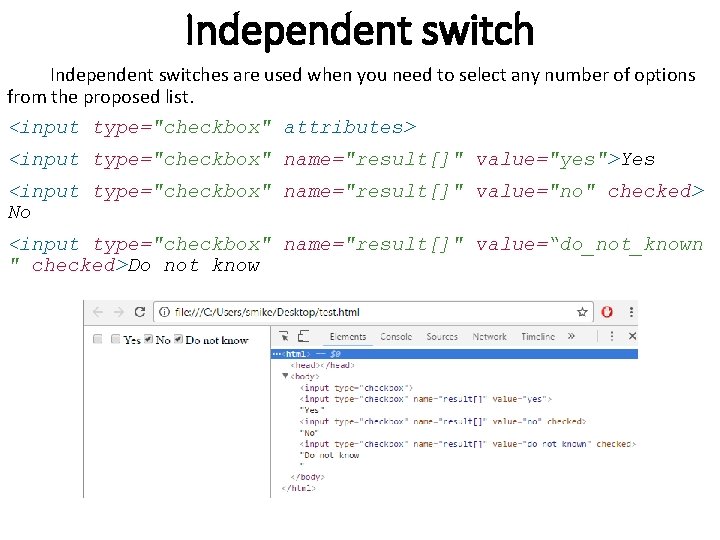
Independent switches are used when you need to select any number of options from the proposed list. <input type="checkbox" attributes> <input type="checkbox" name="result[]" value="yes">Yes <input type="checkbox" name="result[]" value="no" checked> No <input type="checkbox" name="result[]" value=“do_not_known " checked>Do not know
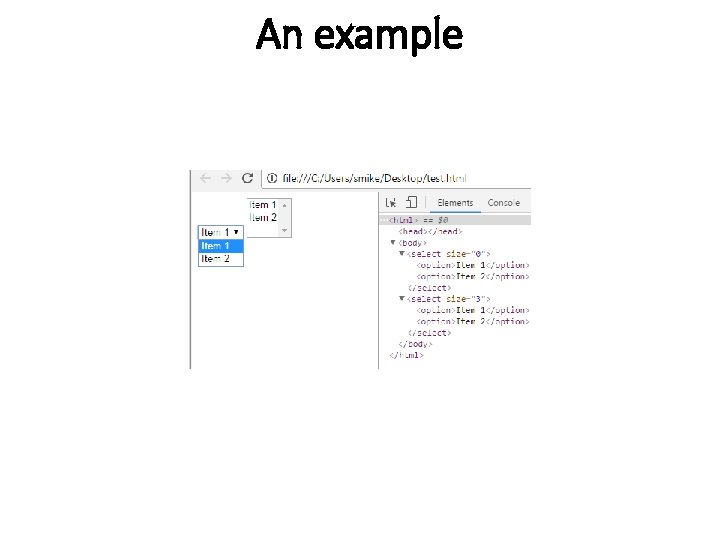
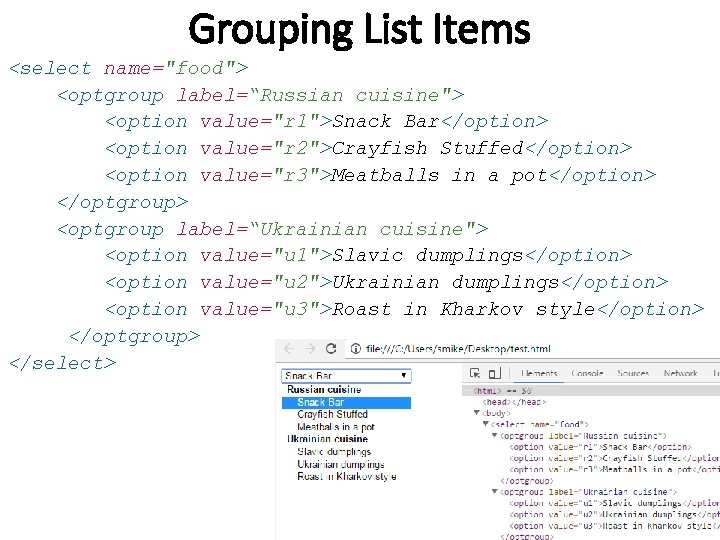
Combo Box The combo box, called the drop-down menu, is one of the flexible and convenient form elements. Depending on the settings, one or more values can be selected in the list. <select attributes> <option attributes>Item 1</option> <option attributes>Item 2</option> </select> The <select> tag acts as a container for list items and determines whether it is a drop-down list or a list with one or multiple choices. The view depends on the use of the size attribute of the <select> tag, which sets the height of the list, while the width of the list is determined automatically based on the length of the text inside the <option>. Below is a list of multiple choices in which items are highlighted using the Ctrl and Shift keys and the drop-down list.
An example
Grouping List Items <select name="food"> <optgroup label=“Russian cuisine"> <option value="r 1">Snack Bar</option> <option value="r 2">Crayfish Stuffed</option> <option value="r 3">Meatballs in a pot</option> </optgroup> <optgroup label=“Ukrainian cuisine"> <option value="u 1">Slavic dumplings</option> <option value="u 2">Ukrainian dumplings</option> <option value="u 3">Roast in Kharkov style</option> </optgroup> </select>
Hidden field Often there is a situation where you want to transfer some intermediate data in the form that should not be changed by the user. Moreover, such data should not be shown to the user, since they are of a technical nature and usually serve to transfer some information from page to page. For this purpose, a hidden field is used, it is not displayed on the page and hides its contents from the user. <input type="hidden" attributes>
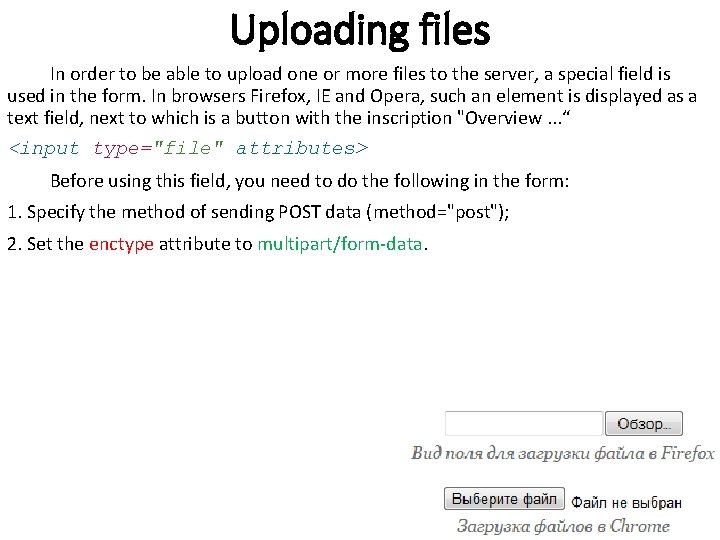
Uploading files In order to be able to upload one or more files to the server, a special field is used in the form. In browsers Firefox, IE and Opera, such an element is displayed as a text field, next to which is a button with the inscription "Overview. . . “ <input type="file" attributes> Before using this field, you need to do the following in the form: 1. Specify the method of sending POST data (method="post"); 2. Set the enctype attribute to multipart/form-data.
File type tag attributes accept: sets the filter for file types that you can send through the file download field size: the width of the text field, which is determined by the number of characters in the monospaced font multiple: allows to select and load multiple files at once name: the name of the field is used to identify it by the form's handler
Types of uploaded files If the accept attribute is not specified, then files of any type are added and downloaded. The availability of accept allows you to restrict the selection of a file, which is especially important when you only need to download an image or video. The value is MIME type, several values are separated by a comma: image/jpeg: only JPEG files image/jpeg, image/png: only JPEG and PNG files image/*: any graphic files image/*, video/*: any graphic or video files
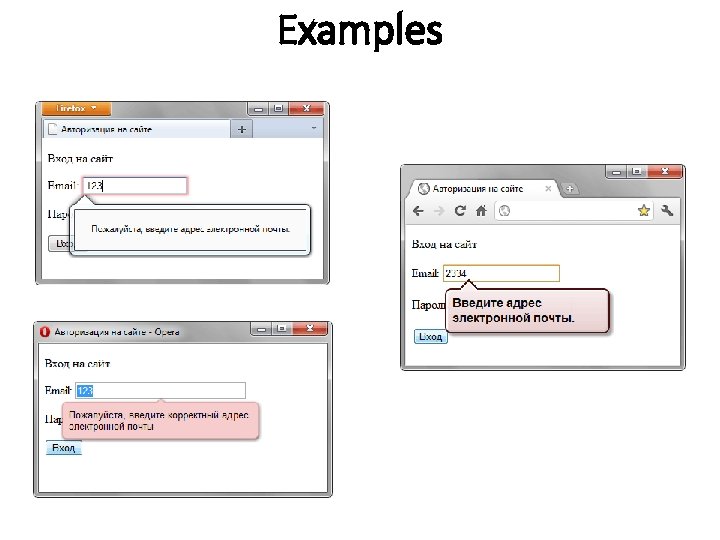
Email address <input type="email" attributes> maxlength: sets the maximum number of characters that can be entered by the user in the field. When this amount is reached when typing, further input becomes impossible. If you omit this attribute, you can enter a string that is longer than the field itself multiple: allows to specify multiple addresses separated by commas name: the field name is intended for the form handler to be able to identify it size: the width of the field, which is determined by the number of characters in the monospaced font. In other words, the width is given by the number of adjacent letters of the same width along the horizontal value: the initial mailing address displayed in the field
Examples
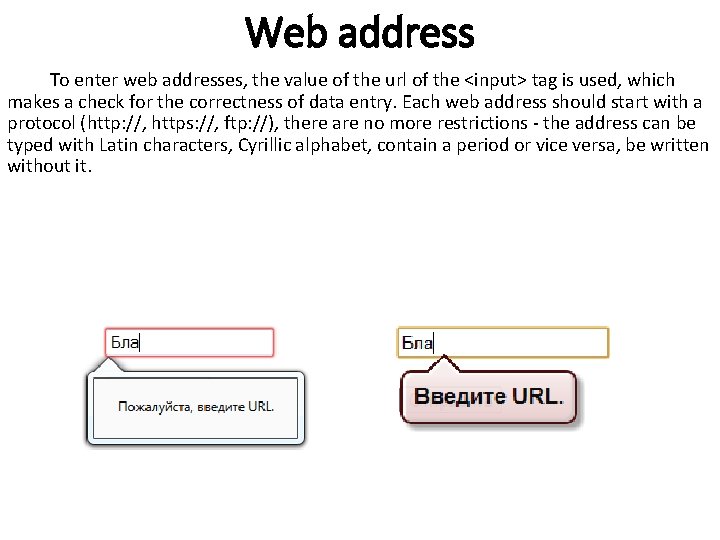
Web address To enter web addresses, the value of the url of the <input> tag is used, which makes a check for the correctness of data entry. Each web address should start with a protocol (http: //, https: //, ftp: //), there are no more restrictions - the address can be typed with Latin characters, Cyrillic alphabet, contain a period or vice versa, be written without it.
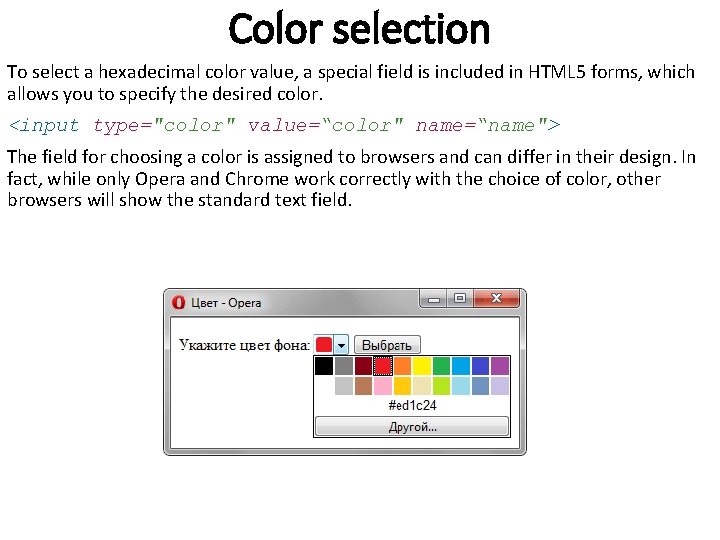
Color selection To select a hexadecimal color value, a special field is included in HTML 5 forms, which allows you to specify the desired color. <input type="color" value=“color" name=“name"> The field for choosing a color is assigned to browsers and can differ in their design. In fact, while only Opera and Chrome work correctly with the choice of color, other browsers will show the standard text field.
The number field To enter numbers, a special field is provided that allows restrictions on the lower and upper bounds, and also sets the increment step. <input type="number" attributes> Attributes description: • min: minimal value • max: maximal value • size: field width • step: step of the number increment. It can be either an integer (2) or a float (0. 2) • name: the field name is intended for the form handler to be able to identify it • value: the initial number that appears in the field
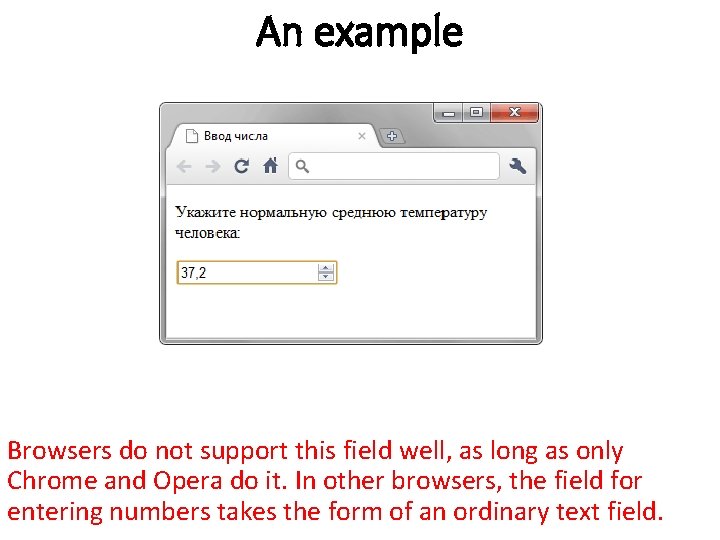
An example Browsers do not support this field well, as long as only Chrome and Opera do it. In other browsers, the field for entering numbers takes the form of an ordinary text field.
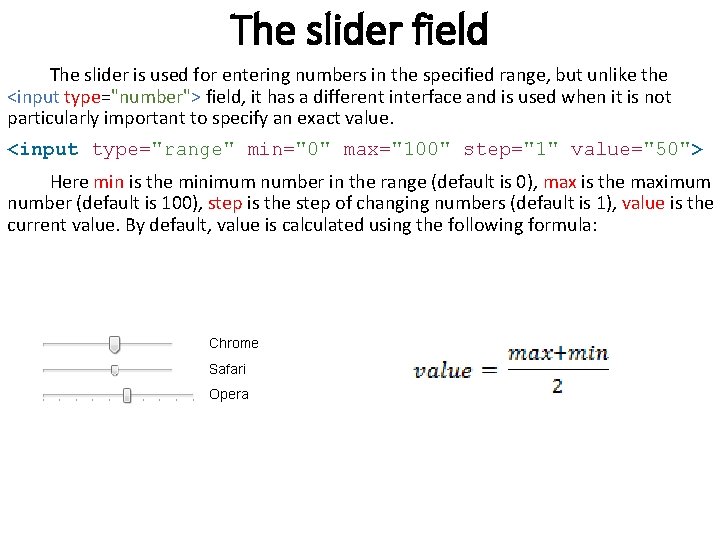
The slider field The slider is used for entering numbers in the specified range, but unlike the <input type="number"> field, it has a different interface and is used when it is not particularly important to specify an exact value. <input type="range" min="0" max="100" step="1" value="50"> Here min is the minimum number in the range (default is 0), max is the maximum number (default is 100), step is the step of changing numbers (default is 1), value is the current value. By default, value is calculated using the following formula:
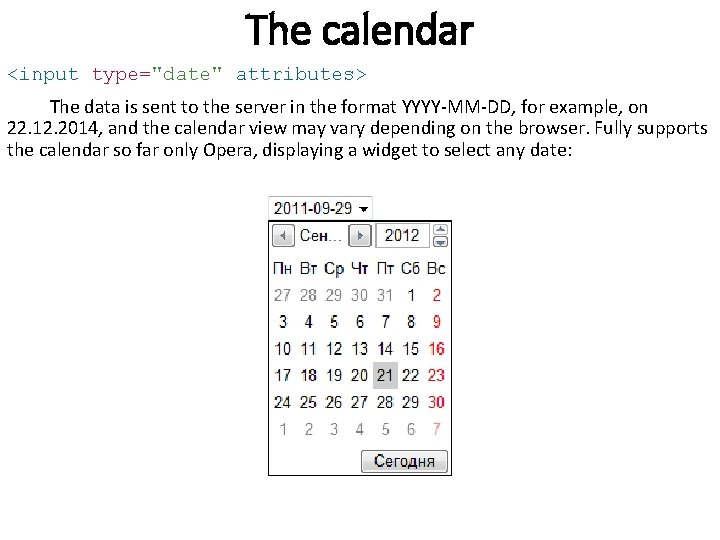
The calendar <input type="date" attributes> The data is sent to the server in the format YYYY-MM-DD, for example, on 22. 12. 2014, and the calendar view may vary depending on the browser. Fully supports the calendar so far only Opera, displaying a widget to select any date:
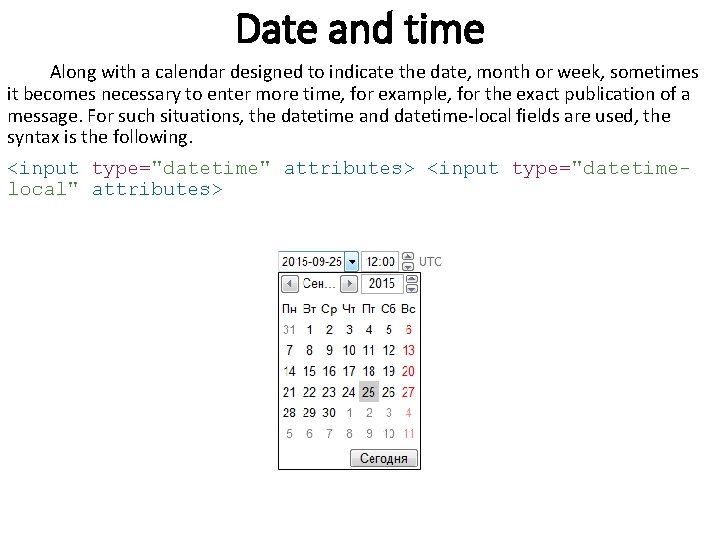
Date and time Along with a calendar designed to indicate the date, month or week, sometimes it becomes necessary to enter more time, for example, for the exact publication of a message. For such situations, the datetime and datetime-local fields are used, the syntax is the following. <input type="datetime" attributes> <input type="datetimelocal" attributes>
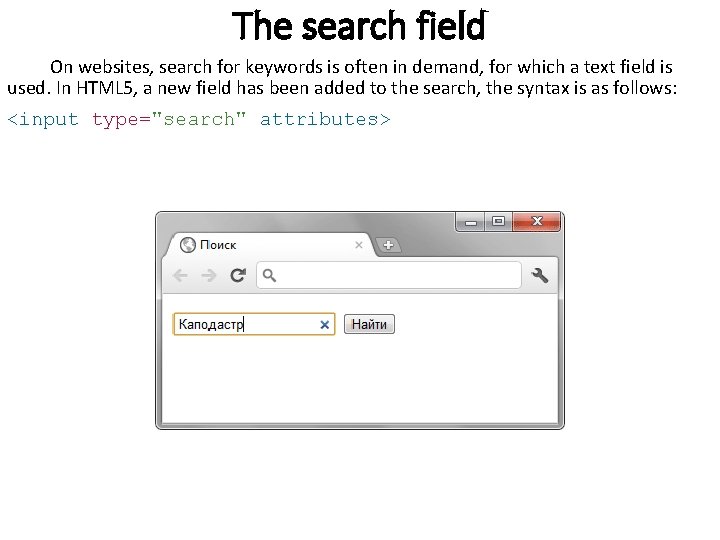
The search field On websites, search for keywords is often in demand, for which a text field is used. In HTML 5, a new field has been added to the search, the syntax is as follows: <input type="search" attributes>
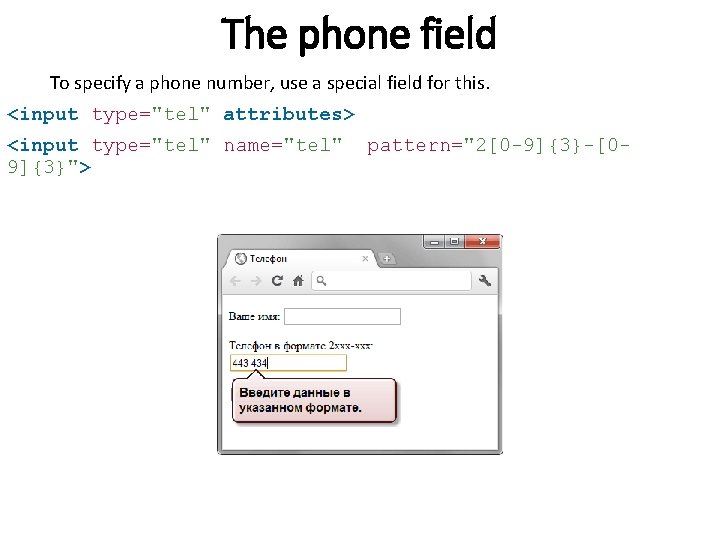
The phone field To specify a phone number, use a special field for this. <input type="tel" attributes> <input type="tel" name="tel" pattern="2[0 -9]{3}-[09]{3}">
Data Entry Template d [0 -9] One digit from 0 to 9 D [^0 -9] Any character except digits s A space [A-Z] Only capital English letter [A-Za-z] Any English letter [А-Яа-я] Any Russian letter [0 -9]{3} Three digits [A-Za-z]{6, } At least six English letters [0 -9]{5, 10} Five to ten digits [A-Za-z]+$ Any English word at the end of a string [A-Za-z ]+$ Any English words at the end of a string
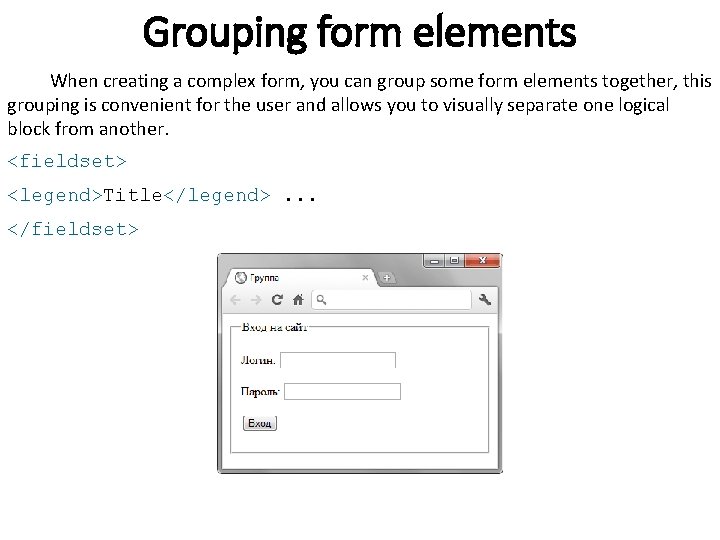
Grouping form elements When creating a complex form, you can group some form elements together, this grouping is convenient for the user and allows you to visually separate one logical block from another. <fieldset> <legend>Title</legend>. . . </fieldset>
Transition between fields using tabs The tabindex attribute specifies the transition sequence between fields when you click on Tab. The following form elements can have the tabindex attribute: <button>, <input>, <select>, <textarea>. The value is the number that specifies the step of the transition. So, number 1 means that this field will get the first focus, number 2 will go next, etc.
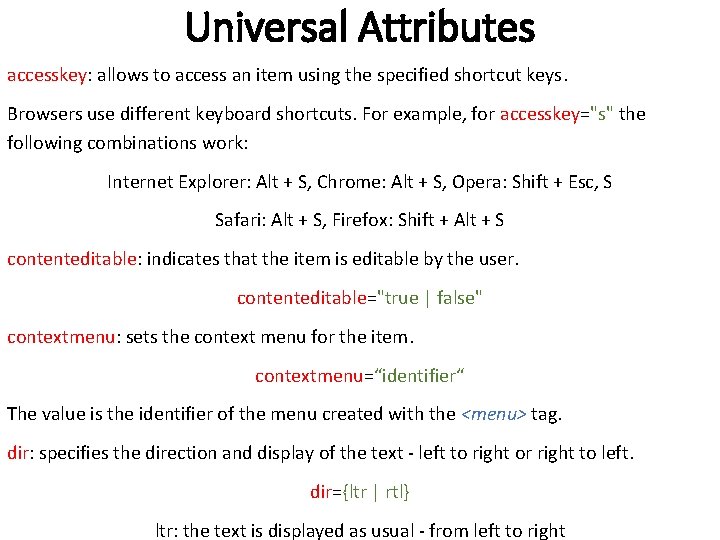
Universal Attributes accesskey: allows to access an item using the specified shortcut keys. Browsers use different keyboard shortcuts. For example, for accesskey="s" the following combinations work: Internet Explorer: Alt + S, Chrome: Alt + S, Opera: Shift + Esc, S Safari: Alt + S, Firefox: Shift + Alt + S contenteditable: indicates that the item is editable by the user. contenteditable="true | false" contextmenu: sets the context menu for the item. contextmenu=“identifier“ The value is the identifier of the menu created with the <menu> tag. dir: specifies the direction and display of the text - left to right or right to left. dir={ltr | rtl} ltr: the text is displayed as usual - from left to right
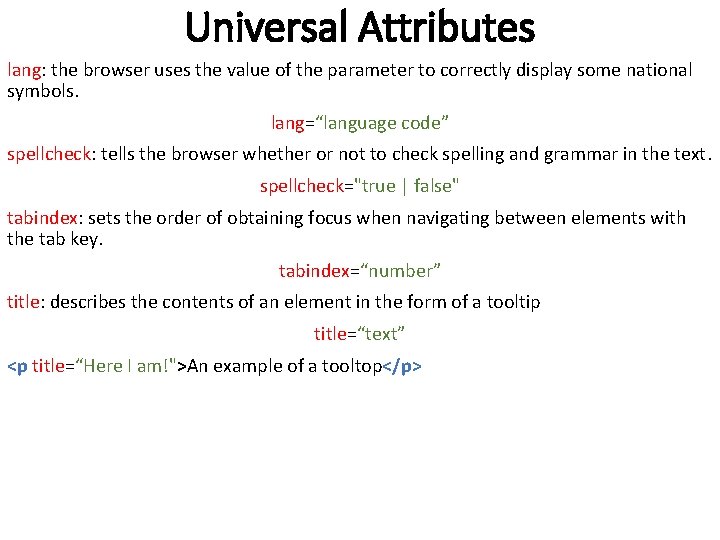
Universal Attributes lang: the browser uses the value of the parameter to correctly display some national symbols. lang=“language code” spellcheck: tells the browser whether or not to check spelling and grammar in the text. spellcheck="true | false" tabindex: sets the order of obtaining focus when navigating between elements with the tab key. tabindex=“number” title: describes the contents of an element in the form of a tooltip title=“text” <p title=“Here I am!">An example of a tooltop</p>
Universal Attributes class: defines the name of the class that allows you to associate the tag with the style design. id: specifies the name of the style identifier. style: used to define the style of an element using CSS rules.
HTML 5 is a hypertext markup language with the ability to create web applications that use audio, video, graphics, animation, and more. • Geolocation support • Playing movies. • Play audio files. • Local storage • Background computing • Offline applications • Painting • New elements of forms: for date, time, search, numbers, etc.
Semantics Search engines begin to better index the site, because they clearly separate the content of the page from the auxiliary elements. Speech browsers designed for blind people skip the headline and go directly to the content. Sites can automatically share content and other information among themselves. All these possibilities are called semantics and allow you to present data in a form convenient for robots.
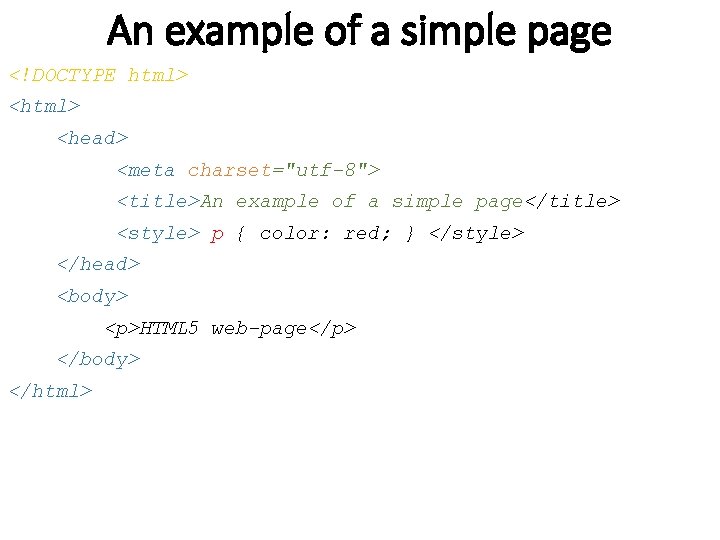
An example of a simple page <!DOCTYPE html> <head> <meta charset="utf-8"> <title>An example of a simple page</title> <style> p { color: red; } </style> </head> <body> <p>HTML 5 web-page</p> </body> </html>
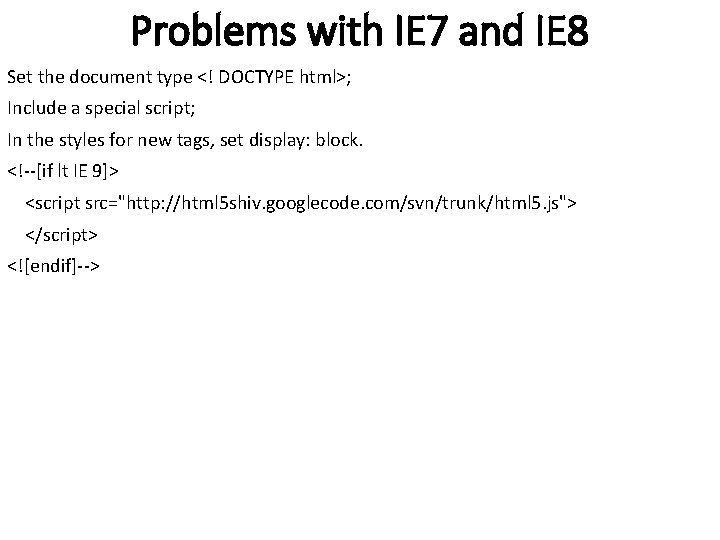
Problems with IE 7 and IE 8 Set the document type <! DOCTYPE html>; Include a special script; In the styles for new tags, set display: block. <!--[if lt IE 9]> <script src="http: //html 5 shiv. googlecode. com/svn/trunk/html 5. js"> </script> <![endif]-->
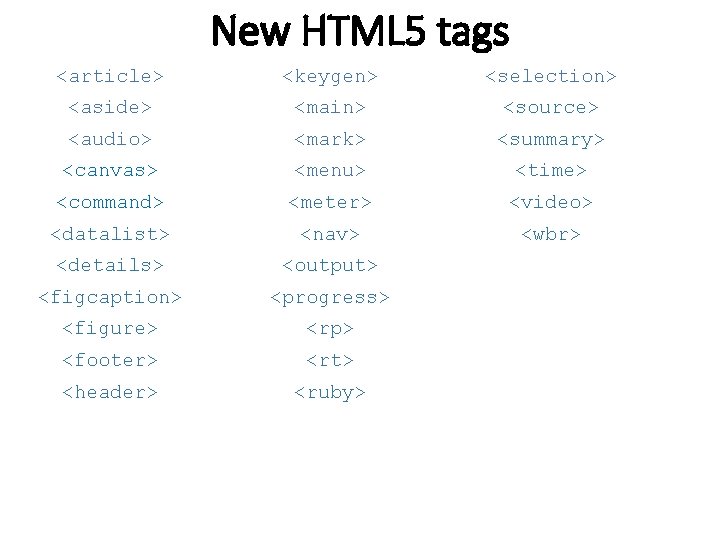
New HTML 5 tags <article> <keygen> <selection> <aside> <main> <source> <audio> <mark> <summary> <canvas> <menu> <time> <command> <meter> <video> <datalist> <nav> <wbr> <details> <output> <figcaption> <progress> <figure> <rp> <footer> <rt> <header> <ruby>
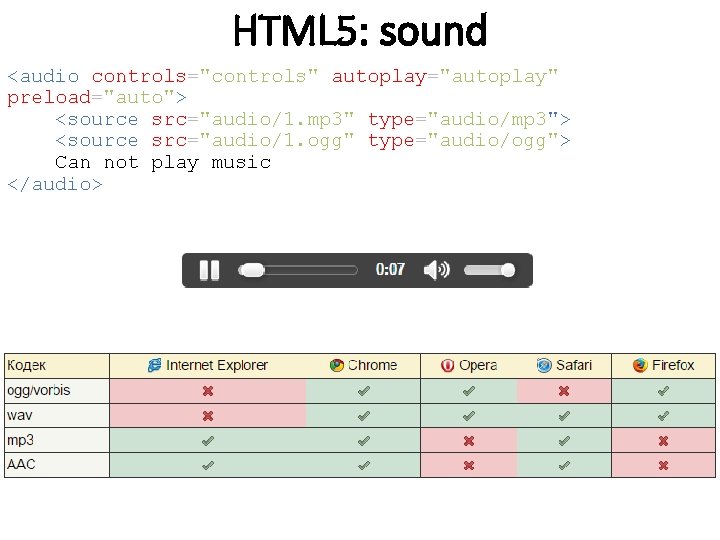
HTML 5: sound <audio controls="controls" autoplay="autoplay" preload="auto"> <source src="audio/1. mp 3" type="audio/mp 3"> <source src="audio/1. ogg" type="audio/ogg"> Can not play music </audio>
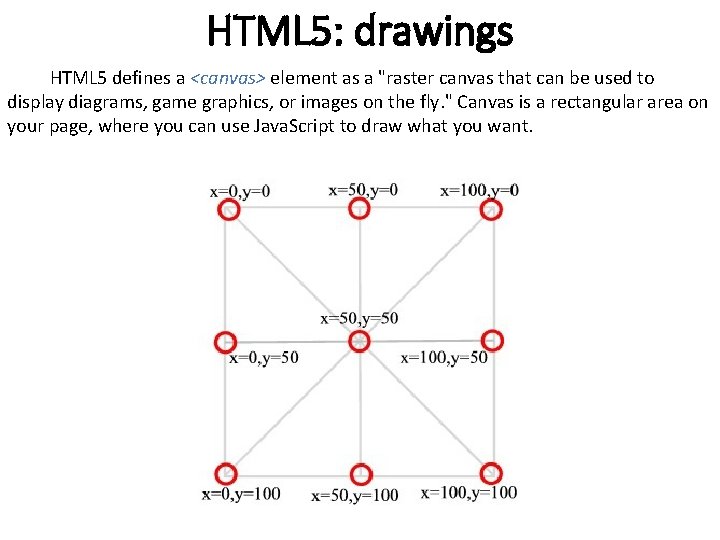
HTML 5: drawings HTML 5 defines a <canvas> element as a "raster canvas that can be used to display diagrams, game graphics, or images on the fly. " Canvas is a rectangular area on your page, where you can use Java. Script to draw what you want.
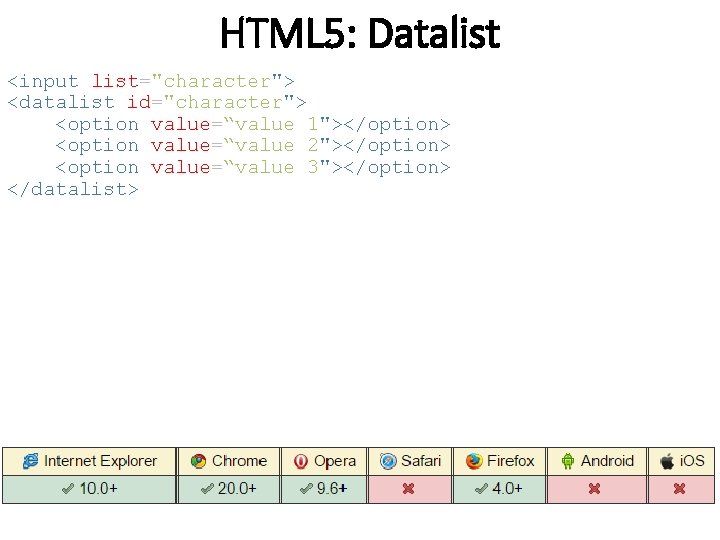
HTML 5: Datalist <input list="character"> <datalist id="character"> <option value=“value 1"></option> <option value=“value 2"></option> <option value=“value 3"></option> </datalist>
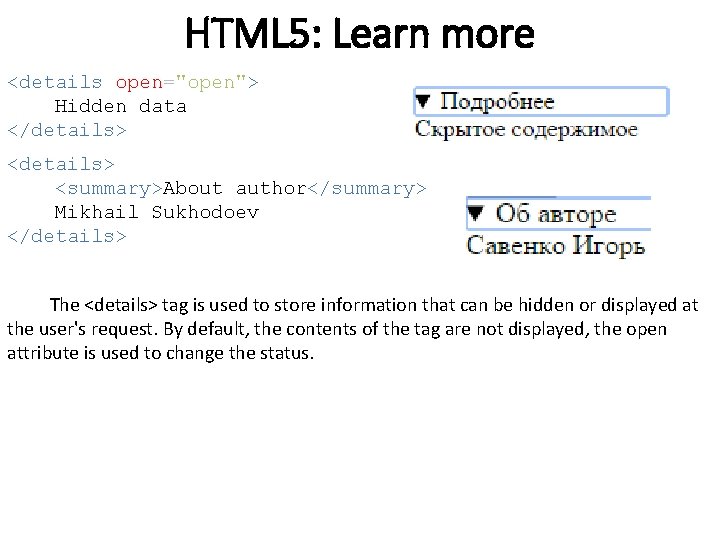
HTML 5: Learn more <details open="open"> Hidden data </details> <summary>About author</summary> Mikhail Sukhodoev </details> The <details> tag is used to store information that can be hidden or displayed at the user's request. By default, the contents of the tag are not displayed, the open attribute is used to change the status.
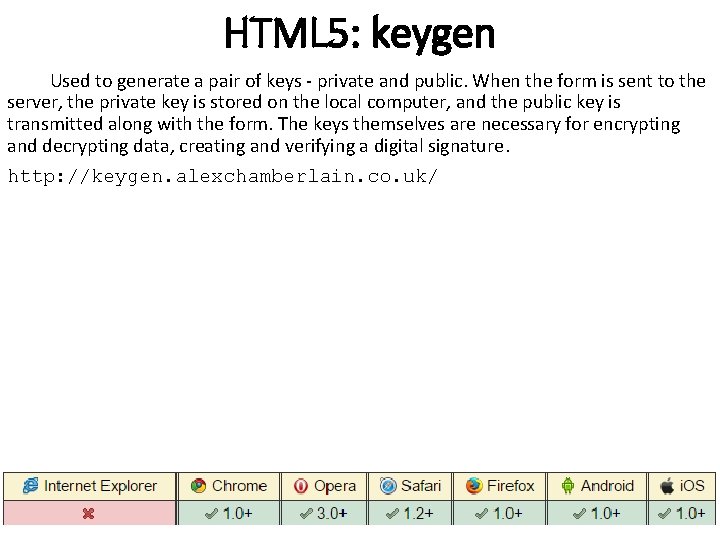
HTML 5: keygen Used to generate a pair of keys - private and public. When the form is sent to the server, the private key is stored on the local computer, and the public key is transmitted along with the form. The keys themselves are necessary for encrypting and decrypting data, creating and verifying a digital signature. http: //keygen. alexchamberlain. co. uk/
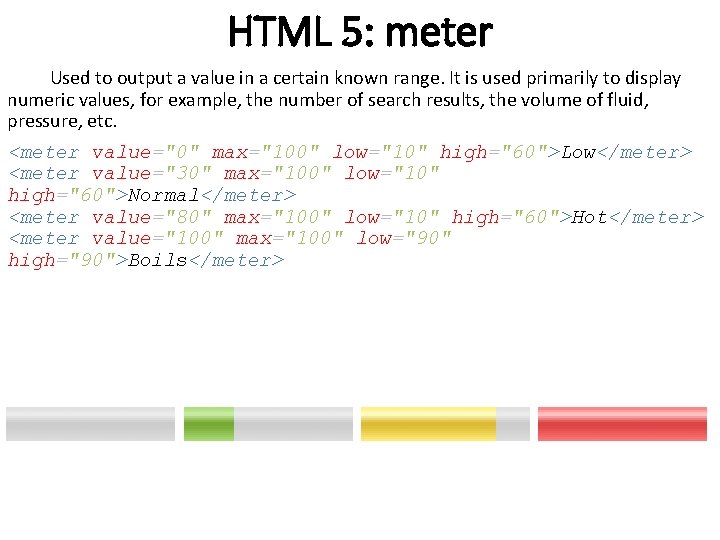
HTML 5: meter Used to output a value in a certain known range. It is used primarily to display numeric values, for example, the number of search results, the volume of fluid, pressure, etc. <meter value="0" max="100" low="10" high="60">Low</meter> <meter value="30" max="100" low="10" high="60">Normal</meter> <meter value="80" max="100" low="10" high="60">Hot</meter> <meter value="100" max="100" low="90" high="90">Boils</meter>
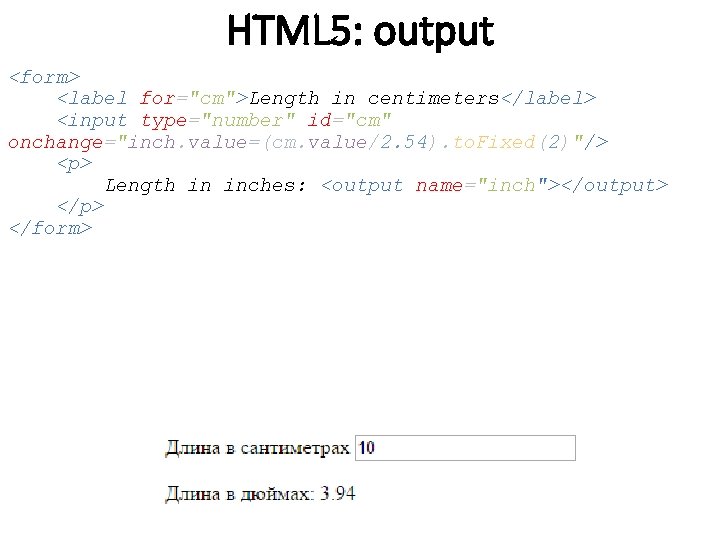
HTML 5: output <form> <label for="cm">Length in centimeters</label> <input type="number" id="cm" onchange="inch. value=(cm. value/2. 54). to. Fixed(2)"/> <p> Length in inches: <output name="inch"></output> </p> </form>
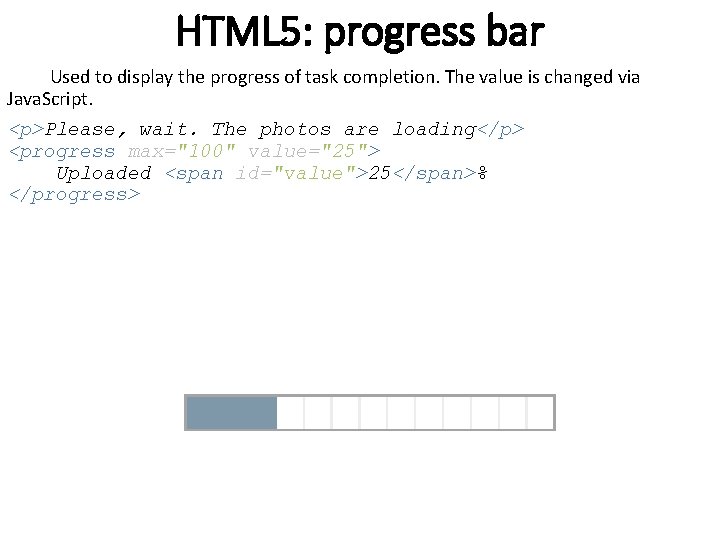
HTML 5: progress bar Used to display the progress of task completion. The value is changed via Java. Script. <p>Please, wait. The photos are loading</p> <progress max="100" value="25"> Uploaded <span id="value">25</span>% </progress>
HTML 5: Geolocation is a way to find out where you are in the world and additionally sharing this information with people you trust. There are several ways to find out your location - by IP address, connecting to a wireless network, through an antenna to which your cell phone is connected during a call or GPS equipment calculating latitude and longitude based on information sent by satellites in the sky.