How to fill out the Parents Financial Statement
- Slides: 6
How to fill out the Parent’s Financial Statement Section 1 – General Family Information
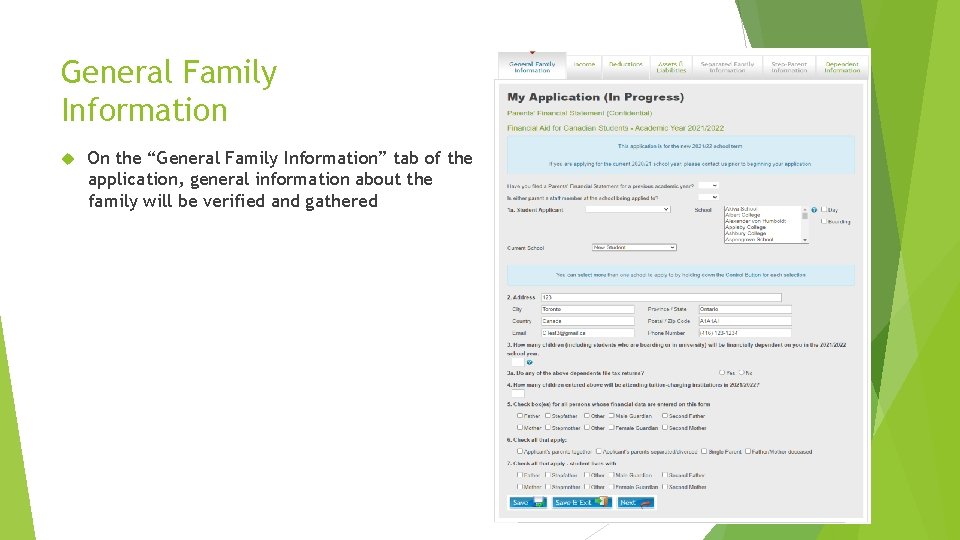
General Family Information On the “General Family Information” tab of the application, general information about the family will be verified and gathered
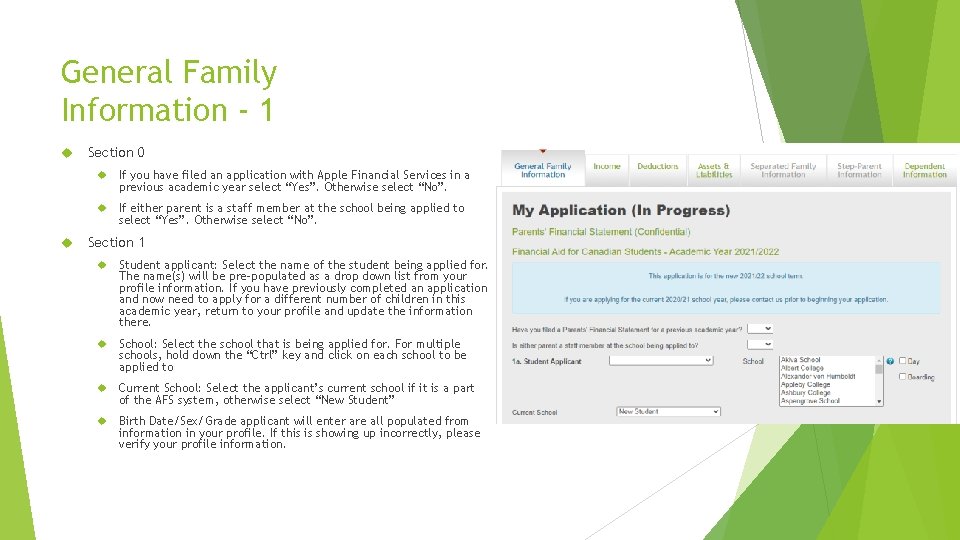
General Family Information - 1 Section 0 If you have filed an application with Apple Financial Services in a previous academic year select “Yes”. Otherwise select “No”. If either parent is a staff member at the school being applied to select “Yes”. Otherwise select “No”. Section 1 Student applicant: Select the name of the student being applied for. The name(s) will be pre-populated as a drop down list from your profile information. If you have previously completed an application and now need to apply for a different number of children in this academic year, return to your profile and update the information there. School: Select the school that is being applied for. For multiple schools, hold down the “Ctrl” key and click on each school to be applied to Current School: Select the applicant’s current school if it is a part of the AFS system, otherwise select “New Student” Birth Date/Sex/Grade applicant will enter are all populated from information in your profile. If this is showing up incorrectly, please verify your profile information.
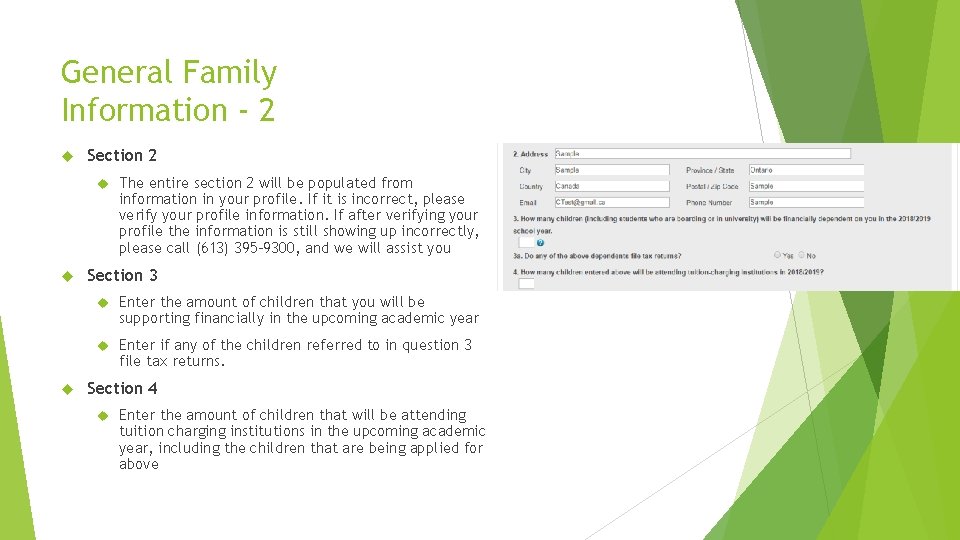
General Family Information - 2 Section 2 The entire section 2 will be populated from information in your profile. If it is incorrect, please verify your profile information. If after verifying your profile the information is still showing up incorrectly, please call (613) 395 -9300, and we will assist you Section 3 Enter the amount of children that you will be supporting financially in the upcoming academic year Enter if any of the children referred to in question 3 file tax returns. Section 4 Enter the amount of children that will be attending tuition charging institutions in the upcoming academic year, including the children that are being applied for above
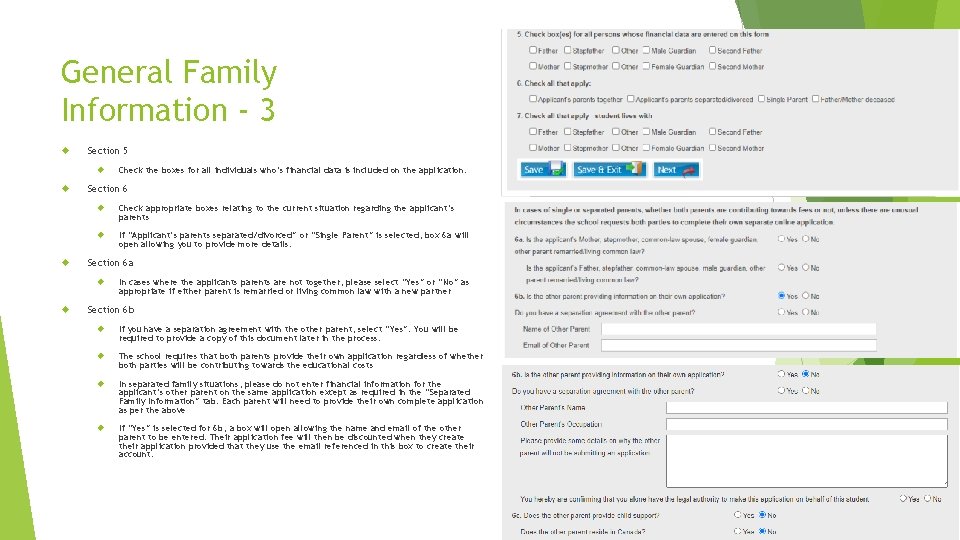
General Family Information - 3 Section 5 Section 6 Check appropriate boxes relating to the current situation regarding the applicant’s parents If “Applicant’s parents separated/divorced” or “Single Parent” is selected, box 6 a will open allowing you to provide more details. Section 6 a Check the boxes for all individuals who’s financial data is included on the application. In cases where the applicants parents are not together, please select “Yes” or “No” as appropriate if either parent is remarried or living common law with a new partner Section 6 b If you have a separation agreement with the other parent, select “Yes”. You will be required to provide a copy of this document later in the process. The school requires that both parents provide their own application regardless of whether both parties will be contributing towards the educational costs In separated family situations, please do not enter financial information for the applicant’s other parent on the same application except as required in the “Separated Family Information” tab. Each parent will need to provide their own complete application as per the above If “Yes” is selected for 6 b, a box will open allowing the name and email of the other parent to be entered. Their application fee will then be discounted when they create their application provided that they use the email referenced in this box to create their account.
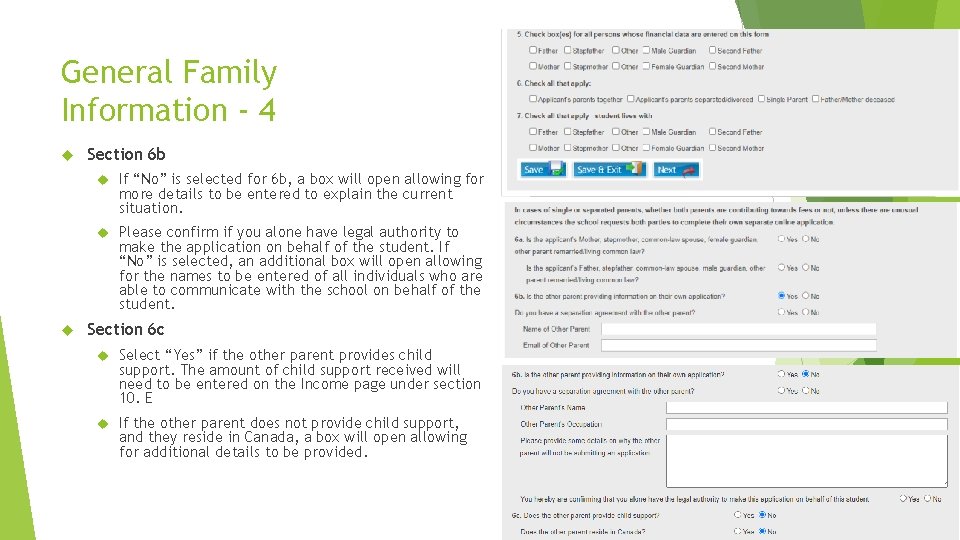
General Family Information - 4 Section 6 b If “No” is selected for 6 b, a box will open allowing for more details to be entered to explain the current situation. Please confirm if you alone have legal authority to make the application on behalf of the student. If “No” is selected, an additional box will open allowing for the names to be entered of all individuals who are able to communicate with the school on behalf of the student. Section 6 c Select “Yes” if the other parent provides child support. The amount of child support received will need to be entered on the Income page under section 10. E If the other parent does not provide child support, and they reside in Canada, a box will open allowing for additional details to be provided.