Fill in Application Form HA CRER Portal Quick
- Slides: 12
Fill in Application Form HA CRER Portal - Quick User Guide 1
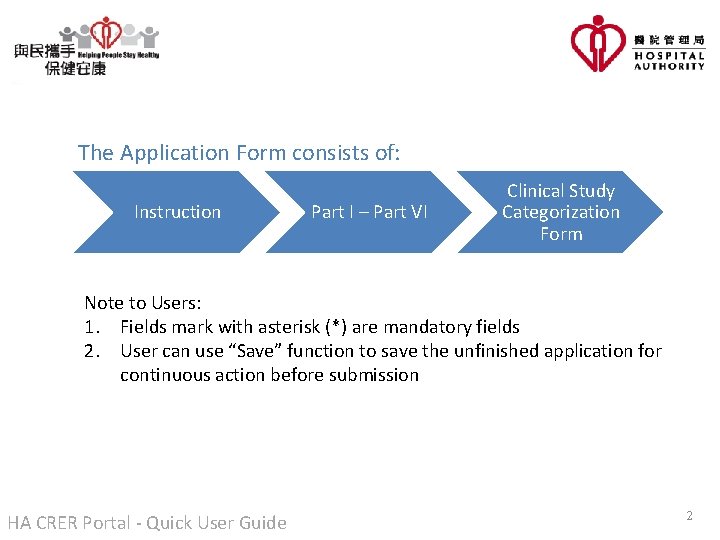
The Application Form consists of: Instruction Part I – Part VI Clinical Study Categorization Form Note to Users: 1. Fields mark with asterisk (*) are mandatory fields 2. User can use “Save” function to save the unfinished application for continuous action before submission HA CRER Portal - Quick User Guide 2
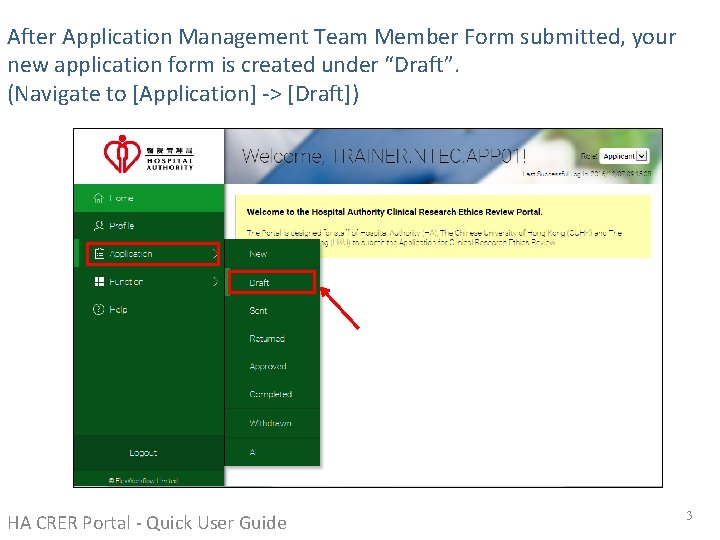
After Application Management Team Member Form submitted, your new application form is created under “Draft”. (Navigate to [Application] -> [Draft]) HA CRER Portal - Quick User Guide 3
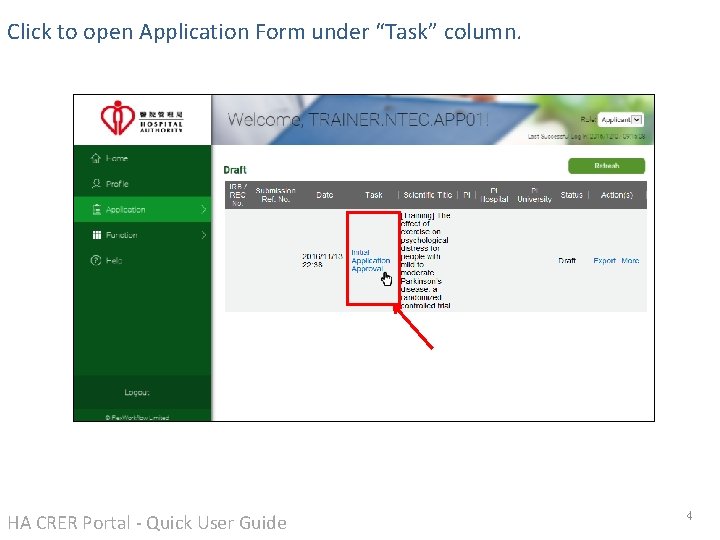
Click to open Application Form under “Task” column. HA CRER Portal - Quick User Guide 4
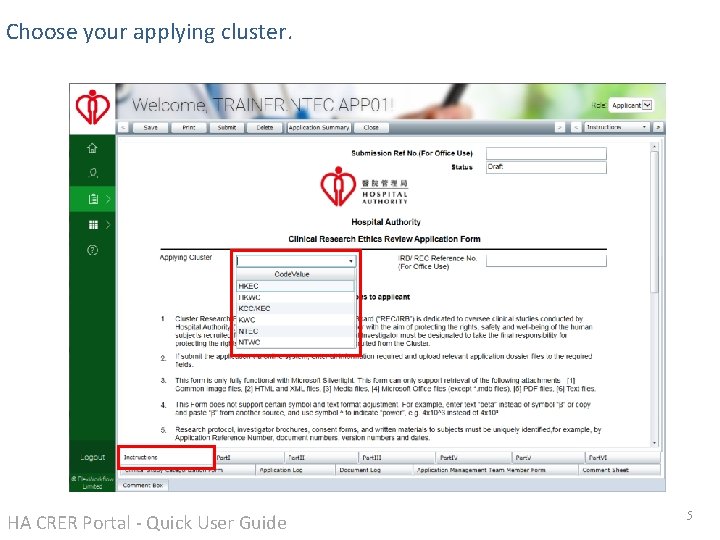
Choose your applying cluster. HA CRER Portal - Quick User Guide 5
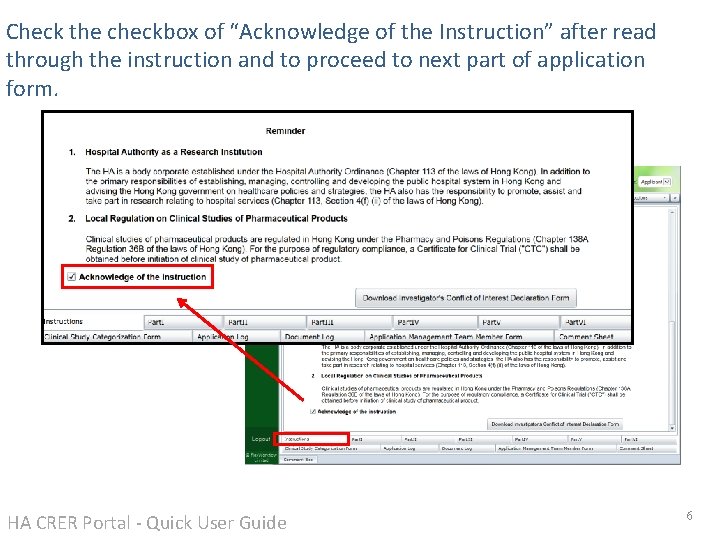
Check the checkbox of “Acknowledge of the Instruction” after read through the instruction and to proceed to next part of application form. HA CRER Portal - Quick User Guide 6
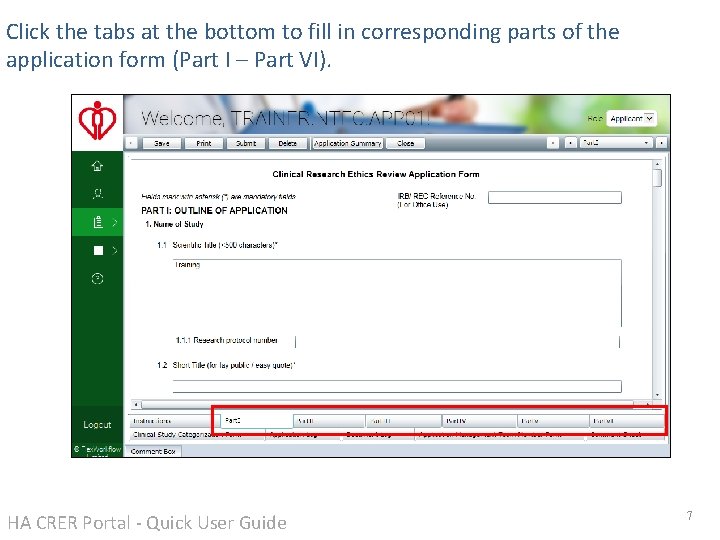
Click the tabs at the bottom to fill in corresponding parts of the application form (Part I – Part VI). HA CRER Portal - Quick User Guide 7
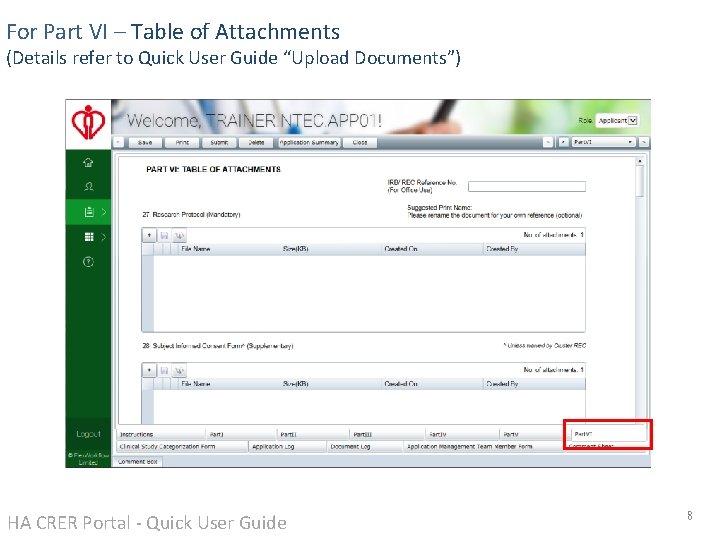
For Part VI – Table of Attachments (Details refer to Quick User Guide “Upload Documents”) HA CRER Portal - Quick User Guide 8
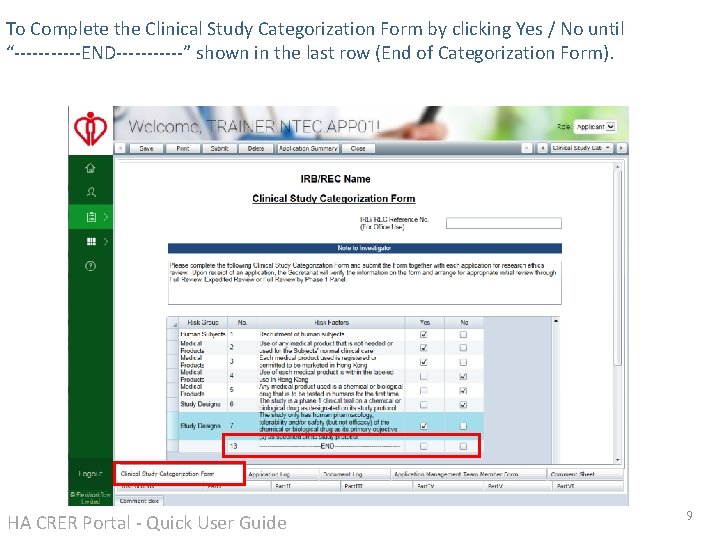
To Complete the Clinical Study Categorization Form by clicking Yes / No until “------END------” shown in the last row (End of Categorization Form). HA CRER Portal - Quick User Guide 9
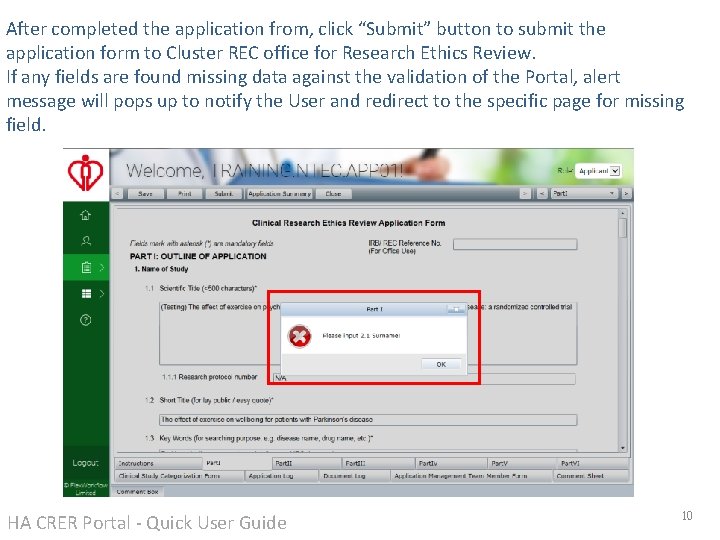
After completed the application from, click “Submit” button to submit the application form to Cluster REC office for Research Ethics Review. If any fields are found missing data against the validation of the Portal, alert message will pops up to notify the User and redirect to the specific page for missing field. HA CRER Portal - Quick User Guide 10
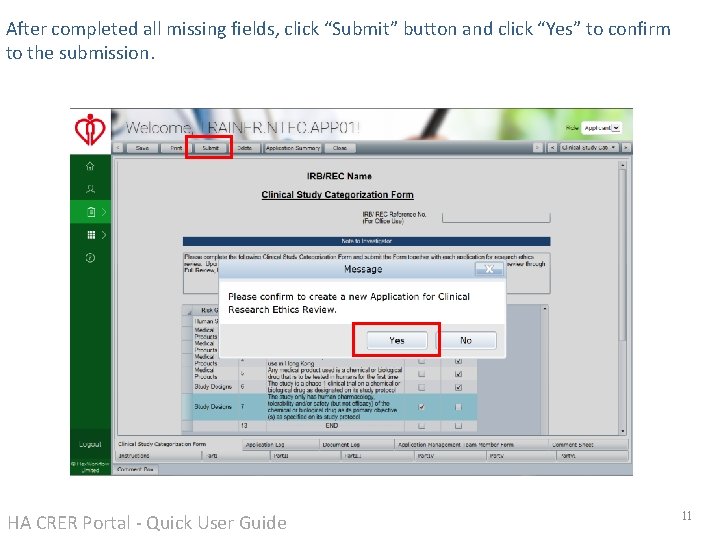
After completed all missing fields, click “Submit” button and click “Yes” to confirm to the submission. HA CRER Portal - Quick User Guide 11
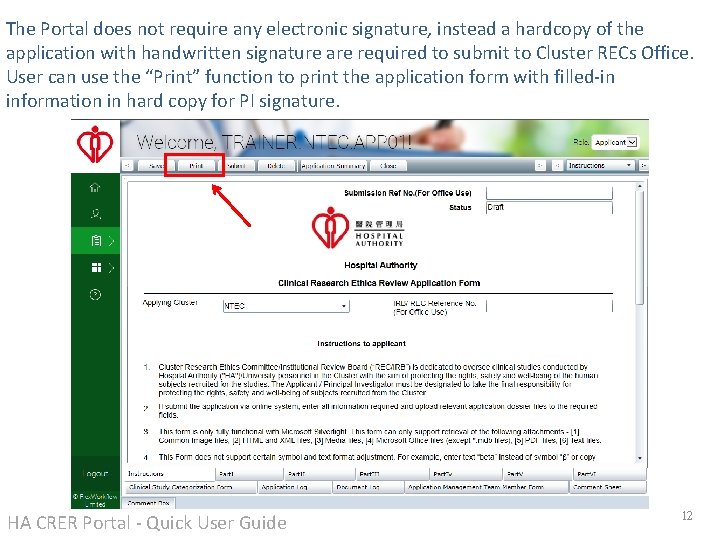
The Portal does not require any electronic signature, instead a hardcopy of the application with handwritten signature are required to submit to Cluster RECs Office. User can use the “Print” function to print the application form with filled-in information in hard copy for PI signature. HA CRER Portal - Quick User Guide 12