
Upload Documents Application Form Part VI HA CRER
- Slides: 14
Upload Documents (Application Form - Part VI) HA CRER Portal - Quick User Guide 1
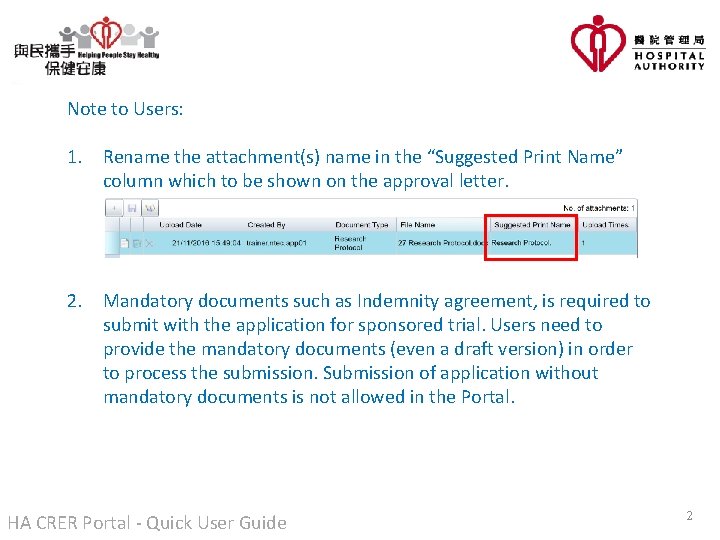
Note to Users: 1. Rename the attachment(s) name in the “Suggested Print Name” column which to be shown on the approval letter. 2. Mandatory documents such as Indemnity agreement, is required to submit with the application for sponsored trial. Users need to provide the mandatory documents (even a draft version) in order to process the submission. Submission of application without mandatory documents is not allowed in the Portal. HA CRER Portal - Quick User Guide 2
Note to Users: 3. If there are large number of reports (e. g. over 100 SUSAR reports), users could zip all SUSAR reports and upload to the Portal in one file. In the future, just download the zip file at once and unzip for review. Zip function is not a build-in function on the Portal, User could take reference from the following links on how to create a zip file with zip tools on your computer: Win. Zip: http: //www. winzip. com/learn/create-zip-files. html HA CRER Portal - Quick User Guide 3
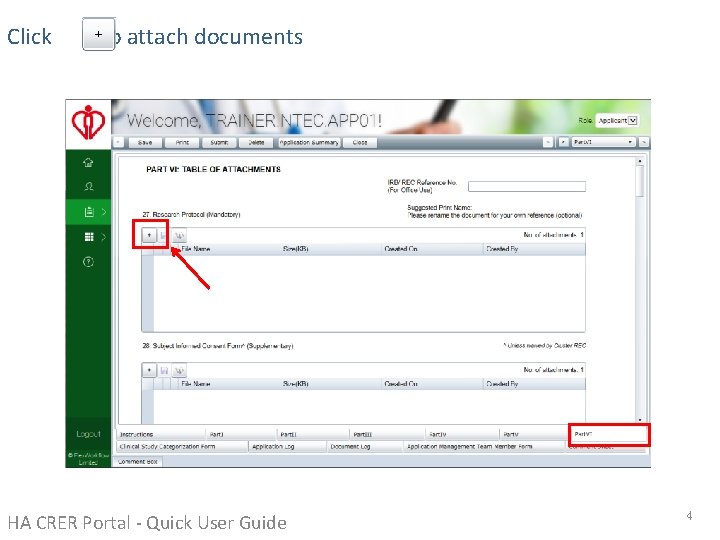
Click to attach documents HA CRER Portal - Quick User Guide 4
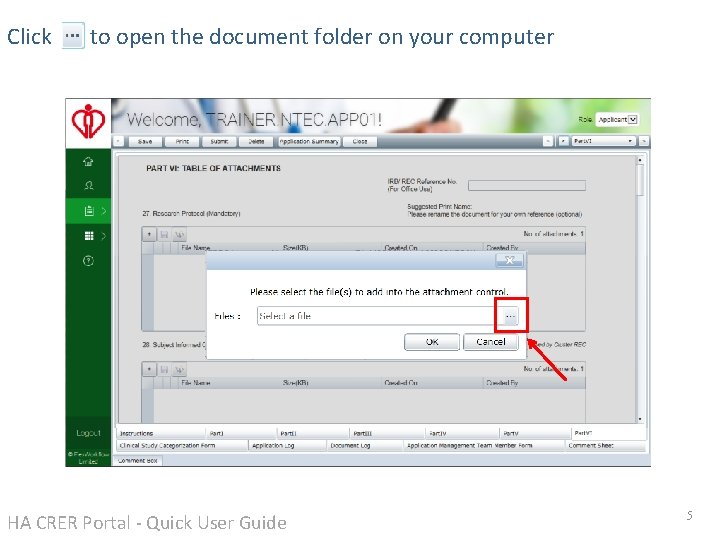
Click to open the document folder on your computer HA CRER Portal - Quick User Guide 5
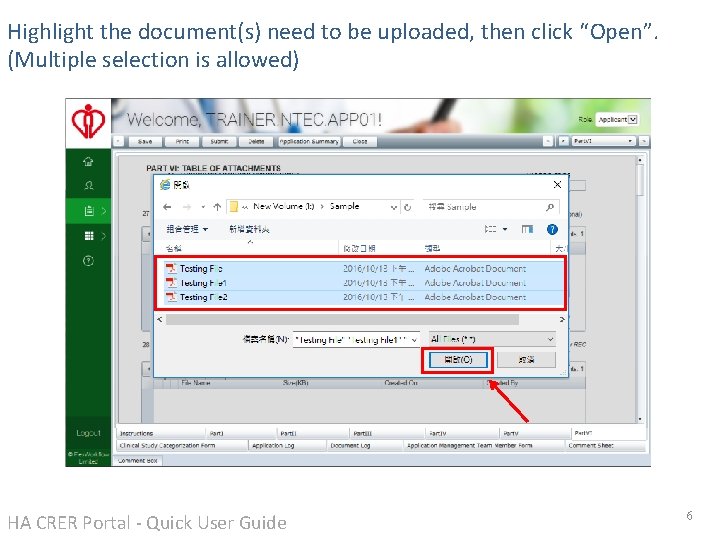
Highlight the document(s) need to be uploaded, then click “Open”. (Multiple selection is allowed) HA CRER Portal - Quick User Guide 6
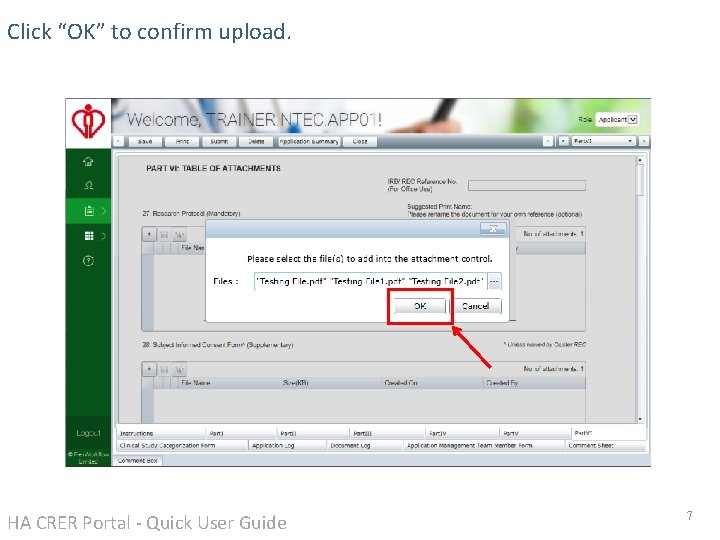
Click “OK” to confirm upload. HA CRER Portal - Quick User Guide 7
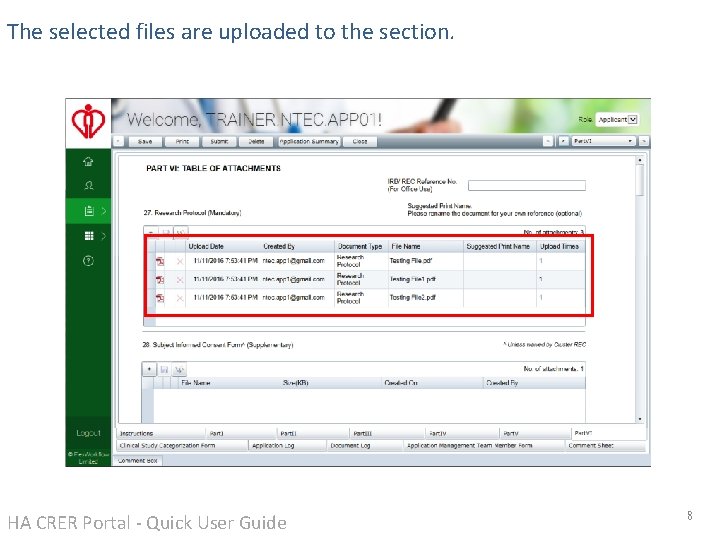
The selected files are uploaded to the section. HA CRER Portal - Quick User Guide 8
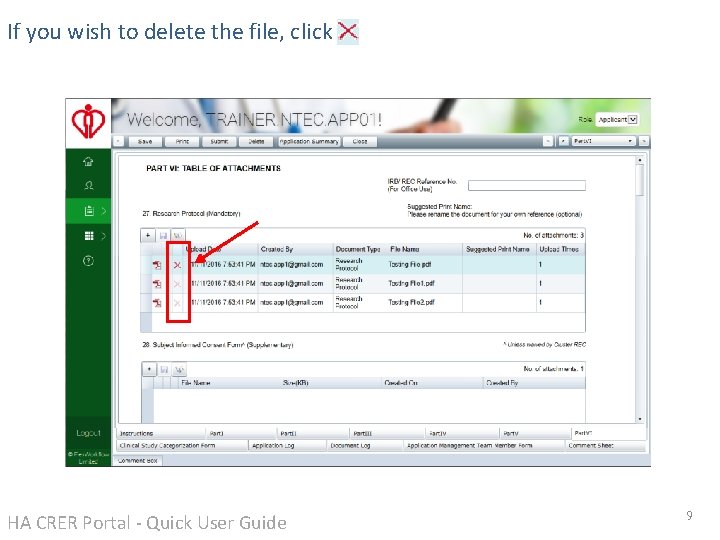
If you wish to delete the file, click HA CRER Portal - Quick User Guide 9
Example on how to Zip and Unzip files Remarks: Zip tool is not a build-in function or compulsory configuration requirement for the Portal. Please contact your IT administrator if you wish to install zip tools on computer. HA CRER Portal - Quick User Guide 10
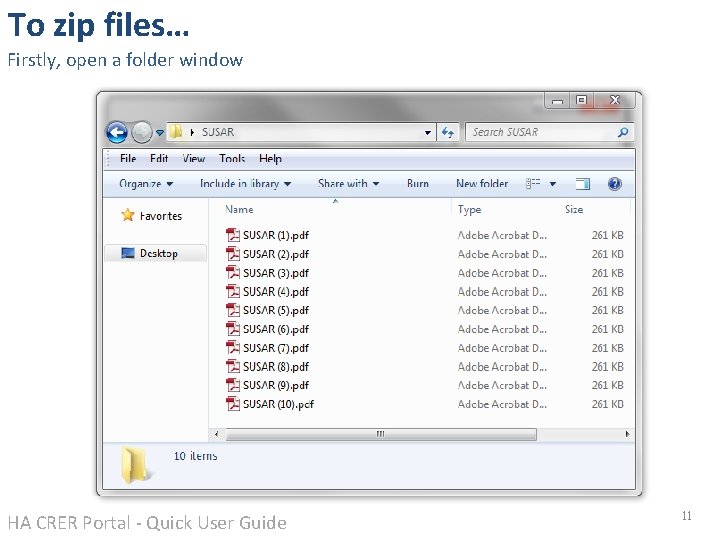
To zip files… Firstly, open a folder window HA CRER Portal - Quick User Guide 11
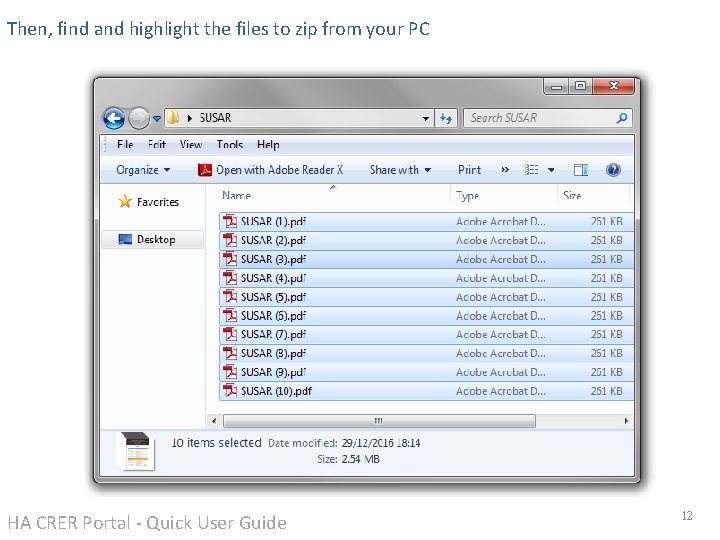
Then, find and highlight the files to zip from your PC HA CRER Portal - Quick User Guide 12
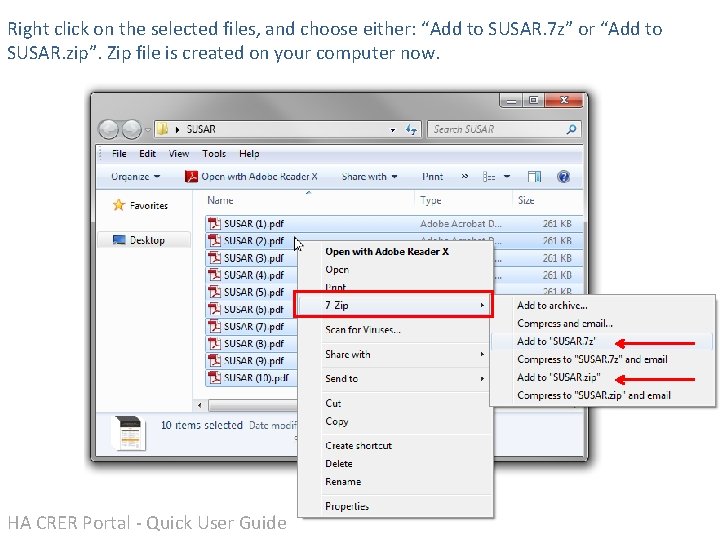
Right click on the selected files, and choose either: “Add to SUSAR. 7 z” or “Add to SUSAR. zip”. Zip file is created on your computer now. HA CRER Portal - Quick User Guide 13
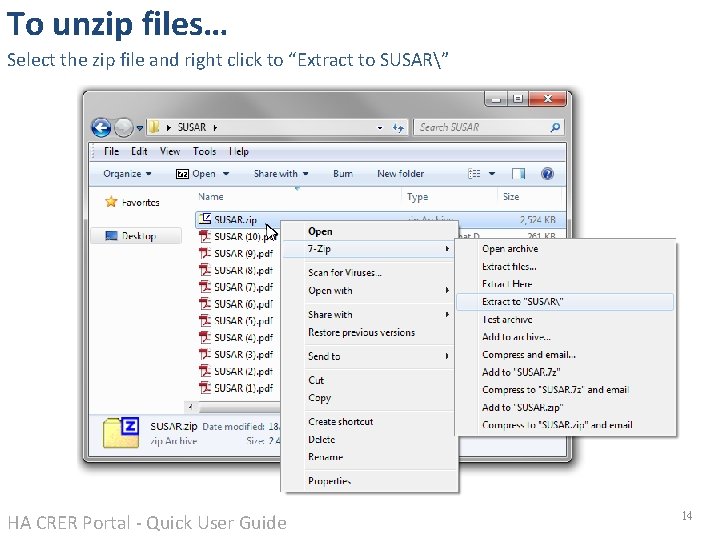
To unzip files… Select the zip file and right click to “Extract to SUSAR” HA CRER Portal - Quick User Guide 14