
View Application and Make Decision HA CRER Portal
- Slides: 11
View Application and Make Decision HA CRER Portal - Quick User Guide 1
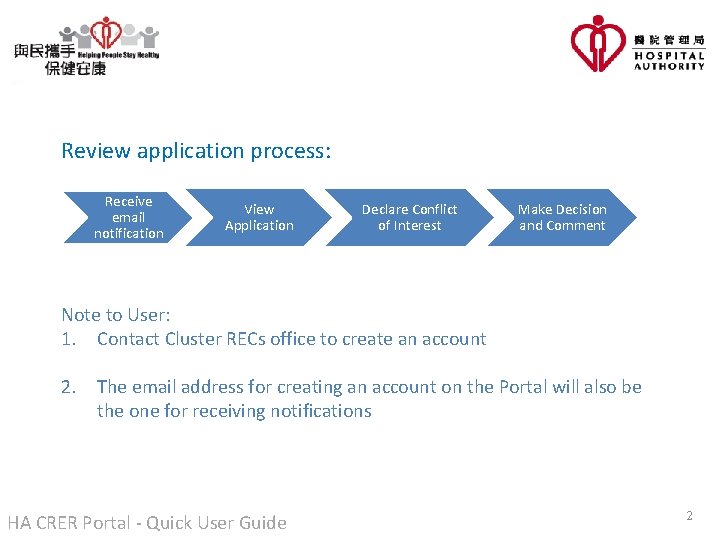
Review application process: Receive email notification View Application Declare Conflict of Interest Make Decision and Comment Note to User: 1. Contact Cluster RECs office to create an account 2. The email address for creating an account on the Portal will also be the one for receiving notifications HA CRER Portal - Quick User Guide 2
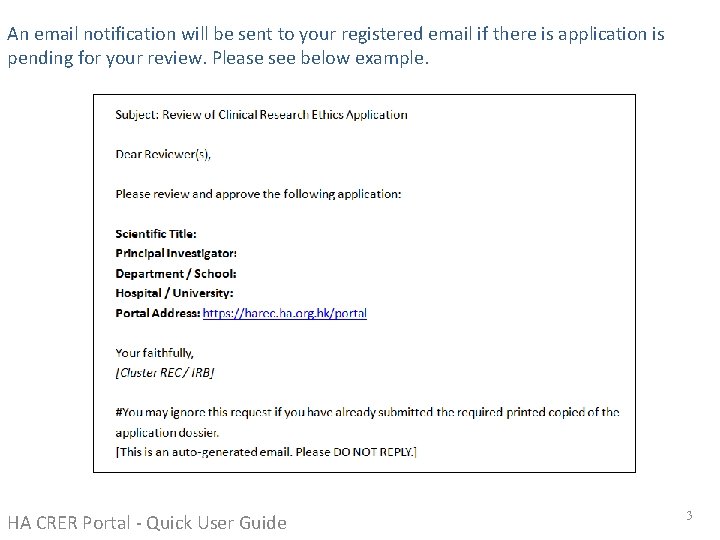
An email notification will be sent to your registered email if there is application is pending for your review. Please see below example. HA CRER Portal - Quick User Guide 3
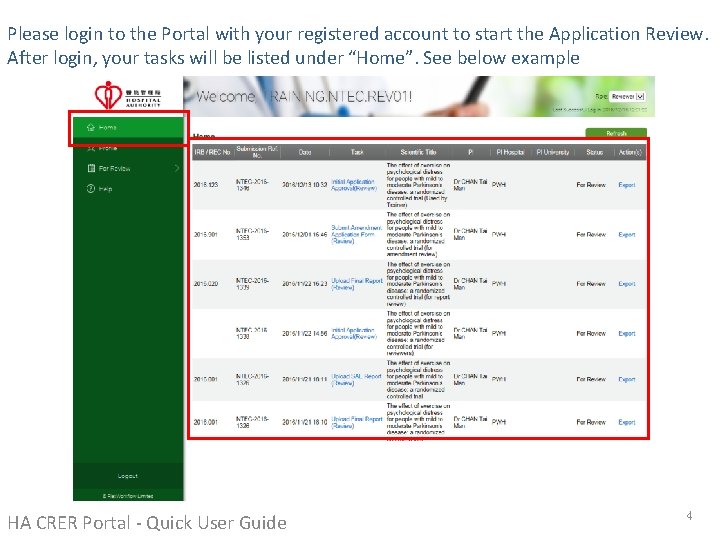
Please login to the Portal with your registered account to start the Application Review. After login, your tasks will be listed under “Home”. See below example HA CRER Portal - Quick User Guide 4
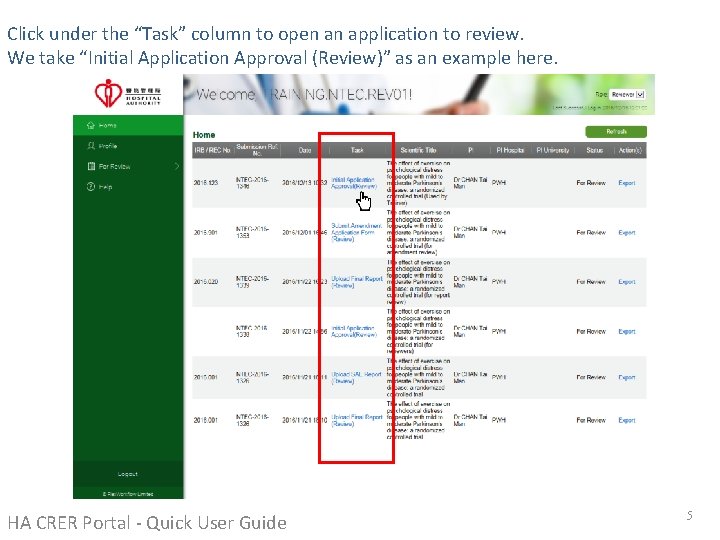
Click under the “Task” column to open an application to review. We take “Initial Application Approval (Review)” as an example here. HA CRER Portal - Quick User Guide 5
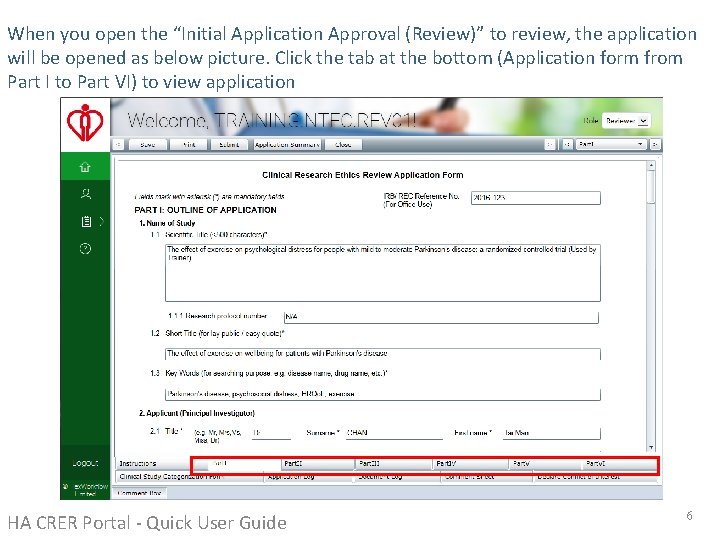
When you open the “Initial Application Approval (Review)” to review, the application will be opened as below picture. Click the tab at the bottom (Application form from Part I to Part VI) to view application HA CRER Portal - Quick User Guide 6
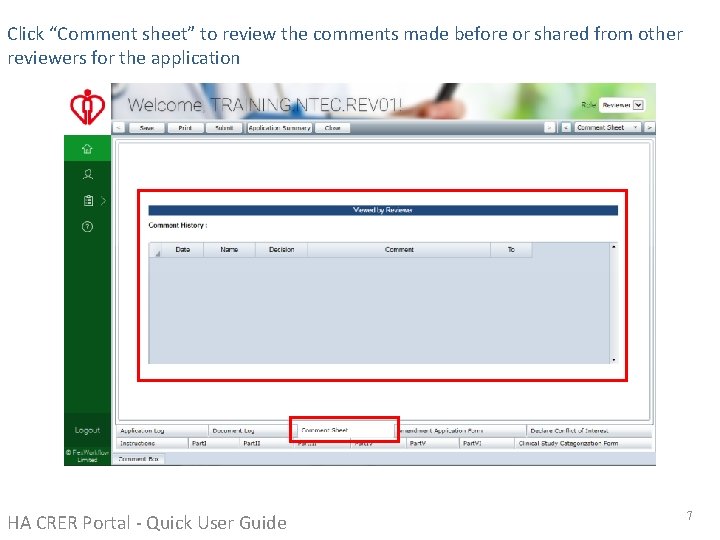
Click “Comment sheet” to review the comments made before or shared from other reviewers for the application HA CRER Portal - Quick User Guide 7
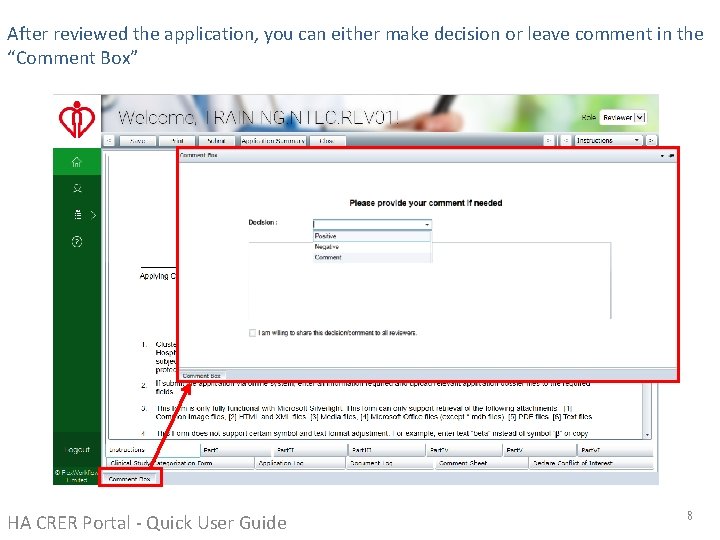
After reviewed the application, you can either make decision or leave comment in the “Comment Box” HA CRER Portal - Quick User Guide 8
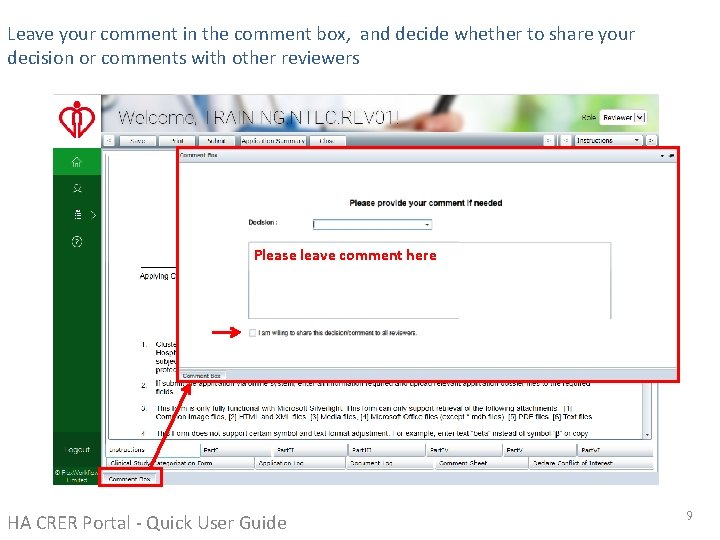
Leave your comment in the comment box, and decide whether to share your decision or comments with other reviewers Please leave comment here HA CRER Portal - Quick User Guide 9
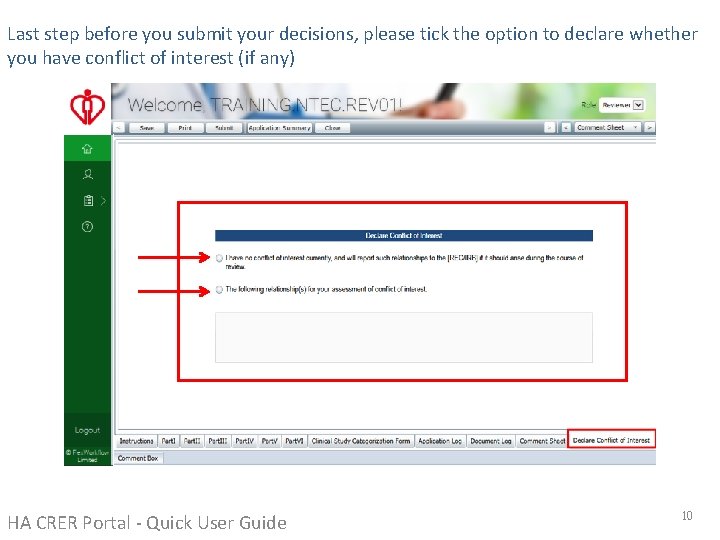
Last step before you submit your decisions, please tick the option to declare whether you have conflict of interest (if any) HA CRER Portal - Quick User Guide 10
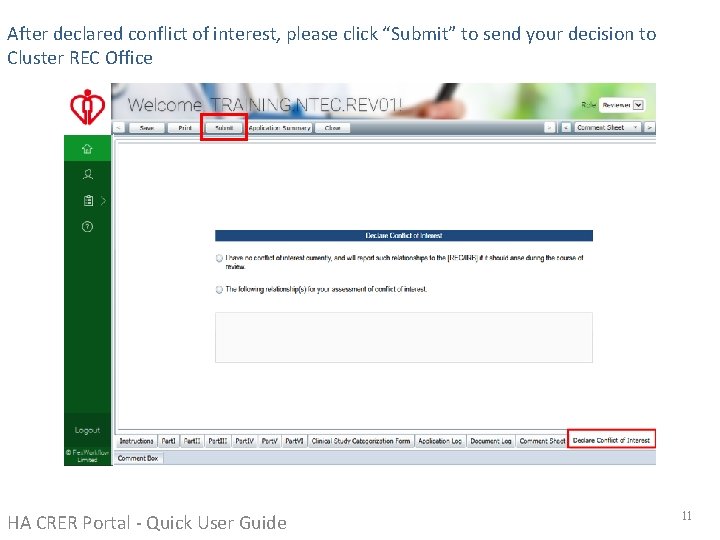
After declared conflict of interest, please click “Submit” to send your decision to Cluster REC Office HA CRER Portal - Quick User Guide 11