1 INTRODUCTION 1 1 Home area 1 2

![5. List all the modules currently loaded [user@clogin 1]$ module list 6. Unload the](https://slidetodoc.com/presentation_image_h/d60608f9d12d51286ba5d43c42cf4c09/image-22.jpg "5. List all the modules currently loaded [user@clogin 1]$ module list 6. Unload the")
- Slides: 31
1. INTRODUCTION 1. 1 Home area 1. 2 Temporary work area 1. 3 Login nodes 1. 4 Data transfer nodes
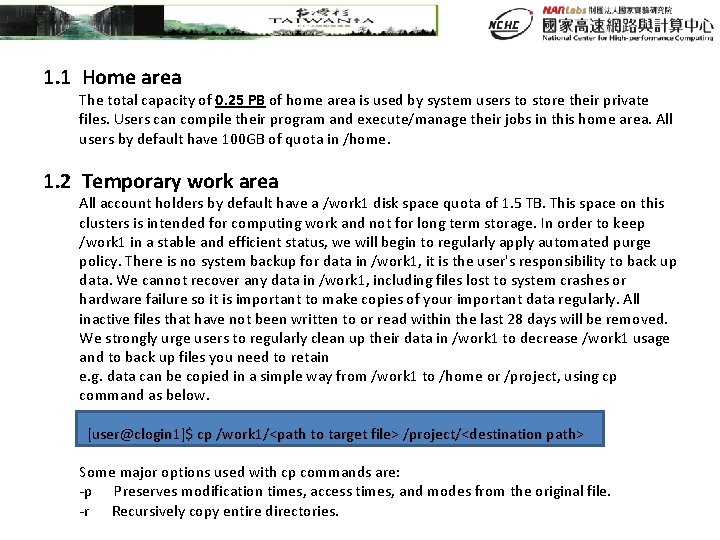
1. 1 Home area The total capacity of 0. 25 PB of home area is used by system users to store their private files. Users can compile their program and execute/manage their jobs in this home area. All users by default have 100 GB of quota in /home. 1. 2 Temporary work area All account holders by default have a /work 1 disk space quota of 1. 5 TB. This space on this clusters is intended for computing work and not for long term storage. In order to keep /work 1 in a stable and efficient status, we will begin to regularly apply automated purge policy. There is no system backup for data in /work 1, it is the user's responsibility to back up data. We cannot recover any data in /work 1, including files lost to system crashes or hardware failure so it is important to make copies of your important data regularly. All inactive files that have not been written to or read within the last 28 days will be removed. We strongly urge users to regularly clean up their data in /work 1 to decrease /work 1 usage and to back up files you need to retain e. g. data can be copied in a simple way from /work 1 to /home or /project, using cp command as below. [user@clogin 1]$ cp /work 1/<path to target file> /project/<destination path> Some major options used with cp commands are: -p Preserves modification times, access times, and modes from the original file. -r Recursively copy entire directories.
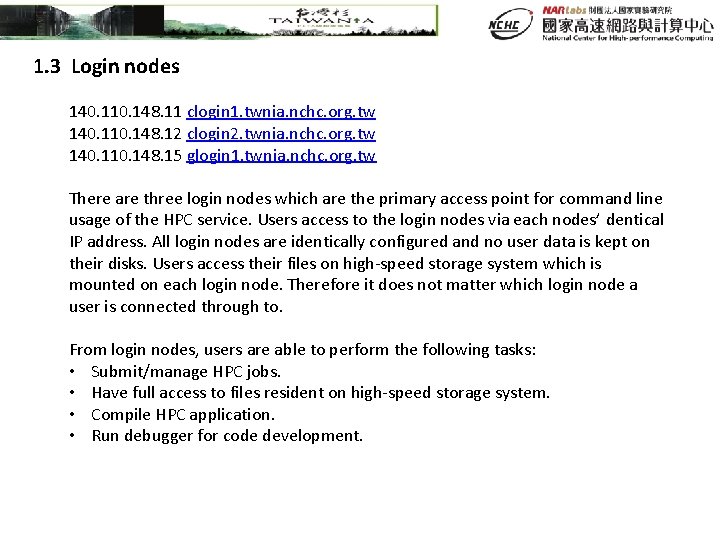
1. 3 Login nodes 140. 110. 148. 11 clogin 1. twnia. nchc. org. tw 140. 110. 148. 12 clogin 2. twnia. nchc. org. tw 140. 110. 148. 15 glogin 1. twnia. nchc. org. tw There are three login nodes which are the primary access point for command line usage of the HPC service. Users access to the login nodes via each nodes’ dentical IP address. All login nodes are identically configured and no user data is kept on their disks. Users access their files on high-speed storage system which is mounted on each login node. Therefore it does not matter which login node a user is connected through to. From login nodes, users are able to perform the following tasks: • Submit/manage HPC jobs. • Have full access to files resident on high-speed storage system. • Compile HPC application. • Run debugger for code development.
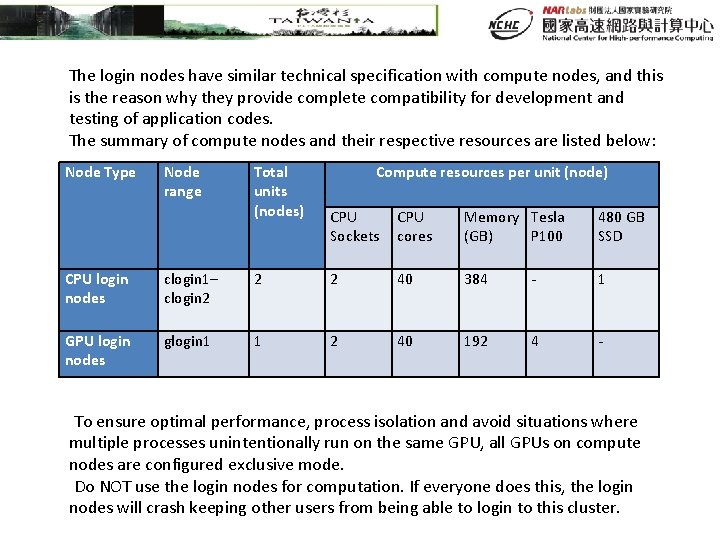
The login nodes have similar technical specification with compute nodes, and this is the reason why they provide complete compatibility for development and testing of application codes. The summary of compute nodes and their respective resources are listed below: Node Type Node range Total units (nodes) Compute resources per unit (node) CPU Sockets CPU cores Memory Tesla (GB) P 100 480 GB SSD CPU login nodes clogin 1– clogin 2 2 2 40 384 - 1 GPU login nodes glogin 1 1 2 40 192 4 - To ensure optimal performance, process isolation and avoid situations where multiple processes unintentionally run on the same GPU, all GPUs on compute nodes are configured exclusive mode. Do NOT use the login nodes for computation. If everyone does this, the login nodes will crash keeping other users from being able to login to this cluster.
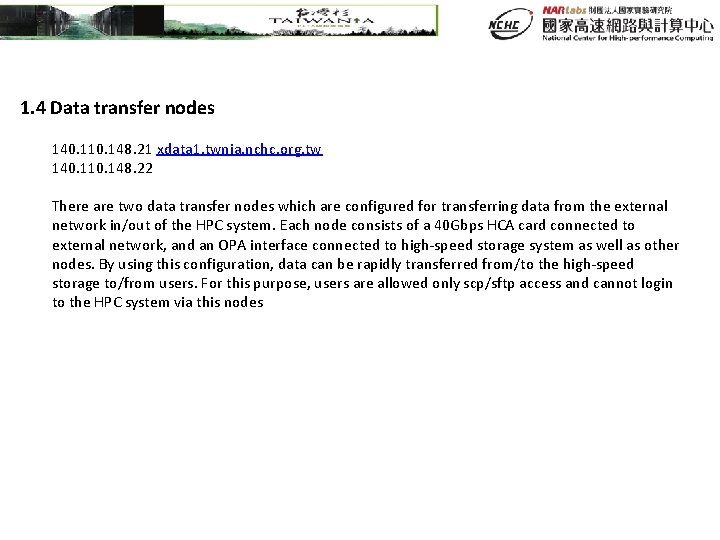
1. 4 Data transfer nodes 140. 110. 148. 21 xdata 1. twnia. nchc. org. tw 140. 110. 148. 22 There are two data transfer nodes which are configured for transferring data from the external network in/out of the HPC system. Each node consists of a 40 Gbps HCA card connected to external network, and an OPA interface connected to high-speed storage system as well as other nodes. By using this configuration, data can be rapidly transferred from/to the high-speed storage to/from users. For this purpose, users are allowed only scp/sftp access and cannot login to the HPC system via this nodes
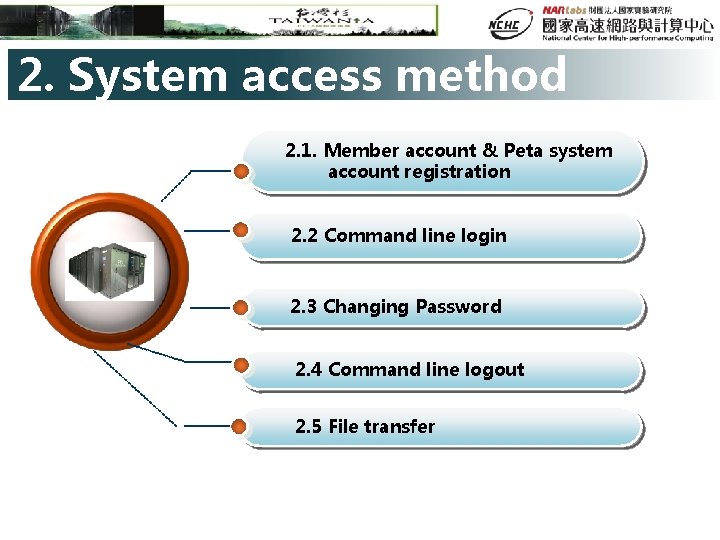
2. System access method 2. 1. Member account & Peta system account registration 2. 2 Command line login 2. 3 Changing Password 2. 4 Command line logout 2. 5 File transfer
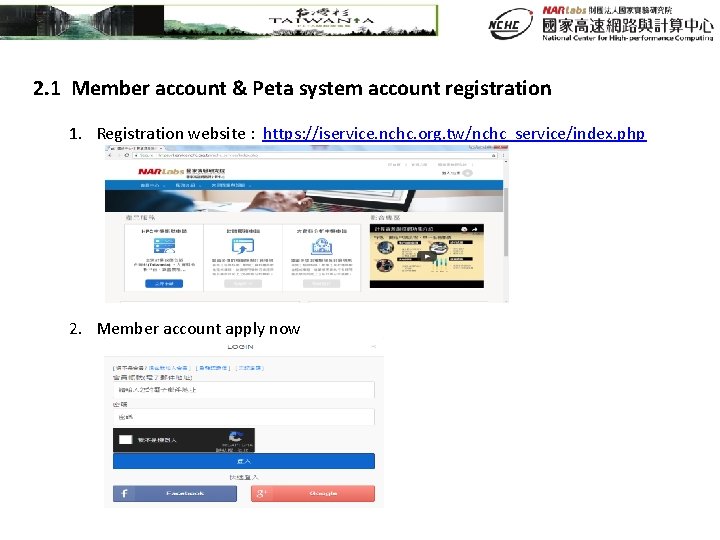
2. 1 Member account & Peta system account registration 1. Registration website : https: //iservice. nchc. org. tw/nchc_service/index. php 2. Member account apply now
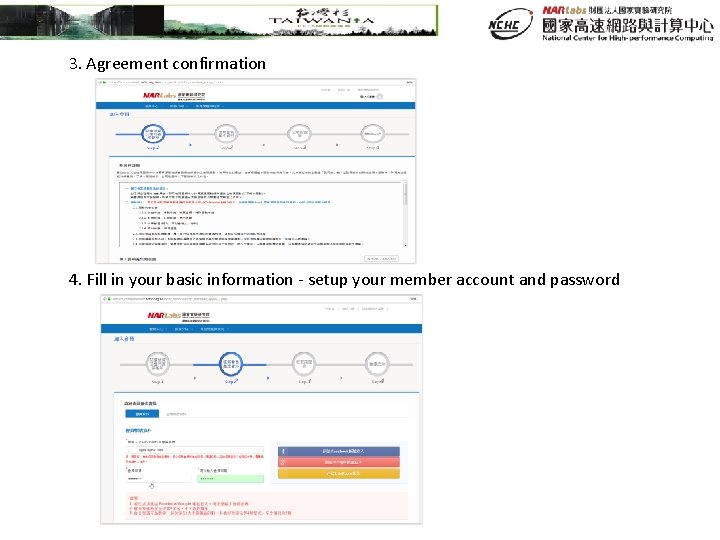
3. Agreement confirmation 4. Fill in your basic information - setup your member account and password
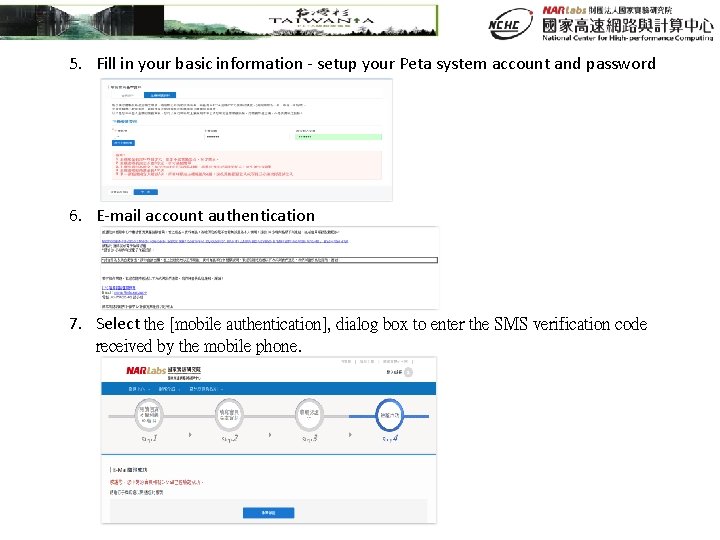
5. Fill in your basic information - setup your Peta system account and password 6. E-mail account authentication 7. Select the [mobile authentication], dialog box to enter the SMS verification code received by the mobile phone.
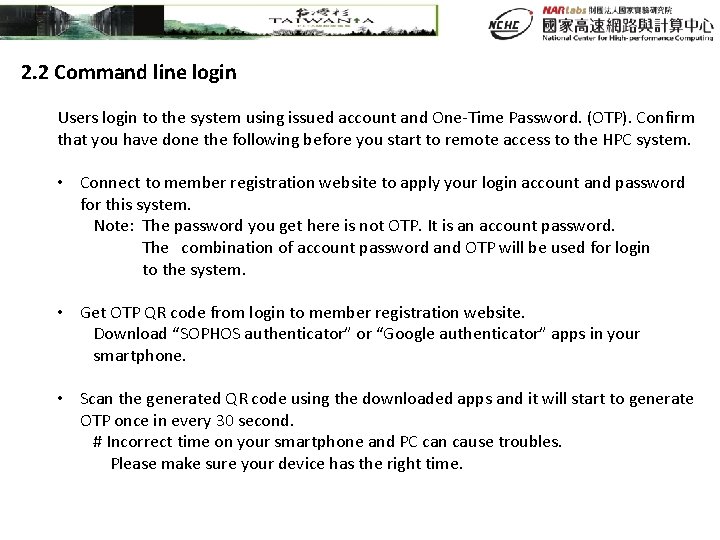
2. 2 Command line login Users login to the system using issued account and One-Time Password. (OTP). Confirm that you have done the following before you start to remote access to the HPC system. • Connect to member registration website to apply your login account and password for this system. Note: The password you get here is not OTP. It is an account password. The combination of account password and OTP will be used for login to the system. • Get OTP QR code from login to member registration website. Download “SOPHOS authenticator” or “Google authenticator” apps in your smartphone. • Scan the generated QR code using the downloaded apps and it will start to generate OTP once in every 30 second. # Incorrect time on your smartphone and PC can cause troubles. Please make sure your device has the right time.
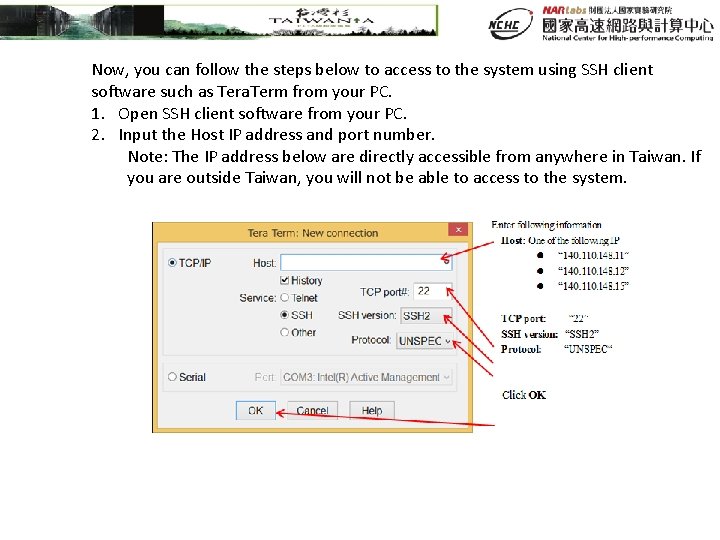
Now, you can follow the steps below to access to the system using SSH client software such as Tera. Term from your PC. 1. Open SSH client software from your PC. 2. Input the Host IP address and port number. Note: The IP address below are directly accessible from anywhere in Taiwan. If you are outside Taiwan, you will not be able to access to the system.
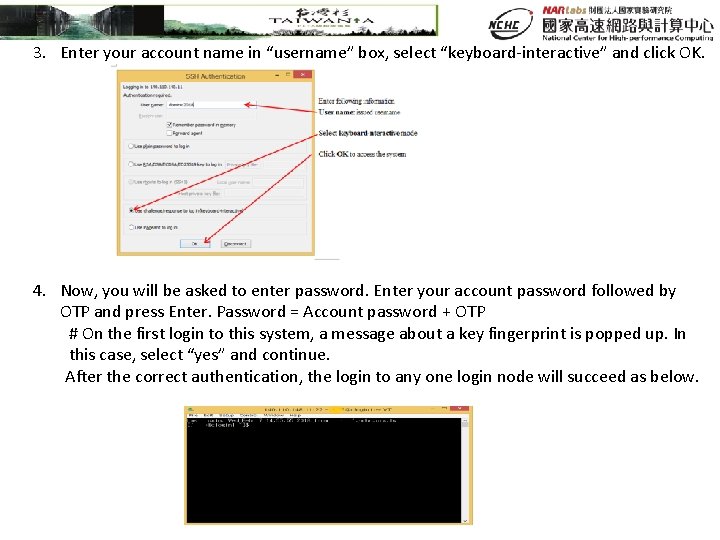
3. Enter your account name in “username” box, select “keyboard-interactive” and click OK. 4. Now, you will be asked to enter password. Enter your account password followed by OTP and press Enter. Password = Account password + OTP # On the first login to this system, a message about a key fingerprint is popped up. In this case, select “yes” and continue. After the correct authentication, the login to any one login node will succeed as below.
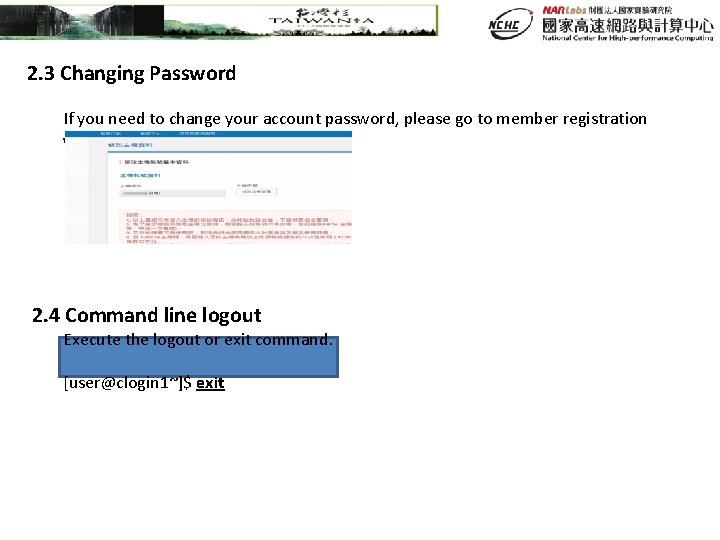
2. 3 Changing Password If you need to change your account password, please go to member registration website. 2. 4 Command line logout Execute the logout or exit command. [user@clogin 1~]$ exit
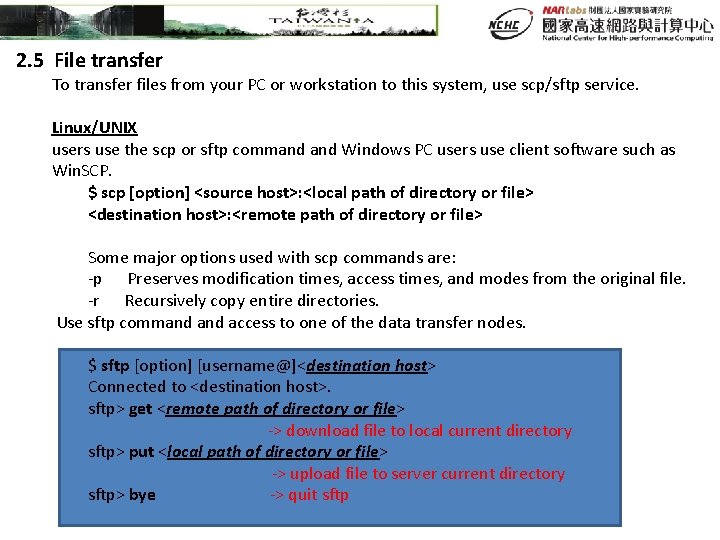
2. 5 File transfer To transfer files from your PC or workstation to this system, use scp/sftp service. Linux/UNIX users use the scp or sftp command Windows PC users use client software such as Win. SCP. $ scp [option] <source host>: <local path of directory or file> <destination host>: <remote path of directory or file> Some major options used with scp commands are: -p Preserves modification times, access times, and modes from the original file. -r Recursively copy entire directories. Use sftp command access to one of the data transfer nodes. $ sftp [option] [username@]<destination host> Connected to <destination host>. sftp> get <remote path of directory or file> -> download file to local current directory sftp> put <local path of directory or file> -> upload file to server current directory sftp> bye -> quit sftp
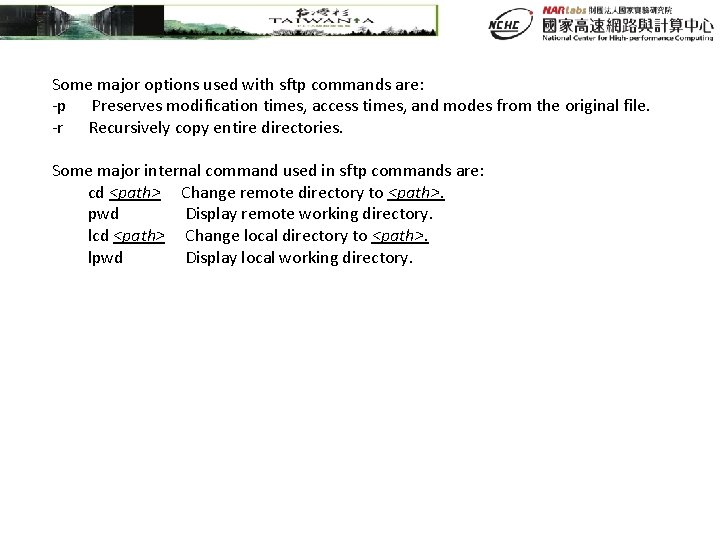
Some major options used with sftp commands are: -p Preserves modification times, access times, and modes from the original file. -r Recursively copy entire directories. Some major internal command used in sftp commands are: cd <path> Change remote directory to <path>. pwd Display remote working directory. lcd <path> Change local directory to <path>. lpwd Display local working directory.
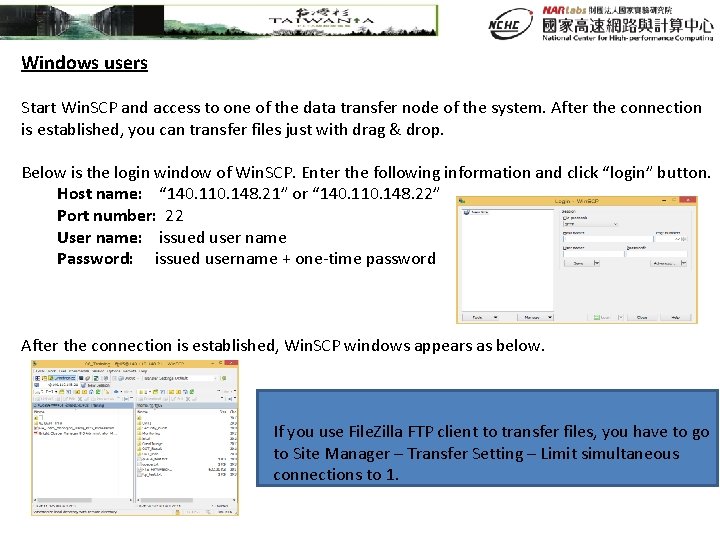
Windows users Start Win. SCP and access to one of the data transfer node of the system. After the connection is established, you can transfer files just with drag & drop. Below is the login window of Win. SCP. Enter the following information and click “login” button. Host name: “ 140. 110. 148. 21” or “ 140. 110. 148. 22” Port number: 22 User name: issued user name Password: issued username + one-time password After the connection is established, Win. SCP windows appears as below. If you use File. Zilla FTP client to transfer files, you have to go to Site Manager – Transfer Setting – Limit simultaneous connections to 1.
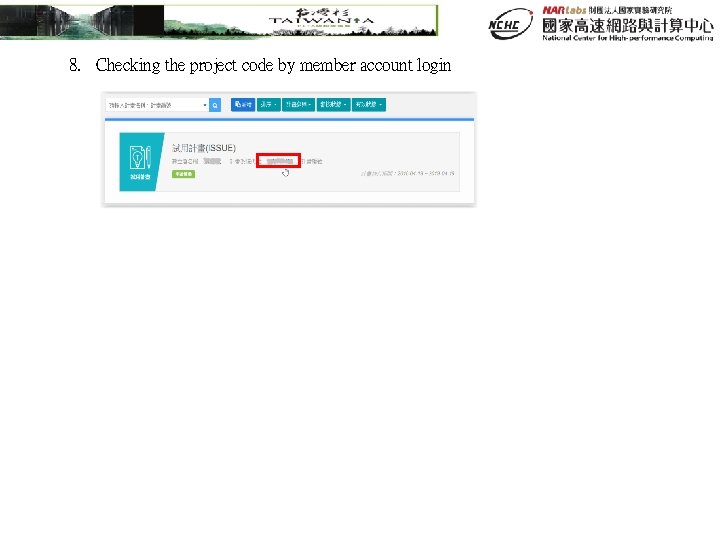
8. Checking the project code by member account login
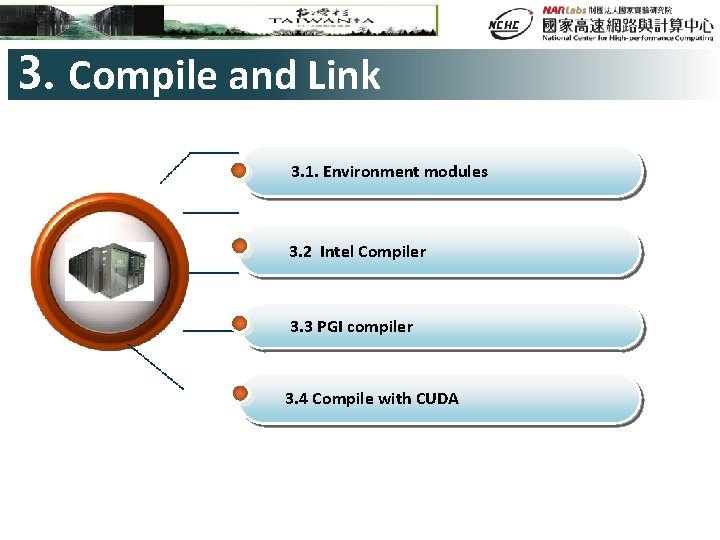
3. Compile and Link 3. 1. Environment modules 3. 2 Intel Compiler 3. 3 PGI compiler 3. 4 Compile with CUDA
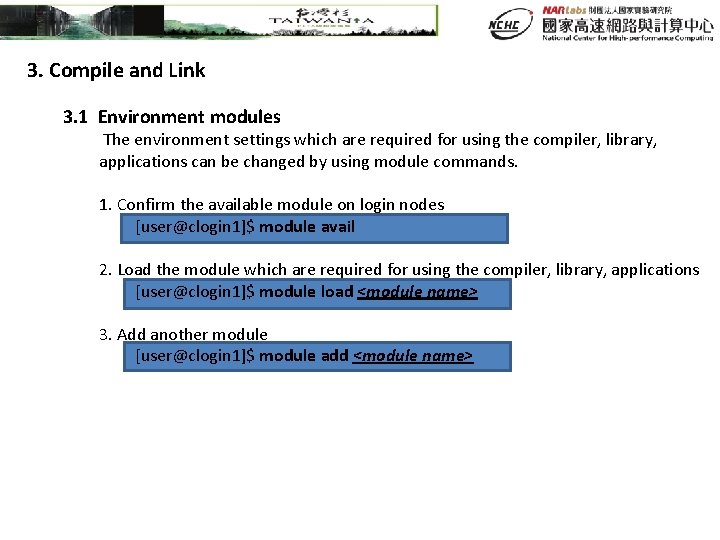
3. Compile and Link 3. 1 Environment modules The environment settings which are required for using the compiler, library, applications can be changed by using module commands. 1. Confirm the available module on login nodes [user@clogin 1]$ module avail 2. Load the module which are required for using the compiler, library, applications [user@clogin 1]$ module load <module name> 3. Add another module [user@clogin 1]$ module add <module name>
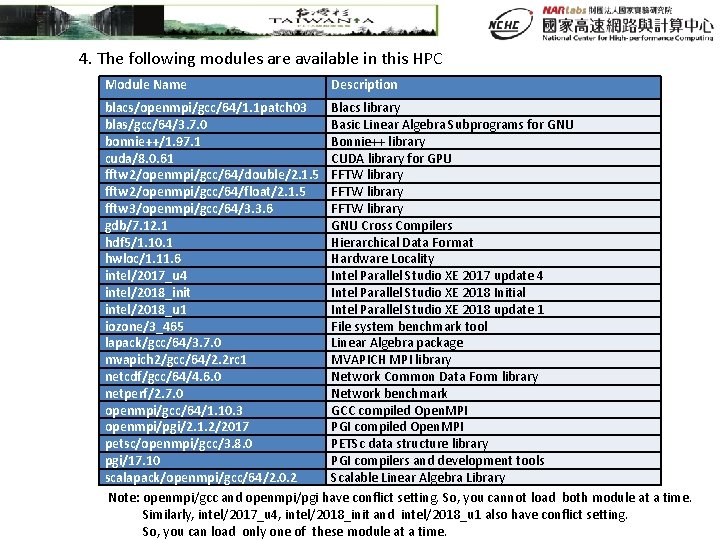
4. The following modules are available in this HPC Module Name Description blacs/openmpi/gcc/64/1. 1 patch 03 Blacs library blas/gcc/64/3. 7. 0 Basic Linear Algebra Subprograms for GNU bonnie++/1. 97. 1 Bonnie++ library cuda/8. 0. 61 CUDA library for GPU fftw 2/openmpi/gcc/64/double/2. 1. 5 FFTW library fftw 2/openmpi/gcc/64/float/2. 1. 5 FFTW library fftw 3/openmpi/gcc/64/3. 3. 6 FFTW library gdb/7. 12. 1 GNU Cross Compilers hdf 5/1. 10. 1 Hierarchical Data Format hwloc/1. 11. 6 Hardware Locality intel/2017_u 4 Intel Parallel Studio XE 2017 update 4 intel/2018_init Intel Parallel Studio XE 2018 Initial intel/2018_u 1 Intel Parallel Studio XE 2018 update 1 iozone/3_465 File system benchmark tool lapack/gcc/64/3. 7. 0 Linear Algebra package mvapich 2/gcc/64/2. 2 rc 1 MVAPICH MPI library netcdf/gcc/64/4. 6. 0 Network Common Data Form library netperf/2. 7. 0 Network benchmark openmpi/gcc/64/1. 10. 3 GCC compiled Open. MPI openmpi/pgi/2. 1. 2/2017 PGI compiled Open. MPI petsc/openmpi/gcc/3. 8. 0 PETSc data structure library pgi/17. 10 PGI compilers and development tools scalapack/openmpi/gcc/64/2. 0. 2 Scalable Linear Algebra Library Note: openmpi/gcc and openmpi/pgi have conflict setting. So, you cannot load both module at a time. Similarly, intel/2017_u 4, intel/2018_init and intel/2018_u 1 also have conflict setting. So, you can load only one of these module at a time.
5. List all the modules currently loaded [user@clogin 1]$ module list 6. Unload the module [user@clogin 1]$ module unload <module name> 7. Unload all loaded modules [user@clogin 1]$ module purge
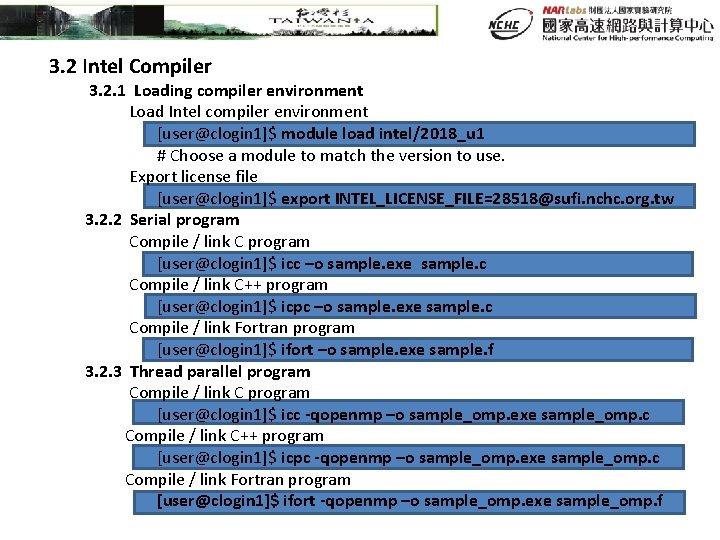
3. 2 Intel Compiler 3. 2. 1 Loading compiler environment Load Intel compiler environment [user@clogin 1]$ module load intel/2018_u 1 # Choose a module to match the version to use. Export license file [user@clogin 1]$ export INTEL_LICENSE_FILE=28518@sufi. nchc. org. tw 3. 2. 2 Serial program Compile / link C program [user@clogin 1]$ icc –o sample. exe sample. c Compile / link C++ program [user@clogin 1]$ icpc –o sample. exe sample. c Compile / link Fortran program [user@clogin 1]$ ifort –o sample. exe sample. f 3. 2. 3 Thread parallel program Compile / link C program [user@clogin 1]$ icc -qopenmp –o sample_omp. exe sample_omp. c Compile / link C++ program [user@clogin 1]$ icpc -qopenmp –o sample_omp. exe sample_omp. c Compile / link Fortran program [user@clogin 1]$ ifort -qopenmp –o sample_omp. exe sample_omp. f
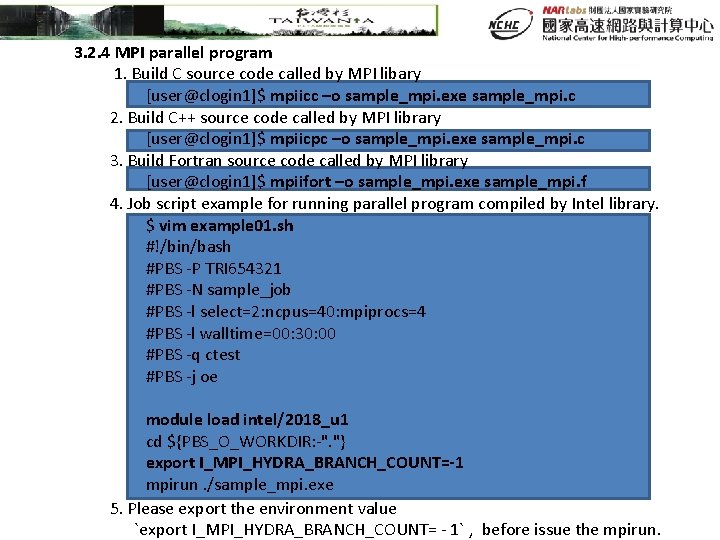
3. 2. 4 MPI parallel program 1. Build C source code called by MPI libary [user@clogin 1]$ mpiicc –o sample_mpi. exe sample_mpi. c 2. Build C++ source code called by MPI library [user@clogin 1]$ mpiicpc –o sample_mpi. exe sample_mpi. c 3. Build Fortran source code called by MPI library [user@clogin 1]$ mpiifort –o sample_mpi. exe sample_mpi. f 4. Job script example for running parallel program compiled by Intel library. $ vim example 01. sh #!/bin/bash #PBS -P TRI 654321 #PBS -N sample_job #PBS -l select=2: ncpus=40: mpiprocs=4 #PBS -l walltime=00: 30: 00 #PBS -q ctest #PBS -j oe module load intel/2018_u 1 cd ${PBS_O_WORKDIR: -". "} export I_MPI_HYDRA_BRANCH_COUNT=-1 mpirun. /sample_mpi. exe 5. Please export the environment value `export I_MPI_HYDRA_BRANCH_COUNT= - 1` , before issue the mpirun.
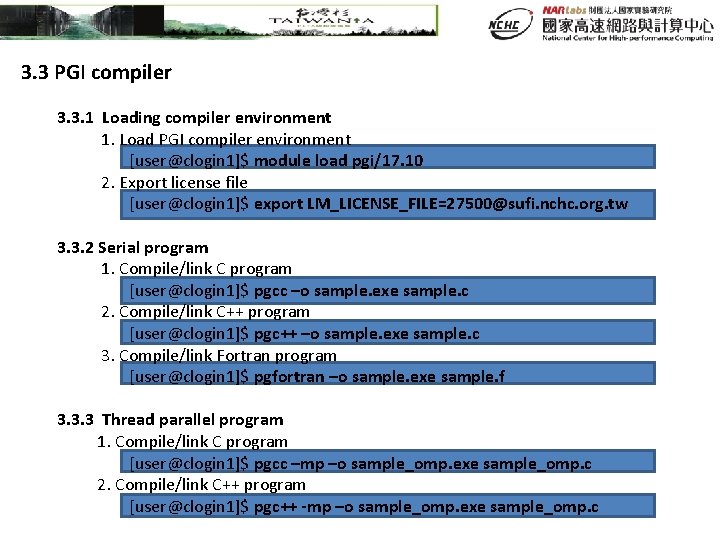
3. 3 PGI compiler 3. 3. 1 Loading compiler environment 1. Load PGI compiler environment [user@clogin 1]$ module load pgi/17. 10 2. Export license file [user@clogin 1]$ export LM_LICENSE_FILE=27500@sufi. nchc. org. tw 3. 3. 2 Serial program 1. Compile/link C program [user@clogin 1]$ pgcc –o sample. exe sample. c 2. Compile/link C++ program [user@clogin 1]$ pgc++ –o sample. exe sample. c 3. Compile/link Fortran program [user@clogin 1]$ pgfortran –o sample. exe sample. f 3. 3. 3 Thread parallel program 1. Compile/link C program [user@clogin 1]$ pgcc –mp –o sample_omp. exe sample_omp. c 2. Compile/link C++ program [user@clogin 1]$ pgc++ -mp –o sample_omp. exe sample_omp. c
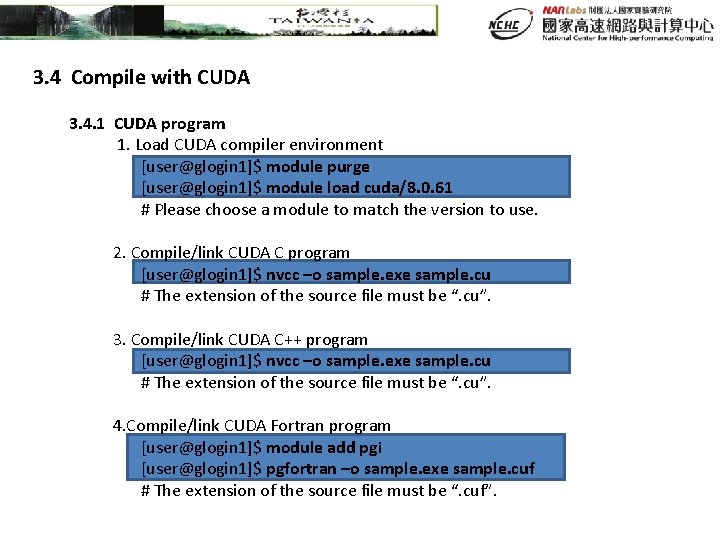
3. 4 Compile with CUDA 3. 4. 1 CUDA program 1. Load CUDA compiler environment [user@glogin 1]$ module purge [user@glogin 1]$ module load cuda/8. 0. 61 # Please choose a module to match the version to use. 2. Compile/link CUDA C program [user@glogin 1]$ nvcc –o sample. exe sample. cu # The extension of the source file must be “. cu”. 3. Compile/link CUDA C++ program [user@glogin 1]$ nvcc –o sample. exe sample. cu # The extension of the source file must be “. cu”. 4. Compile/link CUDA Fortran program [user@glogin 1]$ module add pgi [user@glogin 1]$ pgfortran –o sample. exe sample. cuf # The extension of the source file must be “. cuf”.
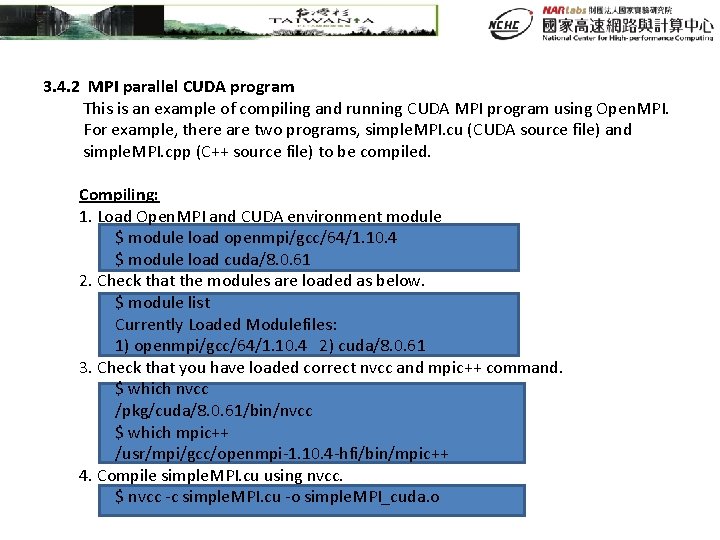
3. 4. 2 MPI parallel CUDA program This is an example of compiling and running CUDA MPI program using Open. MPI. For example, there are two programs, simple. MPI. cu (CUDA source file) and simple. MPI. cpp (C++ source file) to be compiled. Compiling: 1. Load Open. MPI and CUDA environment module $ module load openmpi/gcc/64/1. 10. 4 $ module load cuda/8. 0. 61 2. Check that the modules are loaded as below. $ module list Currently Loaded Modulefiles: 1) openmpi/gcc/64/1. 10. 4 2) cuda/8. 0. 61 3. Check that you have loaded correct nvcc and mpic++ command. $ which nvcc /pkg/cuda/8. 0. 61/bin/nvcc $ which mpic++ /usr/mpi/gcc/openmpi-1. 10. 4 -hfi/bin/mpic++ 4. Compile simple. MPI. cu using nvcc. $ nvcc -c simple. MPI. cu -o simple. MPI_cuda. o
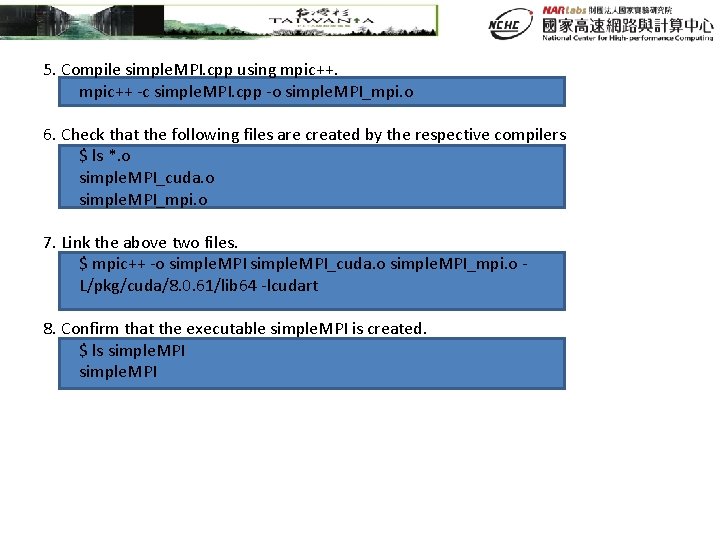
5. Compile simple. MPI. cpp using mpic++ -c simple. MPI. cpp -o simple. MPI_mpi. o 6. Check that the following files are created by the respective compilers $ ls *. o simple. MPI_cuda. o simple. MPI_mpi. o 7. Link the above two files. $ mpic++ -o simple. MPI_cuda. o simple. MPI_mpi. o L/pkg/cuda/8. 0. 61/lib 64 -lcudart 8. Confirm that the executable simple. MPI is created. $ ls simple. MPI
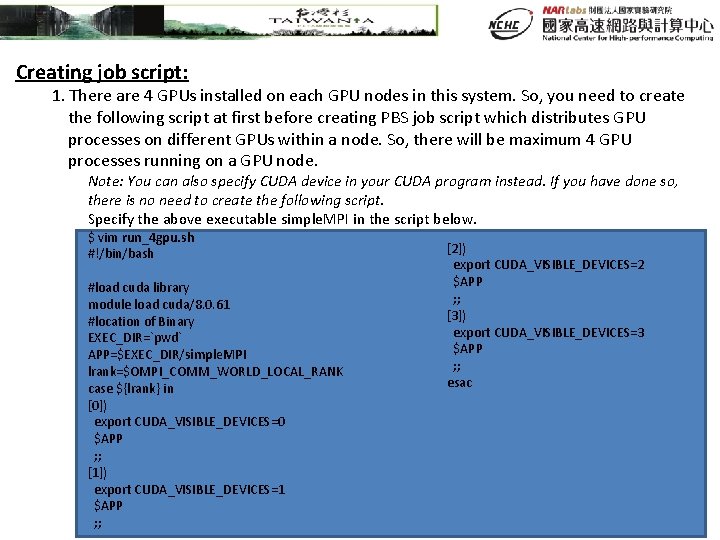
Creating job script: 1. There are 4 GPUs installed on each GPU nodes in this system. So, you need to create the following script at first before creating PBS job script which distributes GPU processes on different GPUs within a node. So, there will be maximum 4 GPU processes running on a GPU node. Note: You can also specify CUDA device in your CUDA program instead. If you have done so, there is no need to create the following script. Specify the above executable simple. MPI in the script below. $ vim run_4 gpu. sh #!/bin/bash #load cuda library module load cuda/8. 0. 61 #location of Binary EXEC_DIR=`pwd` APP=$EXEC_DIR/simple. MPI lrank=$OMPI_COMM_WORLD_LOCAL_RANK case ${lrank} in [0]) export CUDA_VISIBLE_DEVICES=0 $APP ; ; [1]) export CUDA_VISIBLE_DEVICES=1 $APP ; ; [2]) export CUDA_VISIBLE_DEVICES=2 $APP ; ; [3]) export CUDA_VISIBLE_DEVICES=3 $APP ; ; esac
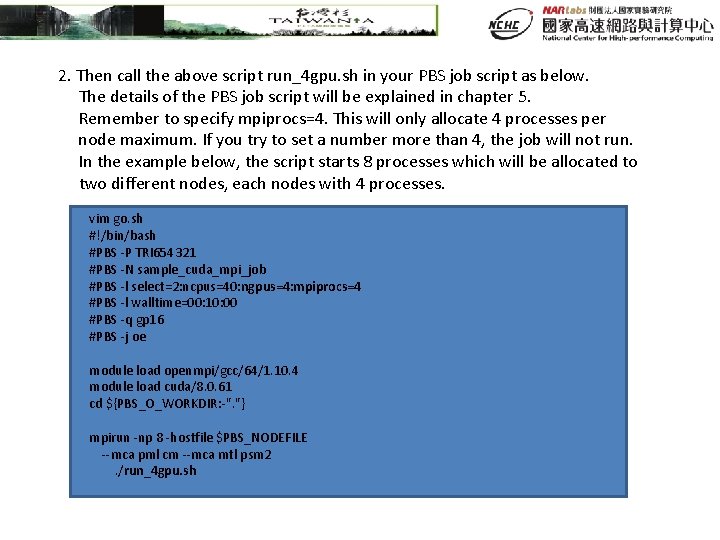
2. Then call the above script run_4 gpu. sh in your PBS job script as below. The details of the PBS job script will be explained in chapter 5. Remember to specify mpiprocs=4. This will only allocate 4 processes per node maximum. If you try to set a number more than 4, the job will not run. In the example below, the script starts 8 processes which will be allocated to two different nodes, each nodes with 4 processes. vim go. sh #!/bin/bash #PBS -P TRI 654321 #PBS -N sample_cuda_mpi_job #PBS -l select=2: ncpus=40: ngpus=4: mpiprocs=4 #PBS -l walltime=00: 10: 00 #PBS -q gp 16 #PBS -j oe module load openmpi/gcc/64/1. 10. 4 module load cuda/8. 0. 61 cd ${PBS_O_WORKDIR: -". "} mpirun -np 8 -hostfile $PBS_NODEFILE --mca pml cm --mca mtl psm 2 . /run_4 gpu. sh
Click to edit title style Thanks!