1 File sharing solutions Introducing to Thunder ftp
![1 File sharing solutions - Introducing to Thunder ftp service [web] [email] portal. biohpc.](https://slidetodoc.com/presentation_image/1c8f17136a693b2455d92d96a63bf0f0/image-1.jpg "1 File sharing solutions - Introducing to Thunder ftp service [web] [email] portal. biohpc.")

- Slides: 25
1 File sharing solutions - Introducing to Thunder ftp service [web] [email] portal. biohpc. swmed. edu biohpc-help@utsouthwestern. edu Updated for 2017 -04 -10
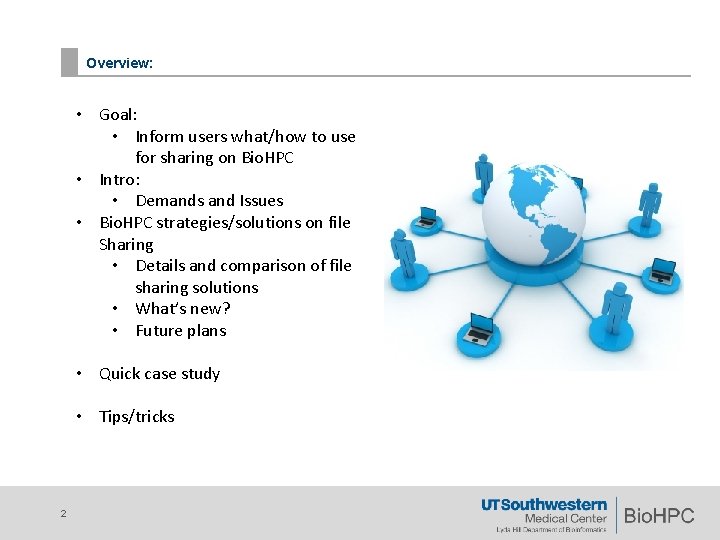
Overview: • Goal: • Inform users what/how to use for sharing on Bio. HPC • Intro: • Demands and Issues • Bio. HPC strategies/solutions on file Sharing • Details and comparison of file sharing solutions • What’s new? • Future plans • Quick case study • Tips/tricks 2
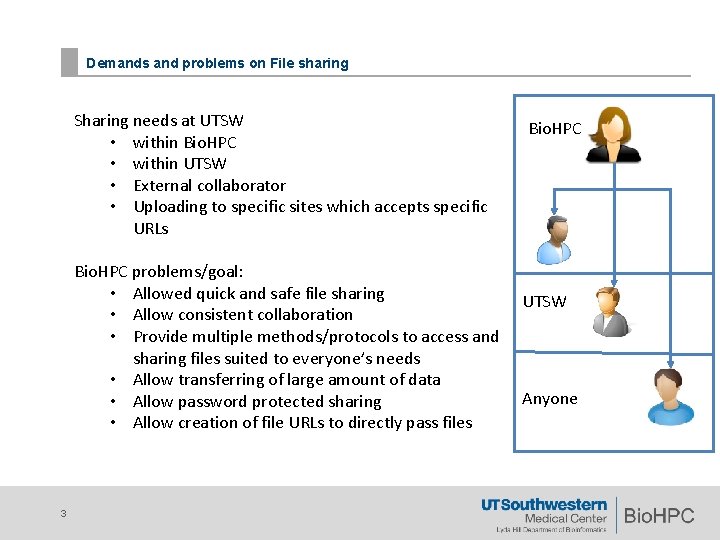
Demands and problems on File sharing Sharing needs at UTSW • within Bio. HPC • within UTSW • External collaborator • Uploading to specific sites which accepts specific URLs Bio. HPC problems/goal: • Allowed quick and safe file sharing • Allow consistent collaboration • Provide multiple methods/protocols to access and sharing files suited to everyone’s needs • Allow transferring of large amount of data • Allow password protected sharing • Allow creation of file URLs to directly pass files 3 Bio. HPC UTSW Anyone
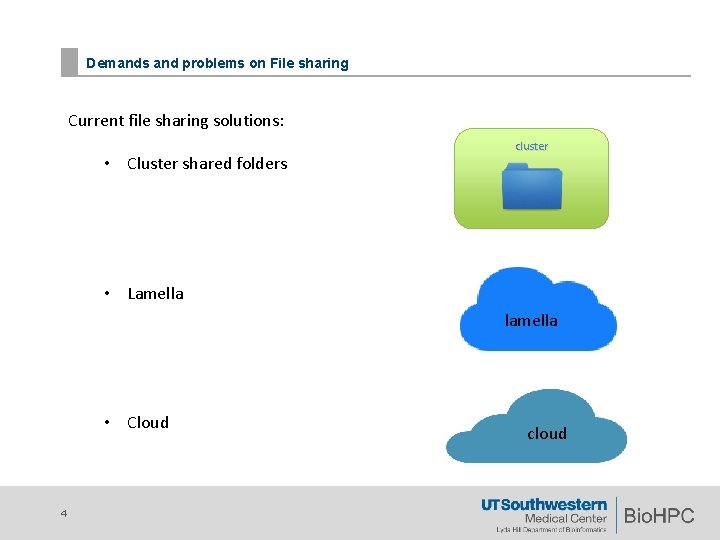
Demands and problems on File sharing Current file sharing solutions: • Cluster shared folders cluster • Lamella lamella • Cloud 4 cloud
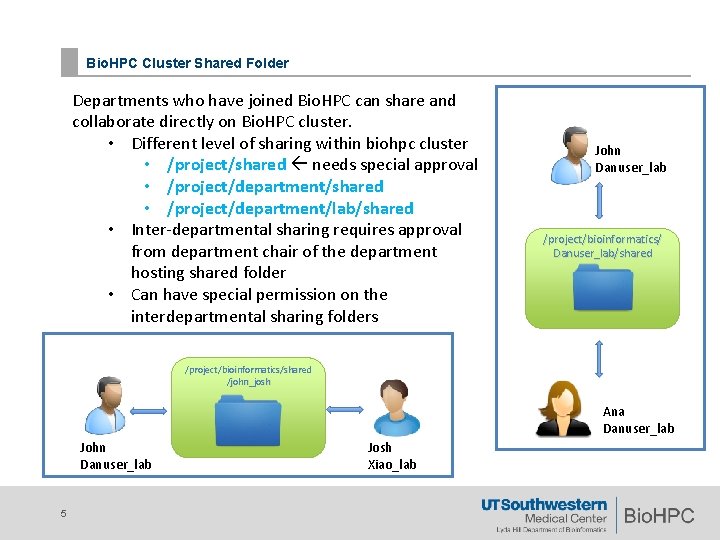
Bio. HPC Cluster Shared Folder Departments who have joined Bio. HPC can share and collaborate directly on Bio. HPC cluster. • Different level of sharing within biohpc cluster • /project/shared needs special approval • /project/department/shared • /project/department/lab/shared • Inter-departmental sharing requires approval from department chair of the department hosting shared folder • Can have special permission on the interdepartmental sharing folders John Danuser_lab /project/bioinformatics/ Danuser_lab/shared /project/bioinformatics/shared /john_josh Ana Danuser_lab John Danuser_lab 5 Josh Xiao_lab
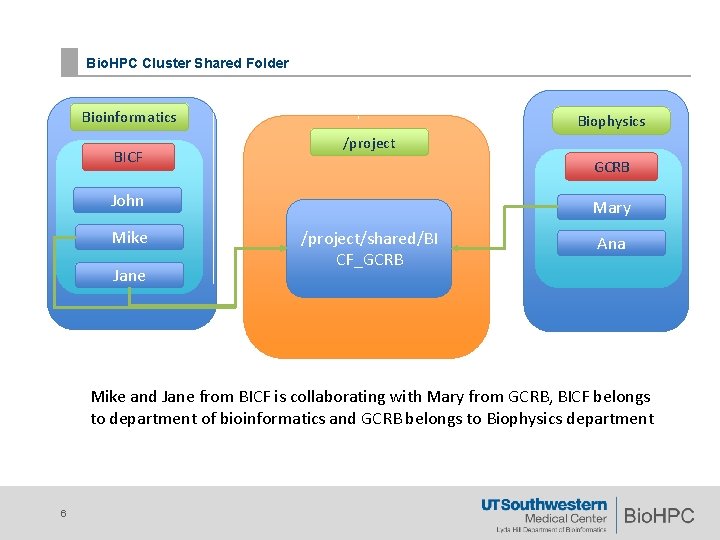
Bio. HPC Cluster Shared Folder Bioinformatics BICF Biophysics /project GCRB John Mike Jane Mary /project/shared/BI CF_GCRB Ana Mike and Jane from BICF is collaborating with Mary from GCRB, BICF belongs to department of bioinformatics and GCRB belongs to Biophysics department 6
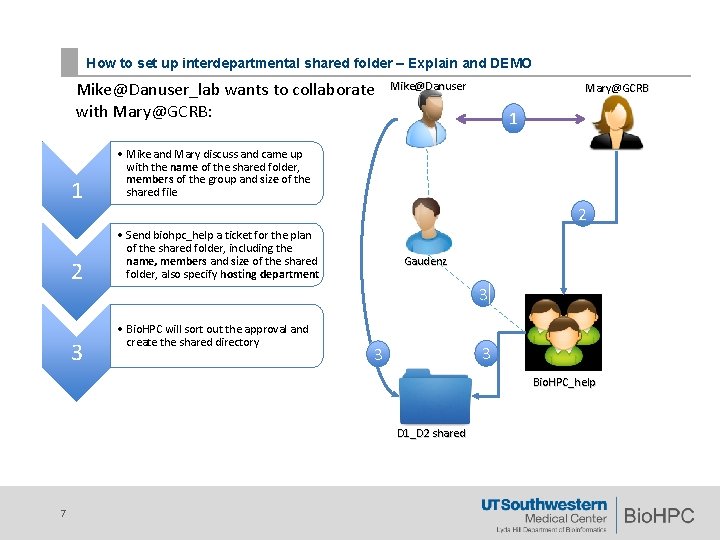
How to set up interdepartmental shared folder – Explain and DEMO Mike@Danuser_lab wants to collaborate with Mary@GCRB: 1 • Mike and Mary discuss and came up with the name of the shared folder, members of the group and size of the shared file 2 • Send biohpc_help a ticket for the plan of the shared folder, including the name, members and size of the shared folder, also specify hosting department 3 Mike@Danuser Mary@GCRB 1 2 Gaudenz 3 • Bio. HPC will sort out the approval and create the shared directory 3 3 Bio. HPC_help D 1_D 2 shared 7
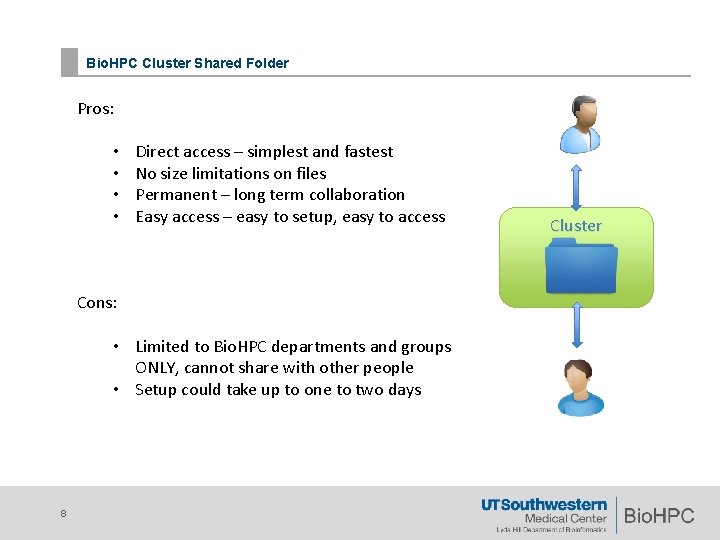
Bio. HPC Cluster Shared Folder Pros: • • Direct access – simplest and fastest No size limitations on files Permanent – long term collaboration Easy access – easy to setup, easy to access Cons: • Limited to Bio. HPC departments and groups ONLY, cannot share with other people • Setup could take up to one to two days 8 Cluster
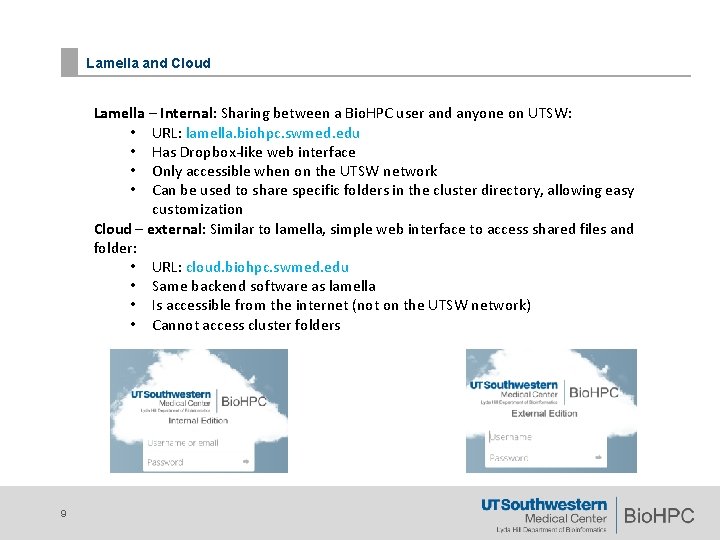
Lamella and Cloud Lamella – Internal: Sharing between a Bio. HPC user and anyone on UTSW: • URL: lamella. biohpc. swmed. edu • Has Dropbox-like web interface • Only accessible when on the UTSW network • Can be used to share specific folders in the cluster directory, allowing easy customization Cloud – external: Similar to lamella, simple web interface to access shared files and folder: • URL: cloud. biohpc. swmed. edu • Same backend software as lamella • Is accessible from the internet (not on the UTSW network) • Cannot access cluster folders 9
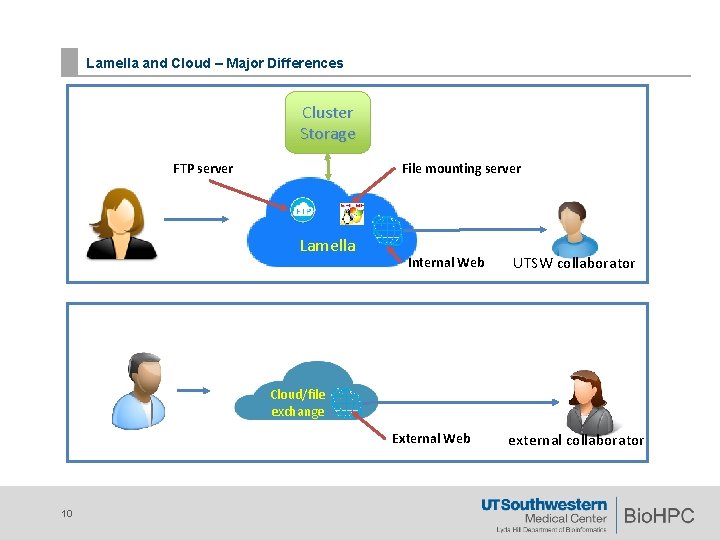
Lamella and Cloud – Major Differences Cluster Storage File mounting server FTP server Lamella Internal Web UTSW collaborator Cloud/file exchange External Web 10 external collaborator
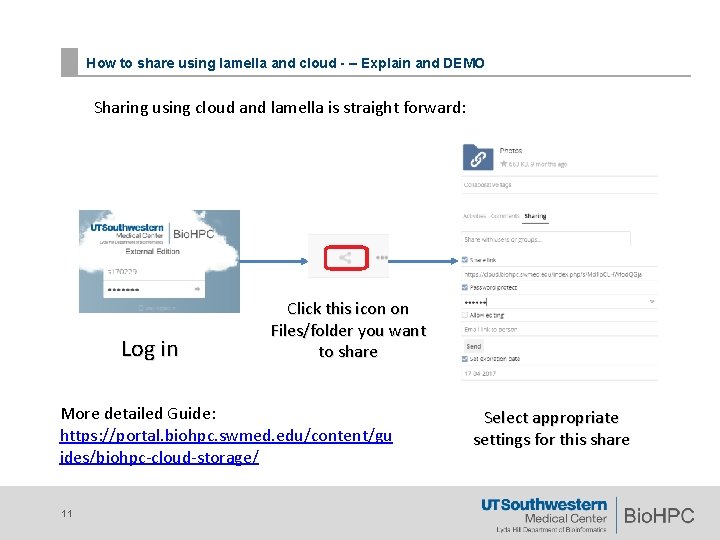
How to share using lamella and cloud - – Explain and DEMO Sharing using cloud and lamella is straight forward: Log in Click this icon on Files/folder you want to share More detailed Guide: https: //portal. biohpc. swmed. edu/content/gu ides/biohpc-cloud-storage/ 11 Select appropriate settings for this share
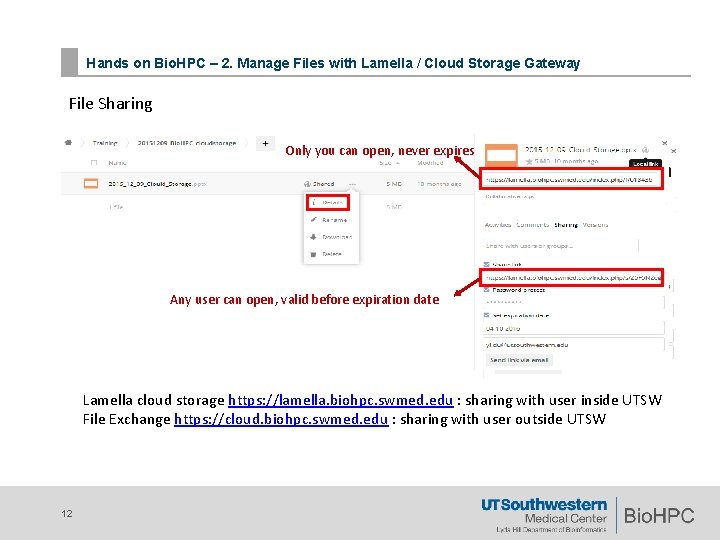
Hands on Bio. HPC – 2. Manage Files with Lamella / Cloud Storage Gateway File Sharing Only you can open, never expires Any user can open, valid before expiration date Lamella cloud storage https: //lamella. biohpc. swmed. edu : sharing with user inside UTSW File Exchange https: //cloud. biohpc. swmed. edu : sharing with user outside UTSW 12
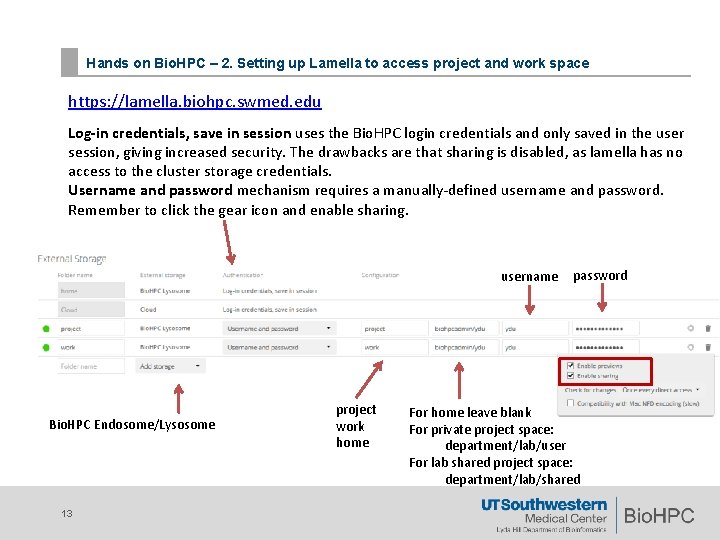
Hands on Bio. HPC – 2. Setting up Lamella to access project and work space https: //lamella. biohpc. swmed. edu Log-in credentials, save in session uses the Bio. HPC login credentials and only saved in the user session, giving increased security. The drawbacks are that sharing is disabled, as lamella has no access to the cluster storage credentials. Username and password mechanism requires a manually-defined username and password. Remember to click the gear icon and enable sharing. username Bio. HPC Endosome/Lysosome 13 project work home password For home leave blank For private project space: department/lab/user For lab shared project space: department/lab/shared
Lamella and Cloud - Pros and Cons Pros: • • Quick to setup, easy to use Can set time limit and password to the shared link Can limit read/write access on the shared folder Generate secure hash links for folder sharing Customizable Lamella – can mount cluster directory Cloud – can be accessed by anyone Cons: • Lamella – Limited to UTSW network ONLY • Cloud – Cannot mount cluster directories • Must use the web interface for sharing, so data must go through the web server • Has Limited size on local storage, lamella : 100 G; cloud: 50 G 14
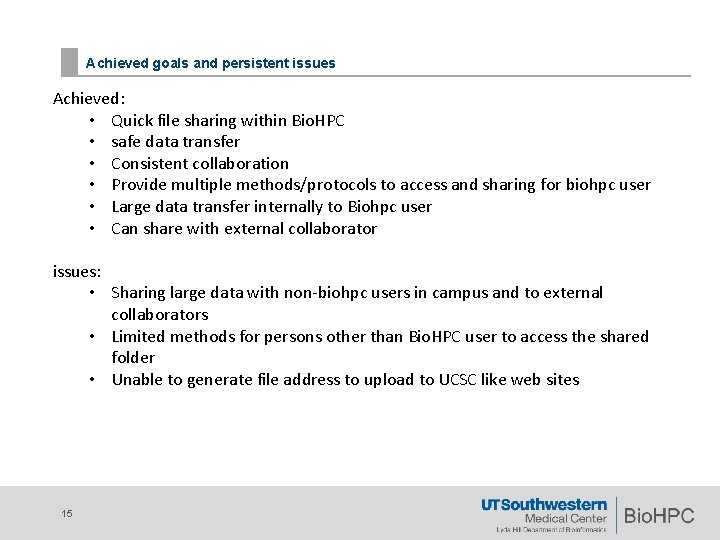
Achieved goals and persistent issues Achieved: • Quick file sharing within Bio. HPC • safe data transfer • Consistent collaboration • Provide multiple methods/protocols to access and sharing for biohpc user • Large data transfer internally to Biohpc user • Can share with external collaborator issues: • Sharing large data with non-biohpc users in campus and to external collaborators • Limited methods for persons other than Bio. HPC user to access the shared folder • Unable to generate file address to upload to UCSC like web sites 15
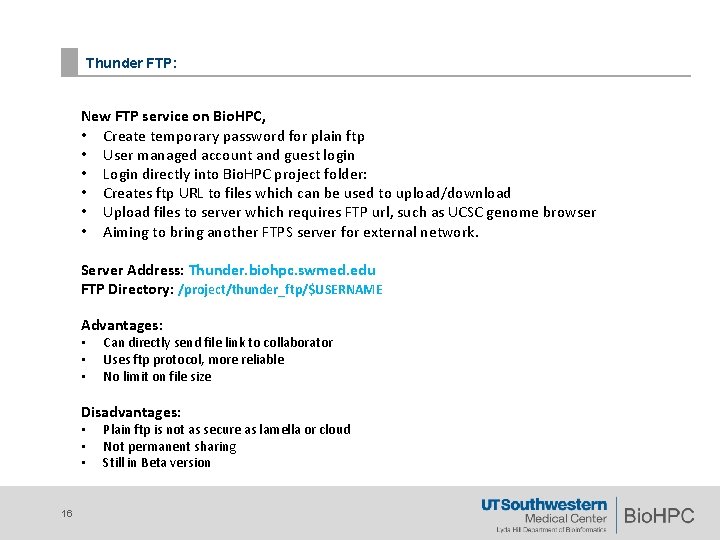
Thunder FTP: New FTP service on Bio. HPC, • Create temporary password for plain ftp • User managed account and guest login • Login directly into Bio. HPC project folder: • Creates ftp URL to files which can be used to upload/download • Upload files to server which requires FTP url, such as UCSC genome browser • Aiming to bring another FTPS server for external network. Server Address: Thunder. biohpc. swmed. edu FTP Directory: /project/thunder_ftp/$USERNAME Advantages: • • • Can directly send file link to collaborator Uses ftp protocol, more reliable No limit on file size Disadvantages: • • • 16 Plain ftp is not as secure as lamella or cloud Not permanent sharing Still in Beta version
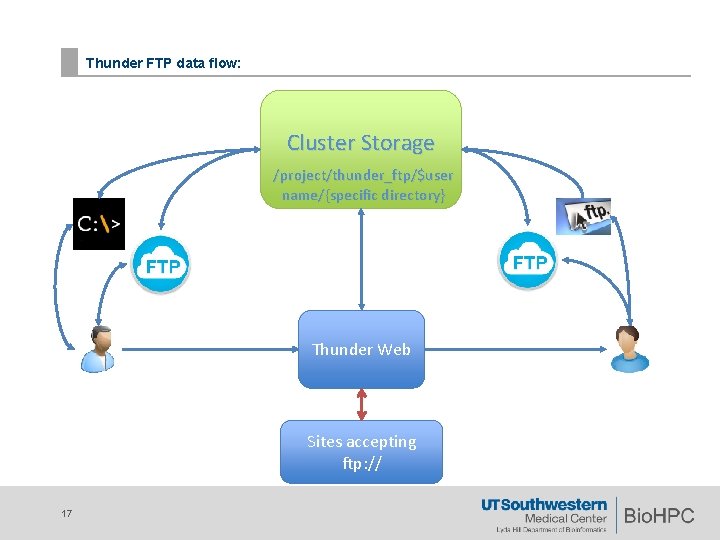
Thunder FTP data flow: Cluster Storage /project/thunder_ftp/$user name/{specific directory} Thunder Web Sites accepting ftp: // 17
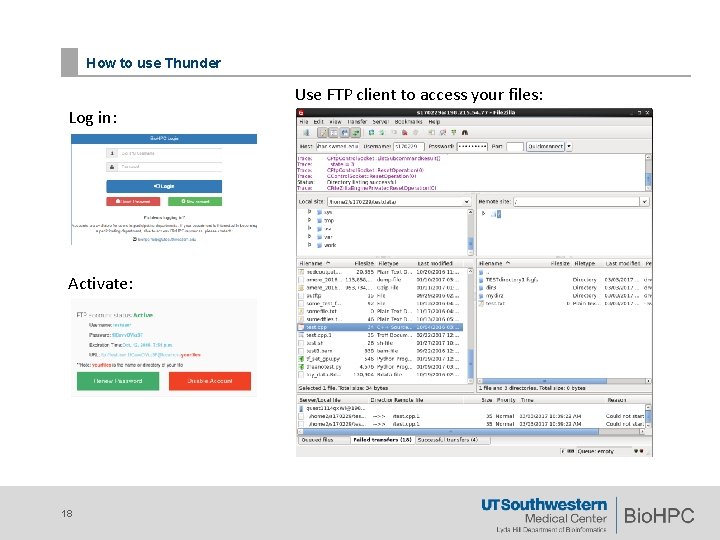
How to use Thunder Use FTP client to access your files: Log in: Activate: 18
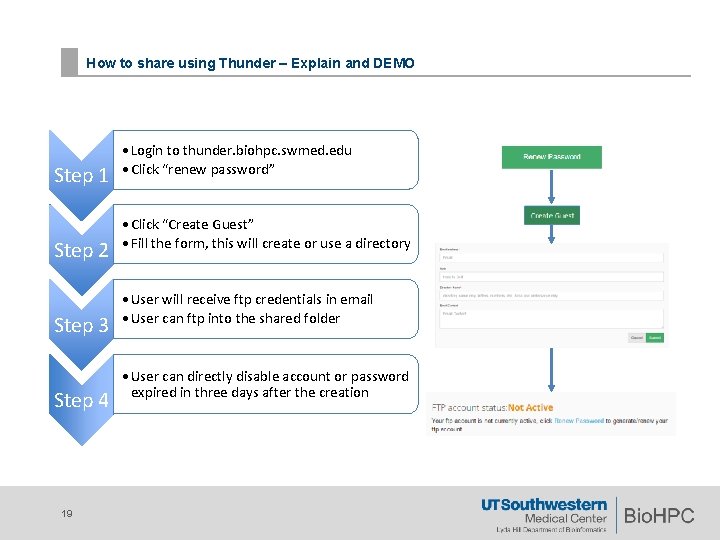
How to share using Thunder – Explain and DEMO Step 1 Step 2 Step 3 Step 4 19 • Login to thunder. biohpc. swmed. edu • Click “renew password” • Click “Create Guest” • Fill the form, this will create or use a directory • User will receive ftp credentials in email • User can ftp into the shared folder • User can directly disable account or password expired in three days after the creation
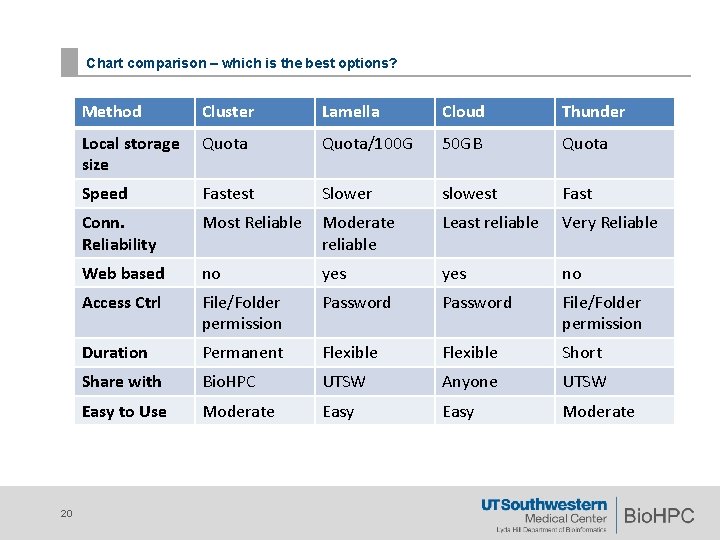
Chart comparison – which is the best options? 20 Method Cluster Lamella Cloud Thunder Local storage size Quota/100 G 50 GB Quota Speed Fastest Slower slowest Fast Conn. Reliability Most Reliable Moderate reliable Least reliable Very Reliable Web based no yes no Access Ctrl File/Folder permission Password File/Folder permission Duration Permanent Flexible Short Share with Bio. HPC UTSW Anyone UTSW Easy to Use Moderate Easy Moderate
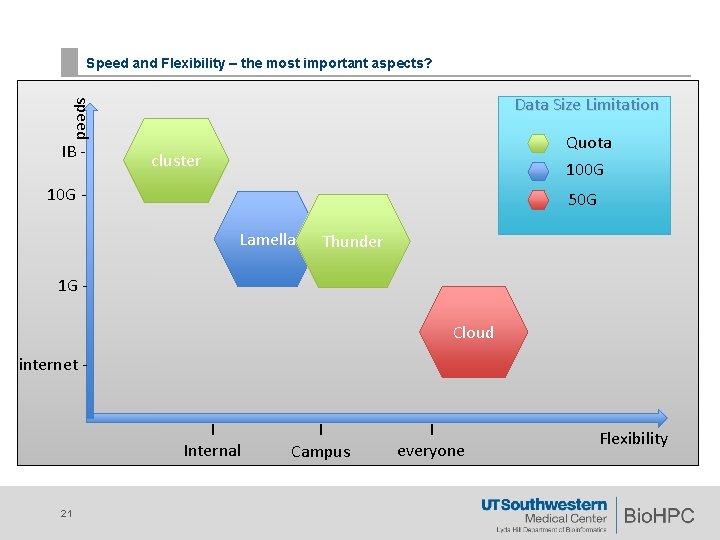
Speed and Flexibility – the most important aspects? speed Data Size Limitation IB - Quota 100 G cluster 10 G - 50 G Lamella Thunder 1 G Cloud internet I Internal 21 I Campus I everyone Flexibility
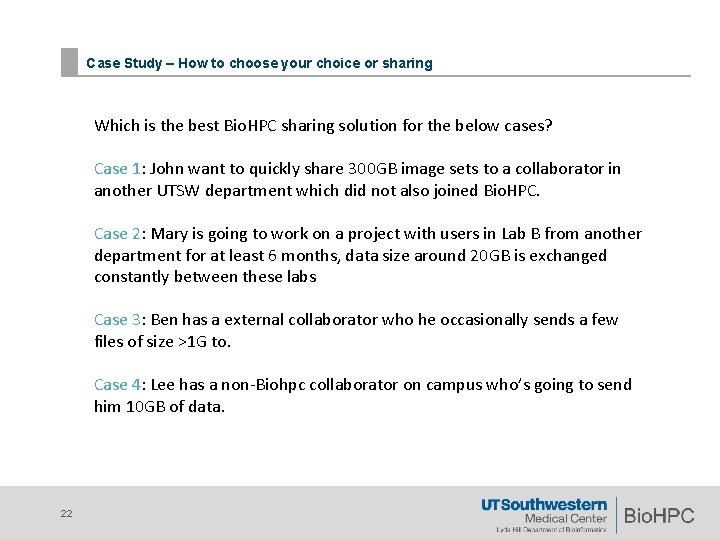
Case Study – How to choose your choice or sharing Which is the best Bio. HPC sharing solution for the below cases? Case 1: John want to quickly share 300 GB image sets to a collaborator in another UTSW department which did not also joined Bio. HPC. Case 2: Mary is going to work on a project with users in Lab B from another department for at least 6 months, data size around 20 GB is exchanged constantly between these labs Case 3: Ben has a external collaborator who he occasionally sends a few files of size >1 G to. Case 4: Lee has a non-Biohpc collaborator on campus who’s going to send him 10 GB of data. 22
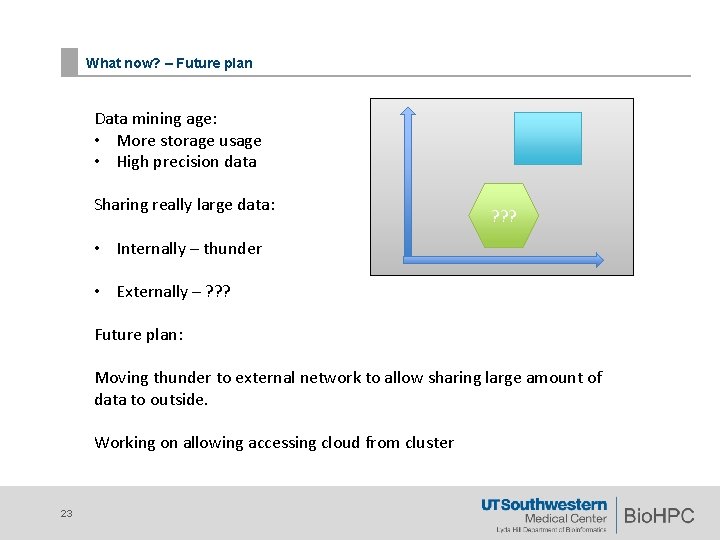
What now? – Future plan Data mining age: • More storage usage • High precision data Sharing really large data: ? ? ? • Internally – thunder • Externally – ? ? ? Future plan: Moving thunder to external network to allow sharing large amount of data to outside. Working on allowing accessing cloud from cluster 23
Sharing made simple – DEMO tricks Sharing via web is simple, but can it be even easier? • Make a link to the shared folders on your workstation desktop • ln -s /path/to/folder /path/to/link • Create a “persistent connection” between your local system and the shared directory, directly access your data from local • When using cluster sharing, If a large data set (50 G) in the project directory, using mv and chmod to share to file instead of cp, the data does not need to be replicated. 24
Questions? 25