
Peer to Peer File Sharing A guide to
- Slides: 11
Peer to Peer File Sharing A guide to file sharing on Windows XP
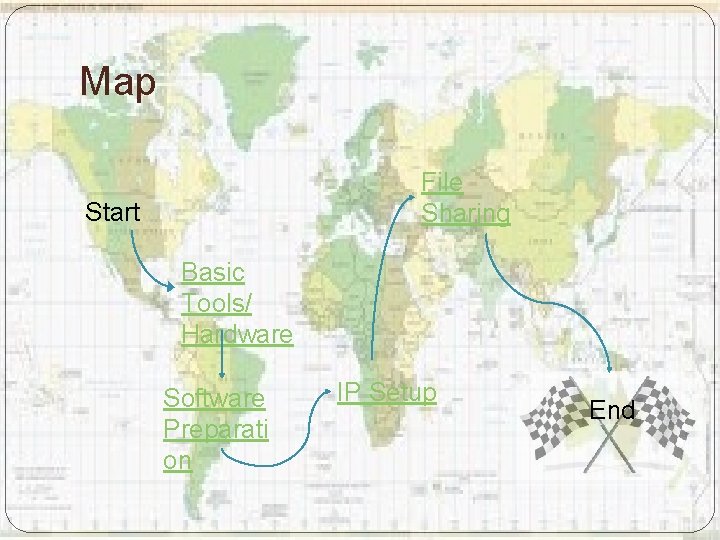
Map File Sharing Start Basic Tools/ Hardware Software Preparati on IP Setup End
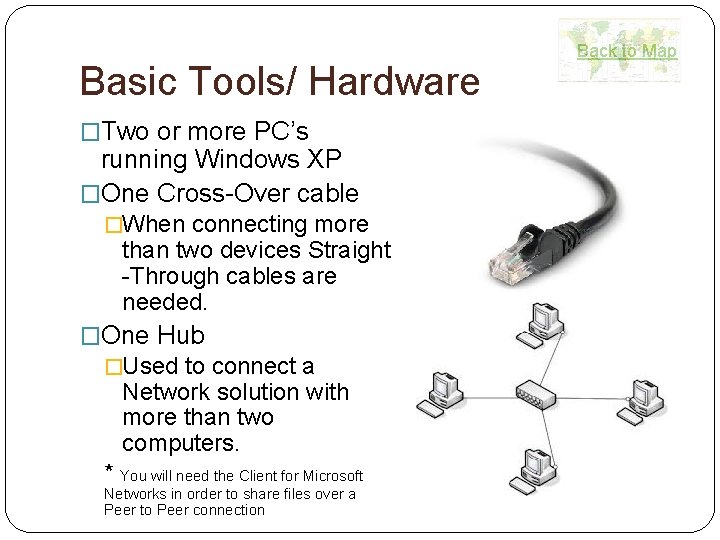
Basic Tools/ Hardware �Two or more PC’s running Windows XP �One Cross-Over cable �When connecting more than two devices Straight -Through cables are needed. �One Hub �Used to connect a Network solution with more than two computers. * You will need the Client for Microsoft Networks in order to share files over a Peer to Peer connection Back to Map
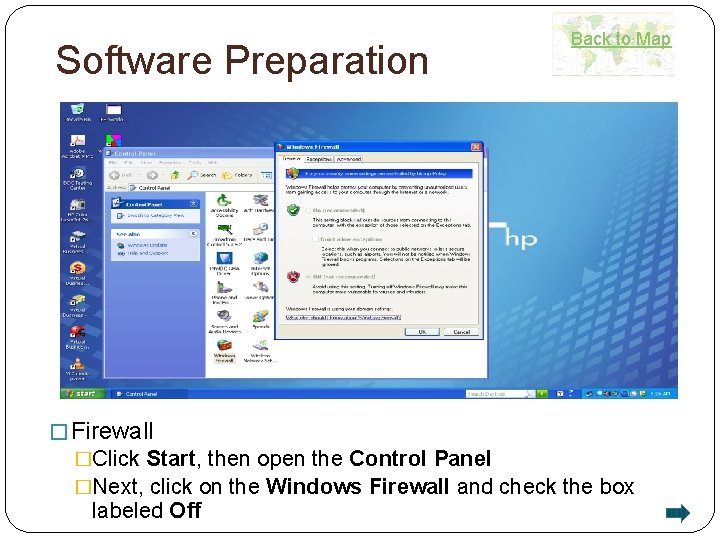
Software Preparation Back to Map � Firewall �Click Start, then open the Control Panel �Next, click on the Windows Firewall and check the box labeled Off
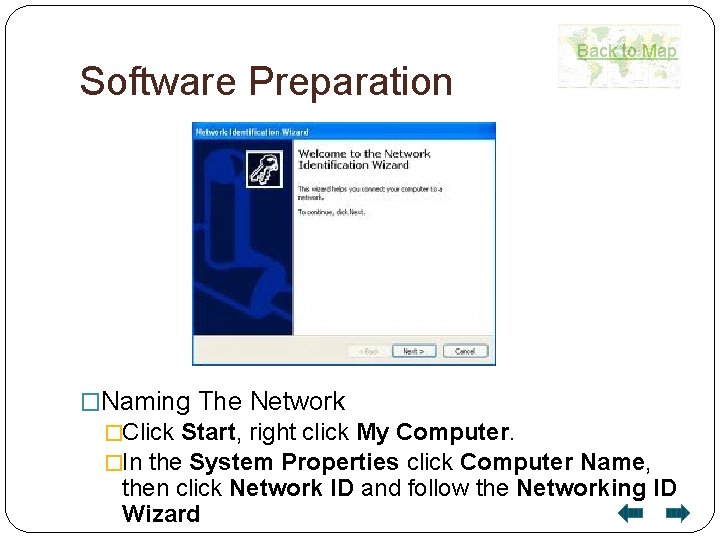
Software Preparation Back to Map �Naming The Network �Click Start, right click My Computer. �In the System Properties click Computer Name, then click Network ID and follow the Networking ID Wizard
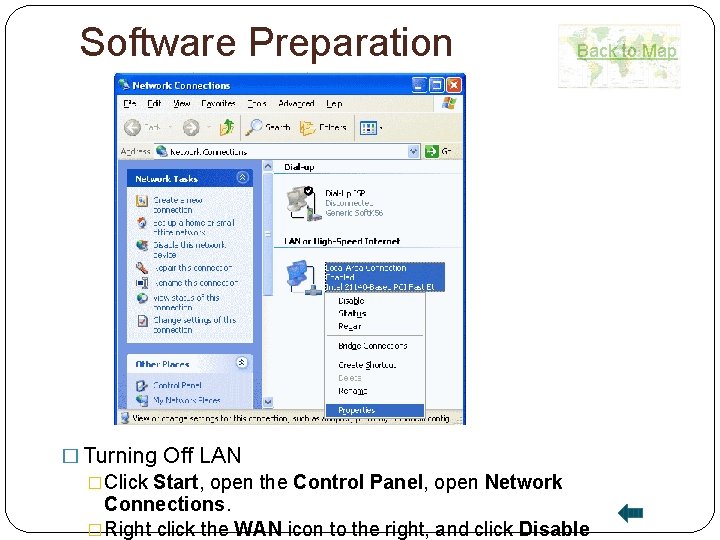
Software Preparation Back to Map � Turning Off LAN �Click Start, open the Control Panel, open Network Connections. �Right click the WAN icon to the right, and click Disable
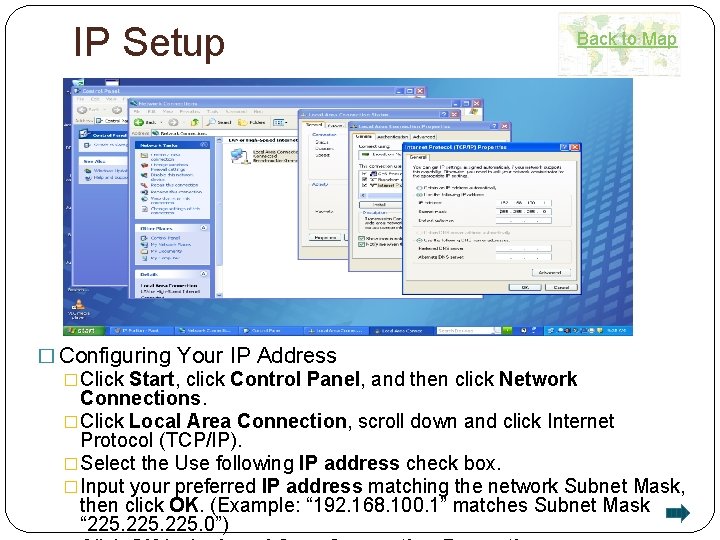
IP Setup Back to Map � Configuring Your IP Address �Click Start, click Control Panel, and then click Network Connections. �Click Local Area Connection, scroll down and click Internet Protocol (TCP/IP). �Select the Use following IP address check box. �Input your preferred IP address matching the network Subnet Mask, then click OK. (Example: “ 192. 168. 100. 1” matches Subnet Mask “ 225. 0”)
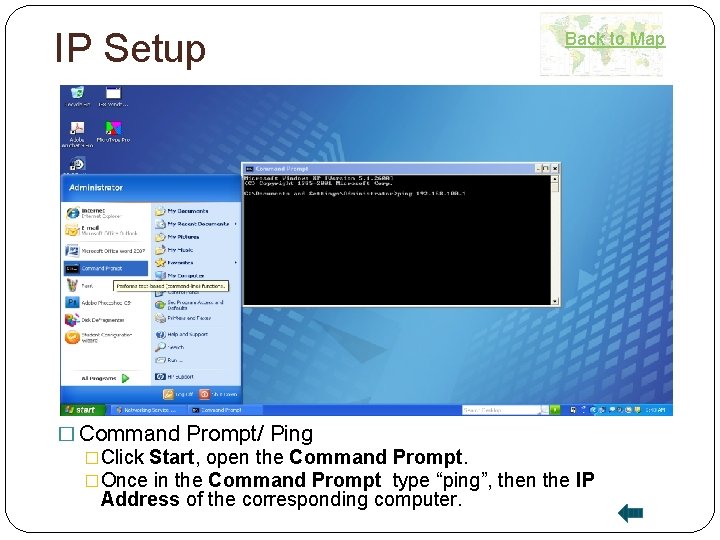
IP Setup Back to Map � Command Prompt/ Ping �Click Start, open the Command Prompt. �Once in the Command Prompt type “ping”, then the IP Address of the corresponding computer.
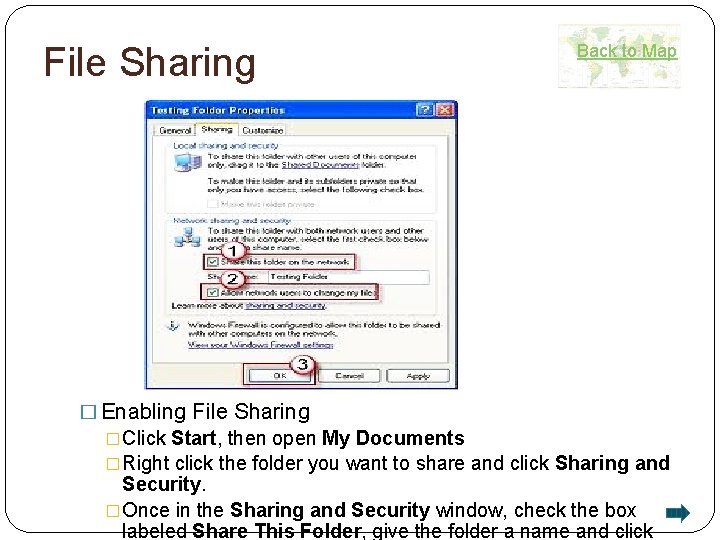
File Sharing Back to Map � Enabling File Sharing �Click Start, then open My Documents �Right click the folder you want to share and click Sharing and Security. �Once in the Sharing and Security window, check the box labeled Share This Folder, give the folder a name and click
Back to Map File Sharing �Moving folders to another computer �After sharing has been enabled on the folder, a small hand under said folder should appear. �To transfer this folder to another computer, click Move Folder under the File and Folder Tasks tab to the left of the window. �When in the Move Folder window, double click the desired network place, and your folder will be moved.
Back to Map Congratulations! You have successfully shared a file using a Peer to Peer Network on Windows XP! “The greatest accomplishment is not in never falling, but in rising again after you fall. ” ― Vince Lombardi Jr.