What is C L I C K Creating




- Slides: 41
• • • What is C. L. I. C. K. ? Creating Literacy In Computer Knowledge www. uh. edu/plantops/programs/click
• To see the dates and times for class sessions and information on how to sign up please visit the C. L. I. C. K. web page www. uh. edu/plantops/programs/click
Welcome to C. L. I. C. K Training 102 Power. Point By. Yvonne. Hernandez
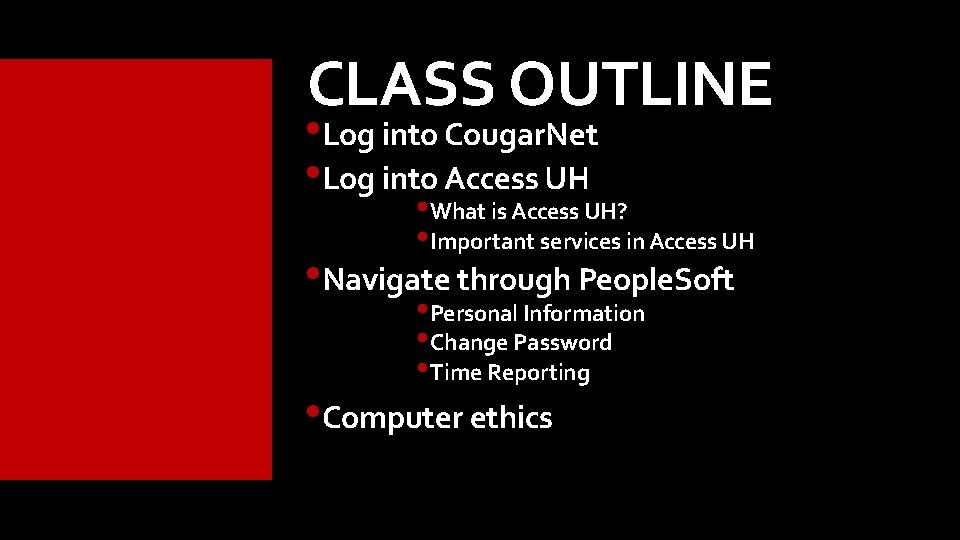
CLASS OUTLINE • Log into Cougar. Net • Log into Access UH • What is Access UH? • Important services in Access UH • Navigate through People. Soft • Personal Information • Change Password • Time Reporting • Computer ethics
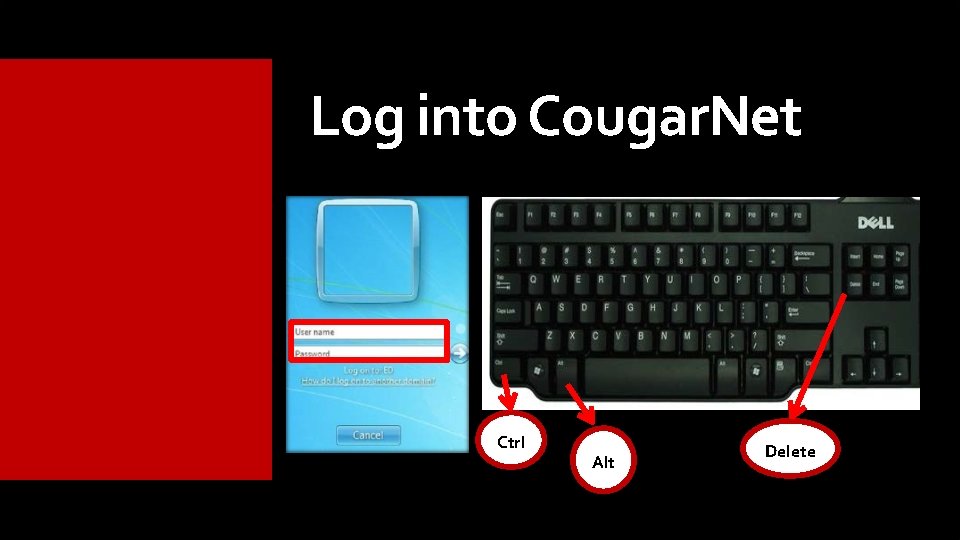
Log into Cougar. Net Ctrl Alt Delete
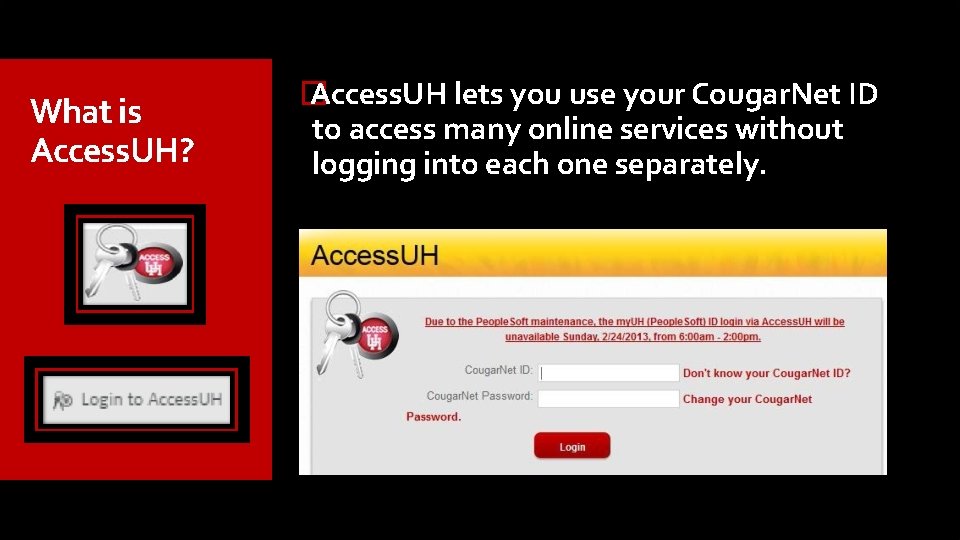
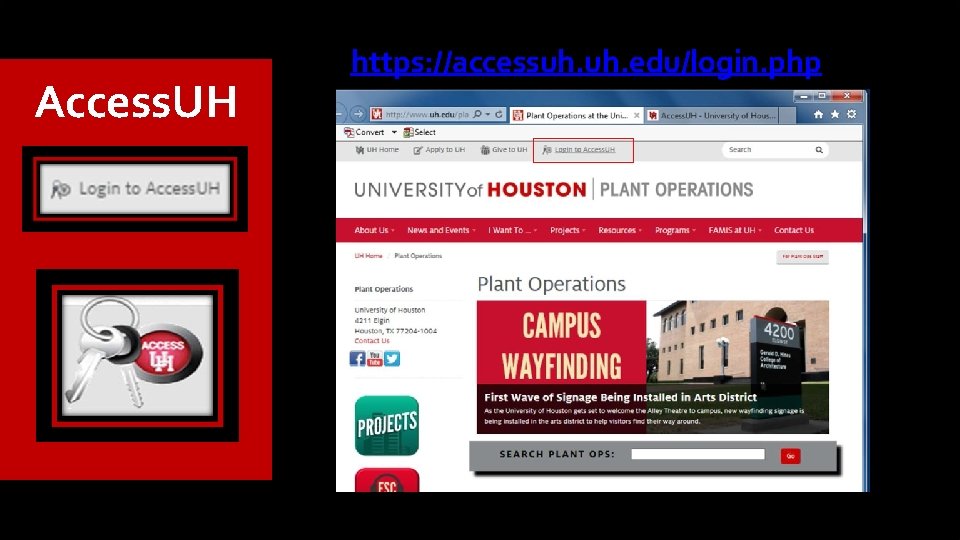
What is Access. UH? � Access. UH lets you use your Cougar. Net ID to access many online services without logging into each one separately.
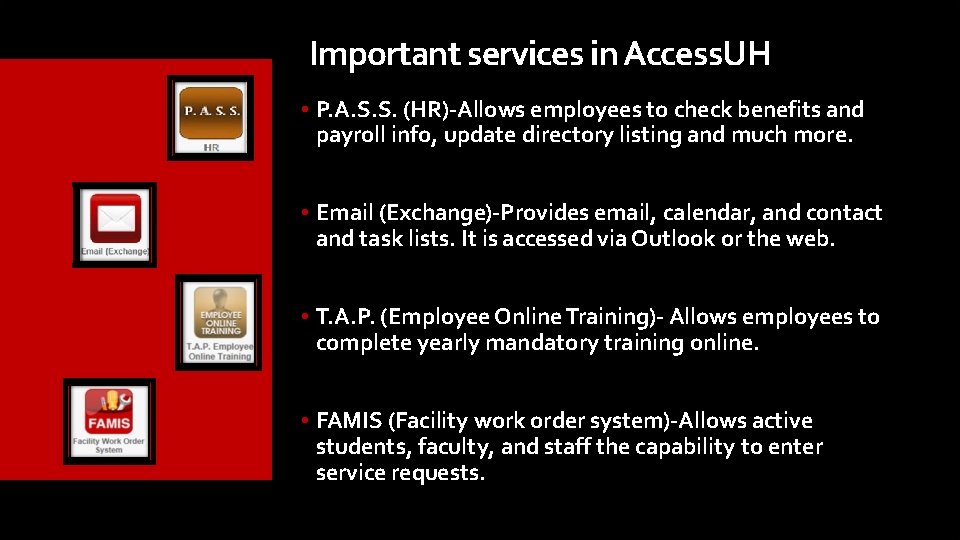
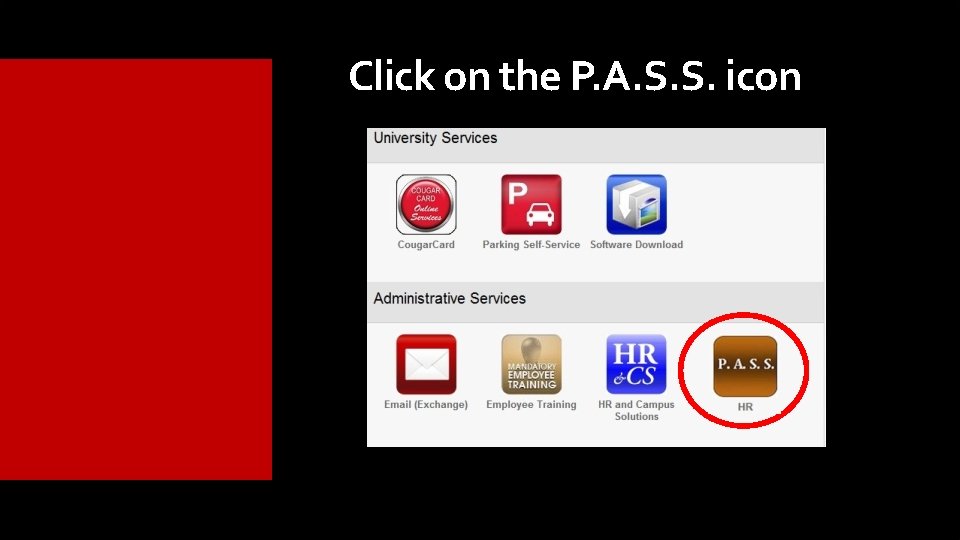
Important services in Access. UH • P. A. S. S. (HR)-Allows employees to check benefits and payroll info, update directory listing and much more. • Email (Exchange)-Provides email, calendar, and contact and task lists. It is accessed via Outlook or the web. • T. A. P. (Employee Online Training)- Allows employees to complete yearly mandatory training online. • FAMIS (Facility work order system)-Allows active students, faculty, and staff the capability to enter service requests.
Access. UH https: //accessuh. edu/login. php
Click on the P. A. S. S. icon
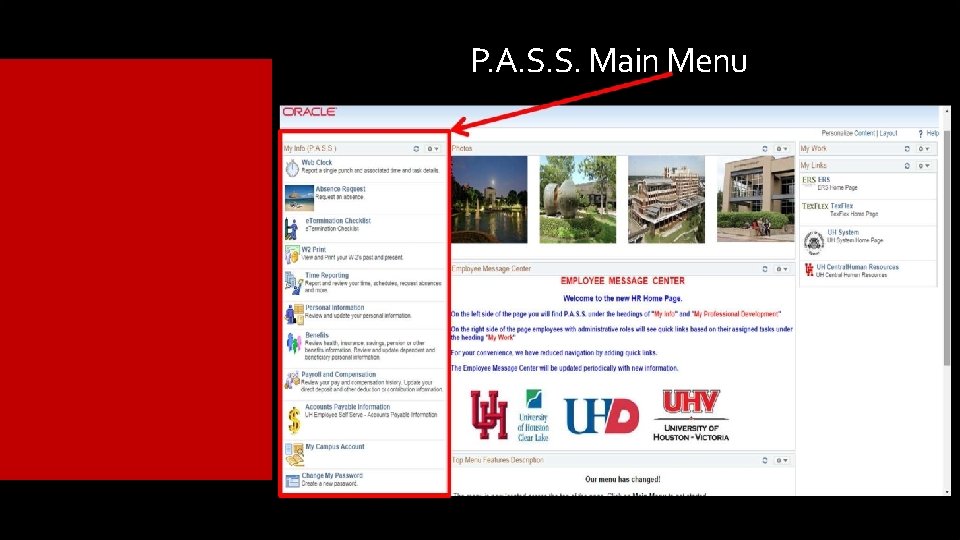
P. A. S. S. Main Menu
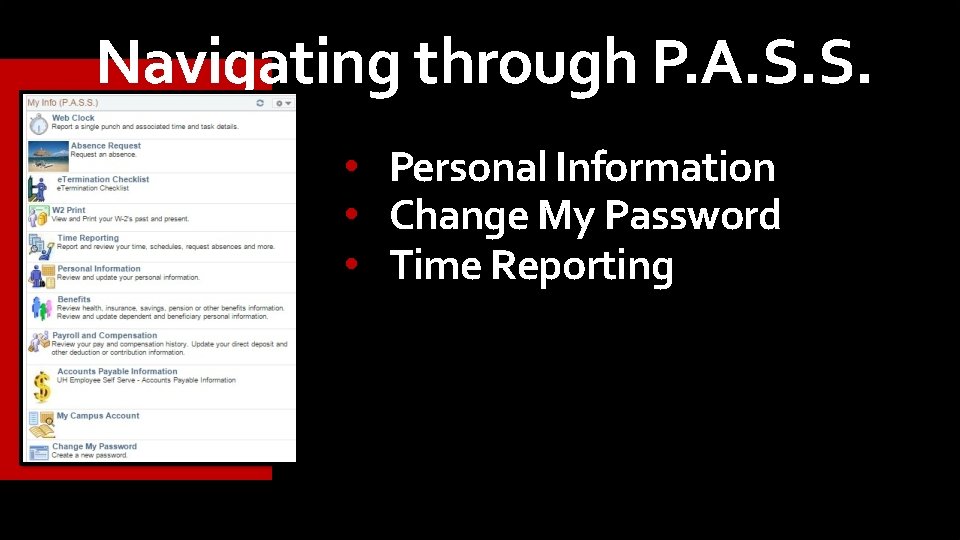
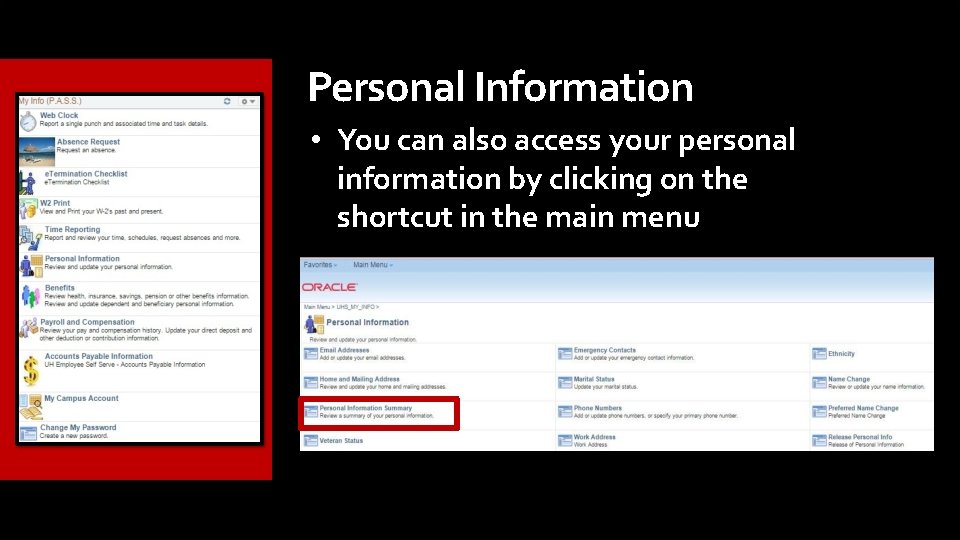
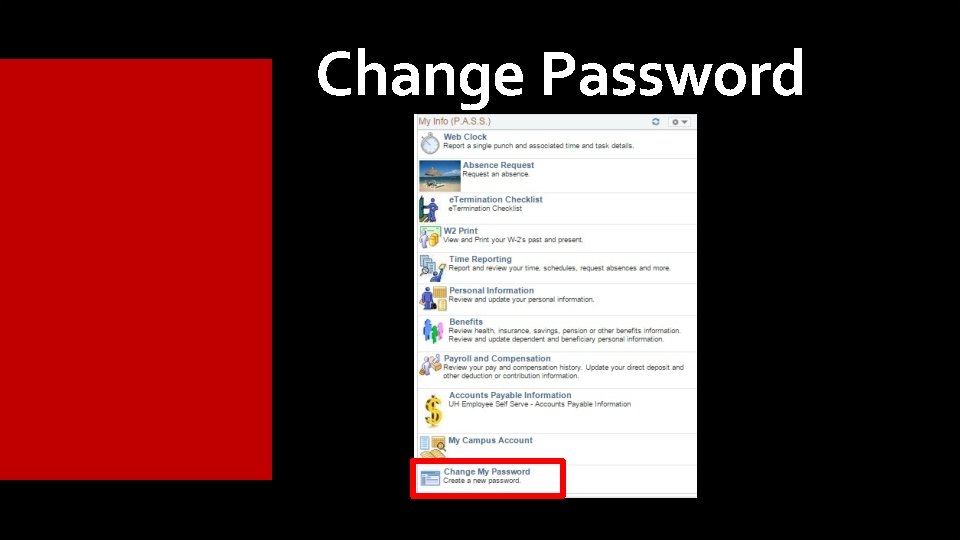
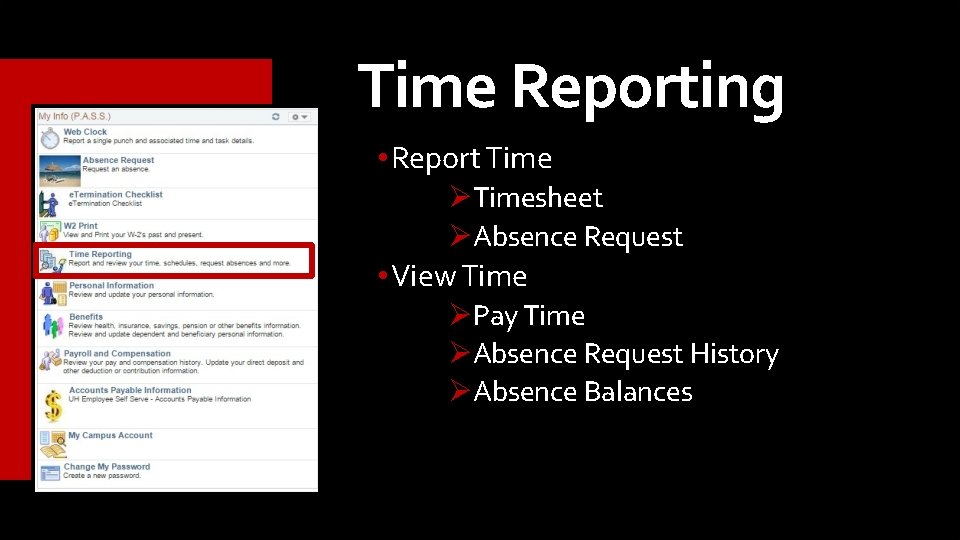
Navigating through P. A. S. S. • Personal Information • Change My Password • Time Reporting
Personal Information • You can also access your personal information by clicking on the shortcut in the main menu
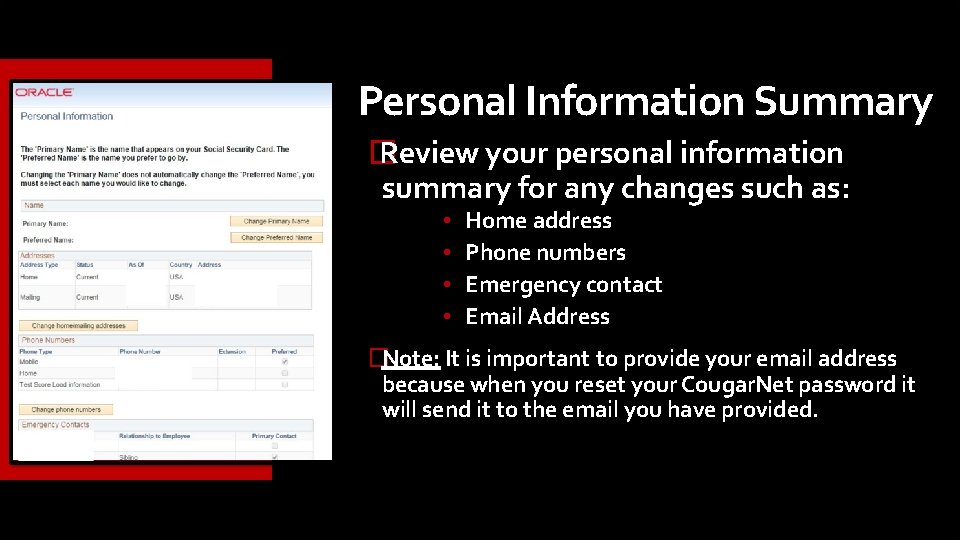
Personal Information Summary � Review your personal information summary for any changes such as: • • Home address Phone numbers Emergency contact Email Address �Note: It is important to provide your email address because when you reset your Cougar. Net password it will send it to the email you have provided.
Change Password
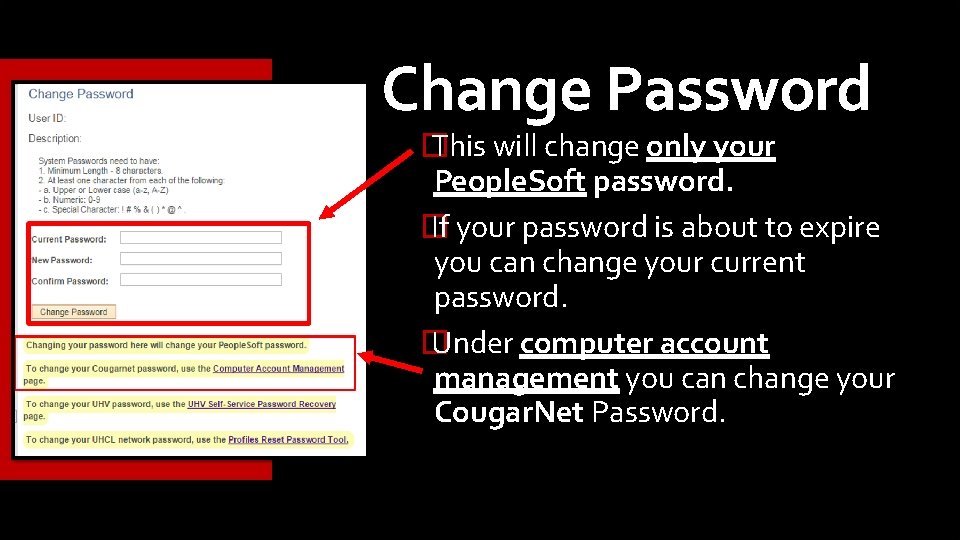
Change Password � This will change only your People. Soft password. � If your password is about to expire you can change your current password. � Under computer account management you can change your Cougar. Net Password.
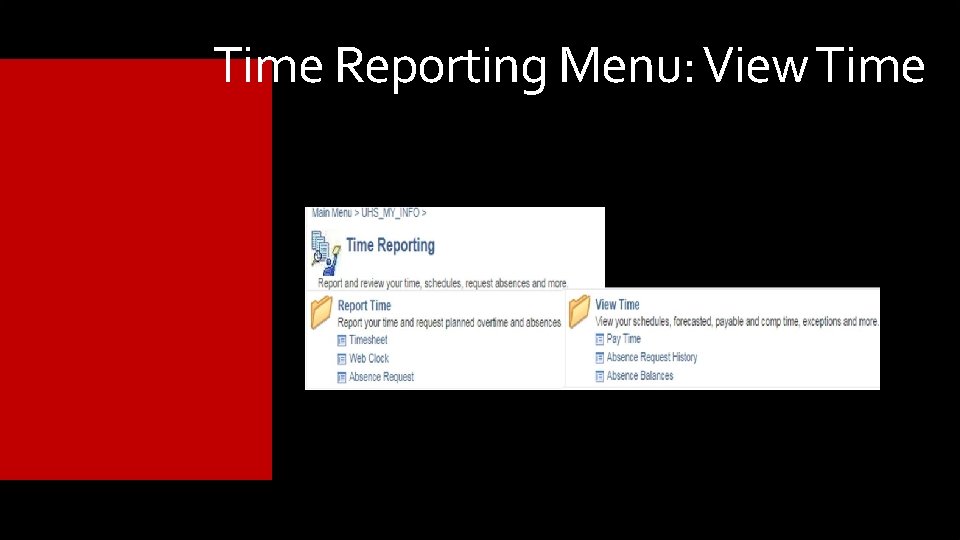
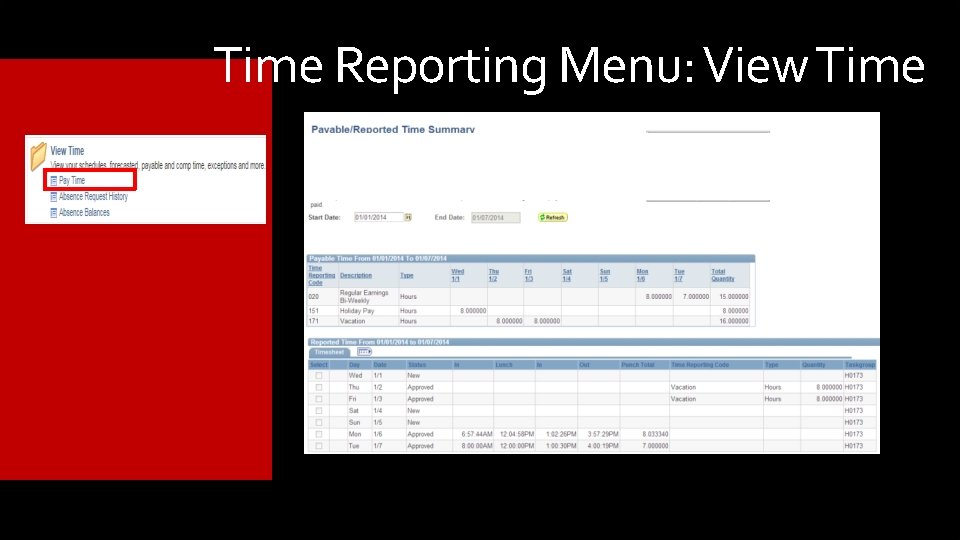
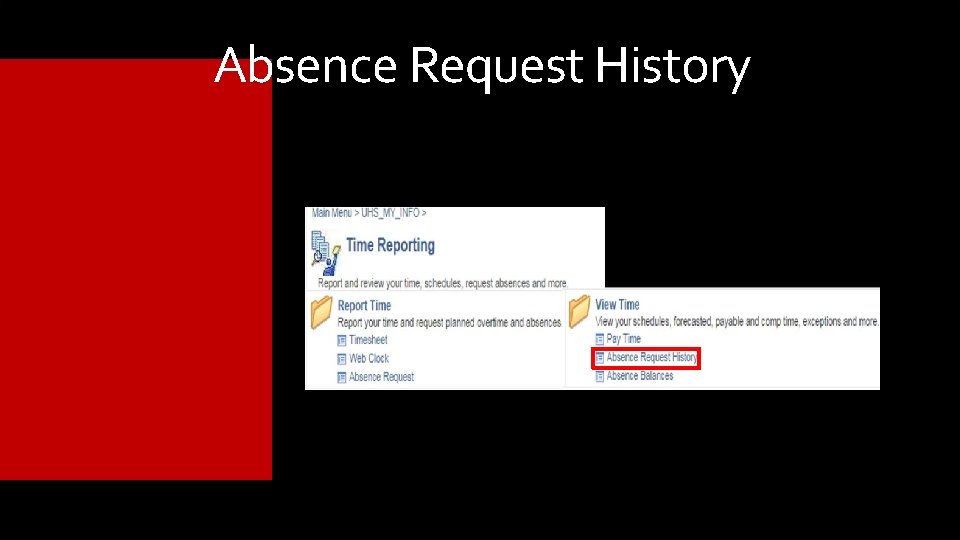
Time Reporting • Report Timesheet Absence Request • View Time Pay Time Absence Request History Absence Balances
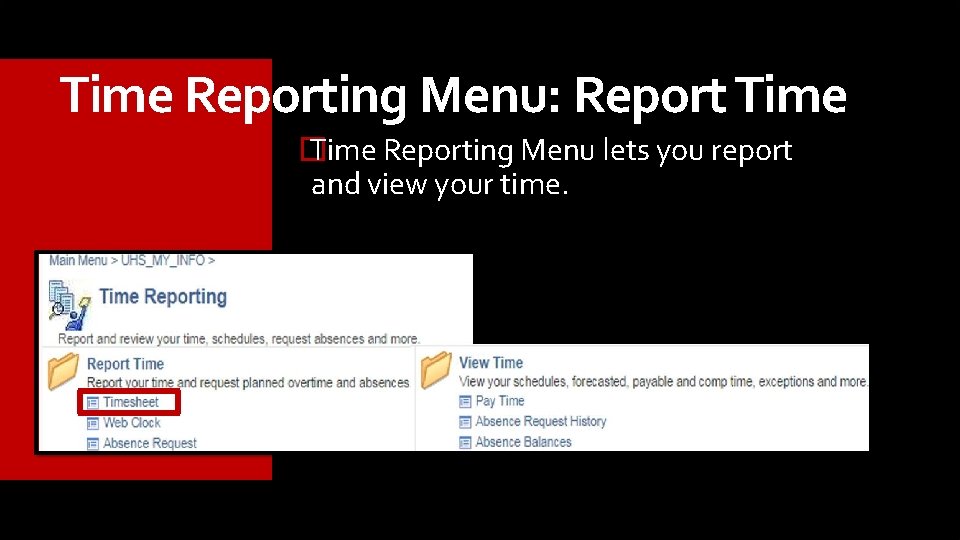
Time Reporting Menu: Report Time � Time Reporting Menu lets you report and view your time.
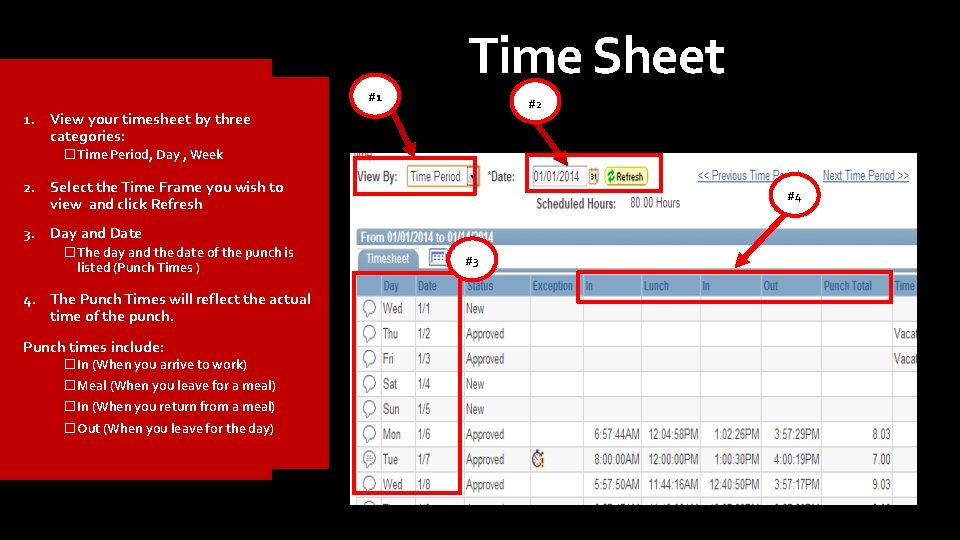
Time Sheet #1 #2 1. View your timesheet by three categories: �Time Period, Day , Week 2. Select the Time Frame you wish to view and click Refresh #4 3. Day and Date �The day and the date of the punch is listed (Punch Times ) 4. The Punch Times will reflect the actual time of the punch. Punch times include: �In (When you arrive to work) �Meal (When you leave for a meal) �In (When you return from a meal) �Out (When you leave for the day) #3
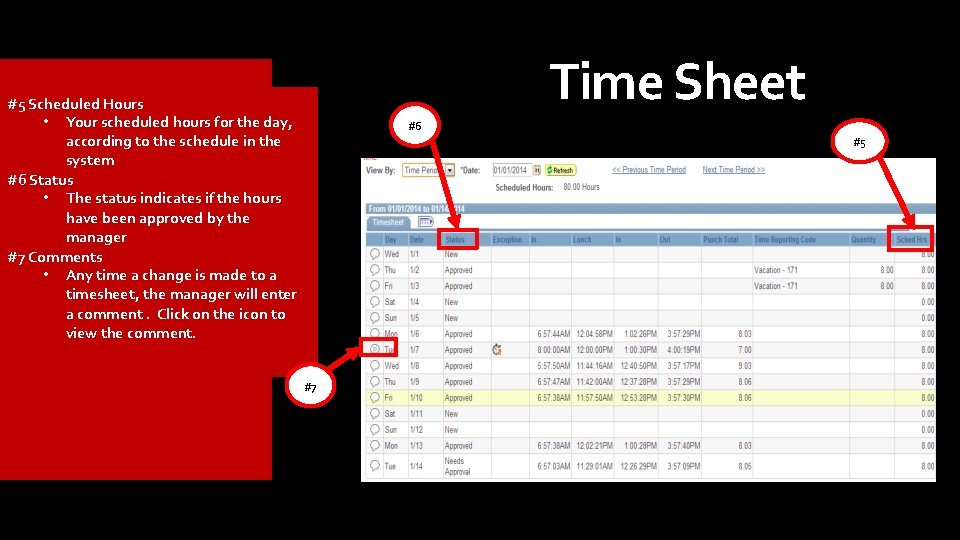
Time Sheet #5 Scheduled Hours • Your scheduled hours for the day, according to the schedule in the system #6 Status • The status indicates if the hours have been approved by the manager #7 Comments • Any time a change is made to a timesheet, the manager will enter a comment. Click on the icon to view the comment. #6 #5 #7
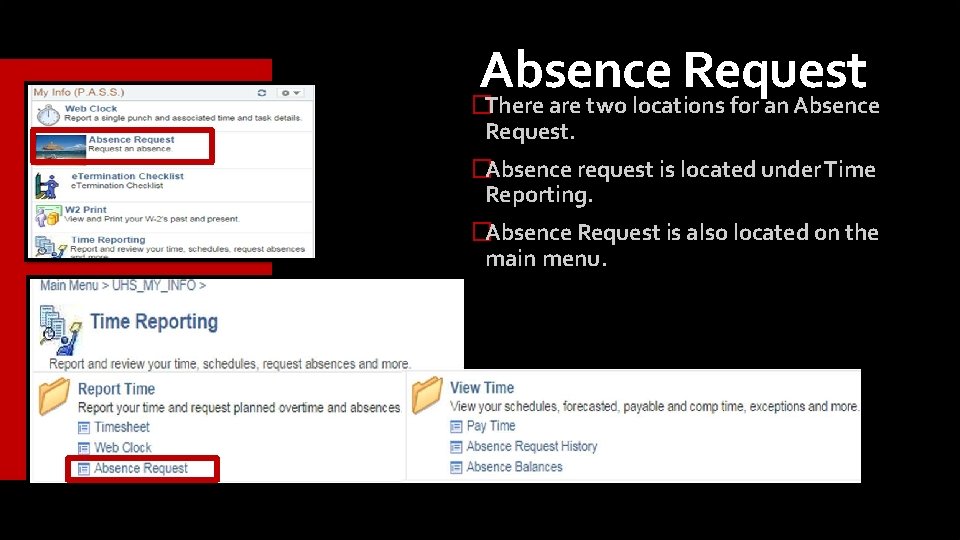
Absence Request �There are two locations for an Absence Request. �Absence request is located under Time Reporting. �Absence Request is also located on the main menu.
Absence Request: Process Email notification: Request is approved, denied, or pushed back or Verification via P. A. S. S. It is important to enter your request as soon as possible. 120 days in the future to enter your leave request. If there is a mistake with your leave request, talk to your supervisor. �Note: Once an absence request is approved, denied, or pushed back, the employee will be notified via email. The employee can also go to Pass and look under the absence request history to review the status of a request.
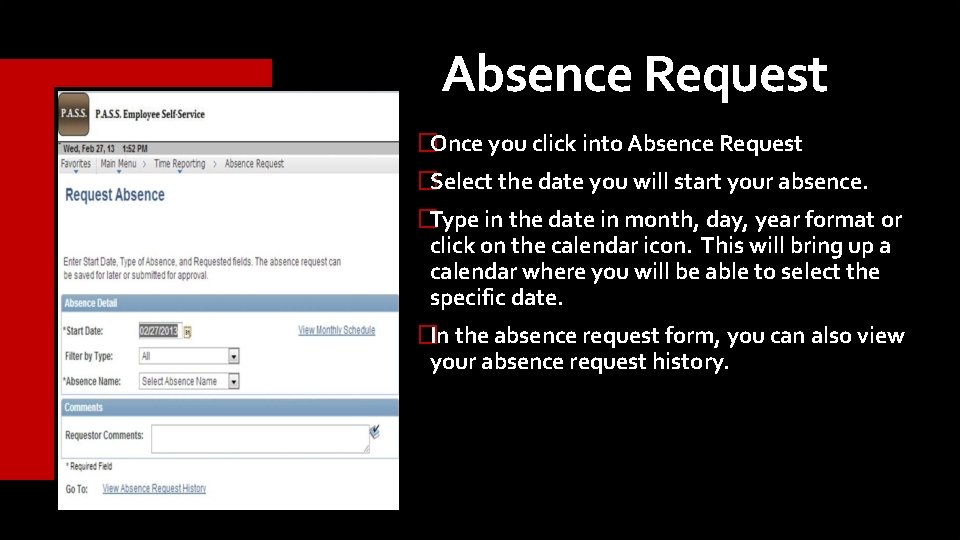
Absence Request �Once you click into Absence Request �Select the date you will start your absence. �Type in the date in month, day, year format or click on the calendar icon. This will bring up a calendar where you will be able to select the specific date. �In the absence request form, you can also view your absence request history.
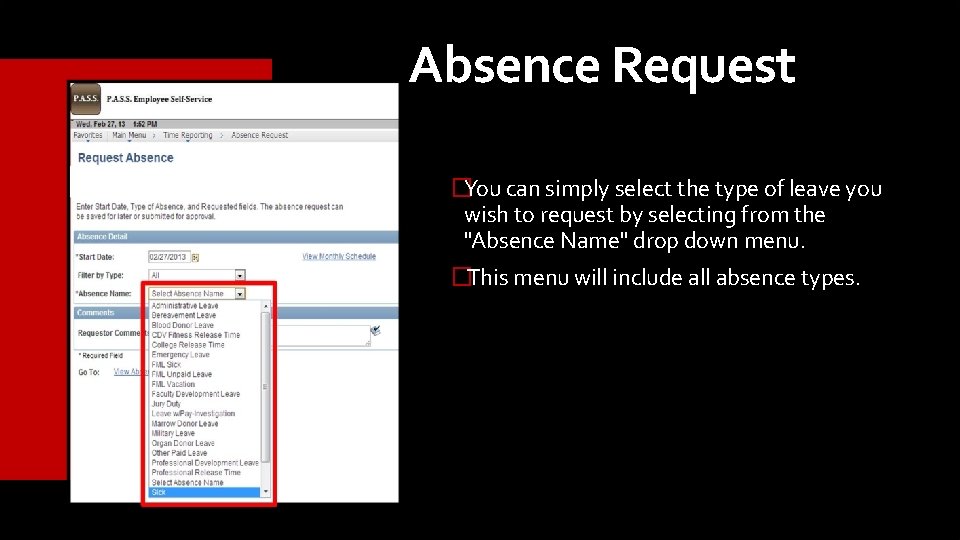
Absence Request �You can simply select the type of leave you wish to request by selecting from the "Absence Name" drop down menu. �This menu will include all absence types.
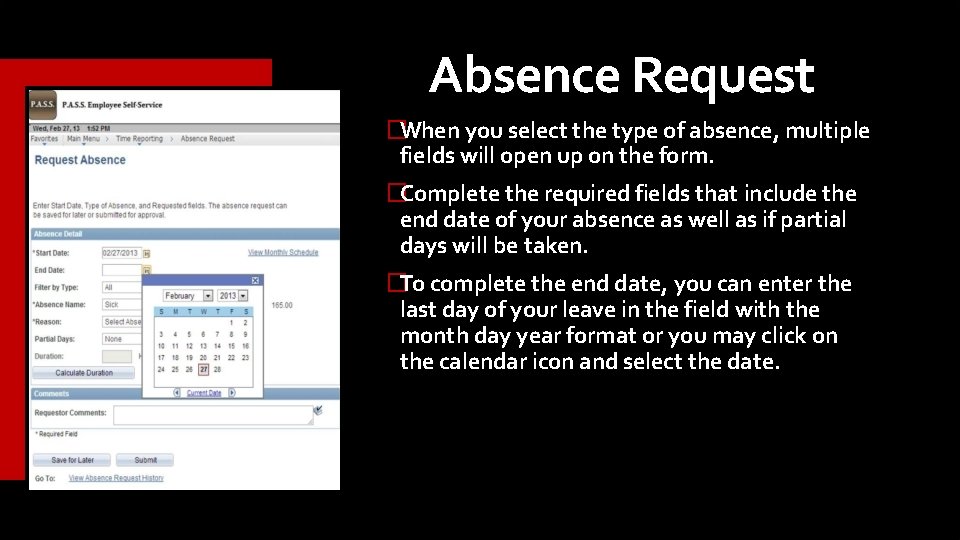
Absence Request �When you select the type of absence, multiple fields will open up on the form. �Complete the required fields that include the end date of your absence as well as if partial days will be taken. �To complete the end date, you can enter the last day of your leave in the field with the month day year format or you may click on the calendar icon and select the date.
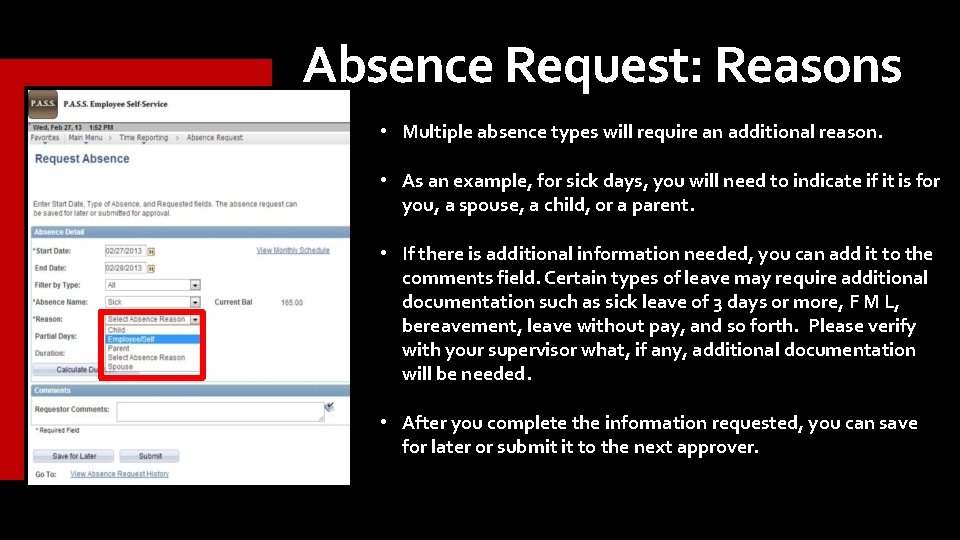
Absence Request: Reasons • Multiple absence types will require an additional reason. • As an example, for sick days, you will need to indicate if it is for you, a spouse, a child, or a parent. • If there is additional information needed, you can add it to the comments field. Certain types of leave may require additional documentation such as sick leave of 3 days or more, F M L, bereavement, leave without pay, and so forth. Please verify with your supervisor what, if any, additional documentation will be needed. • After you complete the information requested, you can save for later or submit it to the next approver.
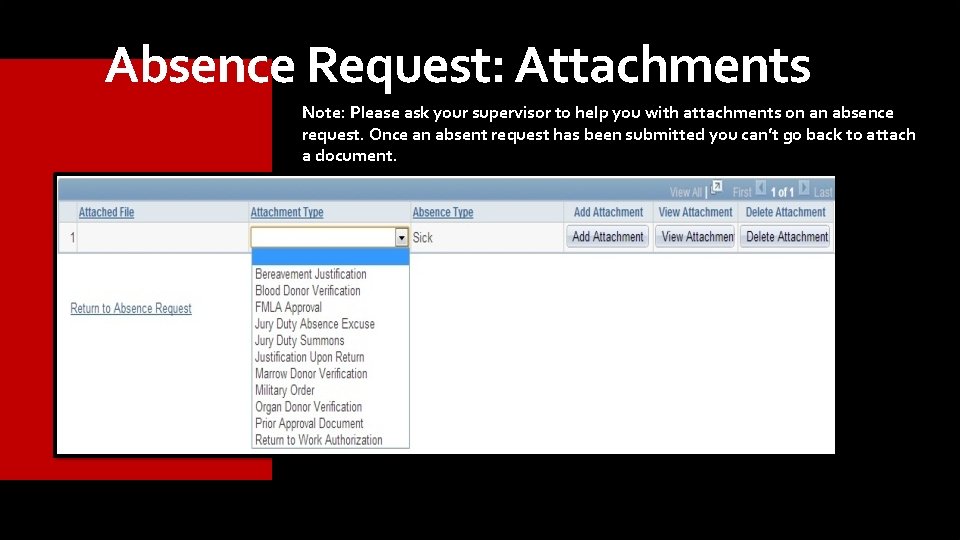
Absence Request: Attachments Note: Please ask your supervisor to help you with attachments on an absence request. Once an absent request has been submitted you can’t go back to attach a document.
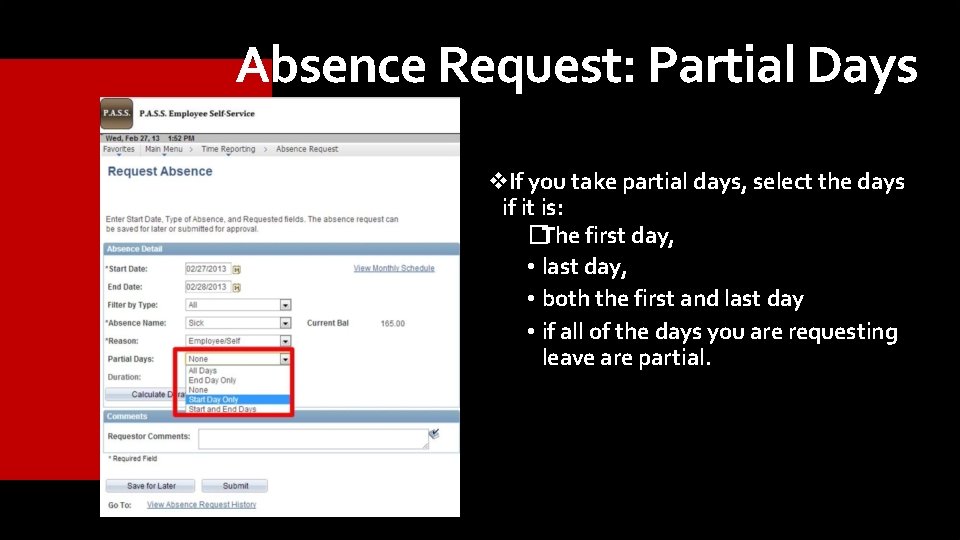
Absence Request: Partial Days If you take partial days, select the days if it is: �The first day, • last day, • both the first and last day • if all of the days you are requesting leave are partial.
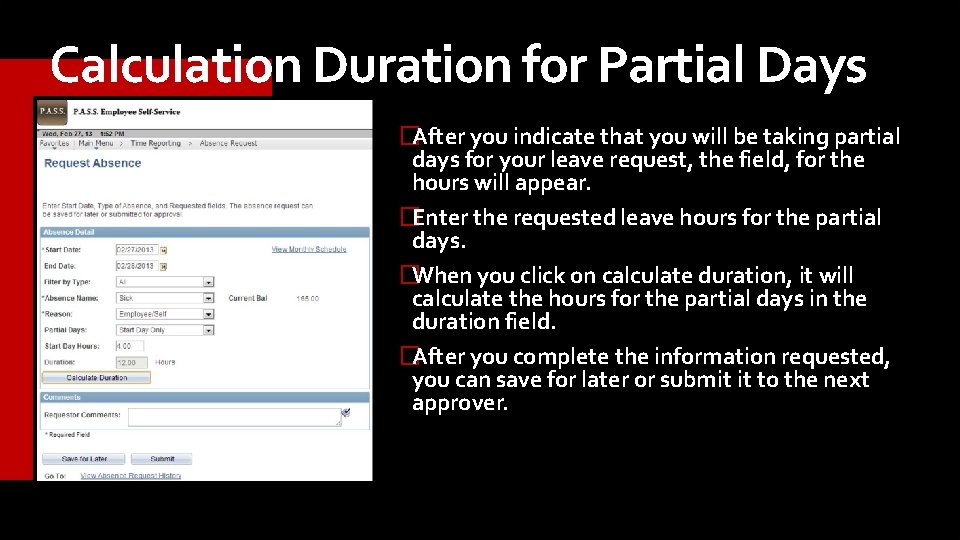
Calculation Duration for Partial Days �After you indicate that you will be taking partial days for your leave request, the field, for the hours will appear. �Enter the requested leave hours for the partial days. �When you click on calculate duration, it will calculate the hours for the partial days in the duration field. �After you complete the information requested, you can save for later or submit it to the next approver.
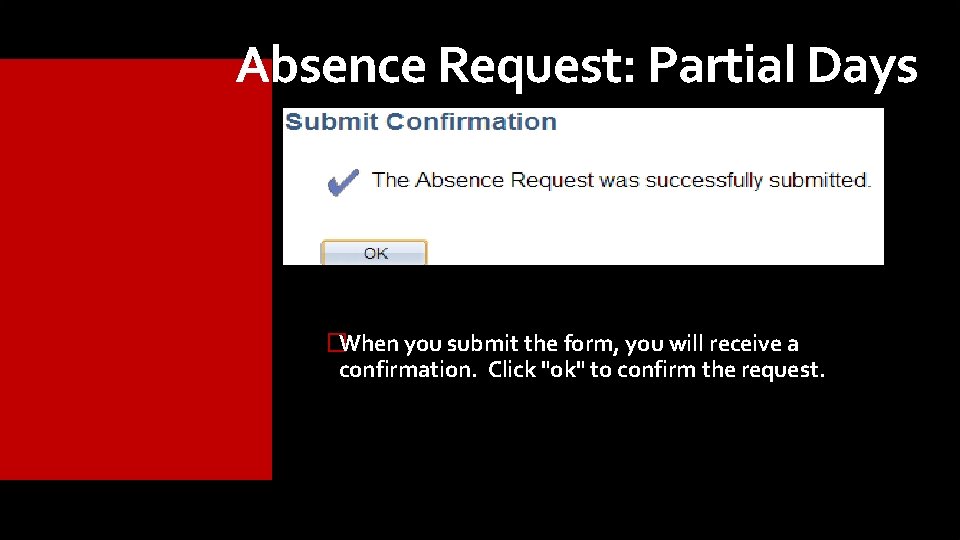
Absence Request: Partial Days �When you submit the form, you will receive a confirmation. Click "ok" to confirm the request.
Absence Request: Status �Approved: request has been granted �Cancel: absence request was denied or pushed back to be edited or cancelled. �Deny: used when a Time Approver denies an employee’s absence request for leave. �Push Back: sent to the employee to edit, resubmit, or cancel if the request isn’t going to be modified or taken. Note: If your absence request is denied, cancelled, or push backed, you need to go back and delete it.
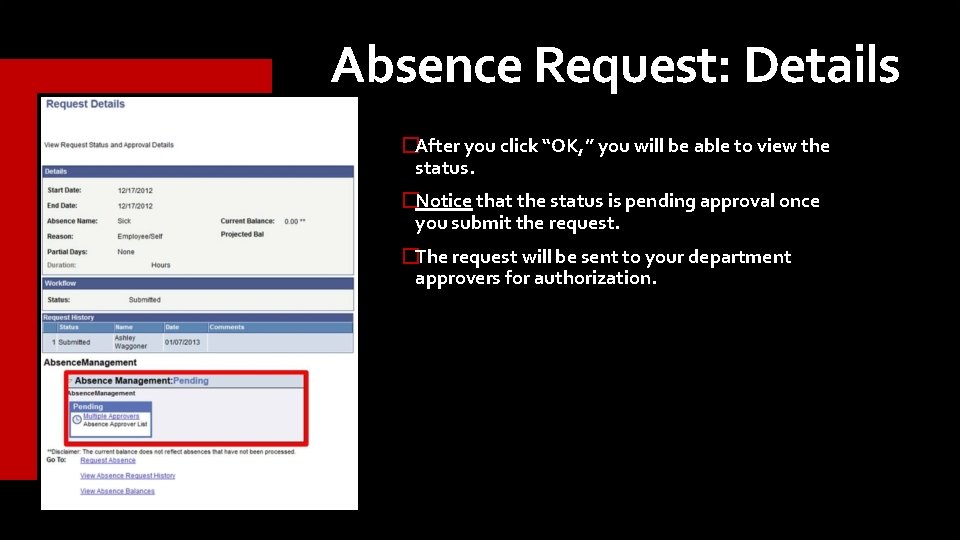
Absence Request: Details �After you click “OK, ” you will be able to view the status. �Notice that the status is pending approval once you submit the request. �The request will be sent to your department approvers for authorization.
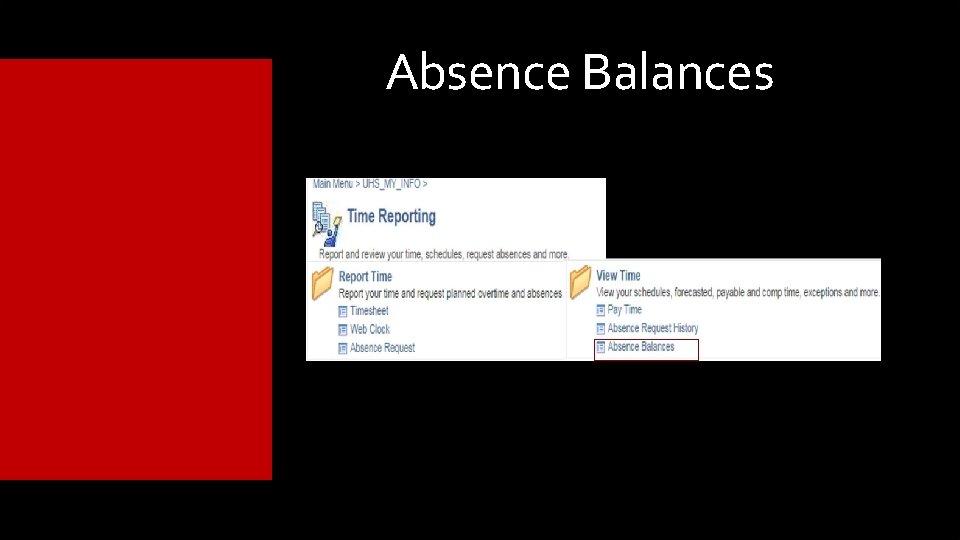
Time Reporting Menu: View Time
Time Reporting Menu: View Time
Absence Request History
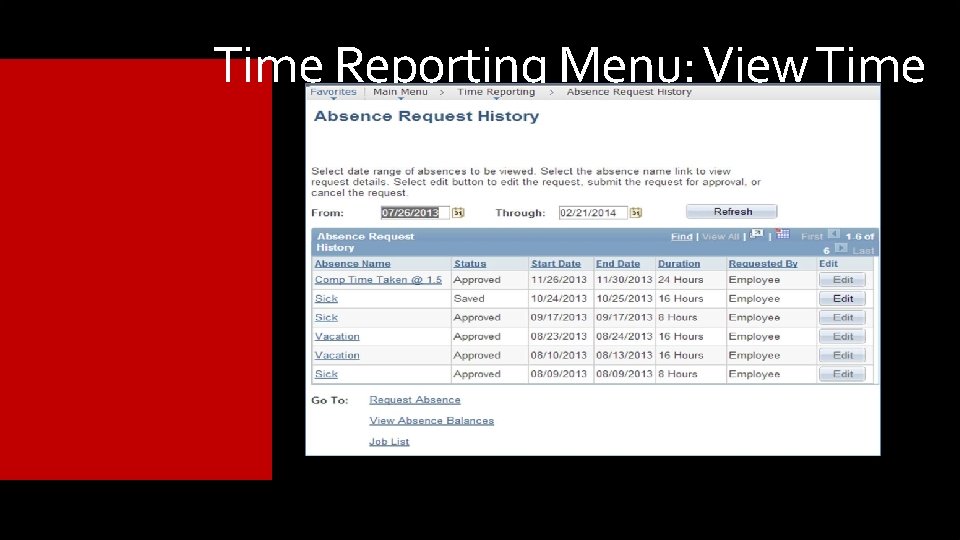
Time Reporting Menu: View Time
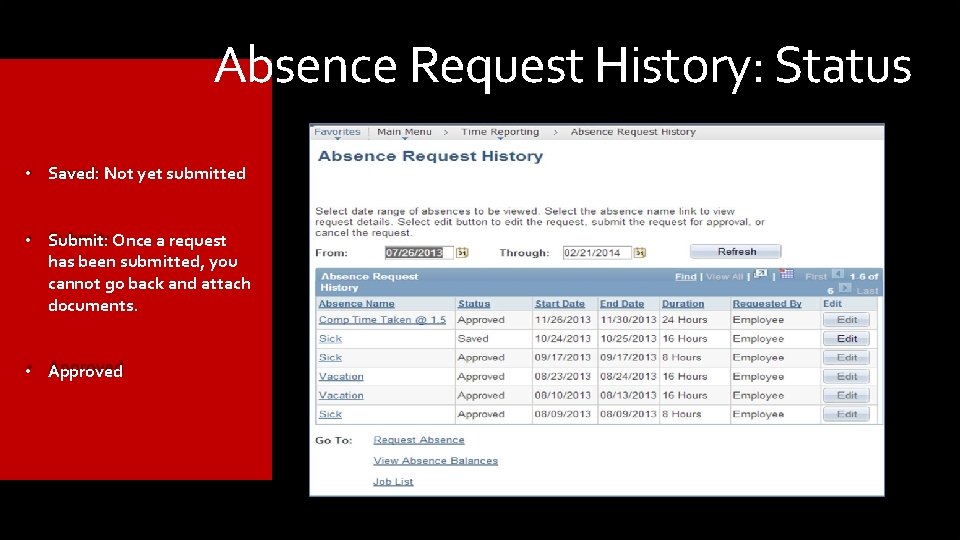
Absence Request History: Status • Saved: Not yet submitted • Submit: Once a request has been submitted, you cannot go back and attach documents. • Approved
Absence Balances
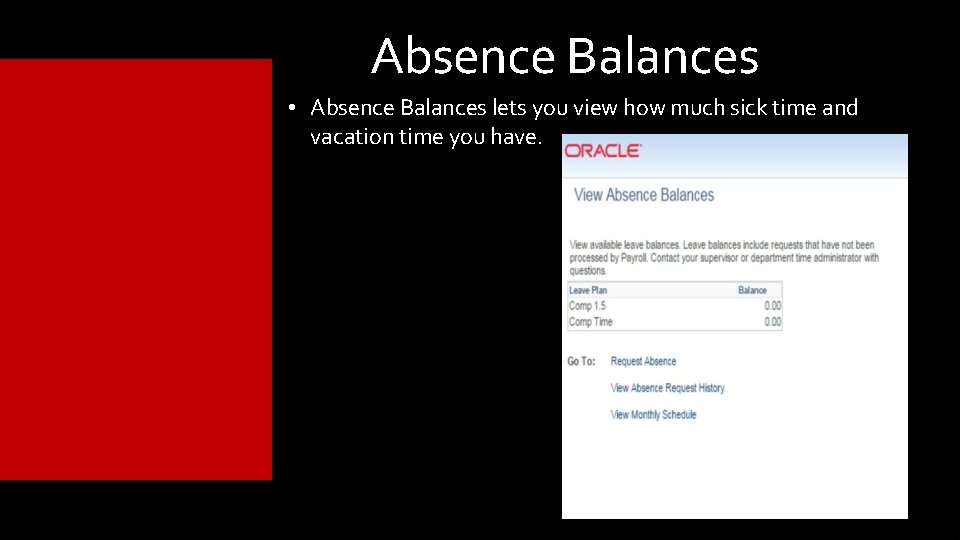
Absence Balances • Absence Balances lets you view how much sick time and vacation time you have.
Computer Ethics �Do not give your password to anyone. Passwords are intended to protect your computer and your files. �Please use a computer in ways that ensures consideration and respect for other people. Note: Abuse of guidelines will revoke entrance into lab. Below is the link for the UH IT policies and procedures that should be followed: http: //www. uh. edu/infotech/policies/index. php
This concludes Training 102 Questions?