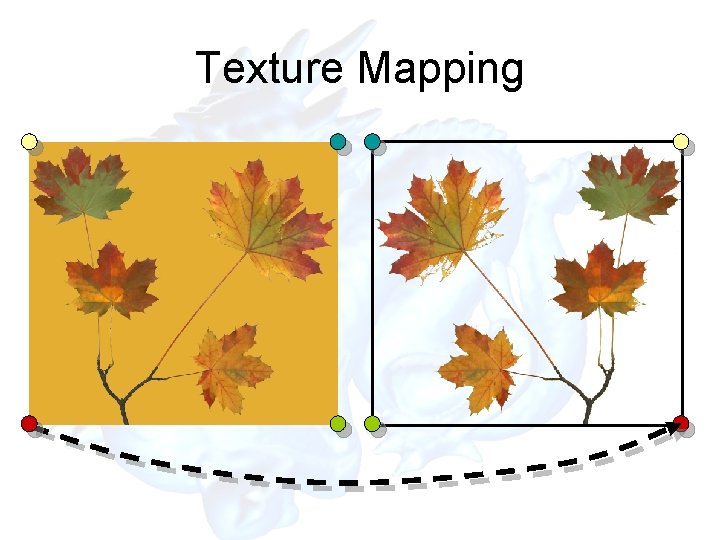
Texture Mapping Drawing Pictures on Polygons Texture Mapping
- Slides: 36
Texture Mapping Drawing Pictures on Polygons
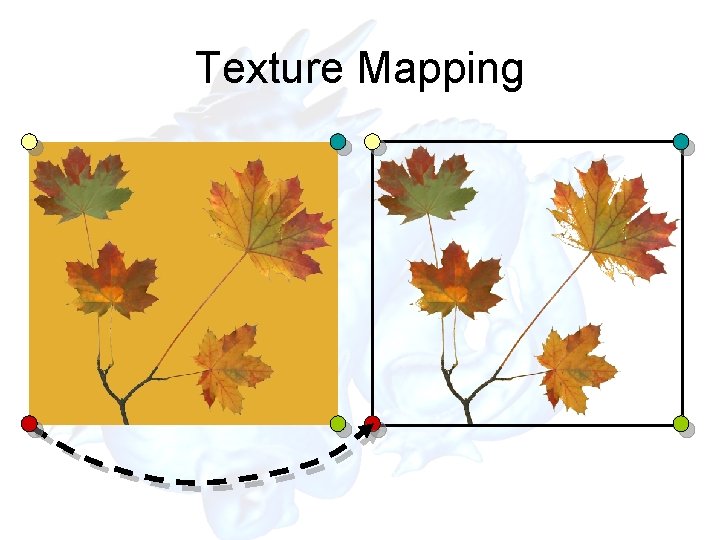
Texture Mapping
Texture Mapping
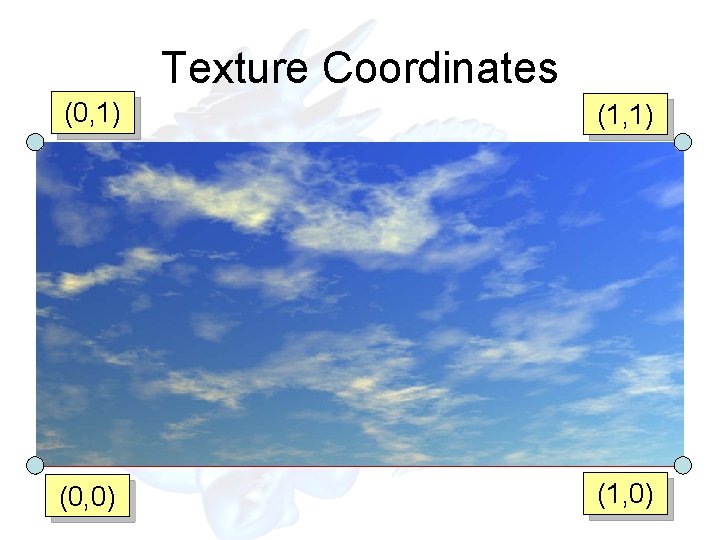
Texture Coordinates (0, 1) (1, 1) (0, 0) (1, 0)
How Do We Use Textures? 1. Create a texture object and specify a texture for that object. 2. Indicate how the texture is to be applied to each pixel. 3. Enable texture mapping. 4. Draw the scene, supplying both texture and geometric coordinates.
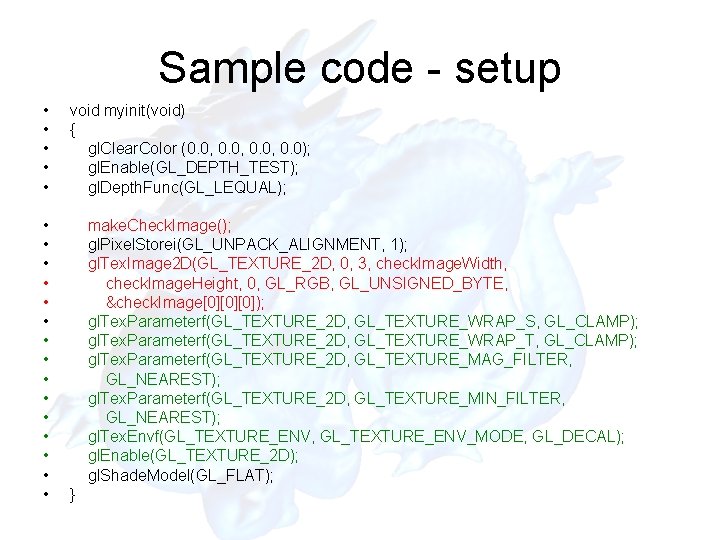
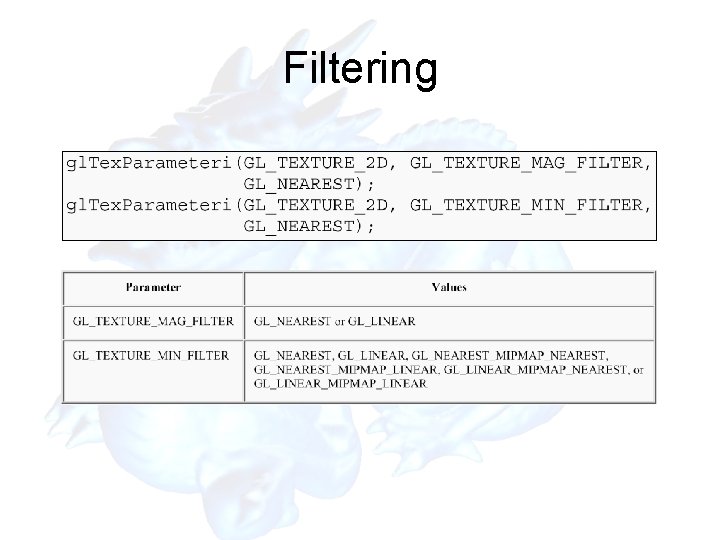
Sample code - setup • • • • • void myinit(void) { gl. Clear. Color (0. 0, 0. 0); gl. Enable(GL_DEPTH_TEST); gl. Depth. Func(GL_LEQUAL); make. Check. Image(); gl. Pixel. Storei(GL_UNPACK_ALIGNMENT, 1); gl. Tex. Image 2 D(GL_TEXTURE_2 D, 0, 3, check. Image. Width, check. Image. Height, 0, GL_RGB, GL_UNSIGNED_BYTE, &check. Image[0][0][0]); gl. Tex. Parameterf(GL_TEXTURE_2 D, GL_TEXTURE_WRAP_S, GL_CLAMP); gl. Tex. Parameterf(GL_TEXTURE_2 D, GL_TEXTURE_WRAP_T, GL_CLAMP); gl. Tex. Parameterf(GL_TEXTURE_2 D, GL_TEXTURE_MAG_FILTER, GL_NEAREST); gl. Tex. Parameterf(GL_TEXTURE_2 D, GL_TEXTURE_MIN_FILTER, GL_NEAREST); gl. Tex. Envf(GL_TEXTURE_ENV, GL_TEXTURE_ENV_MODE, GL_DECAL); gl. Enable(GL_TEXTURE_2 D); gl. Shade. Model(GL_FLAT); }
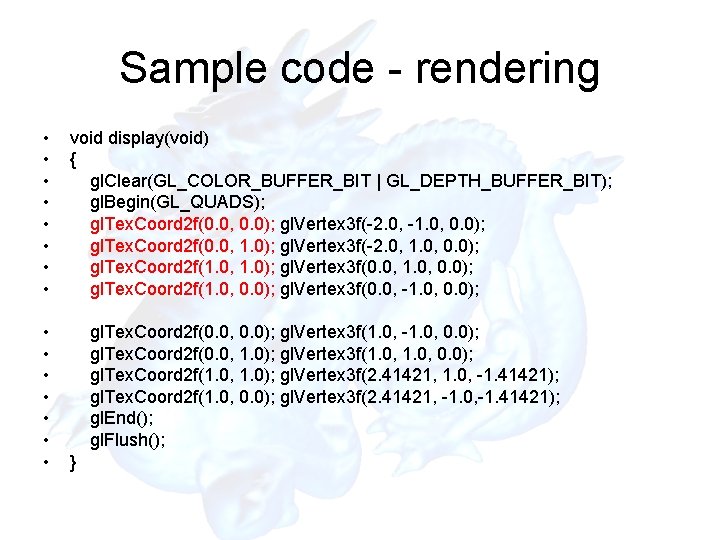
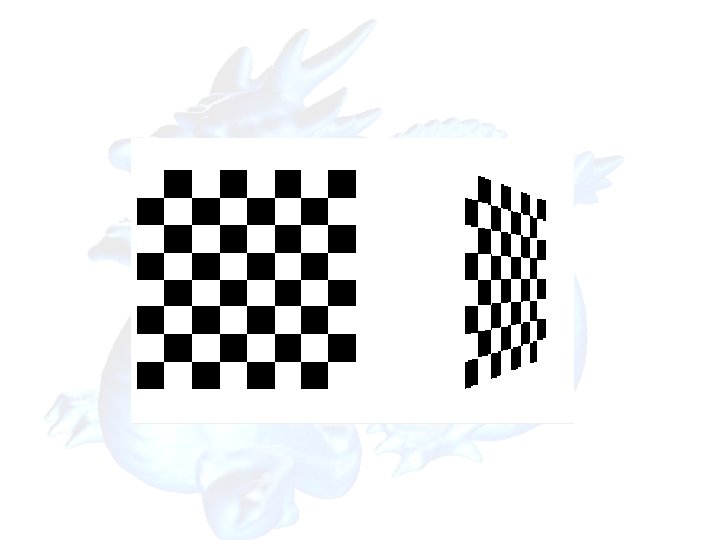
Sample code - rendering • • • • void display(void) { gl. Clear(GL_COLOR_BUFFER_BIT | GL_DEPTH_BUFFER_BIT); gl. Begin(GL_QUADS); gl. Tex. Coord 2 f(0. 0, 0. 0); gl. Vertex 3 f(-2. 0, -1. 0, 0. 0); gl. Tex. Coord 2 f(0. 0, 1. 0); gl. Vertex 3 f(-2. 0, 1. 0, 0. 0); gl. Tex. Coord 2 f(1. 0, 1. 0); gl. Vertex 3 f(0. 0, 1. 0, 0. 0); gl. Tex. Coord 2 f(1. 0, 0. 0); gl. Vertex 3 f(0. 0, -1. 0, 0. 0); gl. Tex. Coord 2 f(0. 0, 0. 0); gl. Vertex 3 f(1. 0, -1. 0, 0. 0); gl. Tex. Coord 2 f(0. 0, 1. 0); gl. Vertex 3 f(1. 0, 0. 0); gl. Tex. Coord 2 f(1. 0, 1. 0); gl. Vertex 3 f(2. 41421, 1. 0, -1. 41421); gl. Tex. Coord 2 f(1. 0, 0. 0); gl. Vertex 3 f(2. 41421, -1. 0, -1. 41421); gl. End(); gl. Flush(); }
Specifying a Texture
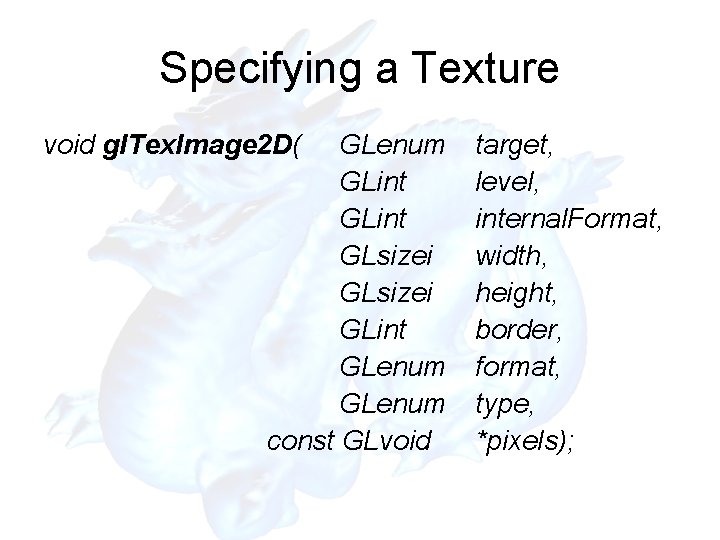
Specifying a Texture void gl. Tex. Image 2 D( GLenum GLint GLsizei GLint GLenum const GLvoid target, level, internal. Format, width, height, border, format, type, *pixels);
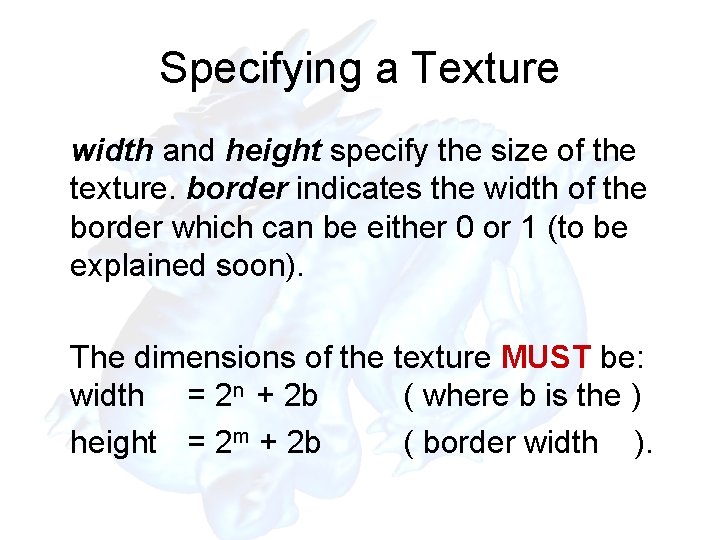
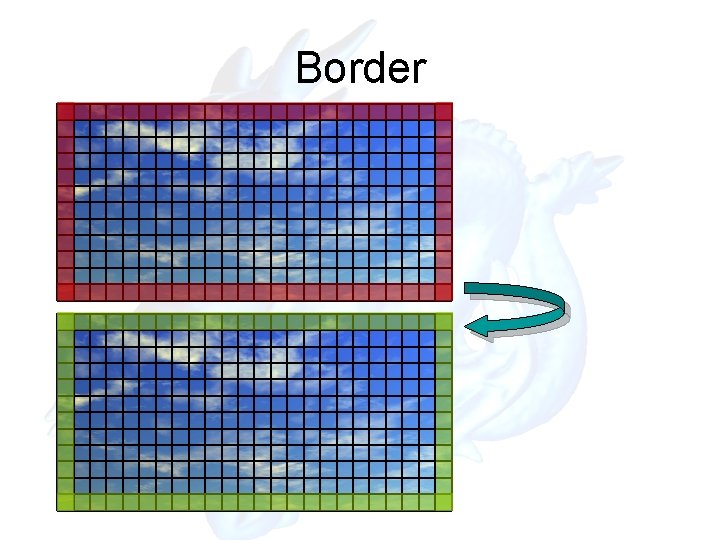
Specifying a Texture width and height specify the size of the texture. border indicates the width of the border which can be either 0 or 1 (to be explained soon). The dimensions of the texture MUST be: width = 2 n + 2 b ( where b is the ) height = 2 m + 2 b ( border width ).
Border
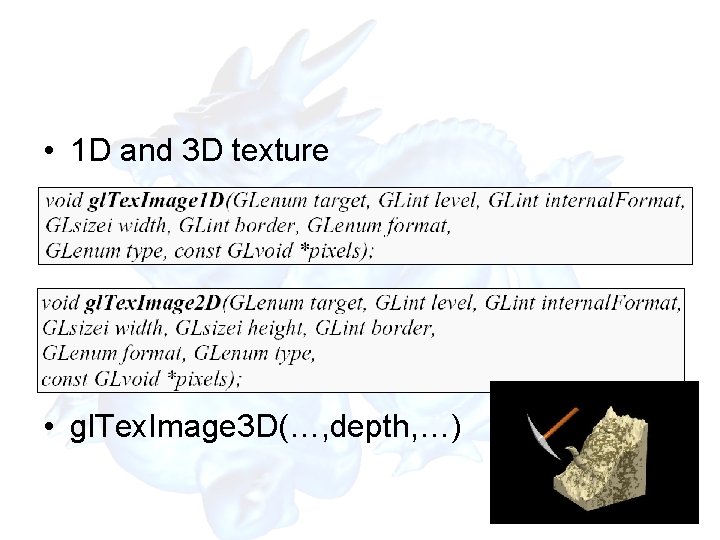
• 1 D and 3 D texture • gl. Tex. Image 3 D(…, depth, …)
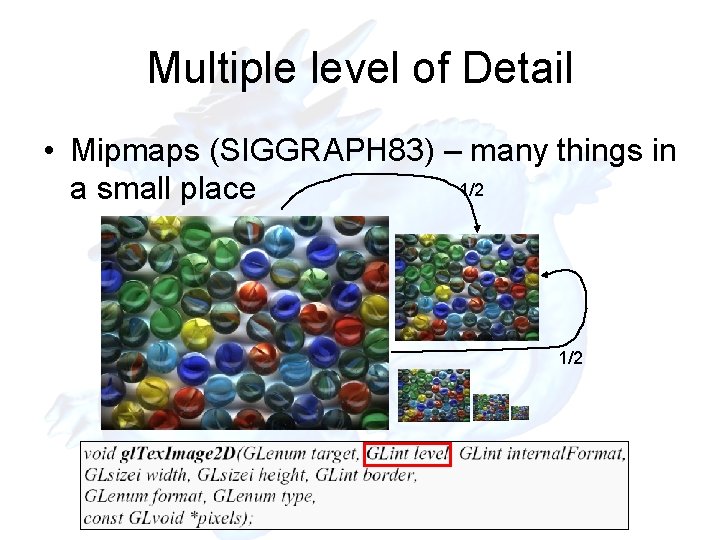
Multiple level of Detail • Mipmaps (SIGGRAPH 83) – many things in 1/2 a small place 1/2
Specifying a Texture level specifies the mipmapping level of the current texture. 0 - is the base level (highest resolution). n - is the nth level of resolution. When using mipmaps ALL levels from the highest resolution to a 1 x 1 map MUST be defined
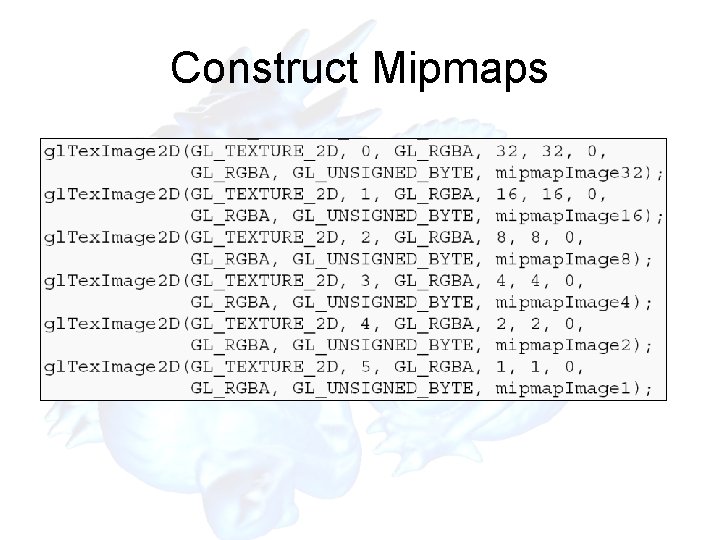
Construct Mipmaps
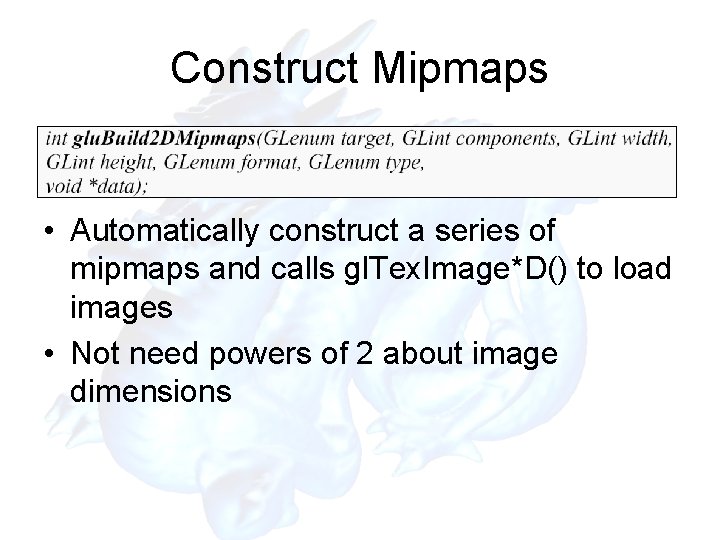
Construct Mipmaps • Automatically construct a series of mipmaps and calls gl. Tex. Image*D() to load images • Not need powers of 2 about image dimensions
Filtering
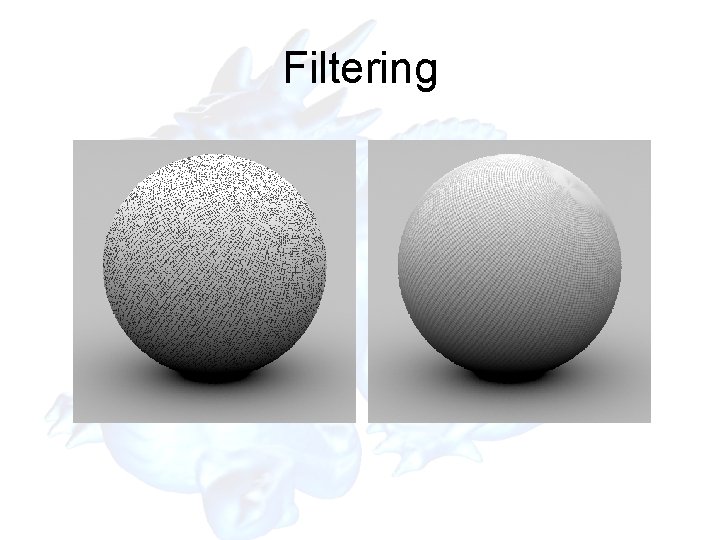
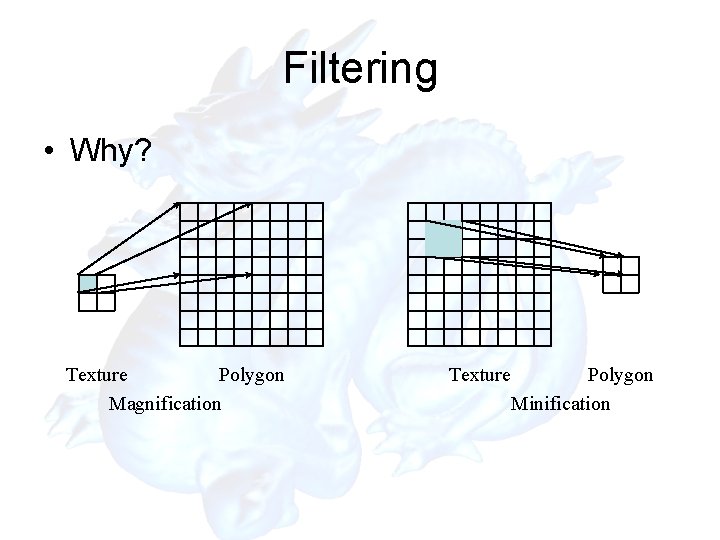
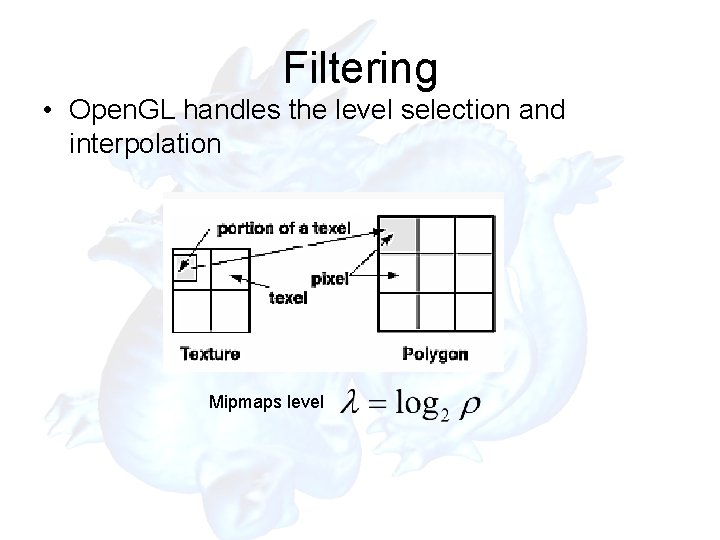
Filtering • Why? Texture Polygon Magnification Texture Polygon Minification
Filtering
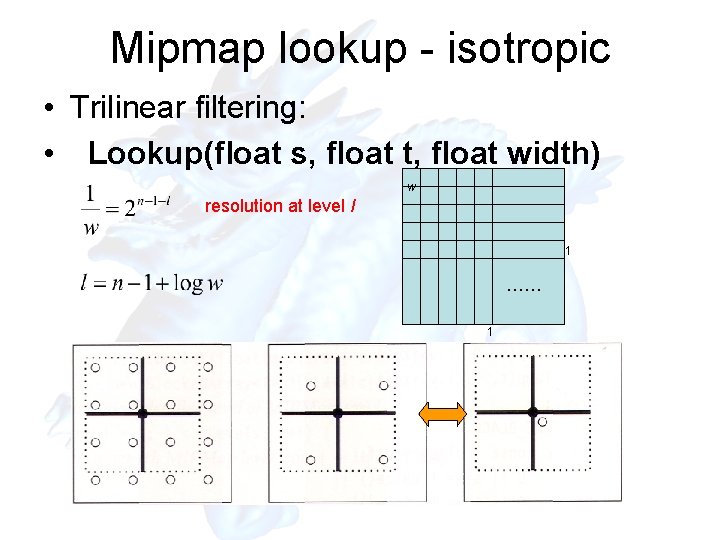
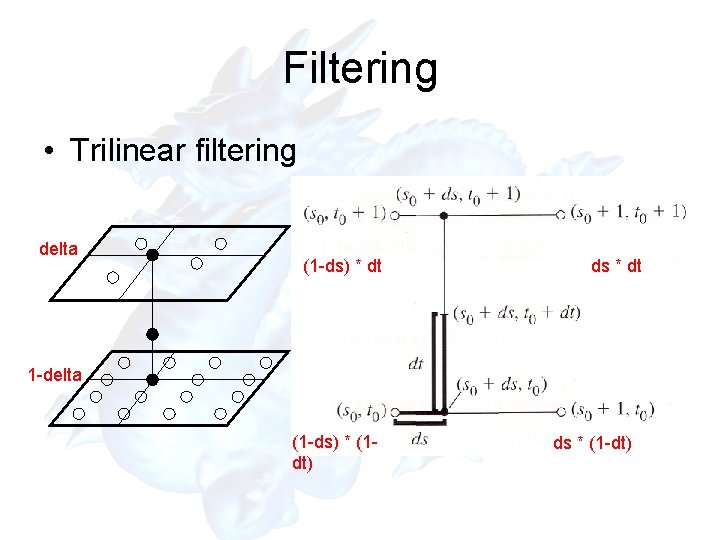
Mipmap lookup - isotropic • Trilinear filtering: • Lookup(float s, float t, float width) w resolution at level l 1 …… 1
Filtering • Open. GL handles the level selection and interpolation Mipmaps level
Filtering • Trilinear filtering delta (1 -ds) * dt ds * dt 1 -delta (1 -ds) * (1 dt) ds * (1 -dt)
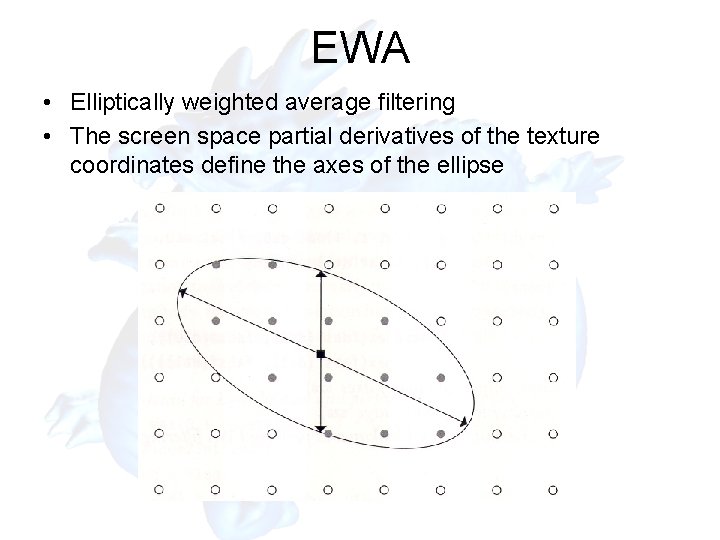
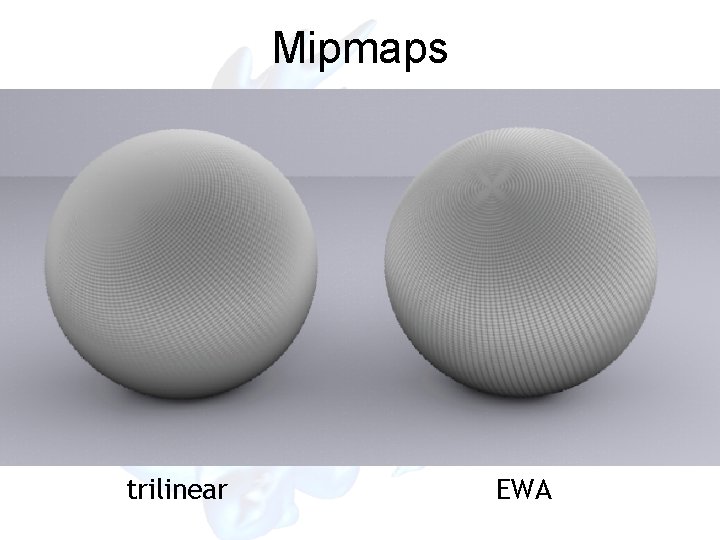
EWA • Elliptically weighted average filtering • The screen space partial derivatives of the texture coordinates define the axes of the ellipse
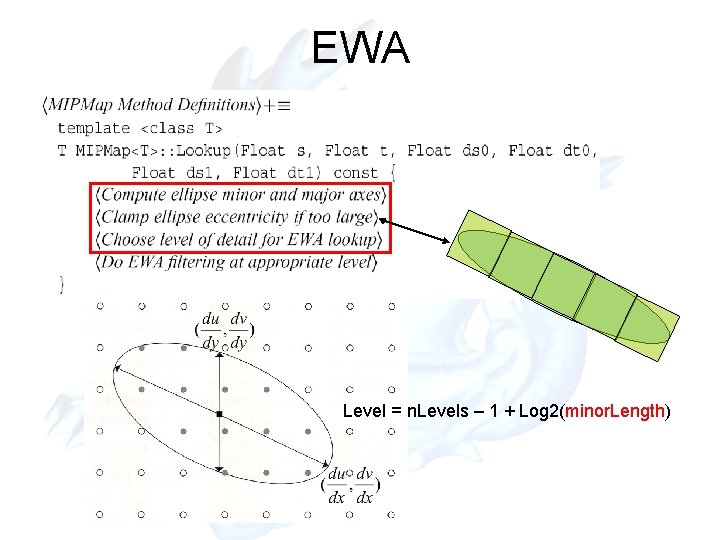
EWA Level = n. Levels – 1 + Log 2(minor. Length)
Mipmaps trilinear EWA
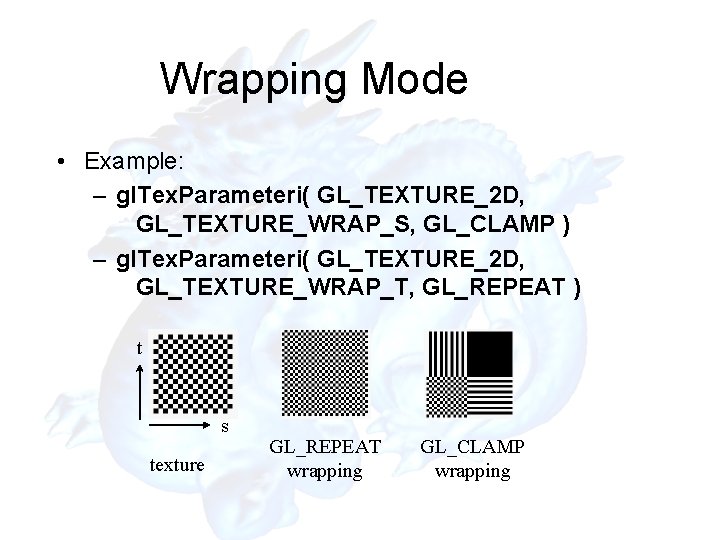
Wrapping Mode • Example: – gl. Tex. Parameteri( GL_TEXTURE_2 D, GL_TEXTURE_WRAP_S, GL_CLAMP ) – gl. Tex. Parameteri( GL_TEXTURE_2 D, GL_TEXTURE_WRAP_T, GL_REPEAT ) t s texture GL_REPEAT wrapping GL_CLAMP wrapping
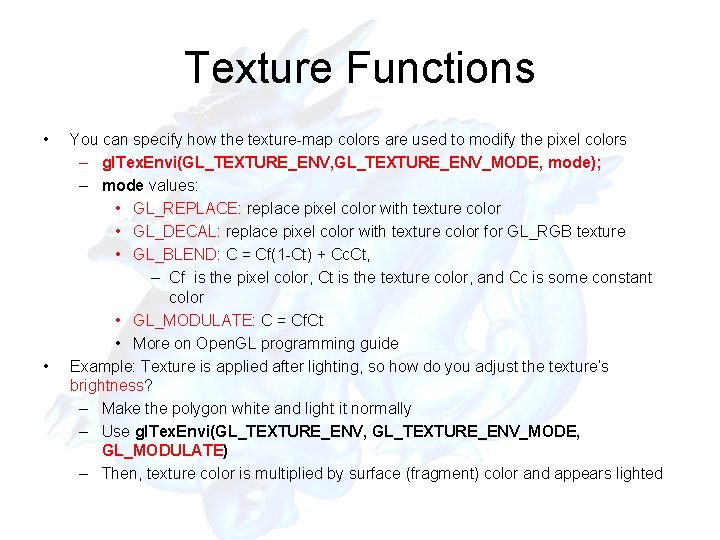
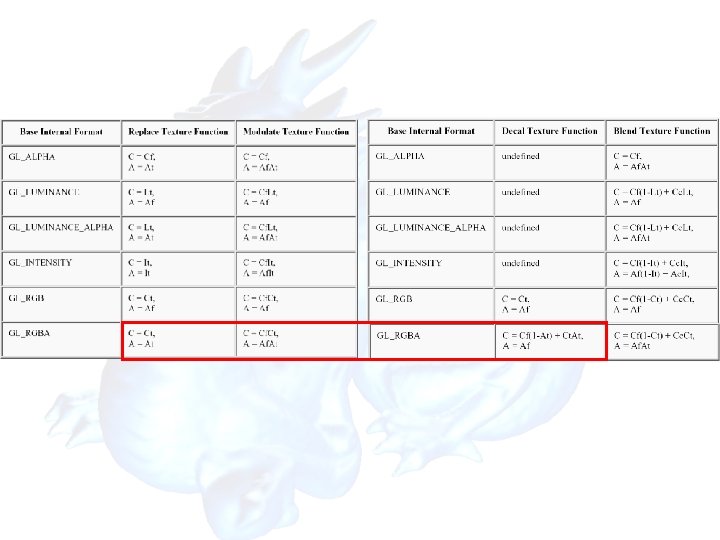
Texture Functions • • You can specify how the texture-map colors are used to modify the pixel colors – gl. Tex. Envi(GL_TEXTURE_ENV, GL_TEXTURE_ENV_MODE, mode); – mode values: • GL_REPLACE: replace pixel color with texture color • GL_DECAL: replace pixel color with texture color for GL_RGB texture • GL_BLEND: C = Cf(1 -Ct) + Cc. Ct, – Cf is the pixel color, Ct is the texture color, and Cc is some constant color • GL_MODULATE: C = Cf. Ct • More on Open. GL programming guide Example: Texture is applied after lighting, so how do you adjust the texture’s brightness? – Make the polygon white and light it normally – Use gl. Tex. Envi(GL_TEXTURE_ENV, GL_TEXTURE_ENV_MODE, GL_MODULATE) – Then, texture color is multiplied by surface (fragment) color and appears lighted
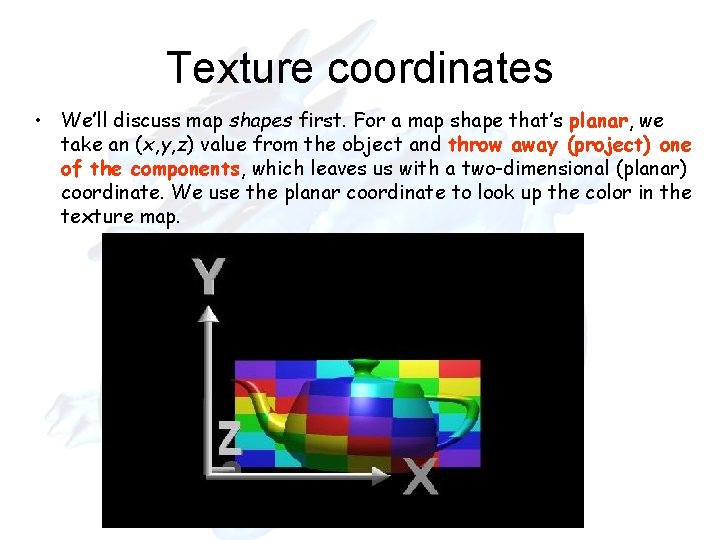
Texture coordinates • We’ll discuss map shapes first. For a map shape that’s planar, we take an (x, y, z) value from the object and throw away (project) one of the components, which leaves us with a two-dimensional (planar) coordinate. We use the planar coordinate to look up the color in the texture map.
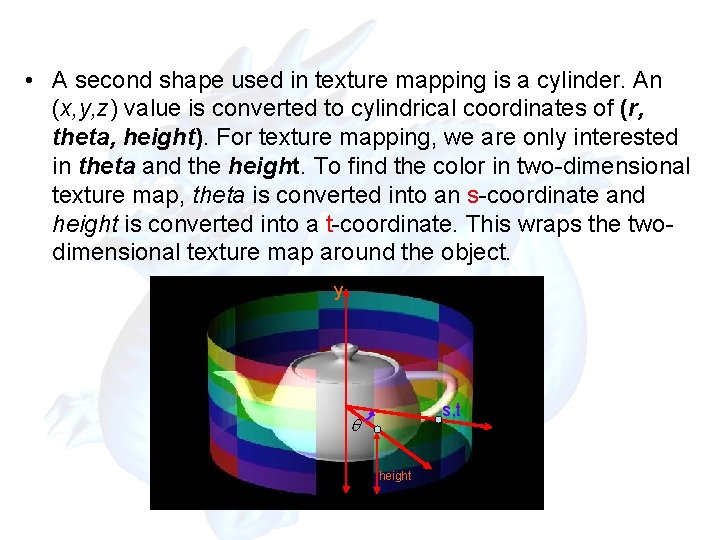
• A second shape used in texture mapping is a cylinder. An (x, y, z) value is converted to cylindrical coordinates of (r, theta, height). For texture mapping, we are only interested in theta and the height. To find the color in two-dimensional texture map, theta is converted into an s-coordinate and height is converted into a t-coordinate. This wraps the twodimensional texture map around the object. y s, t height
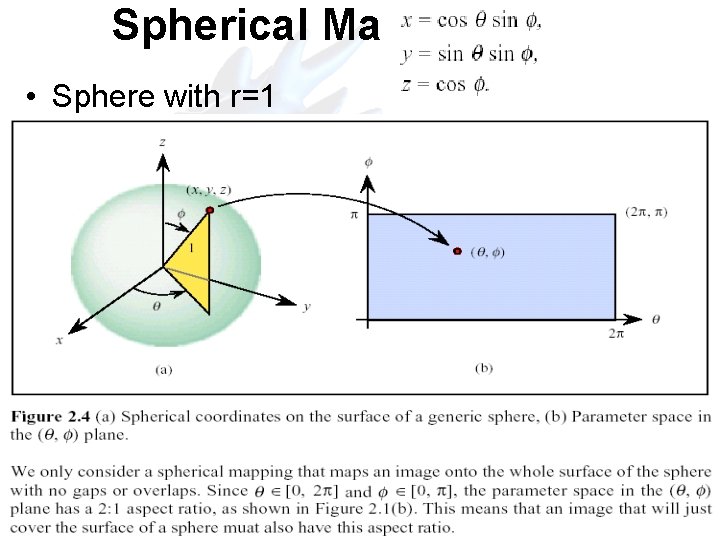
Spherical Mapping • Sphere with r=1
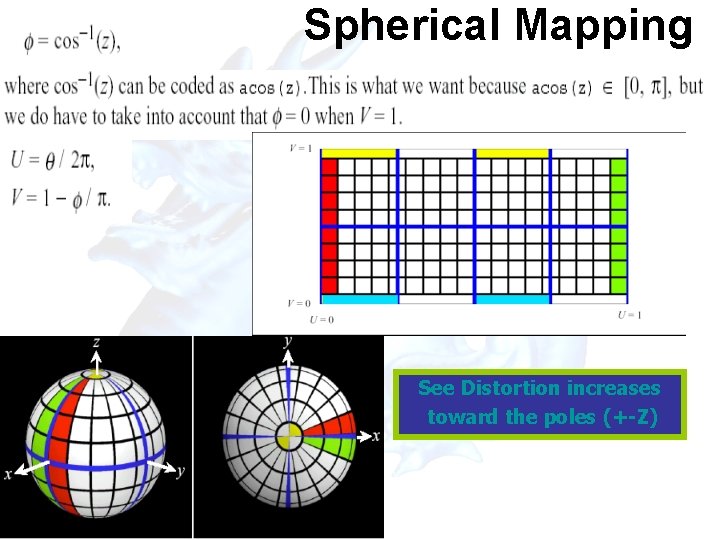
Spherical Mapping See Distortion increases toward the poles (+-Z)
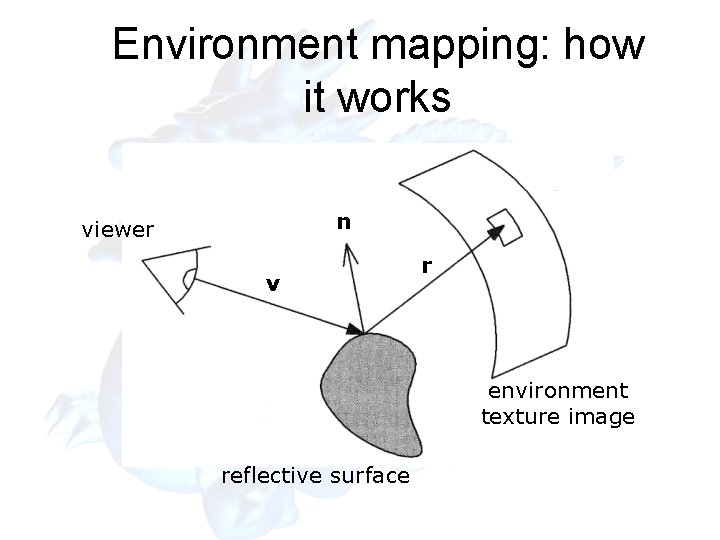
Environment mapping: how it works n viewer v r environment texture image reflective surface
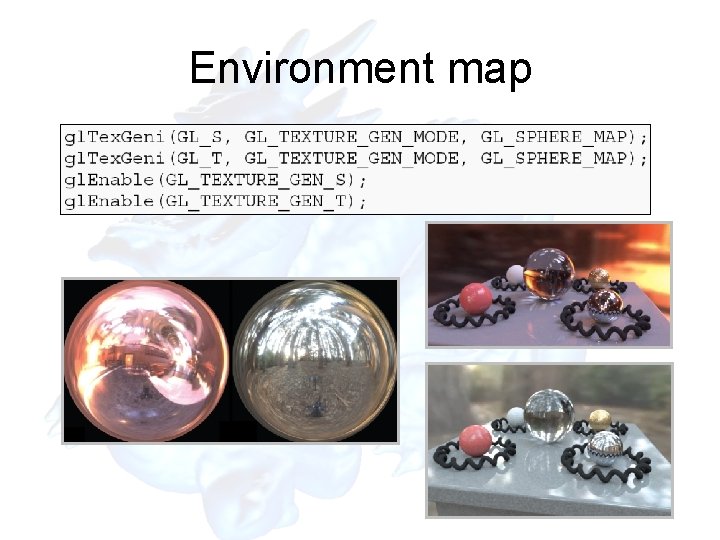
Environment map