Setting up Firefox to use your CAC on
- Slides: 16
Setting up Firefox to use your CAC on your Windows computer Presented by: Michael J. Danberry Last Revision / review: 09 September 2019 These tweaks are required to utilize your CAC. If you don’t follow these instructions, Firefox(FF) will not know the CAC reader exists enabling you to access CAC secured websites. This guide requires you to install Activ. Client (FF will not work with the built in Windows 7, 8 / 8. 1, or 10 smart card software) Activ. Client download locations: https: //militarycac. com/activclient. htm The most up to date version of this presentation can be found at: https: //militarycac. com/files/Firefox. CACSetup. pdf or https: //militarycac. com/files/Tech_Note_Firefox_CAC_Authentication. pdf 1
Download Firefox from the Mozilla website https: //www. mozilla. org/en-US/firefox 2
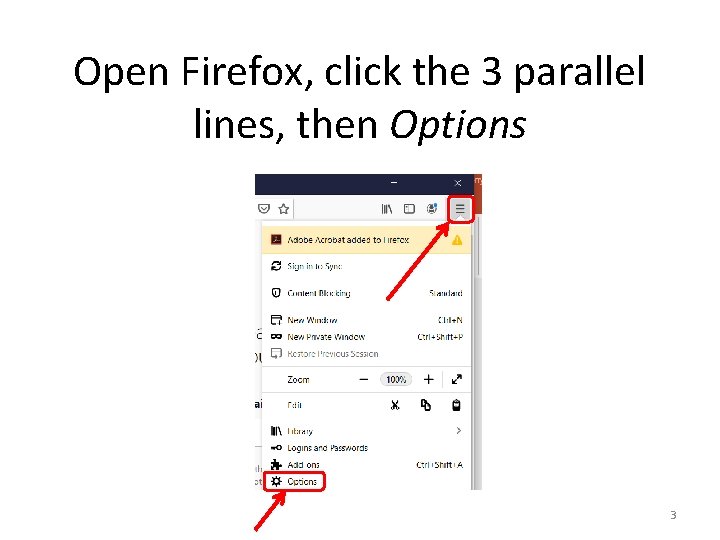
Open Firefox, click the 3 parallel lines, then Options 3
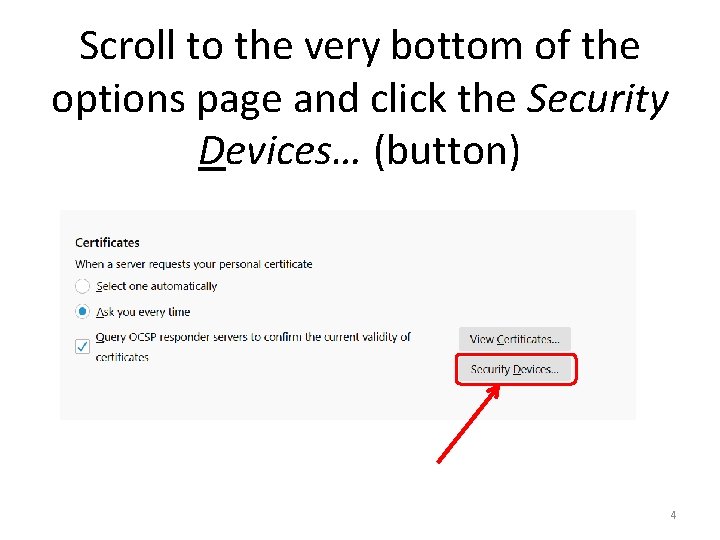
Scroll to the very bottom of the options page and click the Security Devices… (button) 4
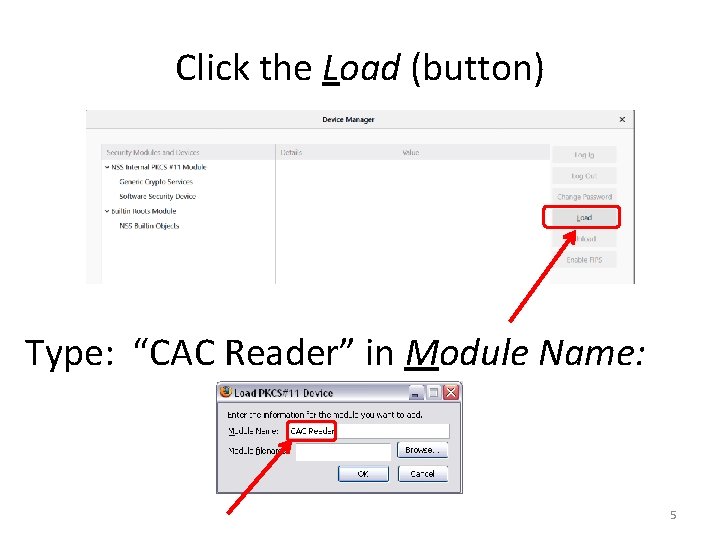
Click the Load (button) Type: “CAC Reader” in Module Name: 5
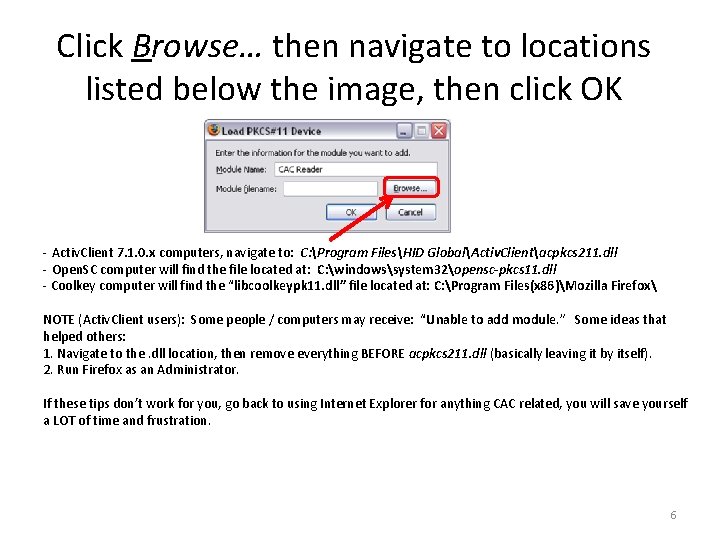
Click Browse… then navigate to locations listed below the image, then click OK - Activ. Client 7. 1. 0. x computers, navigate to: C: Program FilesHID GlobalActiv. Clientacpkcs 211. dll - Open. SC computer will find the file located at: C: windowssystem 32opensc-pkcs 11. dll - Coolkey computer will find the “libcoolkeypk 11. dll” file located at: C: Program Files(x 86)Mozilla Firefox NOTE (Activ. Client users): Some people / computers may receive: “Unable to add module. ” Some ideas that helped others: 1. Navigate to the. dll location, then remove everything BEFORE acpkcs 211. dll (basically leaving it by itself). 2. Run Firefox as an Administrator. If these tips don’t work for you, go back to using Internet Explorer for anything CAC related, you will save yourself a LOT of time and frustration. 6
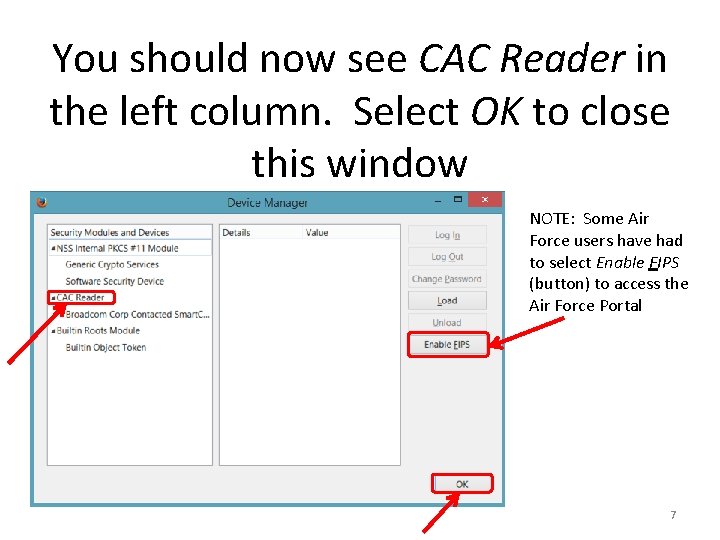
You should now see CAC Reader in the left column. Select OK to close this window NOTE: Some Air Force users have had to select Enable FIPS (button) to access the Air Force Portal 7
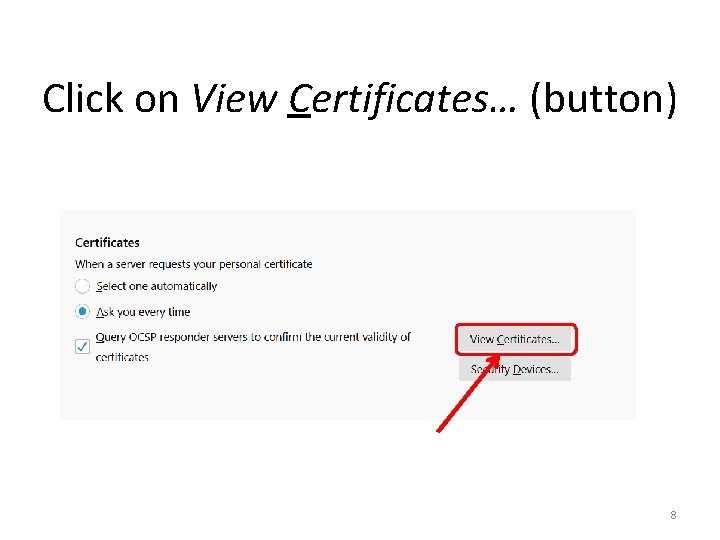
Click on View Certificates… (button) 8
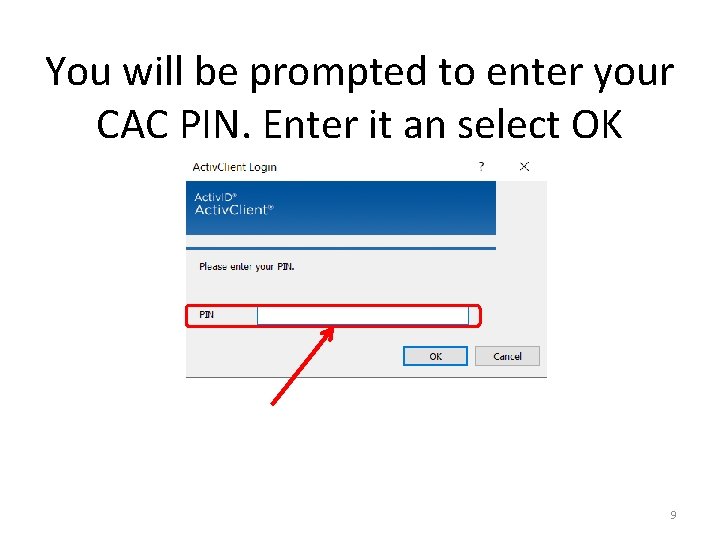
You will be prompted to enter your CAC PIN. Enter it an select OK 9
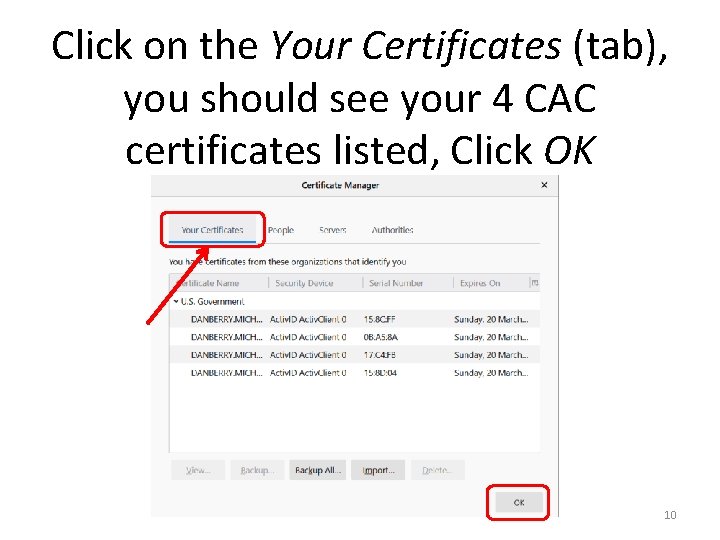
Click on the Your Certificates (tab), you should see your 4 CAC certificates listed, Click OK 10
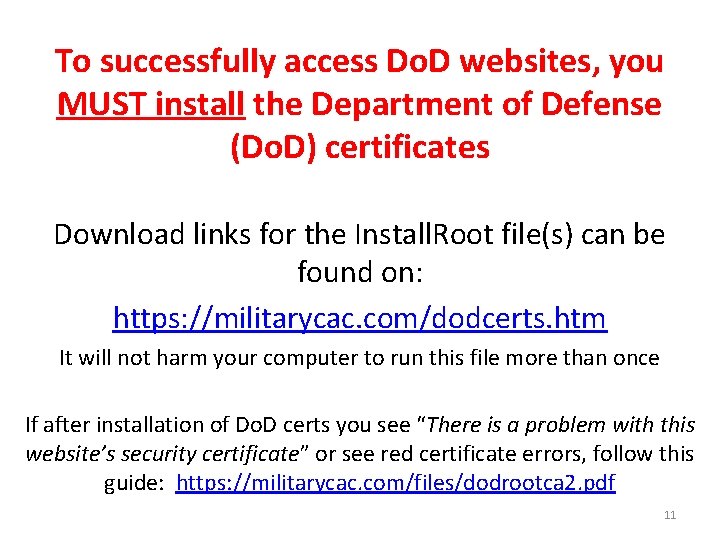
To successfully access Do. D websites, you MUST install the Department of Defense (Do. D) certificates Download links for the Install. Root file(s) can be found on: https: //militarycac. com/dodcerts. htm It will not harm your computer to run this file more than once If after installation of Do. D certs you see “There is a problem with this website’s security certificate” or see red certificate errors, follow this guide: https: //militarycac. com/files/dodrootca 2. pdf 11
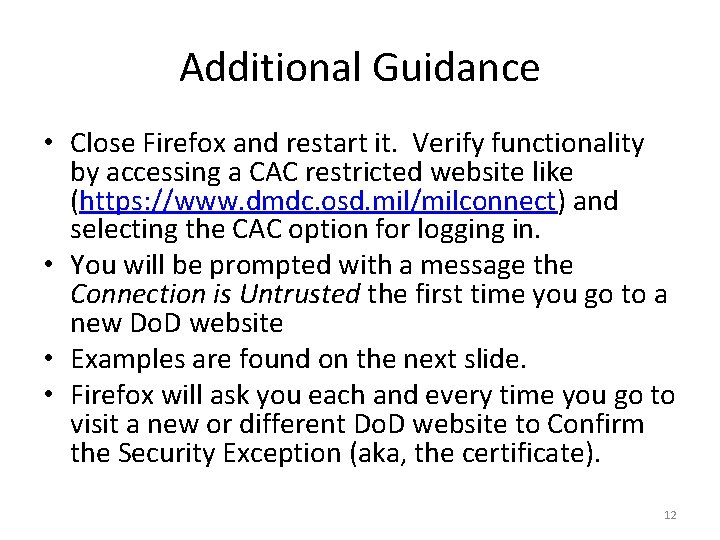
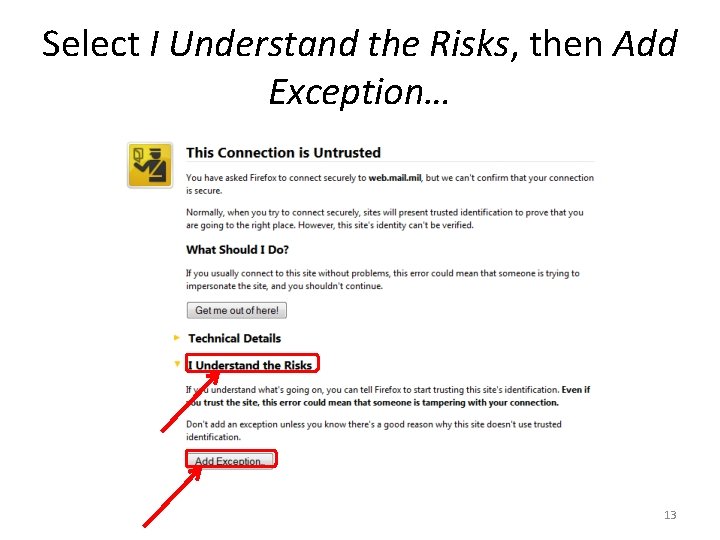
Additional Guidance • Close Firefox and restart it. Verify functionality by accessing a CAC restricted website like (https: //www. dmdc. osd. mil/milconnect) and selecting the CAC option for logging in. • You will be prompted with a message the Connection is Untrusted the first time you go to a new Do. D website • Examples are found on the next slide. • Firefox will ask you each and every time you go to visit a new or different Do. D website to Confirm the Security Exception (aka, the certificate). 12
Select I Understand the Risks, then Add Exception… 13
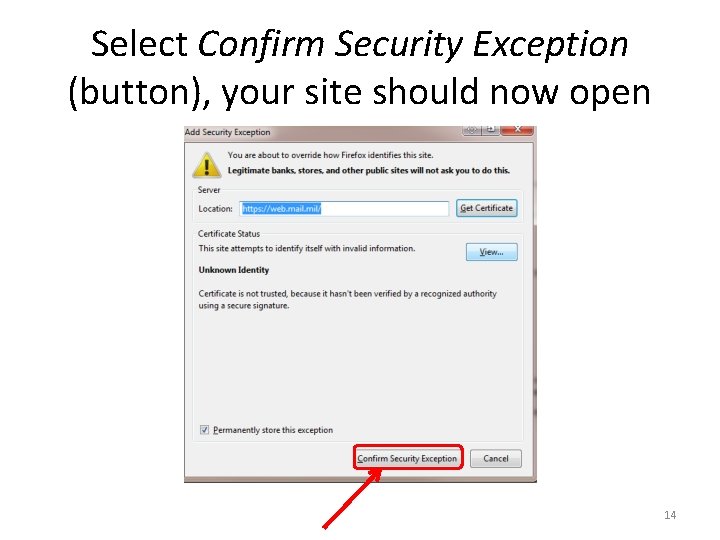
Select Confirm Security Exception (button), your site should now open 14
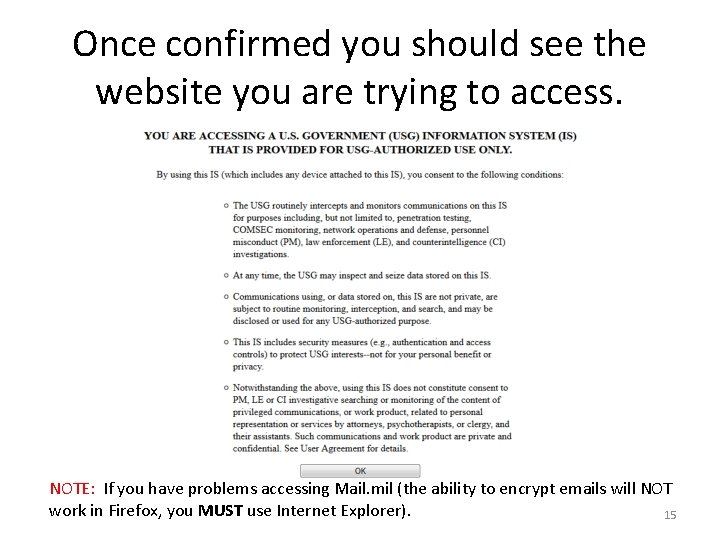
Once confirmed you should see the website you are trying to access. NOTE: If you have problems accessing Mail. mil (the ability to encrypt emails will NOT work in Firefox, you MUST use Internet Explorer). 15
Presentation created and maintained by: Michael J. Danberry https: //Military. CAC. com If you still have questions, visit: https: //militarycac. com/questions. htm 16