Installing Apache Axis Setting up your Tomcat server
- Slides: 6
Installing Apache Axis Setting up your Tomcat server to use Web Services.
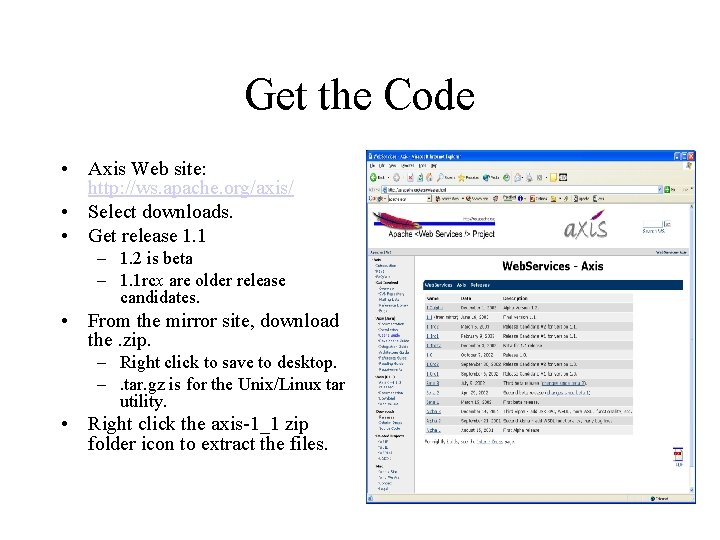
Get the Code • Axis Web site: http: //ws. apache. org/axis/ • Select downloads. • Get release 1. 1 – 1. 2 is beta – 1. 1 rcx are older release candidates. • From the mirror site, download the. zip. – Right click to save to desktop. –. tar. gz is for the Unix/Linux tar utility. • Right click the axis-1_1 zip folder icon to extract the files.
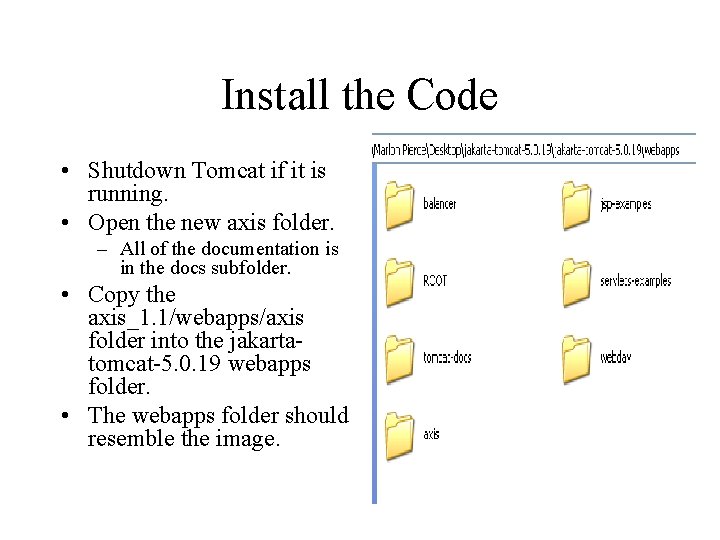
Install the Code • Shutdown Tomcat if it is running. • Open the new axis folder. – All of the documentation is in the docs subfolder. • Copy the axis_1. 1/webapps/axis folder into the jakartatomcat-5. 0. 19 webapps folder. • The webapps folder should resemble the image.
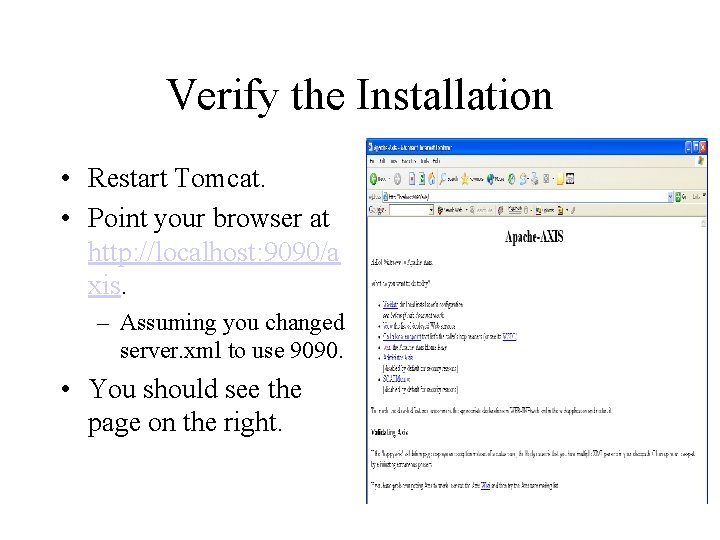
Verify the Installation • Restart Tomcat. • Point your browser at http: //localhost: 9090/a xis. – Assuming you changed server. xml to use 9090. • You should see the page on the right.
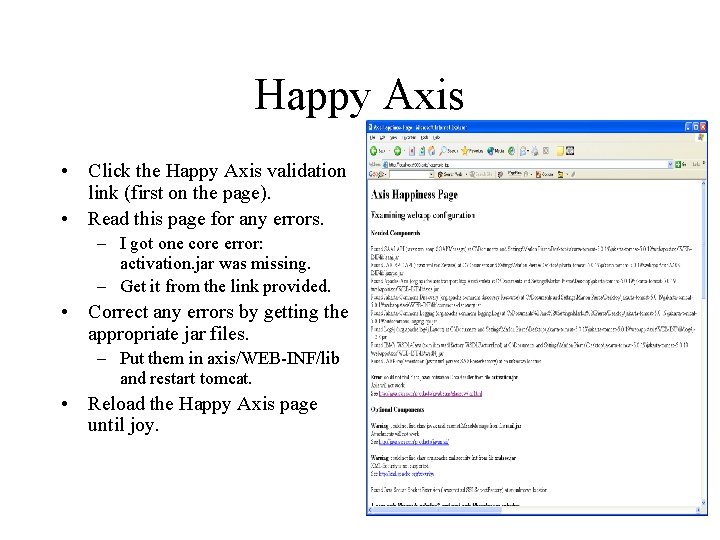
Happy Axis • Click the Happy Axis validation link (first on the page). • Read this page for any errors. – I got one core error: activation. jar was missing. – Get it from the link provided. • Correct any errors by getting the appropriate jar files. – Put them in axis/WEB-INF/lib and restart tomcat. • Reload the Happy Axis page until joy.
Writing an Axis Application public class echo. Service { public String echo(String msg) { return msg; } } • • The code on the left is can be converted to an extremely simple service. Just copy it into a file called echo. Service. jws in the jakartatomcat-5. 0. 19/webapps/axis directory. – Make sure Windows does not append. txt to your. jws file name. – In general, write and compile this as a. java file to check for errors. – The file will not work if you do. • • You’re done. Axis will deploy all. jws files for you. Point your browser to http: //localhost: 9090/axis/echo. jws to view the wsdl.