If you can read this Click on the
- Slides: 28
If you can read this Click on the icon to choose a picture or Reset the slide. To Reset: Right click on the slide thumbnail and select ‘reset slide’ or choose the ‘Reset’ button on the ‘Home’ ribbon (next to the font choice box) E 2 Open Solution Overview Johnson Controls, Inc. —
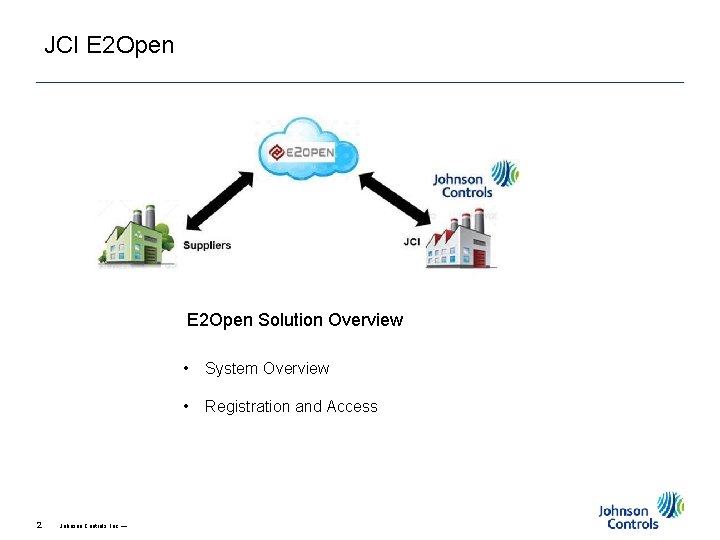
JCI E 2 Open Solution Overview 2 Johnson Controls, Inc. — • System Overview • Registration and Access Johnson Controls Inc. -INTERNAL-(Peter Daniel)
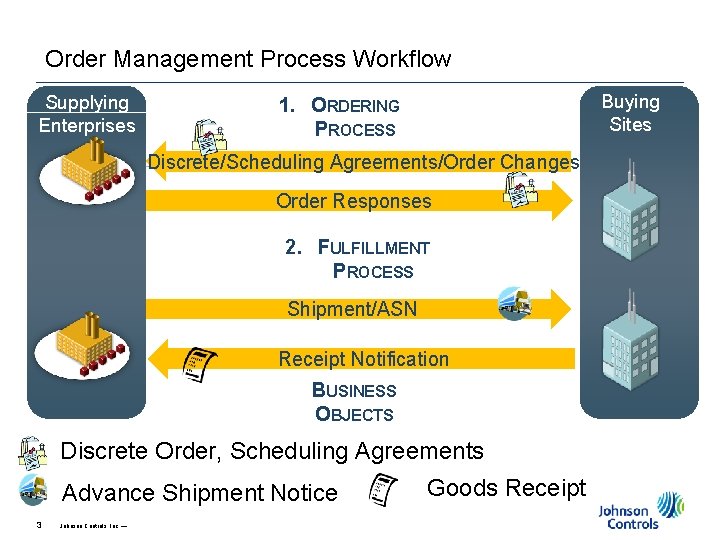
Order Management Process Workflow Supplying Enterprises Buying Sites 1. ORDERING PROCESS Discrete/Scheduling Agreements/Order Changes Order Responses 2. FULFILLMENT PROCESS Shipment/ASN Receipt Notification BUSINESS OBJECTS Discrete Order, Scheduling Agreements Advance Shipment Notice 3 Johnson Controls, Inc. — Goods Receipt Johnson Controls Inc. -INTERNAL-(Peter Daniel)
Getting Help It is recommended to use Google Chrome as your browser for E 2 Open. Pop-up blocker software can prevent certain functions from occurring Temporarily disable pop-up blocker software: Press the Alt key while clicking any links - for Windows® Press the Ctrl key while clicking any links - for many third party applications The permanent fix is to configure your browser to allow all pop-ups from e 2 open. com See the System Requirements document for detailed information 4 Johnson Controls, Inc. — Johnson Controls Inc. -INTERNAL-(Peter Daniel)
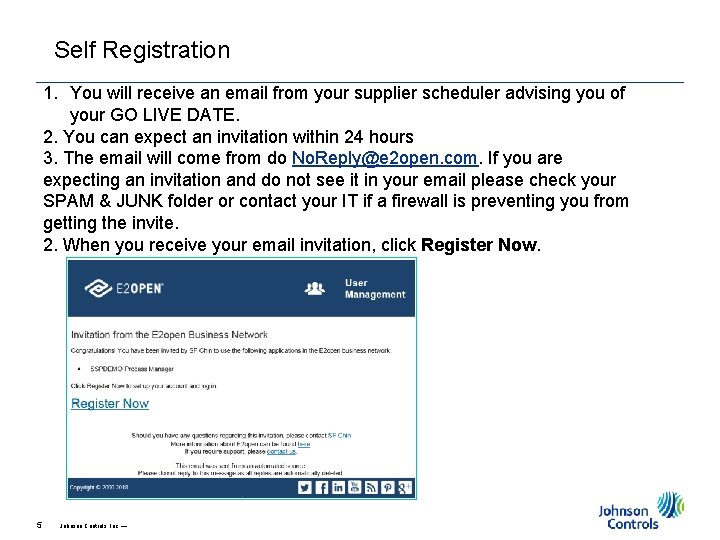
Self Registration 1. You will receive an email from your supplier scheduler advising you of your GO LIVE DATE. 2. You can expect an invitation within 24 hours 3. The email will come from do No. Reply@e 2 open. com. If you are expecting an invitation and do not see it in your email please check your SPAM & JUNK folder or contact your IT if a firewall is preventing you from getting the invite. 2. When you receive your email invitation, click Register Now. 5 Johnson Controls, Inc. — Johnson Controls Inc. -INTERNAL-(Peter Daniel)
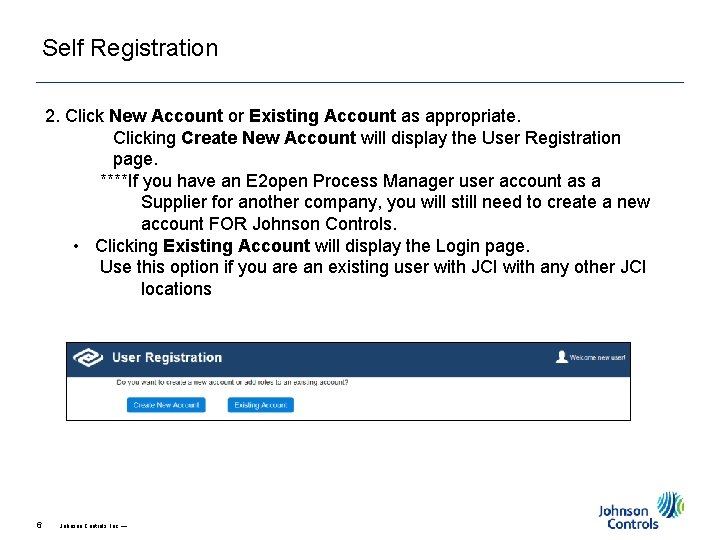
Self Registration 2. Click New Account or Existing Account as appropriate. Clicking Create New Account will display the User Registration page. ****If you have an E 2 open Process Manager user account as a Supplier for another company, you will still need to create a new account FOR Johnson Controls. • Clicking Existing Account will display the Login page. Use this option if you are an existing user with JCI with any other JCI locations 6 Johnson Controls, Inc. — Johnson Controls Inc. -INTERNAL-(Peter Daniel)
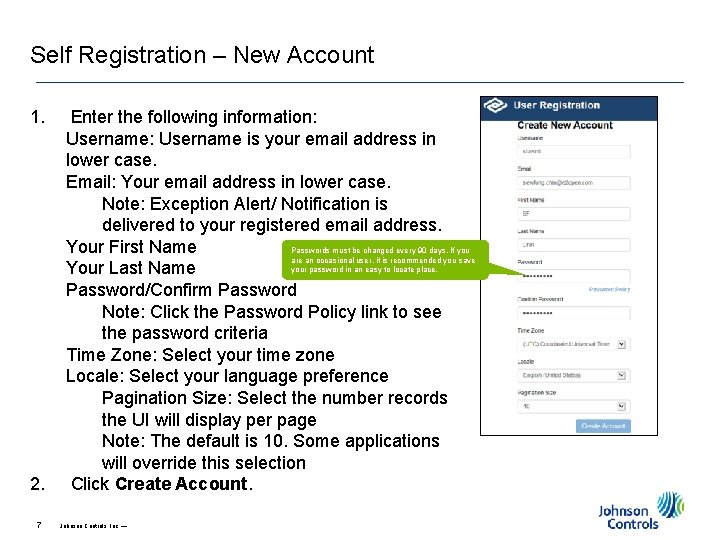
Self Registration – New Account 1. 2. 7 Enter the following information: Username: Username is your email address in lower case. Email: Your email address in lower case. Note: Exception Alert/ Notification is delivered to your registered email address. Your First Name Passwords must be changed every 90 days. If you are an occasional user, it is recommended you save your password in an easy to locate place. Your Last Name Password/Confirm Password Note: Click the Password Policy link to see the password criteria Time Zone: Select your time zone Locale: Select your language preference Pagination Size: Select the number records the UI will display per page Note: The default is 10. Some applications will override this selection Click Create Account. Johnson Controls, Inc. — Johnson Controls Inc. -INTERNAL-(Peter Daniel)
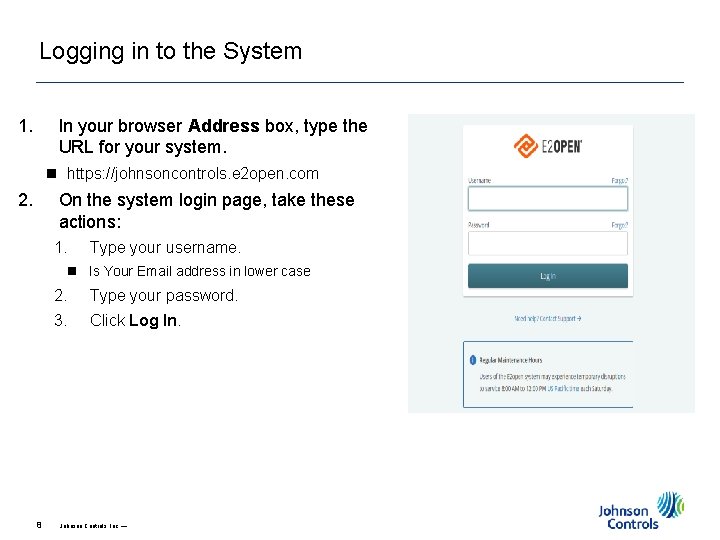
Logging in to the System 1. In your browser Address box, type the URL for your system. n https: //johnsoncontrols. e 2 open. com 2. On the system login page, take these actions: 1. Type your username. n Is Your Email address in lower case 8 2. Type your password. 3. Click Log In. Johnson Controls, Inc. — Johnson Controls Inc. -INTERNAL-(Peter Daniel)
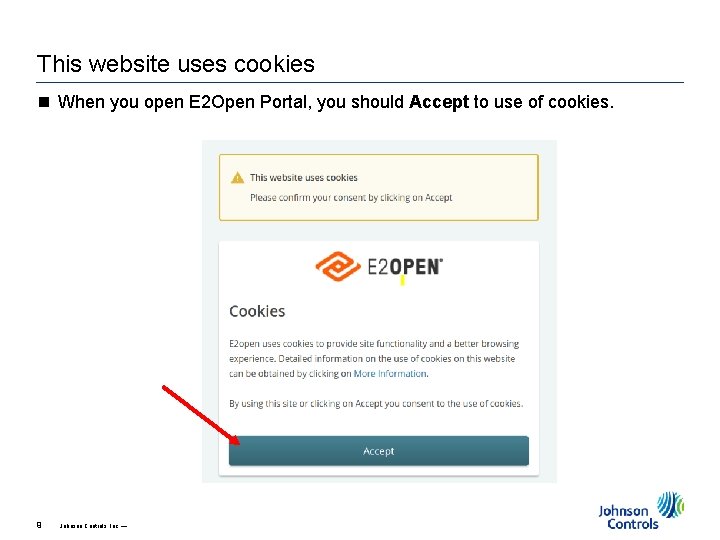
This website uses cookies n When you open E 2 Open Portal, you should Accept to use of cookies. 9 Johnson Controls, Inc. —
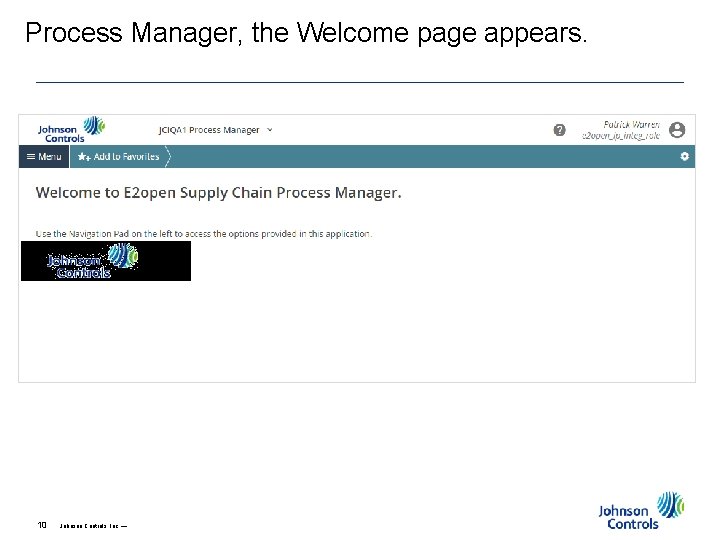
Process Manager, the Welcome page appears. 10 Johnson Controls, Inc. — Johnson Controls Inc. -INTERNAL-(Peter Daniel)
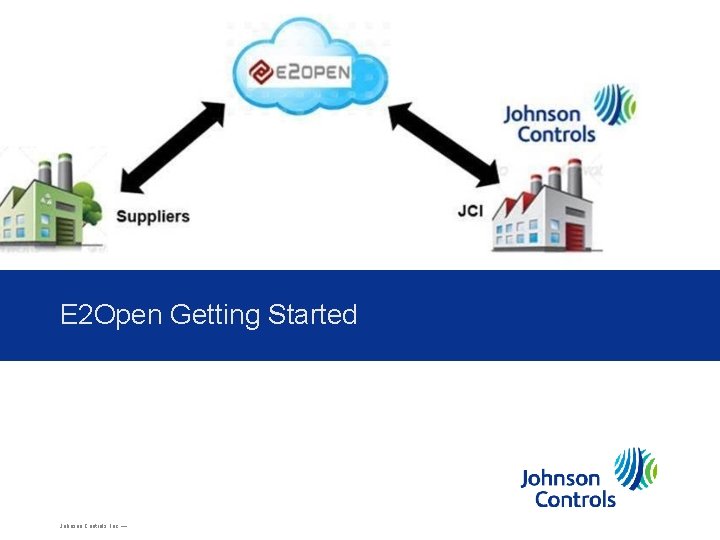
If you can read this Click on the icon to choose a picture or Reset the slide. To Reset: Right click on the slide thumbnail and select ‘reset slide’ or choose the ‘Reset’ button on the ‘Home’ ribbon (next to the font choice box) E 2 Open Getting Started Johnson Controls, Inc. —
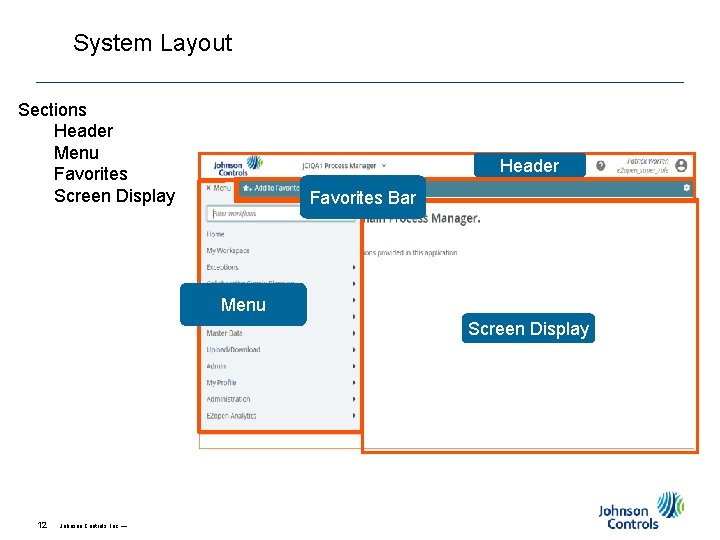
System Layout Sections Header Menu Favorites Screen Display Header Favorites Bar Menu Screen Display 12 Johnson Controls, Inc. — Johnson Controls Inc. -INTERNAL-(Peter Daniel)
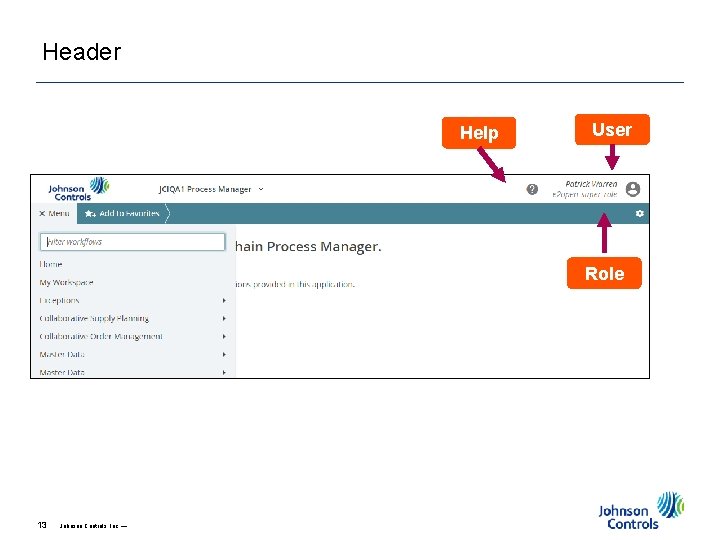
Header Help User Role 13 Johnson Controls, Inc. — Johnson Controls Inc. -INTERNAL-(Peter Daniel)
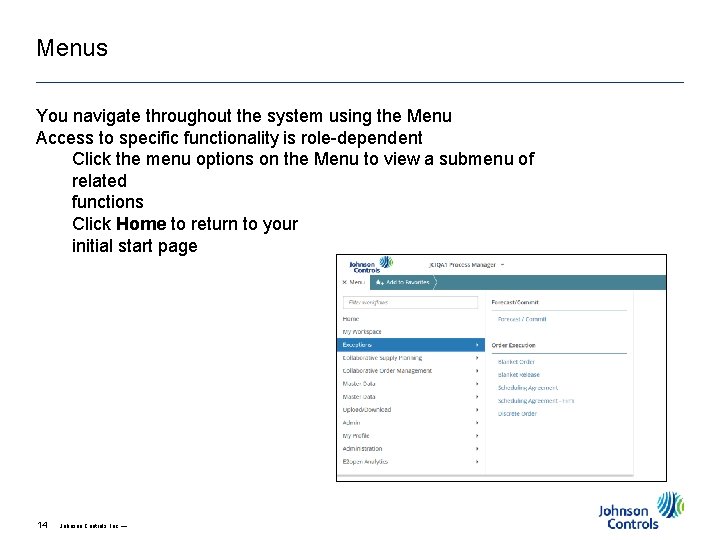
Menus You navigate throughout the system using the Menu Access to specific functionality is role-dependent Click the menu options on the Menu to view a submenu of related functions Click Home to return to your initial start page 14 Johnson Controls, Inc. — Johnson Controls Inc. -INTERNAL-(Peter Daniel)
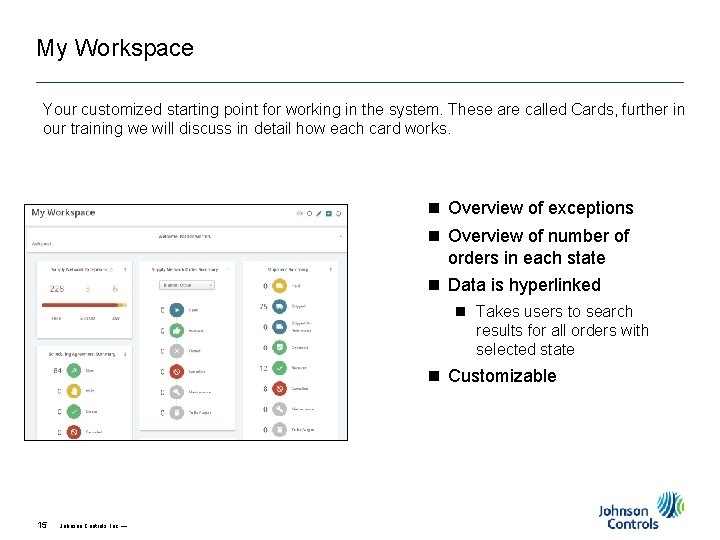
My Workspace Your customized starting point for working in the system. These are called Cards, further in our training we will discuss in detail how each card works. n Overview of exceptions n Overview of number of orders in each state n Data is hyperlinked n Takes users to search results for all orders with selected state n Customizable 15 Johnson Controls, Inc. — Johnson Controls Inc. -INTERNAL-(Peter Daniel)
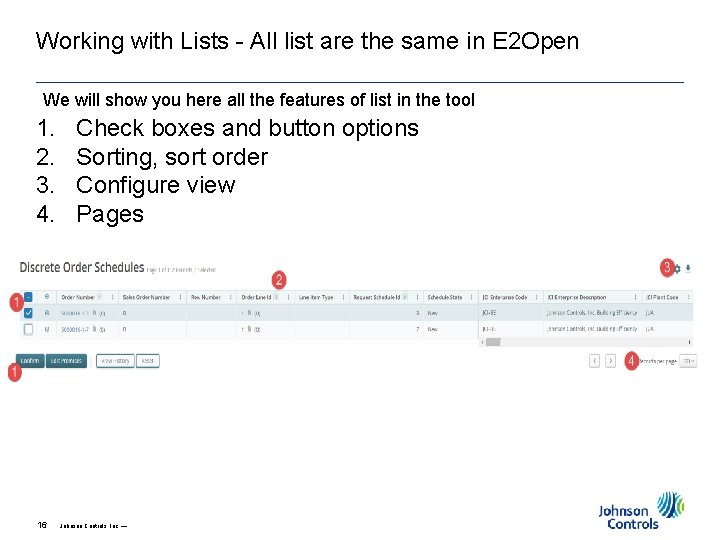
Working with Lists - All list are the same in E 2 Open We will show you here all the features of list in the tool 1. 2. 3. 4. 16 Check boxes and button options Sorting, sort order Configure view Pages Johnson Controls, Inc. — Johnson Controls Inc. -INTERNAL-(Peter Daniel)
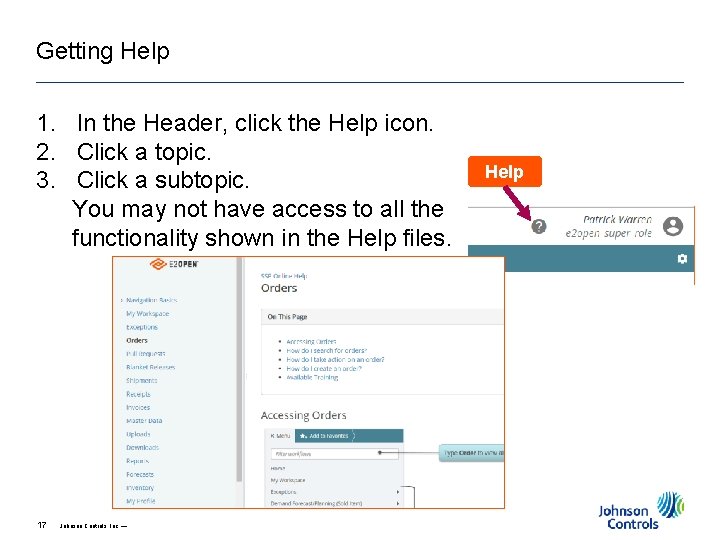
Getting Help 1. In the Header, click the Help icon. 2. Click a topic. 3. Click a subtopic. You may not have access to all the functionality shown in the Help files. 17 Johnson Controls, Inc. — Help Johnson Controls Inc. -INTERNAL-(Peter Daniel)
If you can read this Click on the icon to choose a picture or Reset the slide. To Reset: Right click on the slide thumbnail and select ‘reset slide’ or choose the ‘Reset’ button on the ‘Home’ ribbon (next to the font choice box) E 2 Open Password Reset Johnson Controls, Inc. —
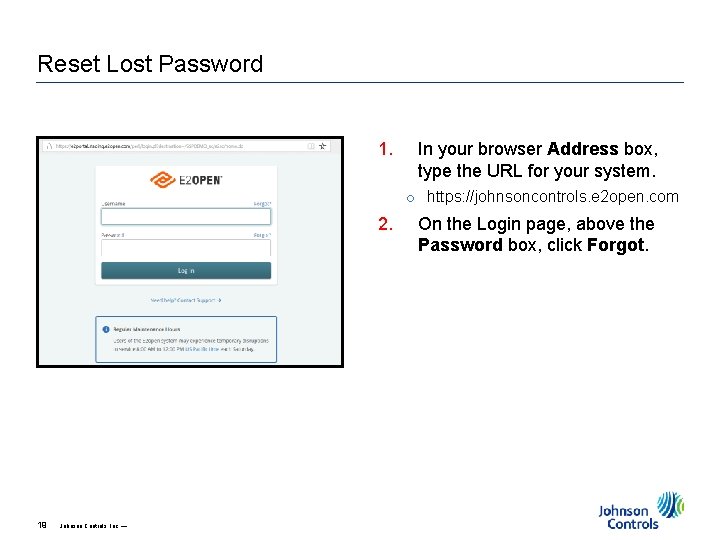
Reset Lost Password 1. In your browser Address box, type the URL for your system. o https: //johnsoncontrols. e 2 open. com 2. 19 Johnson Controls, Inc. — On the Login page, above the Password box, click Forgot.
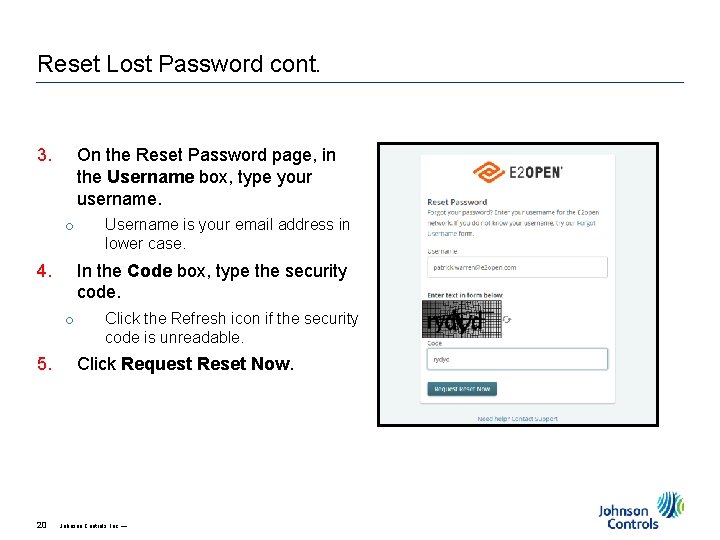
Reset Lost Password cont. 3. On the Reset Password page, in the Username box, type your username. o 4. In the Code box, type the security code. o 5. 20 Username is your email address in lower case. Click the Refresh icon if the security code is unreadable. Click Request Reset Now. Johnson Controls, Inc. —
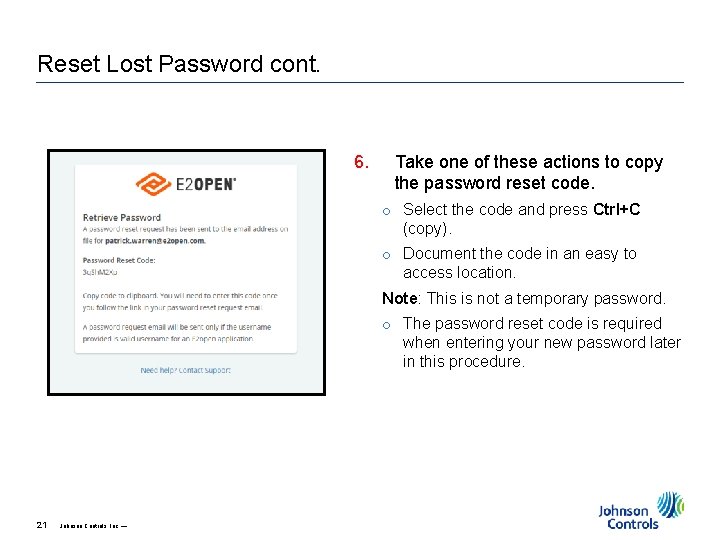
Reset Lost Password cont. 6. Take one of these actions to copy the password reset code. o Select the code and press Ctrl+C (copy). o Document the code in an easy to access location. Note: This is not a temporary password. o The password reset code is required when entering your new password later in this procedure. 21 Johnson Controls, Inc. —
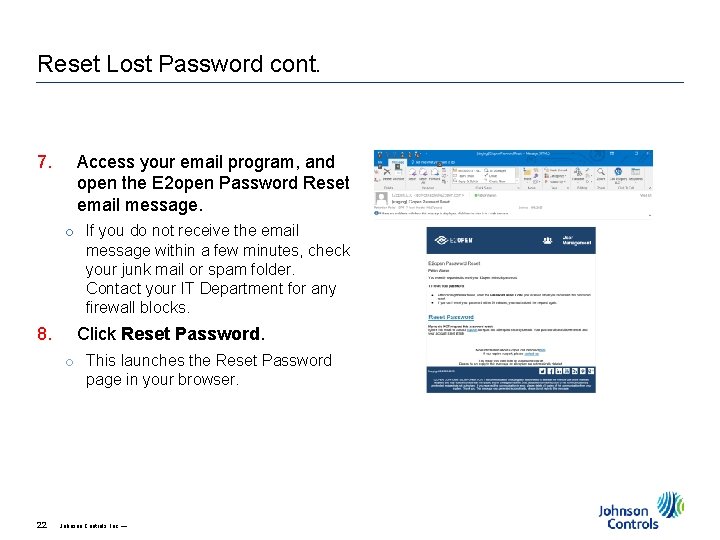
Reset Lost Password cont. 7. Access your email program, and open the E 2 open Password Reset email message. o If you do not receive the email message within a few minutes, check your junk mail or spam folder. Contact your IT Department for any firewall blocks. 8. Click Reset Password. o This launches the Reset Password page in your browser. 22 Johnson Controls, Inc. —
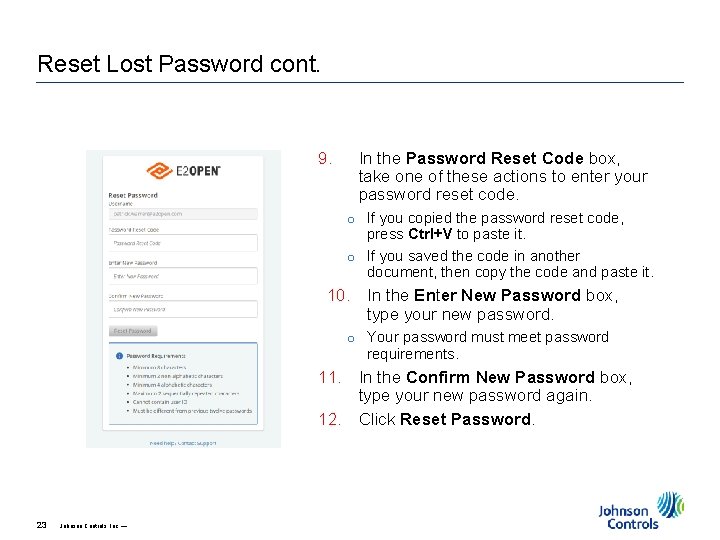
Reset Lost Password cont. 9. In the Password Reset Code box, take one of these actions to enter your password reset code. o If you copied the password reset code, press Ctrl+V to paste it. o If you saved the code in another document, then copy the code and paste it. 10. In the Enter New Password box, type your new password. o Your password must meet password requirements. 11. In the Confirm New Password box, type your new password again. 12. Click Reset Password. 23 Johnson Controls, Inc. —
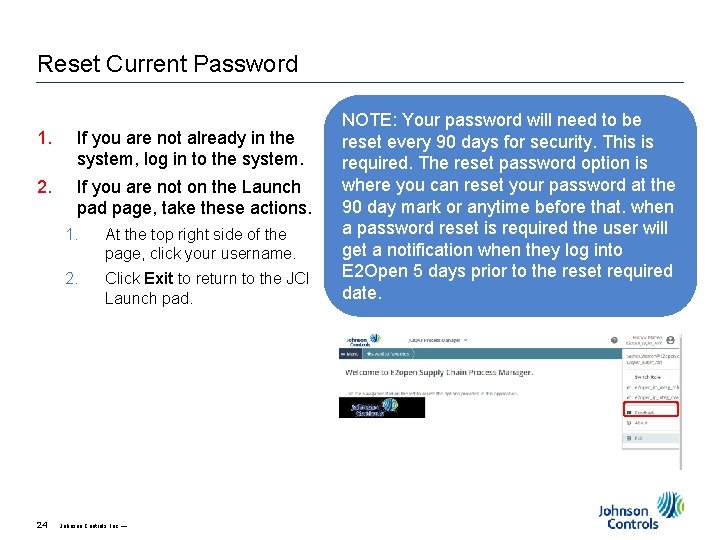
Reset Current Password 1. If you are not already in the system, log in to the system. 2. If you are not on the Launch pad page, take these actions. 24 1. At the top right side of the page, click your username. 2. Click Exit to return to the JCI Launch pad. Johnson Controls, Inc. — NOTE: Your password will need to be reset every 90 days for security. This is required. The reset password option is where you can reset your password at the 90 day mark or anytime before that. when a password reset is required the user will get a notification when they log into E 2 Open 5 days prior to the reset required date.
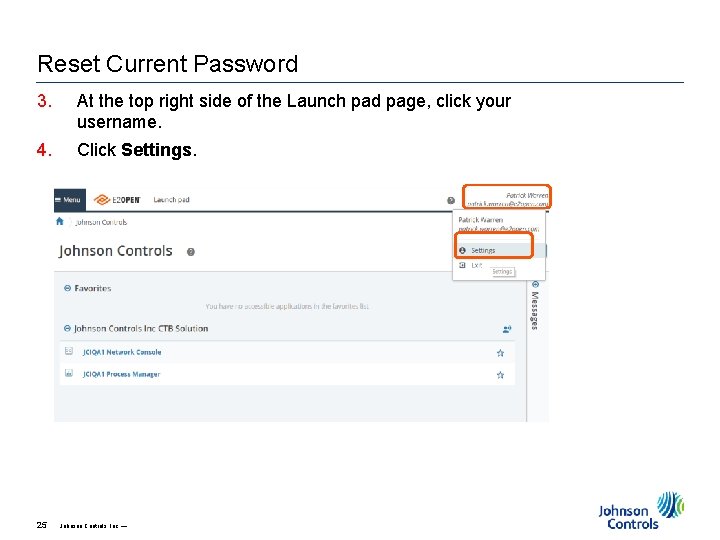
Reset Current Password 3. At the top right side of the Launch pad page, click your username. 4. Click Settings. 25 Johnson Controls, Inc. —
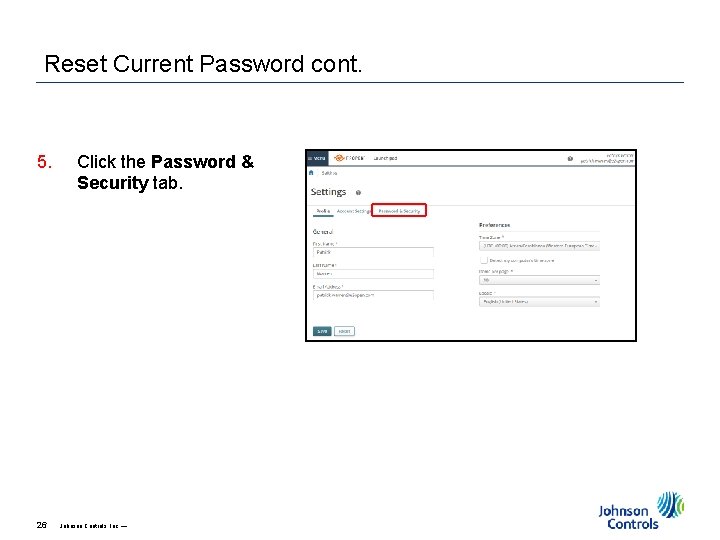
Reset Current Password cont. 5. 26 Click the Password & Security tab. Johnson Controls, Inc. —
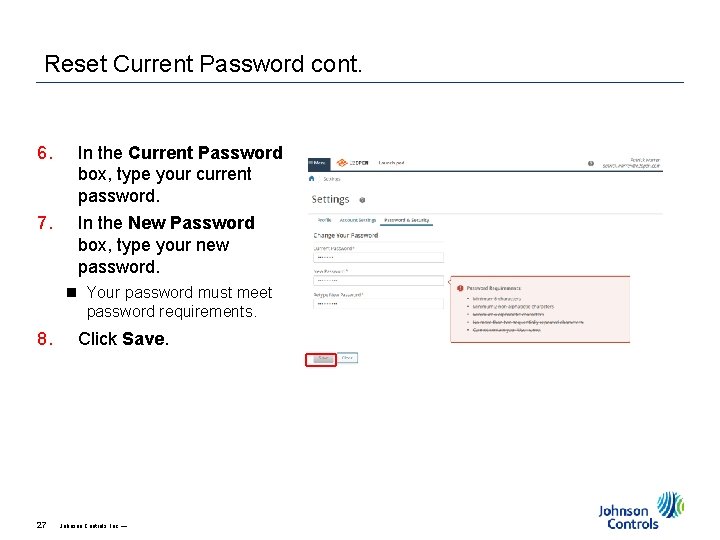
Reset Current Password cont. 6. In the Current Password box, type your current password. 7. In the New Password box, type your new password. n Your password must meet password requirements. 8. 27 Click Save. Johnson Controls, Inc. —
Getting Support Help desk support for both internal and partner users is typically provided by the organization that invited you to use the E 2 open solution. You can contact JCI through email at CGe 2 open-ob@jci. com at any time this mailbox is monitored by the whole JCI onboarding team. This is our preferred method of contacting us JCI is also available by calling into our Hypercare Hotline on Tuesdays, Thursdays & Fridays from 9: 00 am - 11: 00 am CST at 414 -214 -4100 Code 80685422. Supplier Training will be held on Wednesdays from 9: 00 am - 11: 00 am CST at 414 -214 -4100 Code 80685422. 28 Johnson Controls, Inc. — Johnson Controls Inc. -INTERNAL-(Peter Daniel)