EELE 461561 Digital System Design Eye Diagrams in
- Slides: 8
EELE 461/561 – Digital System Design Eye Diagrams in ADS EE 461 – Digital System Design Spring 2010 Page 1
Eye Diagrams • Objectives 1) Create a Pseudo Random Bit Sequence Generator Subcircuit 2) Learn how to use the Eye Diagram Front Panel in ADS 3) Enter interconnect discontinuities to observe eye degradation • Helpful Hints 1) We want to have a smooth, adjustable risetime coming out of our PRBS generator. If you copy your Gaussian step Subcircuit, you can simply replace the ideal voltage Step Source with a Bit Sequence Source EE 461 – Digital System Design Spring 2010 Page 2
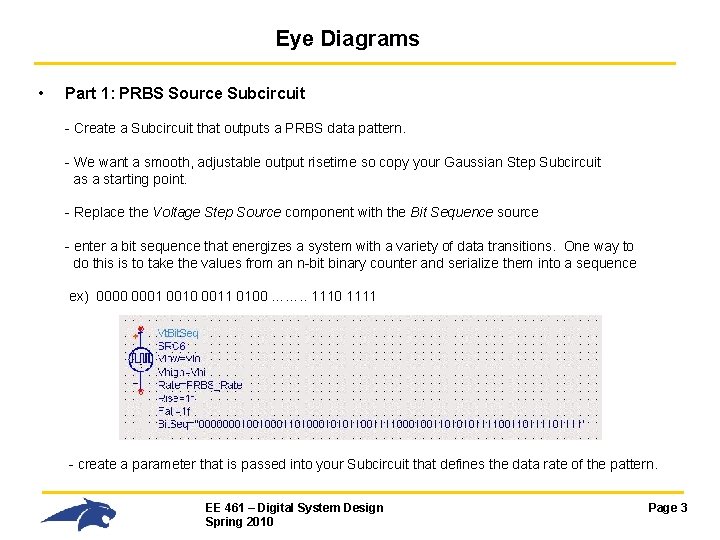
Eye Diagrams • Part 1: PRBS Source Subcircuit - Create a Subcircuit that outputs a PRBS data pattern. - We want a smooth, adjustable output risetime so copy your Gaussian Step Subcircuit as a starting point. - Replace the Voltage Step Source component with the Bit Sequence source - enter a bit sequence that energizes a system with a variety of data transitions. One way to do this is to take the values from an n-bit binary counter and serialize them into a sequence ex) 0000 0001 0010 0011 0100 ……. . 1110 1111 - create a parameter that is passed into your Subcircuit that defines the data rate of the pattern. EE 461 – Digital System Design Spring 2010 Page 3
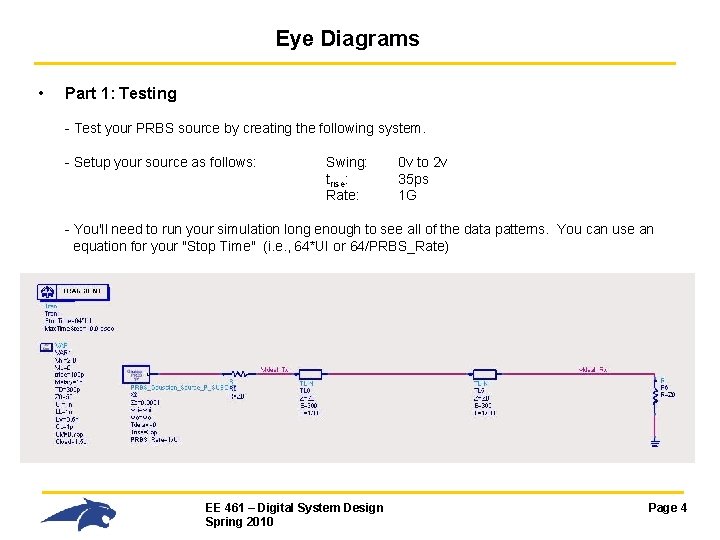
Eye Diagrams • Part 1: Testing - Test your PRBS source by creating the following system. - Setup your source as follows: Swing: trise: Rate: 0 v to 2 v 35 ps 1 G - You'll need to run your simulation long enough to see all of the data patterns. You can use an equation for your "Stop Time" (i. e. , 64*UI or 64/PRBS_Rate) EE 461 – Digital System Design Spring 2010 Page 4
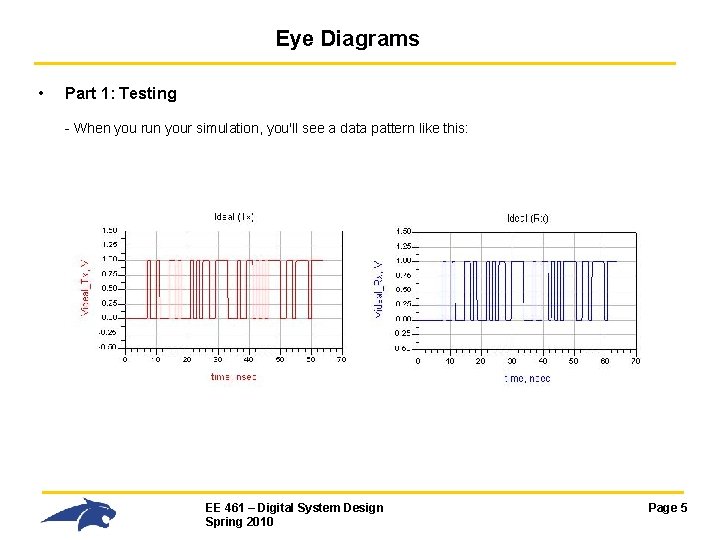
Eye Diagrams • Part 1: Testing - When you run your simulation, you'll see a data pattern like this: EE 461 – Digital System Design Spring 2010 Page 5
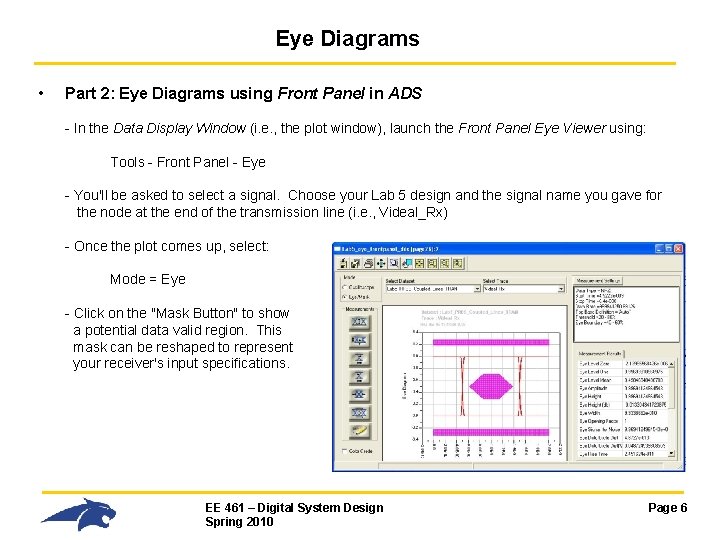
Eye Diagrams • Part 2: Eye Diagrams using Front Panel in ADS - In the Data Display Window (i. e. , the plot window), launch the Front Panel Eye Viewer using: Tools - Front Panel - Eye - You'll be asked to select a signal. Choose your Lab 5 design and the signal name you gave for the node at the end of the transmission line (i. e. , Videal_Rx) - Once the plot comes up, select: Mode = Eye - Click on the "Mask Button" to show a potential data valid region. This mask can be reshaped to represent your receiver's input specifications. EE 461 – Digital System Design Spring 2010 Page 6
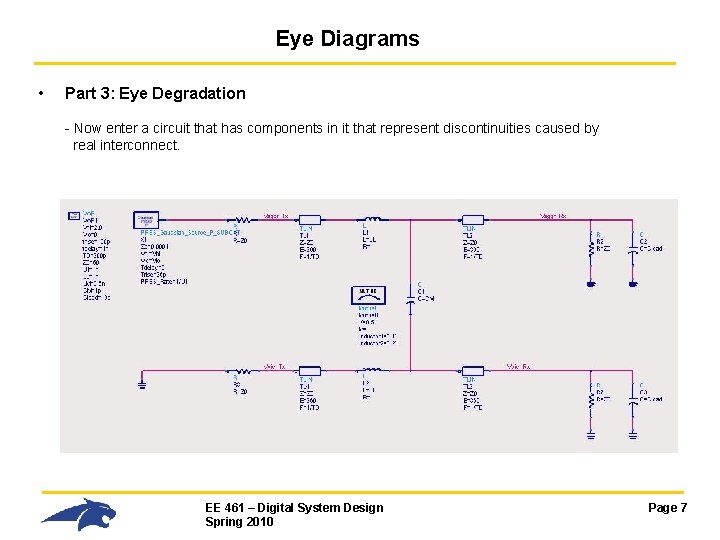
Eye Diagrams • Part 3: Eye Degradation - Now enter a circuit that has components in it that represent discontinuities caused by real interconnect. EE 461 – Digital System Design Spring 2010 Page 7
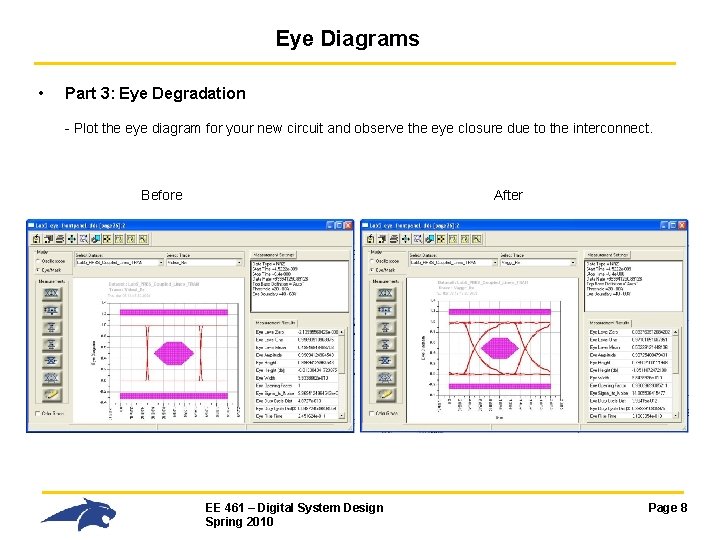
Eye Diagrams • Part 3: Eye Degradation - Plot the eye diagram for your new circuit and observe the eye closure due to the interconnect. Before After EE 461 – Digital System Design Spring 2010 Page 8