Eclipse for SE 101 Drexel University Software Engineering
- Slides: 11
Eclipse for SE 101 Drexel University Software Engineering Research Group http: //serg. cs. drexel. edu 1
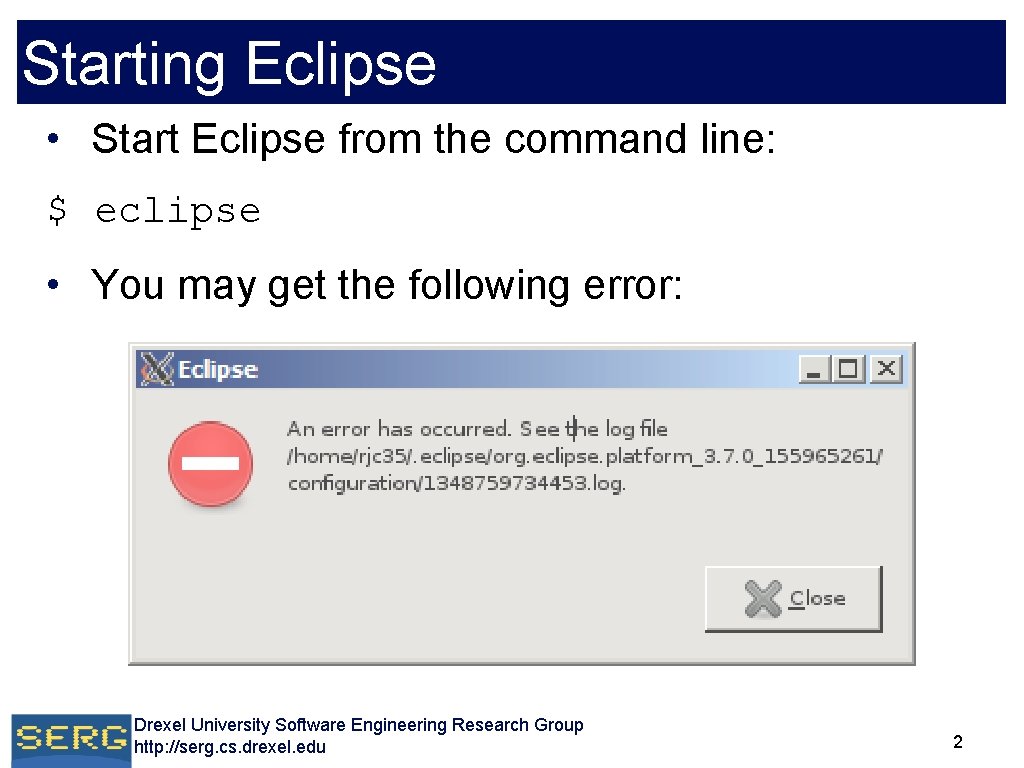
Starting Eclipse • Start Eclipse from the command line: $ eclipse • You may get the following error: Drexel University Software Engineering Research Group http: //serg. cs. drexel. edu 2
Fixing the SWT error • From the command line, run: • Ln –s creates a symbolic link $ ln -s /usr/lib/jni/libswt-* ~/. swt/lib/linux/x 86_64/ • Ln –s is used to create a symbolic link to the correct libraries in /usr/lib from your home folder Drexel University Software Engineering Research Group http: //serg. cs. drexel. edu 3
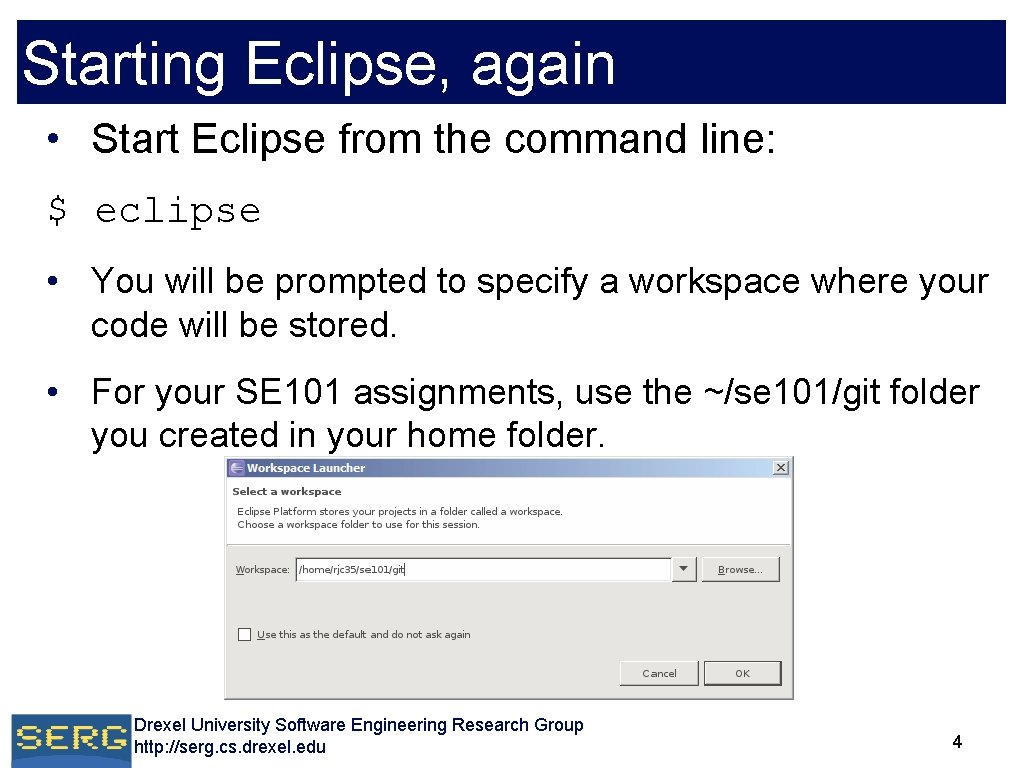
Starting Eclipse, again • Start Eclipse from the command line: $ eclipse • You will be prompted to specify a workspace where your code will be stored. • For your SE 101 assignments, use the ~/se 101/git folder you created in your home folder. Drexel University Software Engineering Research Group http: //serg. cs. drexel. edu 4
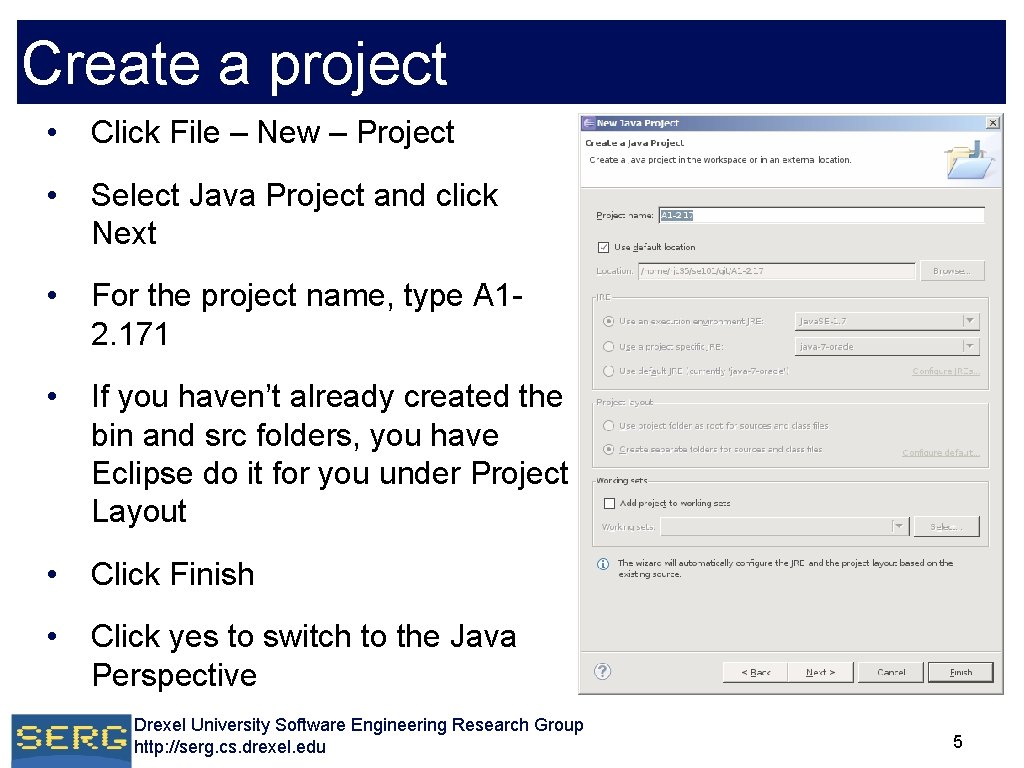
Create a project • Click File – New – Project • Select Java Project and click Next • For the project name, type A 12. 171 • If you haven’t already created the bin and src folders, you have Eclipse do it for you under Project Layout • Click Finish • Click yes to switch to the Java Perspective Drexel University Software Engineering Research Group http: //serg. cs. drexel. edu 5
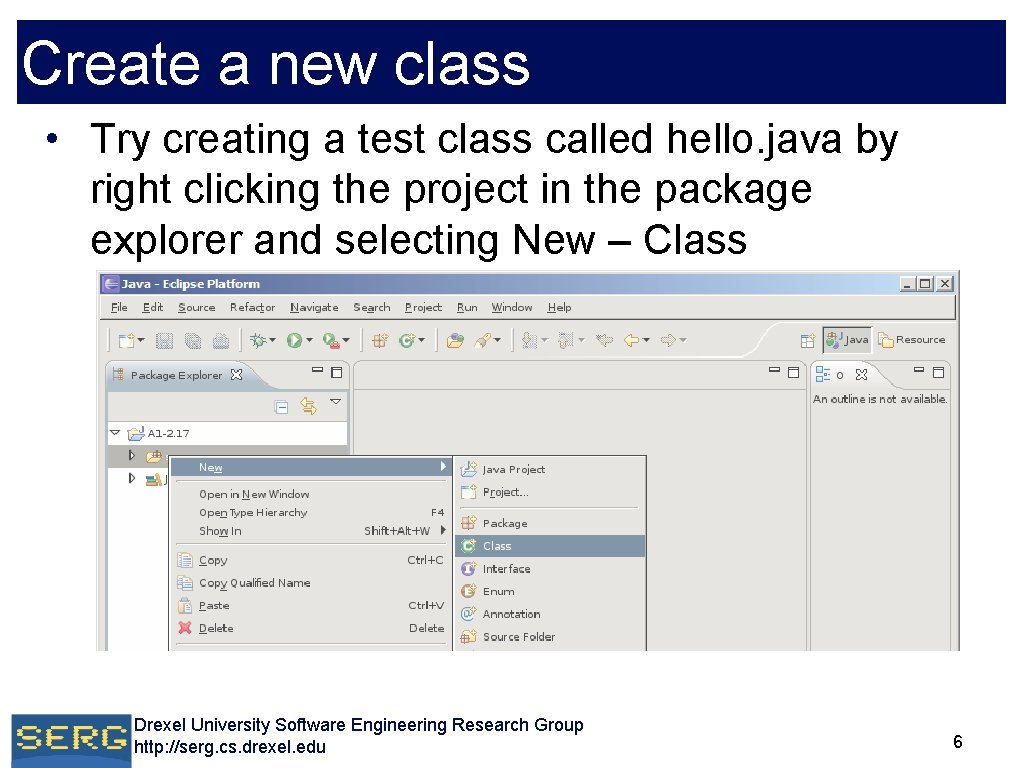
Create a new class • Try creating a test class called hello. java by right clicking the project in the package explorer and selecting New – Class Drexel University Software Engineering Research Group http: //serg. cs. drexel. edu 6
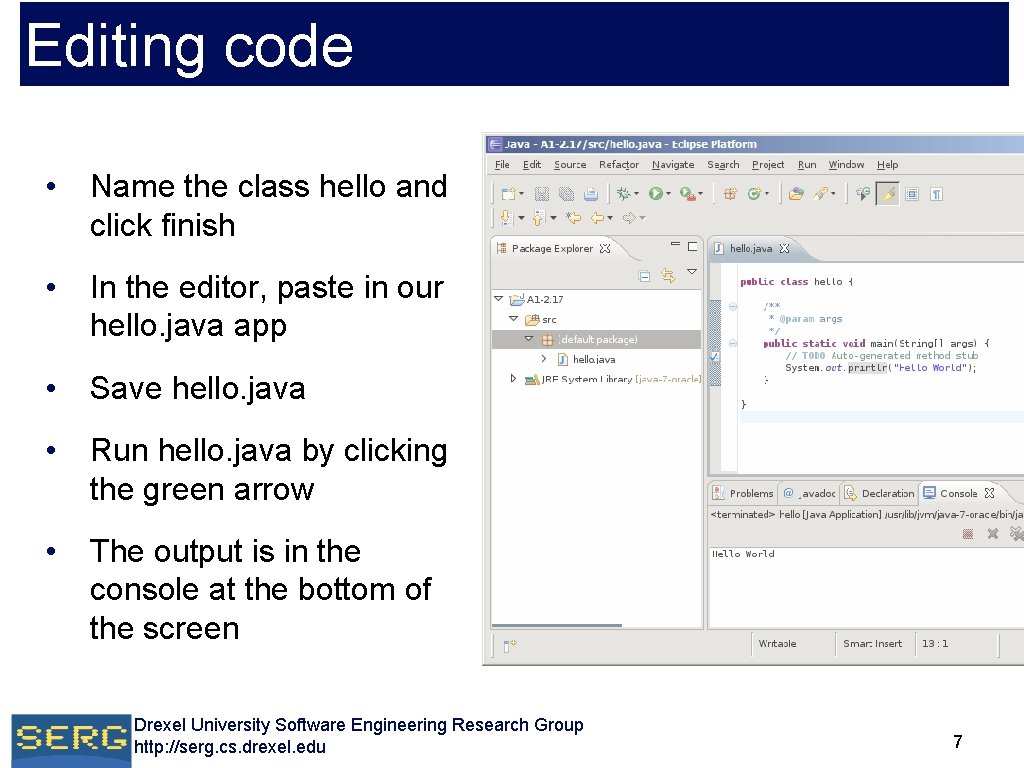
Editing code • Name the class hello and click finish • In the editor, paste in our hello. java app • Save hello. java • Run hello. java by clicking the green arrow • The output is in the console at the bottom of the screen Drexel University Software Engineering Research Group http: //serg. cs. drexel. edu 7
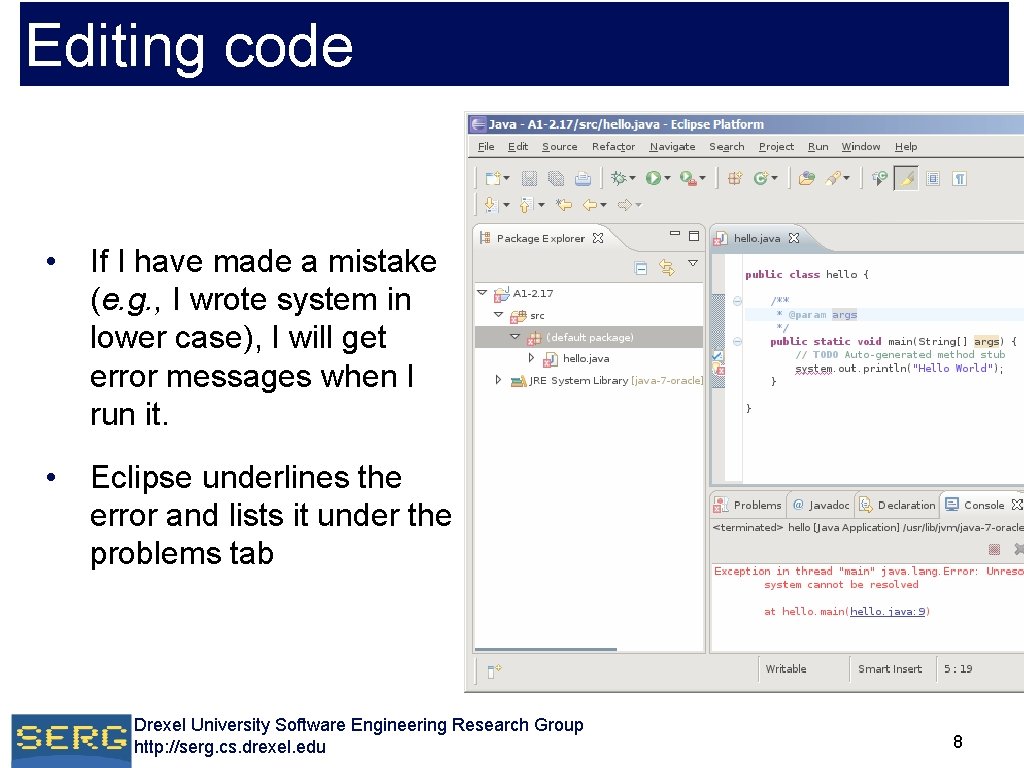
Editing code • If I have made a mistake (e. g. , I wrote system in lower case), I will get error messages when I run it. • Eclipse underlines the error and lists it under the problems tab Drexel University Software Engineering Research Group http: //serg. cs. drexel. edu 8
Accessing tux off campus • To run Eclipse, you will need an X server • Included with most Linux / Mac distributions or can be downloaded separately • From a Linux / Mac terminal, connect to tux $ ssh -x username@tux. cs. drexel. edu Drexel University Software Engineering Research Group http: //serg. cs. drexel. edu 9
Accessing tux off campus • For Windows, download: • Putty: http: //www. chiark. greenend. org. uk/~sgtatham/putty/download. html • Putty is an SSH client used to connect to tux • Xming: http: //sourceforge. net/projects/xming/files/Xming/6. 9. 0. 31/Xming-6 -9 -0 -31 setup. exe/download • Xming is an X server used for Eclipse Drexel University Software Engineering Research Group http: //serg. cs. drexel. edu 10
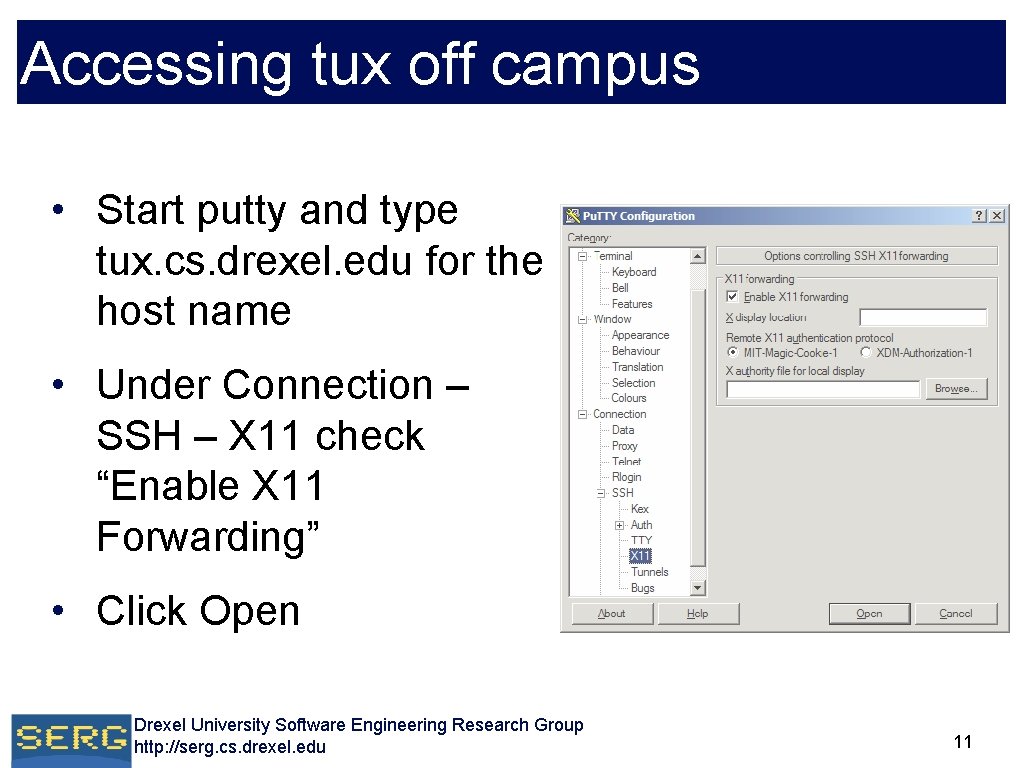
Accessing tux off campus • Start putty and type tux. cs. drexel. edu for the host name • Under Connection – SSH – X 11 check “Enable X 11 Forwarding” • Click Open Drexel University Software Engineering Research Group http: //serg. cs. drexel. edu 11