AOIT Computer Networking Unit 4 Lesson 9 Setting
- Slides: 10
AOIT Computer Networking Unit 4, Lesson 9 Setting Up a Network with PCs Running Windows 7 Copyright © 2008– 2016 NAF. All rights reserved.
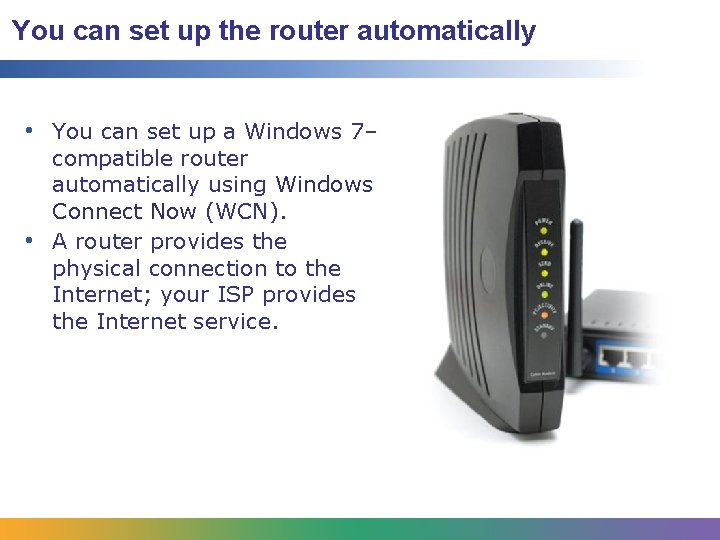
You can set up the router automatically • You can set up a Windows 7– compatible router automatically using Windows Connect Now (WCN). • A router provides the physical connection to the Internet; your ISP provides the Internet service.
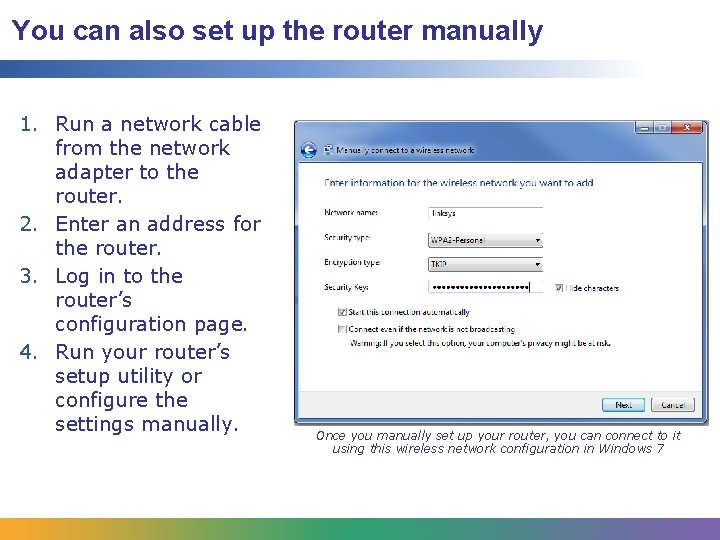
You can also set up the router manually 1. Run a network cable from the network adapter to the router. 2. Enter an address for the router. 3. Log in to the router’s configuration page. 4. Run your router’s setup utility or configure the settings manually. Once you manually set up your router, you can connect to it using this wireless network configuration in Windows 7
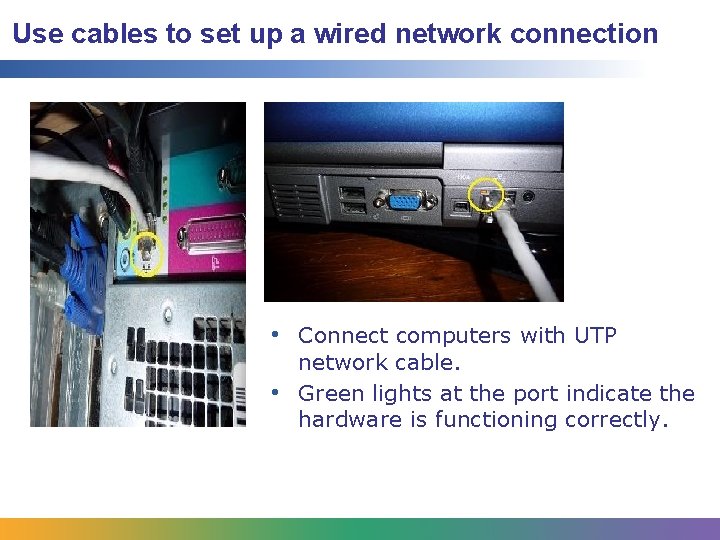
Use cables to set up a wired network connection • Connect computers with UTP network cable. • Green lights at the port indicate the hardware is functioning correctly.
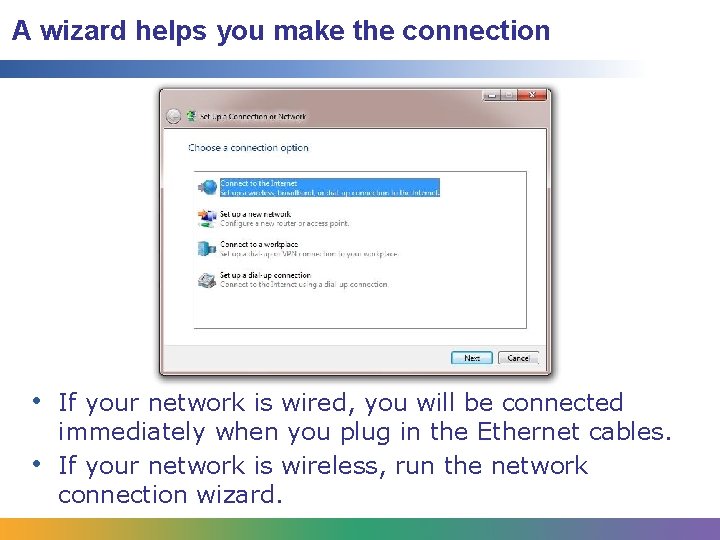
A wizard helps you make the connection • If your network is wired, you will be connected immediately when you plug in the Ethernet cables. • If your network is wireless, run the network connection wizard.
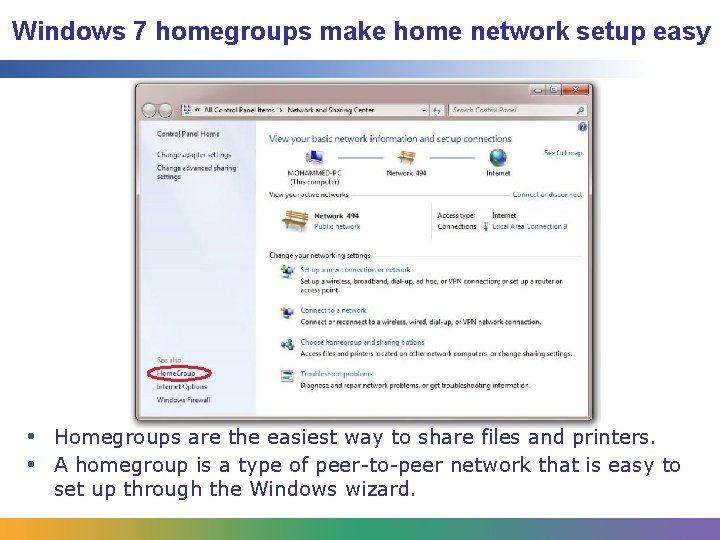
Windows 7 homegroups make home network setup easy • Homegroups are the easiest way to share files and printers. • A homegroup is a type of peer-to-peer network that is easy to set up through the Windows wizard.
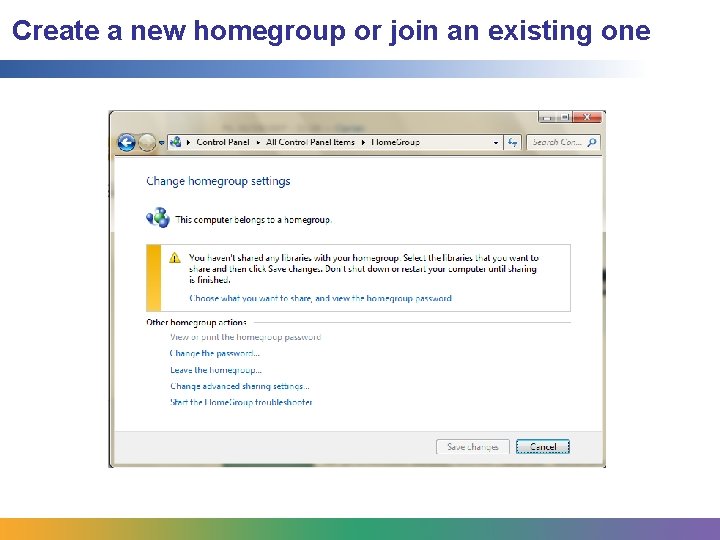
Create a new homegroup or join an existing one
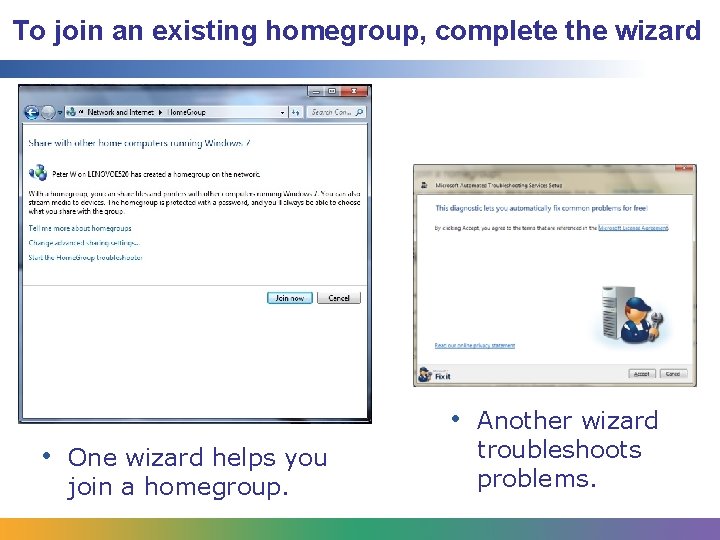
To join an existing homegroup, complete the wizard • Another wizard • One wizard helps you join a homegroup. troubleshoots problems.
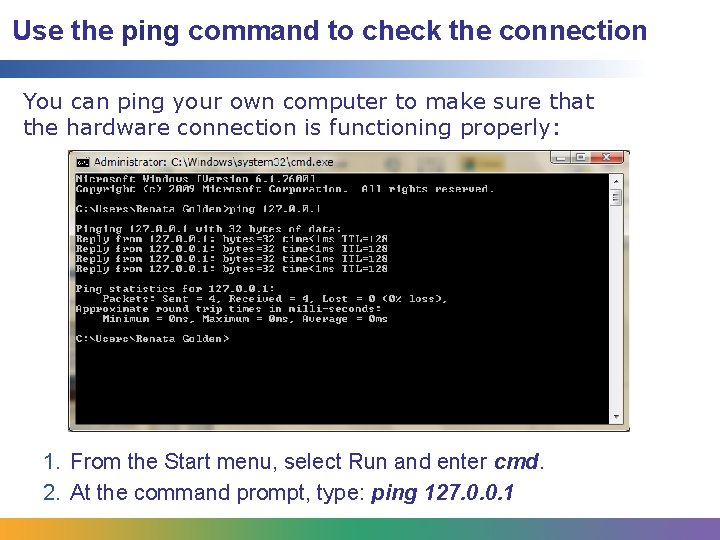
Use the ping command to check the connection You can ping your own computer to make sure that the hardware connection is functioning properly: 1. From the Start menu, select Run and enter cmd. 2. At the command prompt, type: ping 127. 0. 0. 1
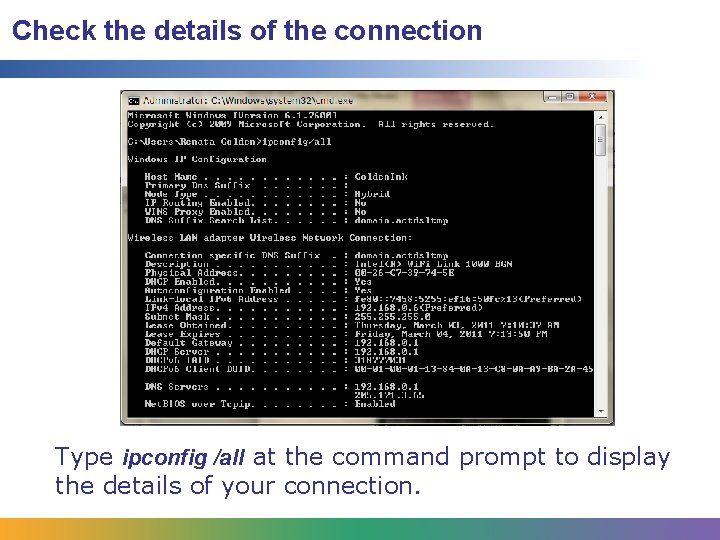
Check the details of the connection Type ipconfig /all at the command prompt to display the details of your connection.