Overview An interesting new methodology has evolved from
- Slides: 16
Overview An interesting new methodology has evolved from the new way Peresoft's Rec. Xpress does a bank recon. It would be interesting to see what other users think of this. Originally when I first sold CB I had to convince my clients to throw away their cash book (yup, a physical book) and start to do things electronically. It took quite a bit of convincing and sometimes it would take quite a while for them to change. But once they changed they never looked back. Today we have nobody using a book anymore. Now we want to change the user's mindset again. Here is how. All Cashbooks around the world are written in a manner that the users enter all their Cashbook entries and then compare the Cashbook balance to the bank balance. This process is done by first ticking off what is in the bank and then entering batches of what is not in the bank. Again ticking off what has been posted and then looking at the variances that were uncovered. Finally these batches would be posted and a final recon would be performed again by ticking off this and that. Hopefully this would not take too long and at the end of the recon everything would balance and the Cashbook's bank balance would match the bank statement. If it did not a major checking exercise would have to be performed to find the erroneous entry or entries. We at Peresoft realized that this is not the best way to perform a recon. In fact it is completely the wrong way and is open to all kinds of mistakes. The best way to do a recon is to go from the Bank Balance and reconcile back to the Cashbook balance. Firstly it is much easier and faster, secondly you would be working from the correct balance from the beginning. This is now part of the new Rec. Xpress. We call it the six step program because after six simple steps you should have completed your bank reconciliation.
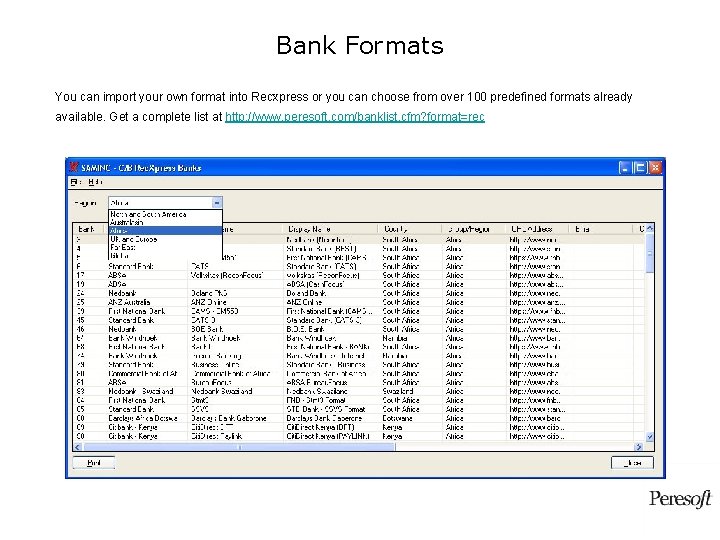
Bank Formats You can import your own format into Rec. Xpress or you can choose from over 100 predefined formats already available. Get a complete list at http: //www. peresoft. com/banklist. cfm? format=rec
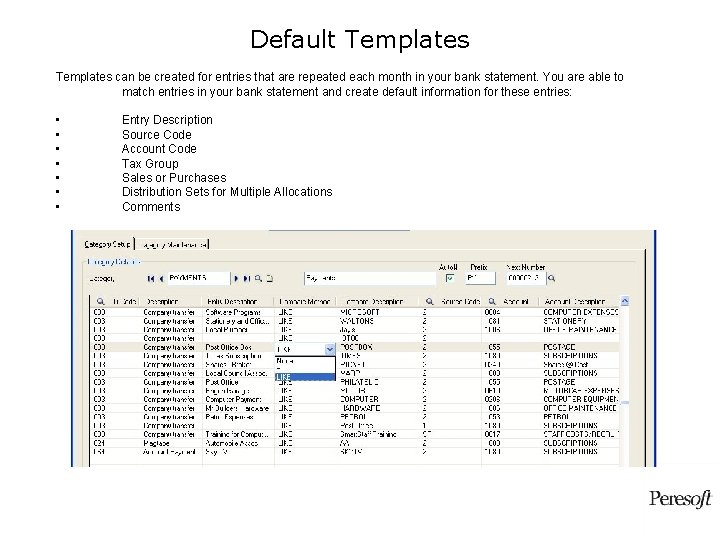
Default Templates can be created for entries that are repeated each month in your bank statement. You are able to match entries in your bank statement and create default information for these entries: • • Entry Description Source Code Account Code Tax Group Sales or Purchases Distribution Sets for Multiple Allocations Comments
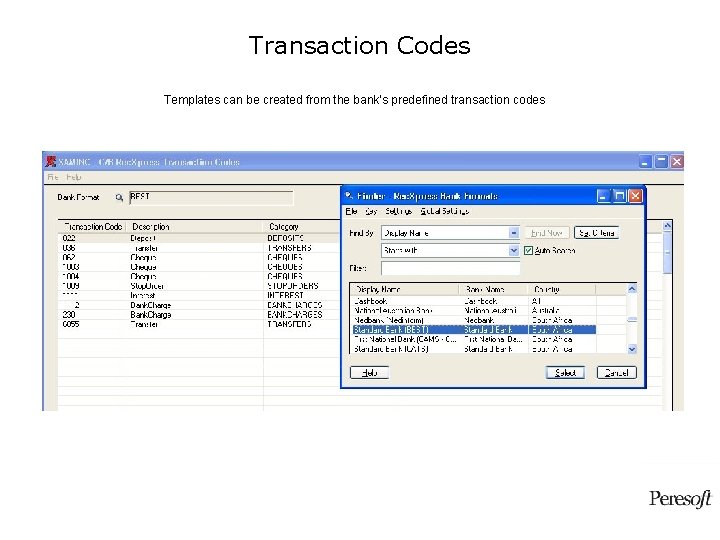
Transaction Codes Templates can be created from the bank's predefined transaction codes
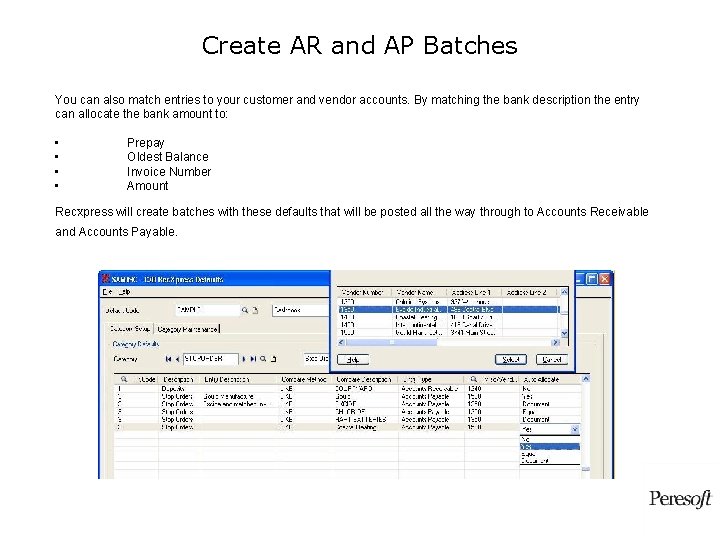
Create AR and AP Batches You can also match entries to your customer and vendor accounts. By matching the bank description the entry can allocate the bank amount to: • • Prepay Oldest Balance Invoice Number Amount Rec. Xpress will create batches with these defaults that will be posted all the way through to Accounts Receivable and Accounts Payable.
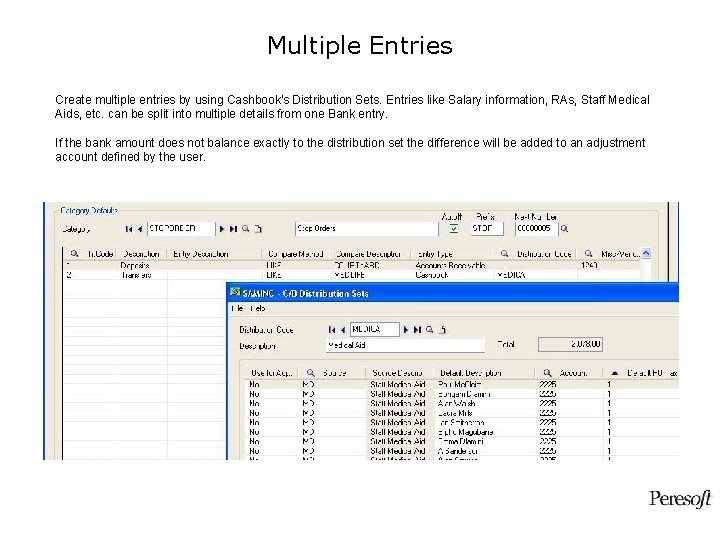
Multiple Entries Create multiple entries by using Cashbook's Distribution Sets. Entries like Salary information, RAs, Staff Medical Aids, etc. can be split into multiple details from one Bank entry. If the bank amount does not balance exactly to the distribution set the difference will be added to an adjustment account defined by the user.
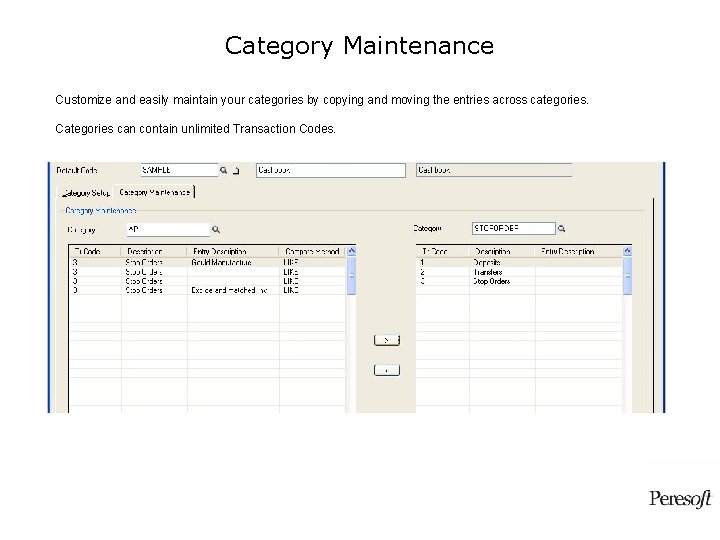
Category Maintenance Customize and easily maintain your categories by copying and moving the entries across categories. Categories can contain unlimited Transaction Codes.
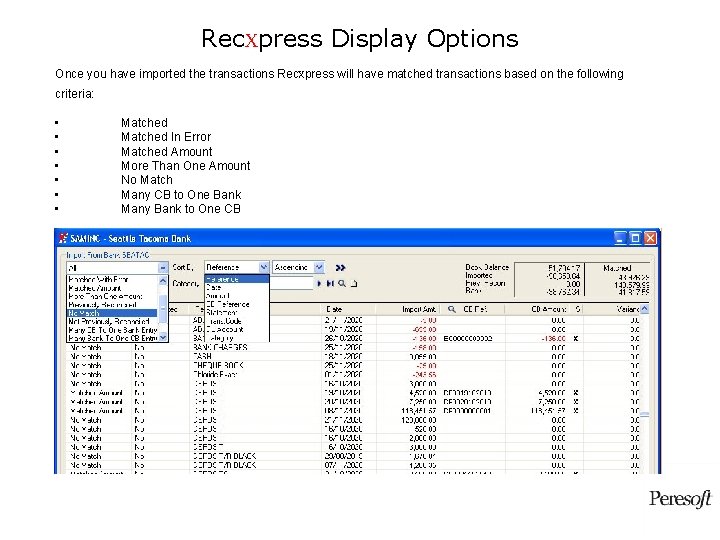
Rec. Xpress Display Options Once you have imported the transactions Rec. Xpress will have matched transactions based on the following criteria: • • Matched In Error Matched Amount More Than One Amount No Match Many CB to One Bank Many Bank to One CB
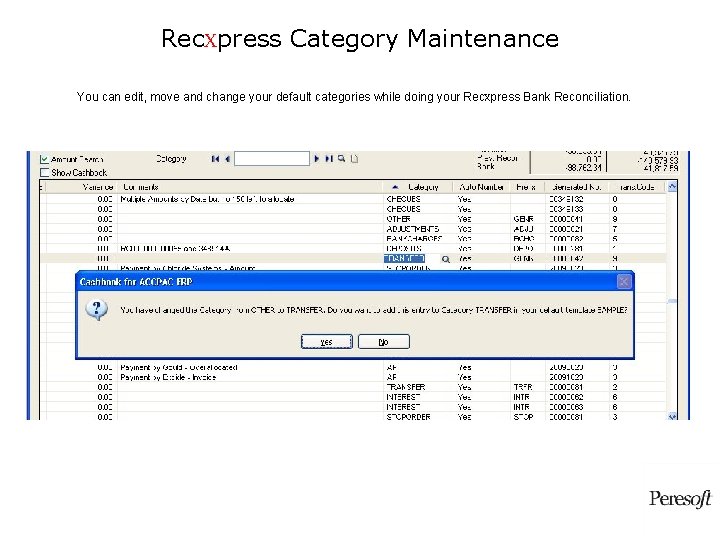
Rec. Xpress Category Maintenance You can edit, move and change your default categories while doing your Rec. Xpress Bank Reconciliation.
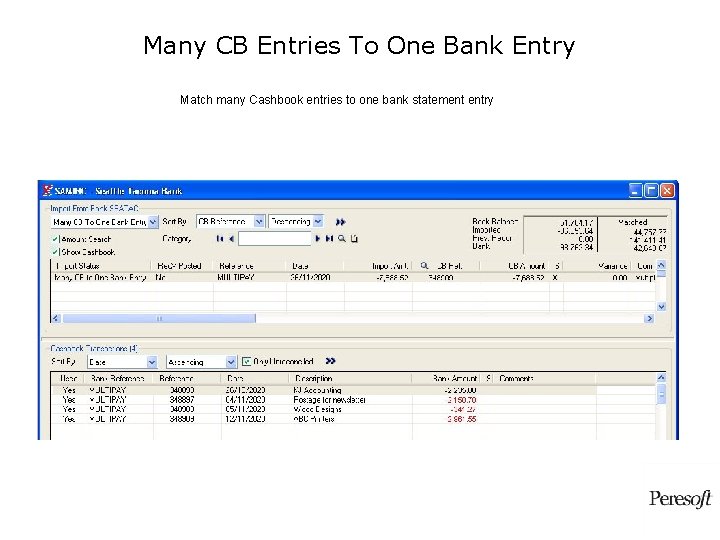
Many CB Entries To One Bank Entry Match many Cashbook entries to one bank statement entry
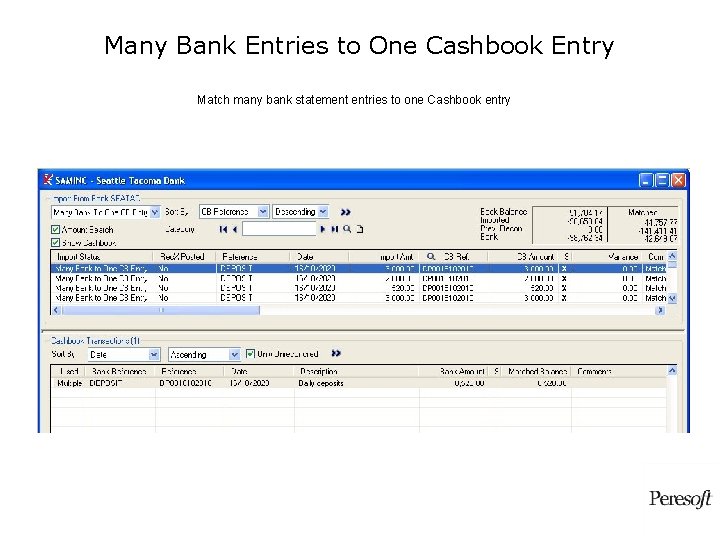
Many Bank Entries to One Cashbook Entry Match many bank statement entries to one Cashbook entry
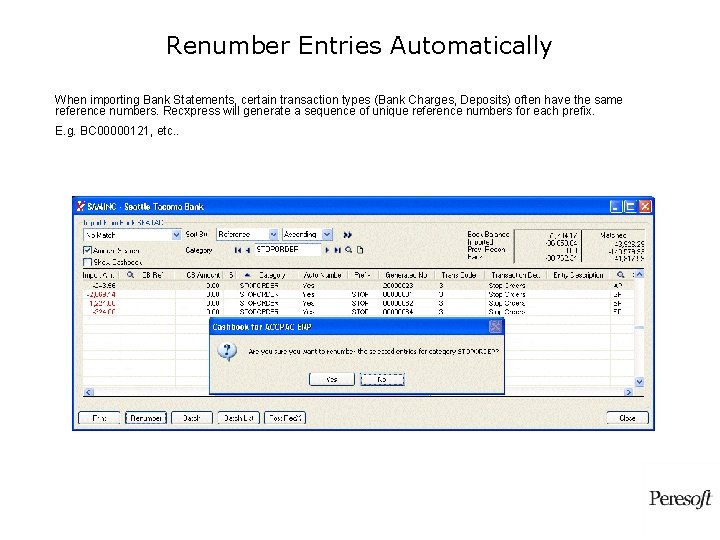
Renumber Entries Automatically When importing Bank Statements, certain transaction types (Bank Charges, Deposits) often have the same reference numbers. Rec. Xpress will generate a sequence of unique reference numbers for each prefix. E. g. BC 00000121, etc. .
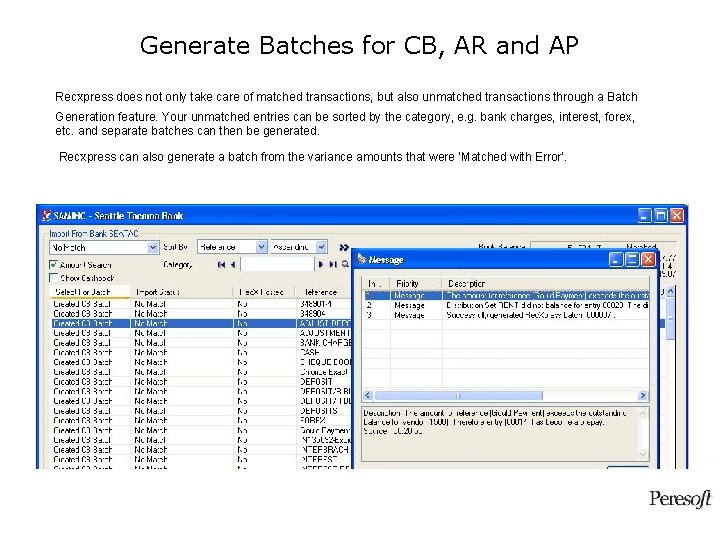
Generate Batches for CB, AR and AP Rec. Xpress does not only take care of matched transactions, but also unmatched transactions through a Batch Generation feature. Your unmatched entries can be sorted by the category, e. g. bank charges, interest, forex, etc. and separate batches can then be generated. Rec. Xpress can also generate a batch from the variance amounts that were 'Matched with Error'.
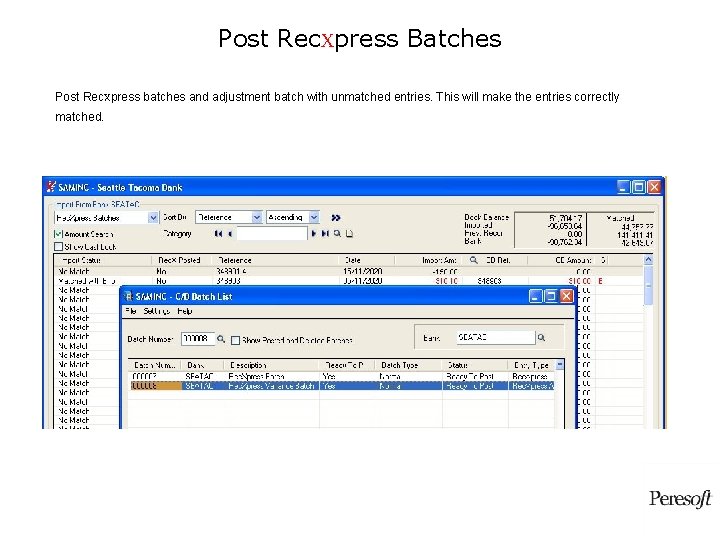
Post Rec. Xpress Batches Post Rec. Xpress batches and adjustment batch with unmatched entries. This will make the entries correctly matched.
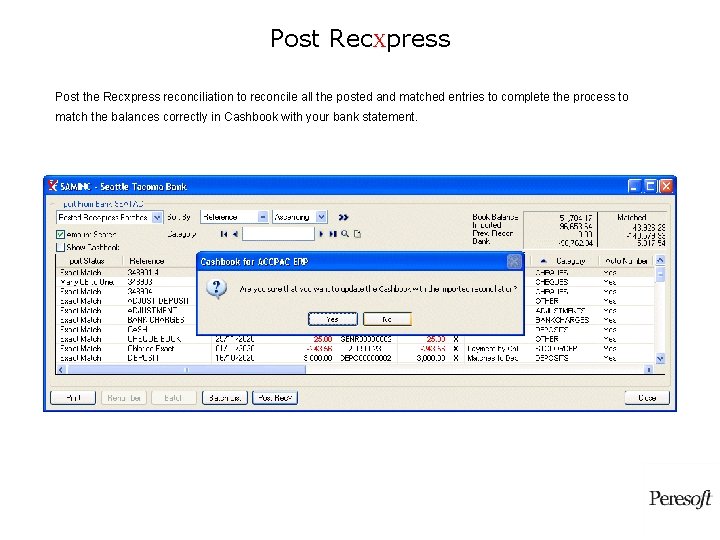
Post Rec. Xpress Post the Rec. Xpress reconciliation to reconcile all the posted and matched entries to complete the process to match the balances correctly in Cashbook with your bank statement.