Chapter 1 SPSS Data entry and summation In
- Slides: 9
Chapter 1 SPSS: Data entry and summation
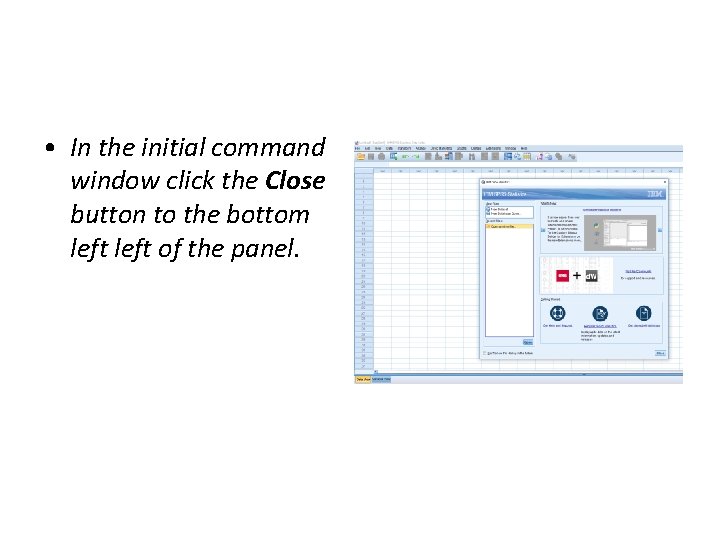
• In the initial command window click the Close button to the bottom left of the panel.
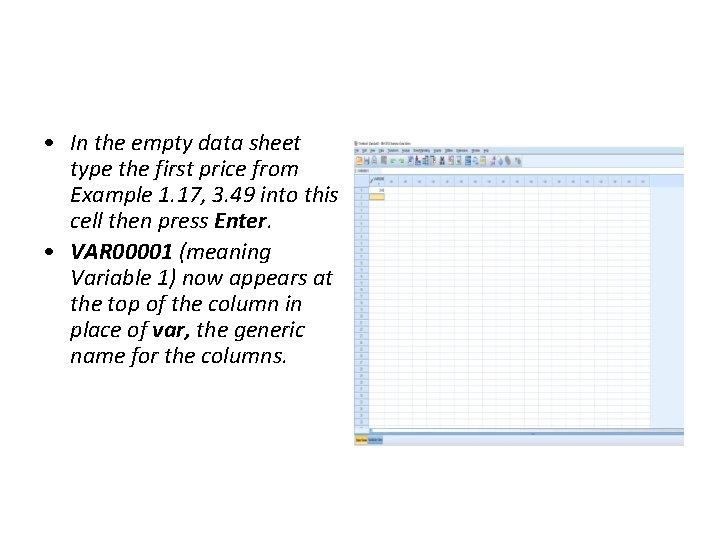
• In the empty data sheet type the first price from Example 1. 17, 3. 49 into this cell then press Enter. • VAR 00001 (meaning Variable 1) now appears at the top of the column in place of var, the generic name for the columns.
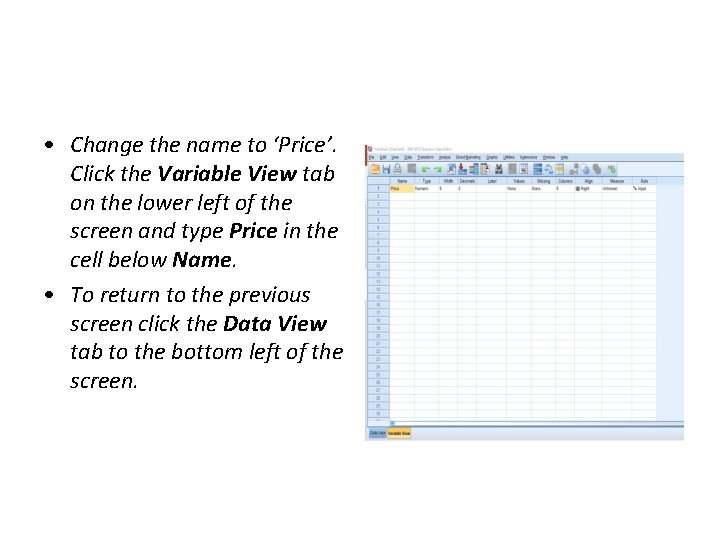
• Change the name to ‘Price’. Click the Variable View tab on the lower left of the screen and type Price in the cell below Name. • To return to the previous screen click the Data View tab to the bottom left of the screen.
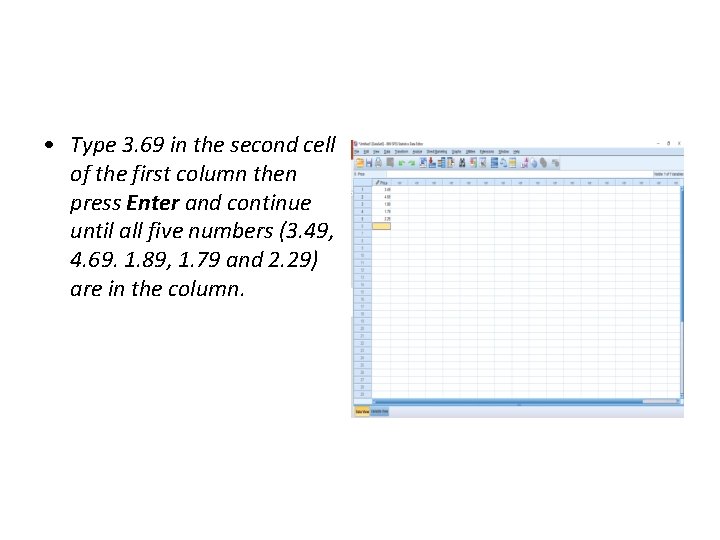
• Type 3. 69 in the second cell of the first column then press Enter and continue until all five numbers (3. 49, 4. 69. 1. 89, 1. 79 and 2. 29) are in the column.
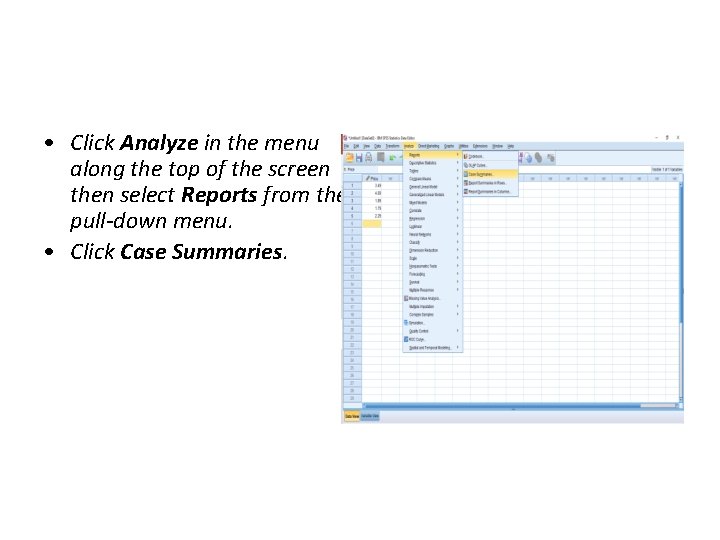
• Click Analyze in the menu along the top of the screen then select Reports from the pull-down menu. • Click Case Summaries.
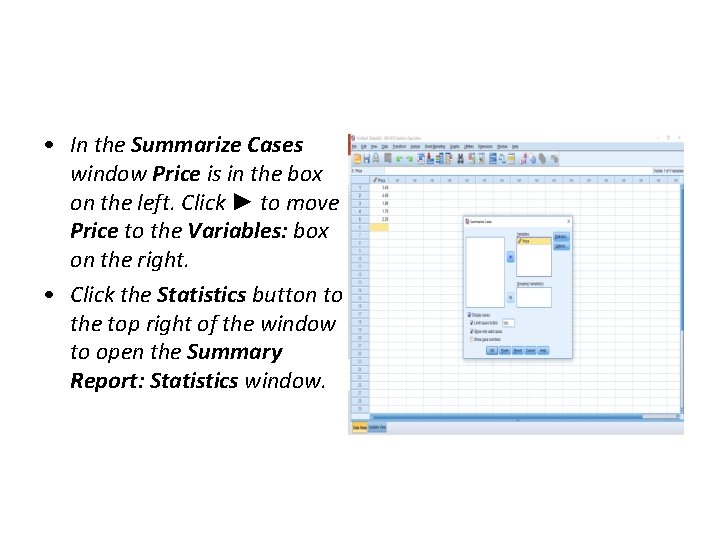
• In the Summarize Cases window Price is in the box on the left. Click ► to move Price to the Variables: box on the right. • Click the Statistics button to the top right of the window to open the Summary Report: Statistics window.
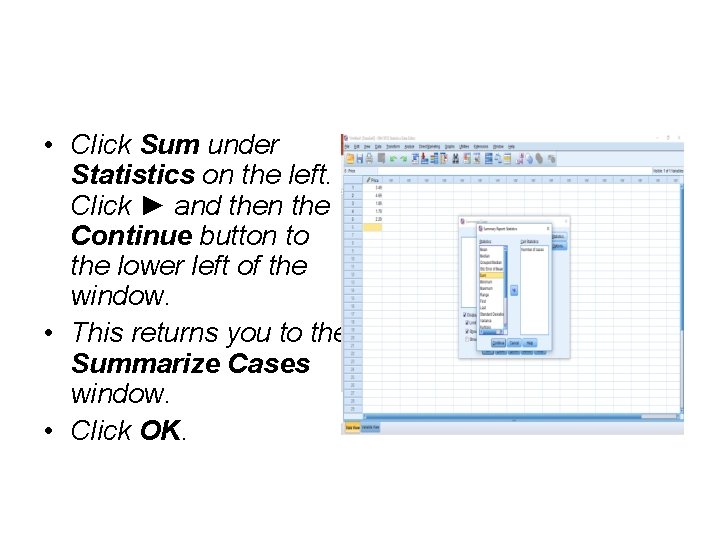
• Click Sum under Statistics on the left. Click ► and then the Continue button to the lower left of the window. • This returns you to the Summarize Cases window. • Click OK.
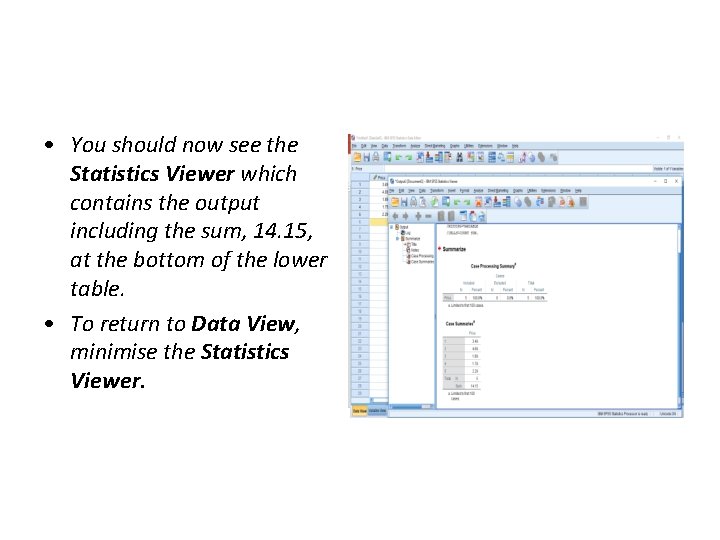
• You should now see the Statistics Viewer which contains the output including the sum, 14. 15, at the bottom of the lower table. • To return to Data View, minimise the Statistics Viewer.