5 th Grade Tinkercad 3 D Creations http
- Slides: 6
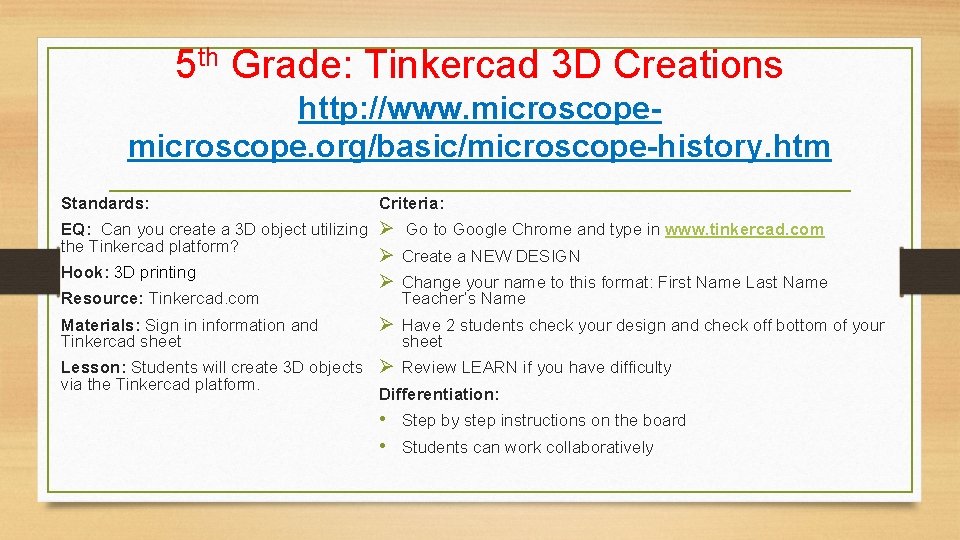
5 th Grade: Tinkercad 3 D Creations http: //www. microscope. org/basic/microscope-history. htm Standards: Criteria: EQ: Can you create a 3 D object utilizing Ø Go to Google Chrome and type in www. tinkercad. com the Tinkercad platform? Ø Create a NEW DESIGN Hook: 3 D printing Ø Change your name to this format: First Name Last Name Resource: Tinkercad. com Teacher’s Name Materials: Sign in information and Tinkercad sheet Ø Have 2 students check your design and check off bottom of your sheet Lesson: Students will create 3 D objects Ø Review LEARN if you have difficulty via the Tinkercad platform. Differentiation: • Step by step instructions on the board • Students can work collaboratively
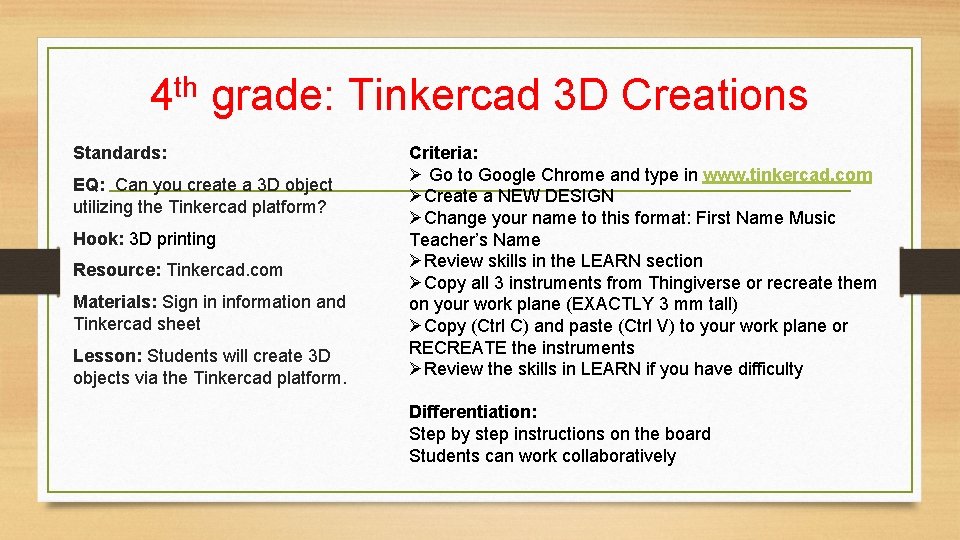
4 th grade: Tinkercad 3 D Creations Standards: EQ: Can you create a 3 D object utilizing the Tinkercad platform? Hook: 3 D printing Resource: Tinkercad. com Materials: Sign in information and Tinkercad sheet Lesson: Students will create 3 D objects via the Tinkercad platform. Criteria: Ø Go to Google Chrome and type in www. tinkercad. com ØCreate a NEW DESIGN ØChange your name to this format: First Name Music Teacher’s Name ØReview skills in the LEARN section ØCopy all 3 instruments from Thingiverse or recreate them on your work plane (EXACTLY 3 mm tall) ØCopy (Ctrl C) and paste (Ctrl V) to your work plane or RECREATE the instruments ØReview the skills in LEARN if you have difficulty Differentiation: Step by step instructions on the board Students can work collaboratively
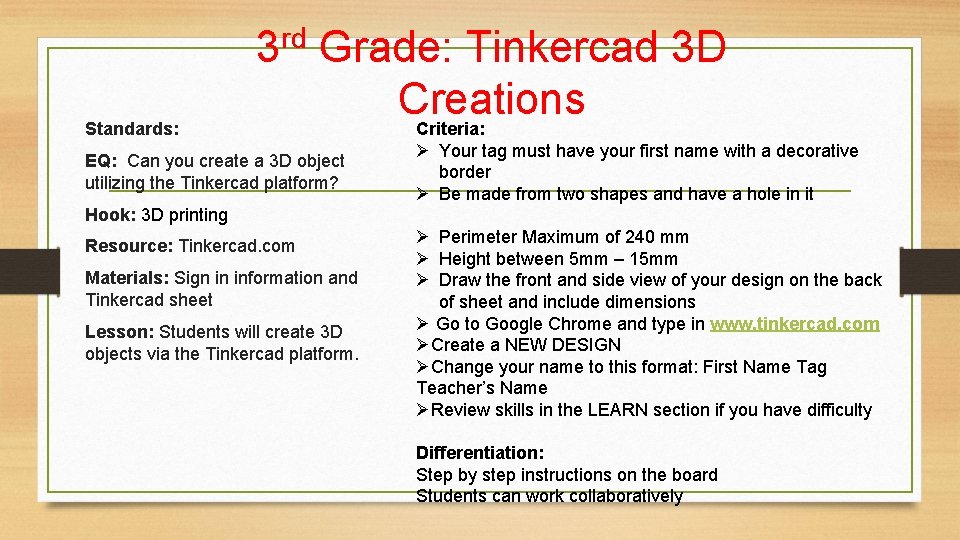
Standards: 3 rd Grade: Tinkercad 3 D Creations Criteria: EQ: Can you create a 3 D object utilizing the Tinkercad platform? Ø Your tag must have your first name with a decorative border Ø Be made from two shapes and have a hole in it Hook: 3 D printing Resource: Tinkercad. com Materials: Sign in information and Tinkercad sheet Lesson: Students will create 3 D objects via the Tinkercad platform. Ø Perimeter Maximum of 240 mm Ø Height between 5 mm – 15 mm Ø Draw the front and side view of your design on the back of sheet and include dimensions Ø Go to Google Chrome and type in www. tinkercad. com ØCreate a NEW DESIGN ØChange your name to this format: First Name Tag Teacher’s Name ØReview skills in the LEARN section if you have difficulty Differentiation: Step by step instructions on the board Students can work collaboratively
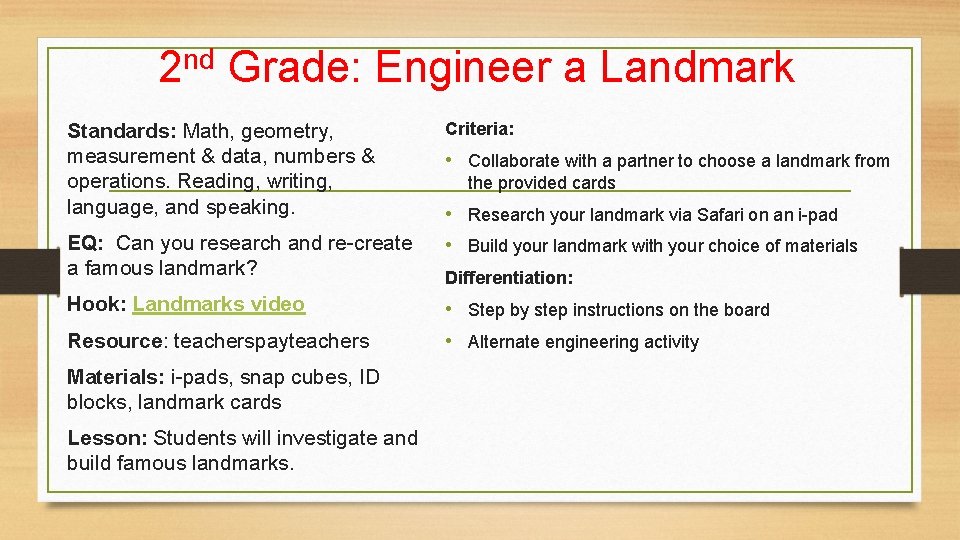
2 nd Grade: Engineer a Landmark Standards: Math, geometry, measurement & data, numbers & operations. Reading, writing, language, and speaking. Criteria: EQ: Can you research and re-create a famous landmark? • Build your landmark with your choice of materials Hook: Landmarks video • Step by step instructions on the board Resource: teacherspayteachers • Alternate engineering activity Materials: i-pads, snap cubes, ID blocks, landmark cards Lesson: Students will investigate and build famous landmarks. • Collaborate with a partner to choose a landmark from the provided cards • Research your landmark via Safari on an i-pad Differentiation:
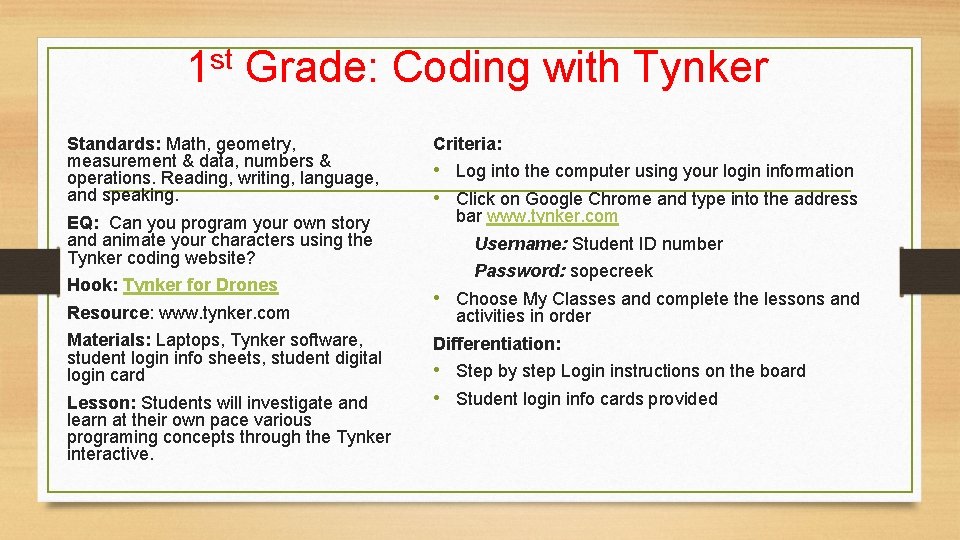
1 st Grade: Coding with Tynker Standards: Math, geometry, measurement & data, numbers & operations. Reading, writing, language, and speaking. EQ: Can you program your own story and animate your characters using the Tynker coding website? Hook: Tynker for Drones Resource: www. tynker. com Materials: Laptops, Tynker software, student login info sheets, student digital login card Lesson: Students will investigate and learn at their own pace various programing concepts through the Tynker interactive. Criteria: • Log into the computer using your login information • Click on Google Chrome and type into the address bar www. tynker. com Username: Student ID number Password: sopecreek • Choose My Classes and complete the lessons and activities in order Differentiation: • Step by step Login instructions on the board • Student login info cards provided
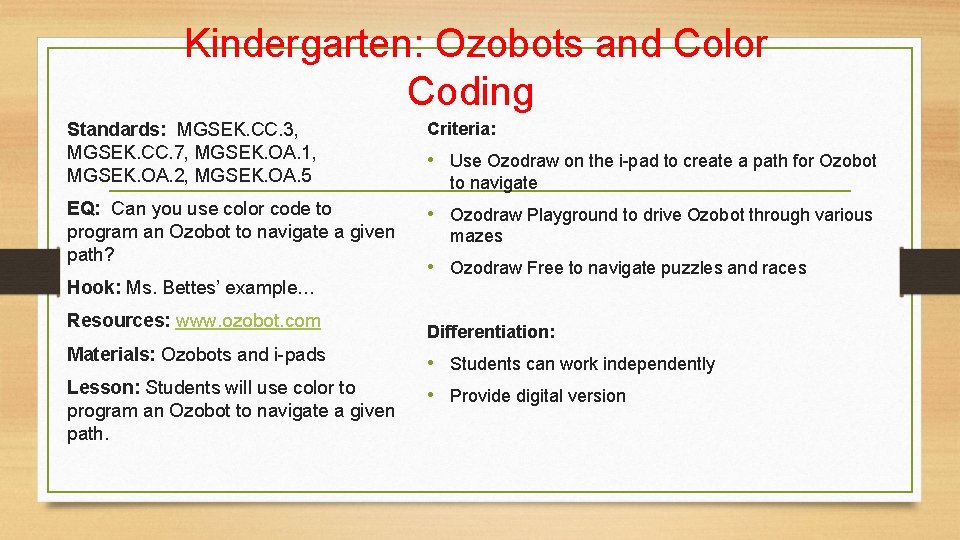
Kindergarten: Ozobots and Color Coding Standards: MGSEK. CC. 3, MGSEK. CC. 7, MGSEK. OA. 1, MGSEK. OA. 2, MGSEK. OA. 5 Criteria: EQ: Can you use color code to program an Ozobot to navigate a given path? • Ozodraw Playground to drive Ozobot through various Hook: Ms. Bettes’ example… Resources: www. ozobot. com • Use Ozodraw on the i-pad to create a path for Ozobot to navigate mazes • Ozodraw Free to navigate puzzles and races Differentiation: Materials: Ozobots and i-pads • Students can work independently Lesson: Students will use color to program an Ozobot to navigate a given path. • Provide digital version