
ZOOM TM Timer Suggestions with Virtaul Background Tony

ZOOM TM Timer Suggestions with Virtaul Background Tony Kombol CL PM 5 EH 1

USING A BACKGROUND
Background • ZOOM has two ways to show a background – Computer rendered • Computer will analyze your background – Replace it with a background of your choice • Requires more powerful computer – i 5 quad core processor – "Green screen" • Requires a consistant background (any solid color) – Need to be different color than the participant and clothes » e. g. if the background is green anything green the participant is wearing will be "transparent" • Green is the typical color used by pros
Background • Basic principle – Use a color as the background to signal time – Need three photos (green, yellow, and red) • Usually a. jpg file – Switch the background to the appropriate color at the proper time • Use any other background at all other times
Background • Advantages – Can see the timer – Background fills rest of video screen and is easily noticed by speaker – Easy for timer to use – Easiest for audience to use • Disadvantages – May need a more powerful computer if don't have a "green screen" – More work for the timer to set up

Using a Background COMPUTER RENDERED
BG – Compter Rendered • Easiest to do • Download the colored. jpg files: – mcdowellnc. toastmastersclubs. org • Under Main Menu click on – Mc. Dowell Power. Points, etc. – Timer Cards – Download green. jpg, yellow. jpg, and red. jpg » Put them where you can locate them on your computer later
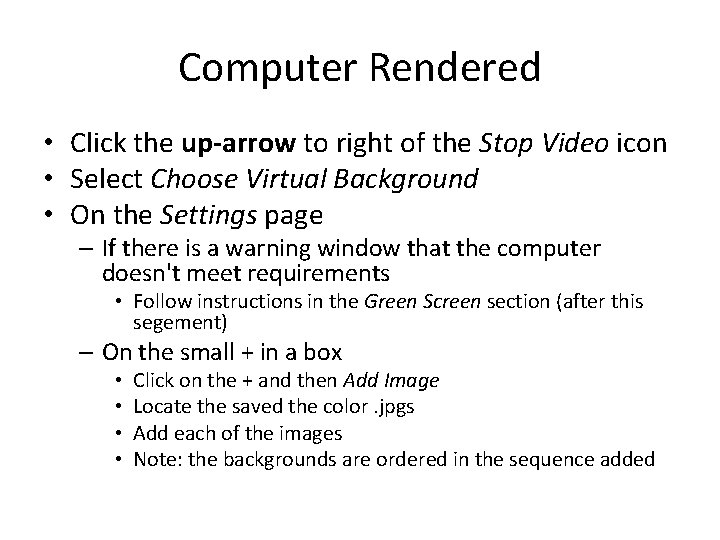
Computer Rendered • Click the up-arrow to right of the Stop Video icon • Select Choose Virtual Background • On the Settings page – If there is a warning window that the computer doesn't meet requirements • Follow instructions in the Green Screen section (after this segement) – On the small + in a box • • Click on the + and then Add Image Locate the saved the color. jpgs Add each of the images Note: the backgrounds are ordered in the sequence added
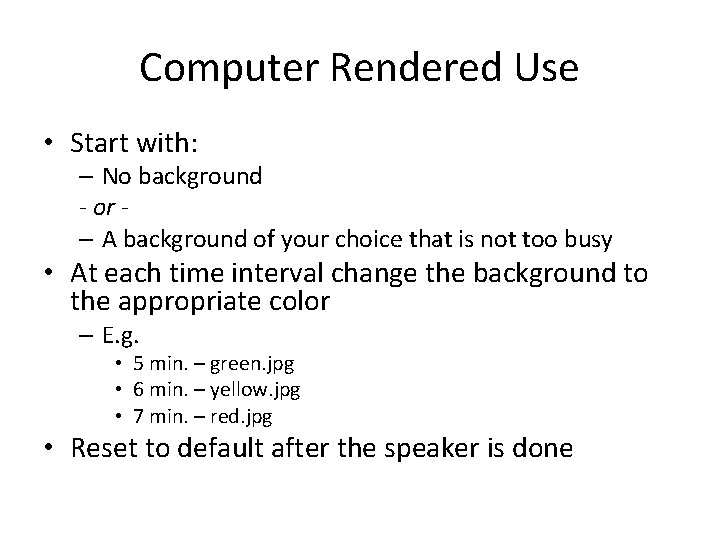
Computer Rendered Use • Start with: – No background - or – A background of your choice that is not too busy • At each time interval change the background to the appropriate color – E. g. • 5 min. – green. jpg • 6 min. – yellow. jpg • 7 min. – red. jpg • Reset to default after the speaker is done
Using a Background GREEN SCREEN
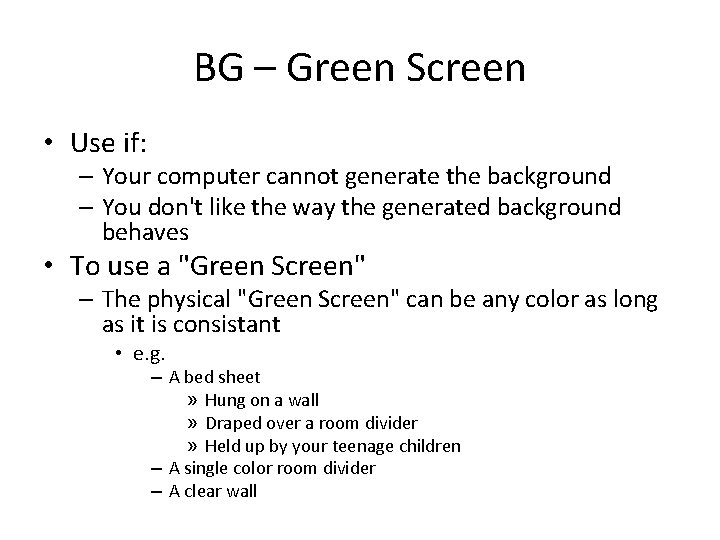
BG – Green Screen • Use if: – Your computer cannot generate the background – You don't like the way the generated background behaves • To use a "Green Screen" – The physical "Green Screen" can be any color as long as it is consistant • e. g. – A bed sheet » Hung on a wall » Draped over a room divider » Held up by your teenage children – A single color room divider – A clear wall
BG – Green Screen • Hints – Use a vivid color • That you won't be wearing – Avoid: • White – If you have grey hair it will be "tranparent" – Whites of eyes will change • Black or dark colors – Anything dark you wear may be "transparent" » Headset, glasses, etc. • Grey tends to be interpreted as a shade of black – Experiment before using!
BG – Green Screen Use • Follow the procedures to download the colored. jpgs documented in the Computer Rendered section • Click the up-arrow to right of the Stop Video icon • Select Choose Virtual Background • On the Settings page – Ensure Using a Green Screen is checked – There is a small + in a box • • Click on the + and then Add Image Find where you saved the color. jpgs Add each of the images Note: the backgrounds are ordered in the sequence you add them
Computer Rendered Use • Start with: – No background - or – A background of your choice that is not too busy • At each time interval change the background to the appropriate color – E. g. • 5 min. – green. jpg • 6 min. – yellow. jpg • 7 min. – red. jpg • Reset to default after the speaker is done
- Slides: 14