
Zoom Technical Guidelines Session structure The moderator will
- Slides: 18
Zoom Technical Guidelines
Session structure • The moderator will introduce the session and before each lecture will introduce the speaker • The speaker will share their screen and deliver their talk • If there is a dedicated Q&A part to the session, the moderator will address the questions to the speakers • The speaker that the question was addressed to, will answer the question with his/her microphone
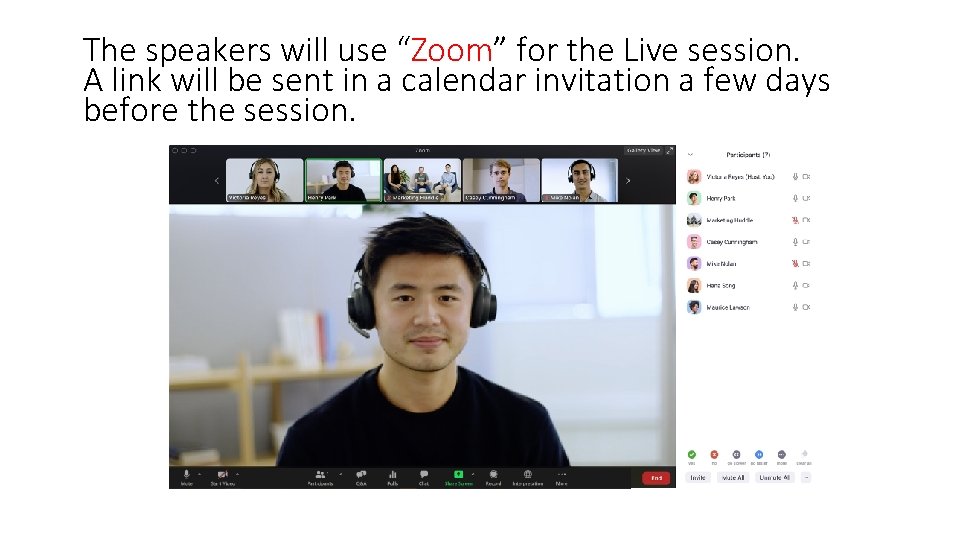
The speakers will use “Zoom” for the Live session. A link will be sent in a calendar invitation a few days before the session.
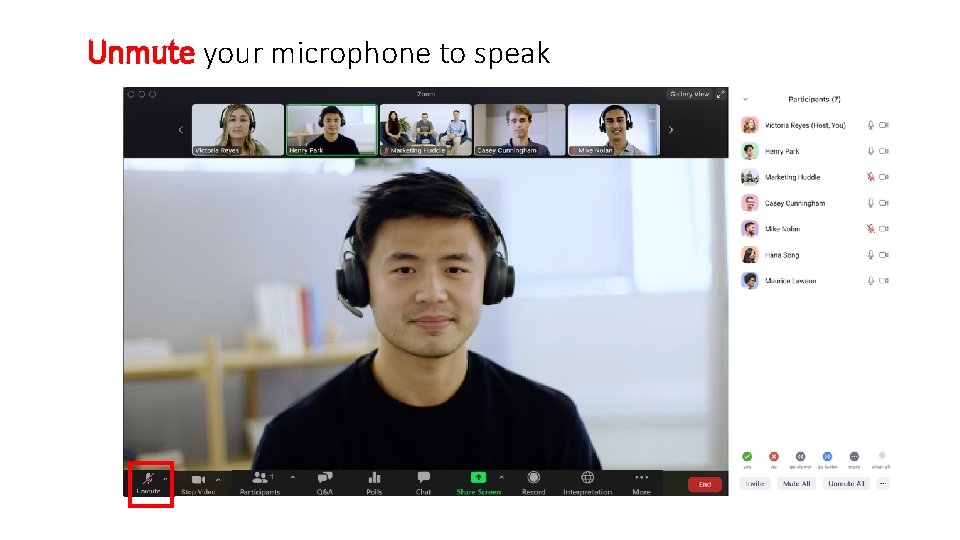
Unmute your microphone to speak
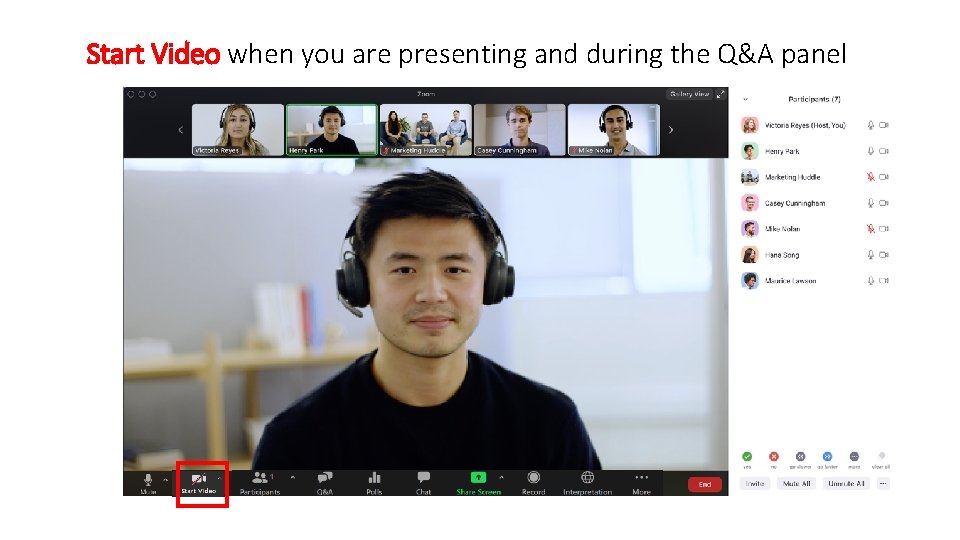
Start Video when you are presenting and during the Q&A panel
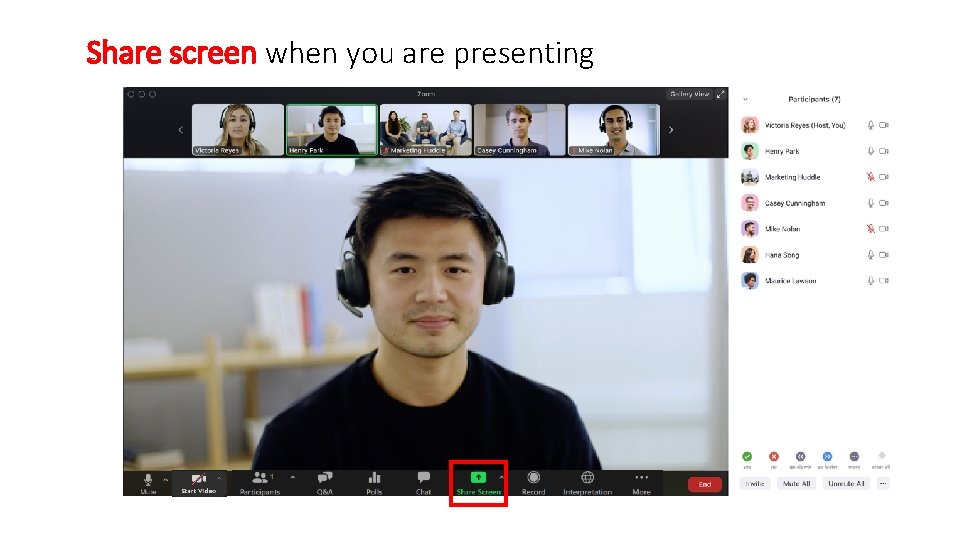
Share screen when you are presenting
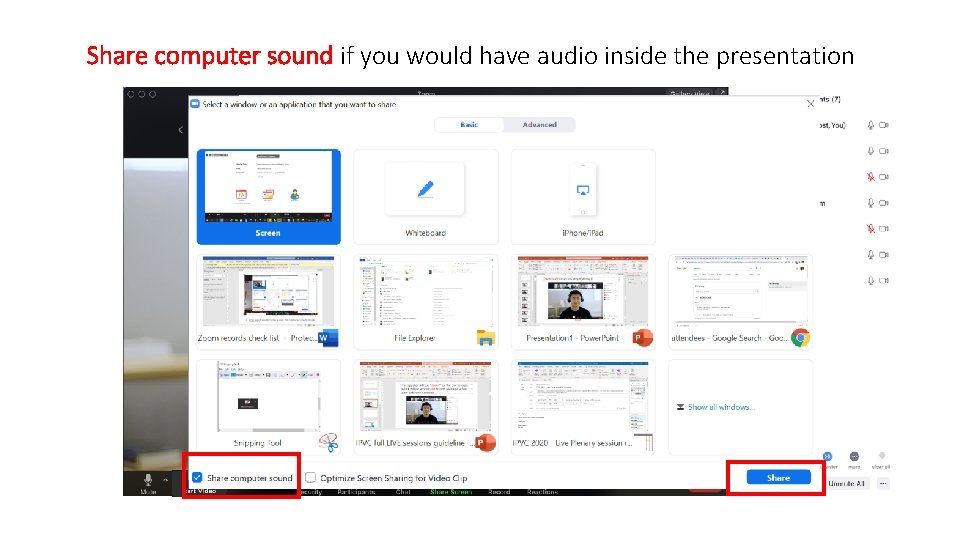
Share computer sound if you would have audio inside the presentation
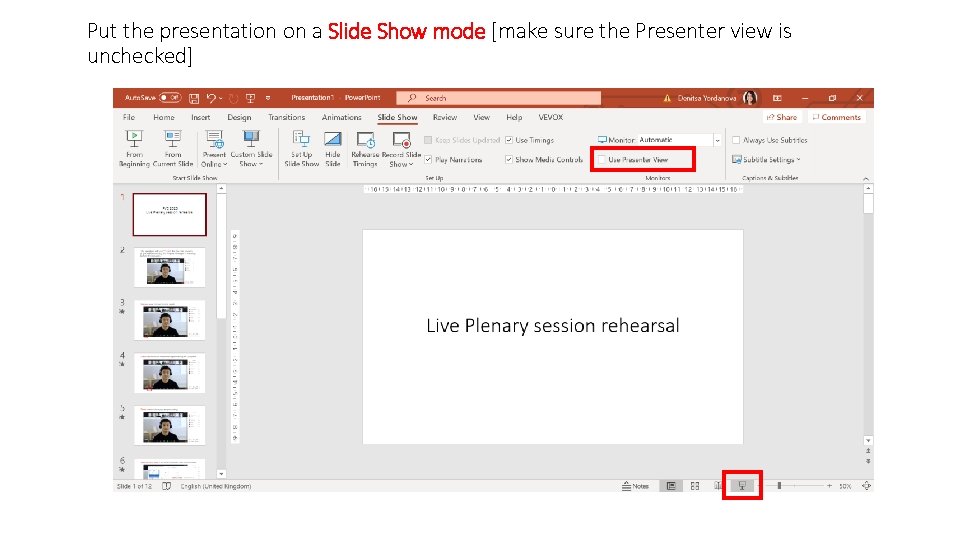
Put the presentation on a Slide Show mode [make sure the Presenter view is unchecked]
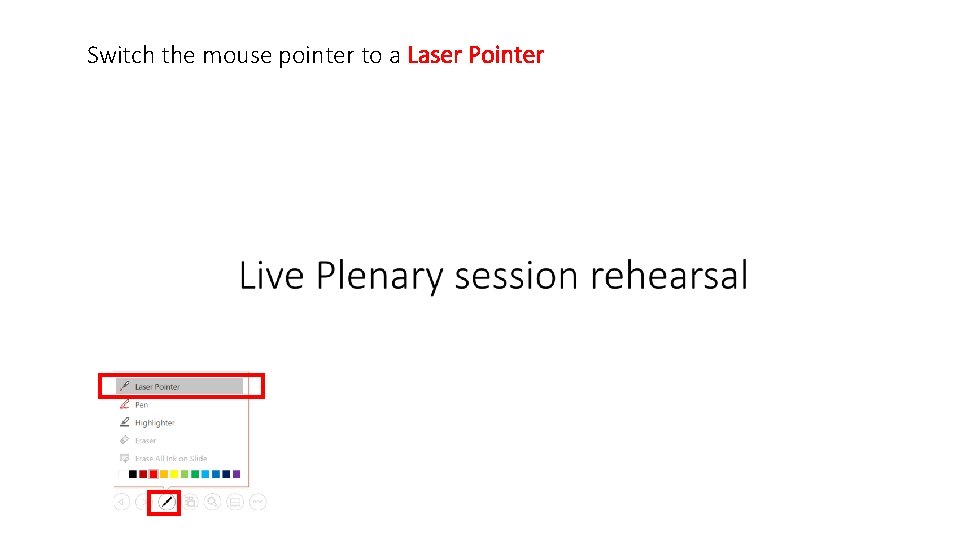
Switch the mouse pointer to a Laser Pointer
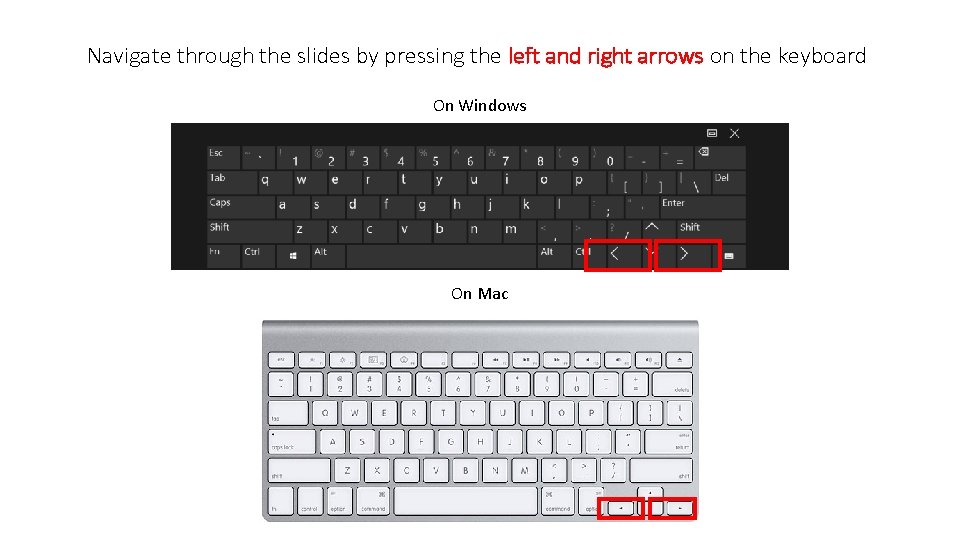
Navigate through the slides by pressing the left and right arrows on the keyboard On Windows On Mac
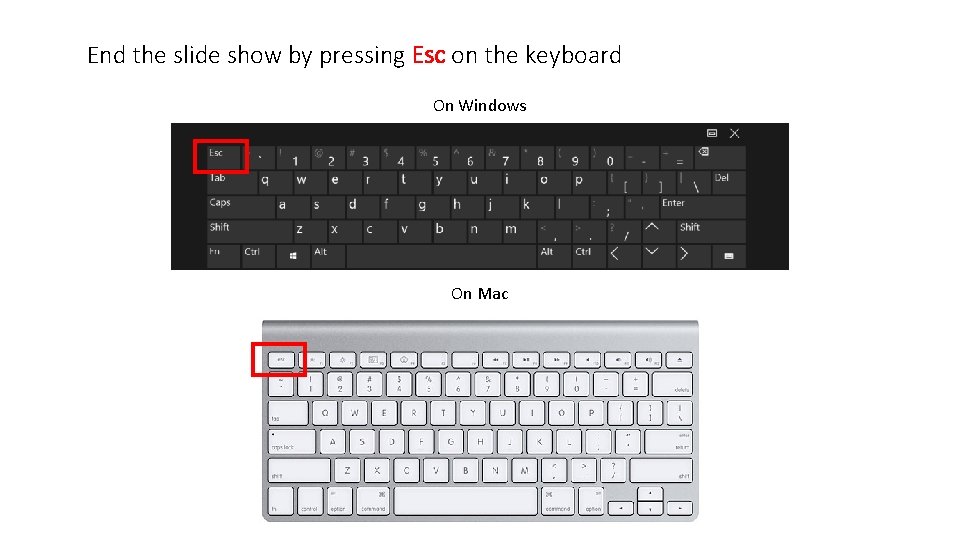
End the slide show by pressing Esc on the keyboard On Windows On Mac
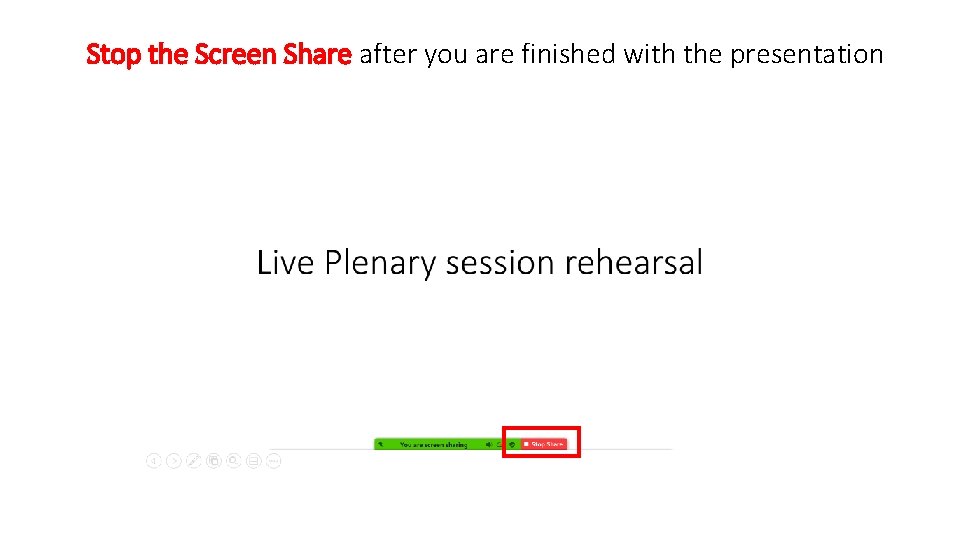
Stop the Screen Share after you are finished with the presentation
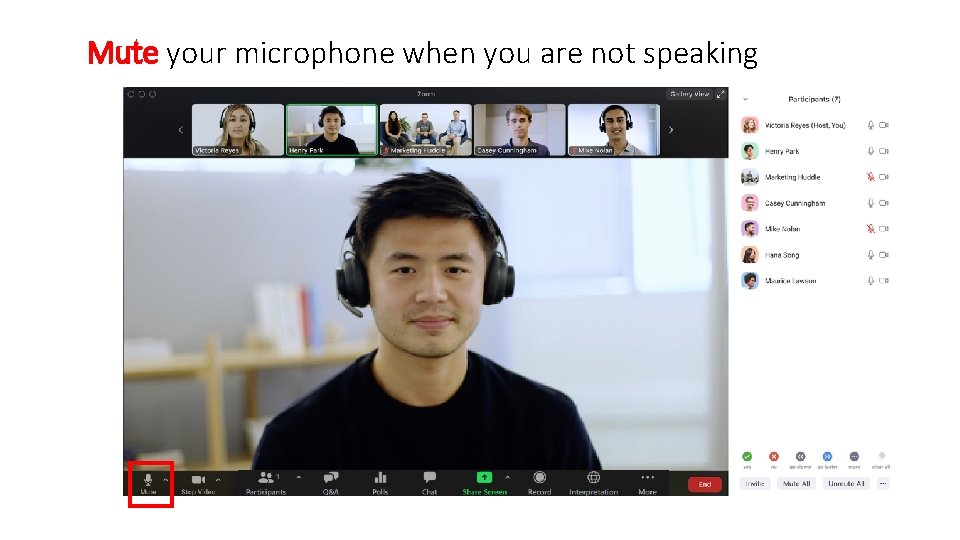
Mute your microphone when you are not speaking
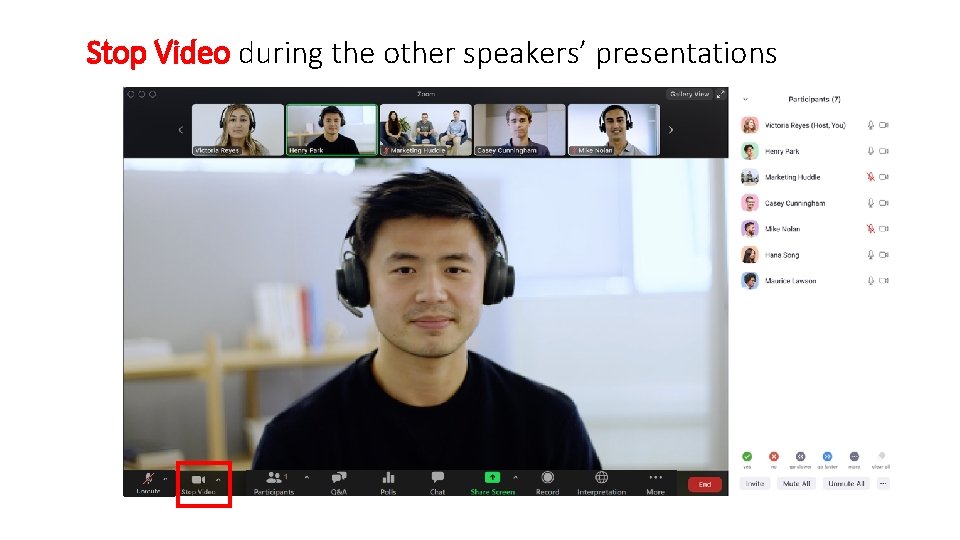
Stop Video during the other speakers’ presentations
General instructions for the speakers
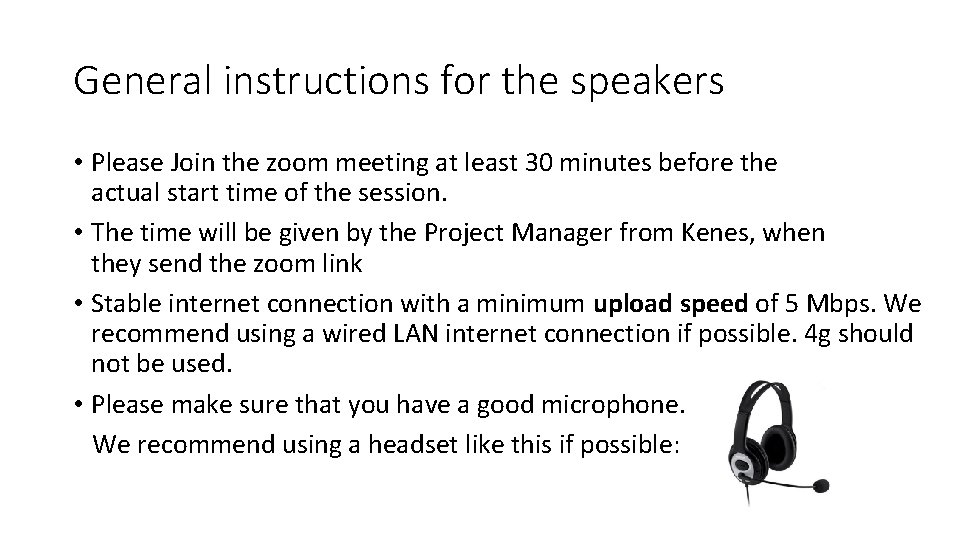
General instructions for the speakers • Please Join the zoom meeting at least 30 minutes before the actual start time of the session. • The time will be given by the Project Manager from Kenes, when they send the zoom link • Stable internet connection with a minimum upload speed of 5 Mbps. We recommend using a wired LAN internet connection if possible. 4 g should not be used. • Please make sure that you have a good microphone. We recommend using a headset like this if possible:
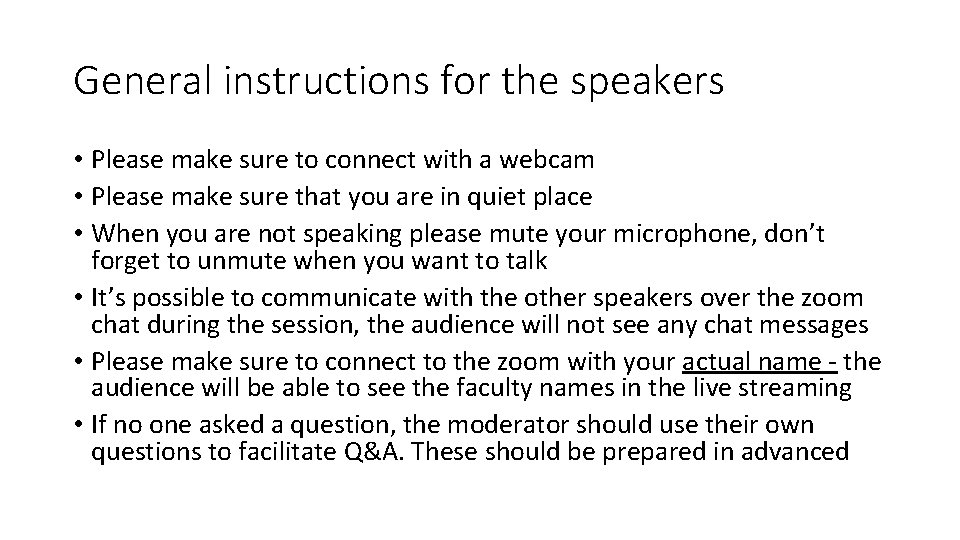
General instructions for the speakers • Please make sure to connect with a webcam • Please make sure that you are in quiet place • When you are not speaking please mute your microphone, don’t forget to unmute when you want to talk • It’s possible to communicate with the other speakers over the zoom chat during the session, the audience will not see any chat messages • Please make sure to connect to the zoom with your actual name - the audience will be able to see the faculty names in the live streaming • If no one asked a question, the moderator should use their own questions to facilitate Q&A. These should be prepared in advanced
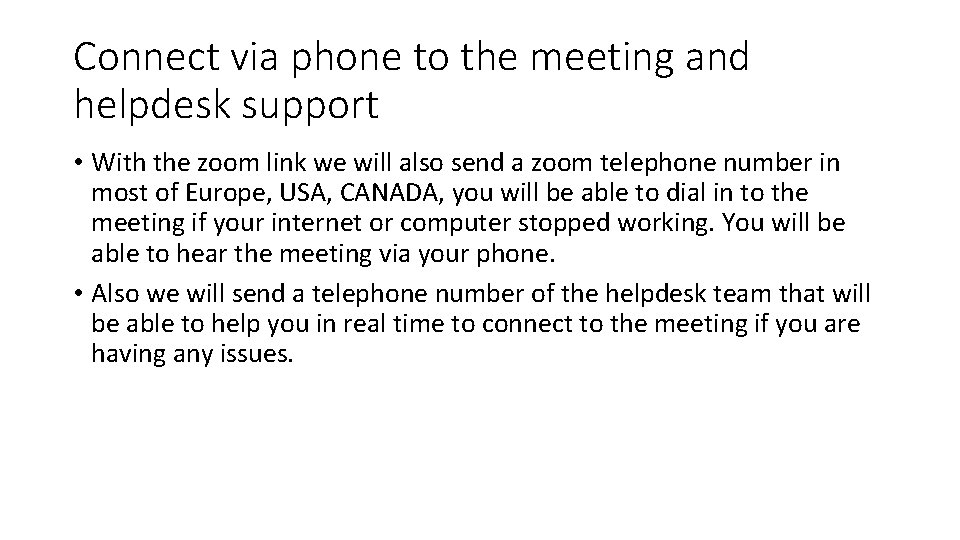
Connect via phone to the meeting and helpdesk support • With the zoom link we will also send a zoom telephone number in most of Europe, USA, CANADA, you will be able to dial in to the meeting if your internet or computer stopped working. You will be able to hear the meeting via your phone. • Also we will send a telephone number of the helpdesk team that will be able to help you in real time to connect to the meeting if you are having any issues.