
Zoom Meeting Instructions for Ipad usage Welcome to
- Slides: 15
Zoom Meeting Instructions for Ipad usage Welcome to the Piedmont Council Merit Badge training online courses. We hope to make this experience a great opportunity for you. In order to help you navigate thru the zoom meetings we have included the next several pages of screenshots on an Ipad. The Ipad performs slightly differently with a screen than a traditional PC computer. Let us know if you have any questions. Stay safe and thank you for the opportunity for all of us to continue giving back to our scouts. We would like to thank BSA volunteer Chad Wynens for the screen shots and our professional staff for all they are doing behind the scenes to make this possible.
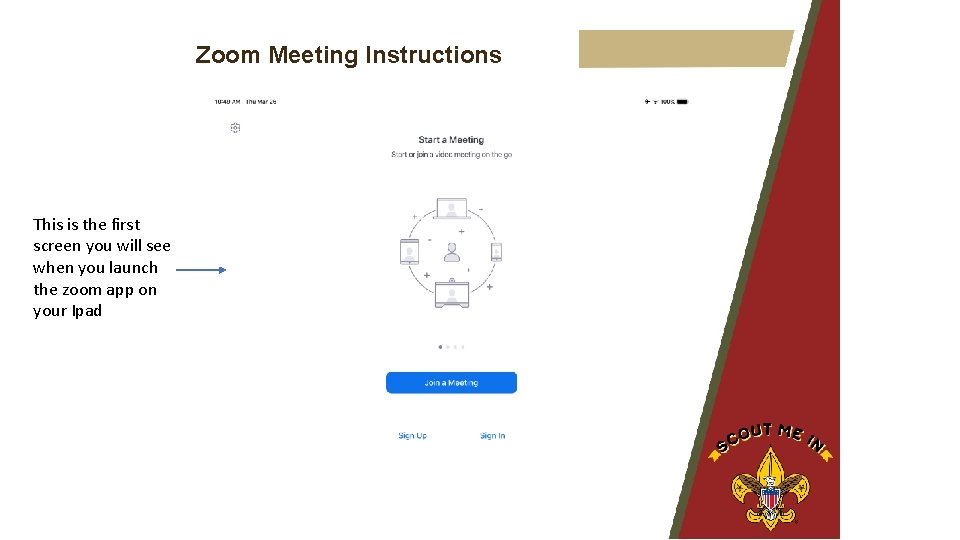
Zoom Meeting Instructions This is the first screen you will see when you launch the zoom app on your Ipad
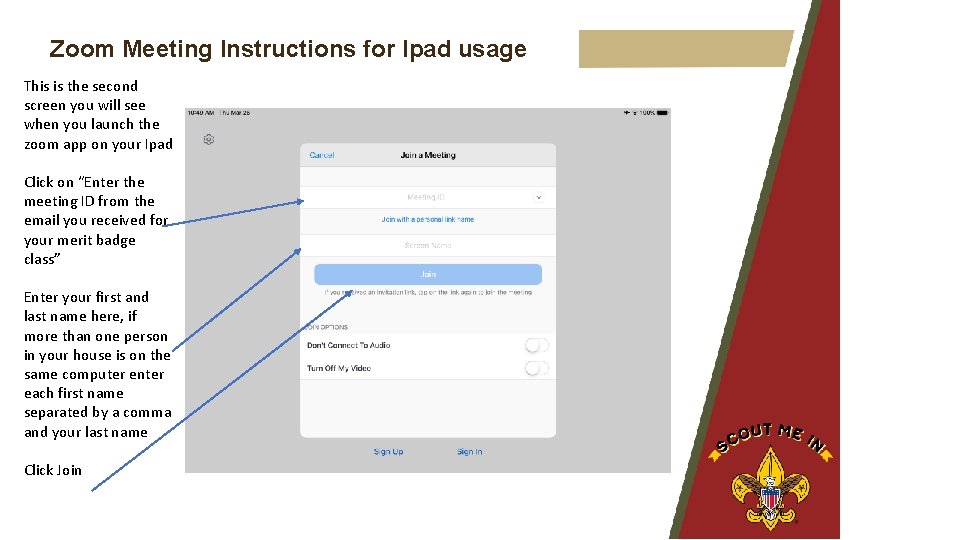
Zoom Meeting Instructions for Ipad usage This is the second screen you will see when you launch the zoom app on your Ipad Click on “Enter the meeting ID from the email you received for your merit badge class” Enter your first and last name here, if more than one person in your house is on the same computer enter each first name separated by a comma and your last name Click Join
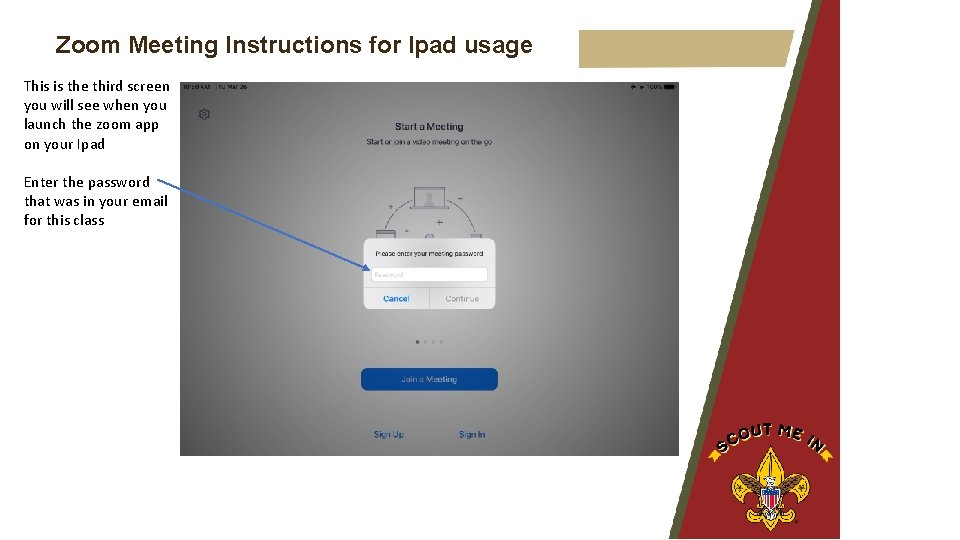
Zoom Meeting Instructions for Ipad usage This is the third screen you will see when you launch the zoom app on your Ipad Enter the password that was in your email for this class
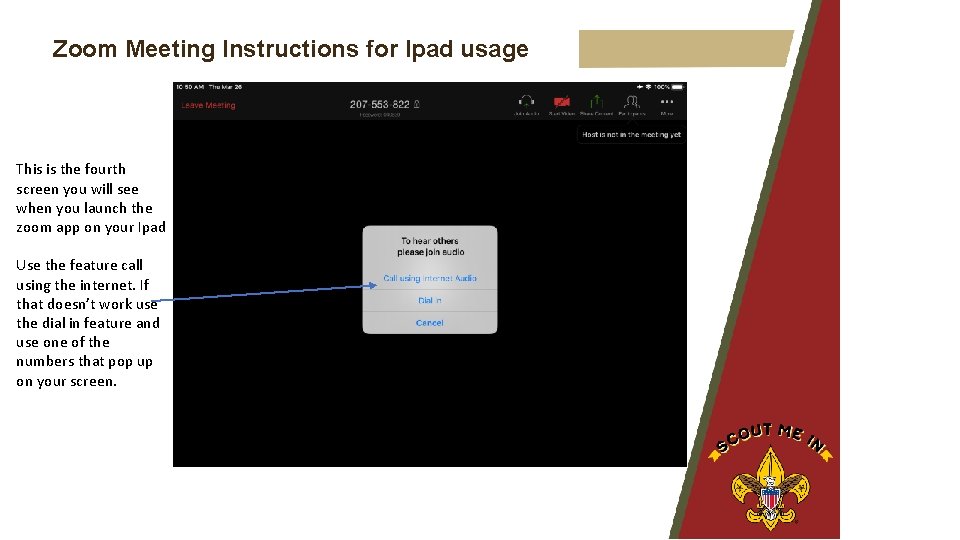
Zoom Meeting Instructions for Ipad usage This is the fourth screen you will see when you launch the zoom app on your Ipad Use the feature call using the internet. If that doesn’t work use the dial in feature and use one of the numbers that pop up on your screen.
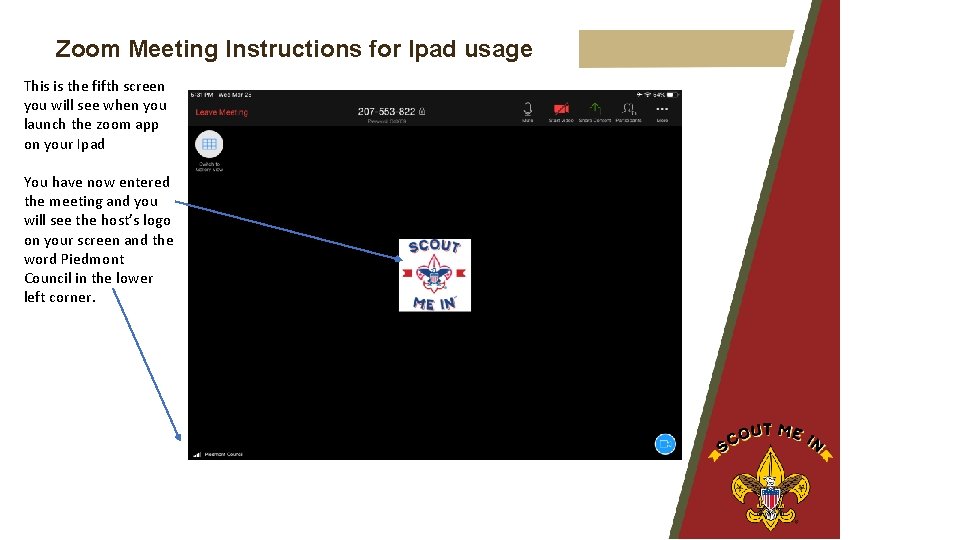
Zoom Meeting Instructions for Ipad usage This is the fifth screen you will see when you launch the zoom app on your Ipad You have now entered the meeting and you will see the host’s logo on your screen and the word Piedmont Council in the lower left corner.
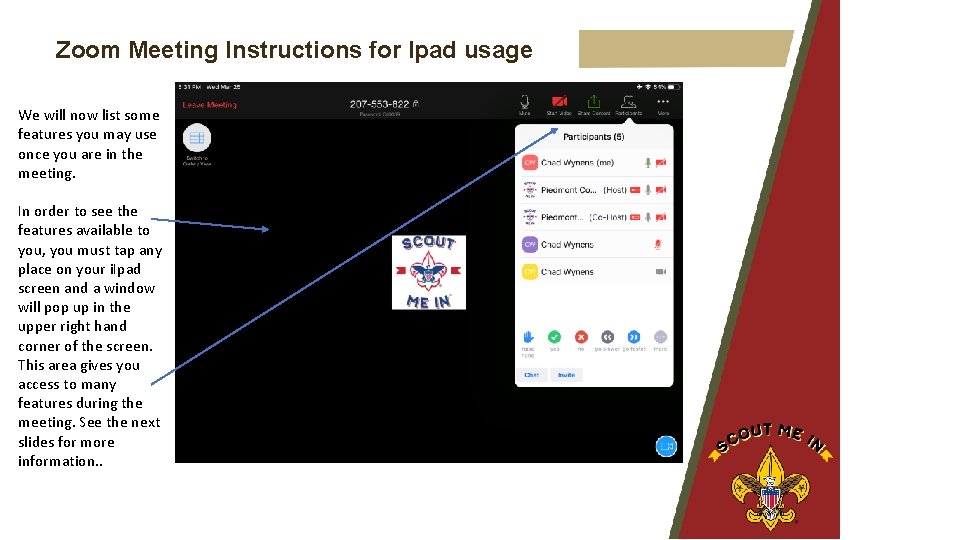
Zoom Meeting Instructions for Ipad usage We will now list some features you may use once you are in the meeting. In order to see the features available to you, you must tap any place on your i. Ipad screen and a window will pop up in the upper right hand corner of the screen. This area gives you access to many features during the meeting. See the next slides for more information. .
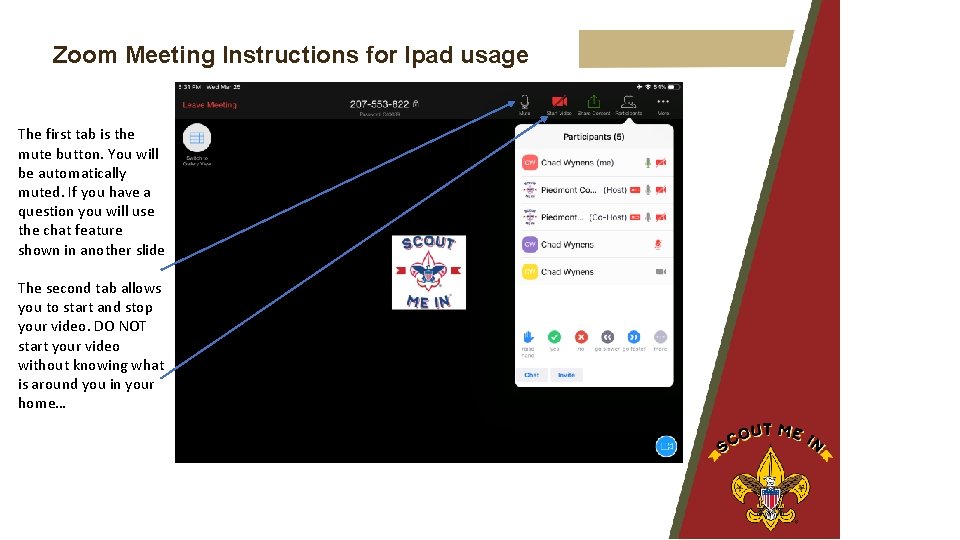
Zoom Meeting Instructions for Ipad usage The first tab is the mute button. You will be automatically muted. If you have a question you will use the chat feature shown in another slide The second tab allows you to start and stop your video. DO NOT start your video without knowing what is around you in your home…
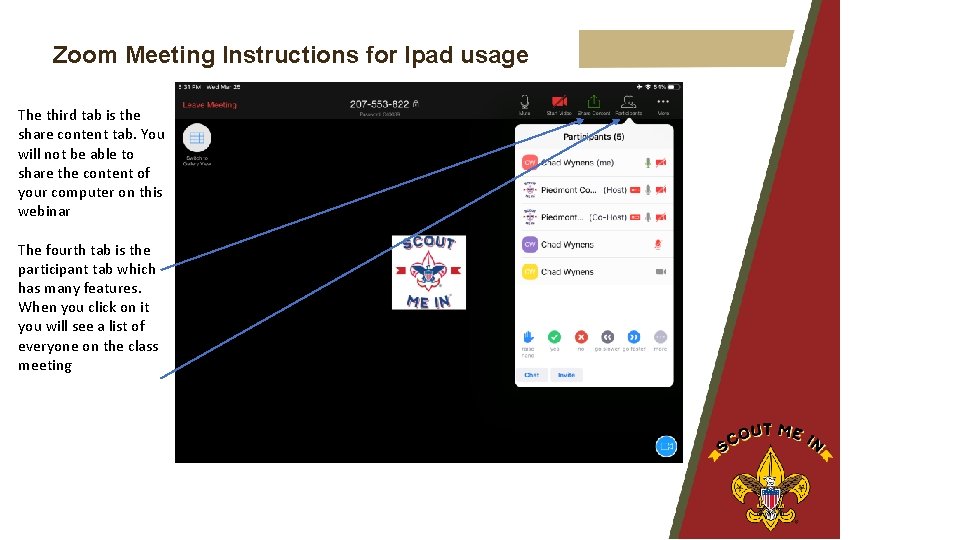
Zoom Meeting Instructions for Ipad usage The third tab is the share content tab. You will not be able to share the content of your computer on this webinar The fourth tab is the participant tab which has many features. When you click on it you will see a list of everyone on the class meeting
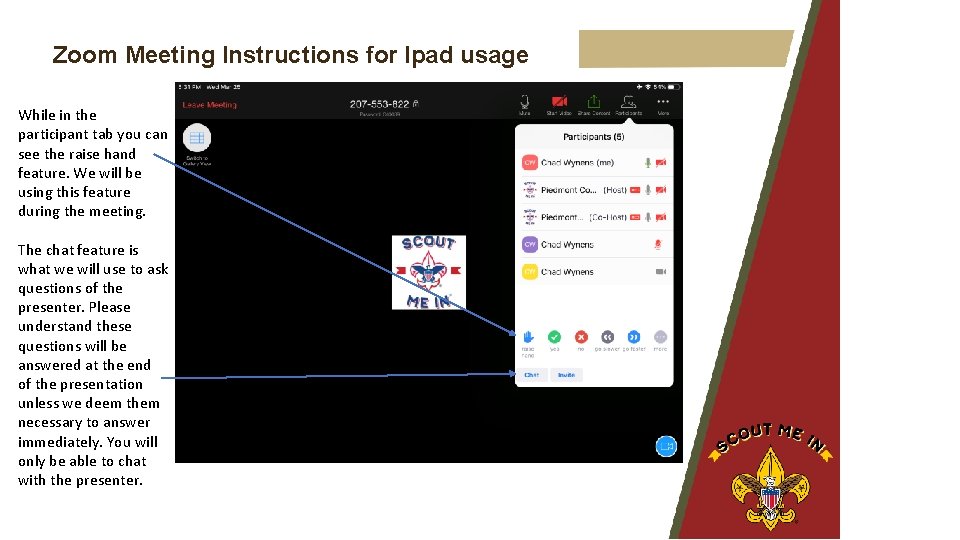
Zoom Meeting Instructions for Ipad usage While in the participant tab you can see the raise hand feature. We will be using this feature during the meeting. The chat feature is what we will use to ask questions of the presenter. Please understand these questions will be answered at the end of the presentation unless we deem them necessary to answer immediately. You will only be able to chat with the presenter.
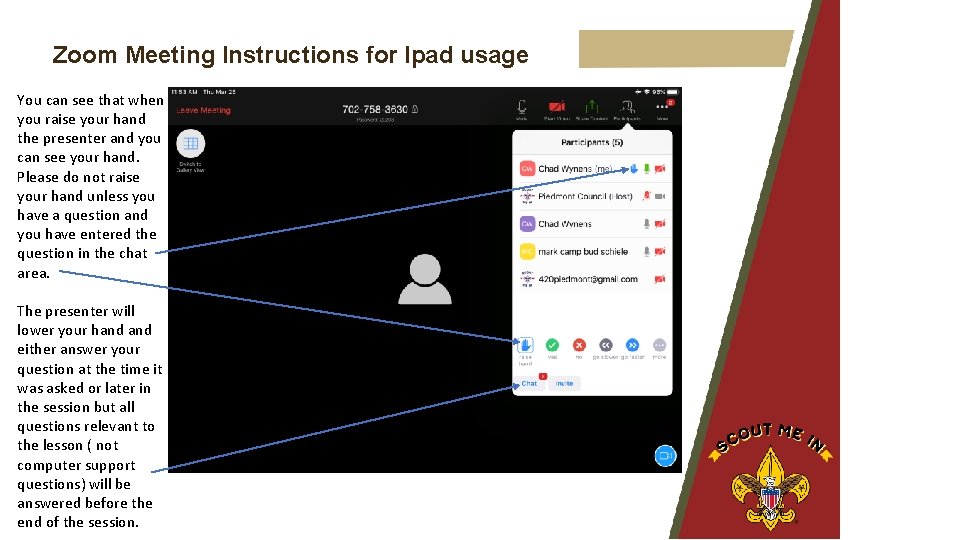
Zoom Meeting Instructions for Ipad usage You can see that when you raise your hand the presenter and you can see your hand. Please do not raise your hand unless you have a question and you have entered the question in the chat area. The presenter will lower your hand either answer your question at the time it was asked or later in the session but all questions relevant to the lesson ( not computer support questions) will be answered before the end of the session.
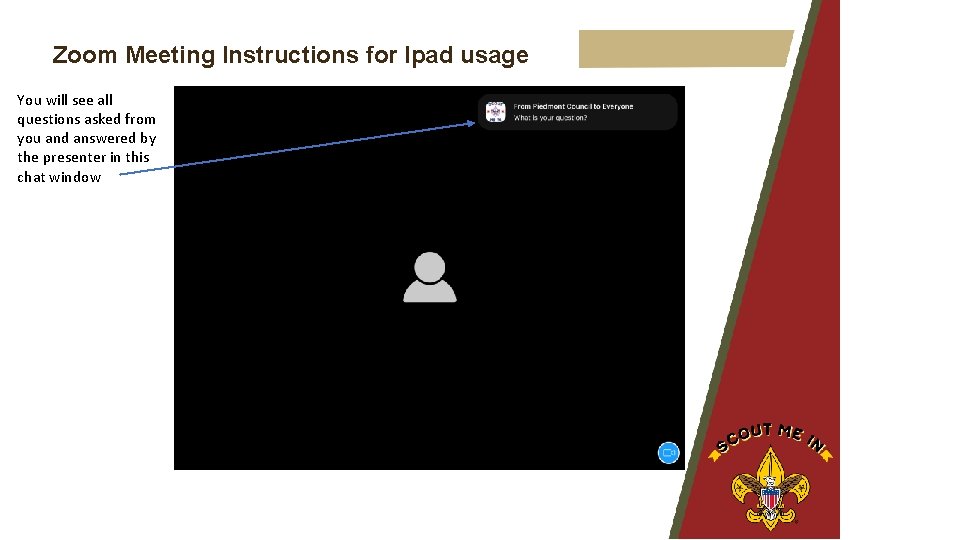
Zoom Meeting Instructions for Ipad usage You will see all questions asked from you and answered by the presenter in this chat window
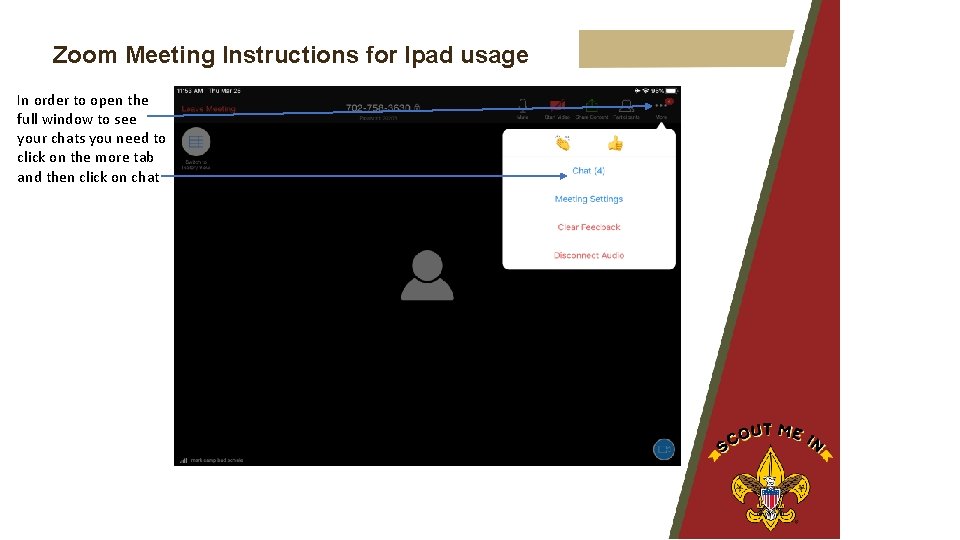
Zoom Meeting Instructions for Ipad usage In order to open the full window to see your chats you need to click on the more tab and then click on chat
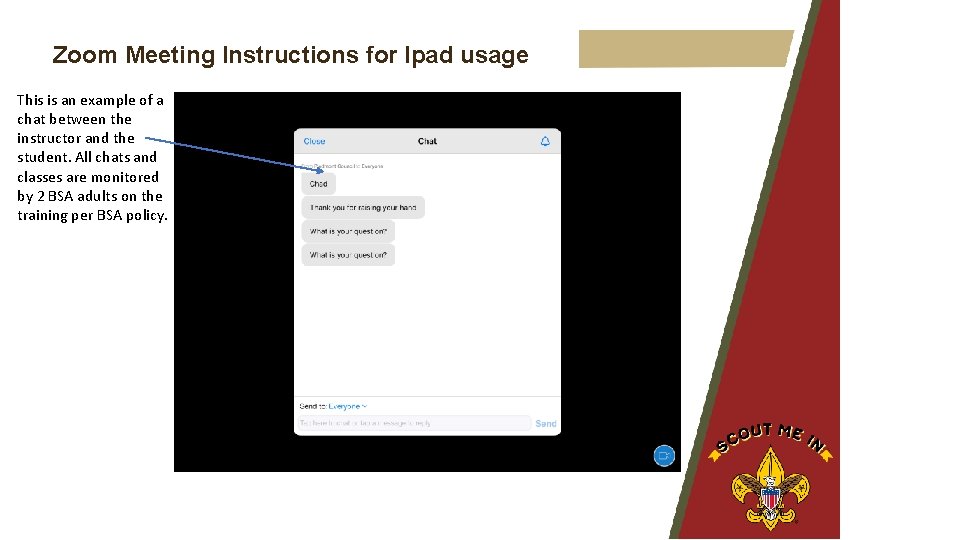
Zoom Meeting Instructions for Ipad usage This is an example of a chat between the instructor and the student. All chats and classes are monitored by 2 BSA adults on the training per BSA policy.
Zoom Meeting Instructions for Ipad usage Thank you for joining us on this adventure and we hope to be able to bring you more training in the future. Let us know if this instructional PDF useful to you and what we can do to improve the instructions in the future. Send your comments to 420 piedmont@gmail. com attention IT support