
Zoom help slides for the Zoom host A


![Welcome to [training title] • [Host name & job title] • Our priority between](https://slidetodoc.com/presentation_image_h2/4582e5b9d526bee80bbe2578888409d4/image-4.jpg "Welcome to [training title] • [Host name & job title] • Our priority between")
![If sound and video works (both ways), please join us again at [TIME]! We](https://slidetodoc.com/presentation_image_h2/4582e5b9d526bee80bbe2578888409d4/image-10.jpg "If sound and video works (both ways), please join us again at [TIME]! We")

![Welcome back! • Between now and [TIME], I will introduce you to some of](https://slidetodoc.com/presentation_image_h2/4582e5b9d526bee80bbe2578888409d4/image-12.jpg "Welcome back! • Between now and [TIME], I will introduce you to some of")
![Facilitators in Breakout rooms • Breakout room 1 -5: [facilitator name] • Breakout room](https://slidetodoc.com/presentation_image_h2/4582e5b9d526bee80bbe2578888409d4/image-24.jpg "Facilitators in Breakout rooms • Breakout room 1 -5: [facilitator name] • Breakout room")
- Slides: 33
Zoom help slides for the Zoom host A UKCEH branded version is available from Dr Ingo Schüder via UKCEHtraining@ceh. ac. uk Version: 3 March 2021 © UK Centre for Ecology & Hydrology 2021 Licence: CC BY You distribute, remix, adapt, and build upon this file, even commercially, as long as you credit the UK Centre for Ecology & Hydrology for the original creation.
These slides help the person fulfilling the Zoom Host role to 1. Welcome learners 2. Trouble shoot audio & video issues 3. Introduce the learners to the key Zoom functions for interactive learning/ participation 4. Introduce breakout rooms and screen sharing/ collaboration Show them at the start of your meeting via Screen Share 2
TROUBLE-SHOOTING SLIDES
Welcome to [training title] • [Host name & job title] • Our priority between now and [TIME] is to ensure your sound and video works • i. e. we can see and hear you (and vice versa) • You have joined with your mike muted, so we cannot hear you! • You have joined with your camera turned off to save internet bandwidth (see next slide) REVIEW • If you experience problems, and nothing else works, email [name & email] 4 Consider putting your head & shoulder image here
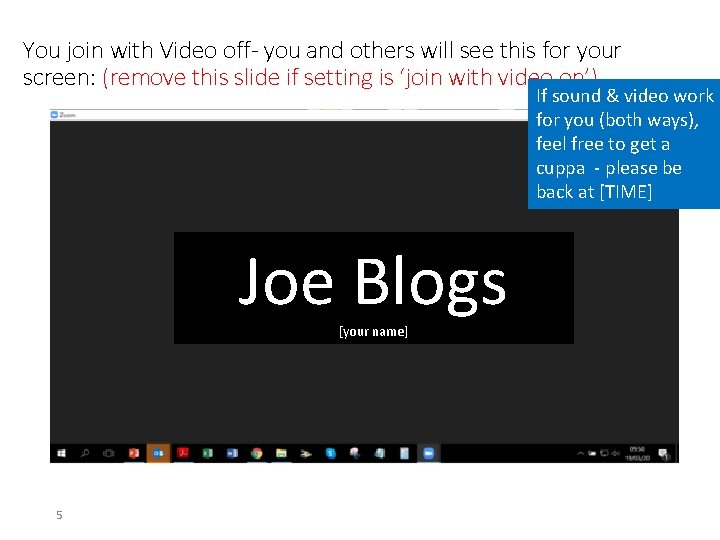
You join with Video off- you and others will see this for your screen: (remove this slide if setting is ‘join with video on’) If sound & video work for you (both ways), feel free to get a cuppa - please be back at [TIME] Joe Blogs [your name] 5
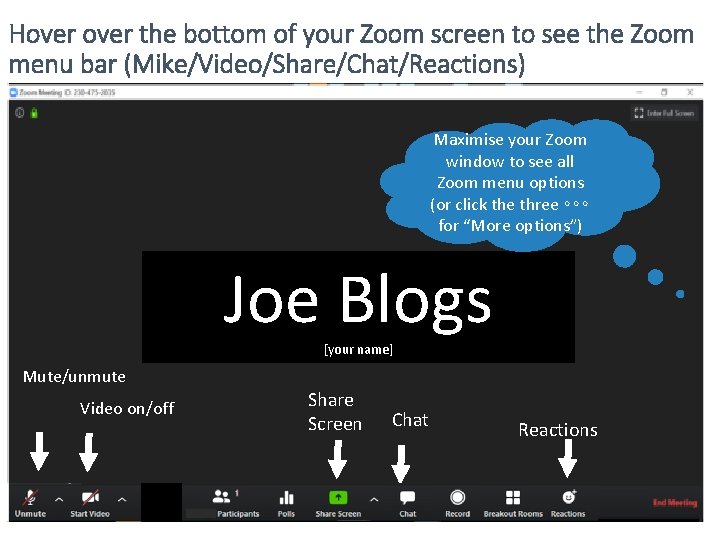
Hover the bottom of your Zoom screen to see the Zoom menu bar (Mike/Video/Share/Chat/Reactions) Maximise your Zoom window to see all Zoom menu options (or click the three ∘∘∘ for “More options”) Joe Blogs [your name] Mute/unmute Video on/off 6 Share Screen Chat Reactions
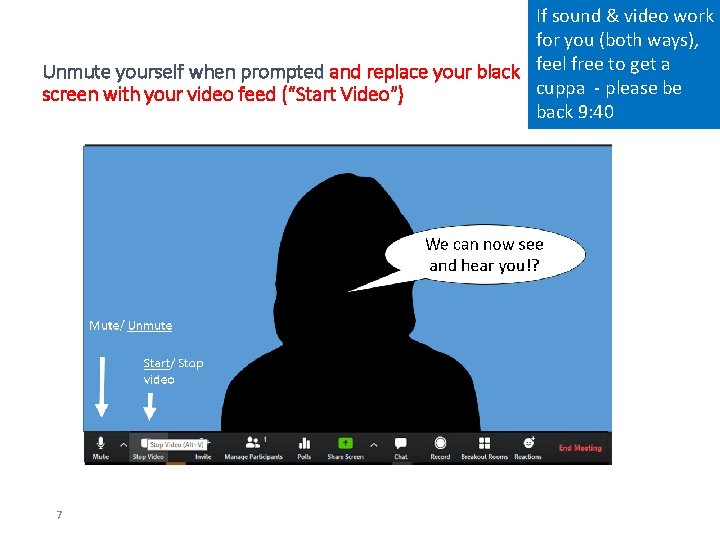
If sound & video work for you (both ways), Unmute yourself when prompted and replace your black feel free to get a cuppa - please be screen with your video feed (“Start Video”) back 9: 40 7
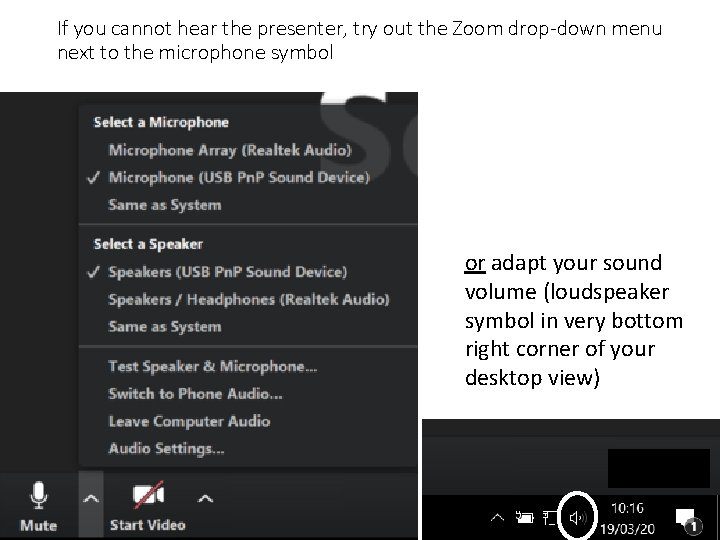
If you cannot hear the presenter, try out the Zoom drop-down menu next to the microphone symbol or adapt your sound volume (loudspeaker symbol in very bottom right corner of your desktop view) 8
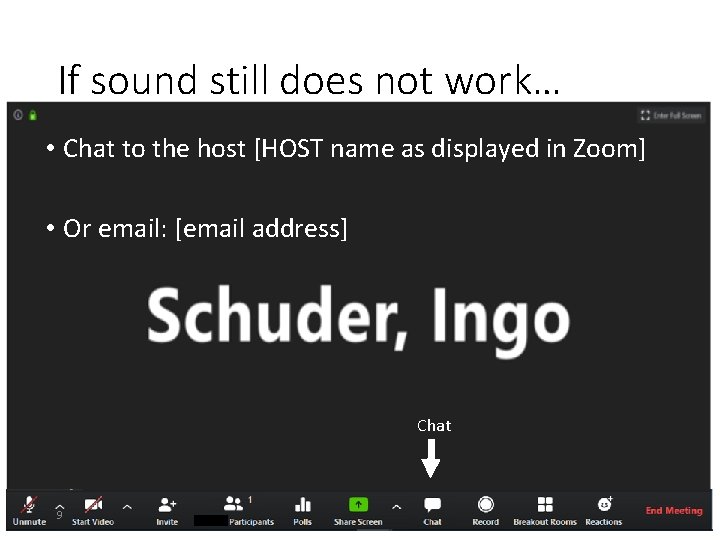
If sound still does not work… • Chat to the host [HOST name as displayed in Zoom] • Or email: [email address] Chat 9
If sound and video works (both ways), please join us again at [TIME]! We will then introduce some of the interactive functions of Zoom. 10
INTRODUCING BASIC ZOOM FUNCTIONS SLIDES
Welcome back! • Between now and [TIME], I will introduce you to some of the Zoom functions, so you can use it effectively and for the interaction. 12 Consider putting your head & shoulder image here
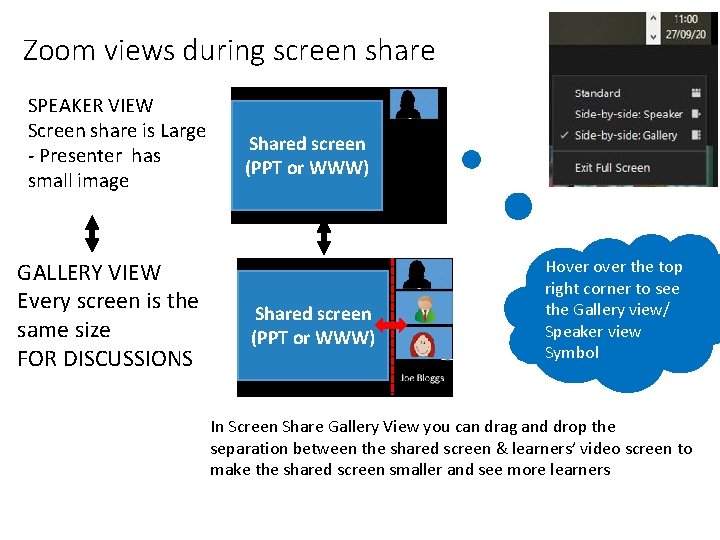
Zoom views during screen share SPEAKER VIEW Screen share is Large - Presenter has small image GALLERY VIEW Every screen is the same size FOR DISCUSSIONS Shared screen (PPT or WWW) Hover the top right corner to see the Gallery view/ Speaker view Symbol In Screen Share Gallery View you can drag and drop the separation between the shared screen & learners’ video screen to make the shared screen smaller and see more learners
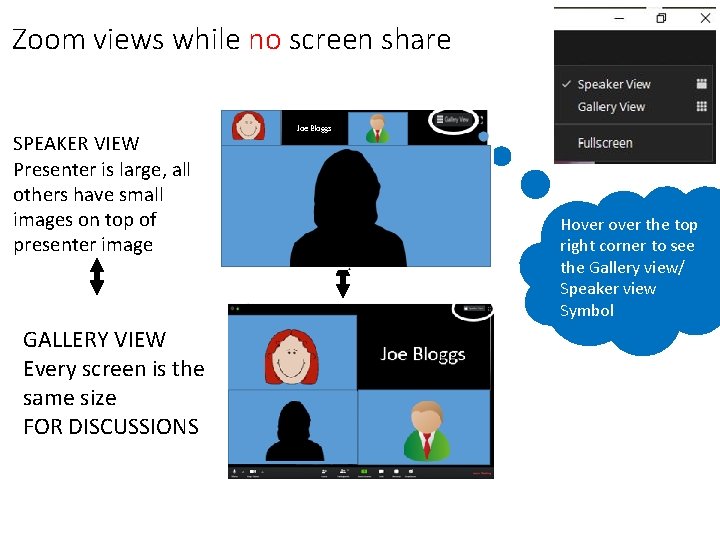
Zoom views while no screen share SPEAKER VIEW Presenter is large, all others have small images on top of presenter image GALLERY VIEW Every screen is the same size FOR DISCUSSIONS Hover the top right corner to see the Gallery view/ Speaker view Symbol
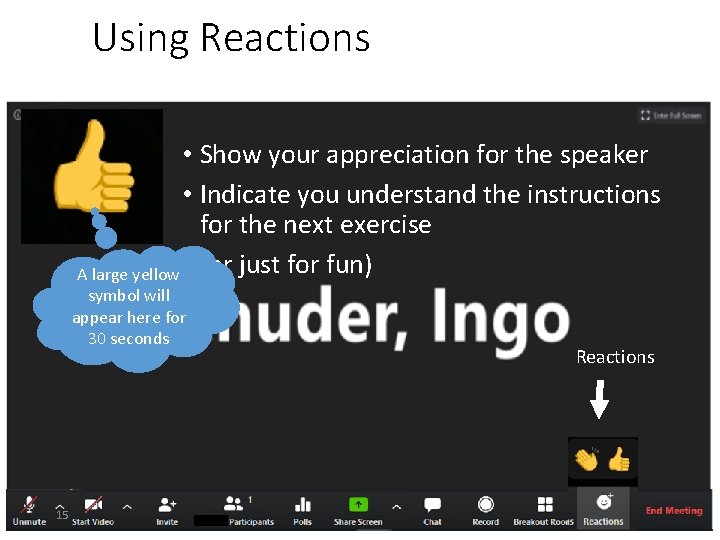
Using Reactions • Show your appreciation for the speaker • Indicate you understand the instructions for the next exercise A large yellow • (or just for fun) symbol will appear here for 30 seconds 15 Reactions
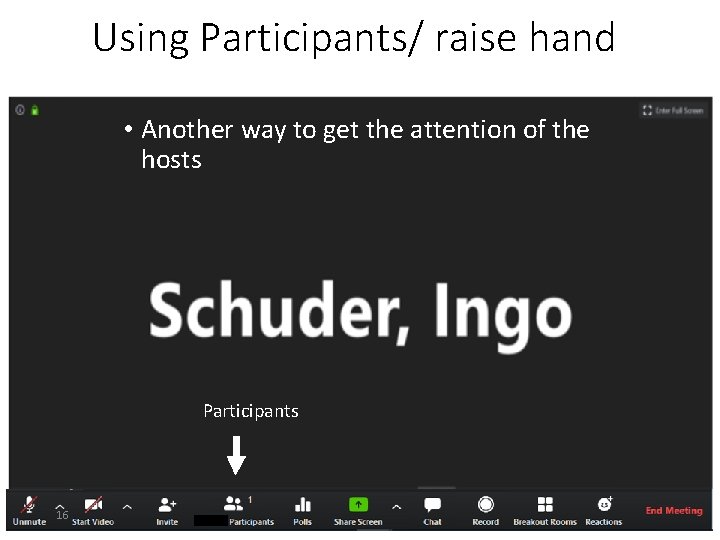
Using Participants/ raise hand • Another way to get the attention of the hosts Participants 16
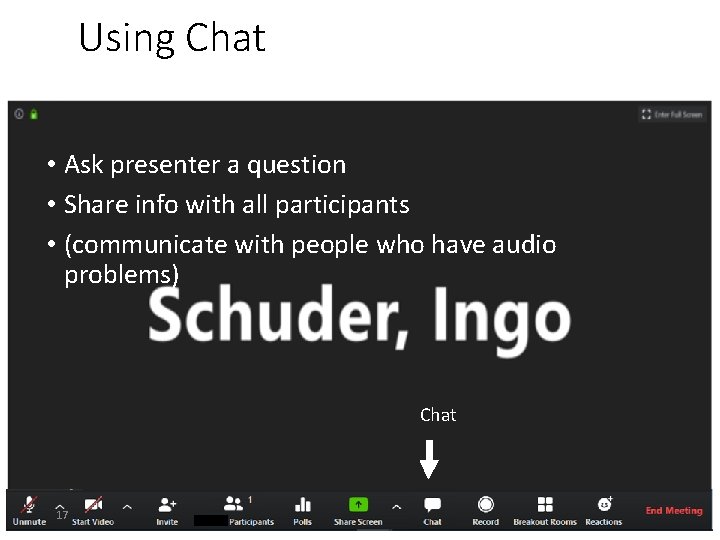
Using Chat • Ask presenter a question • Share info with all participants • (communicate with people who have audio problems) Chat 17
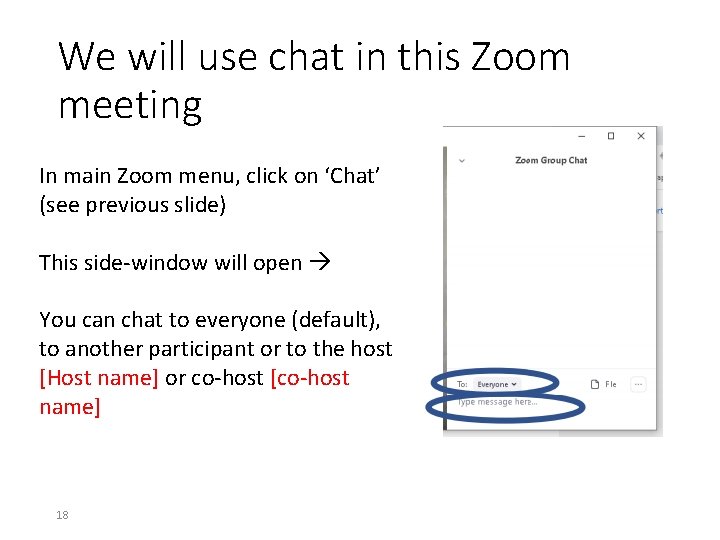
We will use chat in this Zoom meeting In main Zoom menu, click on ‘Chat’ (see previous slide) This side-window will open You can chat to everyone (default), to another participant or to the host [Host name] or co-host [co-host name] 18
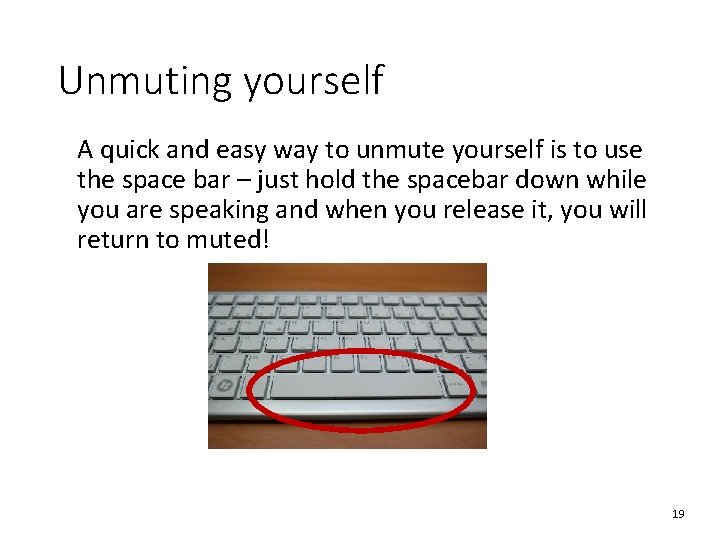
Unmuting yourself A quick and easy way to unmute yourself is to use the space bar – just hold the spacebar down while you are speaking and when you release it, you will return to muted! 19
More Zoom functions later! • Let’s start the training! We will start the recording NOW! 20
BREAKOUT ROOM HELP SLIDES suggest to use these just before you use BOR, i. e. not at the start of the day 21
Interactive group Exercises – Breakout room • In a moment, we will send you to a virtual breakout room. • You will work in groups of [NUMBER] people • Before you go, a few more functions of Zoom! 22
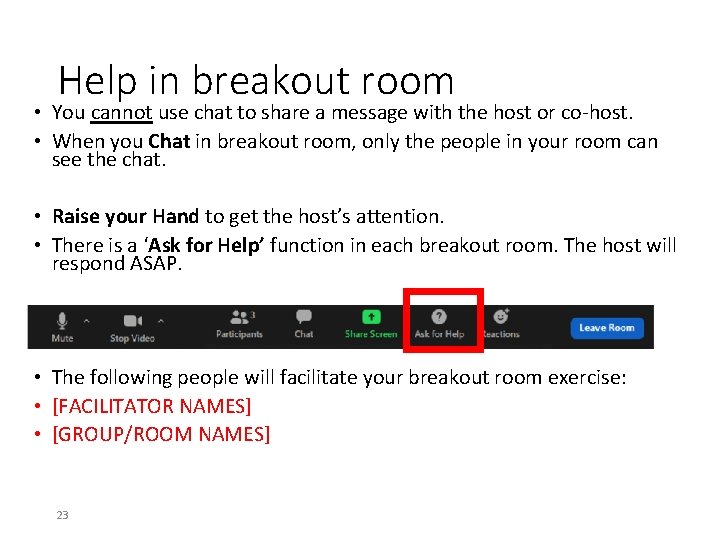
Help in breakout room • You cannot use chat to share a message with the host or co-host. • When you Chat in breakout room, only the people in your room can see the chat. • Raise your Hand to get the host’s attention. • There is a ‘Ask for Help’ function in each breakout room. The host will respond ASAP. • The following people will facilitate your breakout room exercise: • [FACILITATOR NAMES] • [GROUP/ROOM NAMES] 23
Facilitators in Breakout rooms • Breakout room 1 -5: [facilitator name] • Breakout room 6 -10: [facilitator name] 24
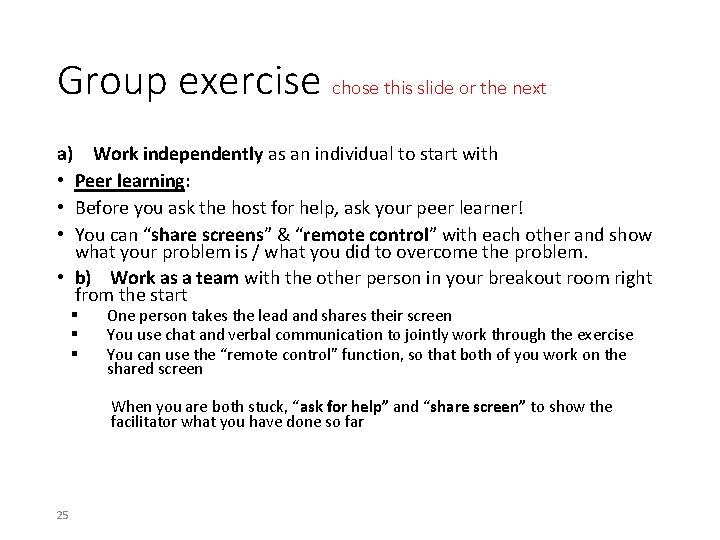
Group exercise chose this slide or the next a) Work independently as an individual to start with • Peer learning: • Before you ask the host for help, ask your peer learner! • You can “share screens” & “remote control” with each other and show what your problem is / what you did to overcome the problem. • b) Work as a team with the other person in your breakout room right from the start § § § One person takes the lead and shares their screen You use chat and verbal communication to jointly work through the exercise You can use the “remote control” function, so that both of you work on the shared screen When you are both stuck, “ask for help” and “share screen” to show the facilitator what you have done so far 25
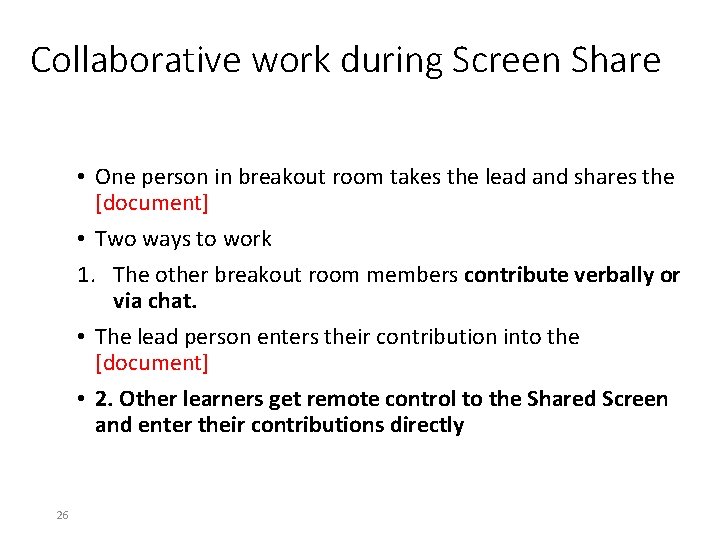
Collaborative work during Screen Share • One person in breakout room takes the lead and shares the [document] • Two ways to work 1. The other breakout room members contribute verbally or via chat. • The lead person enters their contribution into the [document] • 2. Other learners get remote control to the Shared Screen and enter their contributions directly 26
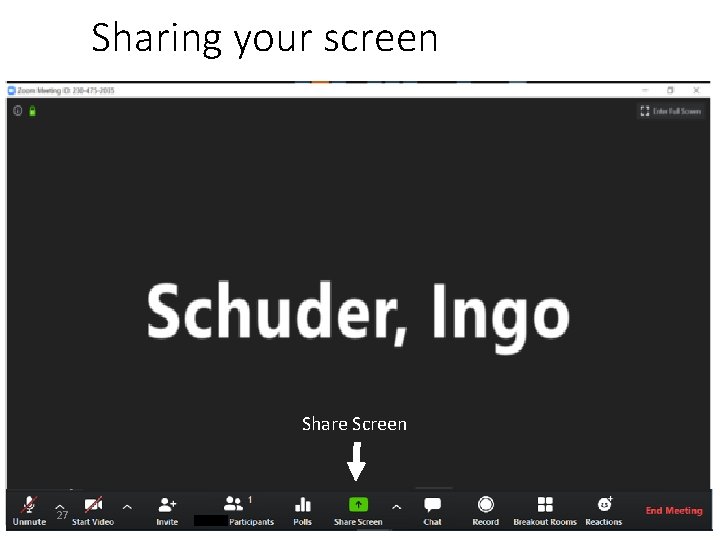
Sharing your screen Share Screen 27
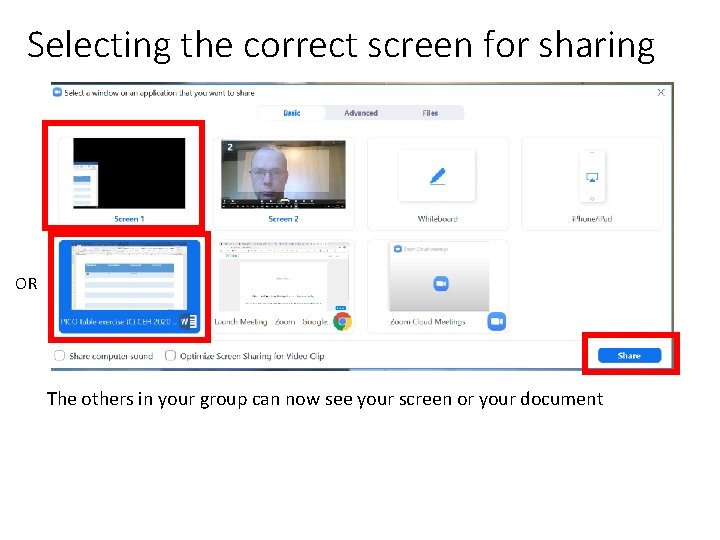
Selecting the correct screen for sharing OR The others in your group can now see your screen or your document
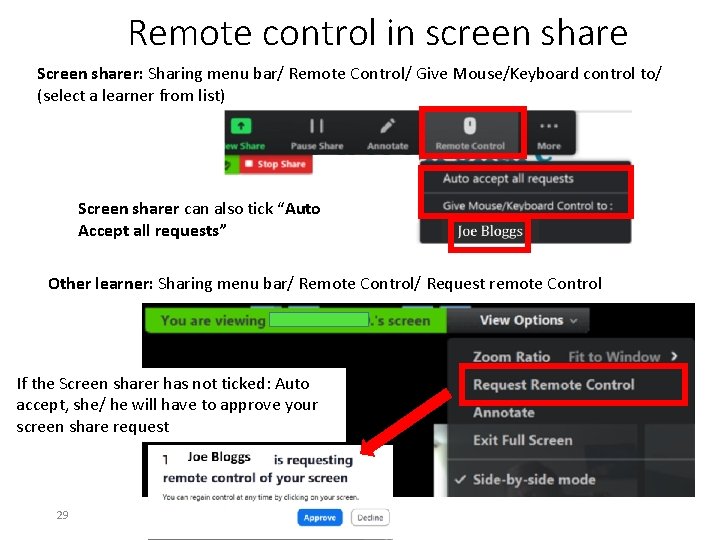
Remote control in screen share Screen sharer: Sharing menu bar/ Remote Control/ Give Mouse/Keyboard control to/ (select a learner from list) Screen sharer can also tick “Auto Accept all requests” loggs Other learner: Sharing menu bar/ Remote Control/ Request remote Control If the Screen sharer has not ticked: Auto accept, she/ he will have to approve your screen share request 29
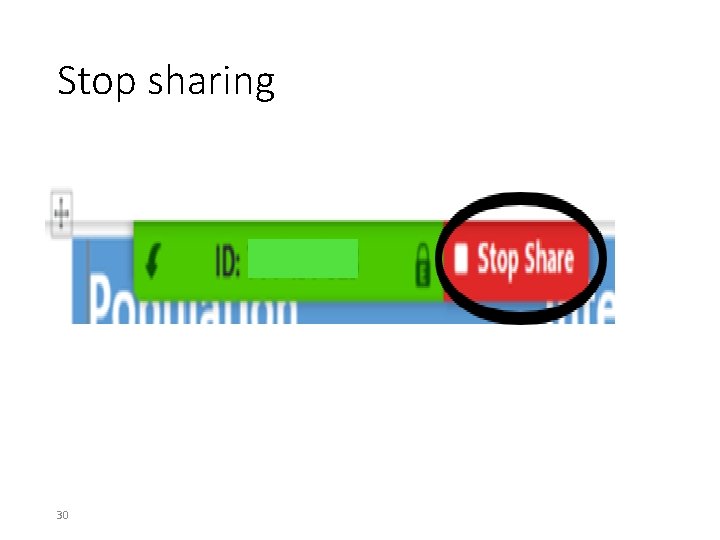
Stop sharing 30
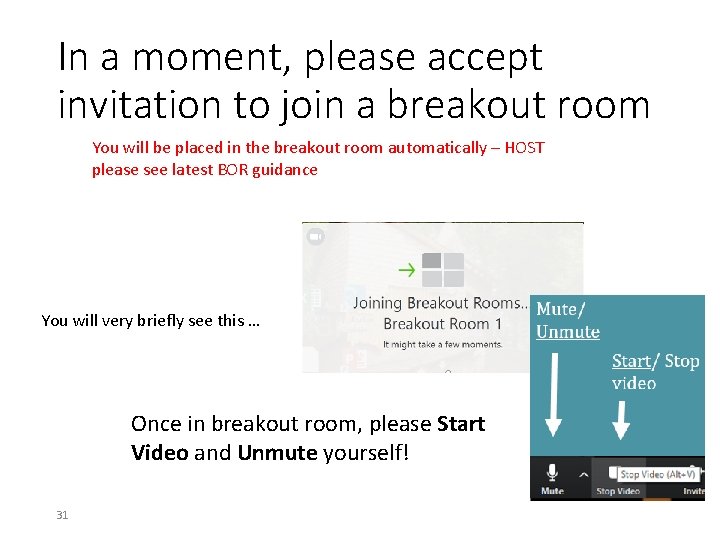
In a moment, please accept invitation to join a breakout room You will be placed in the breakout room automatically – HOST please see latest BOR guidance You will very briefly see this … Once in breakout room, please Start Video and Unmute yourself! 31
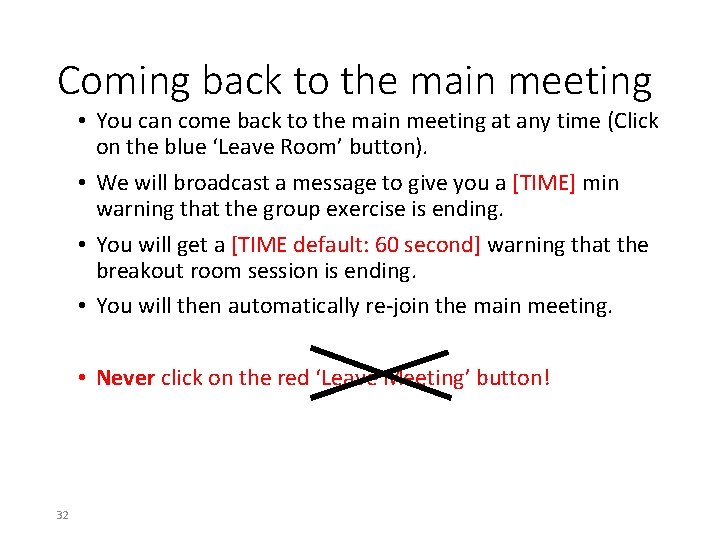
Coming back to the main meeting • You can come back to the main meeting at any time (Click on the blue ‘Leave Room’ button). • We will broadcast a message to give you a [TIME] min warning that the group exercise is ending. • You will get a [TIME default: 60 second] warning that the breakout room session is ending. • You will then automatically re-join the main meeting. • Never click on the red ‘Leave Meeting’ button! 32
Insert any further slides e. g. Advertising future courses Prompt to go to online feedback form 33