
Zoom Best Practices Zoom Best Practices Overview Before

Zoom Best Practices

Zoom Best Practices – Overview Before Class If you fail to plan, plan to fail. During Class Systematically managing the chaos. After Class You mean there’s still stuff to do?
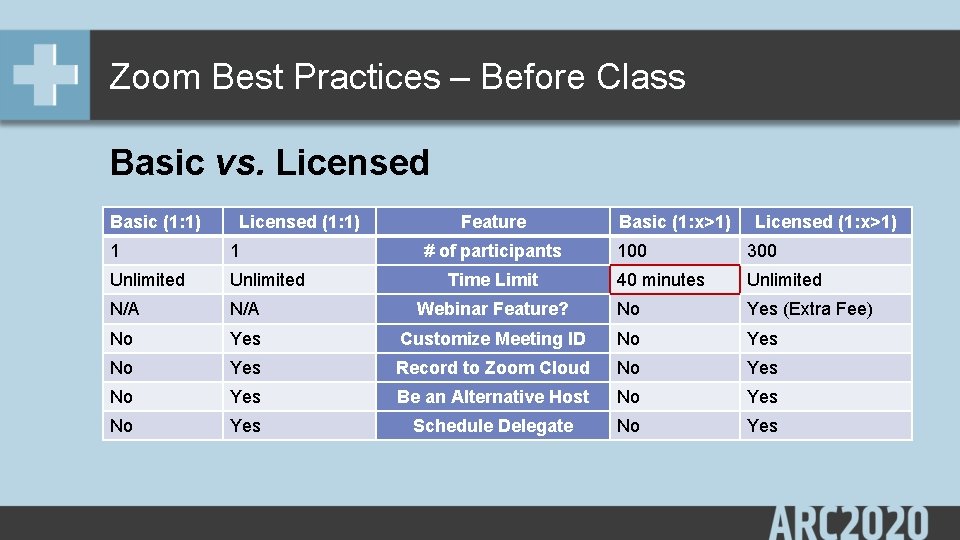
Zoom Best Practices – Before Class Basic vs. Licensed Basic (1: 1) Licensed (1: 1) 1 1 Unlimited N/A No Feature # of participants Basic (1: x>1) Licensed (1: x>1) 100 300 40 minutes Unlimited Webinar Feature? No Yes (Extra Fee) Yes Customize Meeting ID No Yes Record to Zoom Cloud No Yes Be an Alternative Host No Yes Schedule Delegate No Yes Time Limit
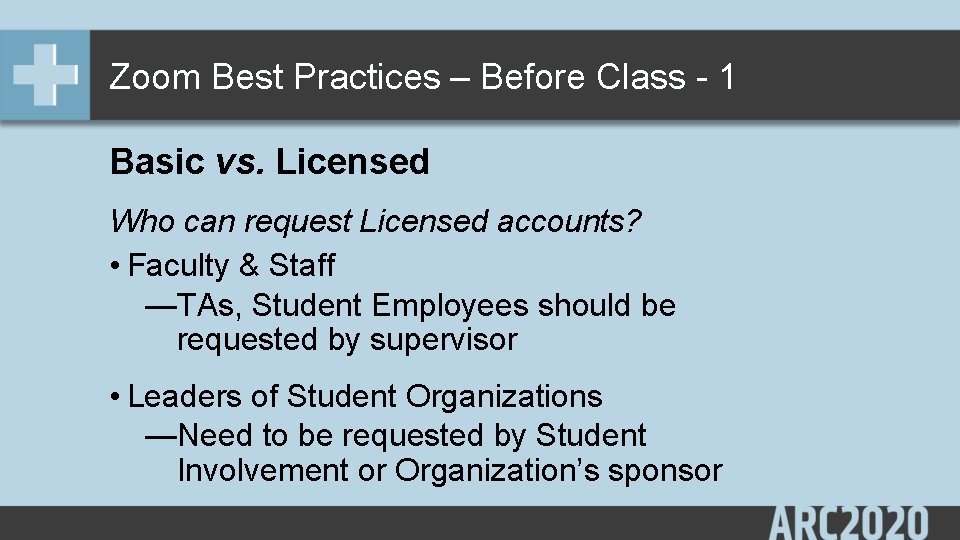
Zoom Best Practices – Before Class - 1 Basic vs. Licensed Who can request Licensed accounts? • Faculty & Staff —TAs, Student Employees should be requested by supervisor • Leaders of Student Organizations —Need to be requested by Student Involvement or Organization’s sponsor
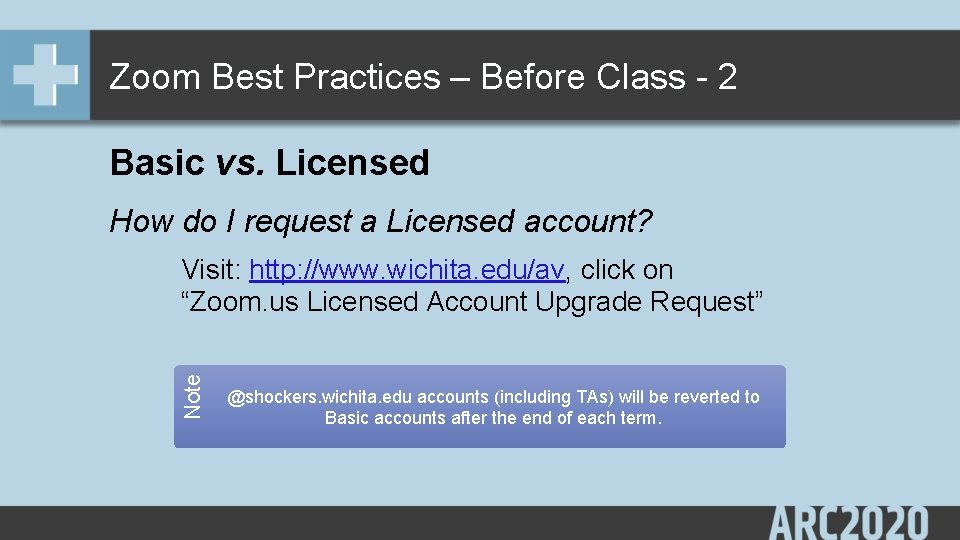
Zoom Best Practices – Before Class - 2 Basic vs. Licensed How do I request a Licensed account? Note Visit: http: //www. wichita. edu/av, click on “Zoom. us Licensed Account Upgrade Request” @shockers. wichita. edu accounts (including TAs) will be reverted to Basic accounts after the end of each term.
Zoom Best Practices – Before Class - 3 Check your settings What settings should I set? Two places to change settings: 1. Account Settings (stuff for all meetings) 2. Meeting Settings (stuff for this meeting)
Zoom Best Practices – Before Class - 4 Check your settings Account Settings
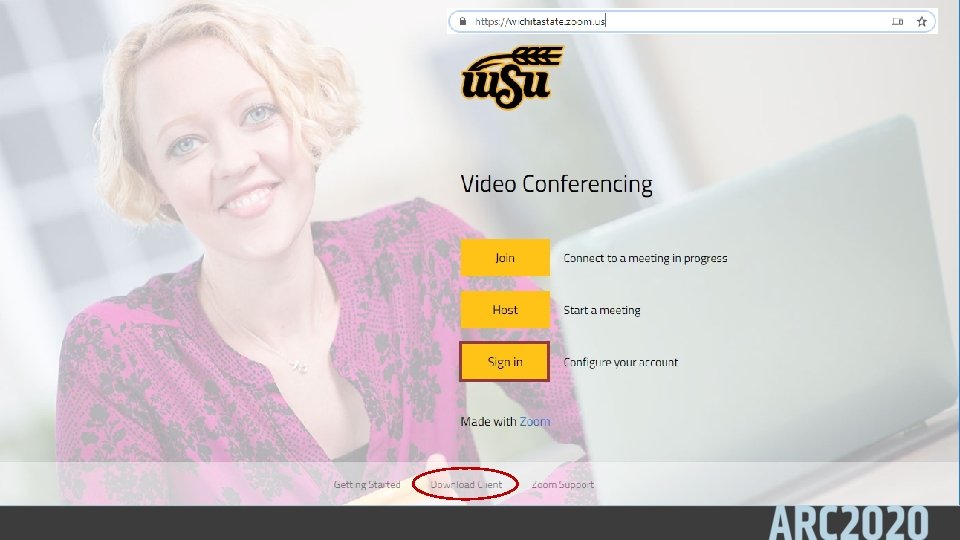
Zoom Best Practices – Before Class - 5
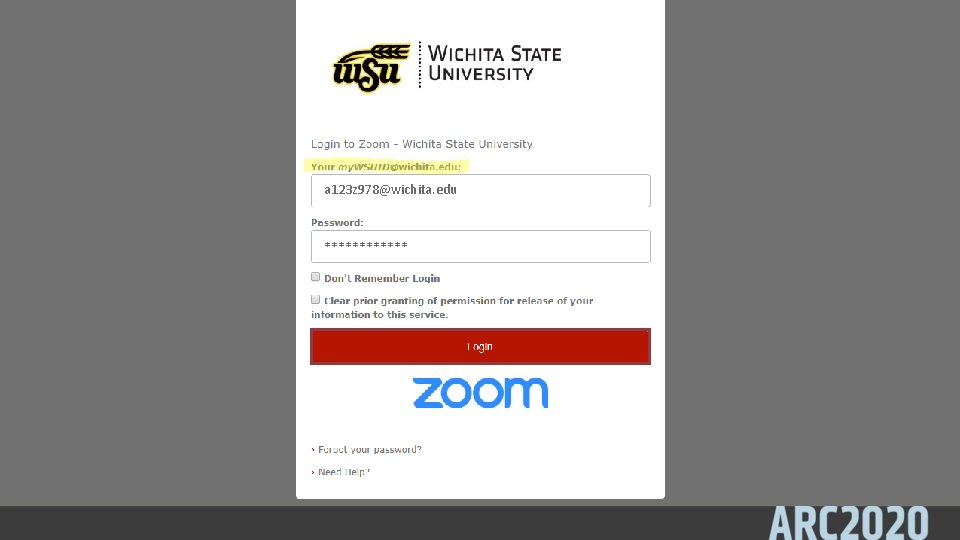
Zoom Best Practices – Before Class - 6 a 123 z 978@wichita. edu ******
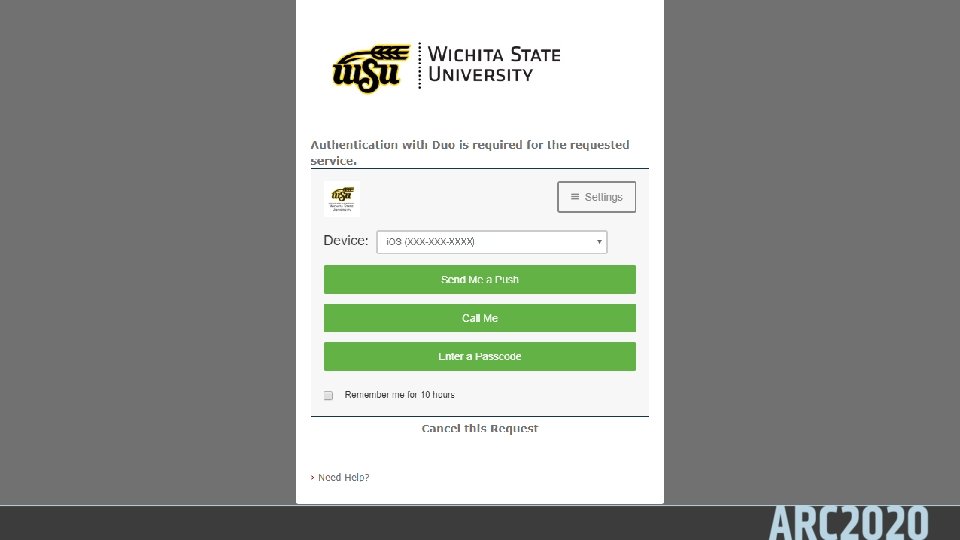
Zoom Best Practices – Before Class - 7 XXXX)
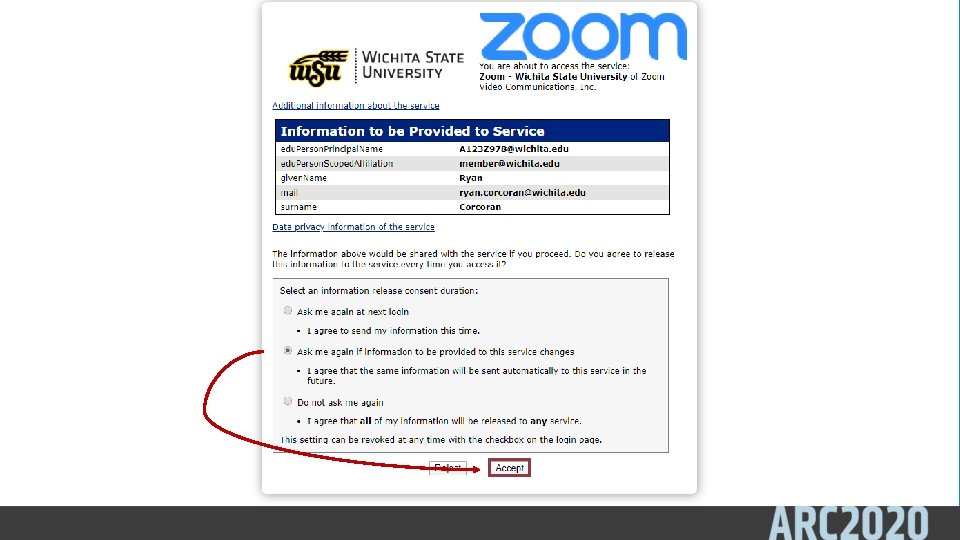
Zoom Best Practices – Before Class - 8
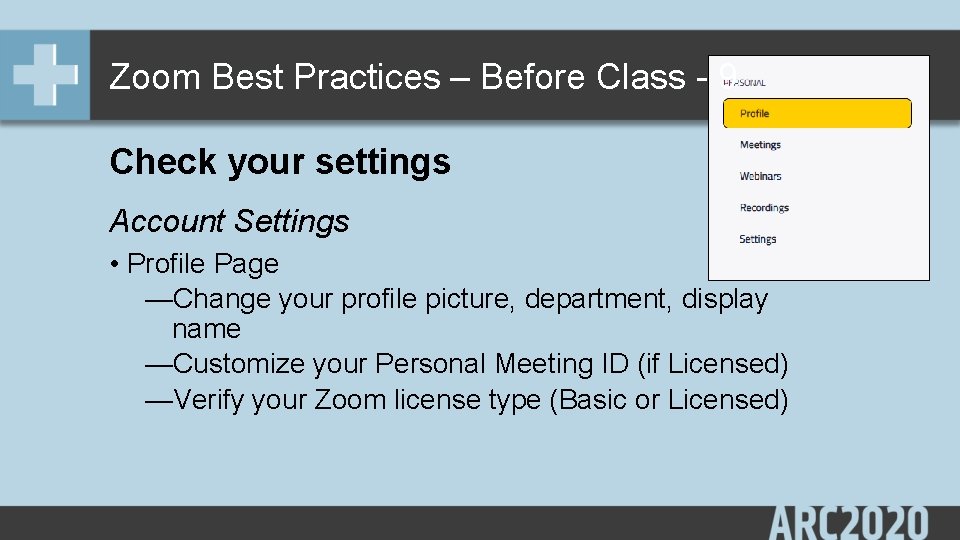
Zoom Best Practices – Before Class - 9 Check your settings Account Settings • Profile Page —Change your profile picture, department, display name —Customize your Personal Meeting ID (if Licensed) —Verify your Zoom license type (Basic or Licensed)
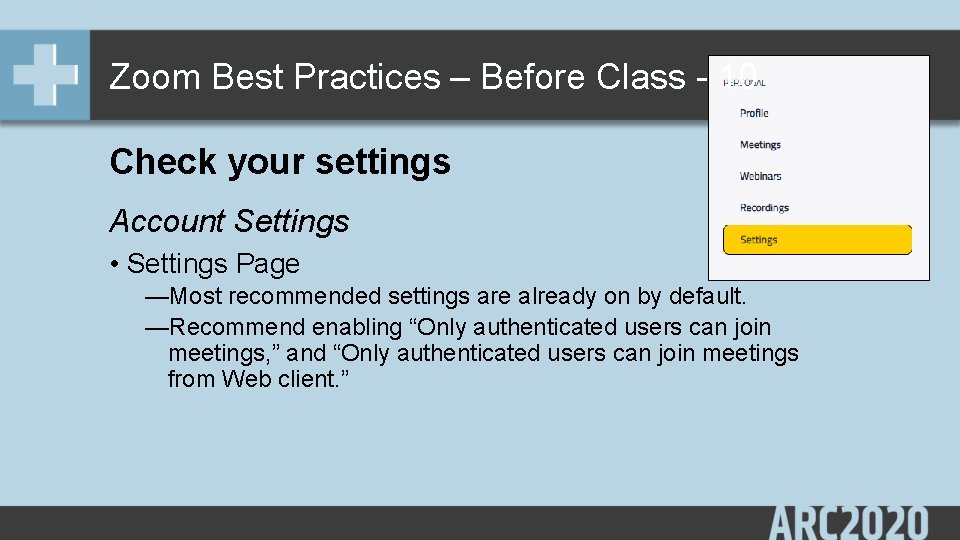
Zoom Best Practices – Before Class - 10 Check your settings Account Settings • Settings Page —Most recommended settings are already on by default. —Recommend enabling “Only authenticated users can join meetings, ” and “Only authenticated users can join meetings from Web client. ”
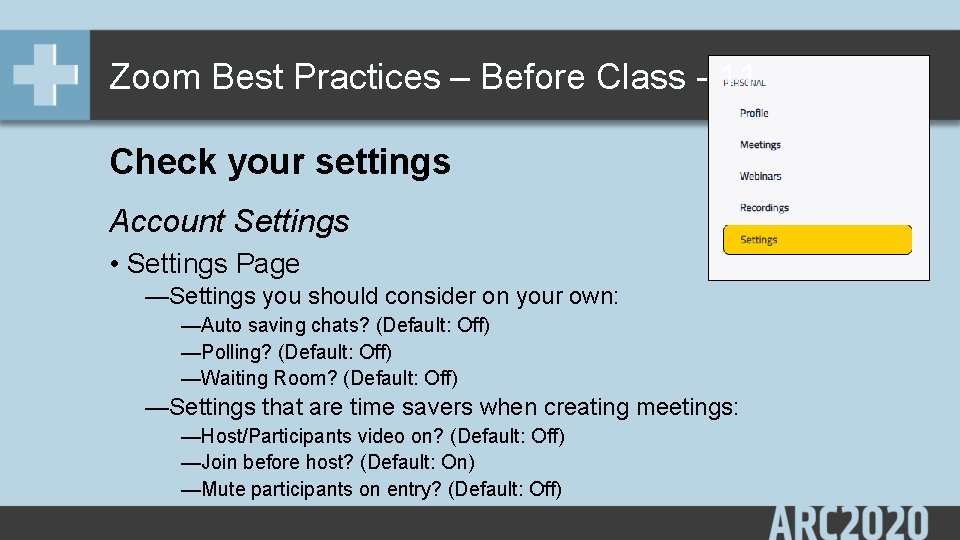
Zoom Best Practices – Before Class - 11 Check your settings Account Settings • Settings Page —Settings you should consider on your own: —Auto saving chats? (Default: Off) —Polling? (Default: Off) —Waiting Room? (Default: Off) —Settings that are time savers when creating meetings: —Host/Participants video on? (Default: Off) —Join before host? (Default: On) —Mute participants on entry? (Default: Off)
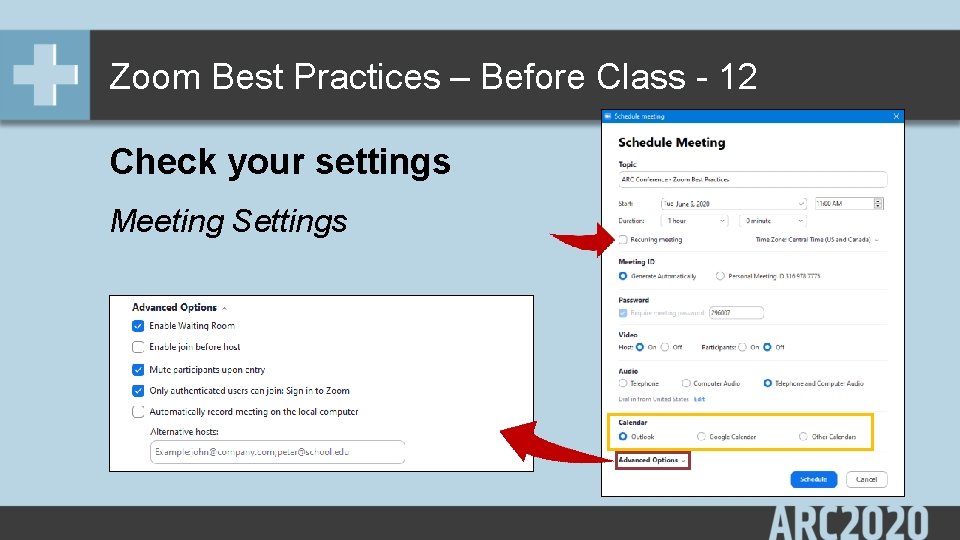
Zoom Best Practices – Before Class - 12 Check your settings Meeting Settings
Zoom Best Practices – Before Class - 13 Communicate Your Meeting Your meeting is scheduled—now what? 1. 2. 3. Set Outlook invitation settings for your calendar. Set recurring pattern, if any. Either send Outlook calendar invite or post in Blackboard. (Please no Twitter!)
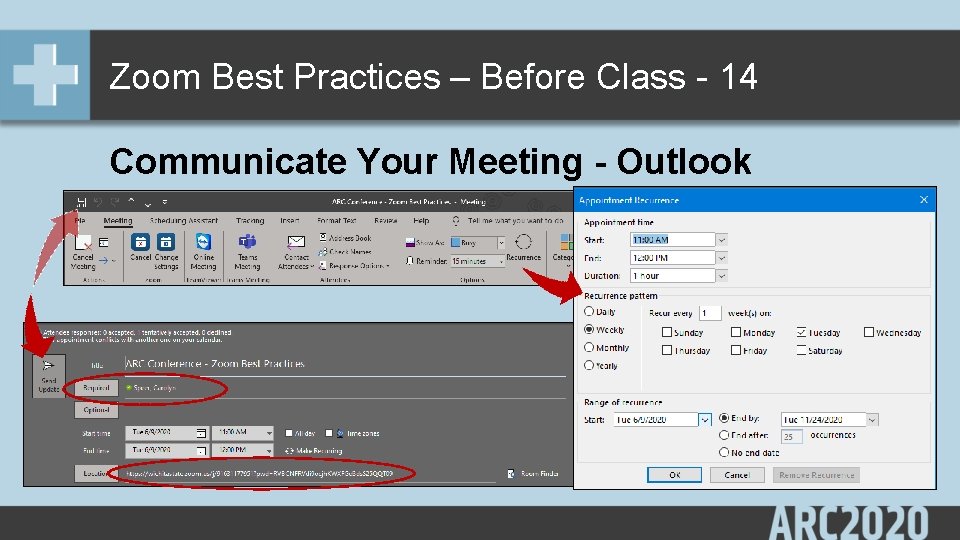
Zoom Best Practices – Before Class - 14 Communicate Your Meeting - Outlook
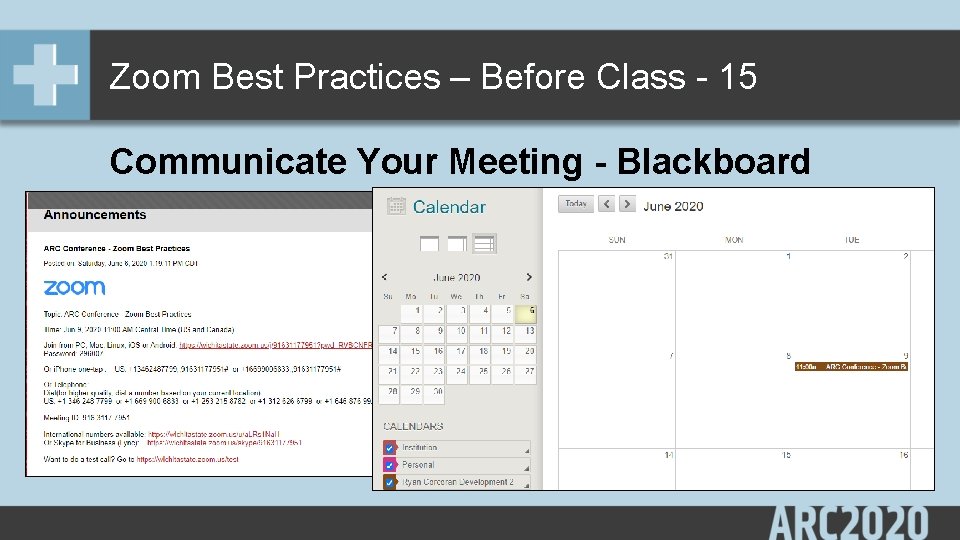
Zoom Best Practices – Before Class - 15 Communicate Your Meeting - Blackboard
Zoom Best Practices – Before Class - 16 Communicate Your Meeting – Co-Host Do you need/want a co-host? —Large classes (>40 -50) —Very interactive (lots of muting/unmuting, e. g. ) —Want some peace of mind wichita. edu/av – “Zoom. us Co-Host Request”

Zoom Best Practices – Before Class - 17 Setup Polling Questions in Advance — Go to web portal at https: //wichitastate. zoom. us & go to “Meetings” — Click on the title of the Meeting to which you want to add polls, scroll down to “Poll” and click “Add. ”
Zoom Best Practices – Before Class - 18 Setup Breakout Rooms in Advance — Go to web portal at https: //wichitastate. zoom. us & go to “Meetings” — Click on the title of the Meeting to which you want to add polls, scroll down and click “Edit this Meeting. ” — Check “Breakout Room pre-assign” then “+Create Rooms” — Importing names by. csv is possible, but tricky.

Zoom Best Practices – Ready to Meet? Ready to meet?
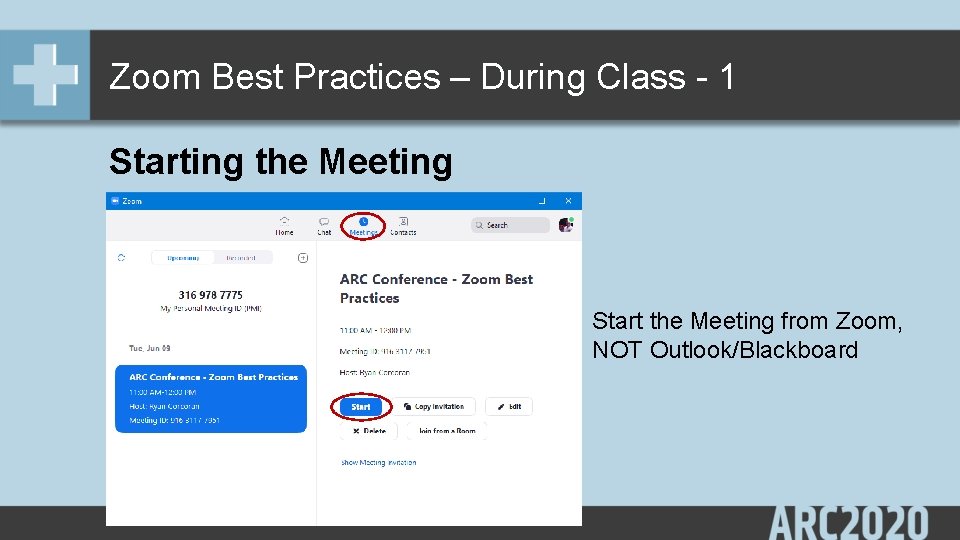
Zoom Best Practices – During Class - 1 Starting the Meeting Start the Meeting from Zoom, NOT Outlook/Blackboard
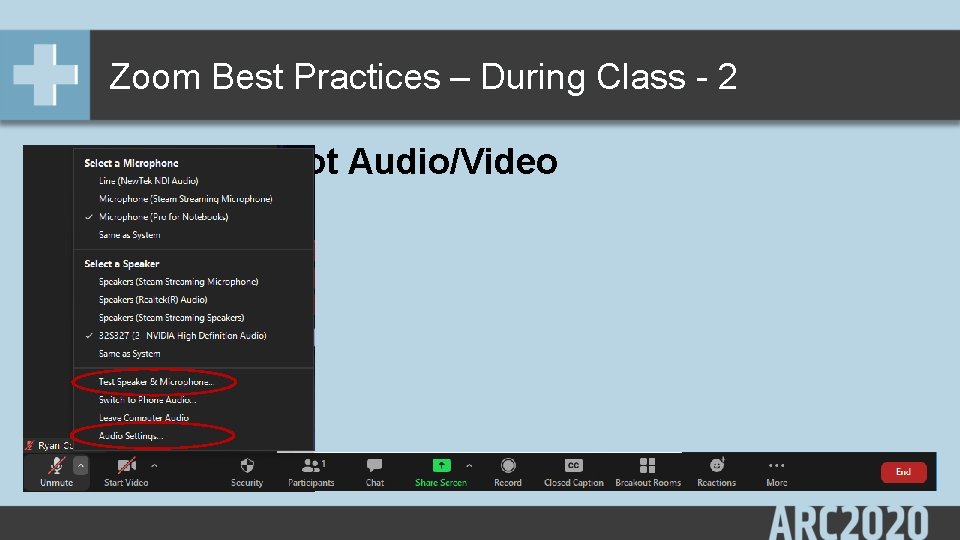
Zoom Best Practices – During Class - 2 Troubleshoot Audio/Video
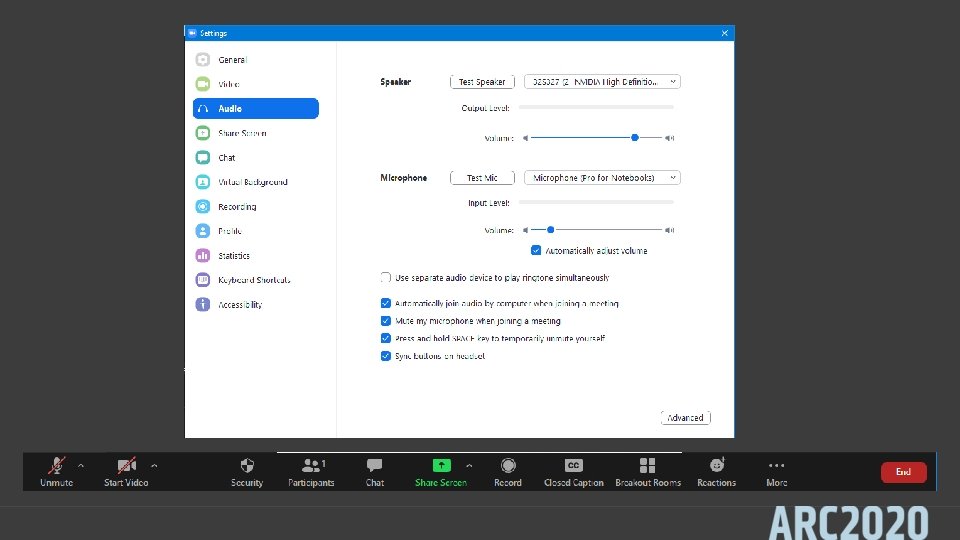
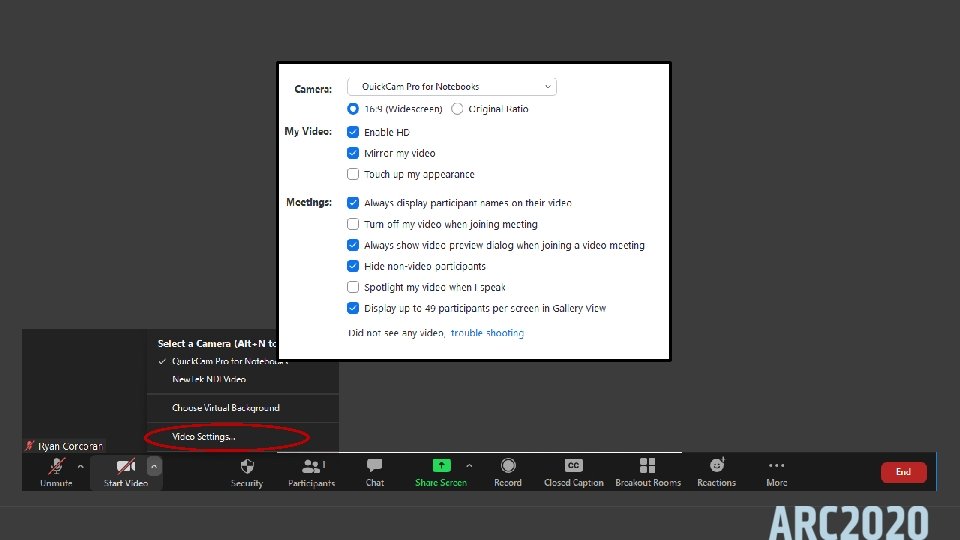

Zoom Best Practices – During Class - 5 Check Your Settings
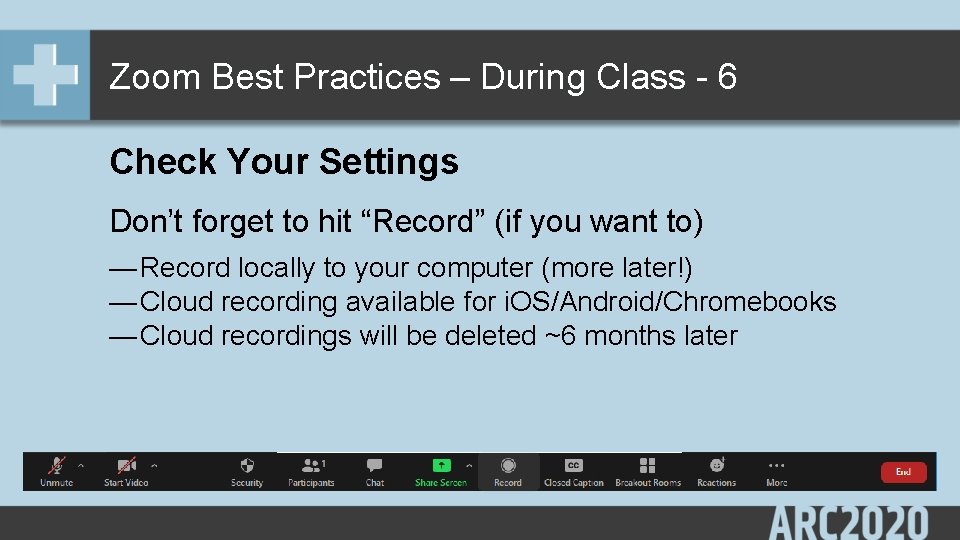
Zoom Best Practices – During Class - 6 Check Your Settings Don’t forget to hit “Record” (if you want to) — Record locally to your computer (more later!) — Cloud recording available for i. OS/Android/Chromebooks — Cloud recordings will be deleted ~6 months later

Zoom Best Practices – During Class - 7 Manage Participants & Chat Participants listed alphabetically Participants with Raised Hand & unmuted participants float to top

Zoom Best Practices – During Class - 8 Manage Participants & Chat
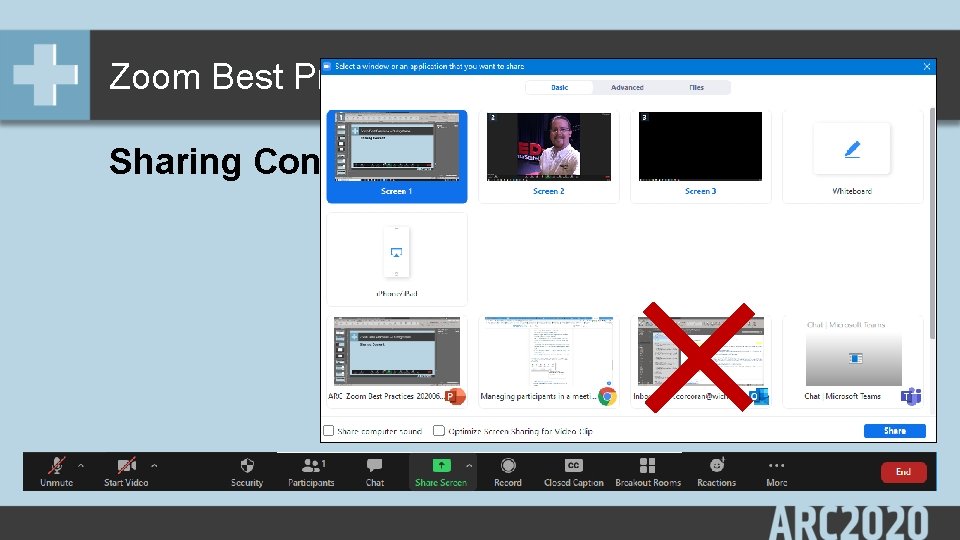
Zoom Best Practices – During Class - 9 Sharing Content
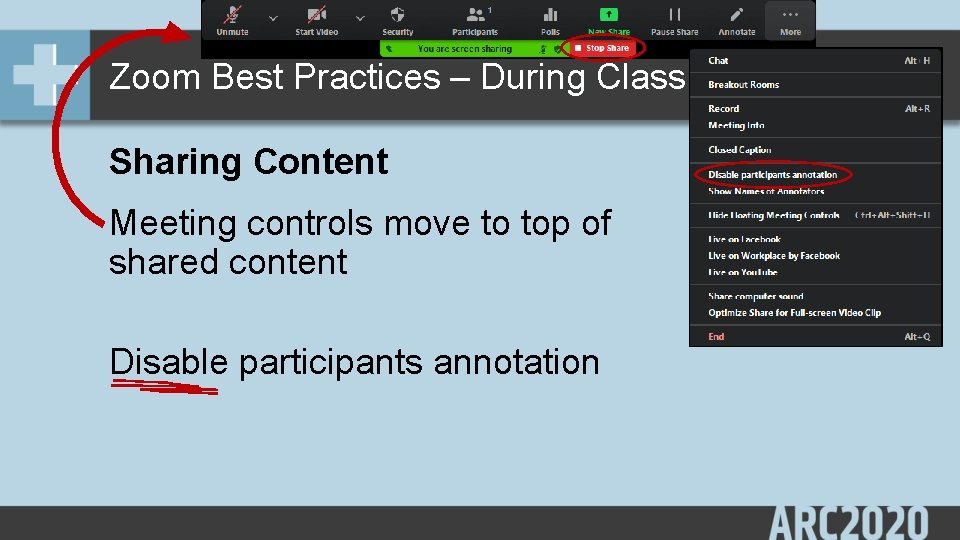
Zoom Best Practices – During Class - 10 Sharing Content Meeting controls move to top of shared content Disable participants annotation
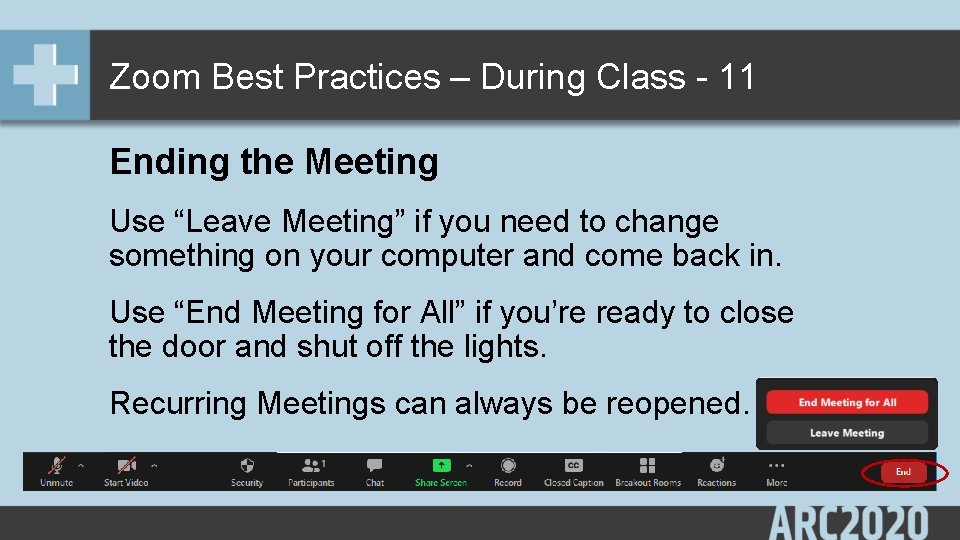
Zoom Best Practices – During Class - 11 Ending the Meeting Use “Leave Meeting” if you need to change something on your computer and come back in. Use “End Meeting for All” if you’re ready to close the door and shut off the lights. Recurring Meetings can always be reopened.
Zoom Best Practices – Now What? Whew! —Now What?
Zoom Best Practices – After Class - 1 Where did my recording go? — Video starts processing immediately after meeting end. — Default location is: Documents>Zoom>Meeting. Name — Cloud Recordings are in your web portal, under “Recordings” — If processing was interrupted, go to Meetings tab, toggle to “Recorded. ” Click the meeting, then “Convert” on the right.
Zoom Best Practices – After Class - 2 Where should my recording go? — Upload to your class’s Panopto folder — You can request a “Personal” folder in Panopto for video shared between classes — Videos with any students visible/audible, etc. , should NOT be uploaded to You. Tube, Vimeo, et al. —But 1: 1 interviews with guest speakers can! —Share Panopto video in your Blackboard course
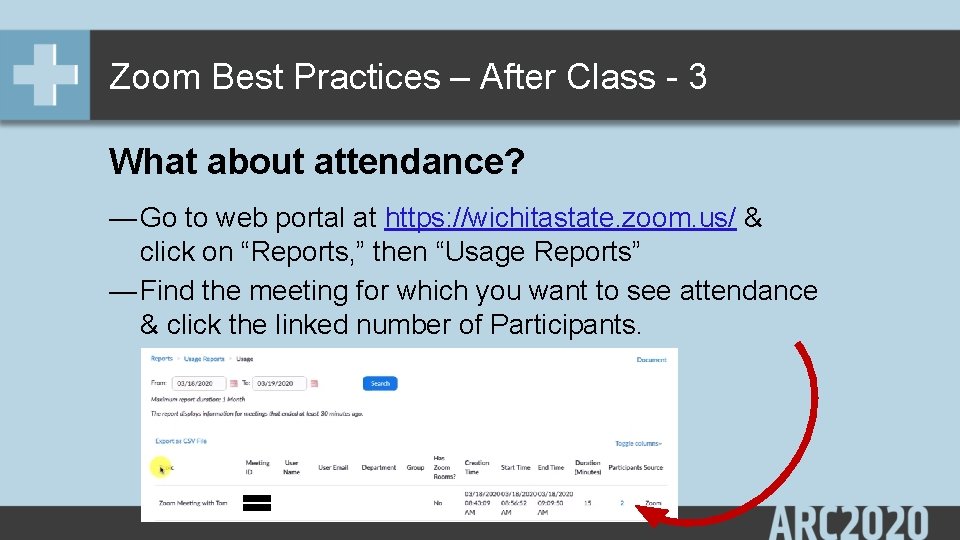
Zoom Best Practices – After Class - 3 What about attendance? — Go to web portal at https: //wichitastate. zoom. us/ & click on “Reports, ” then “Usage Reports” — Find the meeting for which you want to see attendance & click the linked number of Participants.
Zoom Best Practices – After Class - 4 What to do differently next time? — You can edit Recurring meetings without changing the Meeting ID or Password. — Write down what you want to change for meetings you haven’t scheduled yet Next time… — Ask questions: — http: //www. wichita. edu/av — WSU Media Resources Center on Facebook
Zoom Best Practices – End
- Slides: 40