
ZOOM Advanced Session AGENDA Questions from Zoom Basic
ZOOM Advanced Session

AGENDA • • • Questions from Zoom Basic Settings Breakout Rooms Whiteboard Polling Recording Your Session and Kaltura

Questions from Zoom Basic
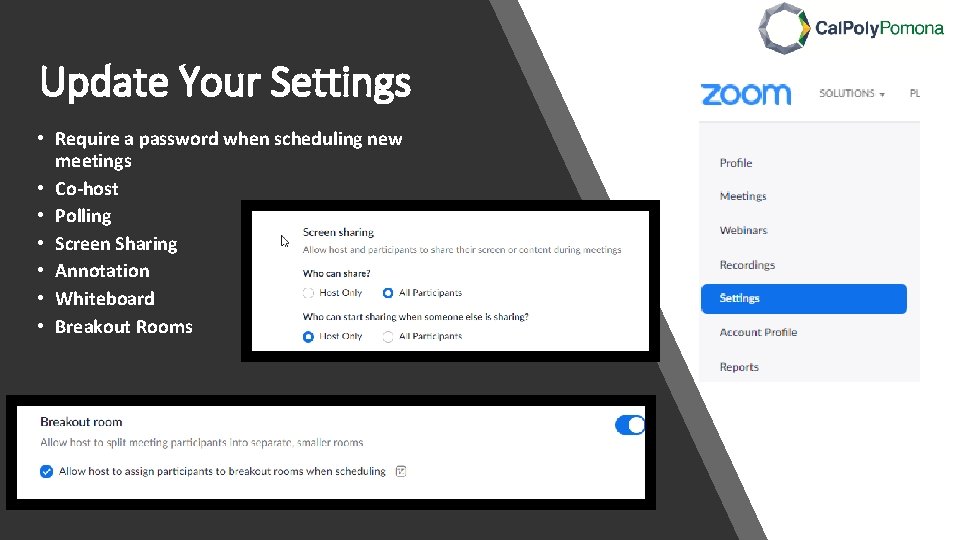
Update Your Settings • Require a password when scheduling new meetings • Co-host • Polling • Screen Sharing • Annotation • Whiteboard • Breakout Rooms
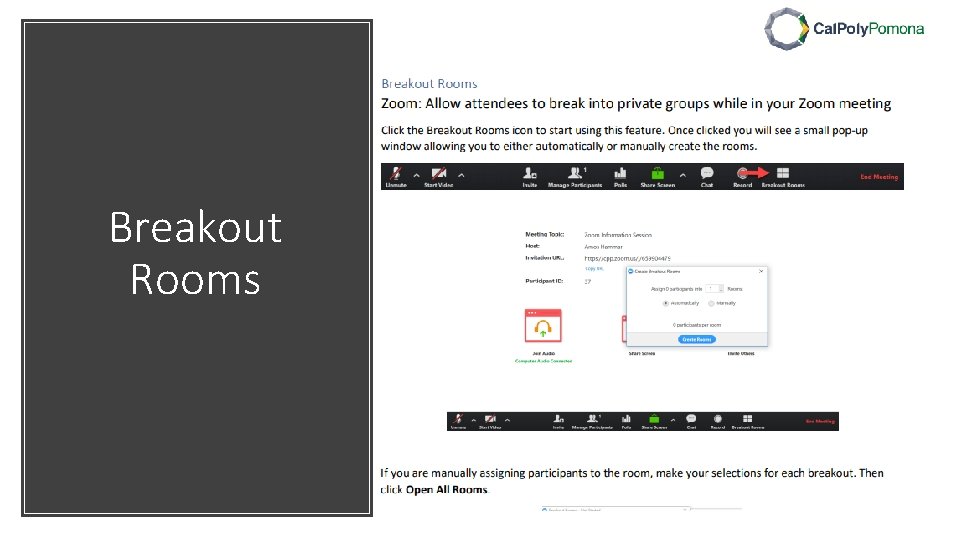
Breakout Rooms
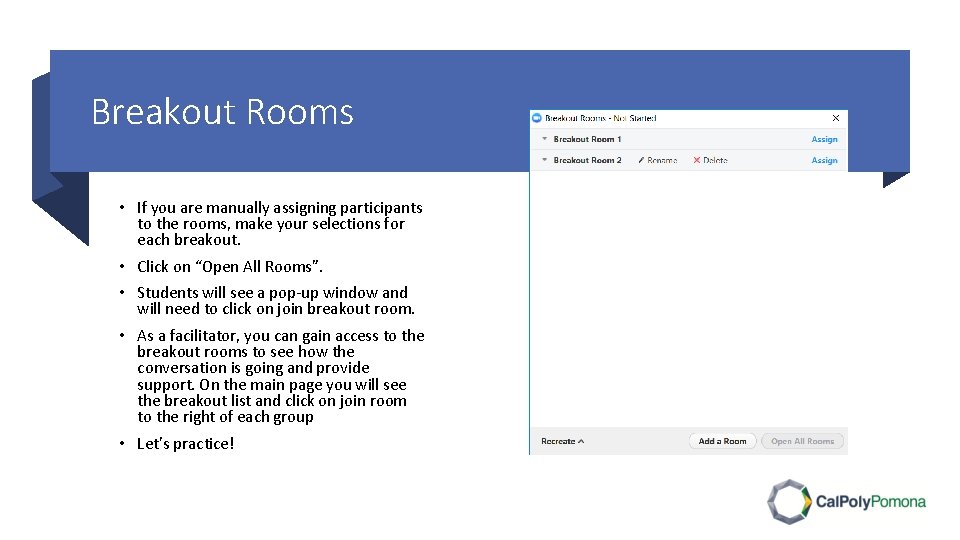
Breakout Rooms • If you are manually assigning participants to the rooms, make your selections for each breakout. • Click on “Open All Rooms”. • Students will see a pop-up window and will need to click on join breakout room. • As a facilitator, you can gain access to the breakout rooms to see how the conversation is going and provide support. On the main page you will see the breakout list and click on join room to the right of each group • Let’s practice!
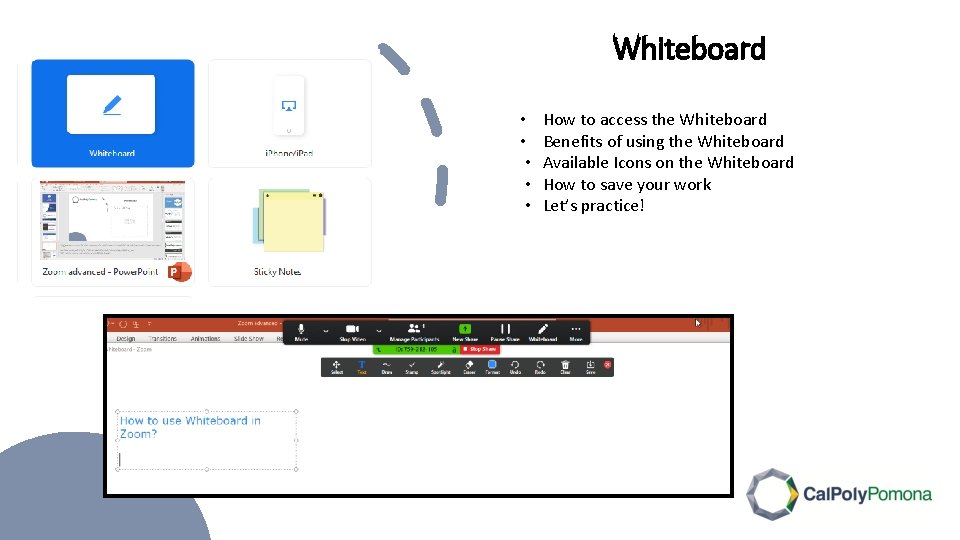
Whiteboard • • • How to access the Whiteboard Benefits of using the Whiteboard Available Icons on the Whiteboard How to save your work Let’s practice!
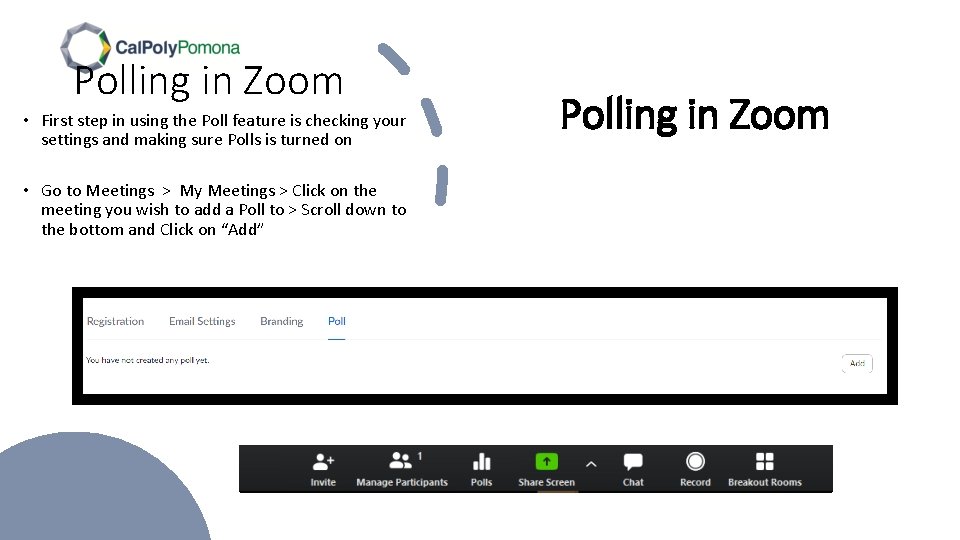
Polling in Zoom • First step in using the Poll feature is checking your settings and making sure Polls is turned on • Go to Meetings > My Meetings > Click on the meeting you wish to add a Poll to > Scroll down to the bottom and Click on “Add” Polling in Zoom
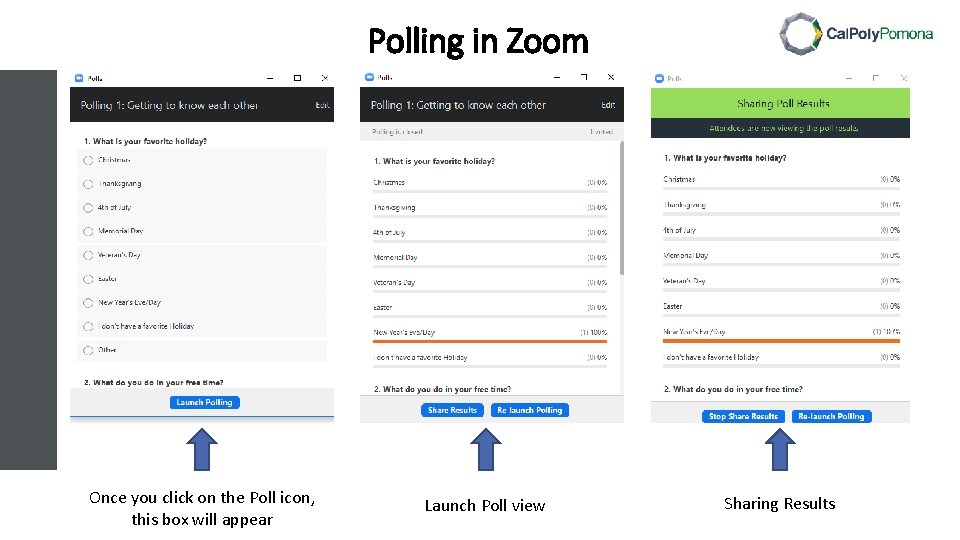
Polling in Zoom Once you click on the Poll icon, this box will appear Launch Poll view Sharing Results
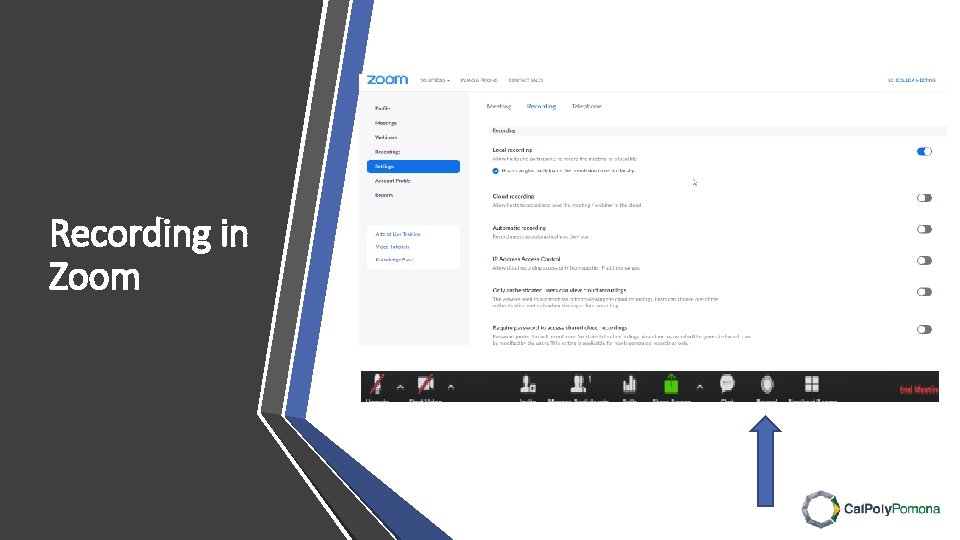
Recording in Zoom
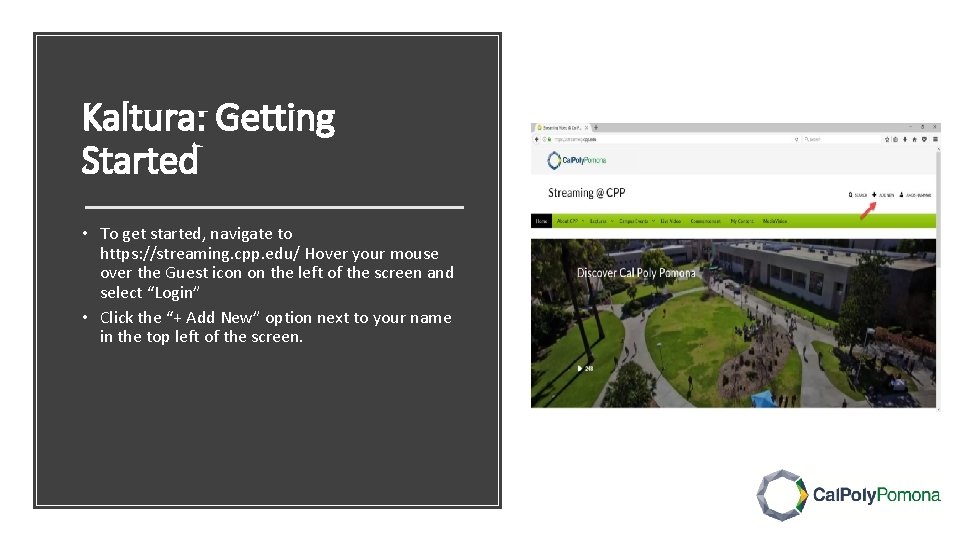
Kaltura: Getting Started • To get started, navigate to https: //streaming. cpp. edu/ Hover your mouse over the Guest icon on the left of the screen and select “Login” • Click the “+ Add New” option next to your name in the top left of the screen.
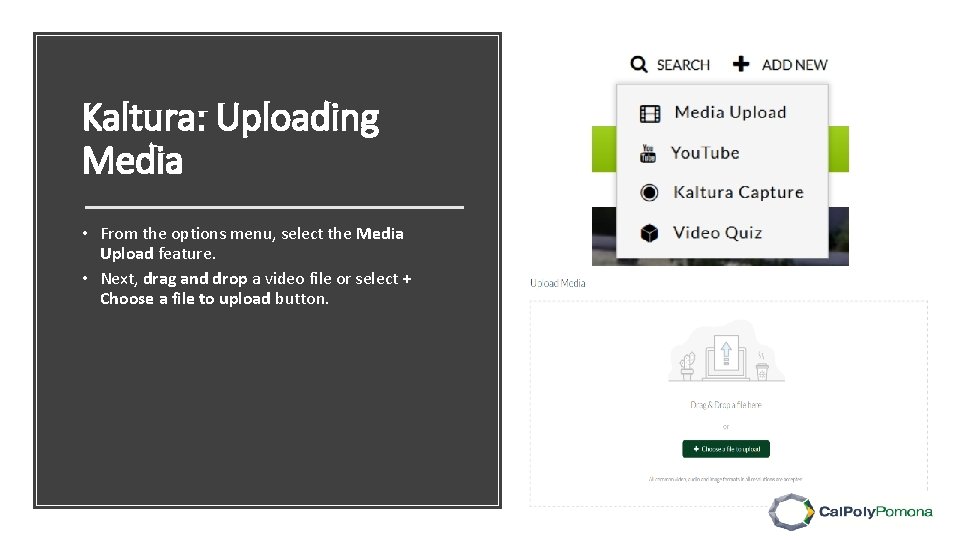
Kaltura: Uploading Media • From the options menu, select the Media Upload feature. • Next, drag and drop a video file or select + Choose a file to upload button.
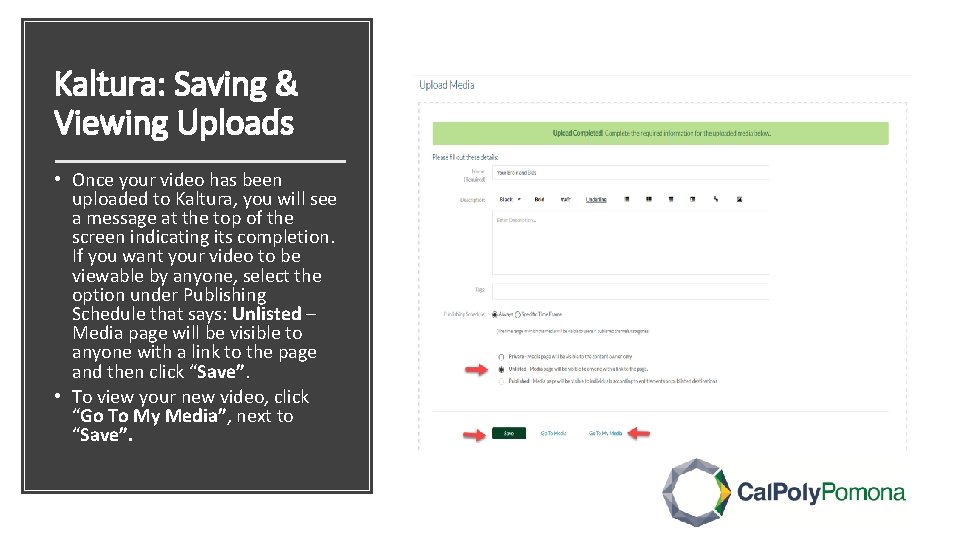
Kaltura: Saving & Viewing Uploads • Once your video has been uploaded to Kaltura, you will see a message at the top of the screen indicating its completion. If you want your video to be viewable by anyone, select the option under Publishing Schedule that says: Unlisted – Media page will be visible to anyone with a link to the page and then click “Save”. • To view your new video, click “Go To My Media”, next to “Save”.
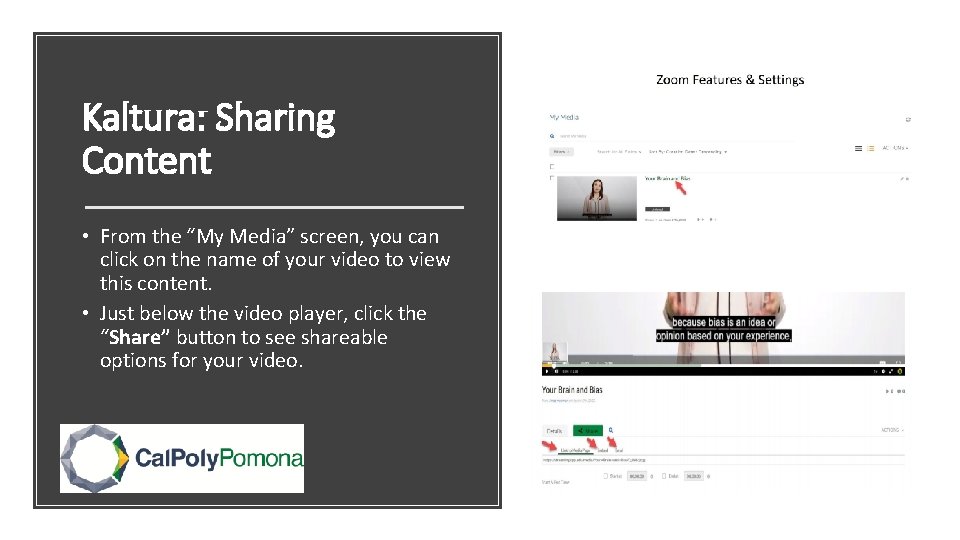
Kaltura: Sharing Content • From the “My Media” screen, you can click on the name of your video to view this content. • Just below the video player, click the “Share” button to see shareable options for your video.
Questions? Thank you Questions?
- Slides: 15