
Zipforms TMS Online Document Storage and Transaction Management


- Slides: 18
Zipforms. TMS Online Document Storage and Transaction Management System
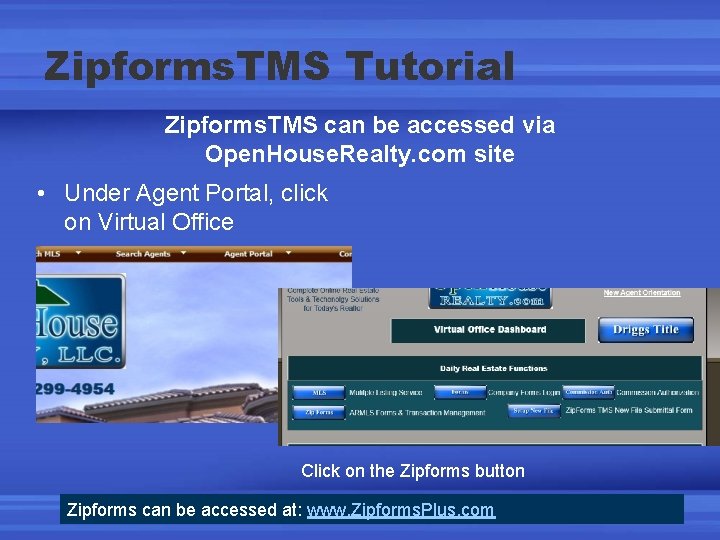
Zipforms. TMS Tutorial Zipforms. TMS can be accessed via Open. House. Realty. com site • Under Agent Portal, click on Virtual Office Click on the Zipforms button Zipforms can be accessed at: www. Zipforms. Plus. com
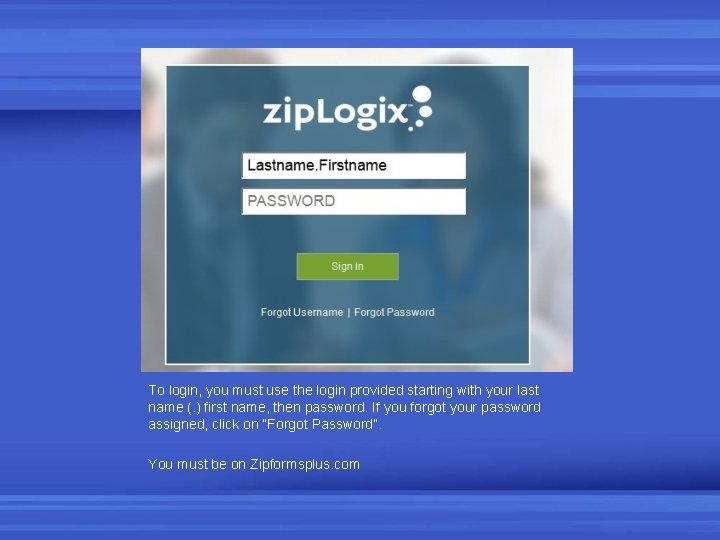
To login, you must use the login provided starting with your last name (. ) first name, then password. If you forgot your password assigned, click on “Forgot Password”. You must be on Zipformsplus. com
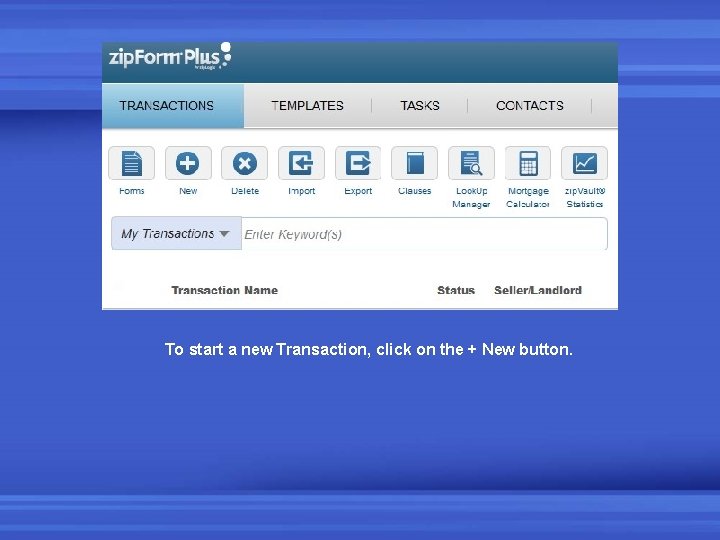
To start a new Transaction, click on the + New button.
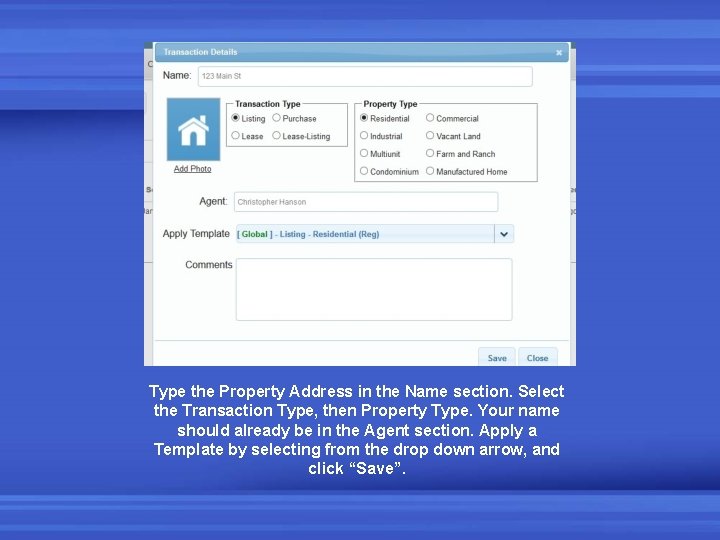
Type the Property Address in the Name section. Select the Transaction Type, then Property Type. Your name should already be in the Agent section. Apply a Template by selecting from the drop down arrow, and click “Save”.
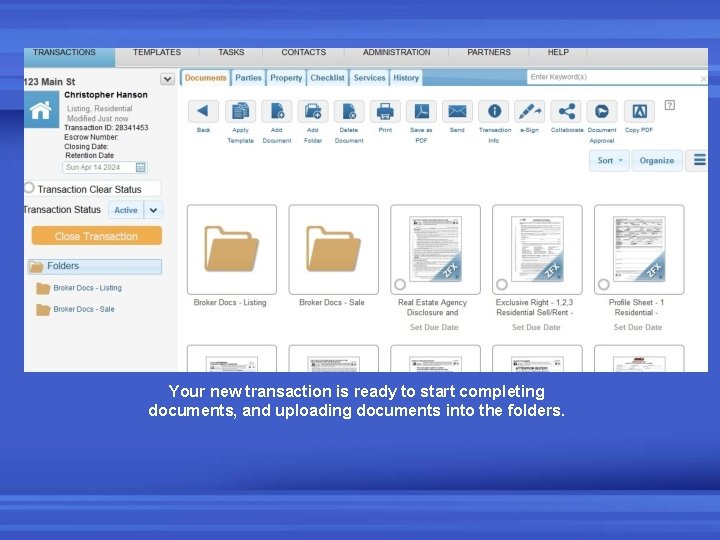
Your new transaction is ready to start completing documents, and uploading documents into the folders.
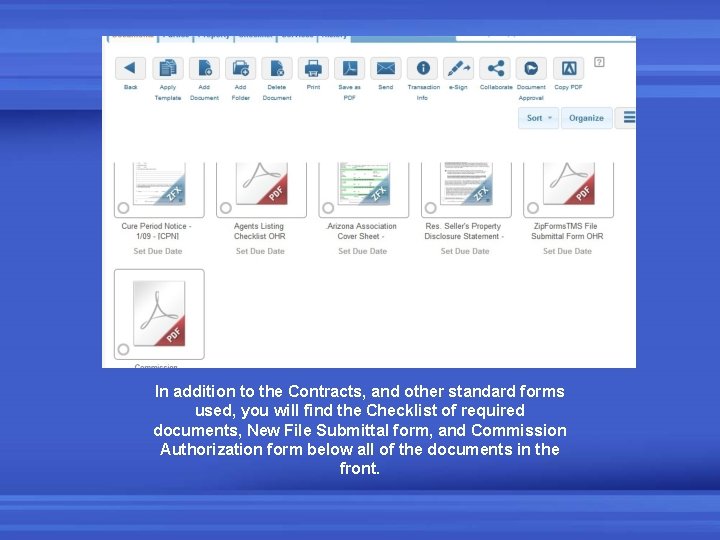
In addition to the Contracts, and other standard forms used, you will find the Checklist of required documents, New File Submittal form, and Commission Authorization form below all of the documents in the front.
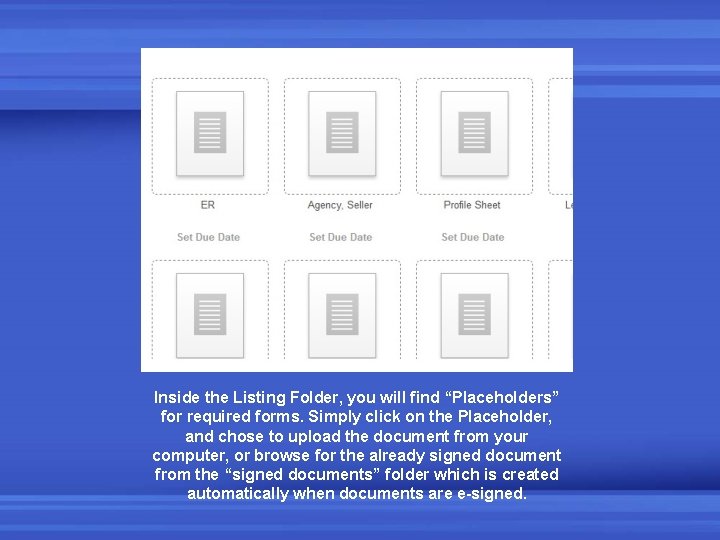
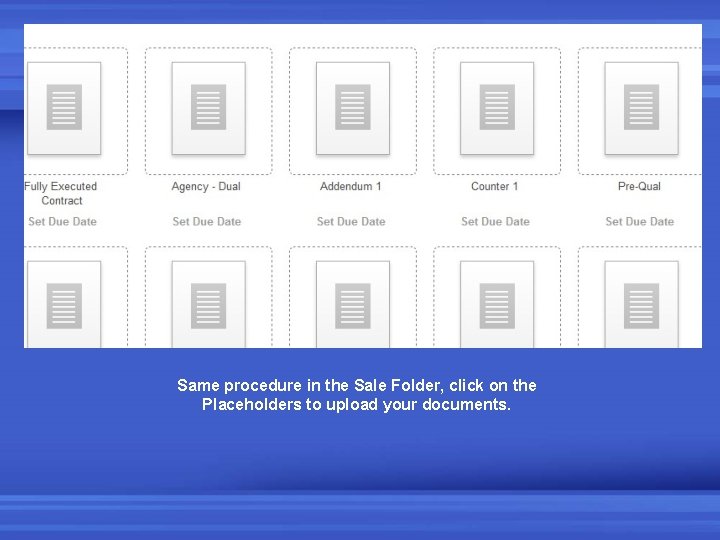
Inside the Listing Folder, you will find “Placeholders” for required forms. Simply click on the Placeholder, and chose to upload the document from your computer, or browse for the already signed document from the “signed documents” folder which is created automatically when documents are e-signed.
Same procedure in the Sale Folder, click on the Placeholders to upload your documents.
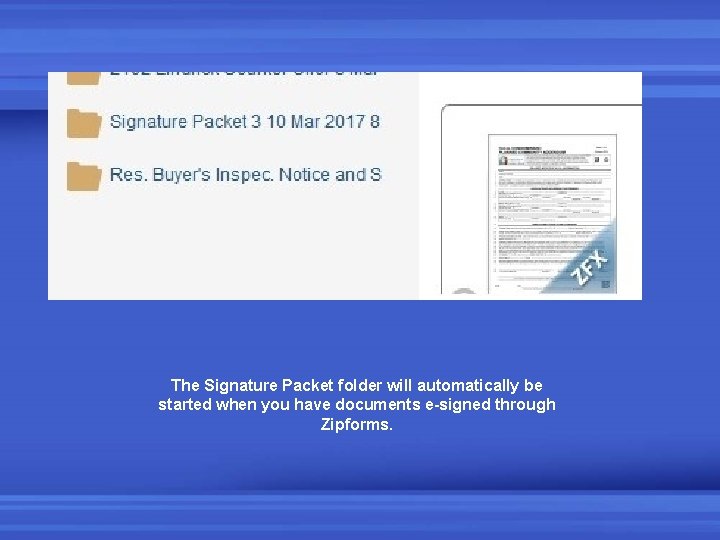
The Signature Packet folder will automatically be started when you have documents e-signed through Zipforms.
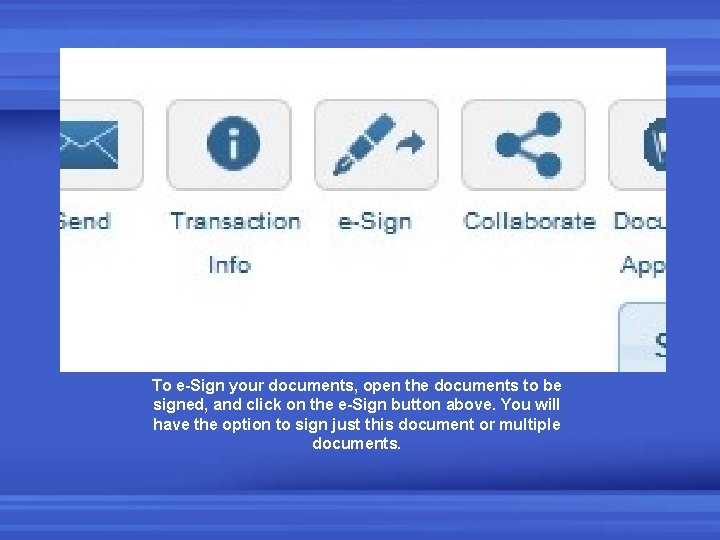
To e-Sign your documents, open the documents to be signed, and click on the e-Sign button above. You will have the option to sign just this document or multiple documents.
To continue with the e-Sign, the names of the parties to your transaction will pop up on this window. Select which person (your client or customer) needs to sign, then insert their email address, and select done at the bottom. The form will then be sent out for signature.
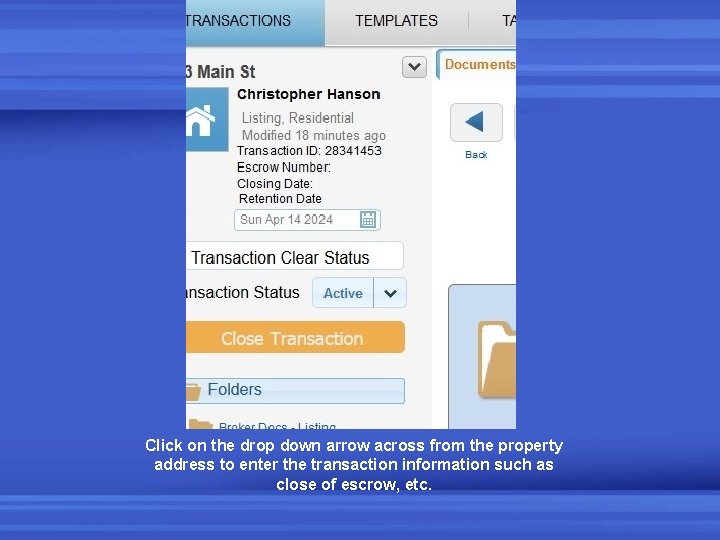
Click on the drop down arrow across from the property address to enter the transaction information such as close of escrow, etc.
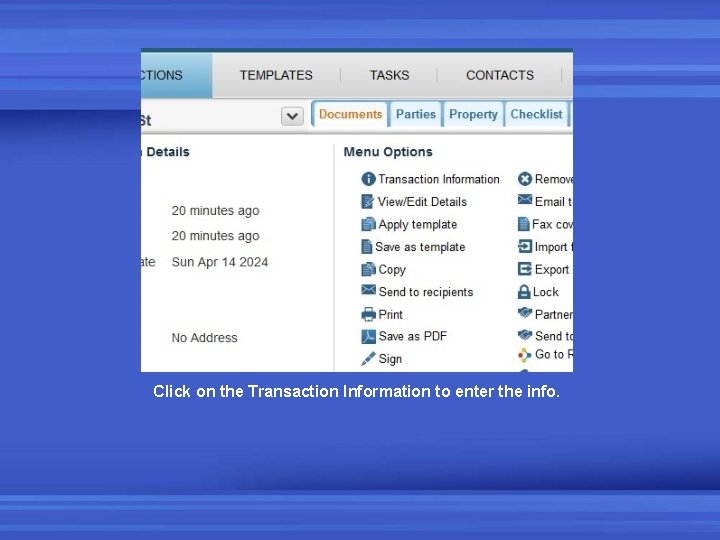
Click on the Transaction Information to enter the info.
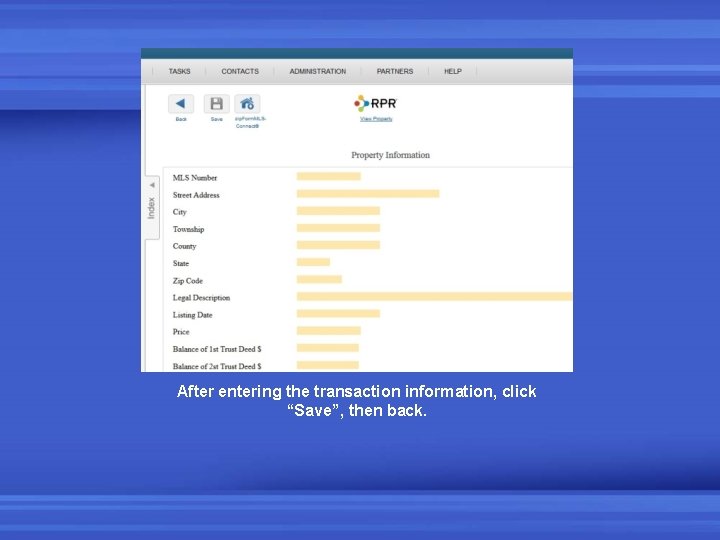
After entering the transaction information, click “Save”, then back.
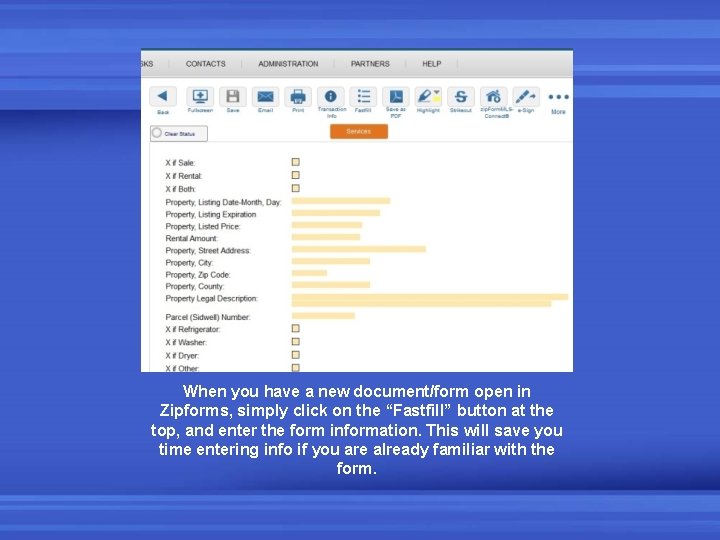
When you have a new document/form open in Zipforms, simply click on the “Fastfill” button at the top, and enter the form information. This will save you time entering info if you are already familiar with the form.
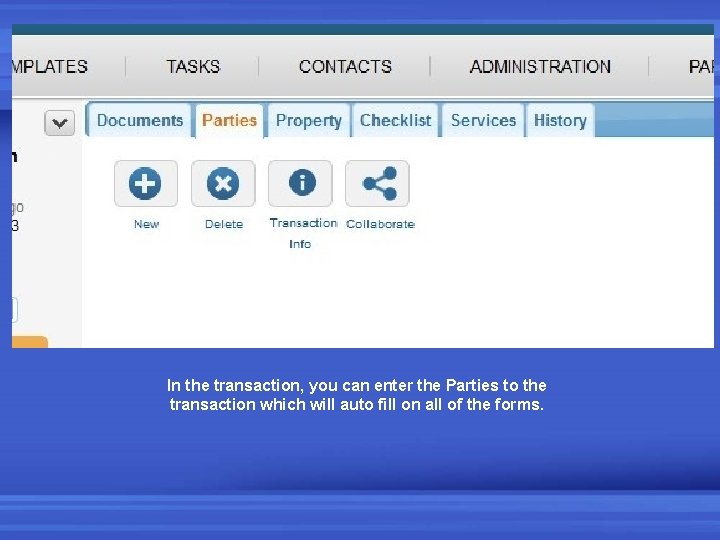
In the transaction, you can enter the Parties to the transaction which will auto fill on all of the forms.
After you have started your transaction in Zipforms. TMS, complete the Zipforms File Submittal form, and email this form to Corporate