
YUSEN Logistics eBOOKING System User Manual FOR COO
YUSEN Logistics e-BOOKING System User Manual FOR COO upload process 1

Legitimate COO or Application Form Vendor can provide either official legitimate copy of Certificate of Origin or Application Form at time of booking. Sample of application form Sample of legitimate coy of COO 2
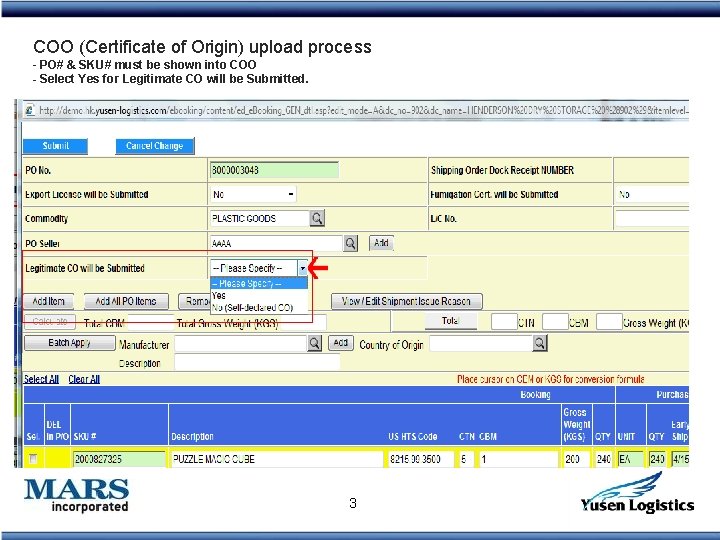
COO (Certificate of Origin) upload process - PO# & SKU# must be shown into COO - Select Yes for Legitimate CO will be Submitted. 3
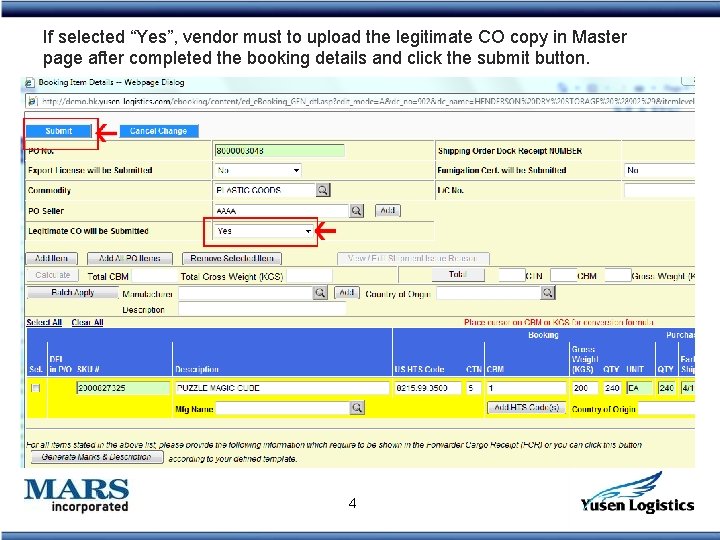
If selected “Yes”, vendor must to upload the legitimate CO copy in Master page after completed the booking details and click the submit button. 4
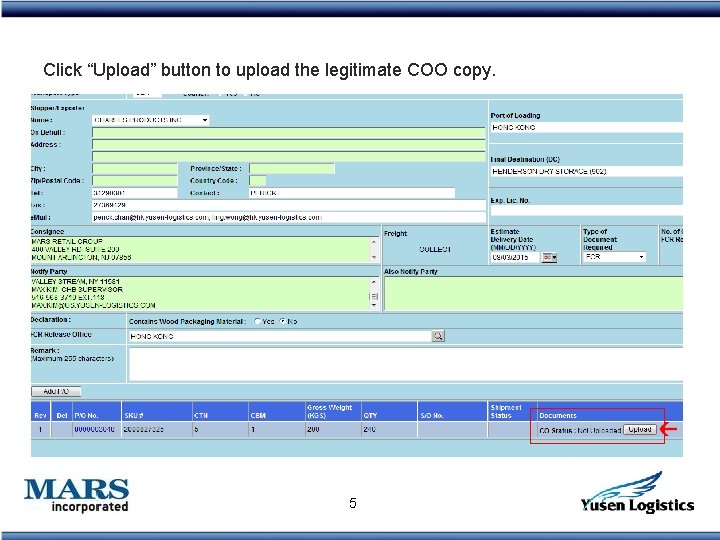
Click “Upload” button to upload the legitimate COO copy. 5

(1) Click “Browse” to select COO file (2) Click upload button to upload the COO in PDF format (3) The COO file will be shown when uploaded successfully. (4) click “close” button 6
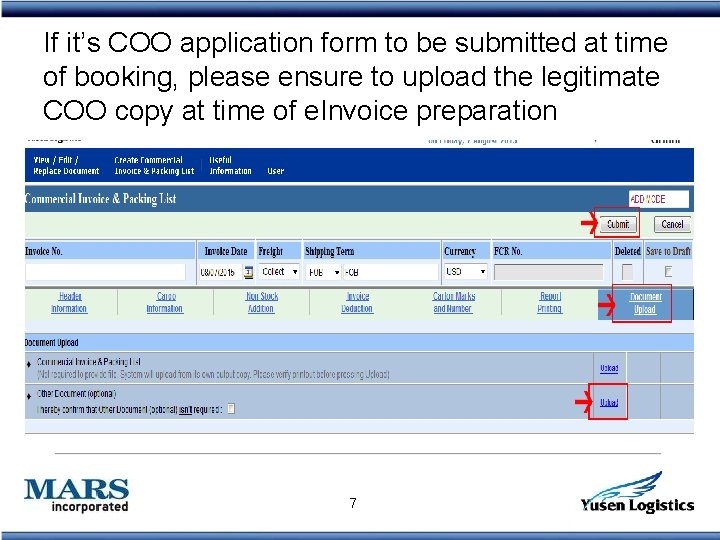
If it’s COO application form to be submitted at time of booking, please ensure to upload the legitimate COO copy at time of e. Invoice preparation 7

Self-Declared COO Vendor can’t provide the legitimate COO but selfdeclared COO (prepared by vendor themselves with company letterhead, chop and signature. Sample of Self-declared COO (blank form) 8
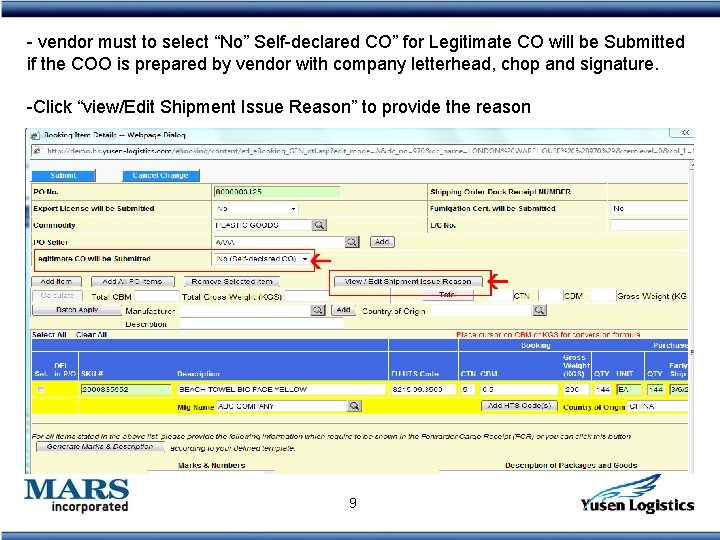
- vendor must to select “No” Self-declared CO” for Legitimate CO will be Submitted if the COO is prepared by vendor with company letterhead, chop and signature. -Click “view/Edit Shipment Issue Reason” to provide the reason 9
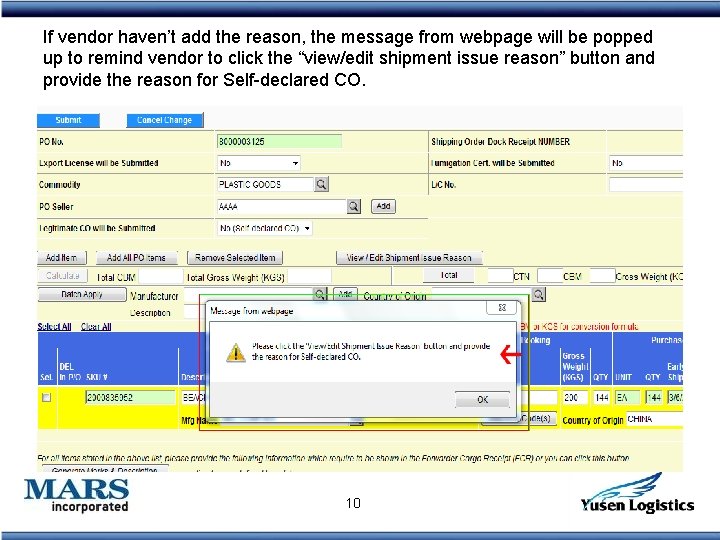
If vendor haven’t add the reason, the message from webpage will be popped up to remind vendor to click the “view/edit shipment issue reason” button and provide the reason for Self-declared CO. 10
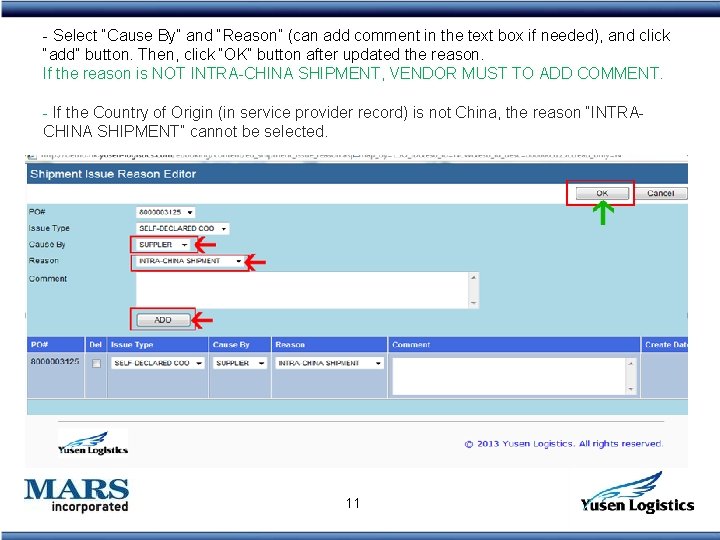
- Select “Cause By” and “Reason” (can add comment in the text box if needed), and click “add” button. Then, click “OK” button after updated the reason. If the reason is NOT INTRA-CHINA SHIPMENT, VENDOR MUST TO ADD COMMENT. - If the Country of Origin (in service provider record) is not China, the reason “INTRACHINA SHIPMENT” cannot be selected. 11
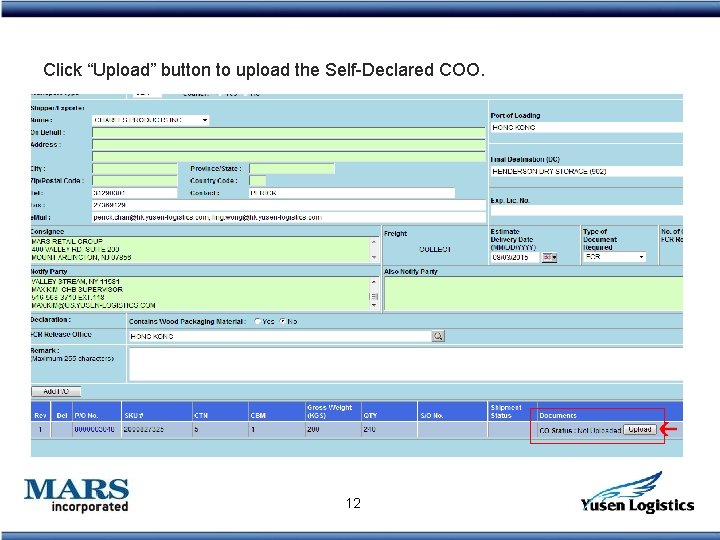
Click “Upload” button to upload the Self-Declared COO. 12
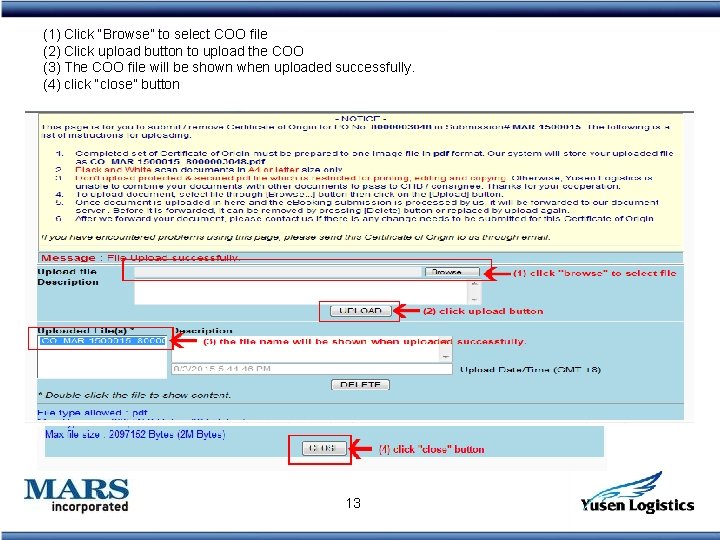
(1) Click “Browse” to select COO file (2) Click upload button to upload the COO (3) The COO file will be shown when uploaded successfully. (4) click “close” button 13
- Slides: 13