
YOUR GUIDE TO NIKE CHEMISTRY TRAINING NIKE is

- Slides: 23
YOUR GUIDE TO NIKE CHEMISTRY TRAINING NIKE is offering online Chemistry Training free of charge to its suppliers. The RSL training is required for all Tier 1 and Tier 2 suppliers. The online training is hosted by Litmos ©, a learning management system. This guidance document is provided to support you during the registration, training, and training documentation process. Questions? Email PAGE TOPIC 2 Registering for Training 10 Navigating Litmos and Mandatory RSL Training Learning Path 18 Navigating to Chemicals Management Training, Workshops, and Additional References 20 Downloading your Certificate(s) 21 Changing your Profile or Settings 22 Providing Proof of Training to Nike, Inc. 23 Contact for questions, comments, or concerns
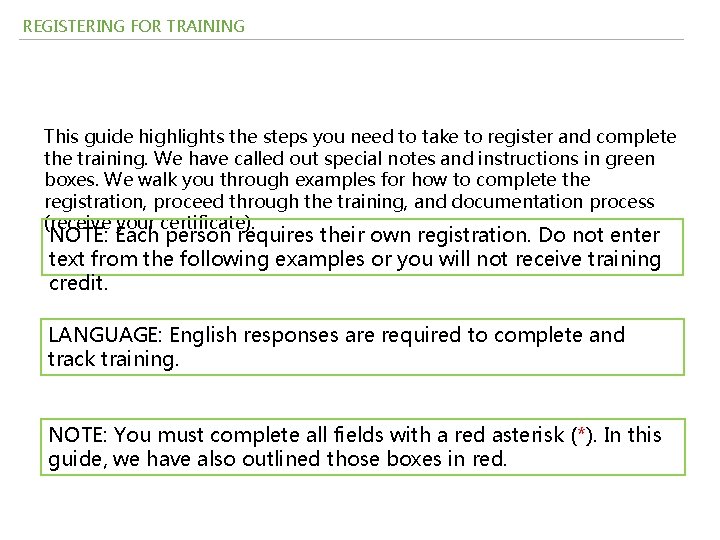
REGISTERING FOR TRAINING This guide highlights the steps you need to take to register and complete the training. We have called out special notes and instructions in green boxes. We walk you through examples for how to complete the registration, proceed through the training, and documentation process (receive your certificate). NOTE: Each person requires their own registration. Do not enter text from the following examples or you will not receive training credit. LANGUAGE: English responses are required to complete and track training. NOTE: You must complete all fields with a red asterisk (*). In this guide, we have also outlined those boxes in red.
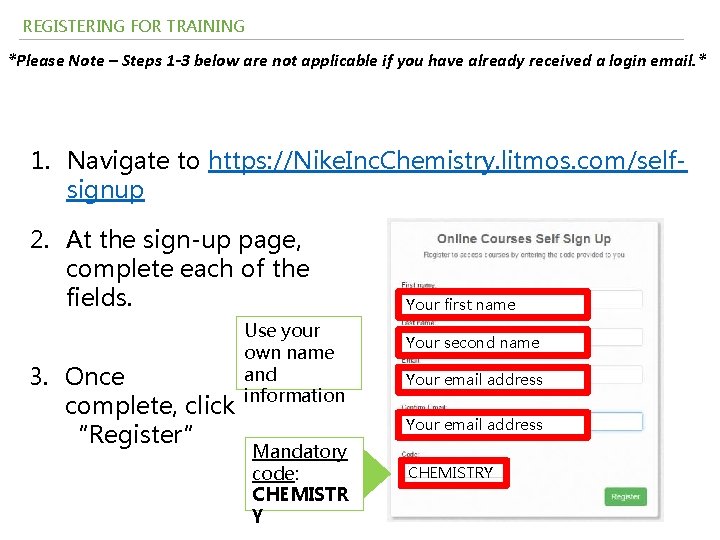
REGISTERING FOR TRAINING *Please Note – Steps 1 -3 below are not applicable if you have already received a login email. * 1. Navigate to https: //Nike. Inc. Chemistry. litmos. com/selfsignup 2. At the sign-up page, complete each of the fields. 3. Once complete, click “Register” Use your own name and information Your first name Your second name Your email address Mandatory code: CHEMISTR Y CHEMISTRY
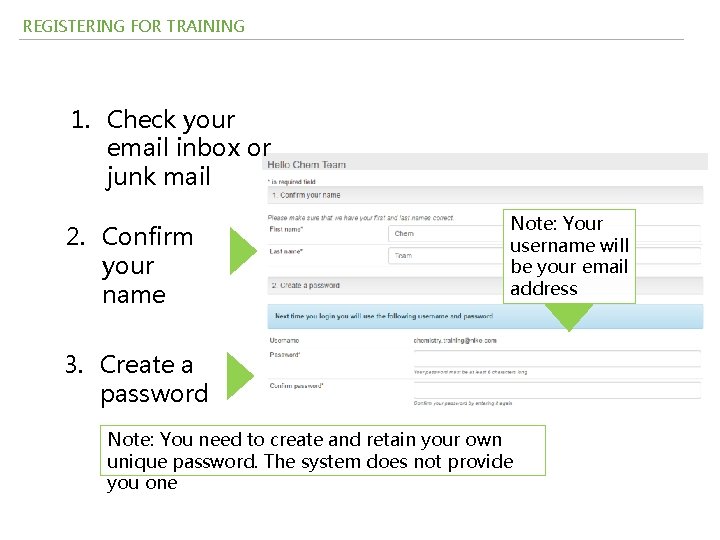
REGISTERING FOR TRAINING 1. Check your email inbox or junk mail 2. Confirm your name Note: Your username will be your email address 3. Create a password Note: You need to create and retain your own unique password. The system does not provide you one
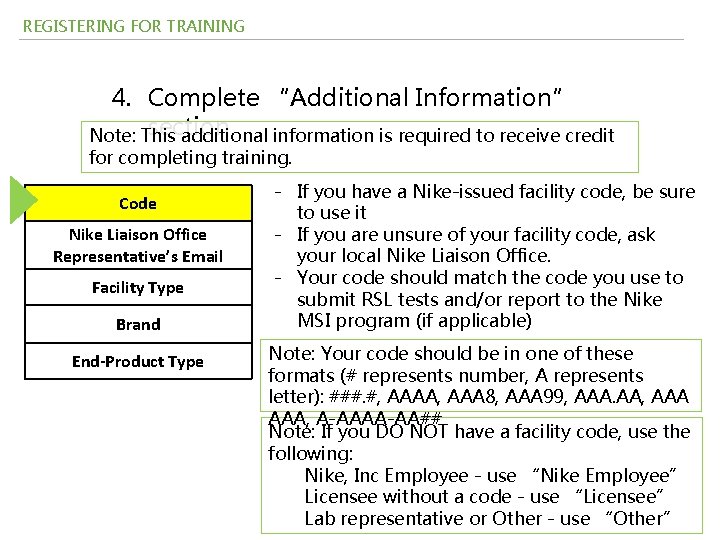
REGISTERING FOR TRAINING 4. Complete “Additional Information” section Note: This additional information is required to receive credit for completing training. Code Nike Liaison Office Representative’s Email Facility Type Brand End-Product Type - If you have a Nike-issued facility code, be sure to use it - If you are unsure of your facility code, ask your local Nike Liaison Office. - Your code should match the code you use to submit RSL tests and/or report to the Nike MSI program (if applicable) Note: Your code should be in one of these formats (# represents number, A represents letter): ###. #, AAAA, AAA 8, AAA 99, AAA. AA, AAA, A-AAAA-AA## Note: If you DO NOT have a facility code, use the following: Nike, Inc Employee - use “Nike Employee” Licensee without a code - use “Licensee” Lab representative or Other - use “Other”
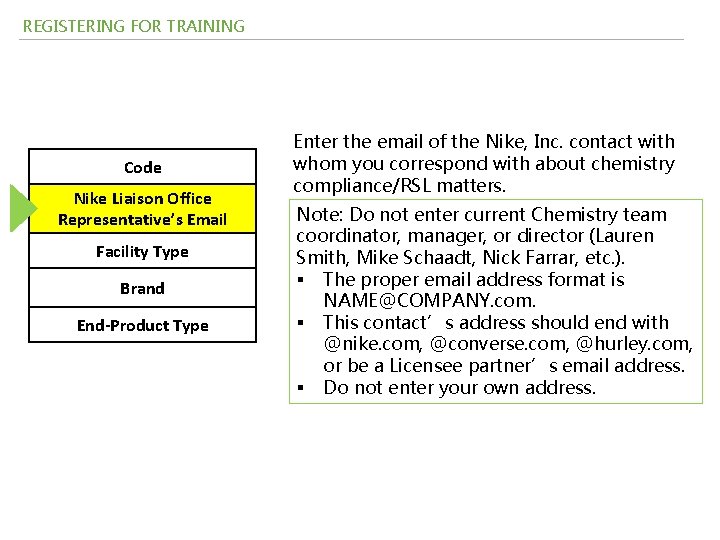
REGISTERING FOR TRAINING Code Nike Liaison Office Representative’s Email Facility Type Brand End-Product Type Enter the email of the Nike, Inc. contact with whom you correspond with about chemistry compliance/RSL matters. Note: Do not enter current Chemistry team coordinator, manager, or director (Lauren Smith, Mike Schaadt, Nick Farrar, etc. ). § The proper email address format is NAME@COMPANY. com. § This contact’s address should end with @nike. com, @converse. com, @hurley. com, or be a Licensee partner’s email address. § Do not enter your own address.
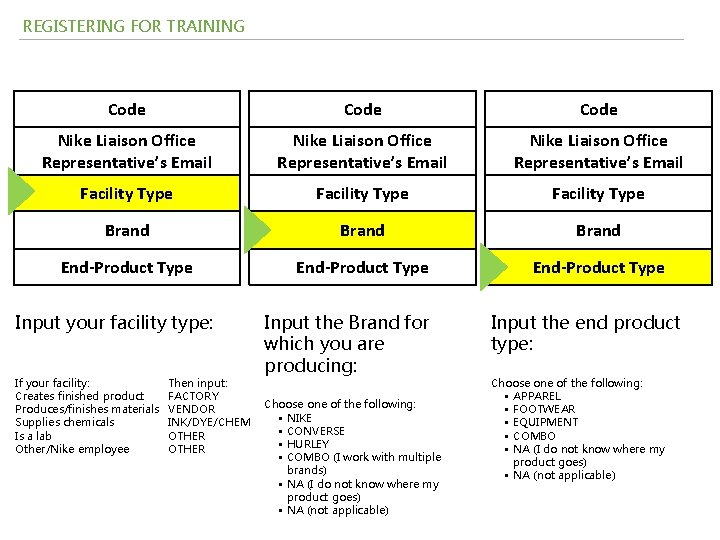
REGISTERING FOR TRAINING Code Nike Liaison Office Representative’s Email Facility Type Brand End-Product Type Input your facility type: If your facility: Creates finished product Produces/finishes materials Supplies chemicals Is a lab Other/Nike employee Then input: FACTORY VENDOR INK/DYE/CHEM OTHER Input the Brand for which you are producing: Choose one of the following: § NIKE § CONVERSE § HURLEY § COMBO (I work with multiple brands) § NA (I do not know where my product goes) § NA (not applicable) Input the end product type: Choose one of the following: § APPAREL § FOOTWEAR § EQUIPMENT § COMBO § NA (I do not know where my product goes) § NA (not applicable)
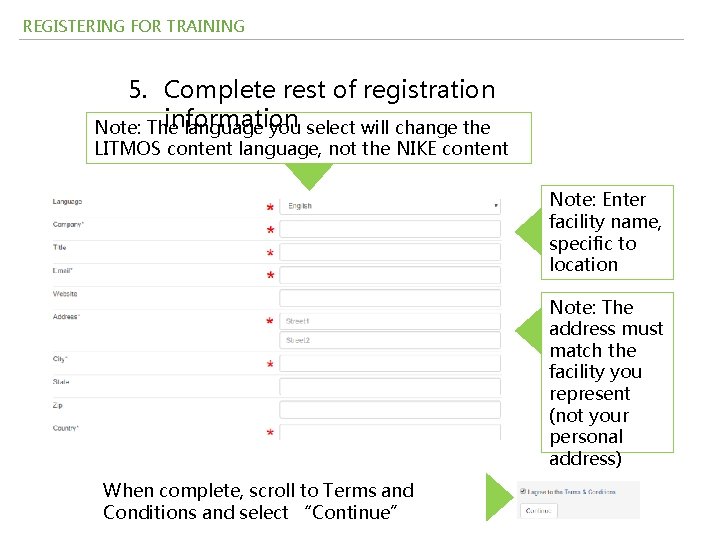
REGISTERING FOR TRAINING 5. Complete rest of registration information Note: The language you select will change the LITMOS content language, not the NIKE content Note: Enter facility name, specific to location Note: The address must match the facility you represent (not your personal address) When complete, scroll to Terms and Conditions and select “Continue”
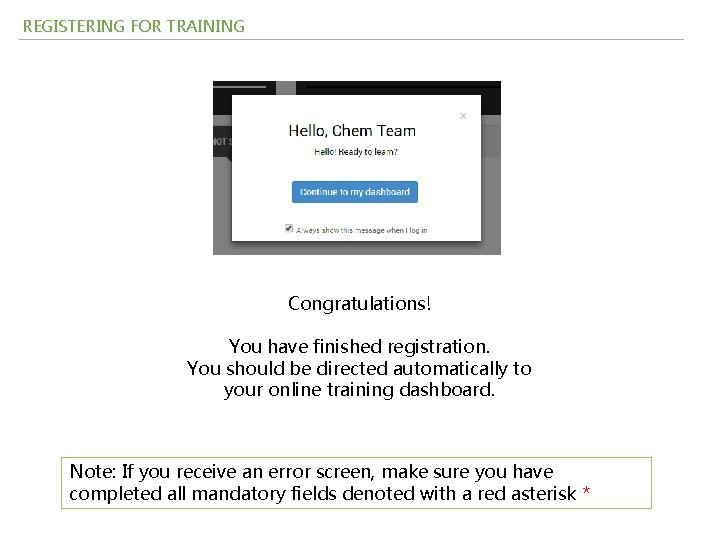
REGISTERING FOR TRAINING Congratulations! You have finished registration. You should be directed automatically to your online training dashboard. Note: If you receive an error screen, make sure you have completed all mandatory fields denoted with a red asterisk *
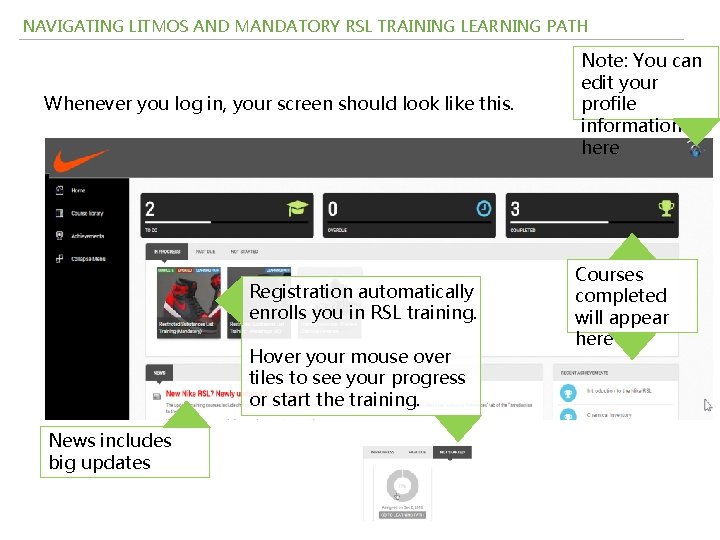
NAVIGATING LITMOS AND MANDATORY RSL TRAINING LEARNING PATH Whenever you log in, your screen should look like this. Registration automatically enrolls you in RSL training. Hover your mouse over tiles to see your progress or start the training. News includes big updates Note: You can edit your profile information here Courses completed will appear here
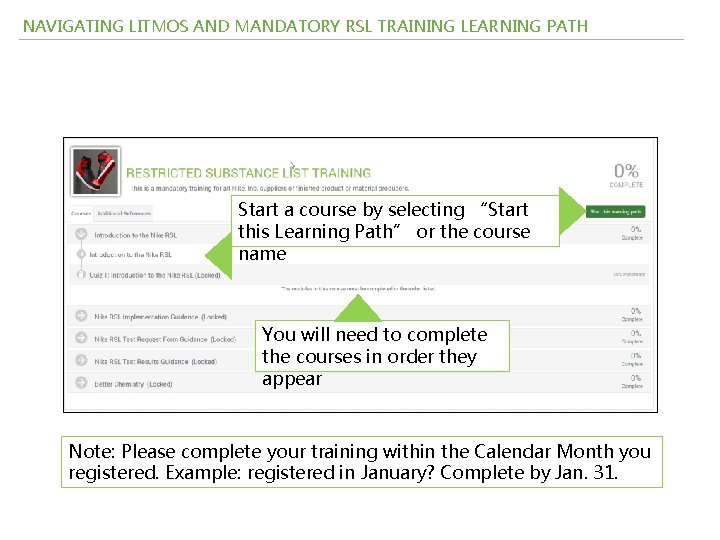
NAVIGATING LITMOS AND MANDATORY RSL TRAINING LEARNING PATH Start a course by selecting “Start this Learning Path” or the course name You will need to complete the courses in order they appear Note: Please complete your training within the Calendar Month you registered. Example: registered in January? Complete by Jan. 31.
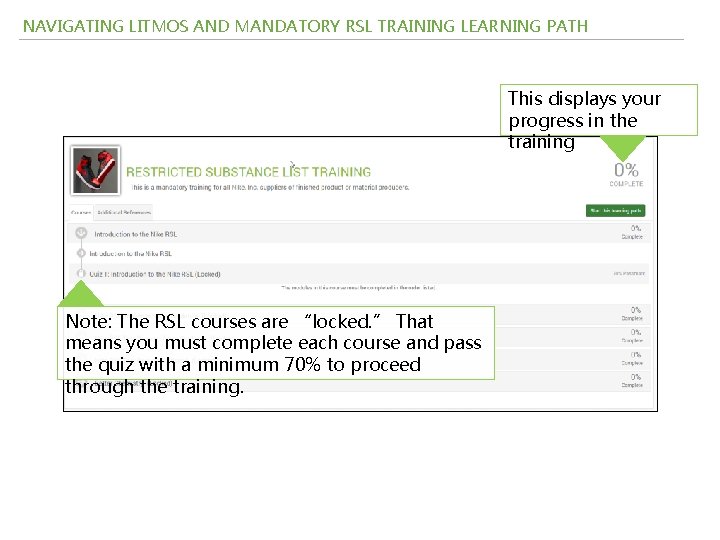
NAVIGATING LITMOS AND MANDATORY RSL TRAINING LEARNING PATH This displays your progress in the training Note: The RSL courses are “locked. ” That means you must complete each course and pass the quiz with a minimum 70% to proceed through the training.
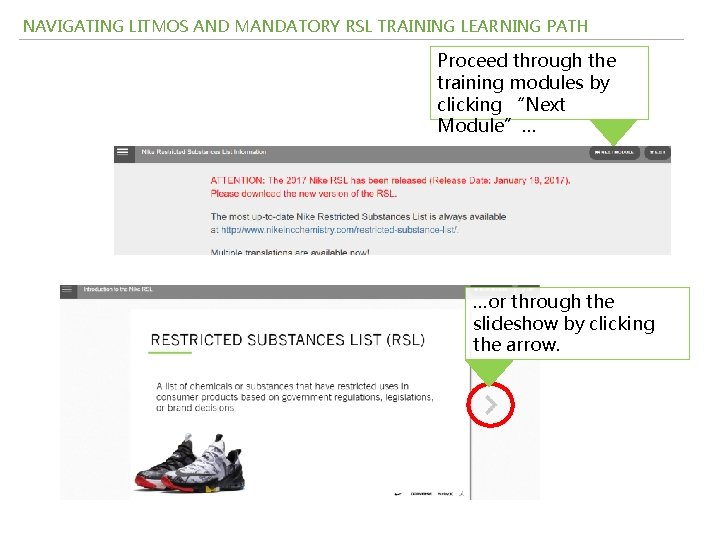
NAVIGATING LITMOS AND MANDATORY RSL TRAINING LEARNING PATH Proceed through the training modules by clicking “Next Module”… …or through the slideshow by clicking the arrow.
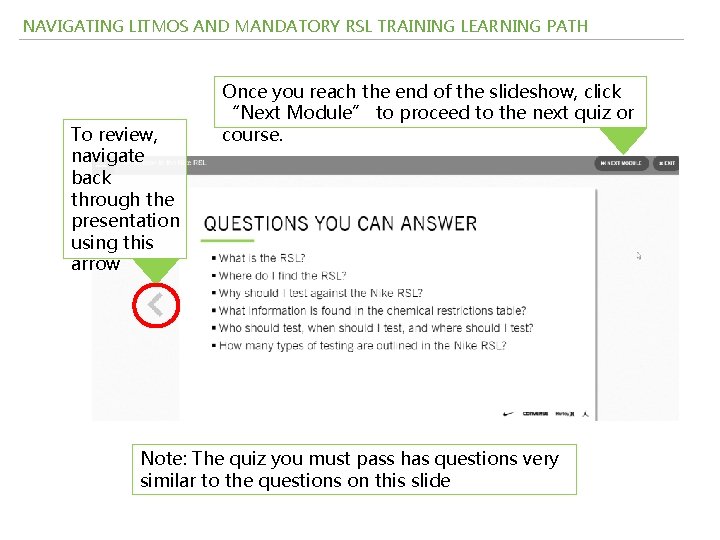
NAVIGATING LITMOS AND MANDATORY RSL TRAINING LEARNING PATH To review, navigate back through the presentation using this arrow Once you reach the end of the slideshow, click “Next Module” to proceed to the next quiz or course. Note: The quiz you must pass has questions very similar to the questions on this slide
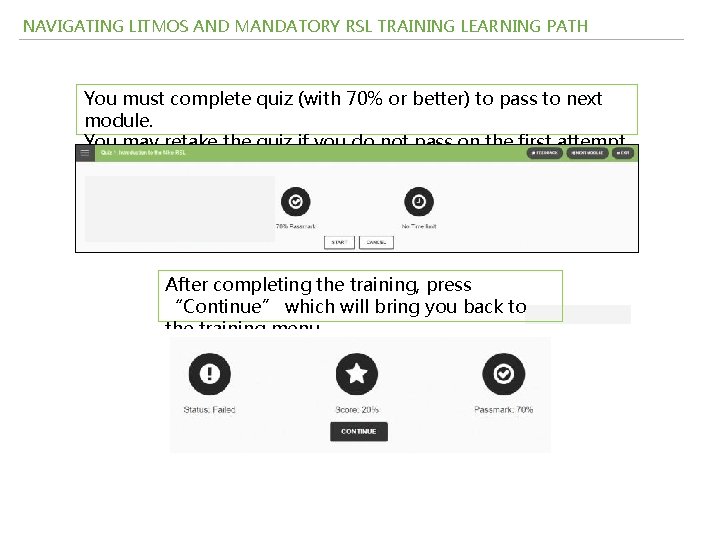
NAVIGATING LITMOS AND MANDATORY RSL TRAINING LEARNING PATH You must complete quiz (with 70% or better) to pass to next module. You may retake the quiz if you do not pass on the first attempt. After completing the training, press “Continue” which will bring you back to the training menu
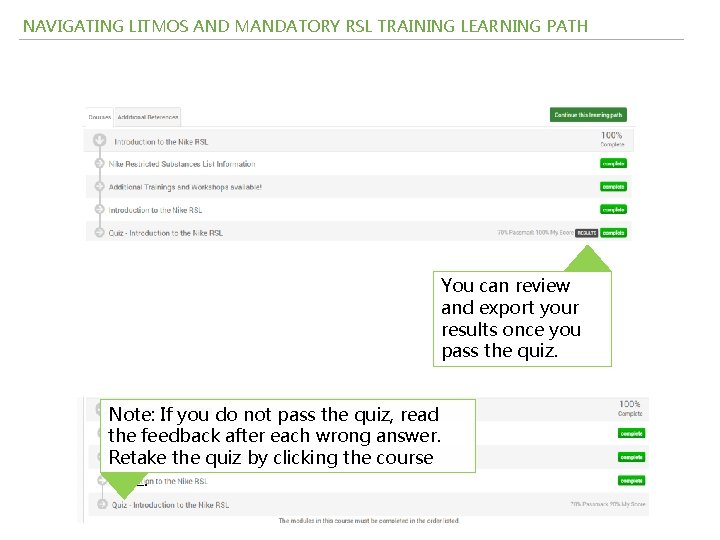
NAVIGATING LITMOS AND MANDATORY RSL TRAINING LEARNING PATH You can review and export your results once you pass the quiz. Note: If you do not pass the quiz, read the feedback after each wrong answer. Retake the quiz by clicking the course quiz.
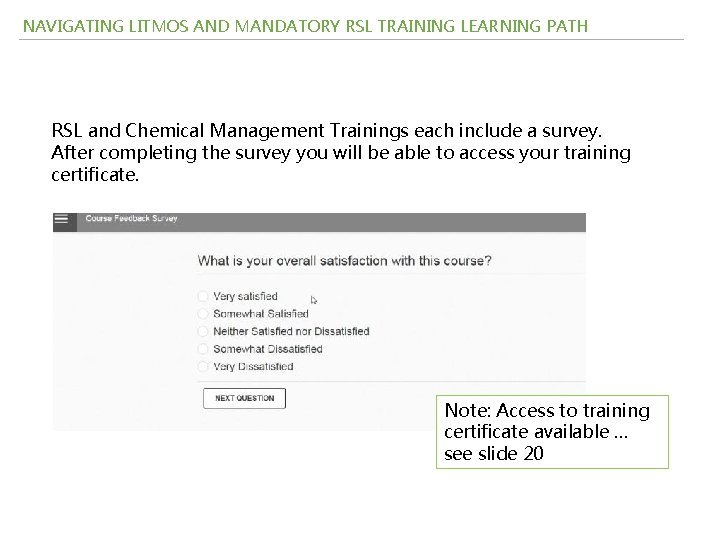
NAVIGATING LITMOS AND MANDATORY RSL TRAINING LEARNING PATH RSL and Chemical Management Trainings each include a survey. After completing the survey you will be able to access your training certificate. Note: Access to training certificate available … see slide 20
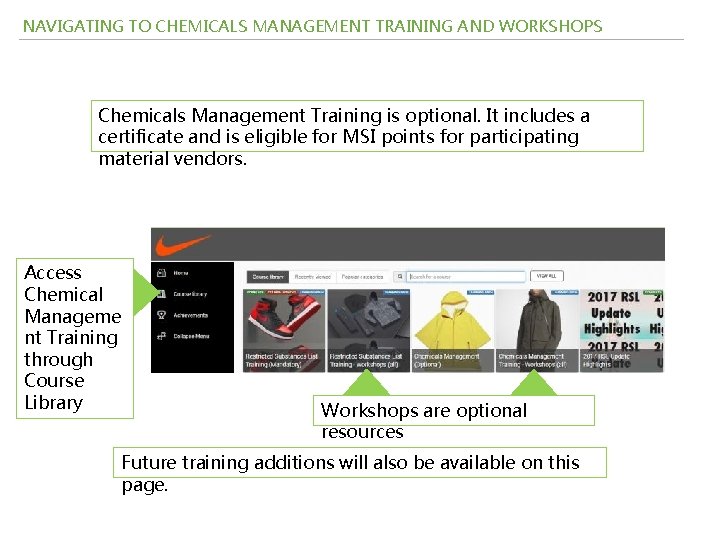
NAVIGATING TO CHEMICALS MANAGEMENT TRAINING AND WORKSHOPS Chemicals Management Training is optional. It includes a certificate and is eligible for MSI points for participating material vendors. Access Chemical Manageme nt Training through Course Library Workshops are optional resources Future training additions will also be available on this page.
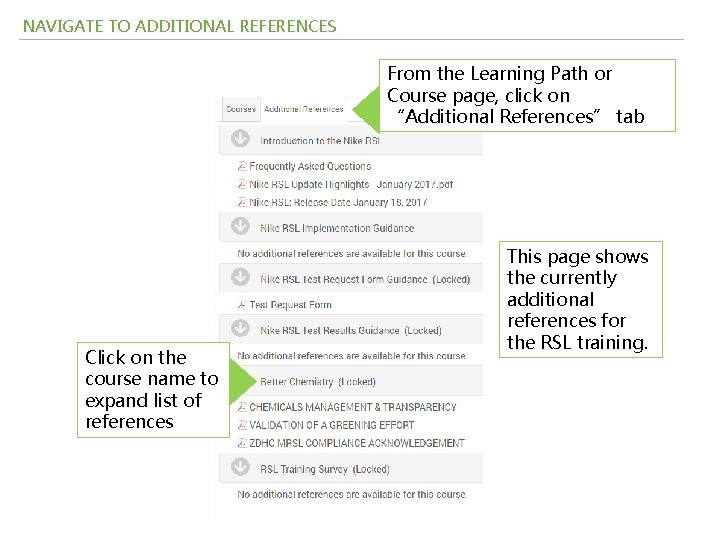
NAVIGATE TO ADDITIONAL REFERENCES From the Learning Path or Course page, click on “Additional References” tab Click on the course name to expand list of references This page shows the currently additional references for the RSL training.
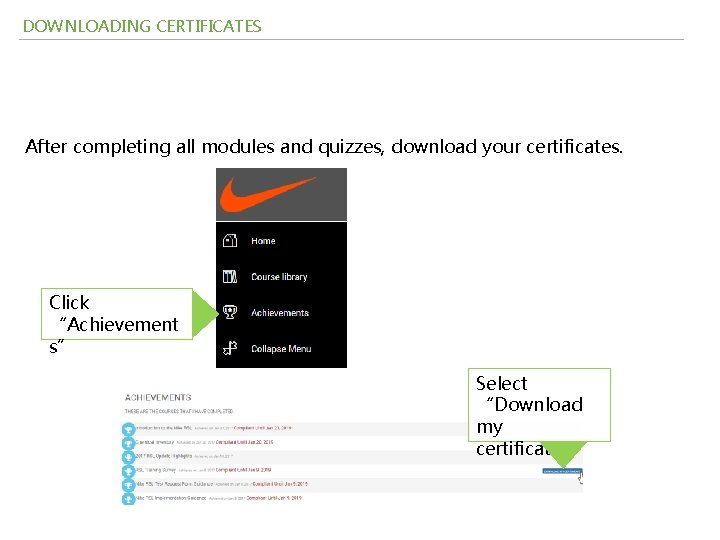
DOWNLOADING CERTIFICATES After completing all modules and quizzes, download your certificates. Click “Achievement s” Select “Download my certificate”
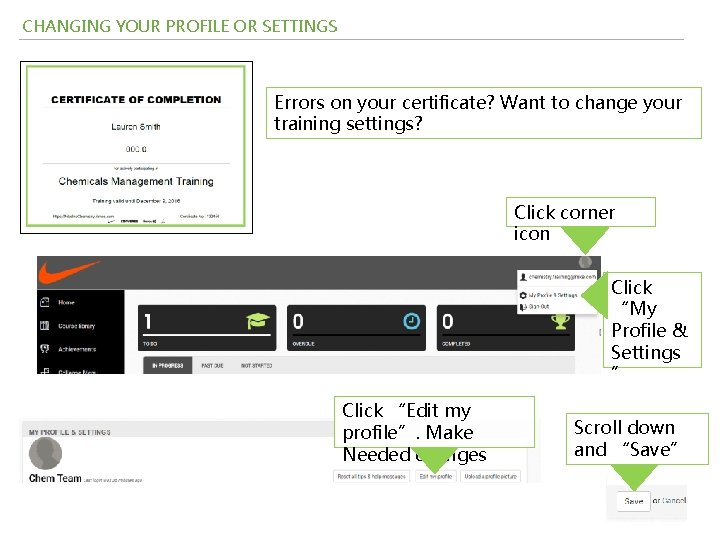
CHANGING YOUR PROFILE OR SETTINGS Errors on your certificate? Want to change your training settings? Click corner icon Click “My Profile & Settings ” Click “Edit my profile”. Make Needed changes Scroll down and “Save”
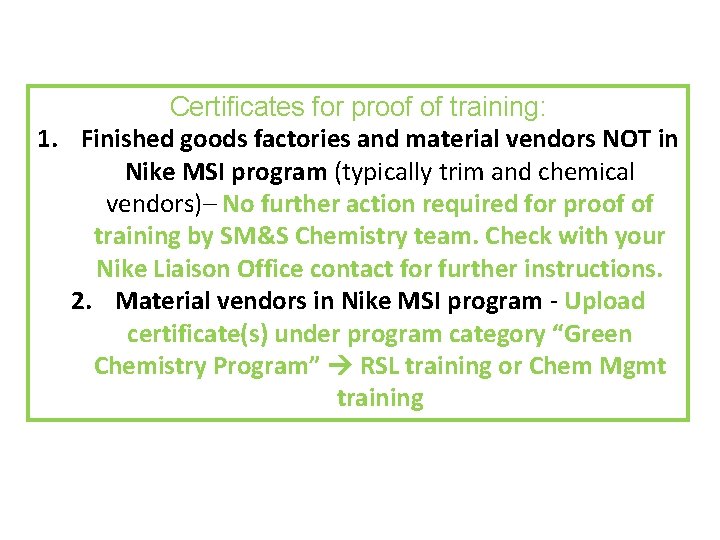
Certificates for proof of training: 1. Finished goods factories and material vendors NOT in Nike MSI program (typically trim and chemical vendors)– No further action required for proof of training by SM&S Chemistry team. Check with your Nike Liaison Office contact for further instructions. 2. Material vendors in Nike MSI program - Upload certificate(s) under program category “Green Chemistry Program” RSL training or Chem Mgmt training
Training content questions? Training website issues? Email: Chemistry. training@nike. com 23