
You can check out books on Sora The

You can check out books on Sora. The following slides go over how to access and use Sora
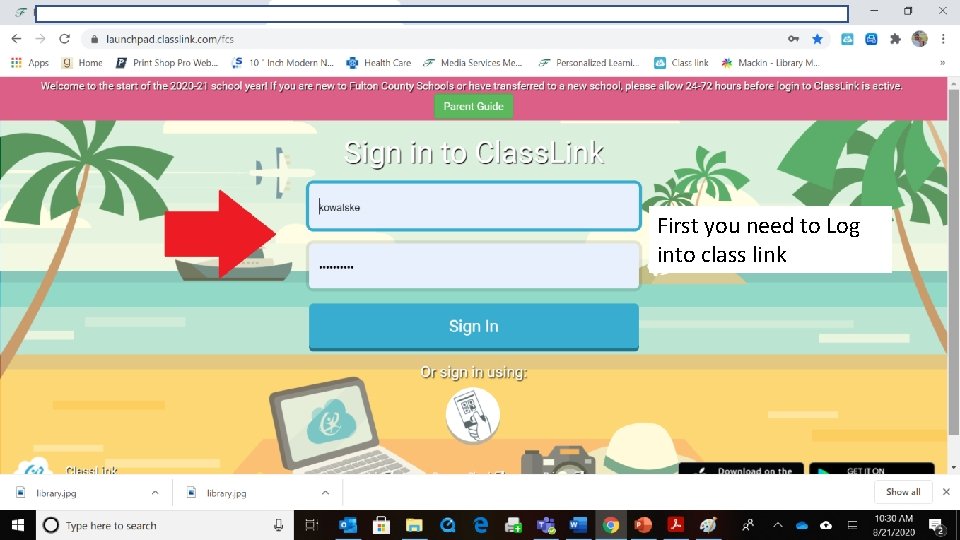
First you need to Log into class link
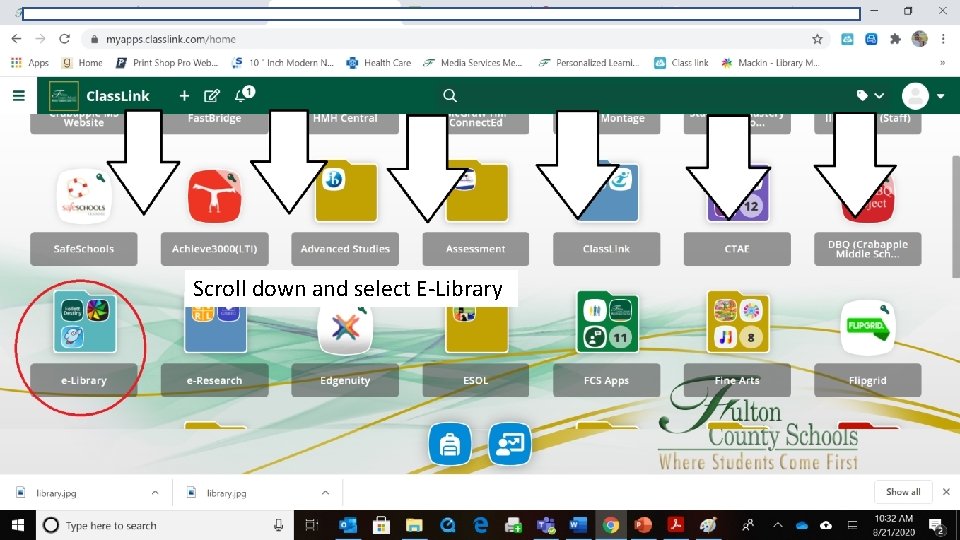
Scroll down and select E-Library
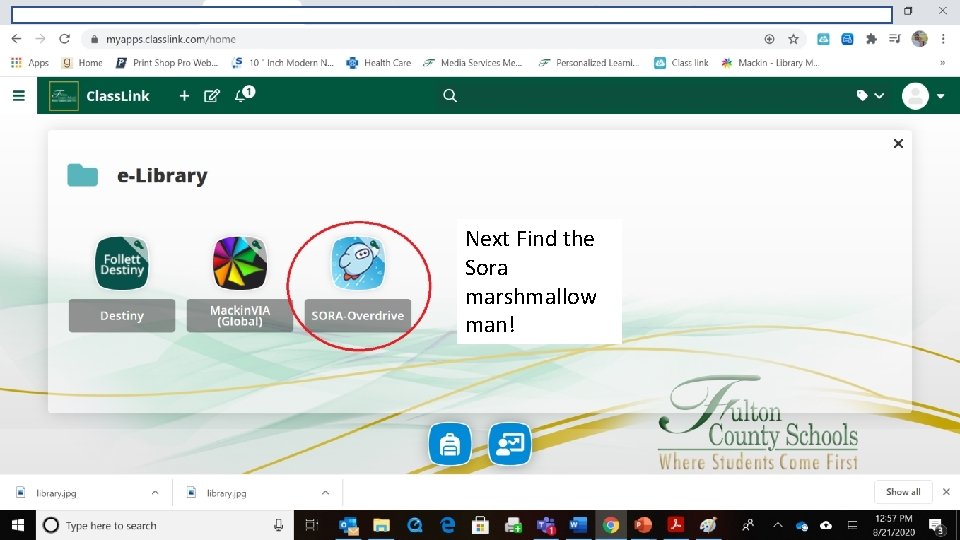
Next Find the Sora marshmallow man!
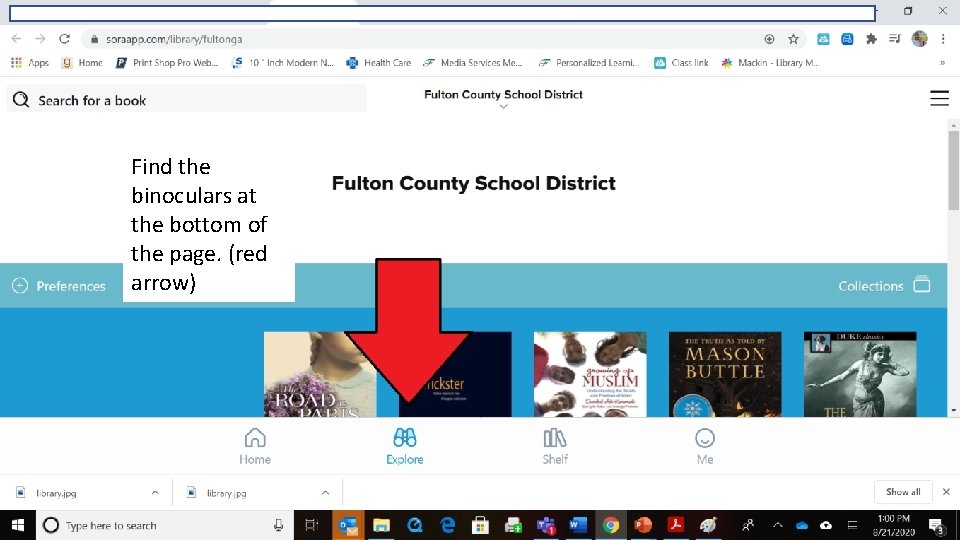
Find the binoculars at the bottom of the page. (red arrow)
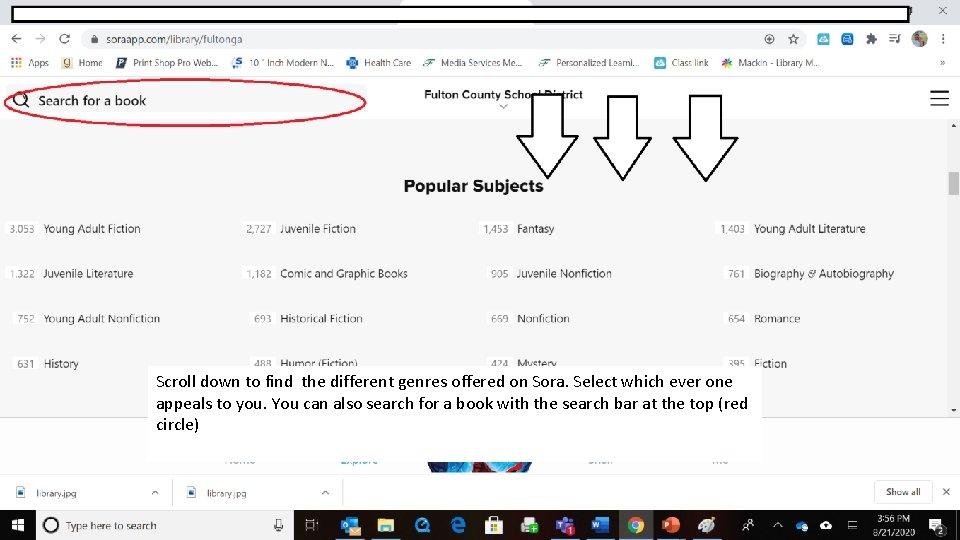
Scroll down to find the different genres offered on Sora. Select which ever one appeals to you. You can also search for a book with the search bar at the top (red down circle) to find the different genres offered on Sora. Select which Scroll ever one appeals to you. You can also search for a book with the search bar at the top (red circle)
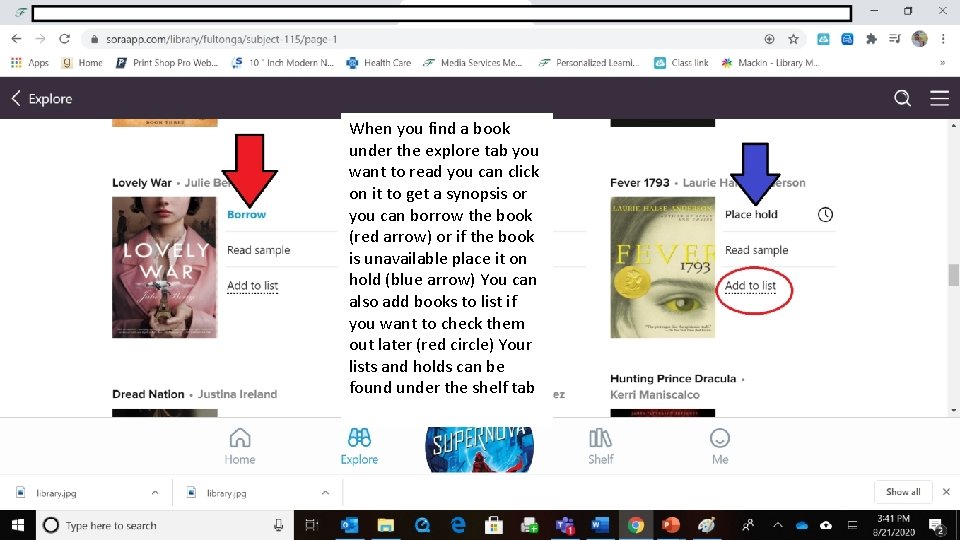
When you find a book When find atab book underyou the explore you want the to read you can tab click you under explore on it to get a synopsis or want to read can click you can borrowyou the book on(red it to get or a synopsis arrow) if the book or is unavailable placethe it onbook you can borrow hold (blue arrow) You can (red ortoiflist the alsoarrow) add books if book is unavailable place you want to check themit on out (blue later (red circle) Your hold arrow) You can lists and holds can be also addunder books to list found the shelf tabif you want to check them out later (red circle) Your lists and holds can be found under the shelf tab
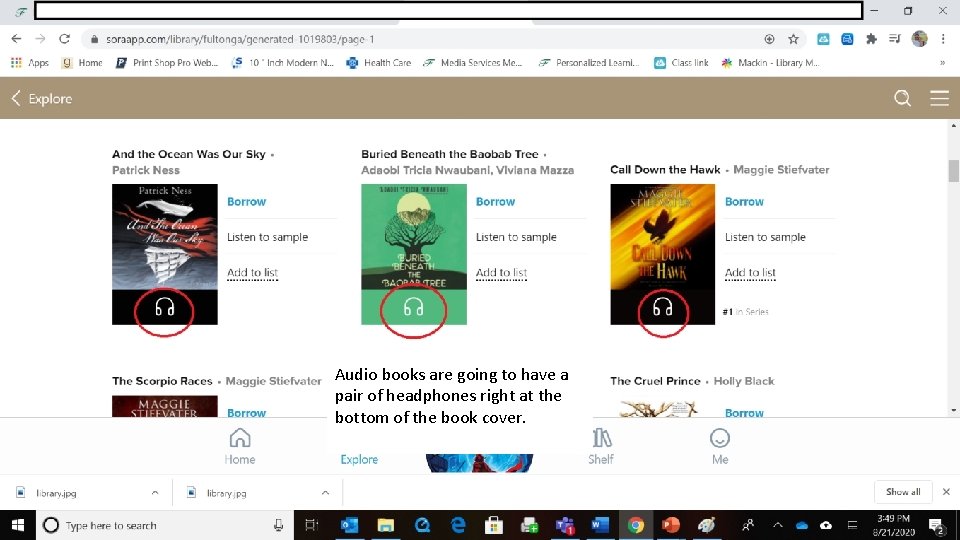
Audio books are going to have a pair of headphones right at the bottom of the book cover.
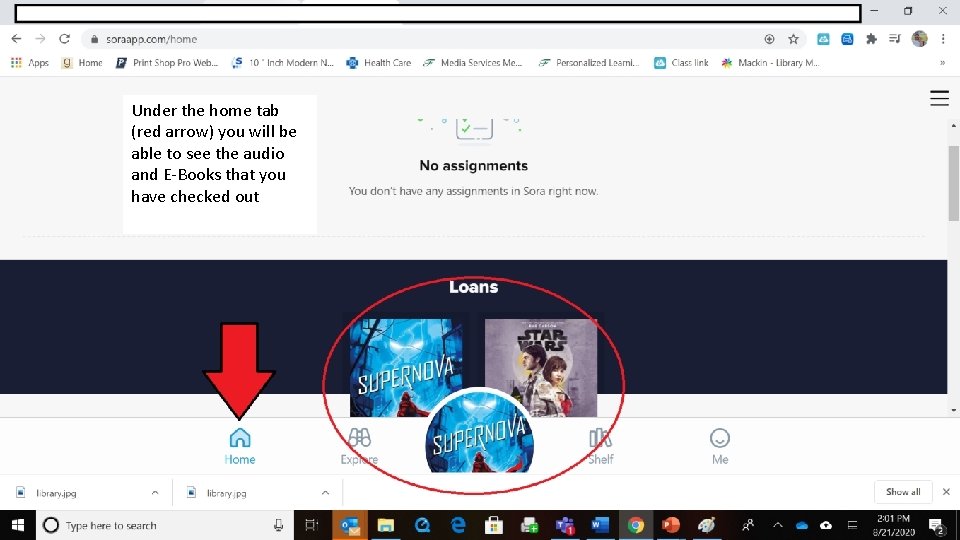
Under home tab Underthethe home (red arrow) you will be tab (red able to see arrow) the audio you will bethat able and E-Books you to have checked out and see the audio E-Books that you have checked out
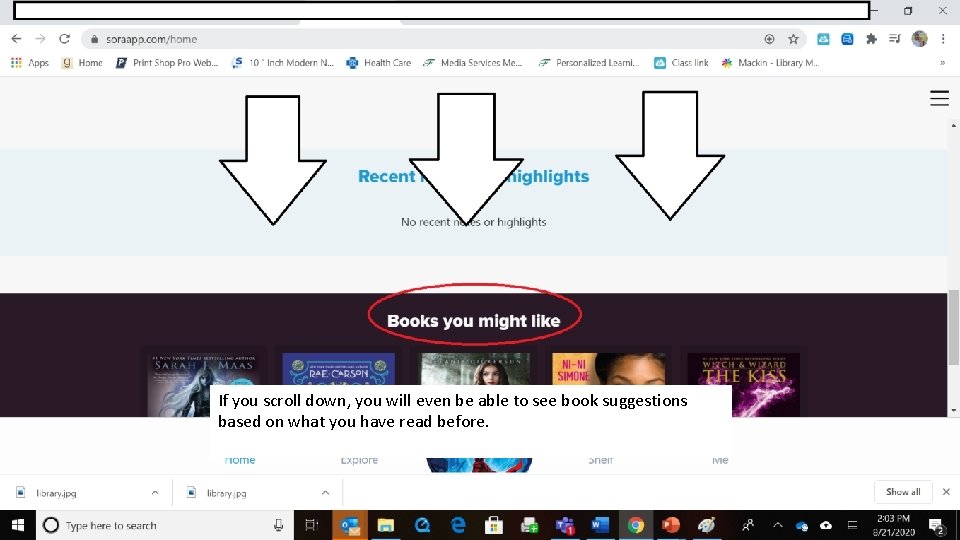
If you scroll down, you will even be able to see book suggestions based on what you have read before.
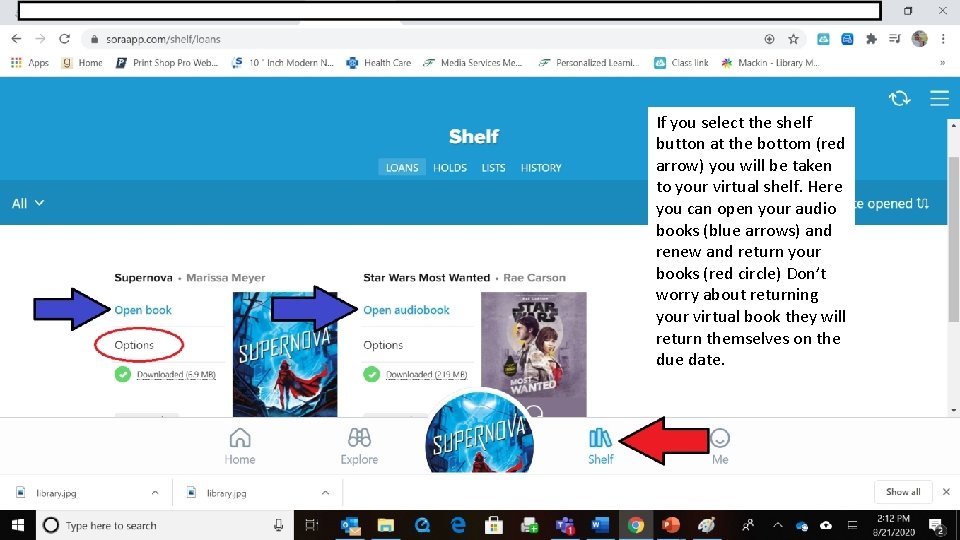
If you select the shelf button at the bottom (red arrow) you will be taken you willvirtual be taken your to your shelf. to. Here virtual Hereaudio you canshelf. open your open books your (blue audio arrows)books and (blue renew and return yourand arrows) and renew books circle) Don’t return(red your books (red worry circle)about Don’treturning worry about your virtualyour bookvirtual they will returning book return themselves on they will return themselves due date. on the due date.
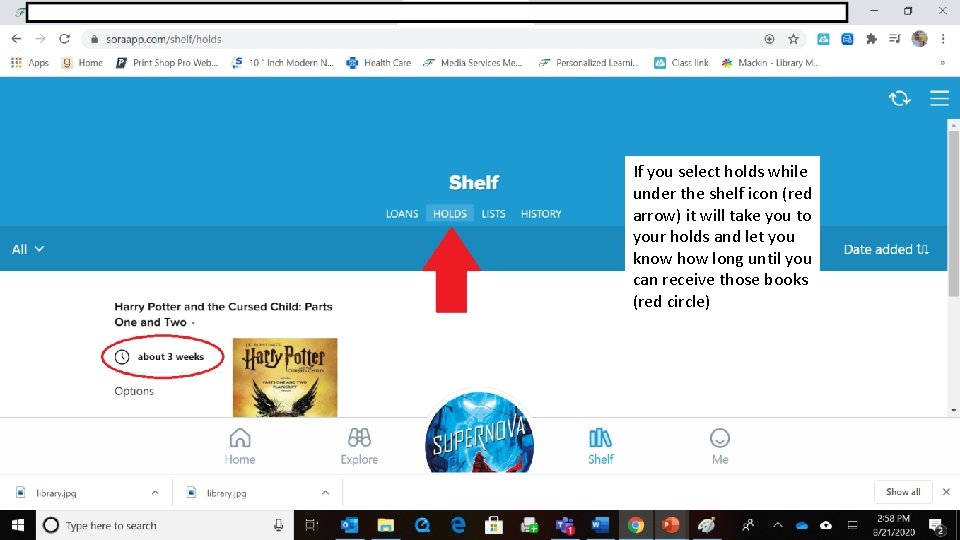
If you select holds while under the If you select holds while shelf icon (red under the shelf icon (red will take you to arrow) it willittake your holds and let you to your holds know how long until you and let can youreceive know those books (reduntil circle)you how long can receive those books (red circle)
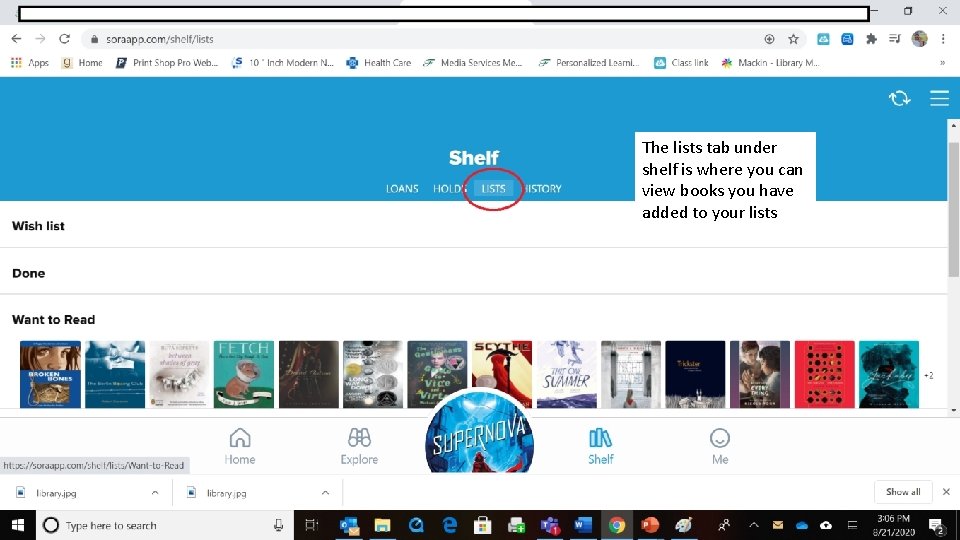
The lists tab under shelf is where you can view books you have added your lists tabtounder The shelf is where you can view books you have added to your lists
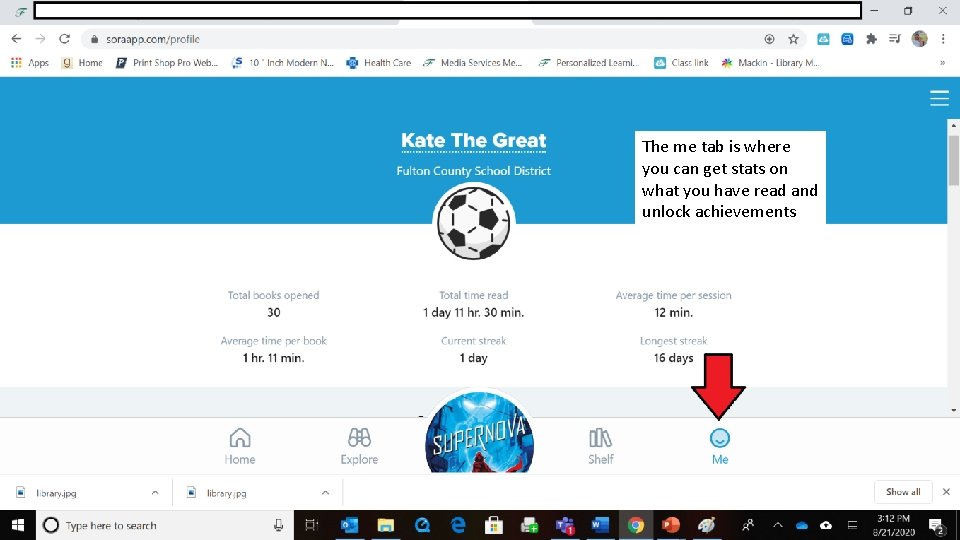
The me tab is where you can get stats on what you have read and unlock achievements
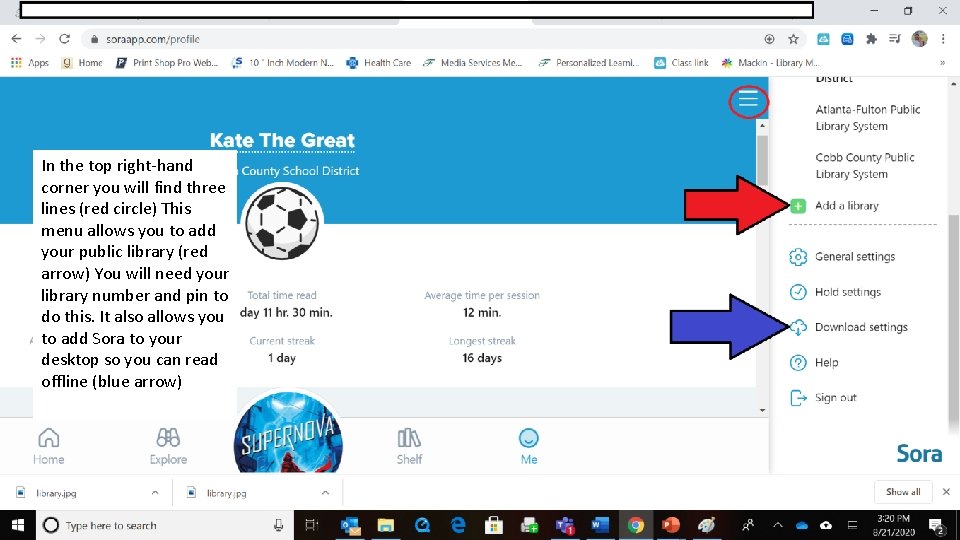
In the top right-hand corner you will find In the top right-hand threeyou lines (redthree circle) corner will find This(red menu you lines circle)allows This menu allows you public to add your public library (red library arrow) You(red will need your You will need library number and your pin to do this. It also allows you library number and to add Sora to your pin tosodo this. It also desktop you can read allows you to add offline (blue arrow) Sora to your desktop so you can read offline (blue arrow)
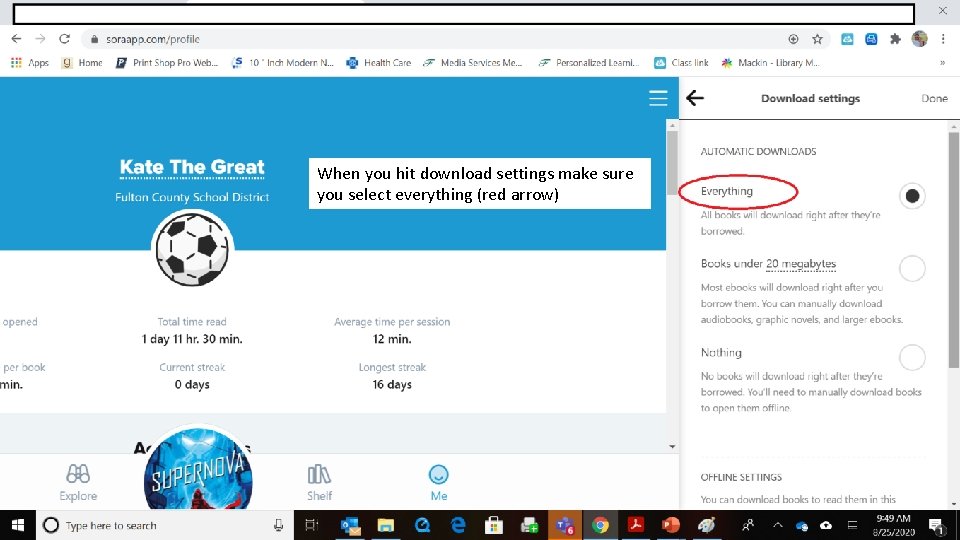
When you hit download settings make sure make you select (red arrow) yousure select everything (red arrow) When you hit download settings make sure you select everything (red arrow)
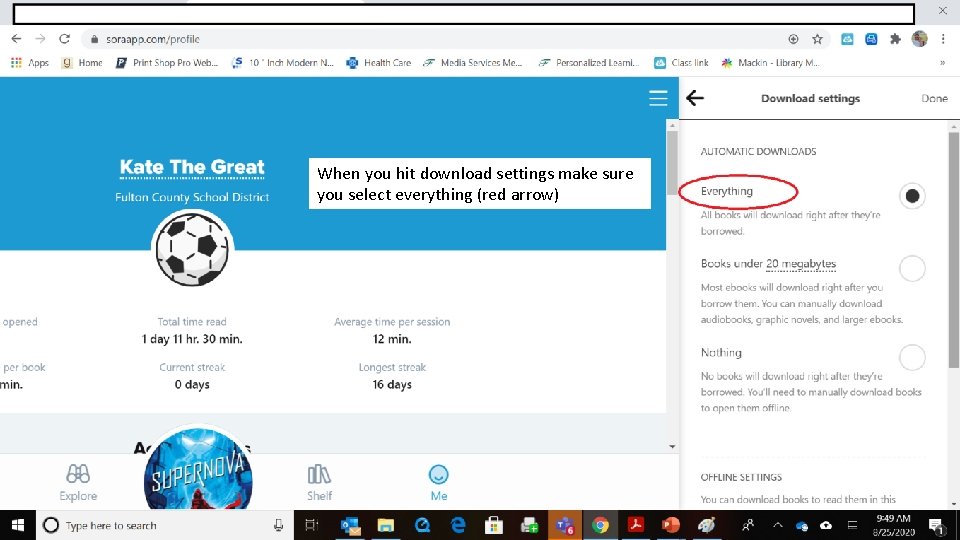
When you hit download settings make sure make you select (red arrow) yousure select everything (red arrow) When you hit download settings make sure you select everything (red arrow)
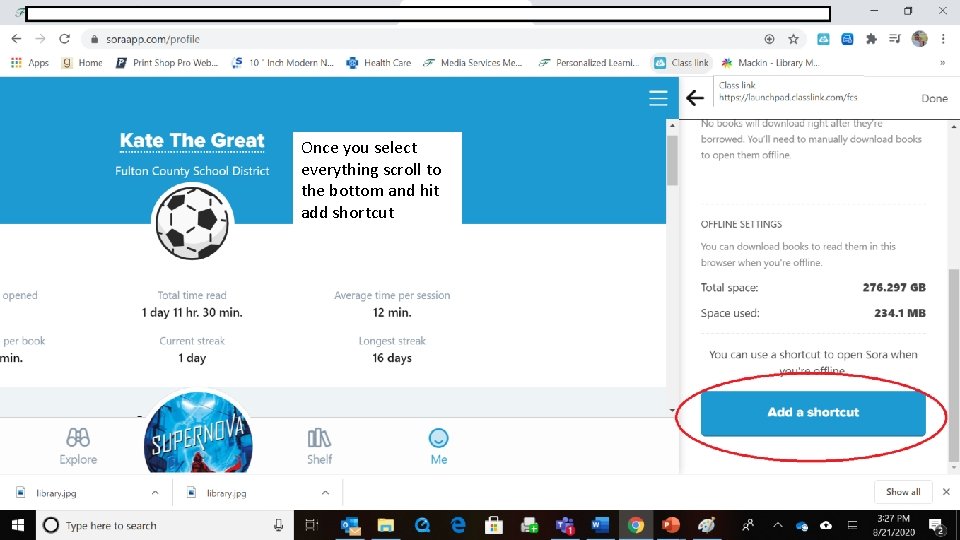
Once you select everything scroll to the bottom and hit add shortcut
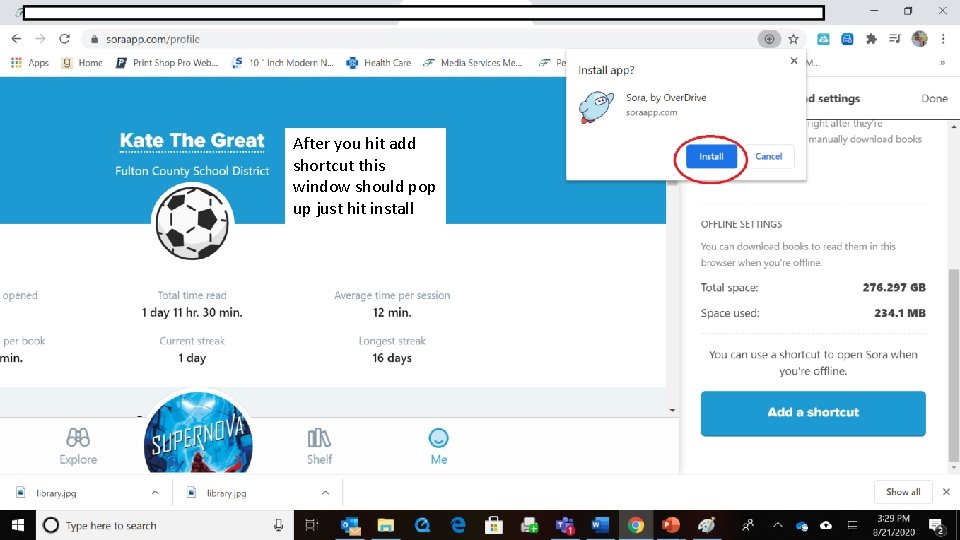
After you hit add shortcut this window should pop up just hit install
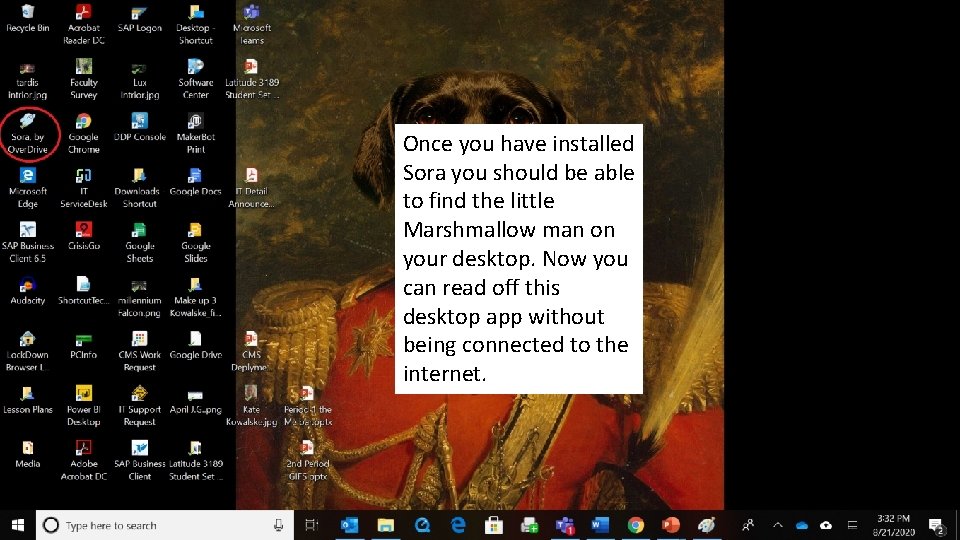
Once you have installed Sora you should be able to find the little Marshmallow man on your desktop. Now you can read off this desktop app without being connected to the internet.
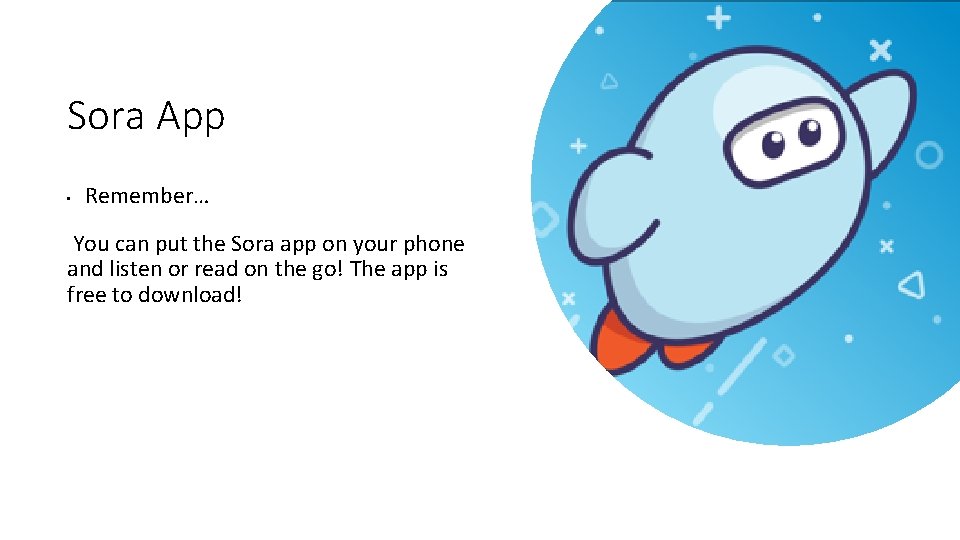
Sora App • Remember… You can put the Sora app on your phone and listen or read on the go! The app is free to download!
- Slides: 21