
YEAR 9 CAP CAREER ACTION PLAN ATTENDING A
- Slides: 43
YEAR 9 CAP CAREER ACTION PLAN
ATTENDING A TEAMS MEETING - - C H A T F U N C T I O N S - I N S T R U C T I O N S T O B E U S E D F O R Q U E S T I O N S C O N V E R S A T I O N S - B E H A V I O U R W I L L B E M O N I T O R E D O N L Y N O T P E R S O N A L
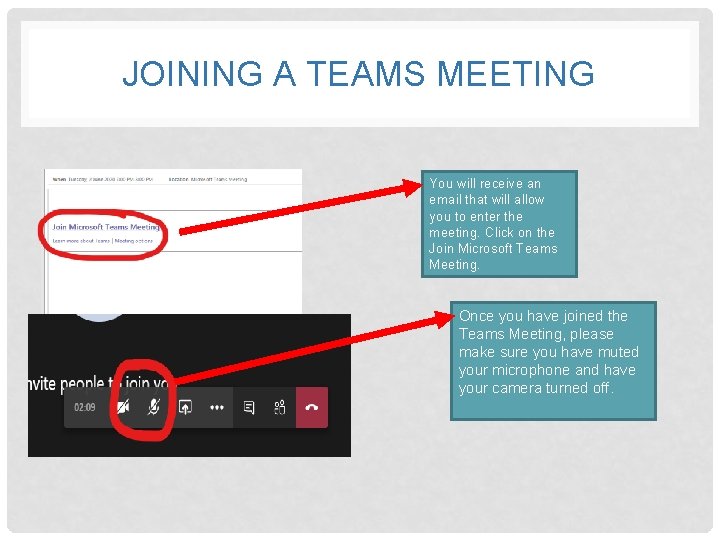
JOINING A TEAMS MEETING You will receive an email that will allow you to enter the meeting. Click on the Join Microsoft Teams Meeting. Once you have joined the Teams Meeting, please make sure you have muted your microphone and have your camera turned off.
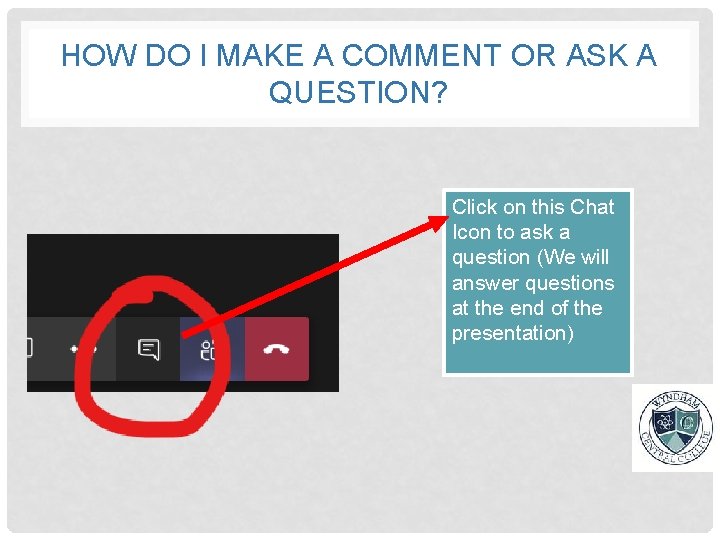
HOW DO I MAKE A COMMENT OR ASK A QUESTION? Click on this Chat Icon to ask a question (We will answer questions at the end of the presentation)
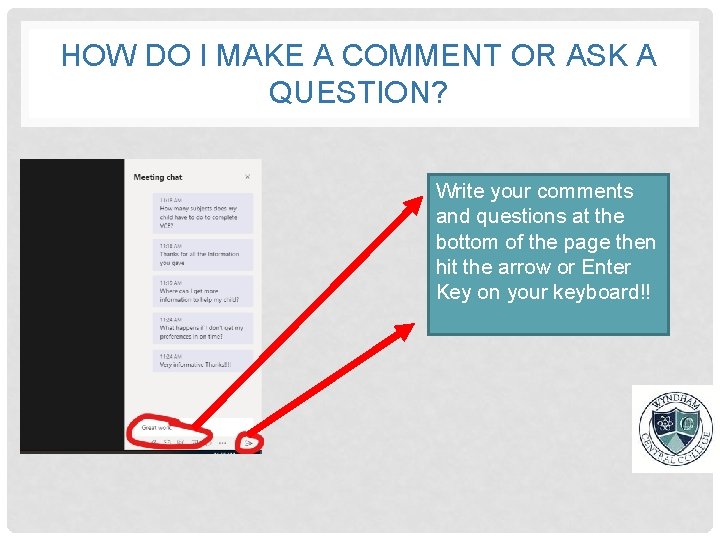
HOW DO I MAKE A COMMENT OR ASK A QUESTION? Write your comments and questions at the bottom of the page then hit the arrow or Enter Key on your keyboard!!
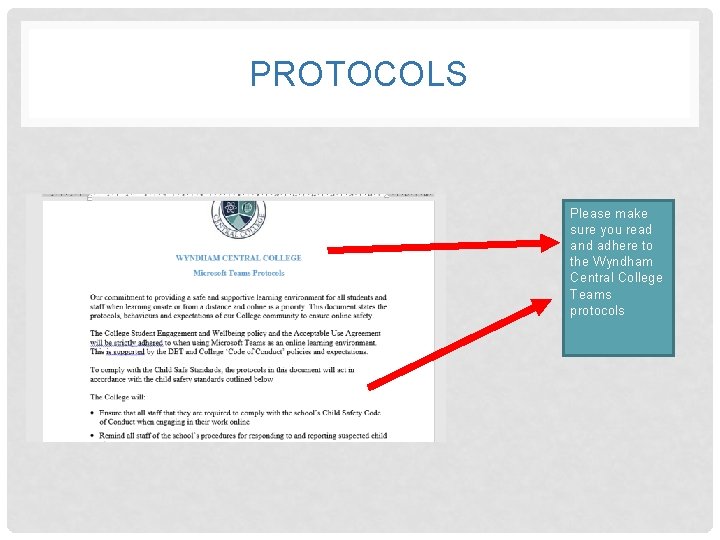
PROTOCOLS Please make sure you read and adhere to the Wyndham Central College Teams protocols
CAREER DEVELOPMENT CAP: A Career Action Plan Junior/Middle School Years 7 -9 SENIOR YEARS CAP: SENIOR YEARS CAREER ACTION PLAN Senior School Years 10 -12
CAREER DEVELOPMENT A CAP is a three year career plan Commences in Year 7 Goes through to Year 9 The Senior Years CAP then takes over, from Years 10 -12 Intended to assist students with thinking about, researching and planning their career options • Part of a formalised online Pathways & Transitions Program at Wyndham Central College to ensure that every student has assistance & support in planning their future career pathways • • •
CAREER DEVELOPMENT THEMES/STEPS CONT. • Year 9: I Focus - Focusing on how personal attributes & effective communication skills will impact on your future pathways - Will work on developing the above skills to gain and maintain employment by participating in mock job interviews & online applications
CAREER DEVELOPMENT THEMES/STEPS CONT. • Learning Outcomes: - Are covered in the Year 9 CAP - They are assessed via a rubric
CAP’S/MIP’S PLAN - Pathways Portal via school webpage: Career Tools Online Program, Pathway Plan, Assessment Activities/Rubric, Subject Selection Proformas, etc - To be completed in allocated Tutor/CAP’s time - At the end of the program, students will download & print the CAP Pathway Plan to be filed away in the Careers Office, ready for the following year
CAP’S/MIP’S PLAN CONT. • All work on the Year 9 CAP Pathway Plan must be completed for the particular year • An assessment sheet/rubric to be completed & reported on • Assists with the elective/subject/program selection process for following year • Non completion of a particular section will jeopardise successful selection of electives/subjects/programs for 2021
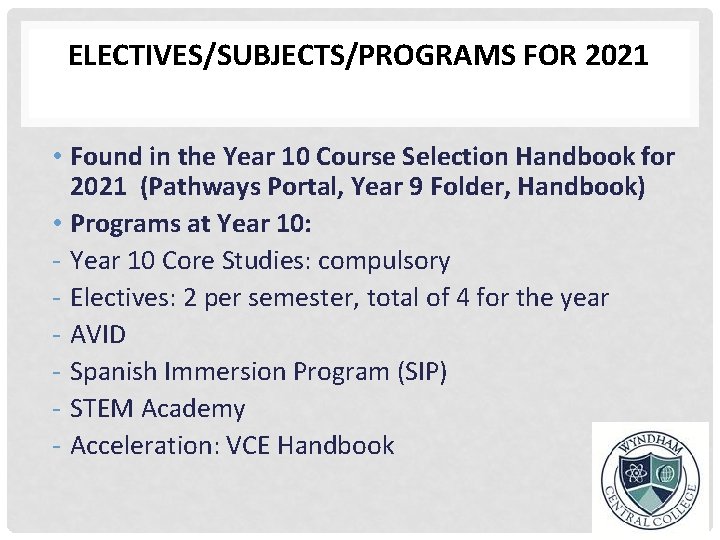
ELECTIVES/SUBJECTS/PROGRAMS FOR 2021 • Found in the Year 10 Course Selection Handbook for 2021 (Pathways Portal, Year 9 Folder, Handbook) • Programs at Year 10: - Year 10 Core Studies: compulsory - Electives: 2 per semester, total of 4 for the year - AVID - Spanish Immersion Program (SIP) - STEM Academy - Acceleration: VCE Handbook
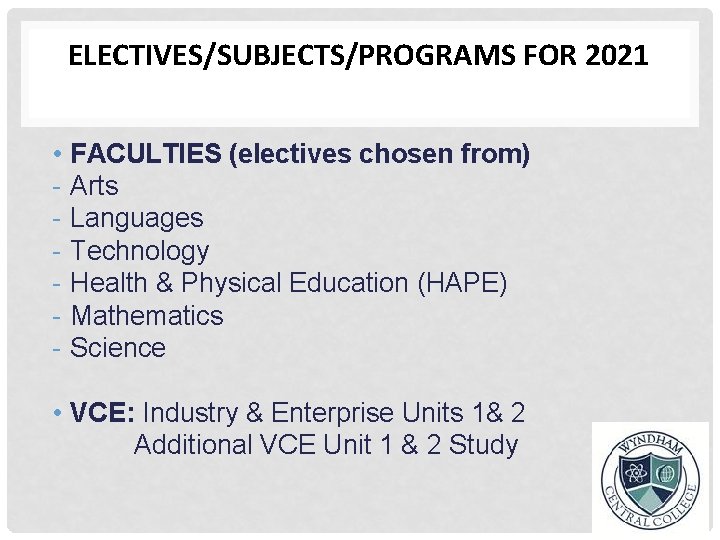
ELECTIVES/SUBJECTS/PROGRAMS FOR 2021 • - FACULTIES (electives chosen from) Arts Languages Technology Health & Physical Education (HAPE) Mathematics Science • VCE: Industry & Enterprise Units 1& 2 Additional VCE Unit 1 & 2 Study
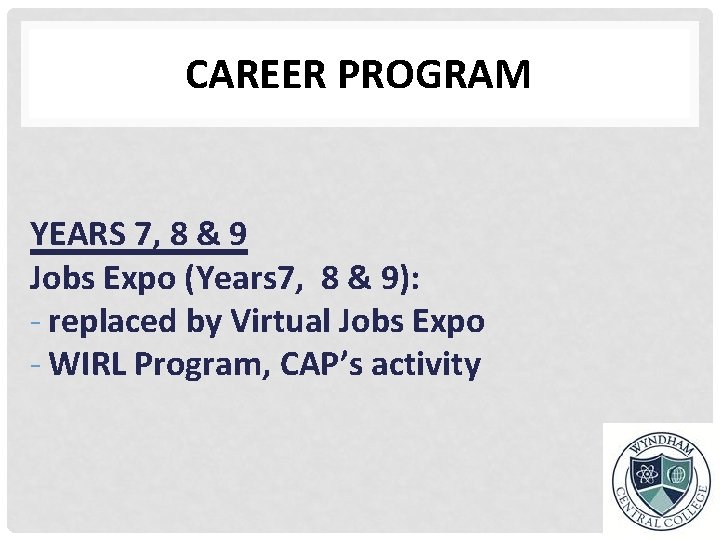
CAREER PROGRAM YEARS 7, 8 & 9 Jobs Expo (Years 7, 8 & 9): - replaced by Virtual Jobs Expo - WIRL Program, CAP’s activity
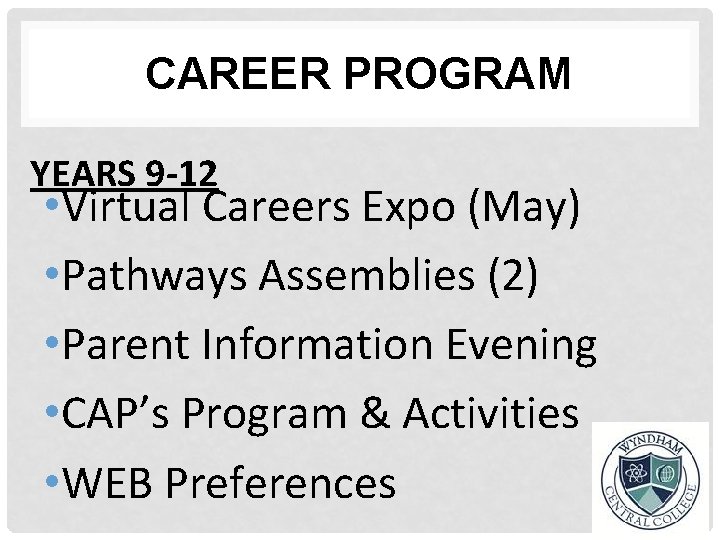
CAREER PROGRAM YEARS 9 -12 • Virtual Careers Expo (May) • Pathways Assemblies (2) • Parent Information Evening • CAP’s Program & Activities • WEB Preferences
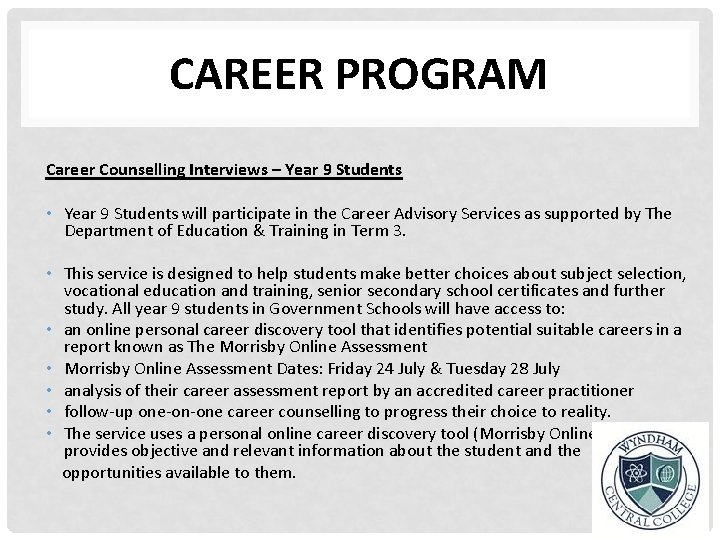
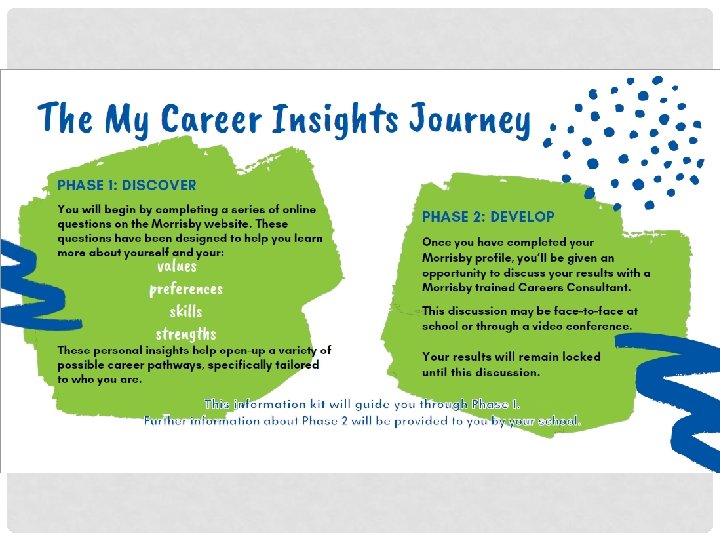
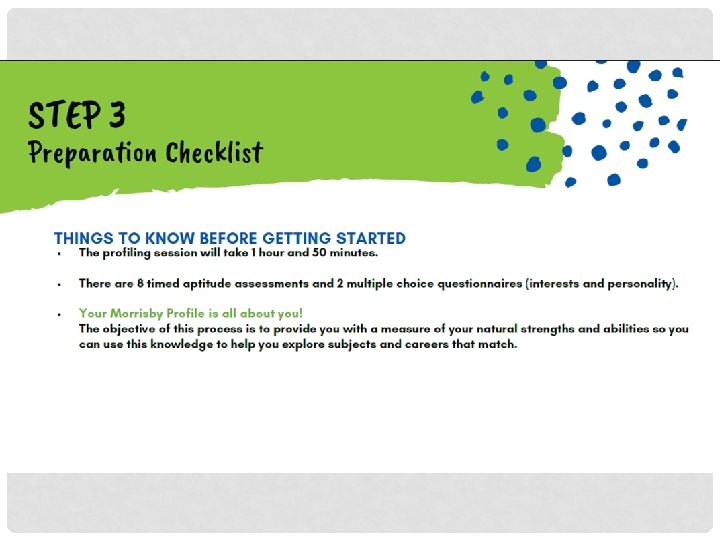
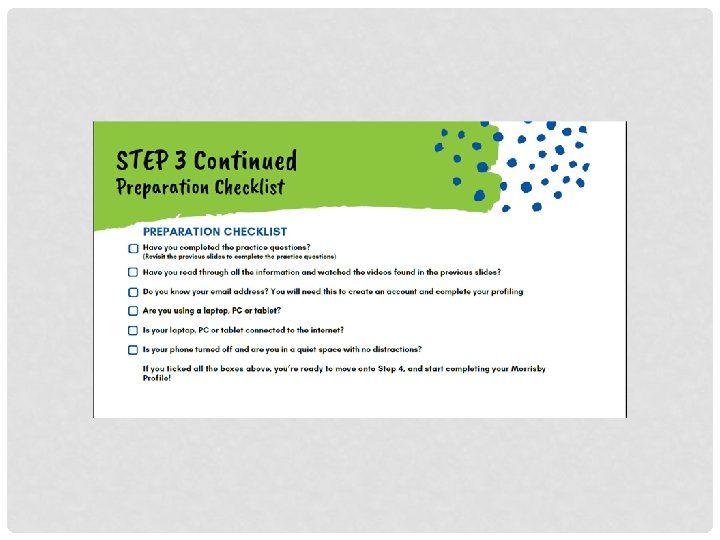
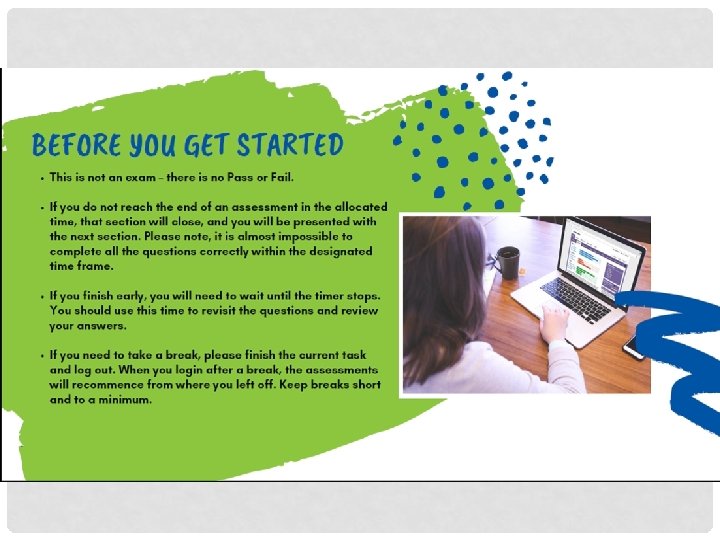
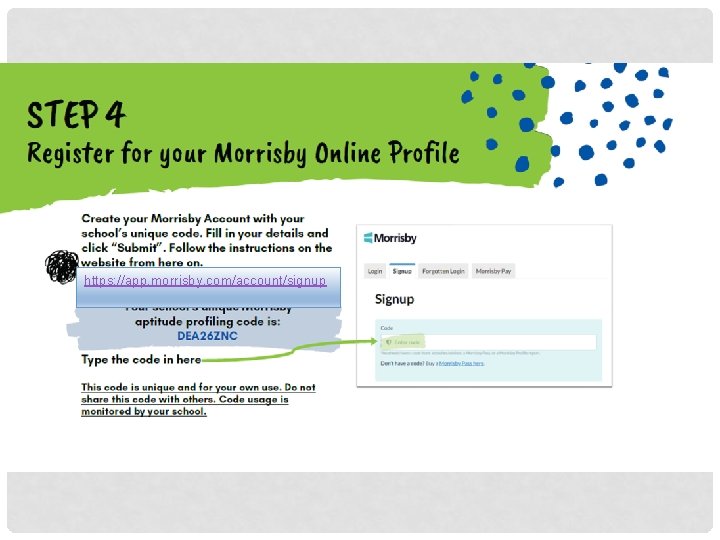
CAREER PROGRAM Career Counselling Interviews – Year 9 Students • Year 9 Students will participate in the Career Advisory Services as supported by The Department of Education & Training in Term 3. • This service is designed to help students make better choices about subject selection, vocational education and training, senior secondary school certificates and further study. All year 9 students in Government Schools will have access to: • an online personal career discovery tool that identifies potential suitable careers in a report known as The Morrisby Online Assessment • Morrisby Online Assessment Dates: Friday 24 July & Tuesday 28 July • analysis of their career assessment report by an accredited career practitioner • follow-up one-on-one career counselling to progress their choice to reality. • The service uses a personal online career discovery tool (Morrisby Online) which provides objective and relevant information about the student and the opportunities available to them.
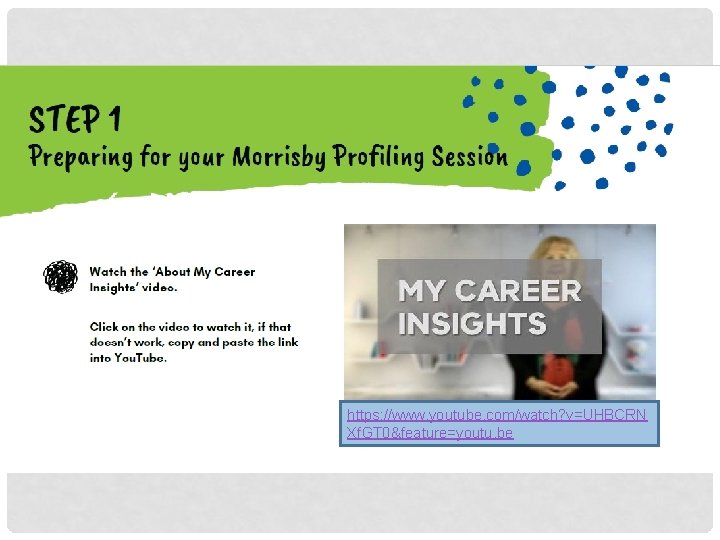
https: //www. youtube. com/watch? v=UHBCRN Xf. GT 0&feature=youtu. be
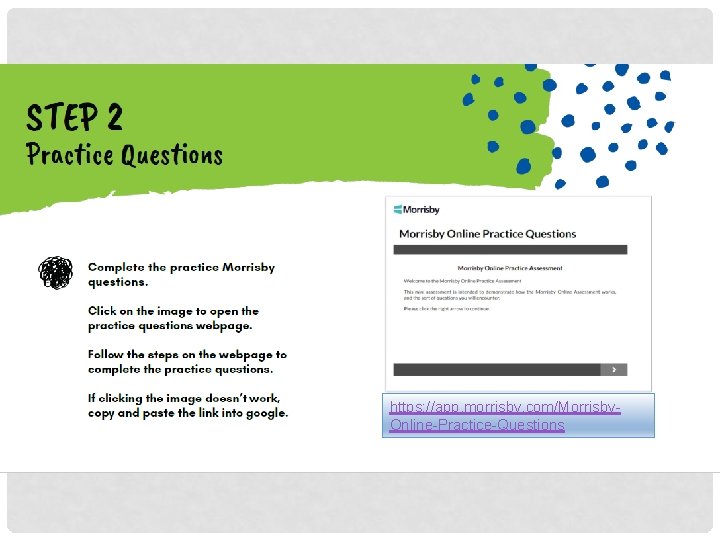
https: //app. morrisby. com/Morrisby. Online-Practice-Questions
https: //app. morrisby. com/account/signup
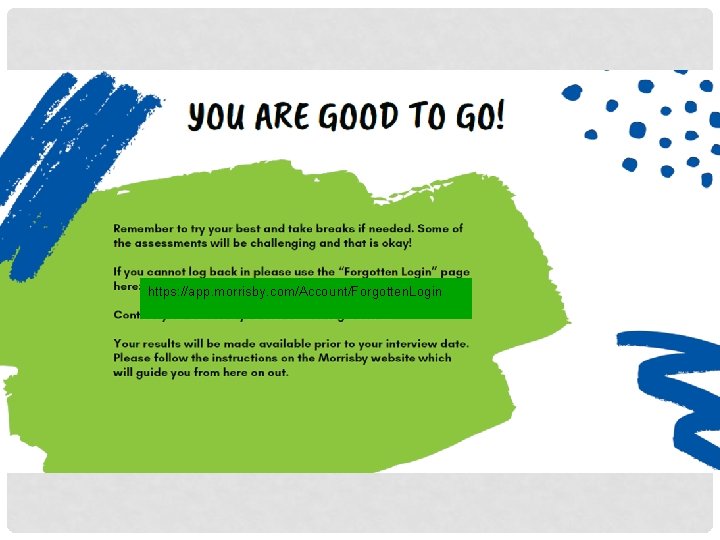
https: //app. morrisby. com/Account/Forgotten. Login
WEB PREFERENCES • Open Online: Friday 24 th July • WEB Preferences Due: Wednesday 12 th August
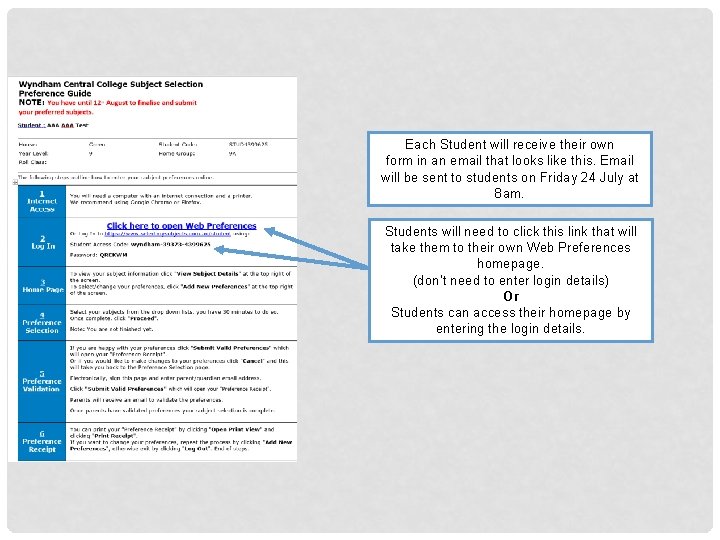
Each Student will receive their own form in an email that looks like this. Email will be sent to students on Friday 24 July at 8 am. Students will need to click this link that will take them to their own Web Preferences homepage. (don’t need to enter login details) Or Students can access their homepage by entering the login details.
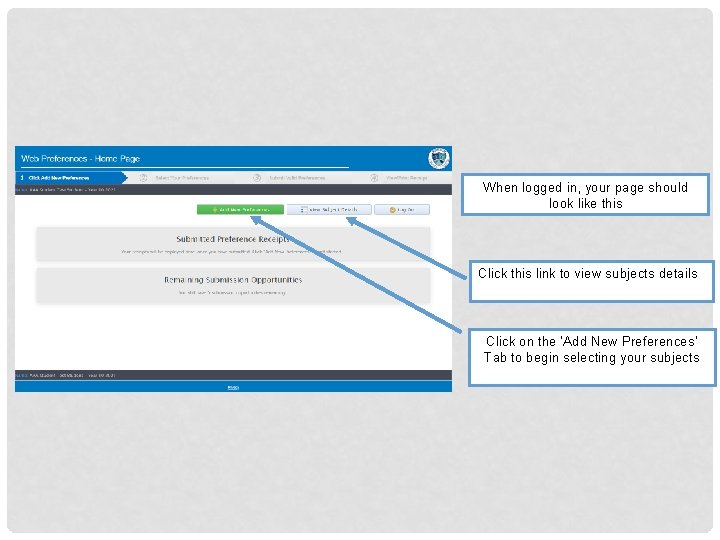
When logged in, your page should look like this Click this link to view subjects details Click on the ‘Add New Preferences’ Tab to begin selecting your subjects
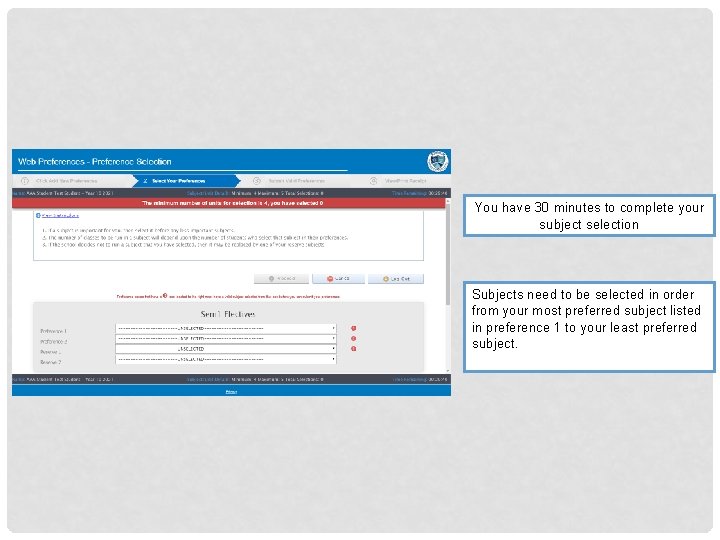
You have 30 minutes to complete your subject selection Subjects need to be selected in order from your most preferred subject listed in preference 1 to your least preferred subject.
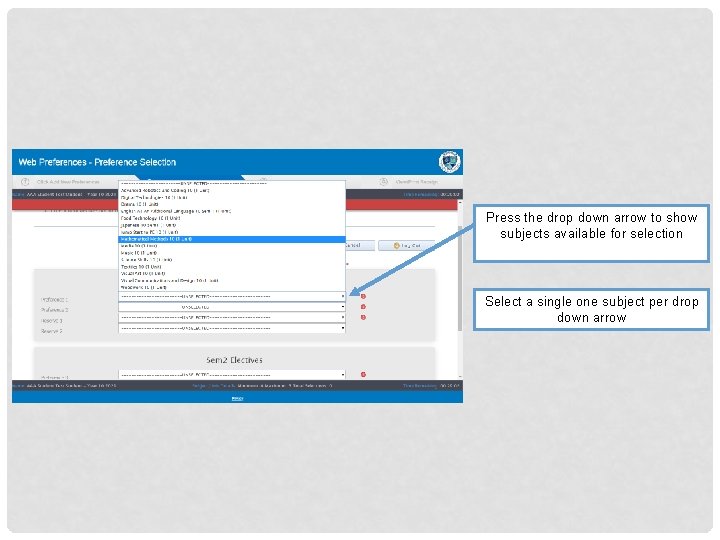
Press the drop down arrow to show subjects available for selection Select a single one subject per drop down arrow
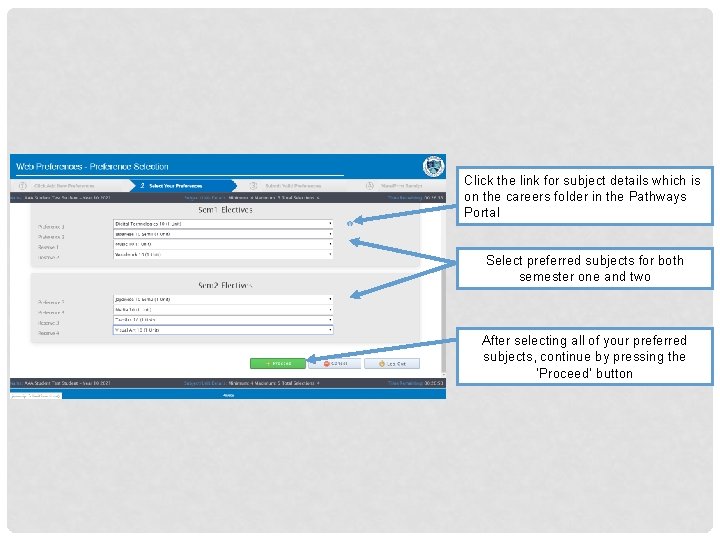
Click the link for subject details which is on the careers folder in the Pathways Portal Select preferred subjects for both semester one and two After selecting all of your preferred subjects, continue by pressing the ‘Proceed’ button
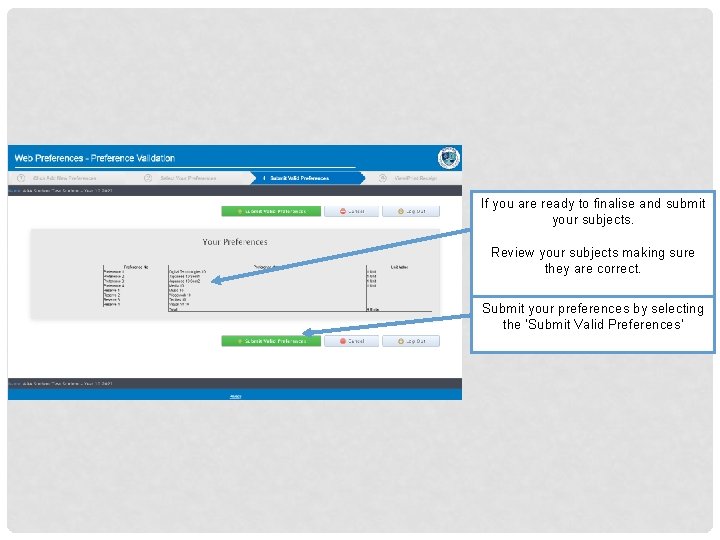
If you are ready to finalise and submit your subjects. Review your subjects making sure they are correct. Submit your preferences by selecting the ‘Submit Valid Preferences’
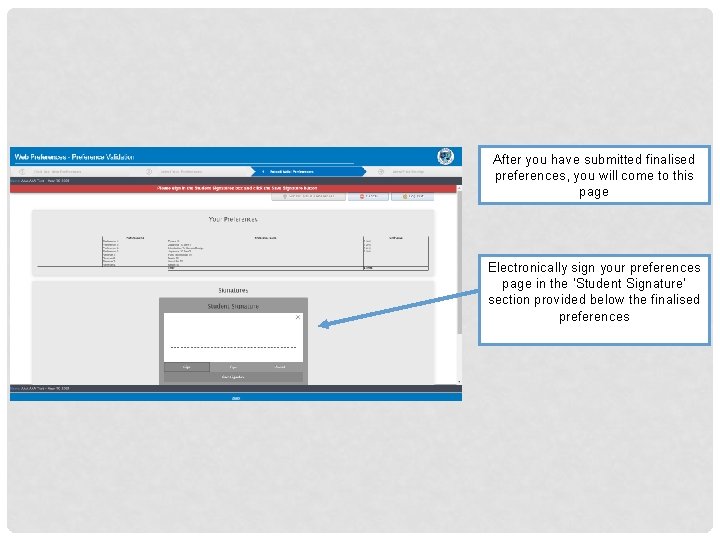
After you have submitted finalised preferences, you will come to this page Electronically sign your preferences page in the ‘Student Signature’ section provided below the finalised preferences
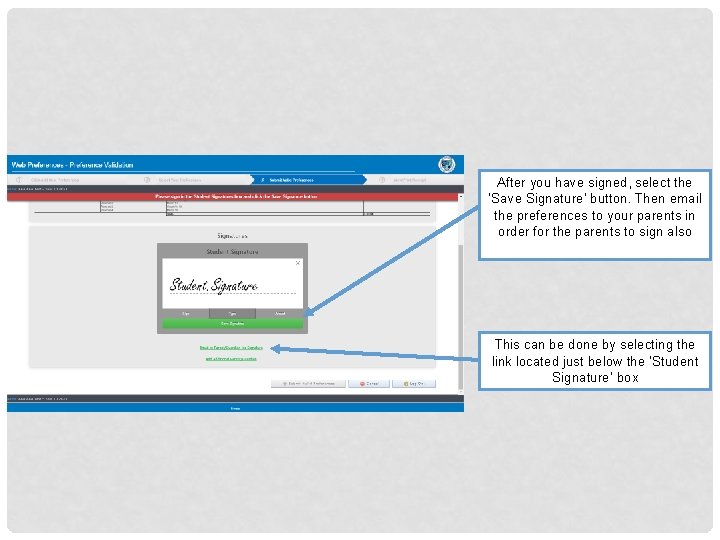
After you have signed, select the ‘Save Signature’ button. Then email the preferences to your parents in order for the parents to sign also This can be done by selecting the link located just below the ‘Student Signature’ box
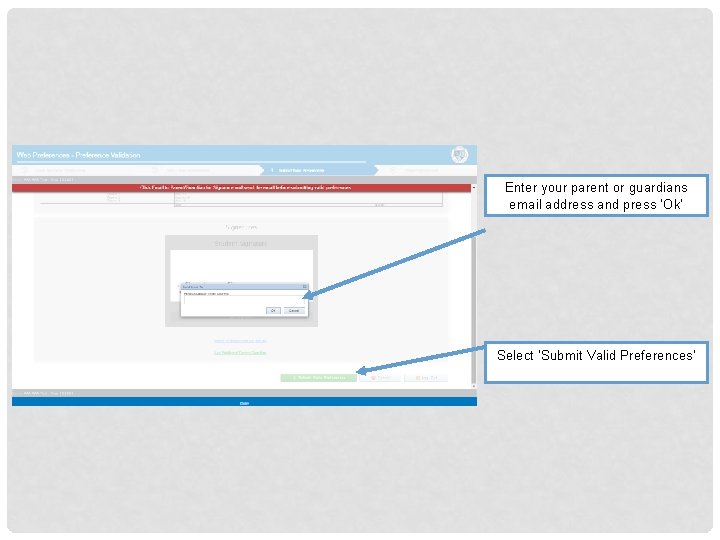
Enter your parent or guardians email address and press ‘Ok’ Select ‘Submit Valid Preferences’
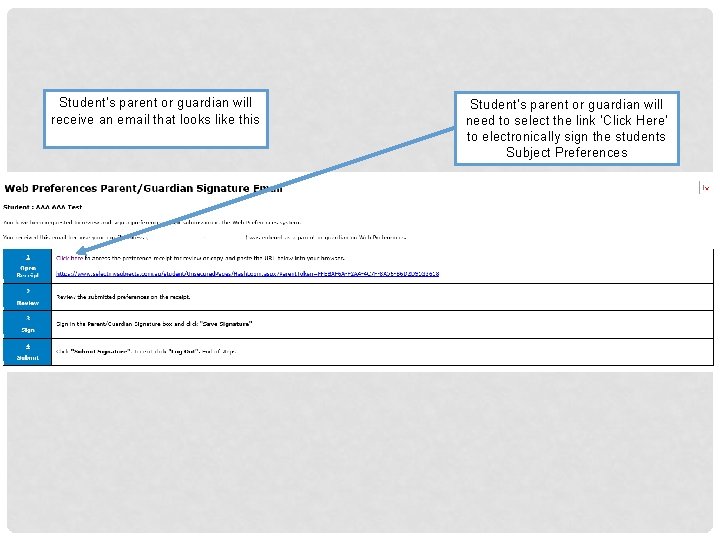
Student’s parent or guardian will receive an email that looks like this Student’s parent or guardian will need to select the link ‘Click Here’ to electronically sign the students Subject Preferences
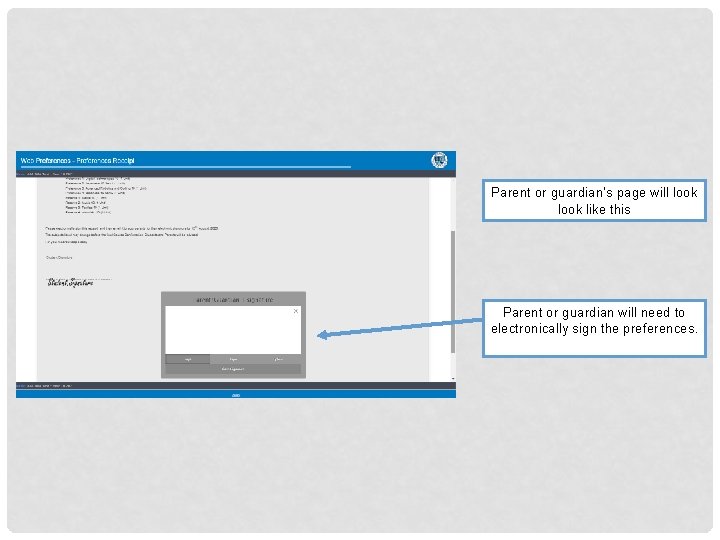
Parent or guardian’s page will look like this Parent or guardian will need to electronically sign the preferences.
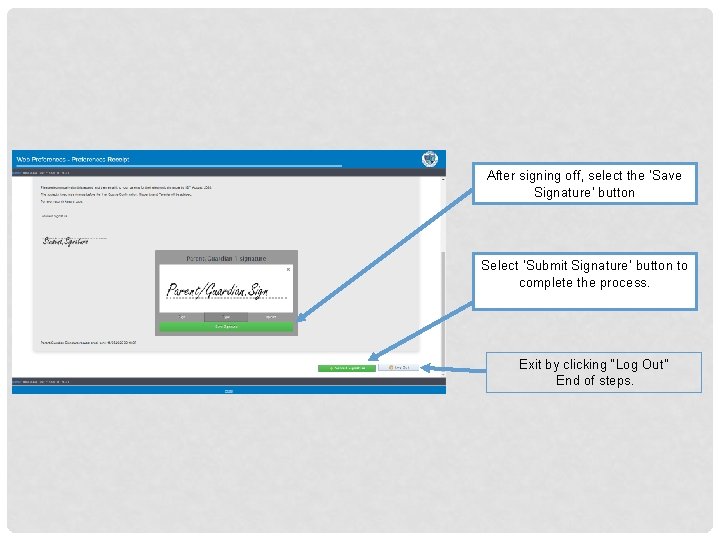
After signing off, select the ‘Save Signature’ button Select ‘Submit Signature’ button to complete the process. Exit by clicking “Log Out” End of steps.
• Mrs Kathy Karlovic • Pathways & Transitions Leader • Mrs Pina Siragusano • Pathways & Transitions Assistant • Wyndham Central College