
XP Using Common Features of Microsoft Office 2003
- Slides: 28
XP Using Common Features of Microsoft Office 2003 Tutorial 1 Using Common Features of Microsoft Office 2003 1
Explore Microsoft Office 2003 XP • Microsoft Office 2003, or Office, is a collection of the most popular Microsoft programs. • These programs share many features and therefore, it's easy to share information among them. • The primary programs are: – – – The Word word processing program. The Excel spreadsheet program. The Power. Point presentation graphics program. The Access database program. The Outlook information management program. Using Common Features of Microsoft Office 2003 2
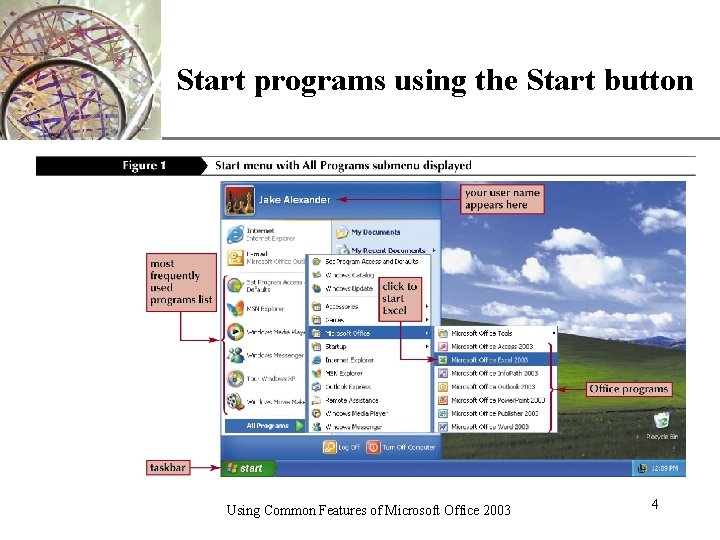
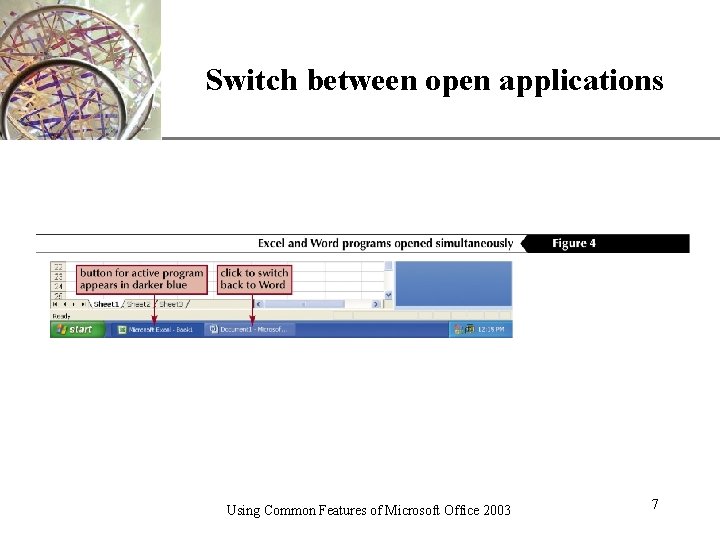
Start programs and switch between them XP • To open a program, click the Start button on the taskbar and then use the All Programs menu. • To open an Office program, you also can click the New Office Document command or the Open Office Document command on the Start menu. • The New Office Document command will open the New Office Document dialog box, which you can use to create a new document in any of the Office applications. • When you have two or more programs or files open, you can switch from one program or file to another by clicking the appropriate taskbar button. Using Common Features of Microsoft Office 2003 3
XP Start programs using the Start button Using Common Features of Microsoft Office 2003 4
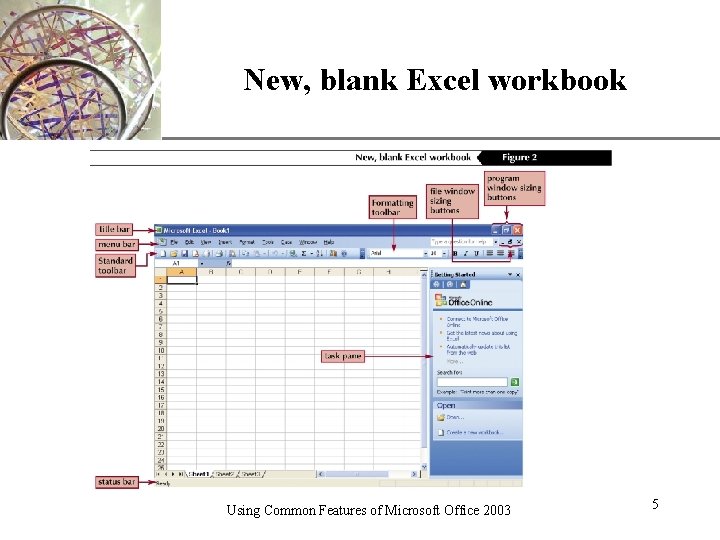
New, blank Excel workbook Using Common Features of Microsoft Office 2003 XP 5
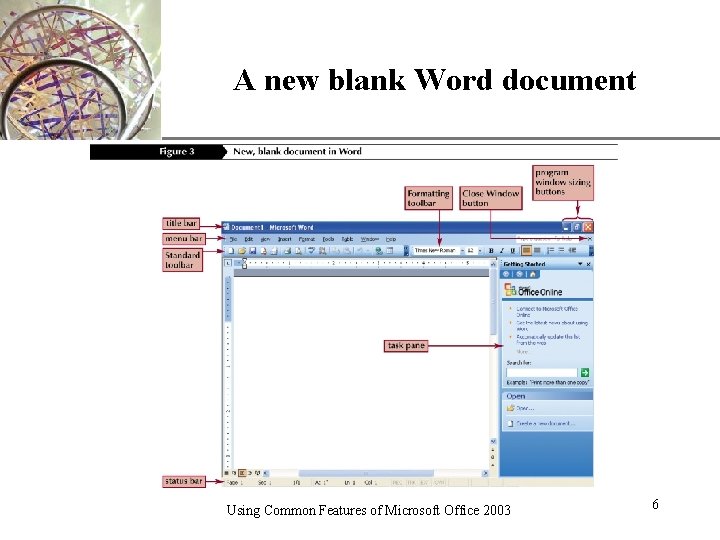
A new blank Word document Using Common Features of Microsoft Office 2003 XP 6
XP Switch between open applications Using Common Features of Microsoft Office 2003 7
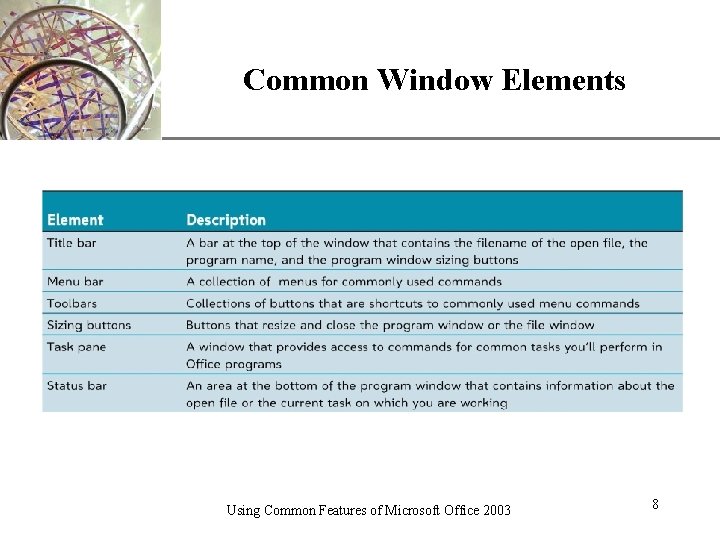
Common Window Elements Using Common Features of Microsoft Office 2003 XP 8
XP Use personalized menus and toolbars • In each Office program, you perform tasks using a menu command, toolbar button, or keyboard shortcut. • A menu command is a word on a menu that you click to execute a task. • A toolbar is a collection of buttons that correspond to commonly used menu commands. • Keyboard shortcuts are combinations of keys you press to perform a command. Using Common Features of Microsoft Office 2003 9
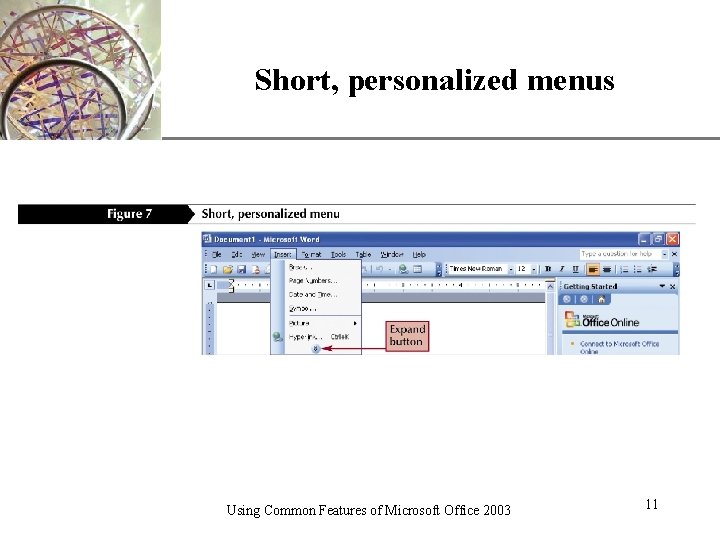
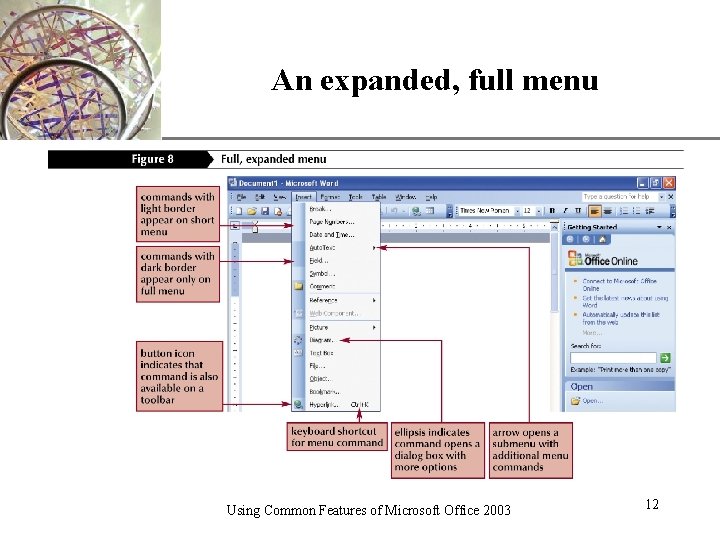
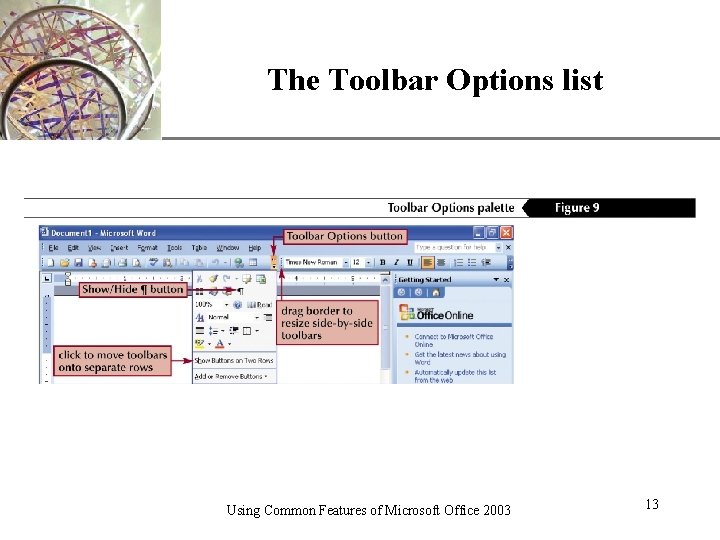
XP Menus and toolbar characteristics • The menus and toolbars in each Office program can change to “learn” your preferences. • As you select menu commands and click toolbar buttons, the ones you use often are put on the short personal menu and on the visible part of the toolbars. • The ones you don't use are hidden, but remain available through the double-arrow button on the menu and the Toolbar Options button on the toolbars. Using Common Features of Microsoft Office 2003 10
Short, personalized menus Using Common Features of Microsoft Office 2003 XP 11
An expanded, full menu Using Common Features of Microsoft Office 2003 XP 12
The Toolbar Options list Using Common Features of Microsoft Office 2003 XP 13
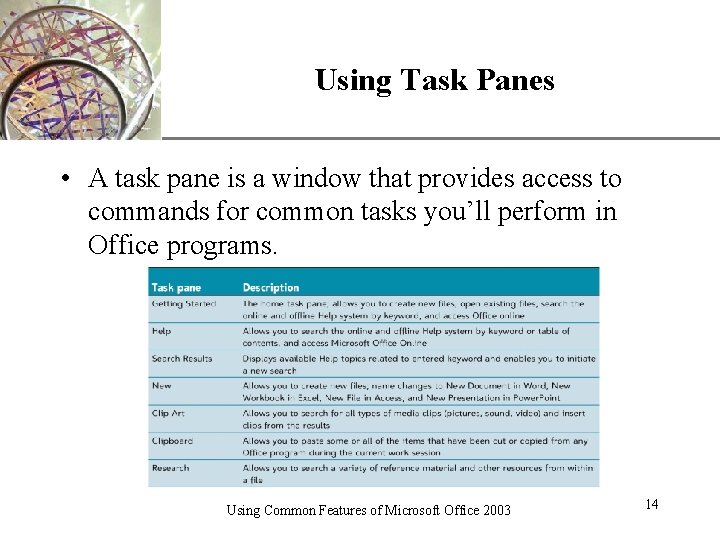
Using Task Panes XP • A task pane is a window that provides access to commands for common tasks you’ll perform in Office programs. Using Common Features of Microsoft Office 2003 14
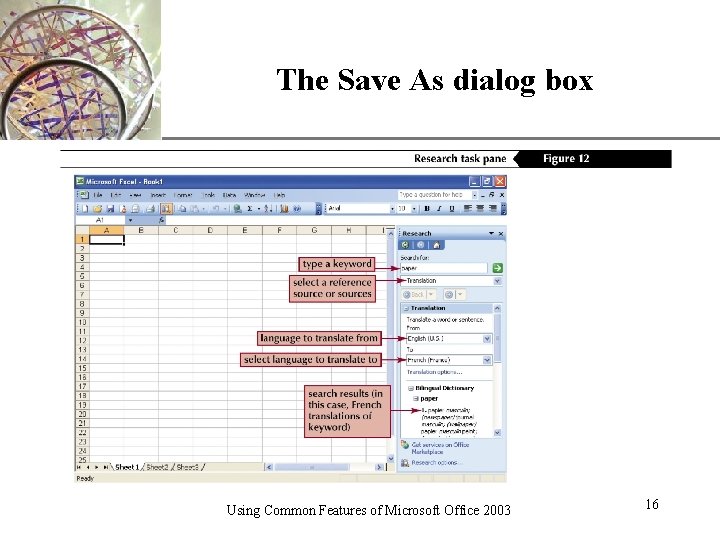
XP Save and close a file • To keep a copy of your work for future use, you need to save it by giving it a filename. – A filename should be descriptive of the content of the file – Each filename will automatically have a file extension added that identifies the program in which the file was created – You will use the Save As dialog box to choose a location to save the file • Once you have saved your work, you can close the file by clicking the Close command on the File menu or the Close Window button on the menu bar. Using Common Features of Microsoft Office 2003 15
The Save As dialog box Using Common Features of Microsoft Office 2003 XP 16
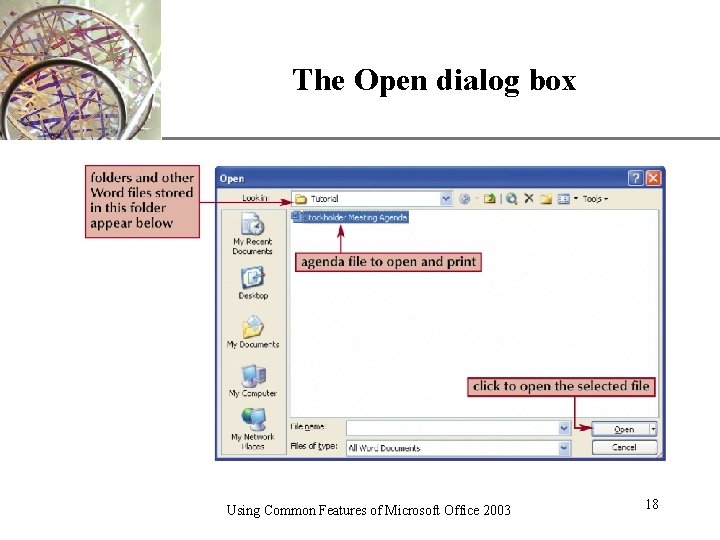
XP Open an existing file • Once you have opened a program you can create new files or open existing ones. • Files can easily be created or opened through the Open section of the Getting Started task pane. • When you open a previously created file, you transfer a copy of the file from the storage disk to the computer's memory and it displays on your screen. • While a file is open, you can view, edit, print or resave it. Using Common Features of Microsoft Office 2003 17
The Open dialog box Using Common Features of Microsoft Office 2003 XP 18
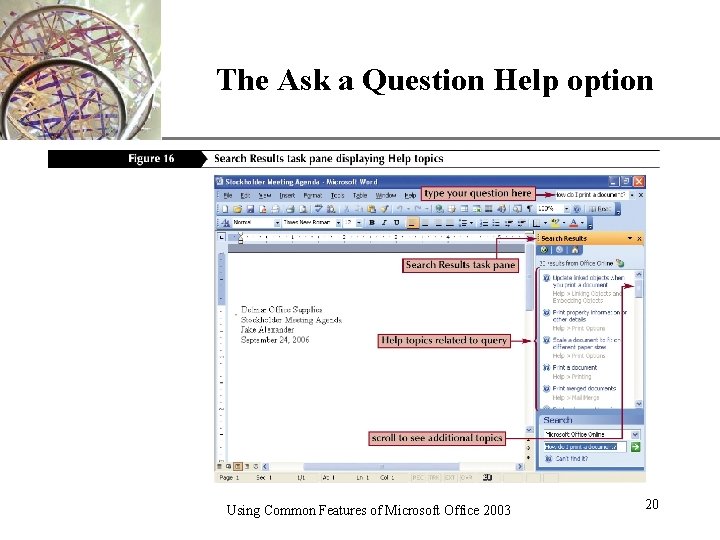
XP Get Help • Office Help is like a huge encyclopedia stored on your computer that contains information on how to use Office. • To use Help, you can use the What's This? option within the Help menu. – When this option is selected, you can get a brief description of any item on your screen by clicking your mouse pointer on it. • If you want to know a button's name, you can move the mouse pointer over it to view its Screen. Tip, which is a yellow box with the button's name. • For more in-depth help, you can use the Office Assistant, which is an interactive guide to finding information from the Office Help system or the Ask a Question box located on the menu bar. Using Common Features of Microsoft Office 2003 19
The Ask a Question Help option Using Common Features of Microsoft Office 2003 XP 20
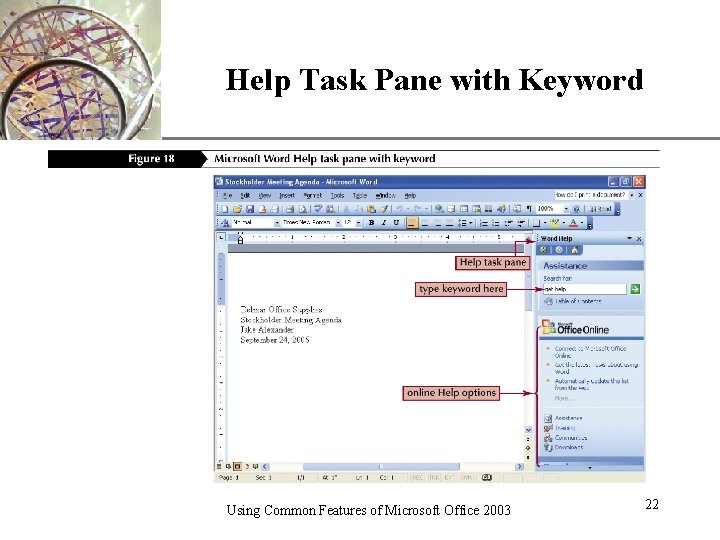
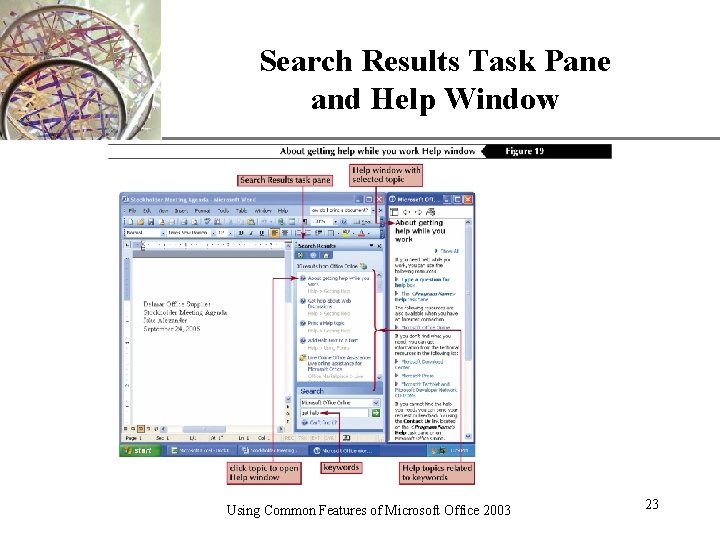
XP The Help Task Pane • Enables you to search the Help system using keywords or phrases. • The Search Results task pane opens with a list of topics related to the keyword or phrase you entered. • If you are connected to the Internet, you might see more search results stored online. Using Common Features of Microsoft Office 2003 21
Help Task Pane with Keyword Using Common Features of Microsoft Office 2003 XP 22
Search Results Task Pane and Help Window Using Common Features of Microsoft Office 2003 XP 23
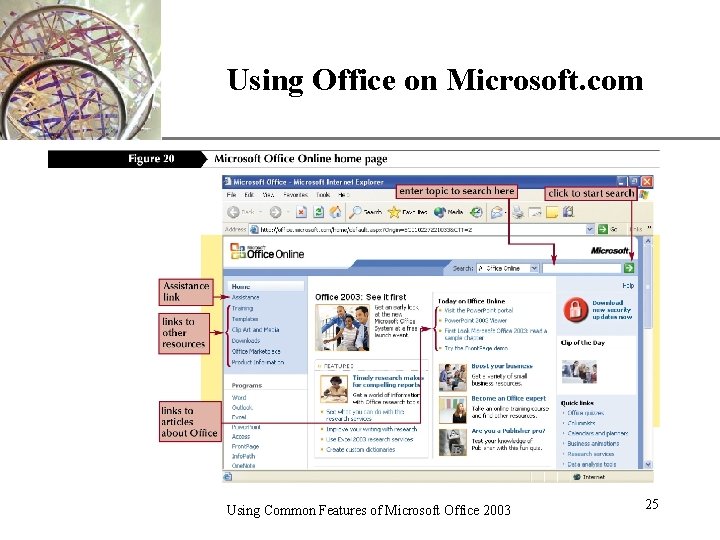
Using Office on Microsoft. com XP • Office on Microsoft. com is a Web site that provides access to additional Help resources. • Access current Help topics, read how-to articles, and find tips for using Office. • To connect to Office on Microsoft. com, you’ll need Internet access and Web browser such as Internet Explorer. Using Common Features of Microsoft Office 2003 24
Using Office on Microsoft. com Using Common Features of Microsoft Office 2003 XP 25
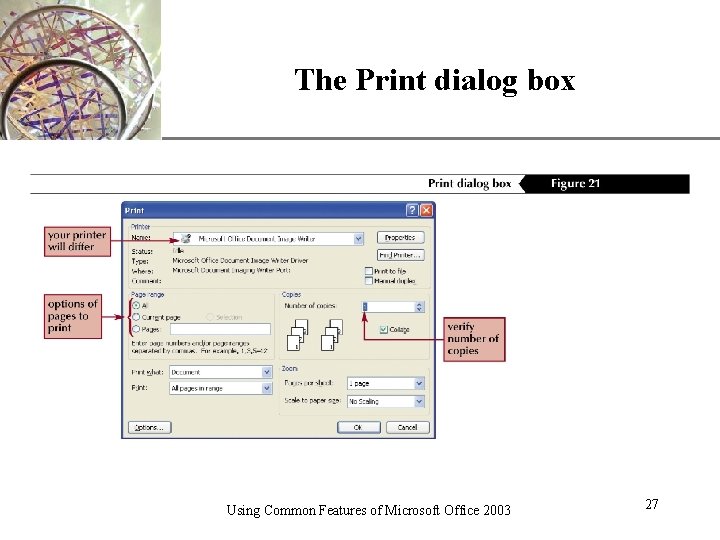
Print a file XP • There are two ways to print a file on which you are working: 1. Press the Print button on the Standard toolbar to send your file to the printer using all the default settings 2. Select Print on the File menu, which will open the Print dialog box so that you can adjust the printer settings • This is the preferred method if you are unsure of your settings or need to make adjustments. Using Common Features of Microsoft Office 2003 26
The Print dialog box Using Common Features of Microsoft Office 2003 XP 27
XP Close files and exit programs • You can exit most programs by clicking the Close button in the upper-right corner of the title bar, or by selecting the Exit command on the File menu. • Either method will close both the file in which you are working as well as the program. – If you have made any edits to a file, a dialog box will appear asking if you want to save your changes. • Closing programs after you are done keeps your Windows desktop uncluttered, frees up your system's resources, and prevents data from accidentally being lost. Using Common Features of Microsoft Office 2003 28