
XP Microsoft Power Point 2002 Tutorial 2 Applying
- Slides: 30
XP Microsoft Power. Point 2002 Tutorial 2 – Applying and Modifying Text and Graphic Objects New Perspectives on Microsoft Power. Point 2002 Tutorial 2 1
XP Create, resize, and move text boxes and graphics boxes • When modifying your layout, consider not only how it will affect visual appeal, but also how it will affect the information, emphasis, and clarity of the presentation. – The graphics you choose should have an obvious relationship to the text on a slide • Power. Point enables you to use a grid to resize, move, and align graphics and text boxes so that you can size and position them precisely on your slides. • Such consistency in positioning helps polish the presentation and prevents objects from "jumping" when you advance from slide to slide. • Making such changes in the masters will apply the changes to all slides. New Perspectives on Microsoft Power. Point 2002 Tutorial 2 2
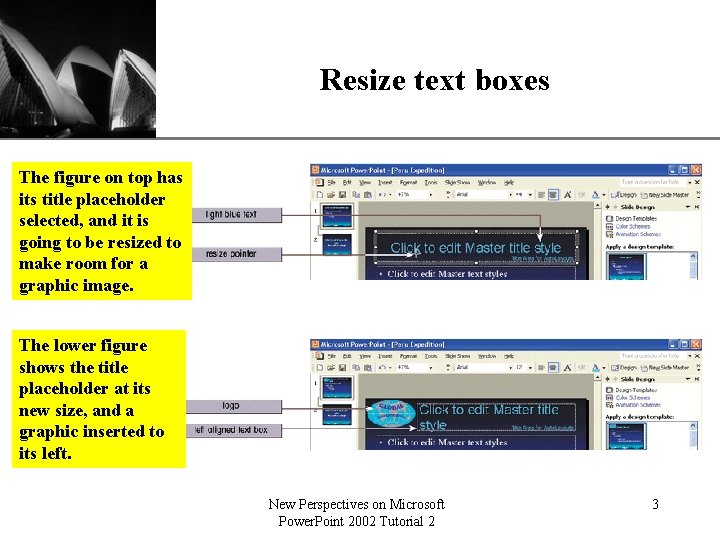
Resize text boxes XP The figure on top has its title placeholder selected, and it is going to be resized to make room for a graphic image. The lower figure shows the title placeholder at its new size, and a graphic inserted to its left. New Perspectives on Microsoft Power. Point 2002 Tutorial 2 3
XP Add a design template and modify the design using the Slide Masters • Power. Point comes with several presentation design templates. • Although these templates require no modification, you can change the designs to suit your preferences. • Regardless of whether you use a design template or create your own design, you will make most design changes to the Slide Masters. New Perspectives on Microsoft Power. Point 2002 Tutorial 2 4
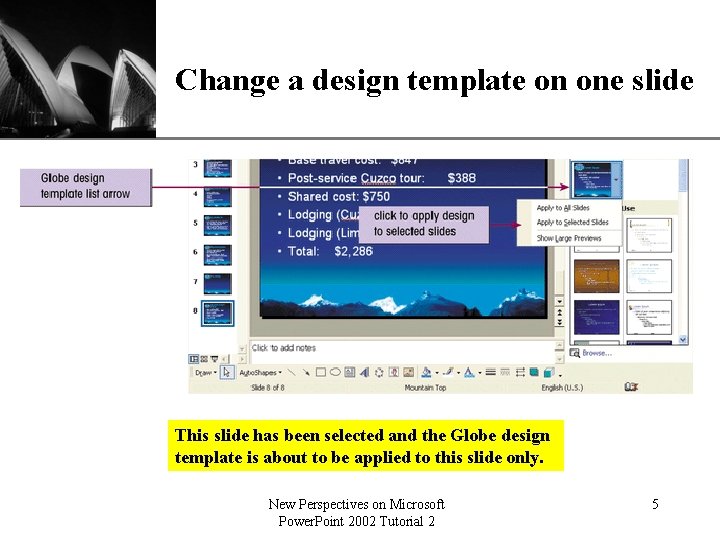
XP Change a design template on one slide This slide has been selected and the Globe design template is about to be applied to this slide only. New Perspectives on Microsoft Power. Point 2002 Tutorial 2 5
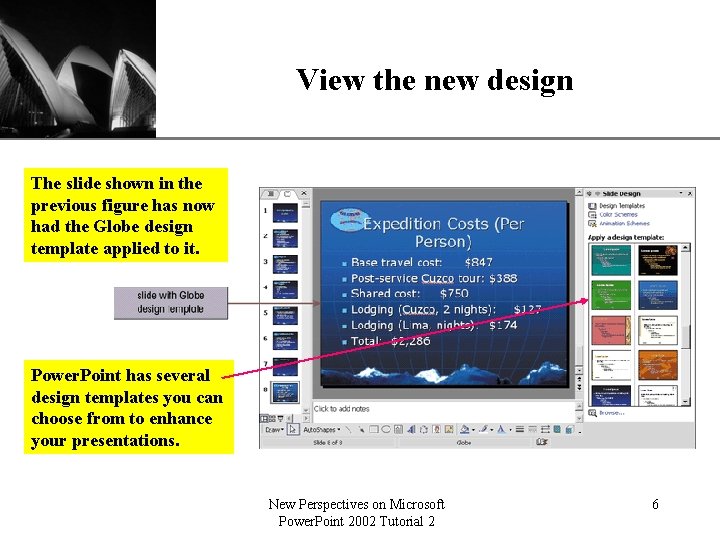
View the new design XP The slide shown in the previous figure has now had the Globe design template applied to it. Power. Point has several design templates you can choose from to enhance your presentations. New Perspectives on Microsoft Power. Point 2002 Tutorial 2 6
Change a Slide Master XP • A master is a slide that contains the text and other objects that appear on all slides of the same type. • Power. Point presentations have two types of masters: – The Title Master contains objects that appear on the title slide – The Slide Master contains objects that appear on all slides except the title slide • You will use the masters to make design changes that you want to appear on every slide: – If you want your company logo to appear on the bottom right of every page, you will add it to the Slide Master – If you want a picture of your office on a single slide, you add the picture to only that slide New Perspectives on Microsoft Power. Point 2002 Tutorial 2 7
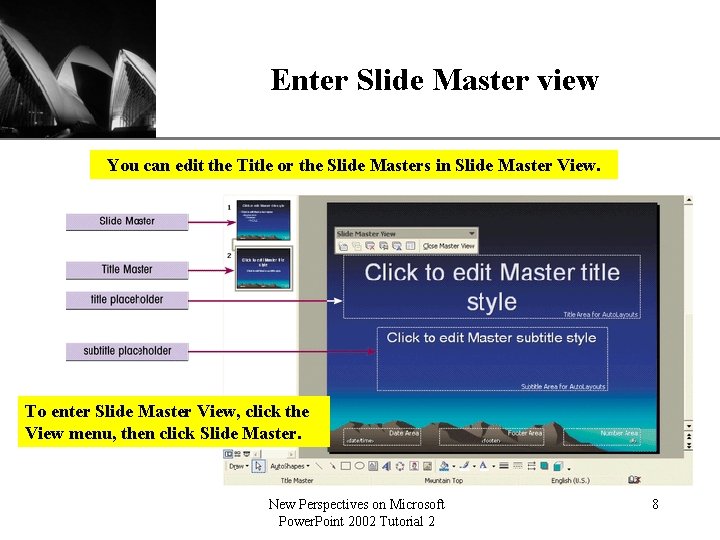
Enter Slide Master view XP You can edit the Title or the Slide Masters in Slide Master View. To enter Slide Master View, click the View menu, then click Slide Master. New Perspectives on Microsoft Power. Point 2002 Tutorial 2 8
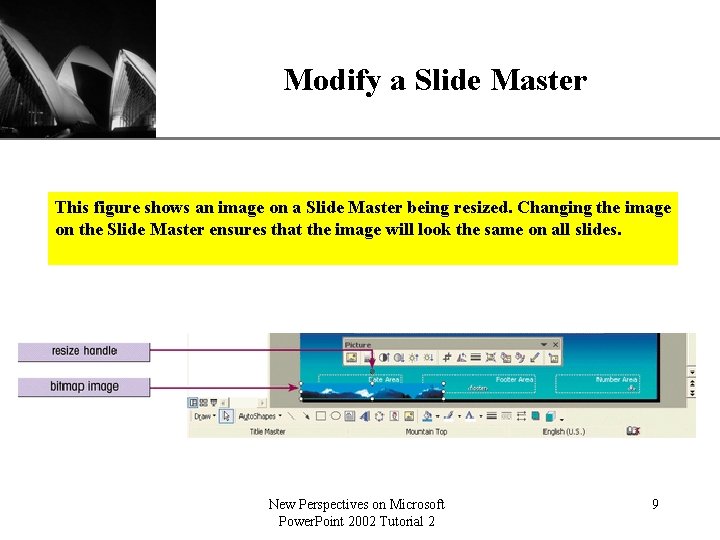
Modify a Slide Master XP This figure shows an image on a Slide Master being resized. Changing the image on the Slide Master ensures that the image will look the same on all slides. New Perspectives on Microsoft Power. Point 2002 Tutorial 2 9
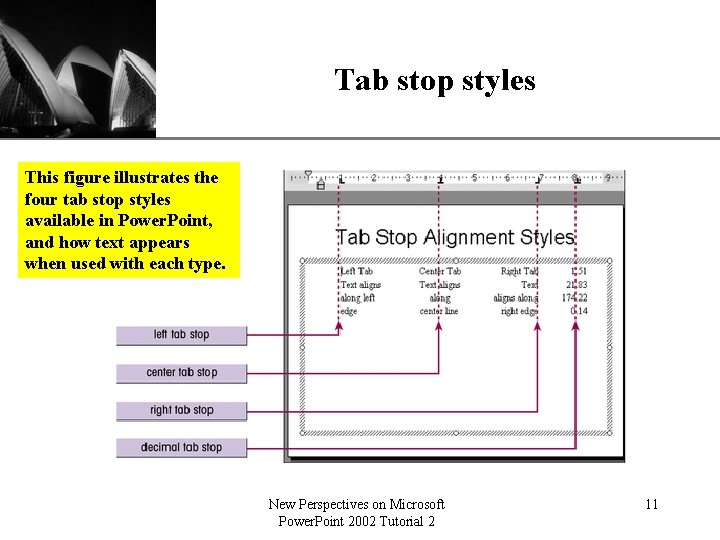
Insert tab stops to align text XP • A tab adds a specific amount of space between the left margin and the beginning of the text on a line. • A tab stop is the location to which the insertion point moves when you press the Tab key. • Power. Point supports four tab-stop alignment styles: left tab, center tab, right tab, and decimal tab. • The default tab stops on the ruler are left tabs. These can be moved, deleted, or replaced with a different tab stop style. New Perspectives on Microsoft Power. Point 2002 Tutorial 2 10
Tab stop styles XP This figure illustrates the four tab stop styles available in Power. Point, and how text appears when used with each type. New Perspectives on Microsoft Power. Point 2002 Tutorial 2 11
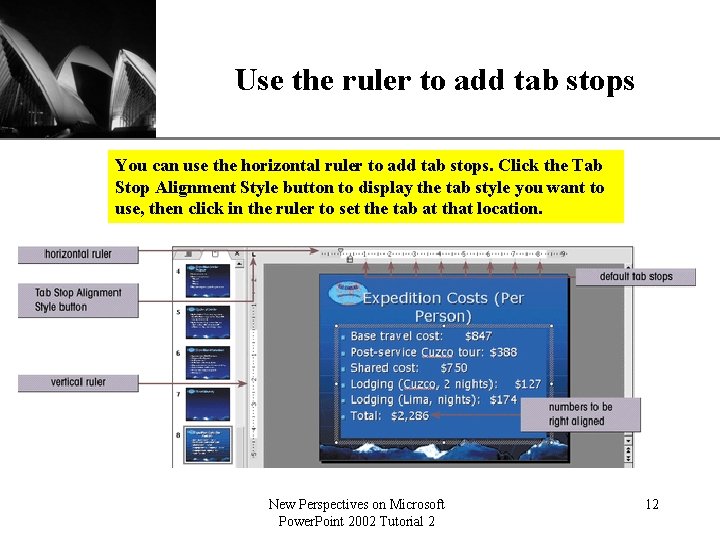
Use the ruler to add tab stops XP You can use the horizontal ruler to add tab stops. Click the Tab Stop Alignment Style button to display the tab style you want to use, then click in the ruler to set the tab at that location. New Perspectives on Microsoft Power. Point 2002 Tutorial 2 12
XP Change the layouts of existing slides • You might want to change the layout of a slide for a number of reasons, including adding a clip art placeholder so that you can insert a picture in a slide. • Power. Point enables you to easily change the layout of your slides using the pre-designed layouts in the Slide Layout Task Pane. • The available layouts include bulleted list slides, title slides, text and table slides, text and clip art slides, and more. New Perspectives on Microsoft Power. Point 2002 Tutorial 2 13
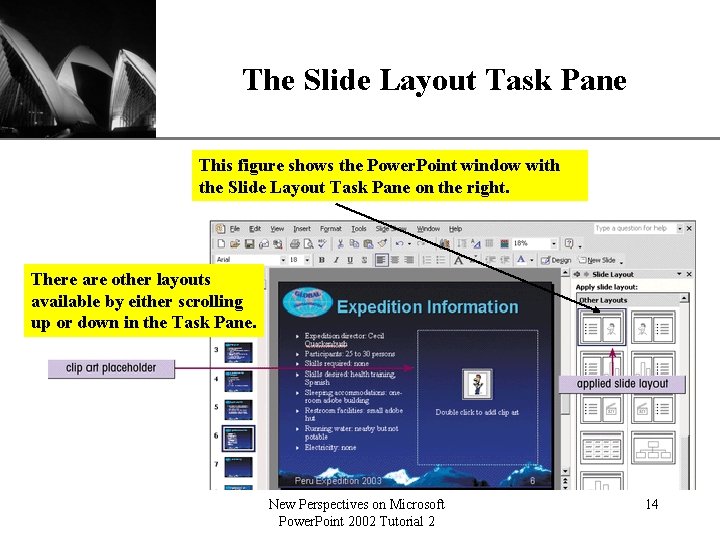
The Slide Layout Task Pane XP This figure shows the Power. Point window with the Slide Layout Task Pane on the right. There are other layouts available by either scrolling up or down in the Task Pane. New Perspectives on Microsoft Power. Point 2002 Tutorial 2 14
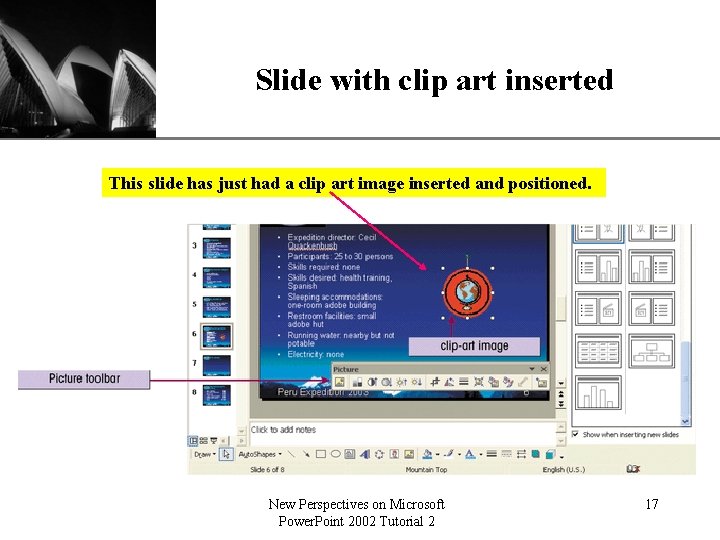
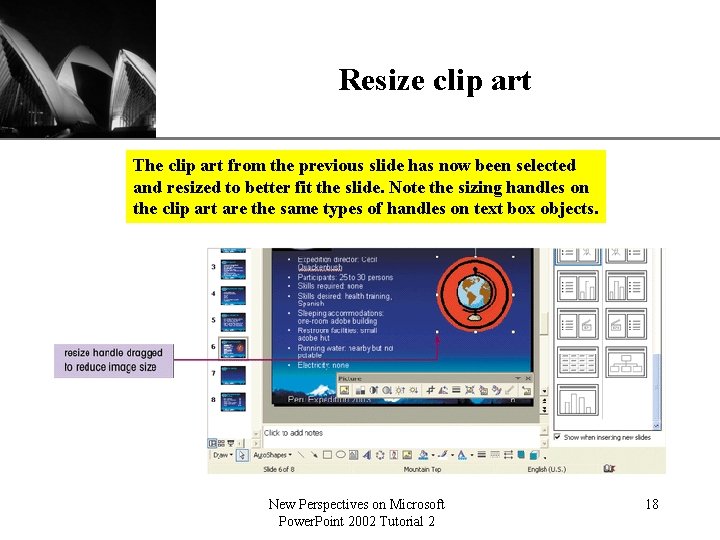
XP Insert and resize pictures and clip-art images • Power. Point comes with a gallery of clip art that you can insert into your presentations. • You can modify clip art by changing its size, grouping or ungrouping its components, changing some of its colors, or applying animation effects. • You can also insert and modify pictures from other file sources, such as a CD, into your presentations. • When you insert a picture or clip art, you might need to adjust the size of the object to fit your layout. – To do so, click on the resize handles that appear when the object is selected and drag in or out New Perspectives on Microsoft Power. Point 2002 Tutorial 2 15
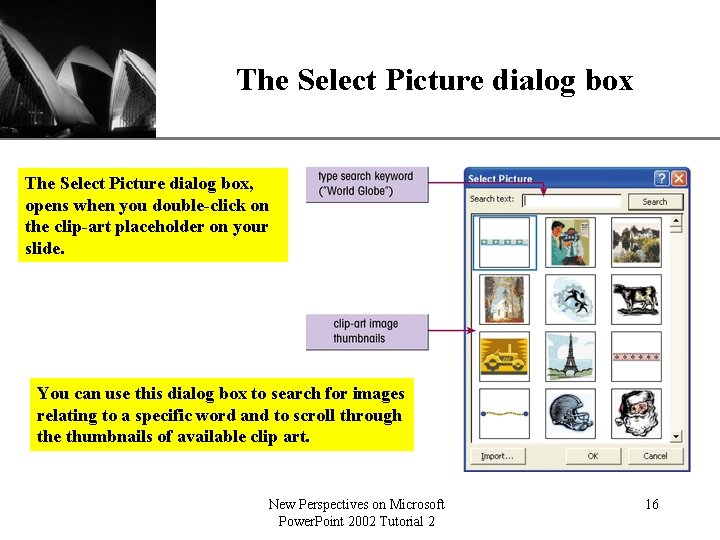
The Select Picture dialog box XP The Select Picture dialog box, opens when you double-click on the clip-art placeholder on your slide. You can use this dialog box to search for images relating to a specific word and to scroll through the thumbnails of available clip art. New Perspectives on Microsoft Power. Point 2002 Tutorial 2 16
Slide with clip art inserted XP This slide has just had a clip art image inserted and positioned. New Perspectives on Microsoft Power. Point 2002 Tutorial 2 17
Resize clip art XP The clip art from the previous slide has now been selected and resized to better fit the slide. Note the sizing handles on the clip art are the same types of handles on text box objects. New Perspectives on Microsoft Power. Point 2002 Tutorial 2 18
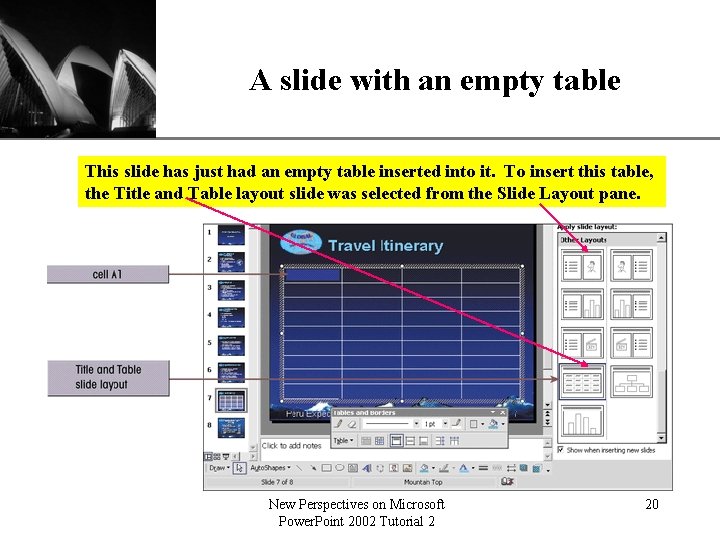
XP Create a table and a diagram • Power. Point enables you to insert tables into slides in much the same way that you would insert tables into a Word document. • Tables are useful on slides when you want to arrange information horizontally in rows and vertically in columns. • To insert a table: – Click the Table layout on the Slide Layout dialog box – Define the number of columns and rows – Add information to the table New Perspectives on Microsoft Power. Point 2002 Tutorial 2 19
XP A slide with an empty table This slide has just had an empty table inserted into it. To insert this table, the Title and Table layout slide was selected from the Slide Layout pane. New Perspectives on Microsoft Power. Point 2002 Tutorial 2 20
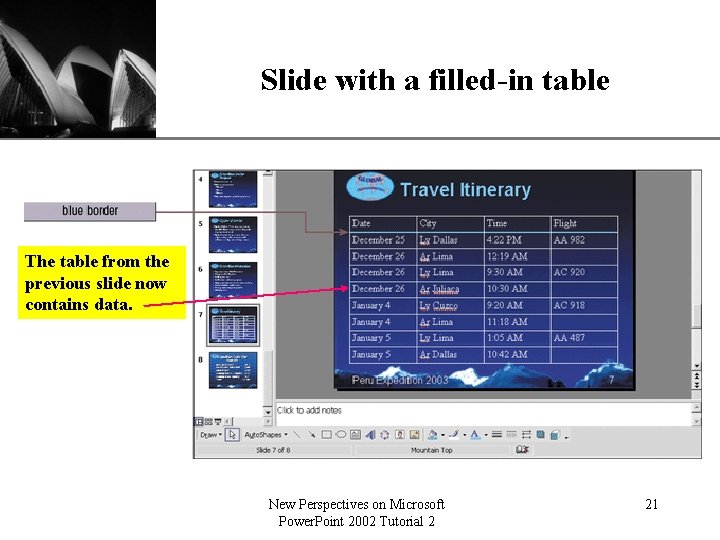
Slide with a filled-in table XP The table from the previous slide now contains data. New Perspectives on Microsoft Power. Point 2002 Tutorial 2 21
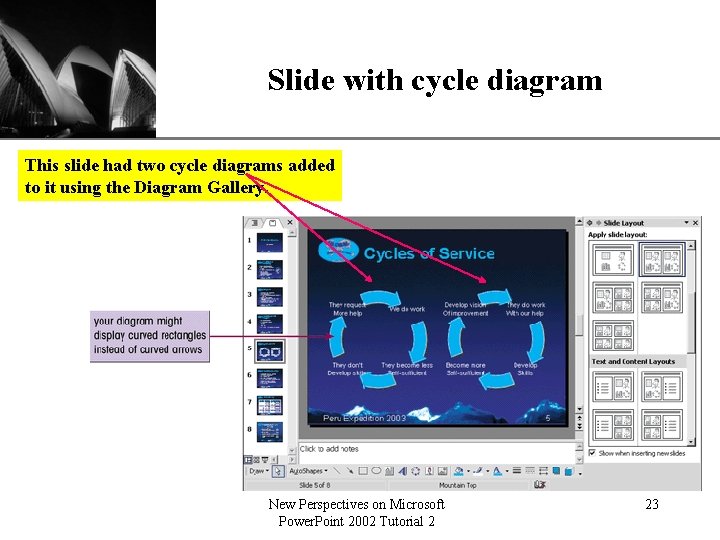
XP Use the Diagram Gallery • Power. Point also enables you to easily add structured illustrations through the use of the Diagram Gallery. • With the Diagram Gallery you can create organizational charts, radial diagrams, cycle diagrams, pyramid diagrams, Venn diagrams, and target diagrams. New Perspectives on Microsoft Power. Point 2002 Tutorial 2 22
Slide with cycle diagram XP This slide had two cycle diagrams added to it using the Diagram Gallery. New Perspectives on Microsoft Power. Point 2002 Tutorial 2 23
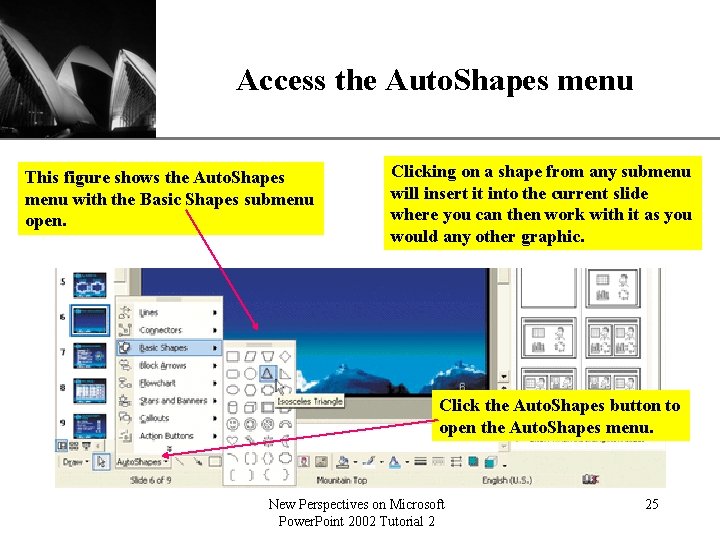
XP Draw and manipulate a simple graphic using Auto. Shapes • Power. Point's Auto. Shapes feature enables you to insert items such as lines, connectors, basic shapes, arrows, flowcharts, stars and banners, callouts, and action buttons. • You can draw precisely and quickly almost any shape you need using the Auto. Shapes feature. • All you have to do is click and drag. • You can move, resize, and delete Auto. Shapes as you would clip art or other graphics. • Power. Point also gives you options to change the colors, lines, and orientation of the object to your preference. New Perspectives on Microsoft Power. Point 2002 Tutorial 2 24
Access the Auto. Shapes menu This figure shows the Auto. Shapes menu with the Basic Shapes submenu open. XP Clicking on a shape from any submenu will insert it into the current slide where you can then work with it as you would any other graphic. Click the Auto. Shapes button to open the Auto. Shapes menu. New Perspectives on Microsoft Power. Point 2002 Tutorial 2 25
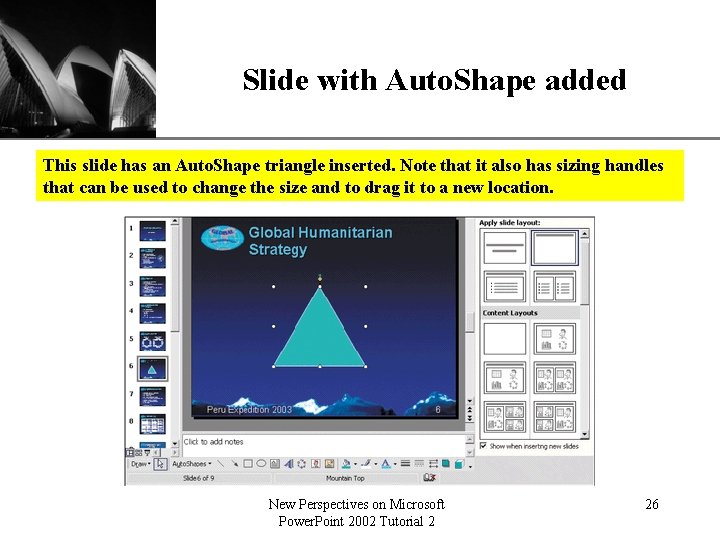
Slide with Auto. Shape added XP This slide has an Auto. Shape triangle inserted. Note that it also has sizing handles that can be used to change the size and to drag it to a new location. New Perspectives on Microsoft Power. Point 2002 Tutorial 2 26
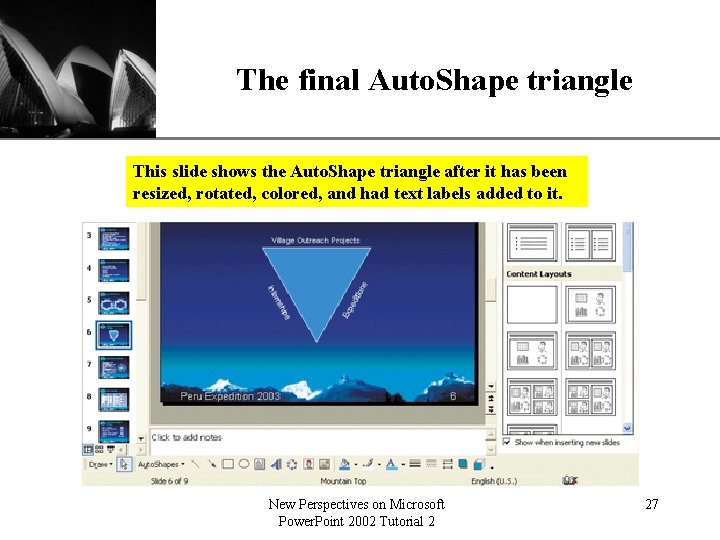
The final Auto. Shape triangle XP This slide shows the Auto. Shape triangle after it has been resized, rotated, colored, and had text labels added to it. New Perspectives on Microsoft Power. Point 2002 Tutorial 2 27
XP Use a summary slide • A summary slide summarizes your key points by displaying the titles of all or most of the slides in your presentation. • You can also use the summary slide feature to generate a table of contents to place at the beginning of the presentation. • Power. Point can automatically generate a summary slide. New Perspectives on Microsoft Power. Point 2002 Tutorial 2 28
XP Create a summary slide • To create a summary slide: – Go to the Slide Sorter View – Select the slides with the titles you want as items in the summary slide – Click the Summary Slide button on the Slide Sorter toolbar. – Power. Point inserts a new slide in front of the first selected slide New Perspectives on Microsoft Power. Point 2002 Tutorial 2 29
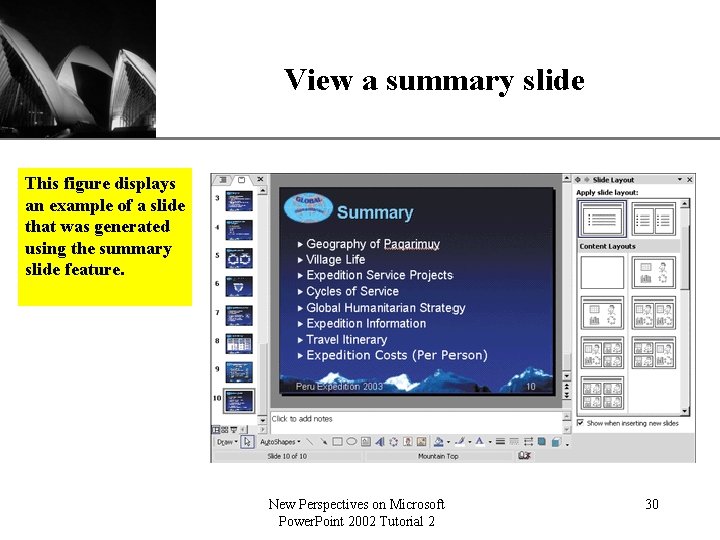
View a summary slide XP This figure displays an example of a slide that was generated using the summary slide feature. New Perspectives on Microsoft Power. Point 2002 Tutorial 2 30