
XINFO The IT Information System How to use
- Slides: 189
XINFO The IT Information System How to use XINFO HORIZONT Software HORIZONT for Datacenters 1 Garmischer Str. 8 D- 80339 München Tel ++49(0)89 / 540 162 - 0 ® www. horizont-it. com XINFO
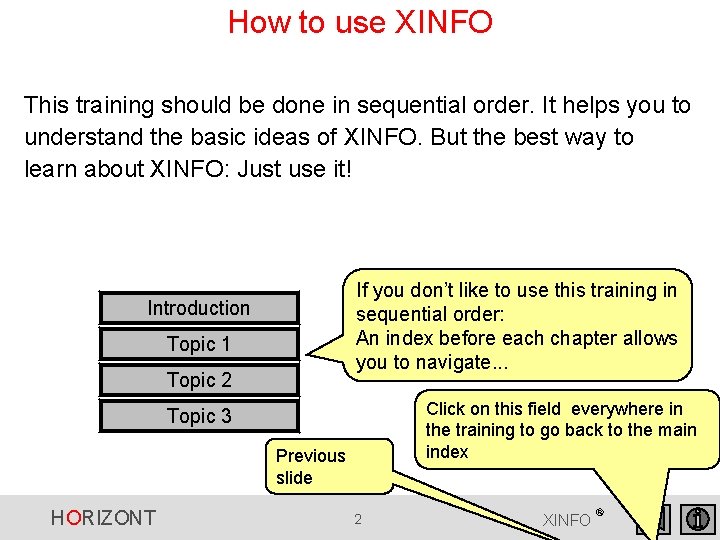
How to use XINFO This training should be done in sequential order. It helps you to understand the basic ideas of XINFO. But the best way to learn about XINFO: Just use it! If you don’t like to use this training in sequential order: An index before each chapter allows you to navigate. . . Introduction Topic 1 Topic 2 Click on this field everywhere in the training to go back to the main index Topic 3 Previous slide HORIZONT 2 XINFO ®
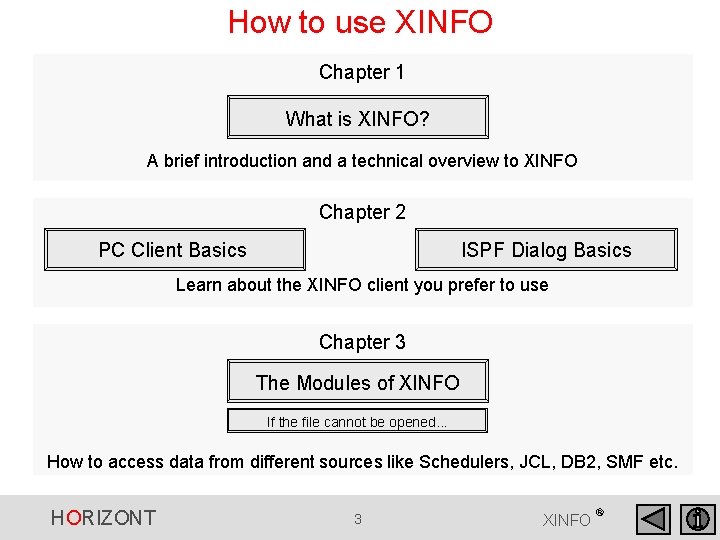
How to use XINFO Chapter 1 What is XINFO? A brief introduction and a technical overview to XINFO Chapter 2 PC Client Basics ISPF Dialog Basics Learn about the XINFO client you prefer to use Chapter 3 The Modules of XINFO If the file cannot be opened. . . How to access data from different sources like Schedulers, JCL, DB 2, SMF etc. HORIZONT 3 XINFO ®
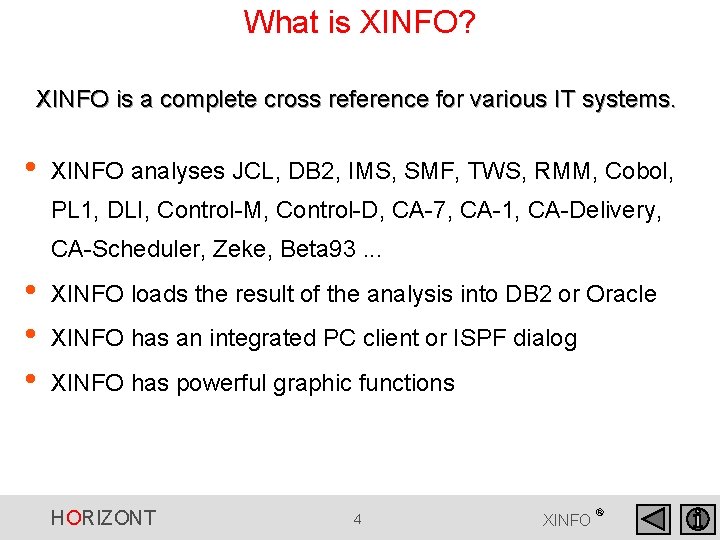
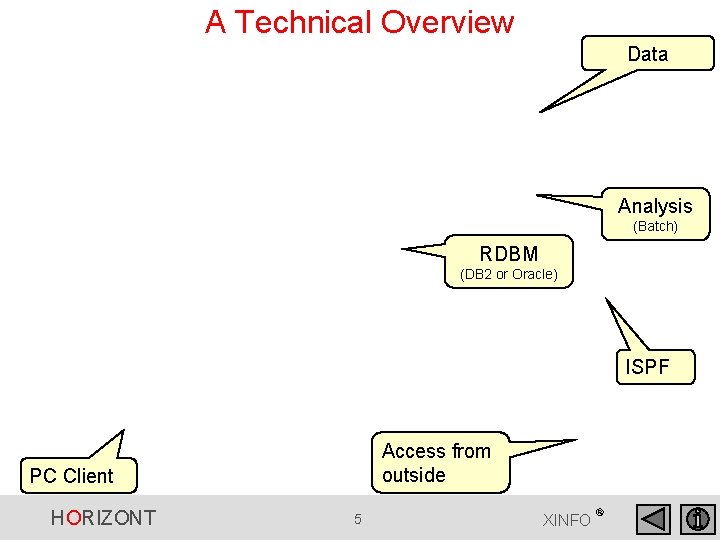
What is XINFO? XINFO is a complete cross reference for various IT systems. • XINFO analyses JCL, DB 2, IMS, SMF, TWS, RMM, Cobol, PL 1, DLI, Control-M, Control-D, CA-7, CA-1, CA-Delivery, CA-Scheduler, Zeke, Beta 93. . . • • • XINFO loads the result of the analysis into DB 2 or Oracle XINFO has an integrated PC client or ISPF dialog XINFO has powerful graphic functions HORIZONT 4 XINFO ®
A Technical Overview Data Analysis (Batch) RDBM (DB 2 or Oracle) ISPF Access from outside PC Client HORIZONT 5 XINFO ®
What is XINFO good for ? XINFO enables you to answer questions like: • • Which jobs use file A. B. C? Which jobs use program PGM 1? When was file A. B. C used in which jobs? Which DB 2 tables are used in which jobs? Which jobs were active last Monday at 3. 30? Which programs are calling sub program XYZ? . . . HORIZONT 6 XINFO ®
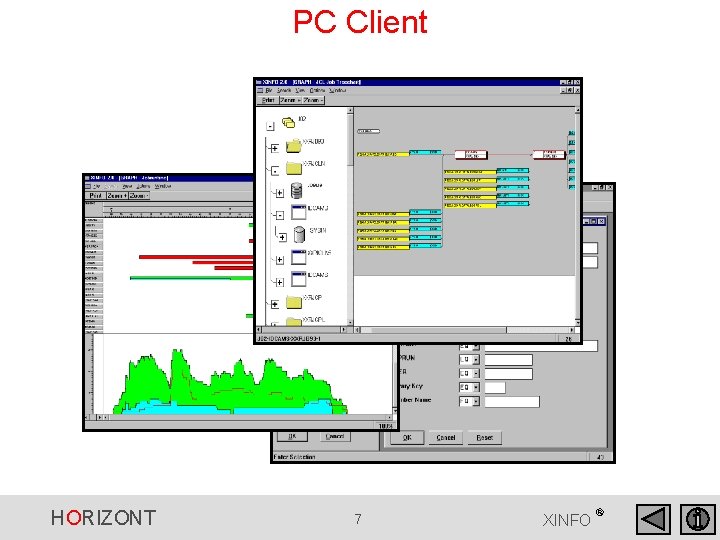
PC Client HORIZONT 7 XINFO ®
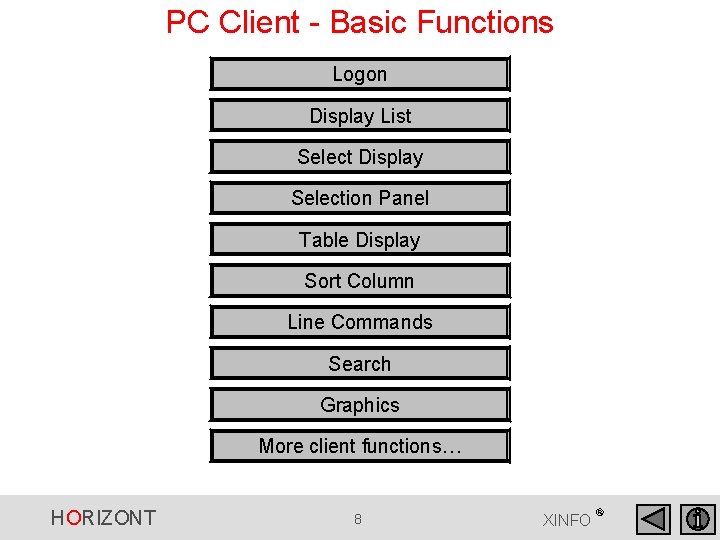
PC Client - Basic Functions Logon Display List Select Display Selection Panel Table Display Sort Column Line Commands Search Graphics More client functions… HORIZONT 8 XINFO ®
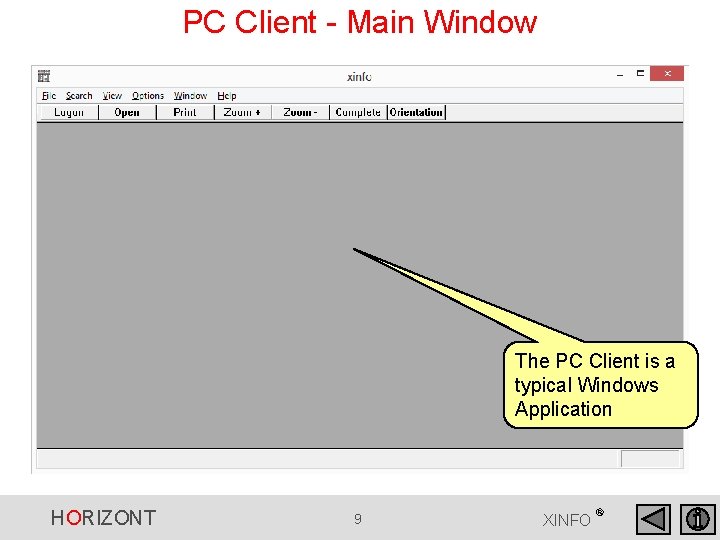
PC Client - Main Window The PC Client is a typical Windows Application HORIZONT 9 XINFO ®
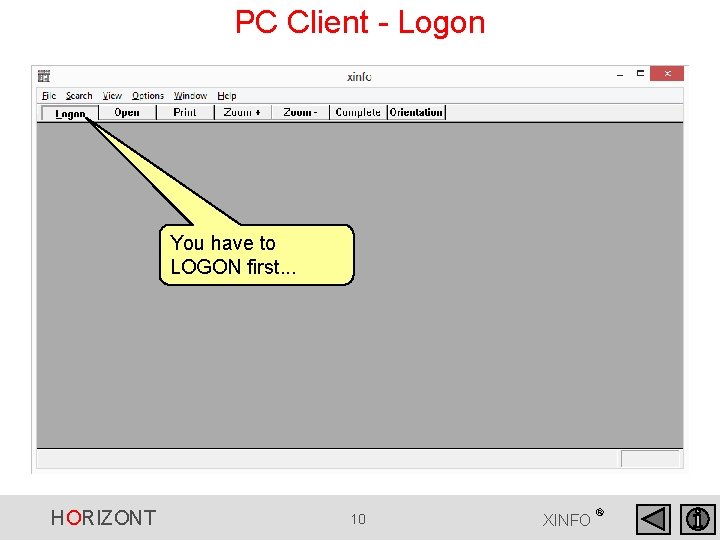
PC Client - Logon You have to LOGON first. . . HORIZONT 10 XINFO ®
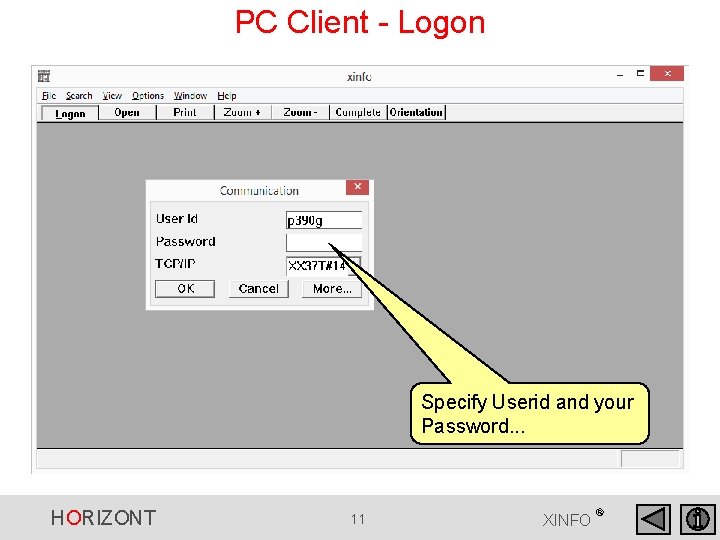
PC Client - Logon Specify Userid and your Password. . . HORIZONT 11 XINFO ®
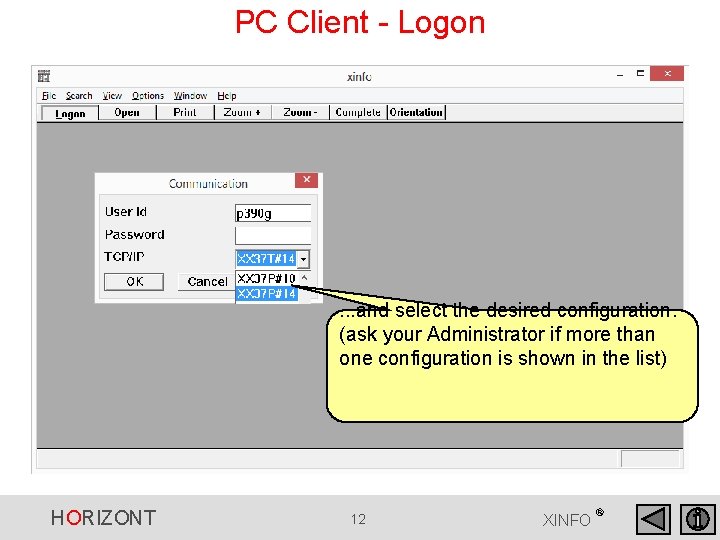
PC Client - Logon . . . and select the desired configuration. (ask your Administrator if more than one configuration is shown in the list) HORIZONT 12 XINFO ®
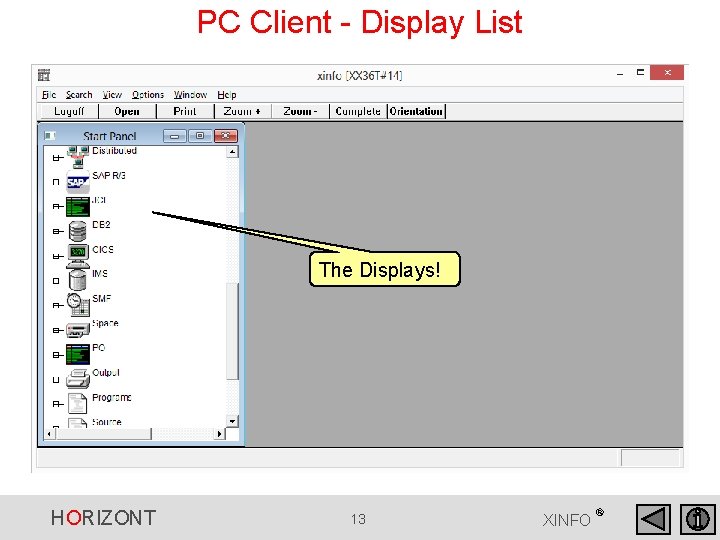
PC Client - Display List The Displays! HORIZONT 13 XINFO ®
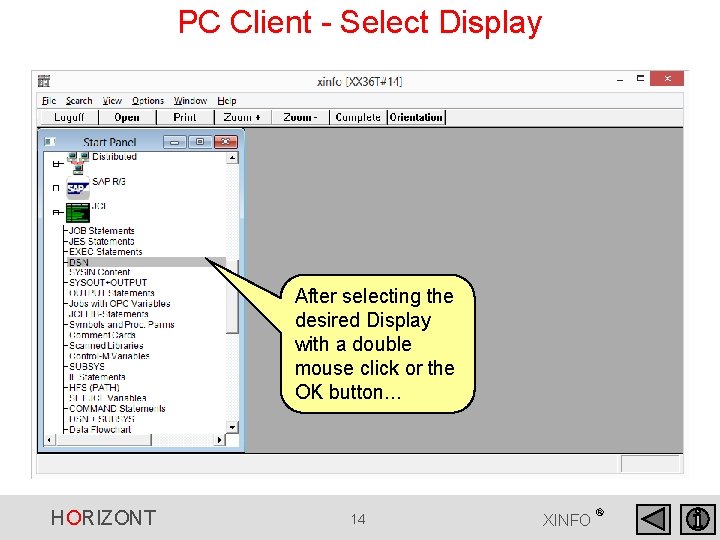
PC Client - Select Display After selecting the desired Display with a double mouse click or the OK button. . . HORIZONT 14 XINFO ®
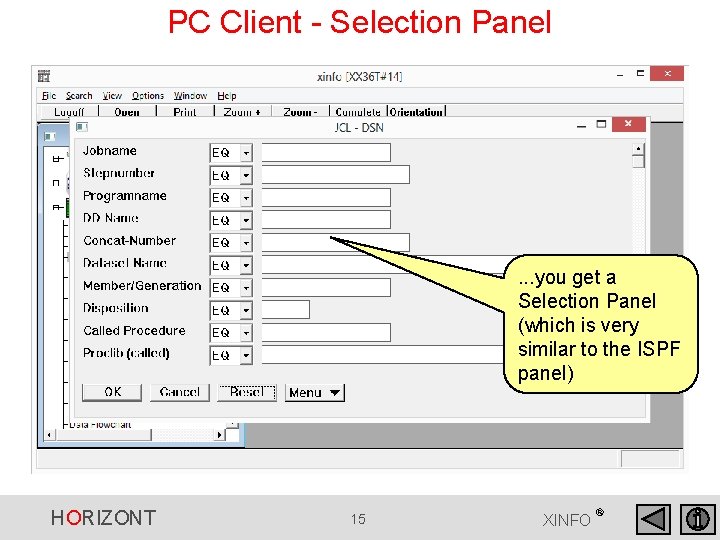
PC Client - Selection Panel . . . you get a Selection Panel (which is very similar to the ISPF panel) HORIZONT 15 XINFO ®
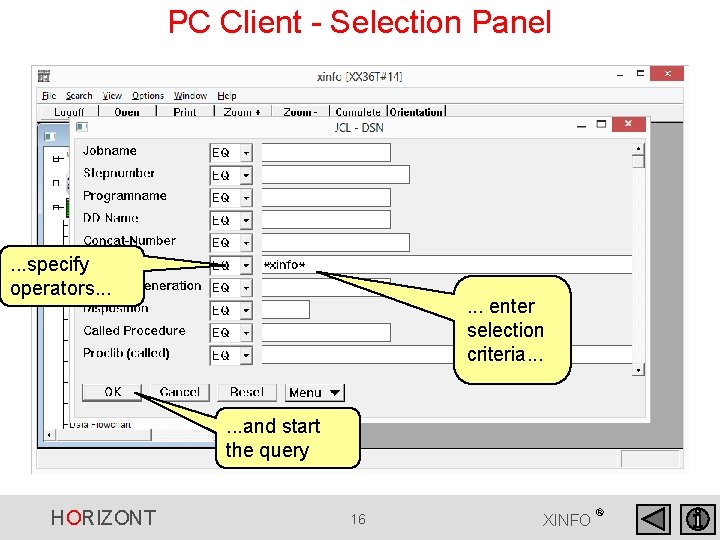
PC Client - Selection Panel . . . specify operators. . . enter selection criteria. . . and start the query HORIZONT 16 XINFO ®
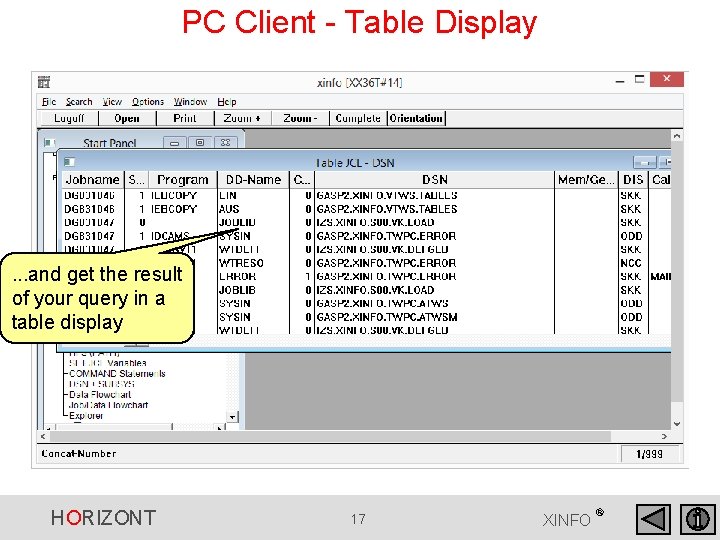
PC Client - Table Display . . . and get the result of your query in a table display HORIZONT 17 XINFO ®
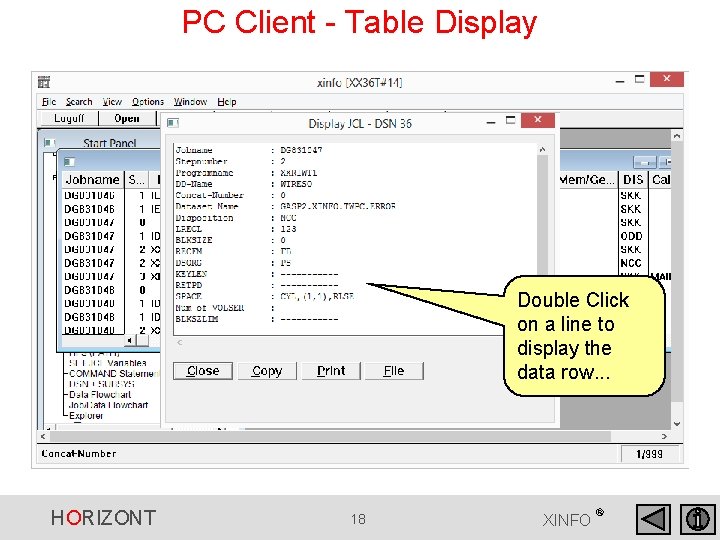
PC Client - Table Display Double Click on a line to display the data row. . . HORIZONT 18 XINFO ®
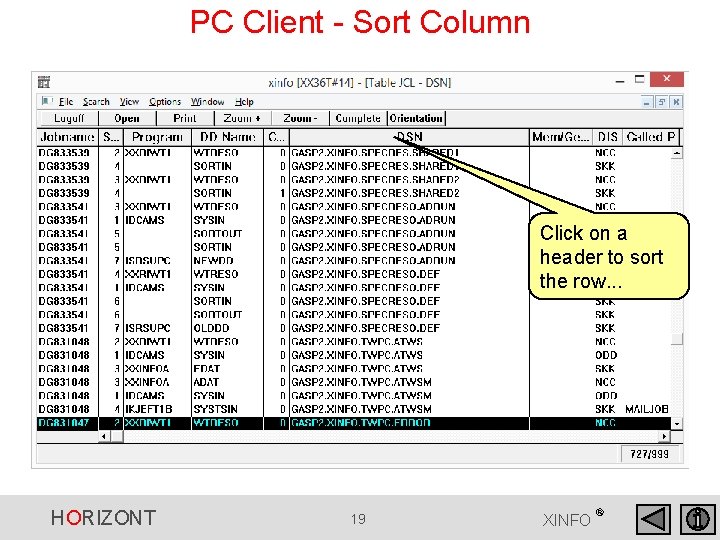
PC Client - Sort Column Click on a header to sort the row. . . HORIZONT 19 XINFO ®
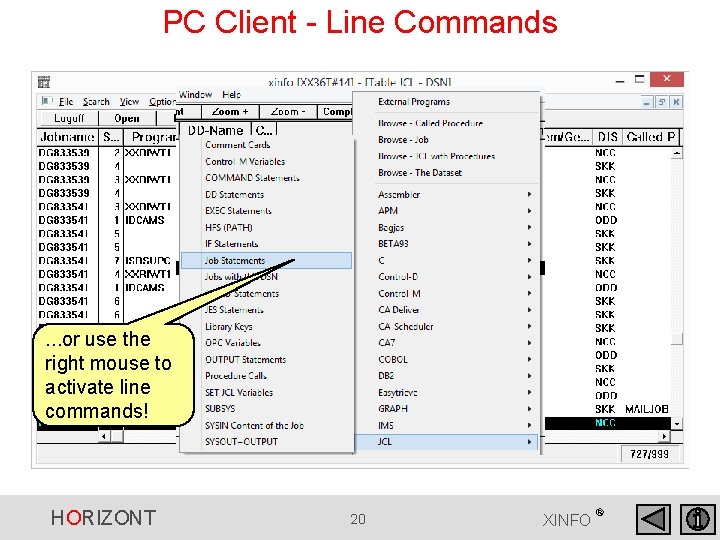
PC Client - Line Commands . . . or use the right mouse to activate line commands! HORIZONT 20 XINFO ®
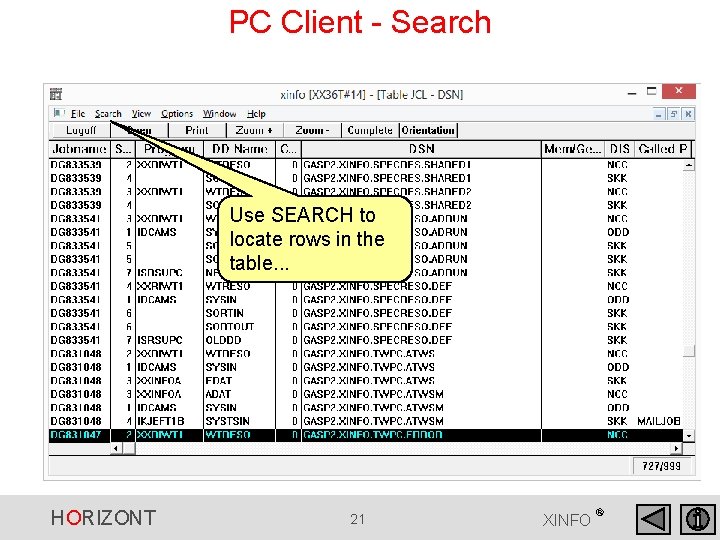
PC Client - Search Use SEARCH to locate rows in the table. . . HORIZONT 21 XINFO ®
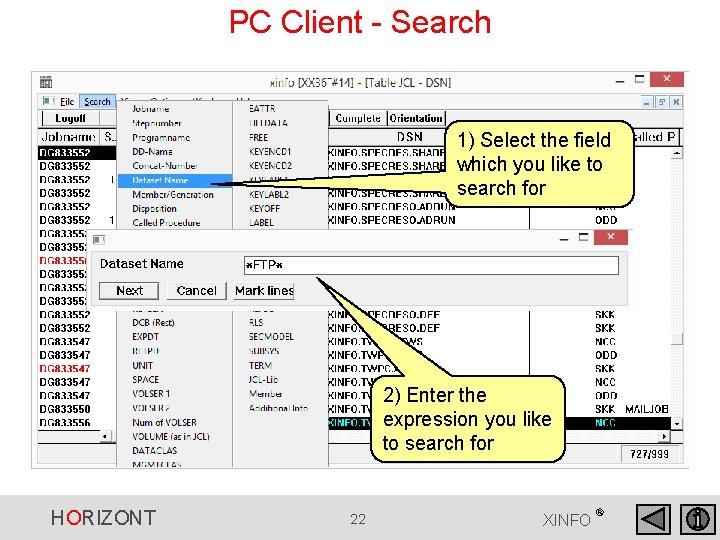
PC Client - Search 1) Select the field which you like to search for 2) Enter the expression you like to search for HORIZONT 22 XINFO ®
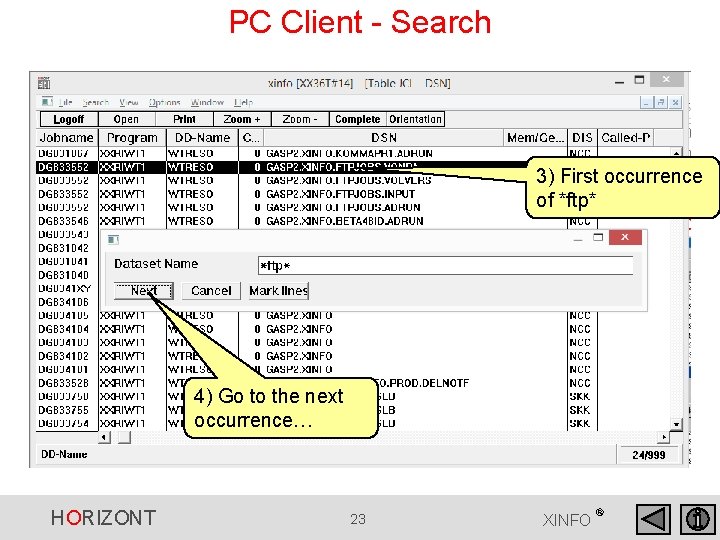
PC Client - Search 3) First occurrence of *ftp* 4) Go to the next occurrence… HORIZONT 23 XINFO ®
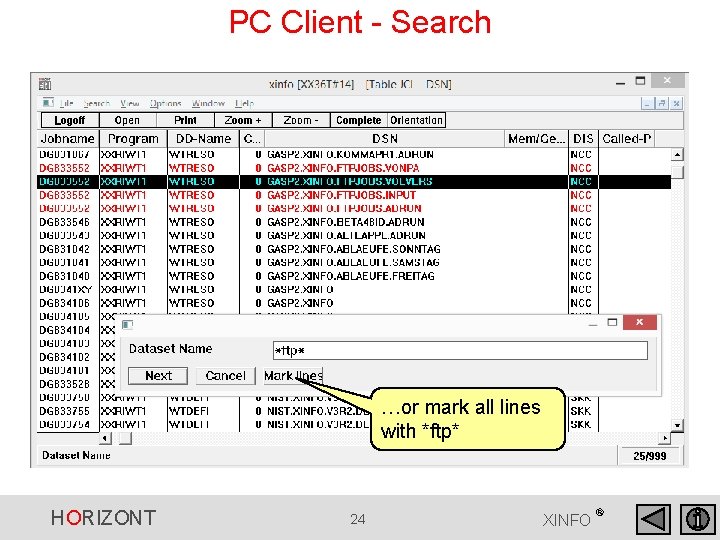
PC Client - Search …or mark all lines with *ftp* HORIZONT 24 XINFO ®
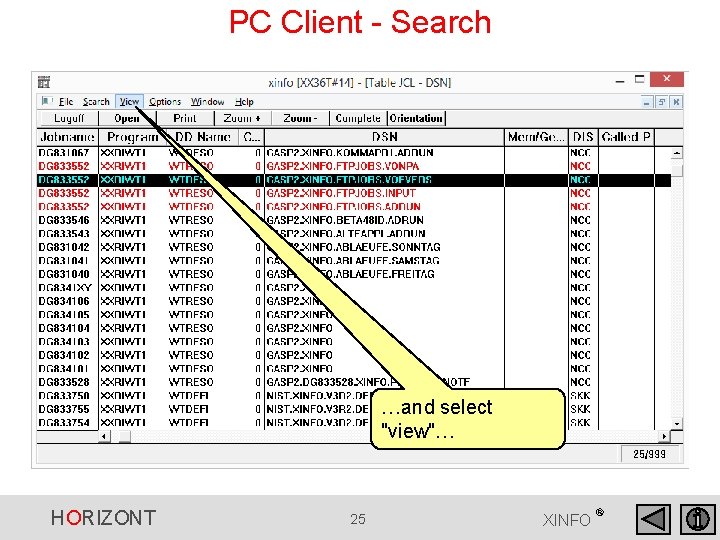
PC Client - Search …and select "view"… HORIZONT 25 XINFO ®
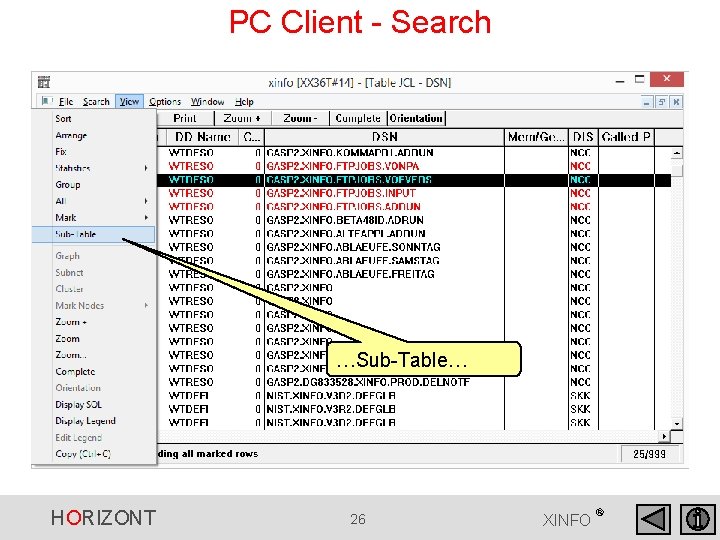
PC Client - Search …Sub-Table… HORIZONT 26 XINFO ®
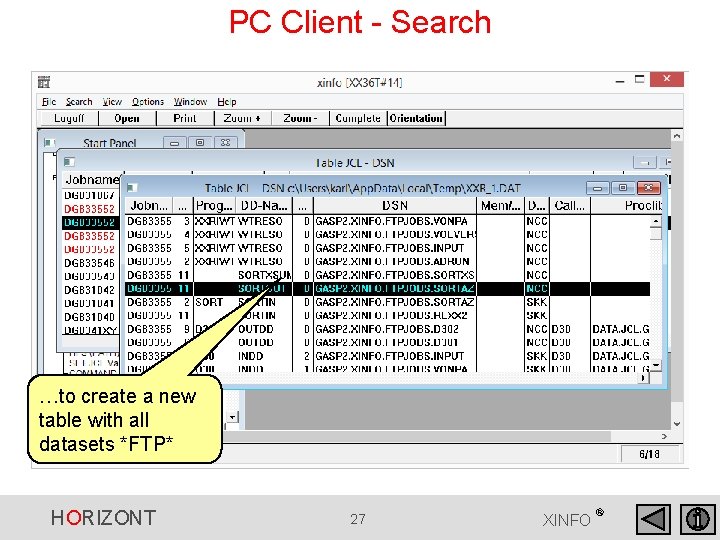
PC Client - Search …to create a new table with all datasets *FTP* HORIZONT 27 XINFO ®
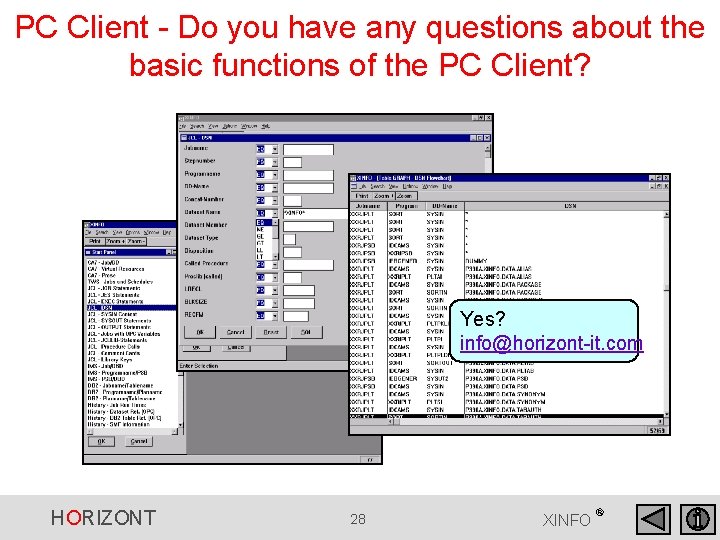
PC Client - Do you have any questions about the basic functions of the PC Client? Yes? info@horizont-it. com HORIZONT 28 XINFO ®
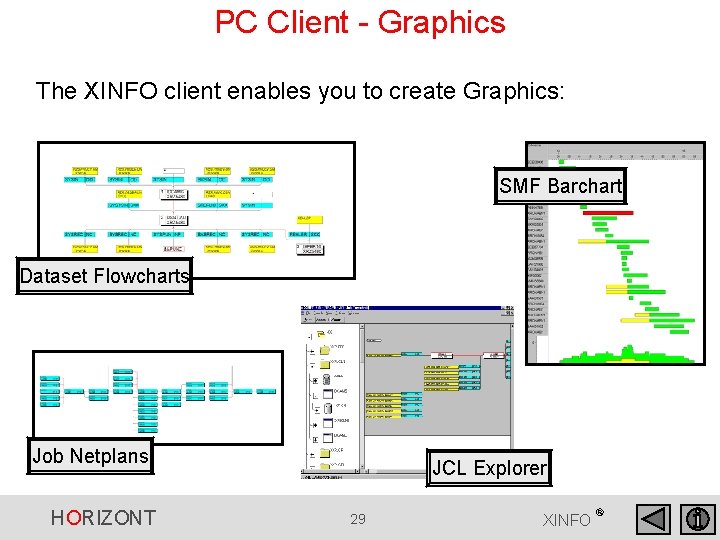
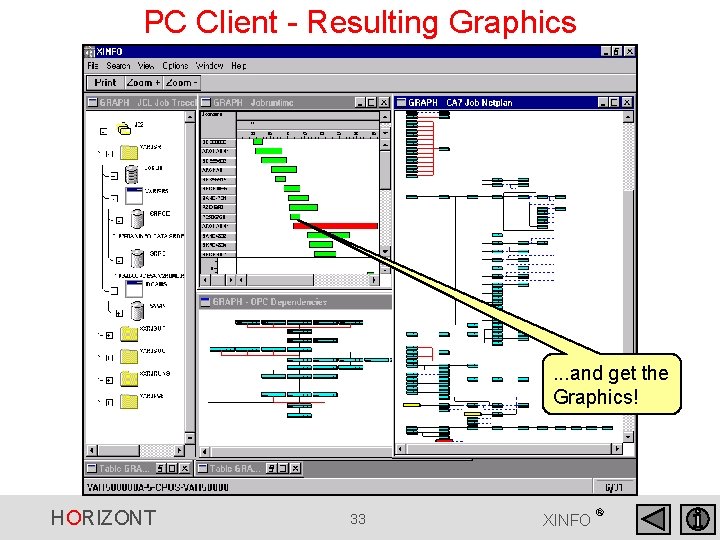
PC Client - Graphics The XINFO client enables you to create Graphics: SMF Barchart Dataset Flowcharts Job Netplans HORIZONT JCL Explorer 29 XINFO ®
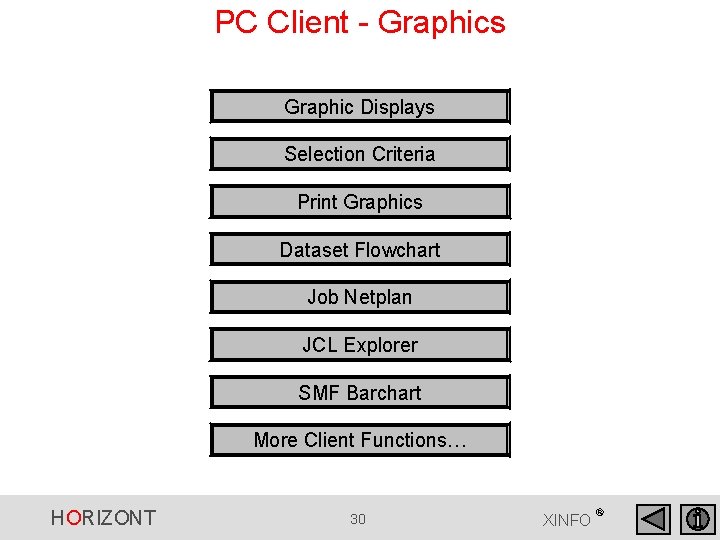
PC Client - Graphics Graphic Displays Selection Criteria Print Graphics Dataset Flowchart Job Netplan JCL Explorer SMF Barchart More Client Functions… HORIZONT 30 XINFO ®
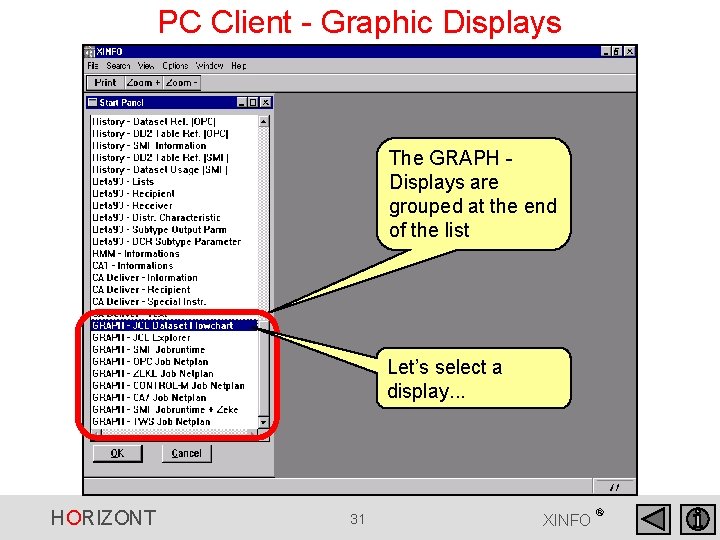
PC Client - Graphic Displays The GRAPH Displays are grouped at the end of the list Let’s select a display. . . HORIZONT 31 XINFO ®
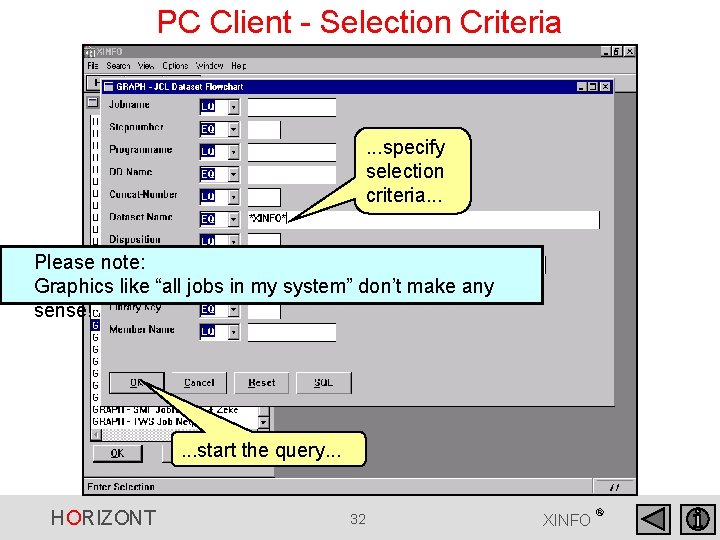
PC Client - Selection Criteria . . . specify selection criteria. . . Please note: Graphics like “all jobs in my system” don’t make any sense! . . . start the query. . . HORIZONT 32 XINFO ®
PC Client - Resulting Graphics . . . and get the Graphics! HORIZONT 33 XINFO ®
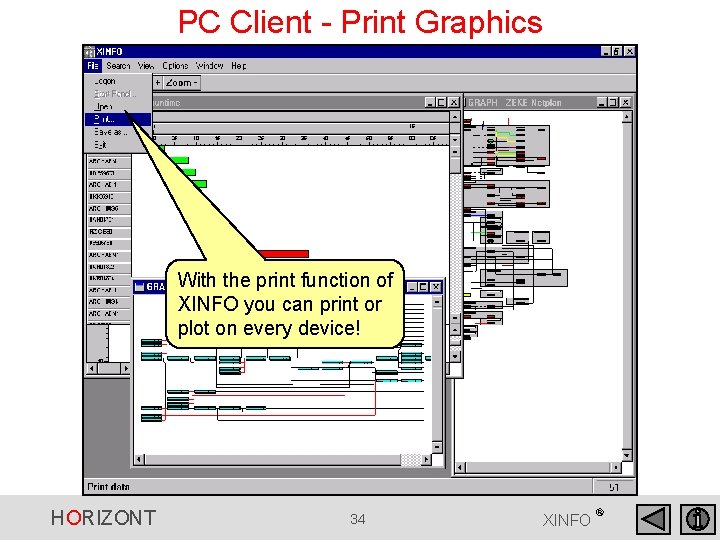
PC Client - Print Graphics With the print function of XINFO you can print or plot on every device! HORIZONT 34 XINFO ®
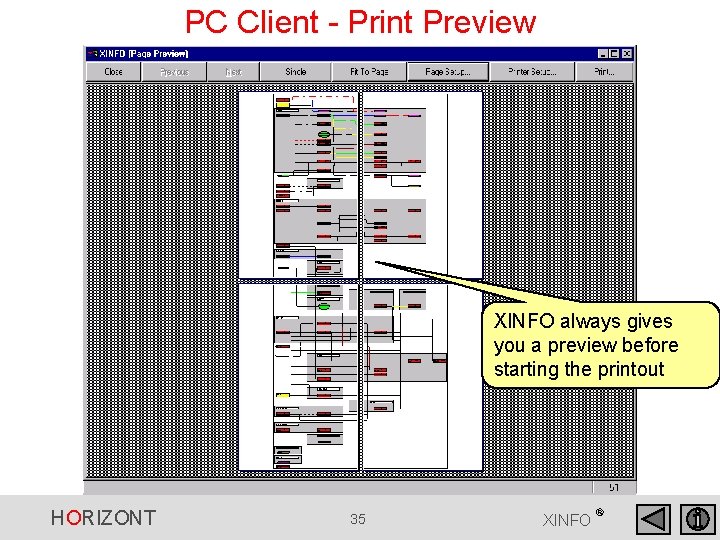
PC Client - Print Preview XINFO always gives you a preview before starting the printout HORIZONT 35 XINFO ®
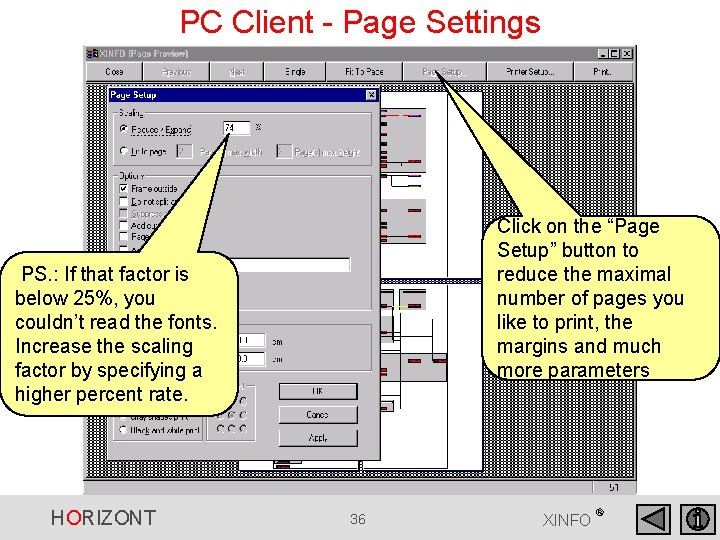
PC Client - Page Settings Click on the “Page Setup” button to reduce the maximal number of pages you like to print, the margins and much more parameters PS. : If that factor is below 25%, you couldn’t read the fonts. Increase the scaling factor by specifying a higher percent rate. HORIZONT 36 XINFO ®
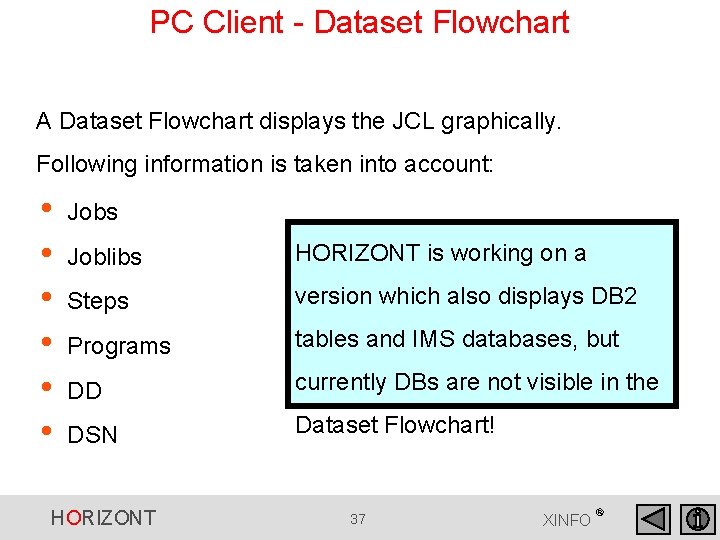
PC Client - Dataset Flowchart A Dataset Flowchart displays the JCL graphically. Following information is taken into account: • • • Jobs Joblibs HORIZONT is working on a Steps version which also displays DB 2 Programs tables and IMS databases, but DD currently DBs are not visible in the DSN Dataset Flowchart! HORIZONT 37 XINFO ®
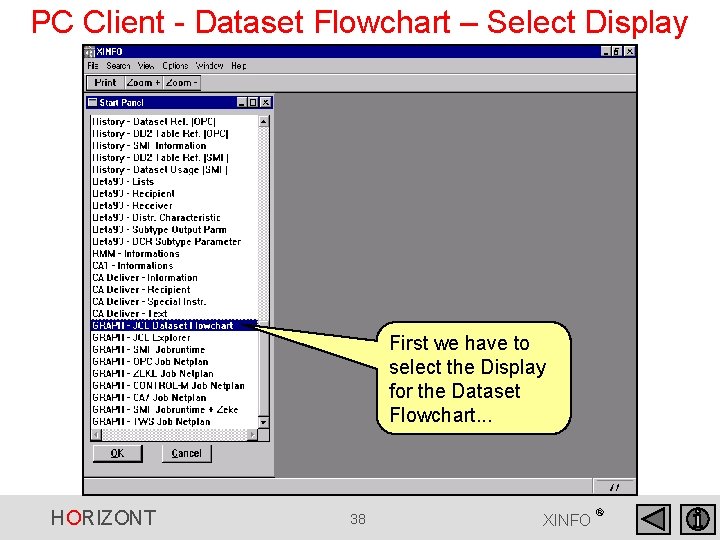
PC Client - Dataset Flowchart – Select Display First we have to select the Display for the Dataset Flowchart. . . HORIZONT 38 XINFO ®
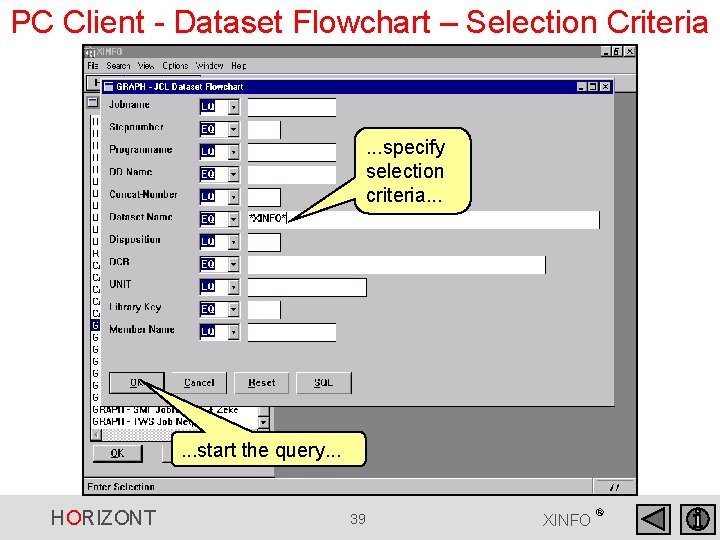
PC Client - Dataset Flowchart – Selection Criteria . . . specify selection criteria. . . start the query. . . HORIZONT 39 XINFO ®
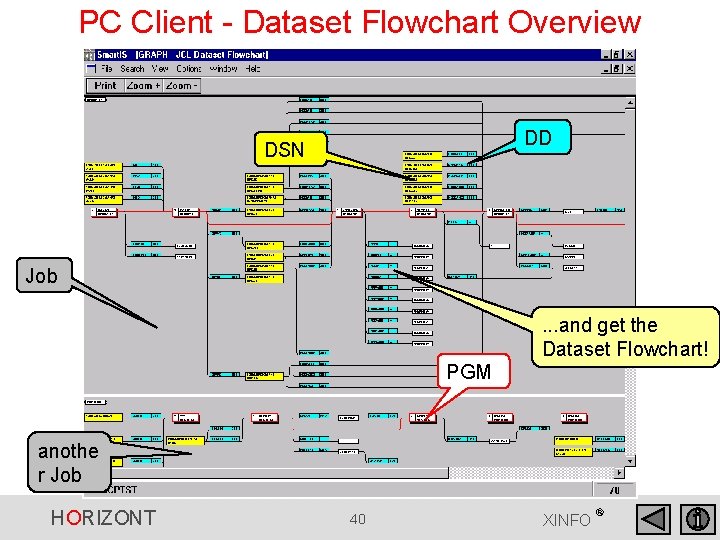
PC Client - Dataset Flowchart Overview DD DSN Job PGM . . . and get the Dataset Flowchart! anothe r Job HORIZONT 40 XINFO ®
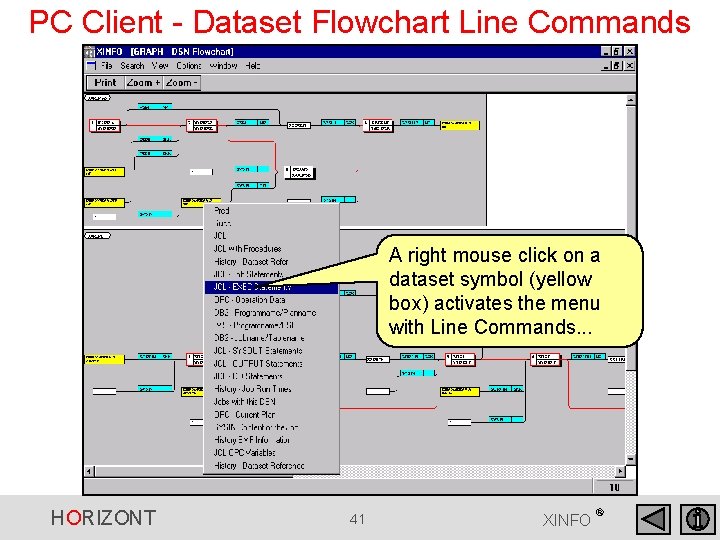
PC Client - Dataset Flowchart Line Commands A right mouse click on a dataset symbol (yellow box) activates the menu with Line Commands. . . HORIZONT 41 XINFO ®
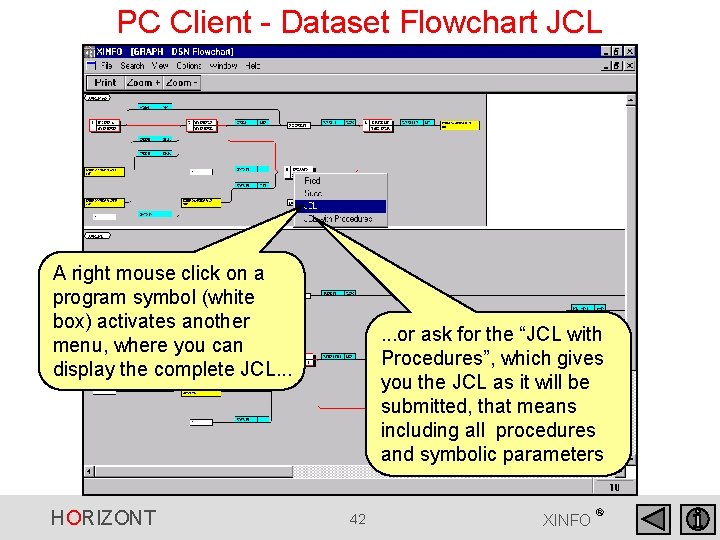
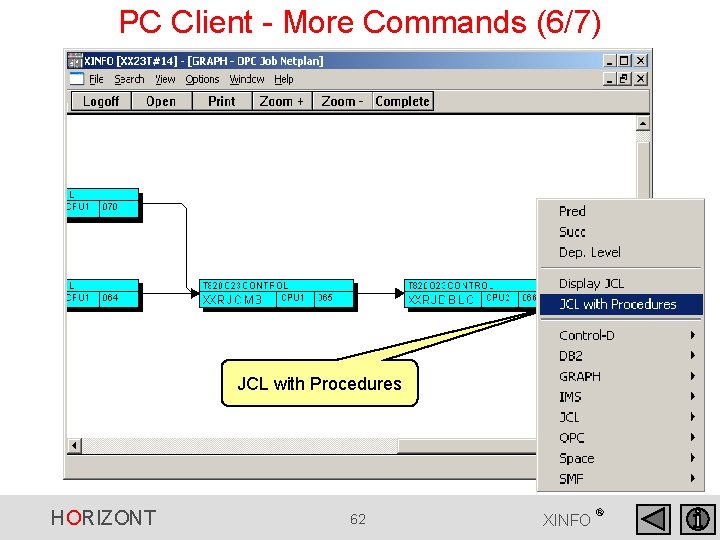
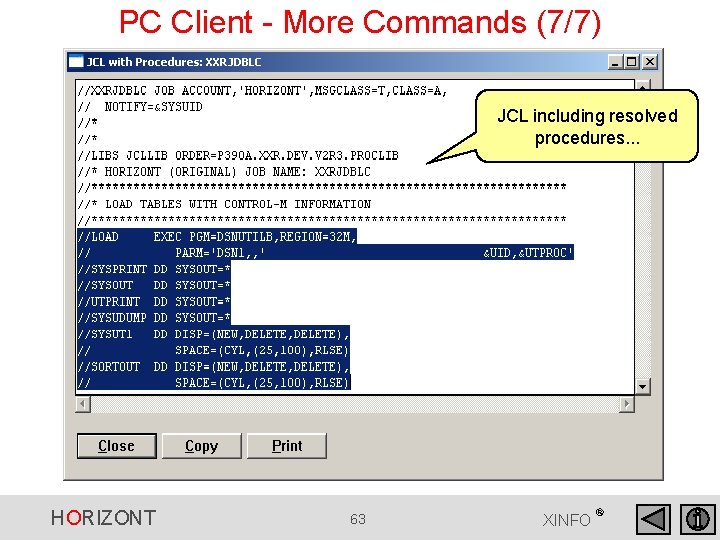
PC Client - Dataset Flowchart JCL A right mouse click on a program symbol (white box) activates another menu, where you can display the complete JCL. . . HORIZONT . . . or ask for the “JCL with Procedures”, which gives you the JCL as it will be submitted, that means including all procedures and symbolic parameters 42 XINFO ®
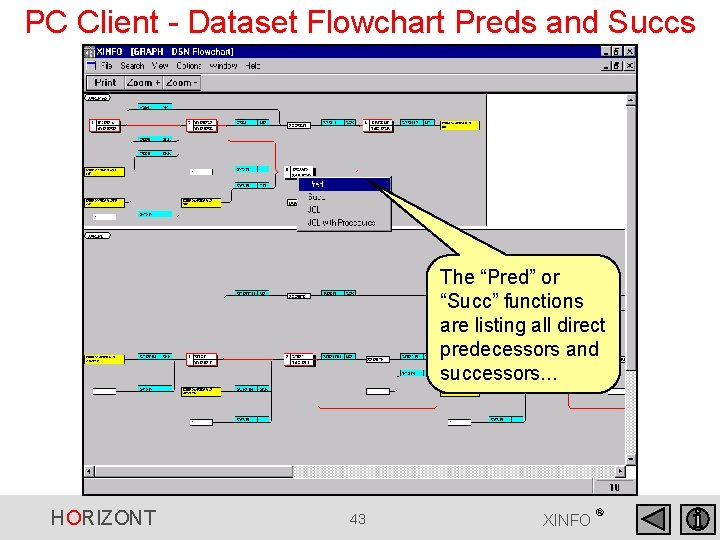
PC Client - Dataset Flowchart Preds and Succs The “Pred” or “Succ” functions are listing all direct predecessors and successors. . . HORIZONT 43 XINFO ®
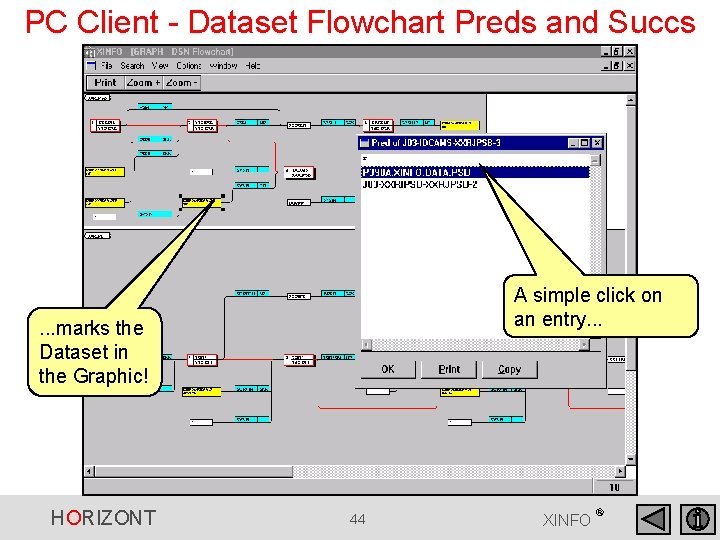
PC Client - Dataset Flowchart Preds and Succs A simple click on an entry. . . marks the Dataset in the Graphic! HORIZONT 44 XINFO ®
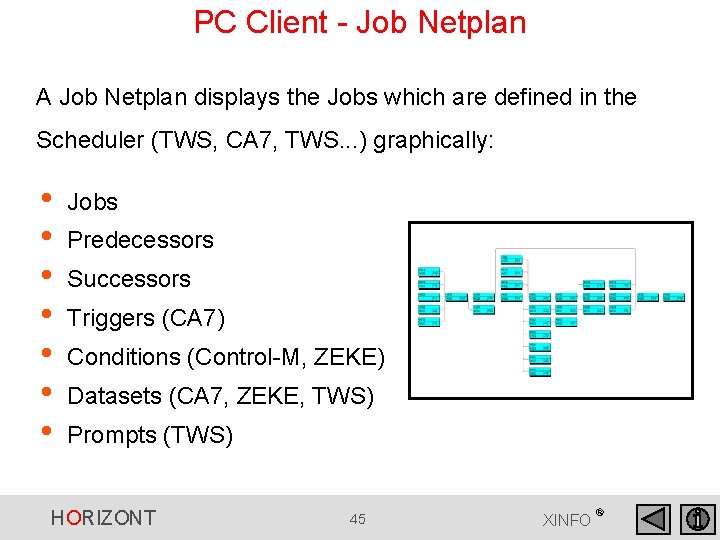
PC Client - Job Netplan A Job Netplan displays the Jobs which are defined in the Scheduler (TWS, CA 7, TWS. . . ) graphically: • • Jobs Predecessors Successors Triggers (CA 7) Conditions (Control-M, ZEKE) Datasets (CA 7, ZEKE, TWS) Prompts (TWS) HORIZONT 45 XINFO ®
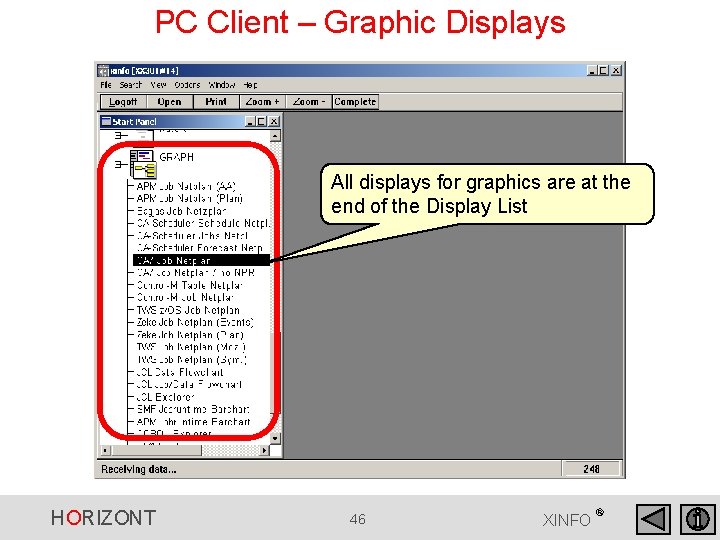
PC Client – Graphic Displays All displays for graphics are at the end of the Display List HORIZONT 46 XINFO ®
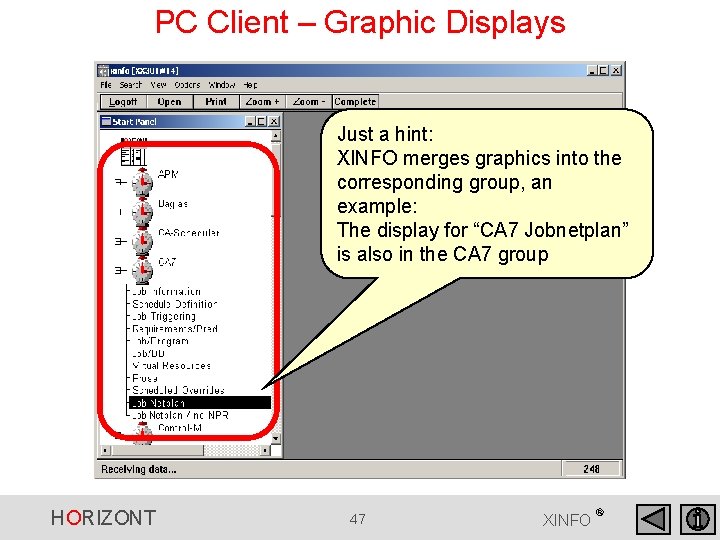
PC Client – Graphic Displays Just a hint: XINFO merges graphics into the corresponding group, an example: The display for “CA 7 Jobnetplan” is also in the CA 7 group HORIZONT 47 XINFO ®
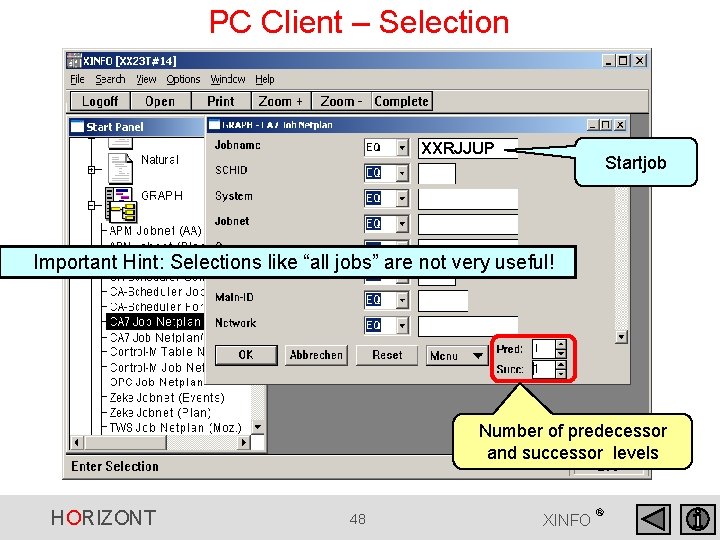
PC Client – Selection XXRJJUP Startjob Important Hint: Selections like “all jobs” are not very useful! Number of predecessor and successor levels HORIZONT 48 XINFO ®
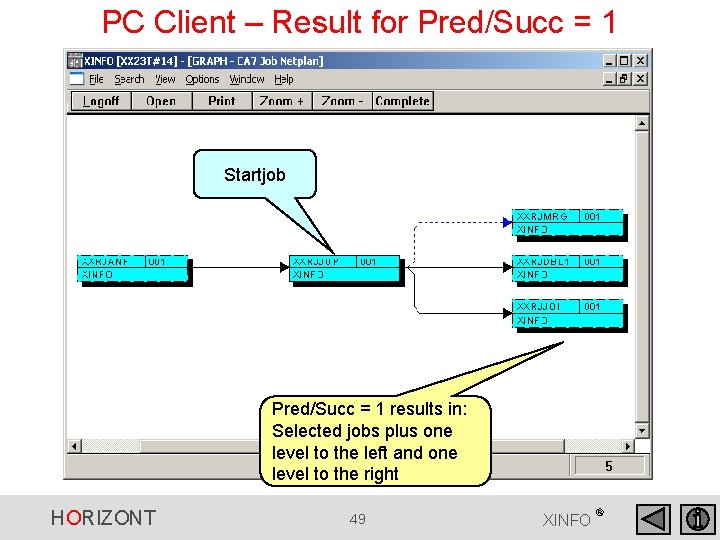
PC Client – Result for Pred/Succ = 1 Startjob Pred/Succ = 1 results in: Selected jobs plus one level to the left and one level to the right HORIZONT 49 XINFO ®
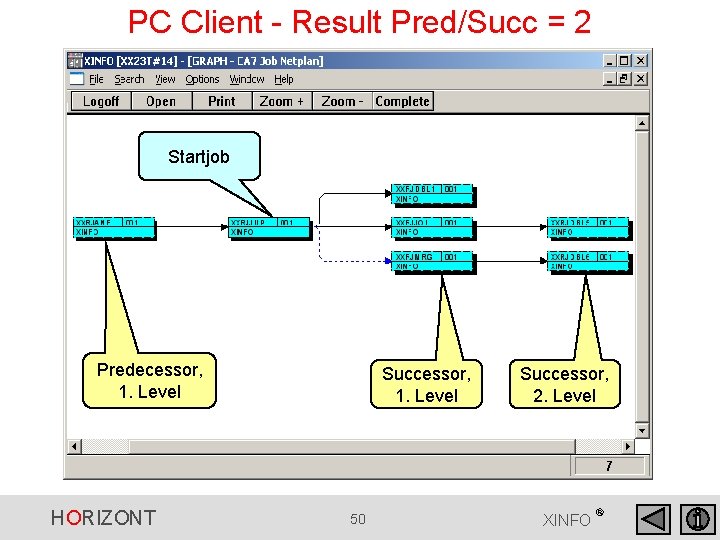
PC Client - Result Pred/Succ = 2 Startjob Predecessor, 1. Level HORIZONT Successor, 1. Level 50 Successor, 2. Level XINFO ®
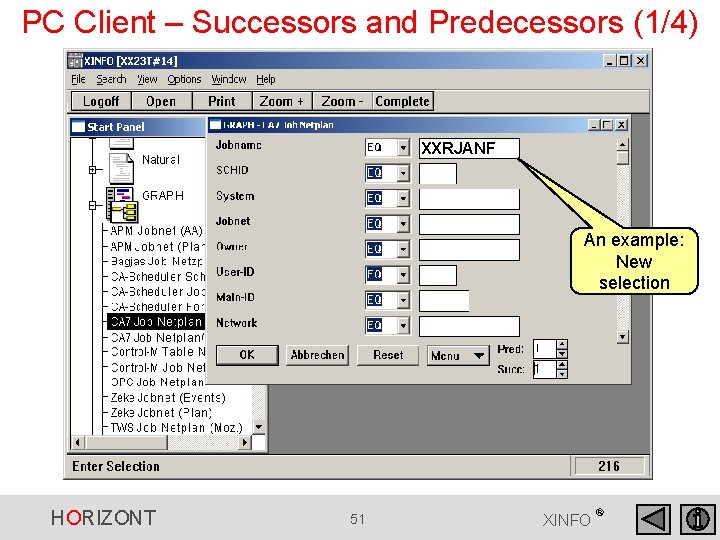
PC Client – Successors and Predecessors (1/4) XXRJANF An example: New selection HORIZONT 51 XINFO ®
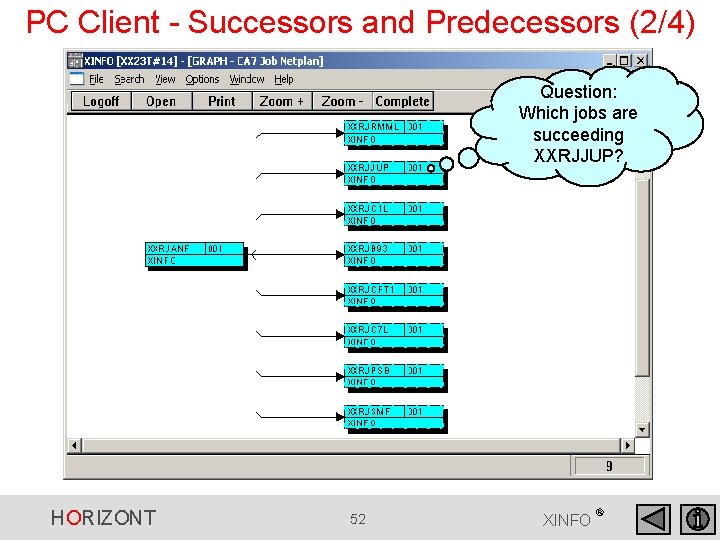
PC Client - Successors and Predecessors (2/4) Question: Which jobs are succeeding XXRJJUP? HORIZONT 52 XINFO ®
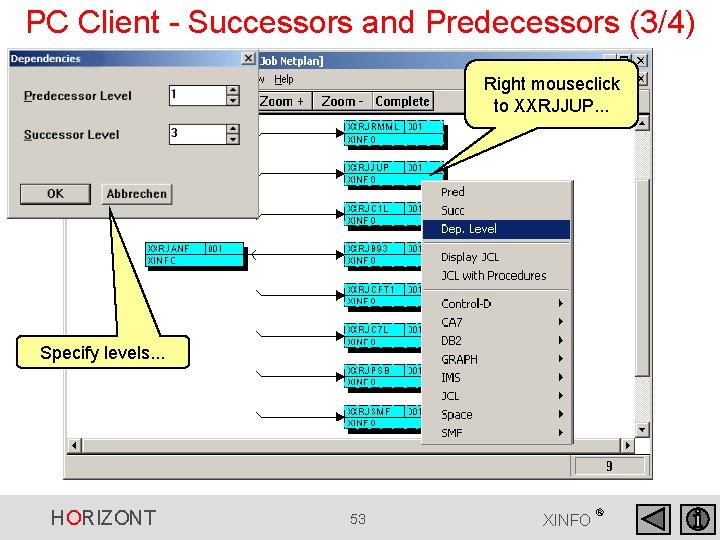
PC Client - Successors and Predecessors (3/4) Right mouseclick to XXRJJUP. . . Specify levels. . . HORIZONT 53 XINFO ®
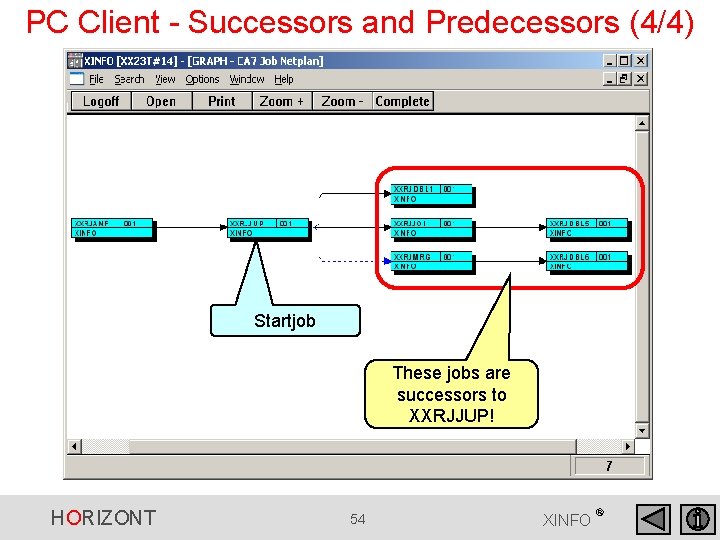
PC Client - Successors and Predecessors (4/4) Startjob These jobs are successors to XXRJJUP! HORIZONT 54 XINFO ®
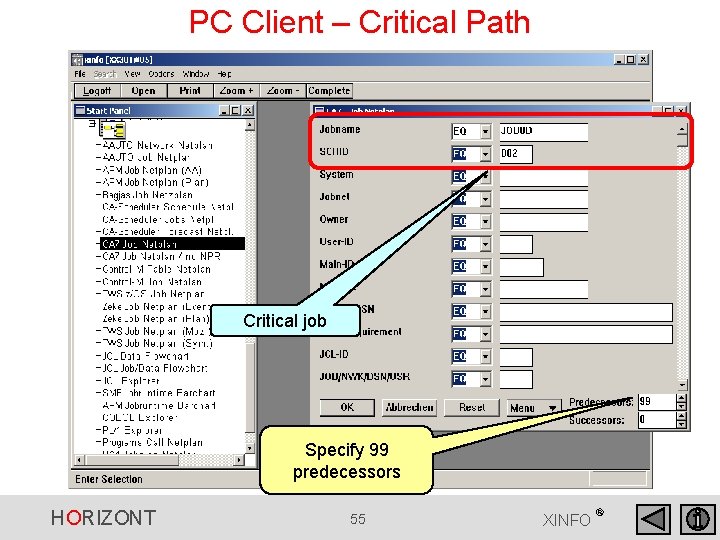
PC Client – Critical Path Critical job Specify 99 predecessors HORIZONT 55 XINFO ®
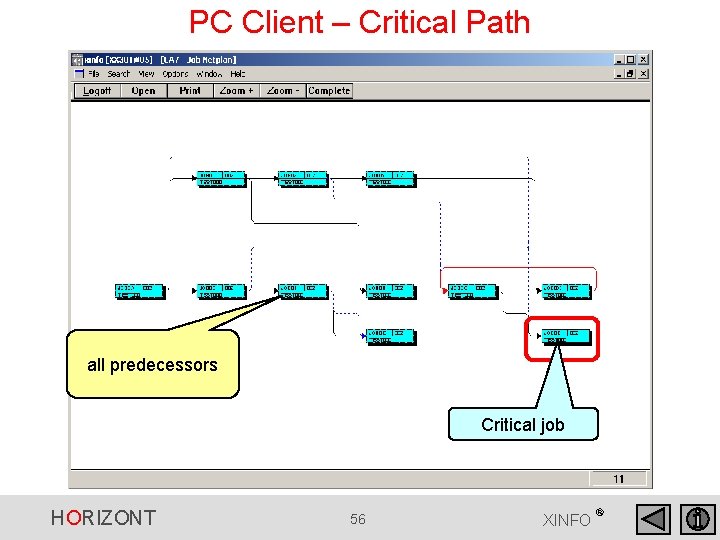
PC Client – Critical Path all predecessors Critical job HORIZONT 56 XINFO ®
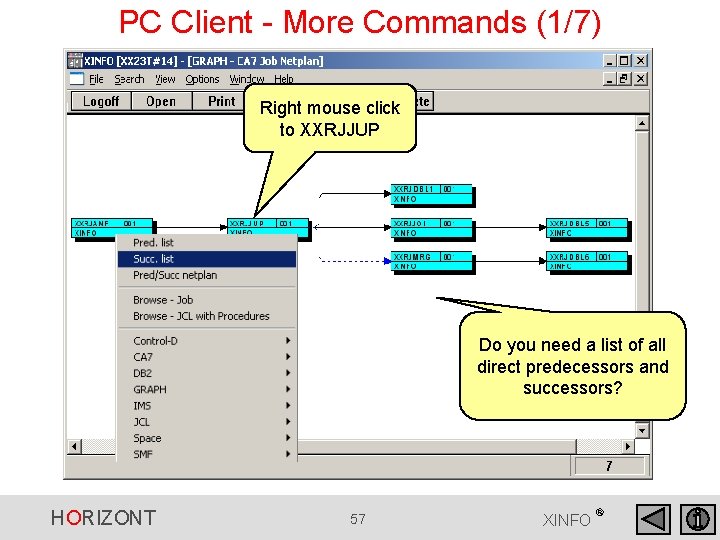
PC Client - More Commands (1/7) Right mouse click to XXRJJUP Do you need a list of all direct predecessors and successors? HORIZONT 57 XINFO ®
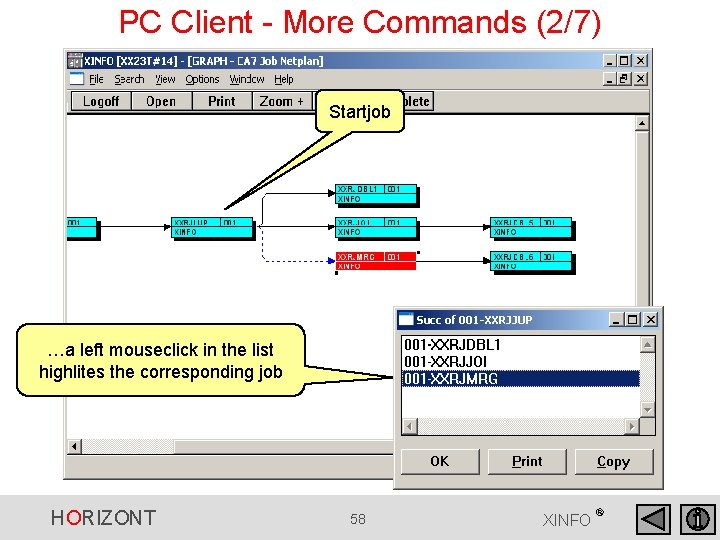
PC Client - More Commands (2/7) Startjob …a left mouseclick in the list highlites the corresponding job HORIZONT 58 XINFO ®
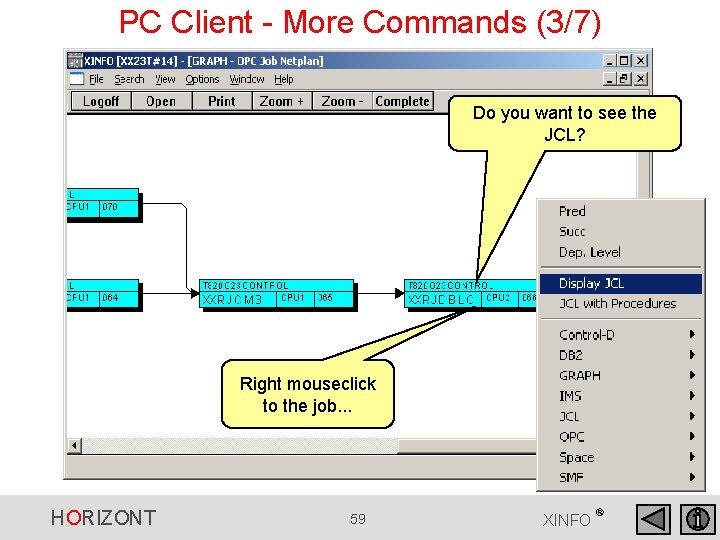
PC Client - More Commands (3/7) Do you want to see the JCL? Right mouseclick to the job. . . HORIZONT 59 XINFO ®
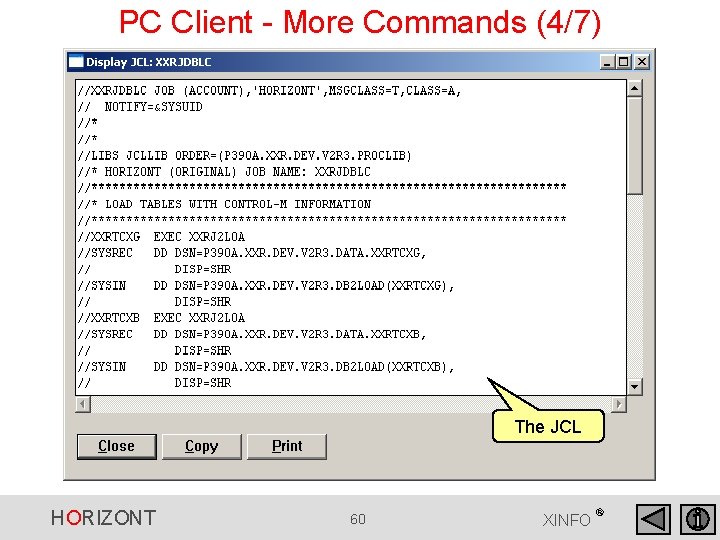
PC Client - More Commands (4/7) The JCL HORIZONT 60 XINFO ®
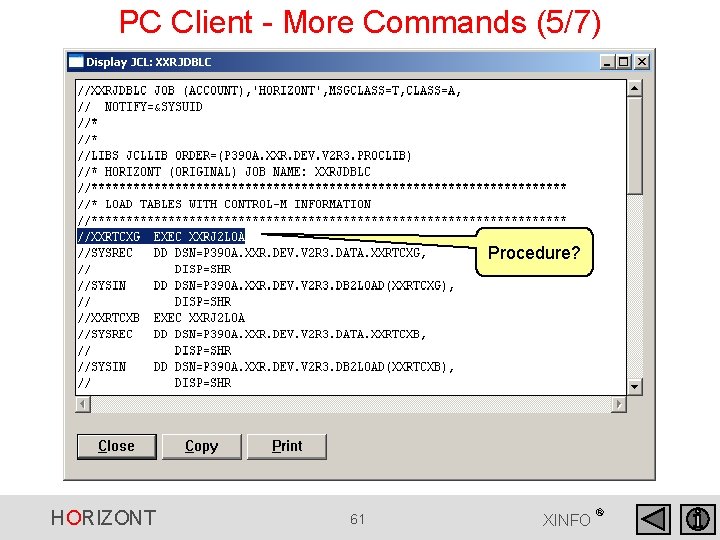
PC Client - More Commands (5/7) Procedure? HORIZONT 61 XINFO ®
PC Client - More Commands (6/7) JCL with Procedures HORIZONT 62 XINFO ®
PC Client - More Commands (7/7) JCL including resolved procedures. . . HORIZONT 63 XINFO ®
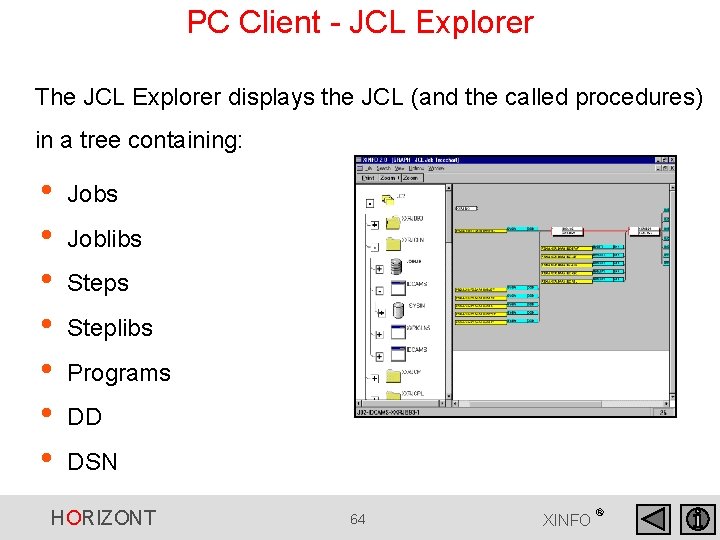
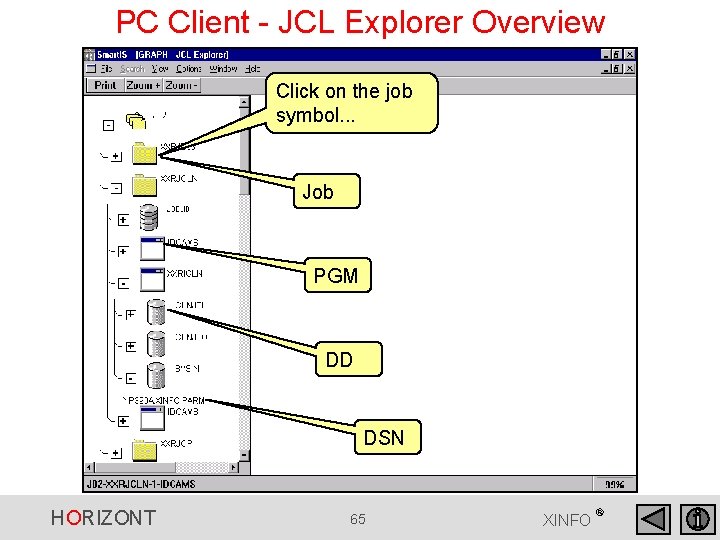
PC Client - JCL Explorer The JCL Explorer displays the JCL (and the called procedures) in a tree containing: • • Jobs Joblibs Steplibs Programs DD DSN HORIZONT 64 XINFO ®
PC Client - JCL Explorer Overview Click on the job symbol. . . Job PGM DD DSN HORIZONT 65 XINFO ®
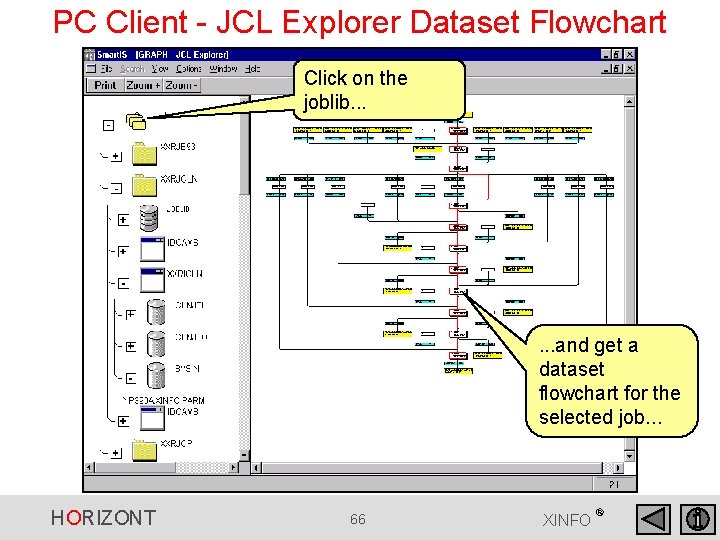
PC Client - JCL Explorer Dataset Flowchart Click on the joblib. . . and get a dataset flowchart for the selected job. . . HORIZONT 66 XINFO ®
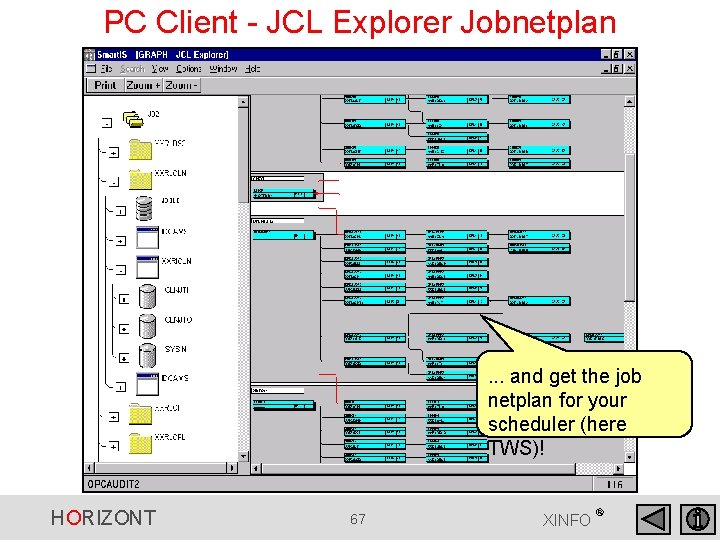
PC Client - JCL Explorer Jobnetplan . . . and get the job netplan for your scheduler (here TWS)! HORIZONT 67 XINFO ®
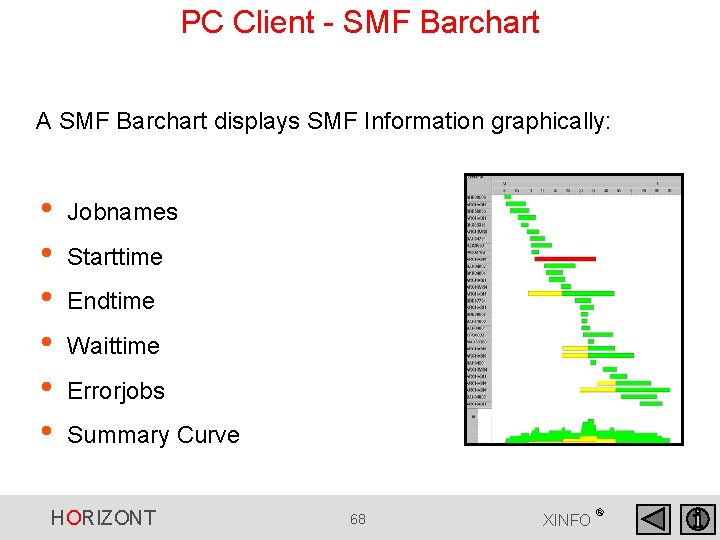
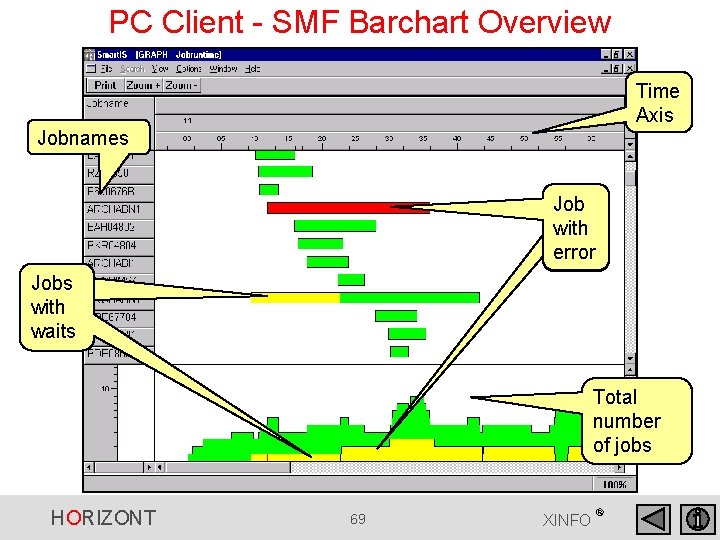
PC Client - SMF Barchart A SMF Barchart displays SMF Information graphically: • • • Jobnames Starttime Endtime Waittime Errorjobs Summary Curve HORIZONT 68 XINFO ®
PC Client - SMF Barchart Overview Time Axis Jobnames Jobs with error Jobs with waits Total number of jobs HORIZONT 69 XINFO ®
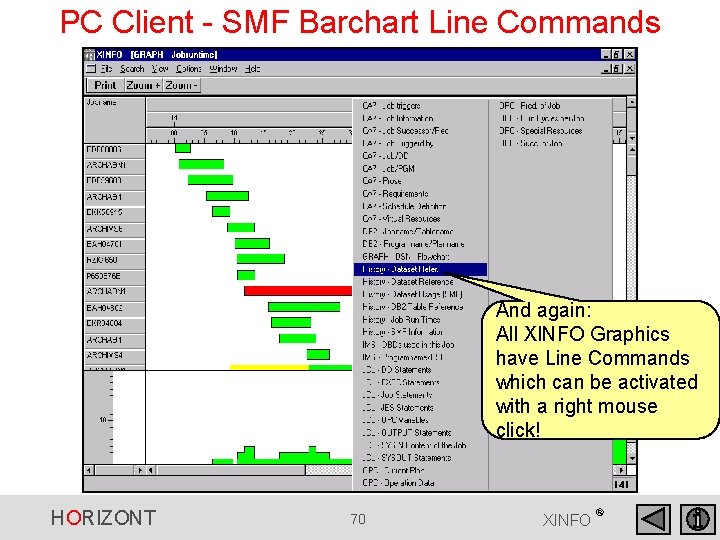
PC Client - SMF Barchart Line Commands And again: All XINFO Graphics have Line Commands which can be activated with a right mouse click! HORIZONT 70 XINFO ®
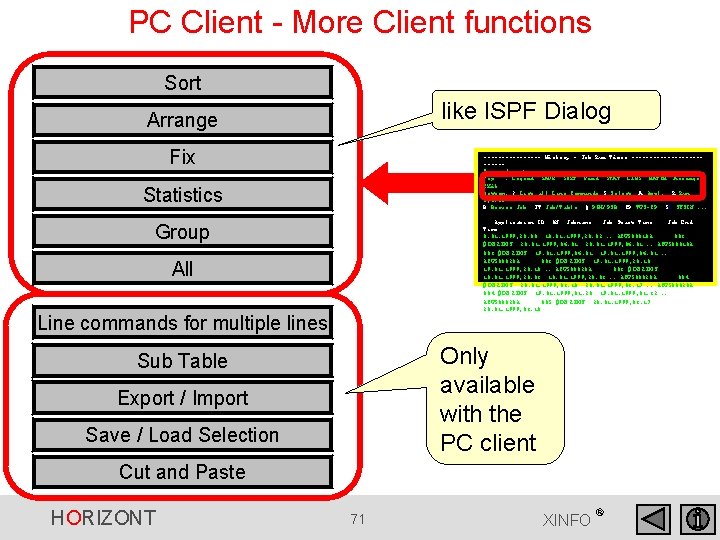
PC Client - More Client functions Sort like ISPF Dialog Arrange Fix -------- History - Job Run Times ------------Command ===> Top : Legend SAVE SORT Find STAT LIBS BATCH Arrange EXit Bottom: ? List all Line Commands S Select A Appl. R Run Cycles B Browse Job JT Job/Table Q PGM/PSB CP TWS-CP SI SYSIN. . . Statistics Application ID ON Jobname Job Start Time Job End Time 8. 01. 1999, 20: 00 18. 01. 1999, 20: 02. . ACW 500010 A 003 #DB 2 IMS 20. 01. 1999, 06: 01. . ACW 500010 A 003 #DB 2 IMS 19. 01. 1999, 06: 01. . ACW 500020 A 003 #DB 2 IMS 19. 01. 1999, 20: 10. . ACW 500020 A 003 #DB 2 IMS 18. 01. 1999, 20: 03. . ACW 500020 A 004 #DB 2 IMS 20. 01. 1999, 03: 10 20. 01. 1999, 03: 17. . ACW 500020 A 004 #DB 2 IMS 19. 01. 1999, 01: 28 19. 01. 1999, 01: 32. . ACW 500020 A 005 #DB 2 IMS 20. 01. 1999, 03: 17 20. 01. 1999, 03: 18 Group All Line commands for multiple lines Only available with the PC client Sub Table Export / Import Save / Load Selection Cut and Paste HORIZONT 71 XINFO ®
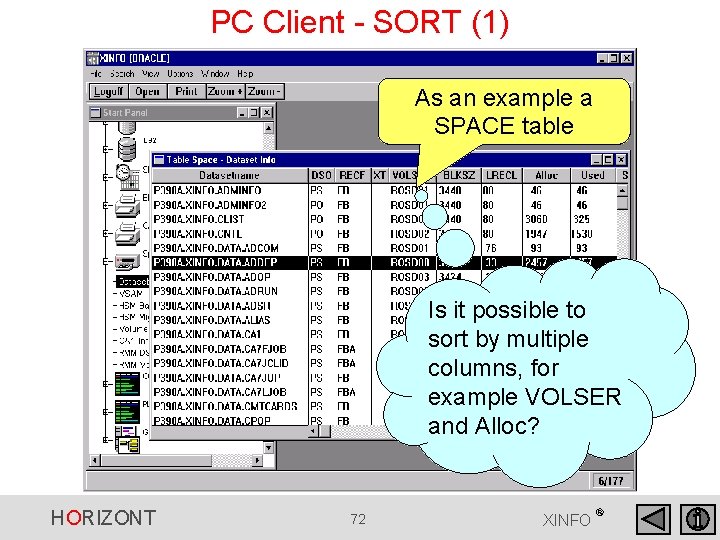
PC Client - SORT (1) As an example a SPACE table Is it possible to sort by multiple columns, for example VOLSER and Alloc? HORIZONT 72 XINFO ®
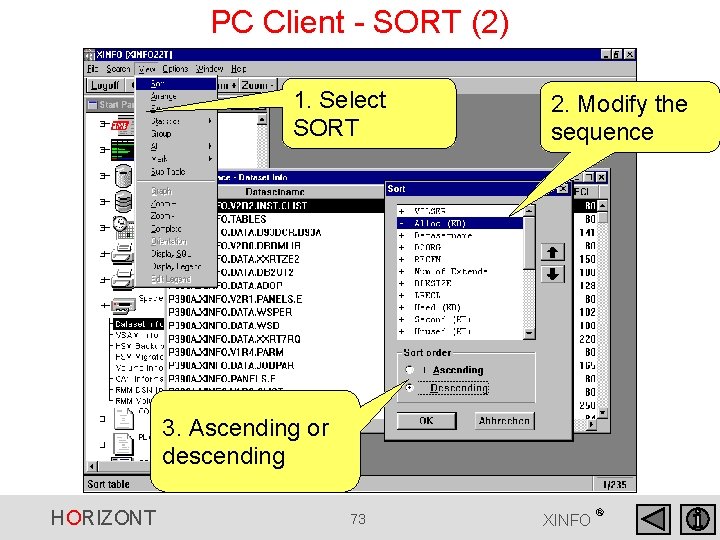
PC Client - SORT (2) 1. Select SORT 2. Modify the sequence 3. Ascending or descending HORIZONT 73 XINFO ®
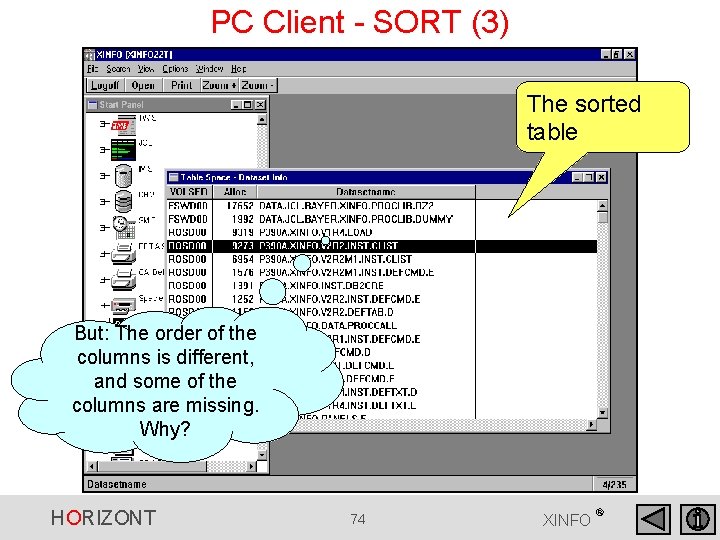
PC Client - SORT (3) The sorted table But: The order of the columns is different, and some of the columns are missing. Why? HORIZONT 74 XINFO ®
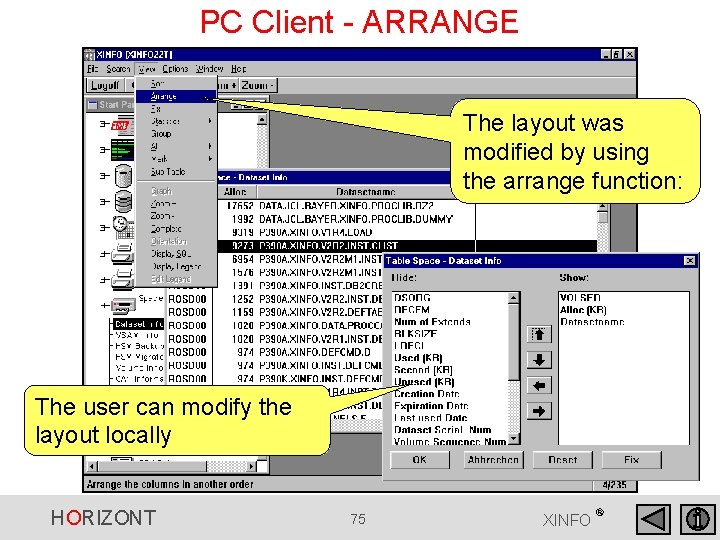
PC Client - ARRANGE The layout was modified by using the arrange function: The user can modify the layout locally HORIZONT 75 XINFO ®
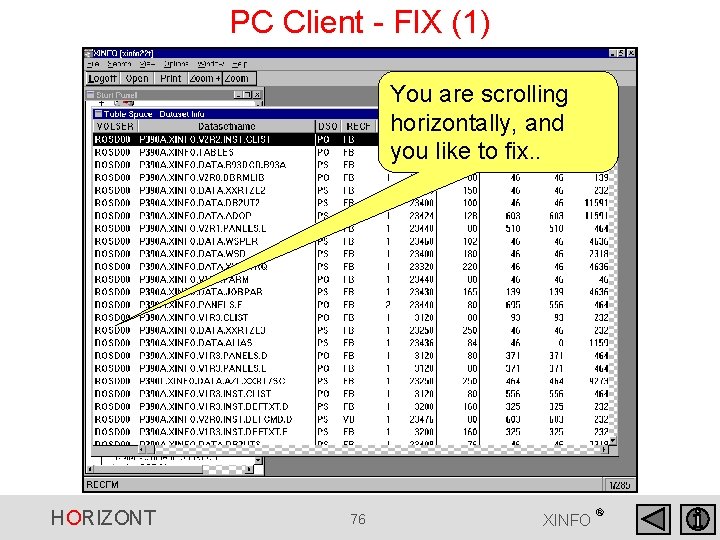
PC Client - FIX (1) You are scrolling horizontally, and you like to fix. . HORIZONT 76 XINFO ®
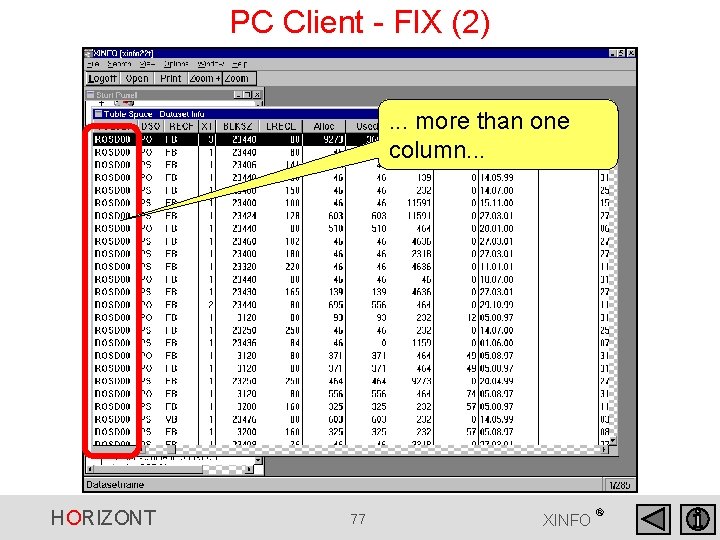
PC Client - FIX (2). . . more than one column. . . HORIZONT 77 XINFO ®
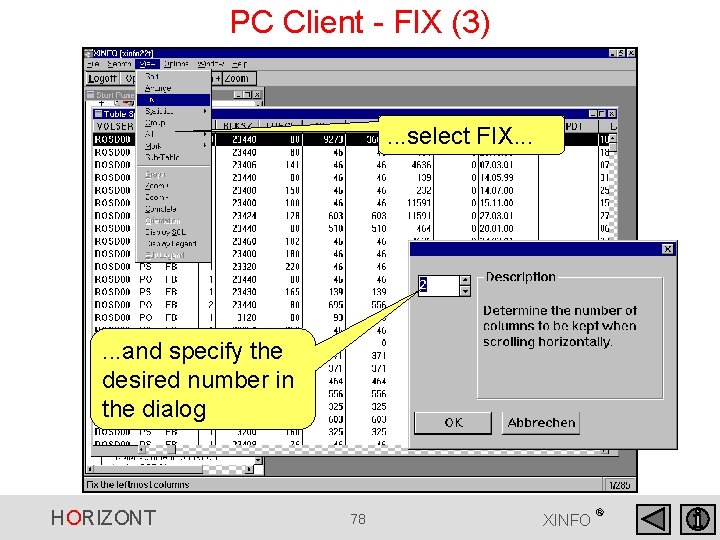
PC Client - FIX (3) . . . select FIX. . . and specify the desired number in the dialog HORIZONT 78 XINFO ®
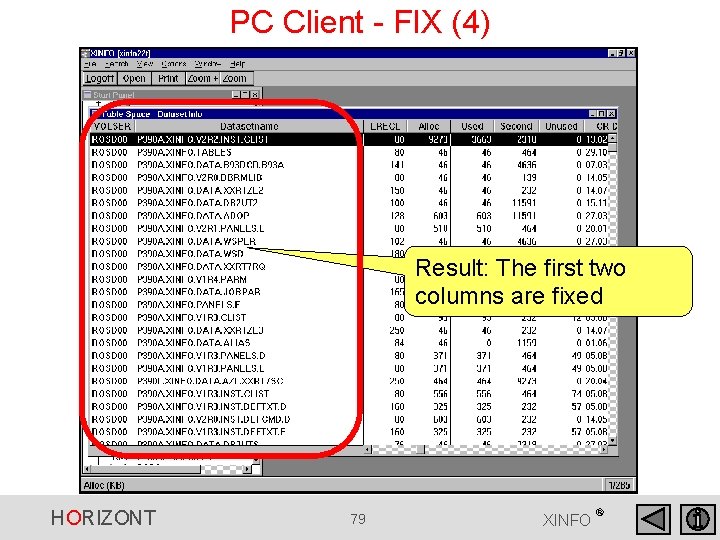
PC Client - FIX (4) Result: The first two columns are fixed HORIZONT 79 XINFO ®
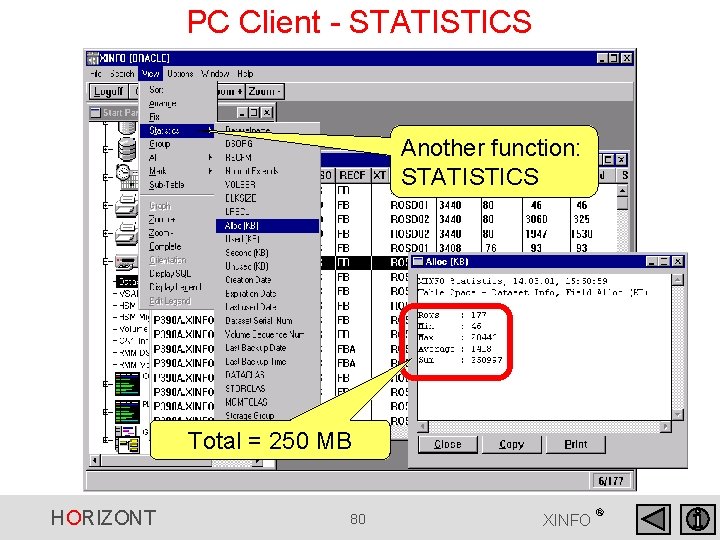
PC Client - STATISTICS Another function: STATISTICS Total = 250 MB HORIZONT 80 XINFO ®
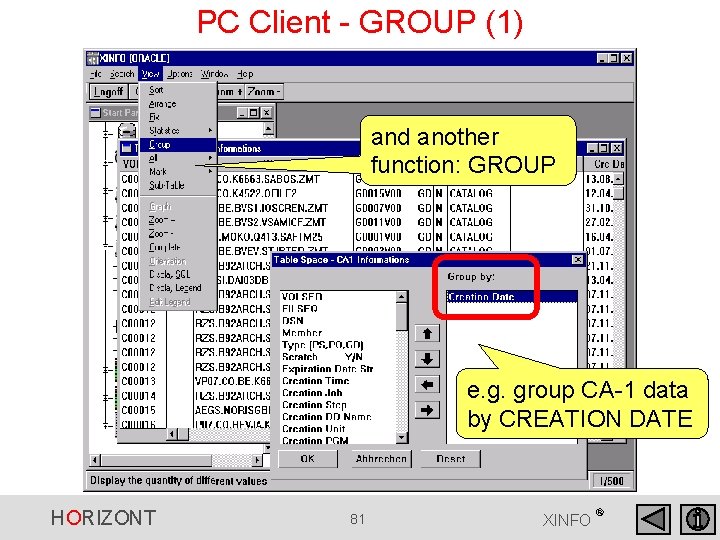
PC Client - GROUP (1) and another function: GROUP e. g. group CA-1 data by CREATION DATE HORIZONT 81 XINFO ®
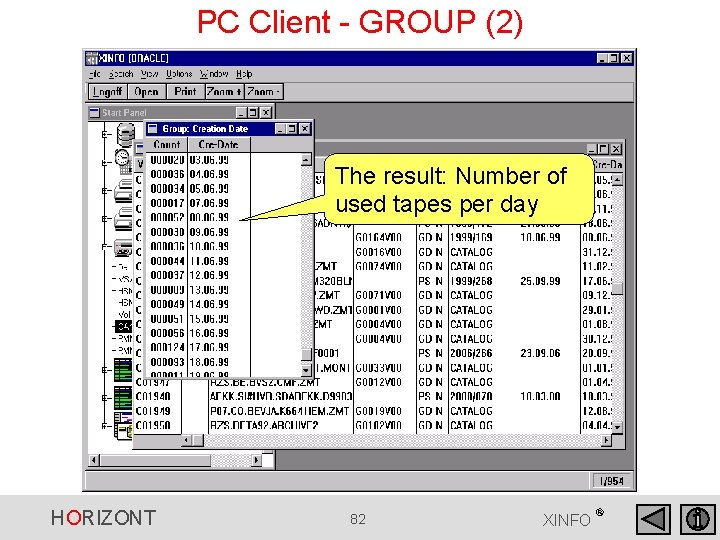
PC Client - GROUP (2) The result: Number of used tapes per day HORIZONT 82 XINFO ®
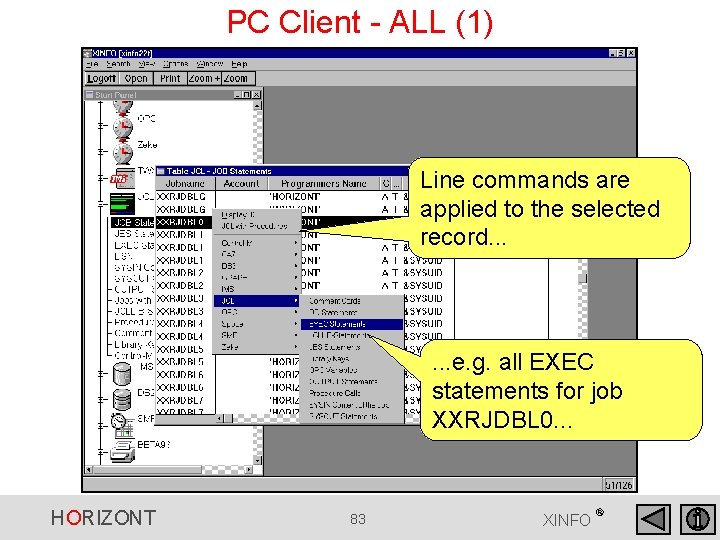
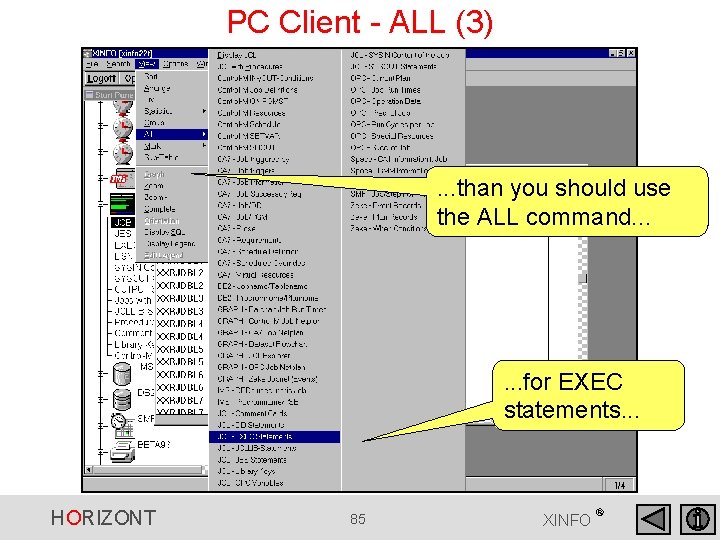
PC Client - ALL (1) Line commands are applied to the selected record. . . e. g. all EXEC statements for job XXRJDBL 0. . . HORIZONT 83 XINFO ®
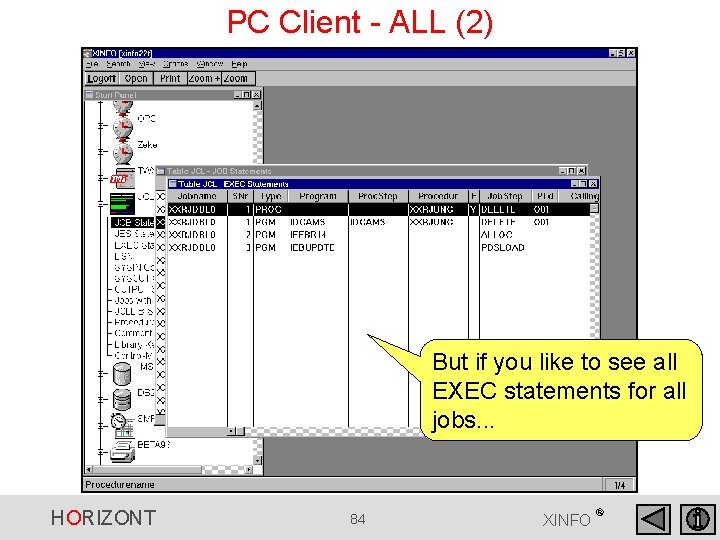
PC Client - ALL (2) But if you like to see all EXEC statements for all jobs. . . HORIZONT 84 XINFO ®
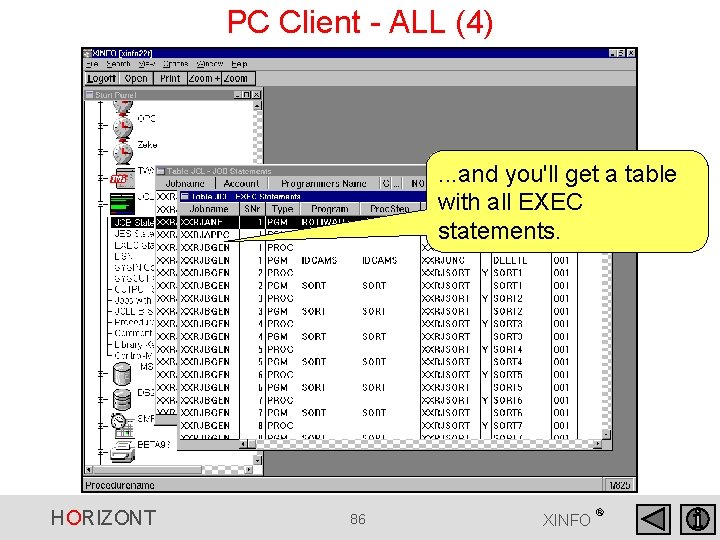
PC Client - ALL (3) . . . than you should use the ALL command. . . for EXEC statements. . . HORIZONT 85 XINFO ®
PC Client - ALL (4) . . . and you'll get a table with all EXEC statements. HORIZONT 86 XINFO ®
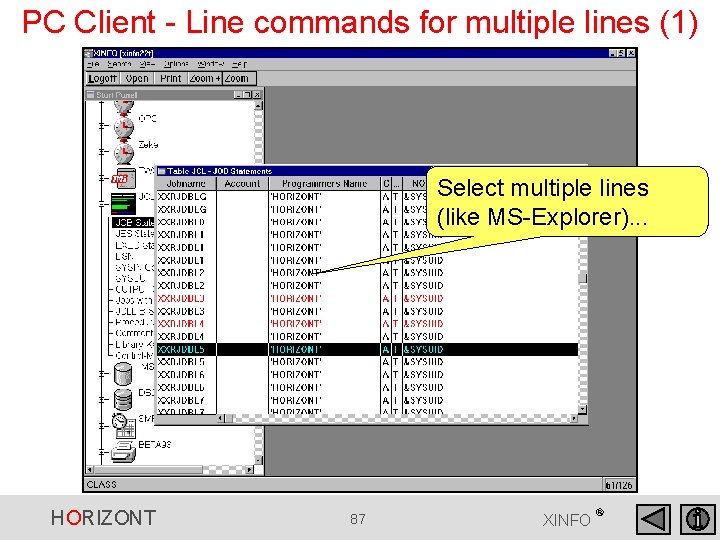
PC Client - Line commands for multiple lines (1) Select multiple lines (like MS-Explorer). . . HORIZONT 87 XINFO ®
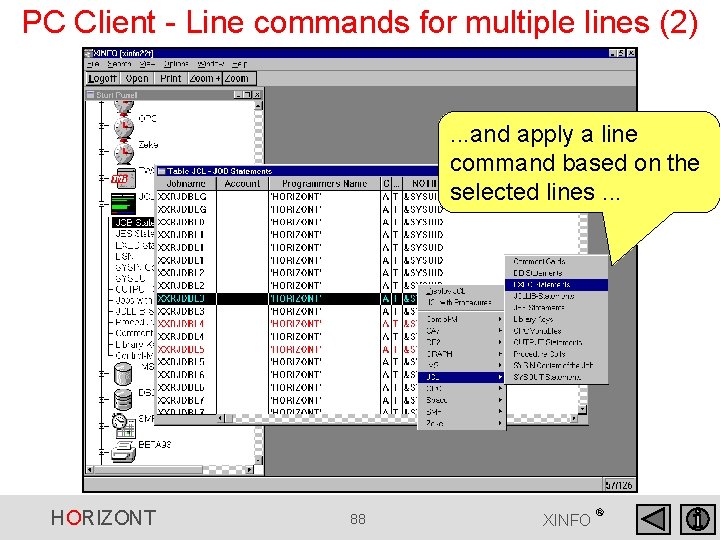
PC Client - Line commands for multiple lines (2) . . . and apply a line command based on the selected lines. . . HORIZONT 88 XINFO ®
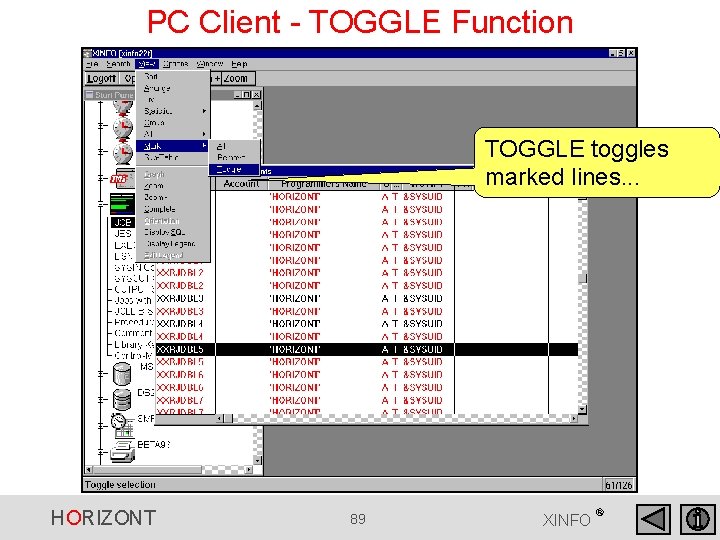
PC Client - TOGGLE Function TOGGLE toggles marked lines. . . HORIZONT 89 XINFO ®
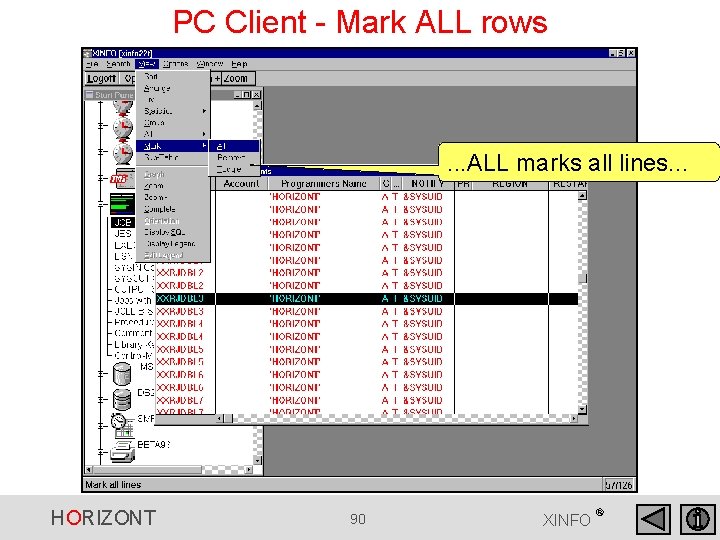
PC Client - Mark ALL rows . . . ALL marks all lines. . . HORIZONT 90 XINFO ®
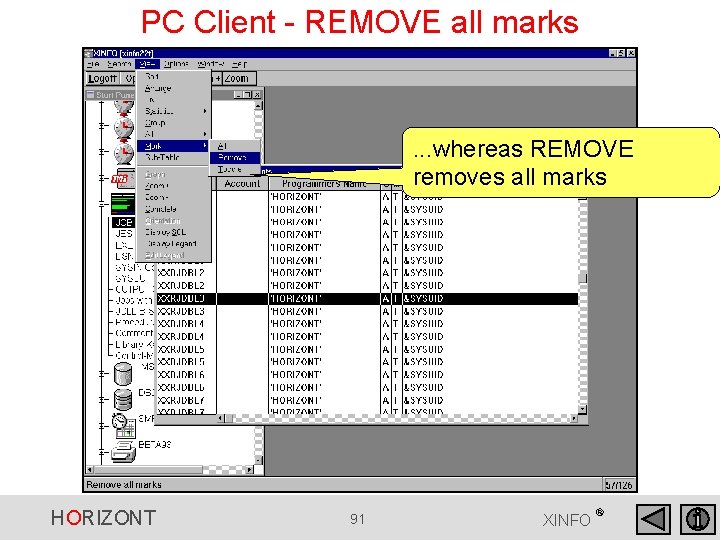
PC Client - REMOVE all marks . . . whereas REMOVE removes all marks HORIZONT 91 XINFO ®
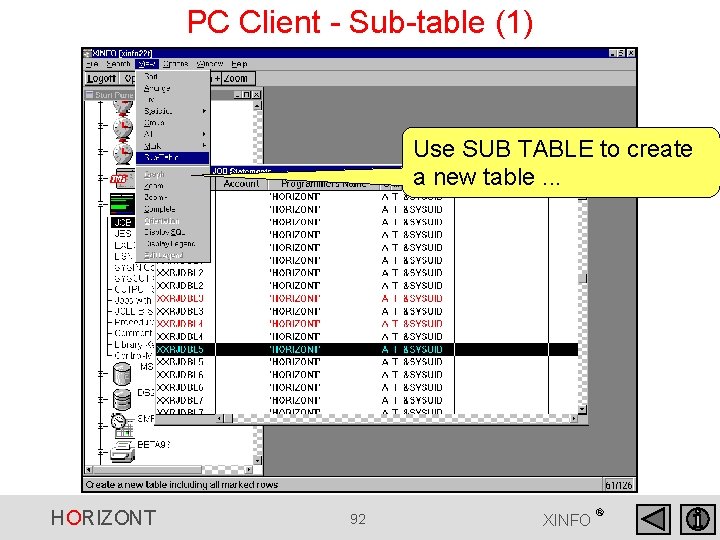
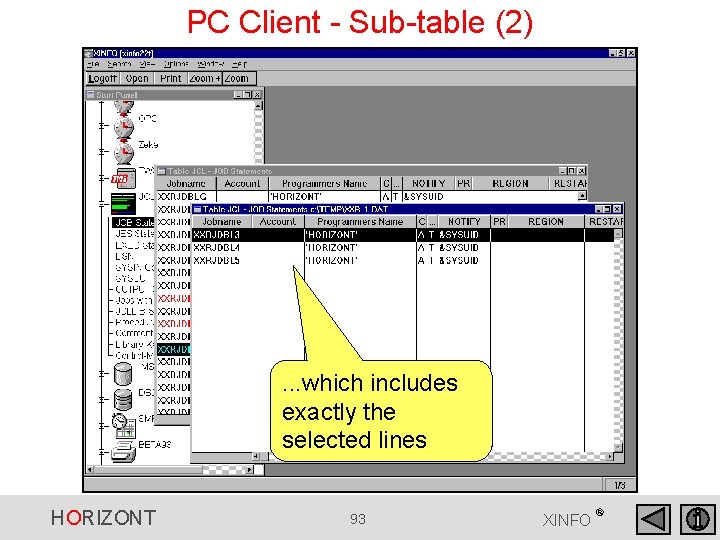
PC Client - Sub-table (1) Use SUB TABLE to create a new table. . . HORIZONT 92 XINFO ®
PC Client - Sub-table (2) . . . which includes exactly the selected lines HORIZONT 93 XINFO ®
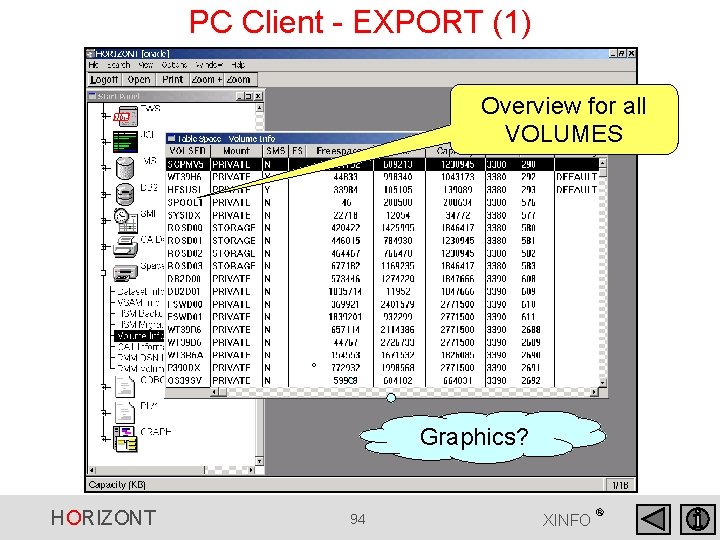
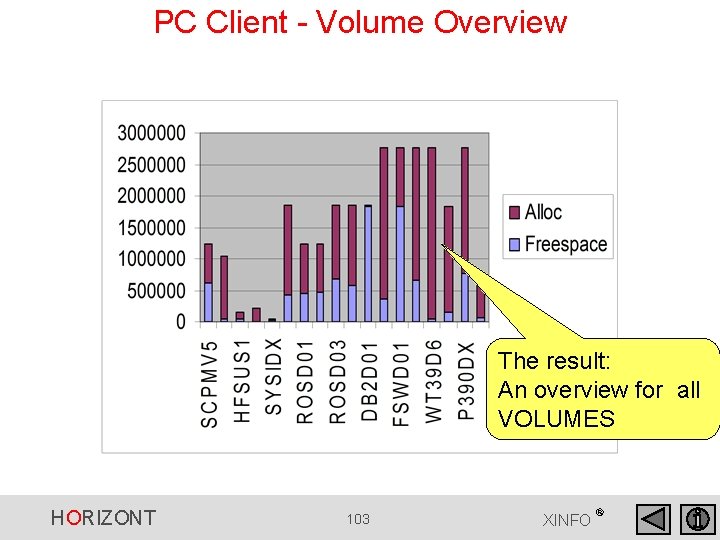
PC Client - EXPORT (1) Overview for all VOLUMES Graphics? HORIZONT 94 XINFO ®
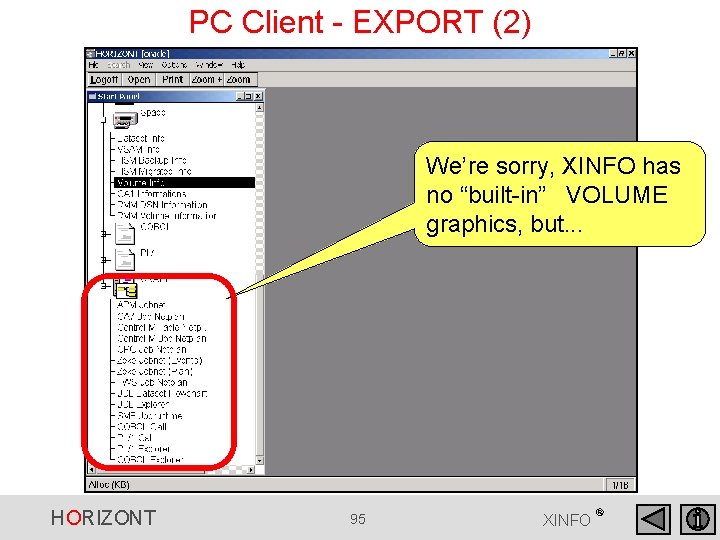
PC Client - EXPORT (2) We’re sorry, XINFO has no “built-in” VOLUME graphics, but. . . HORIZONT 95 XINFO ®
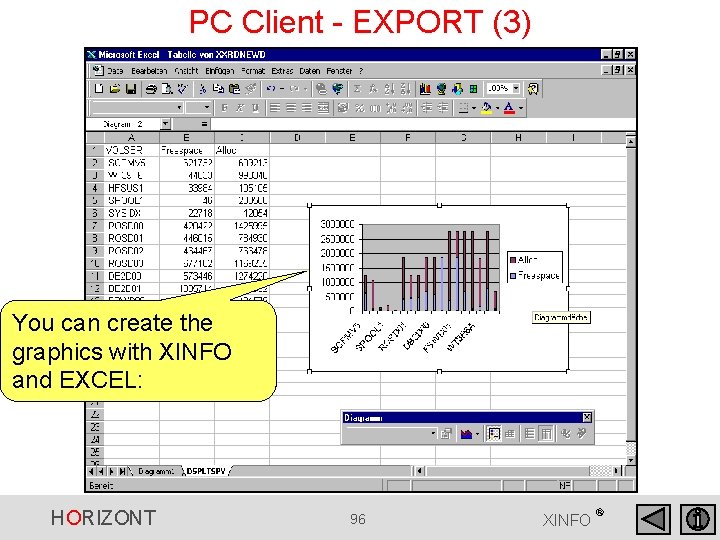
PC Client - EXPORT (3) You can create the graphics with XINFO and EXCEL: HORIZONT 96 XINFO ®
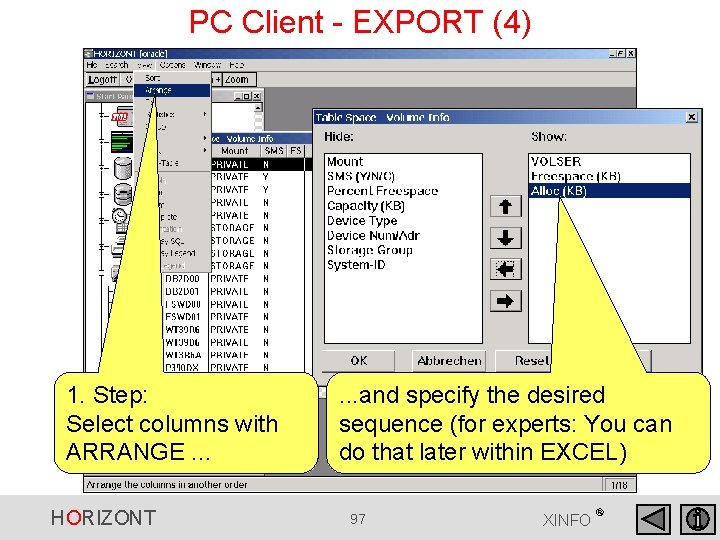
PC Client - EXPORT (4) 1. Step: Select columns with ARRANGE. . . HORIZONT . . . and specify the desired sequence (for experts: You can do that later within EXCEL) 97 XINFO ®
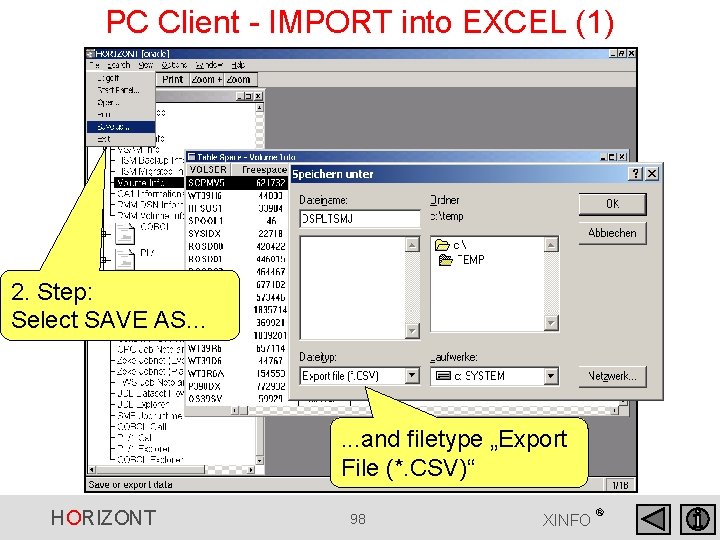
PC Client - IMPORT into EXCEL (1) 2. Step: Select SAVE AS. . . and filetype „Export File (*. CSV)“ HORIZONT 98 XINFO ®
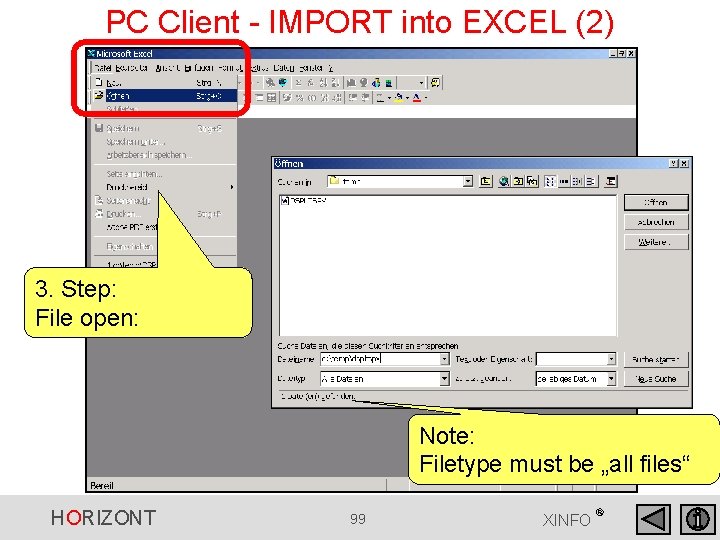
PC Client - IMPORT into EXCEL (2) 3. Step: File open: Note: Filetype must be „all files“ HORIZONT 99 XINFO ®
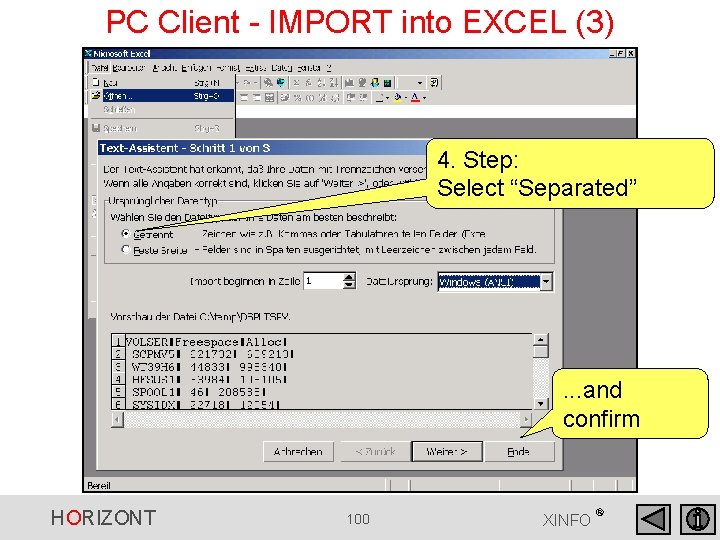
PC Client - IMPORT into EXCEL (3) 4. Step: Select “Separated” . . . and confirm HORIZONT 100 XINFO ®
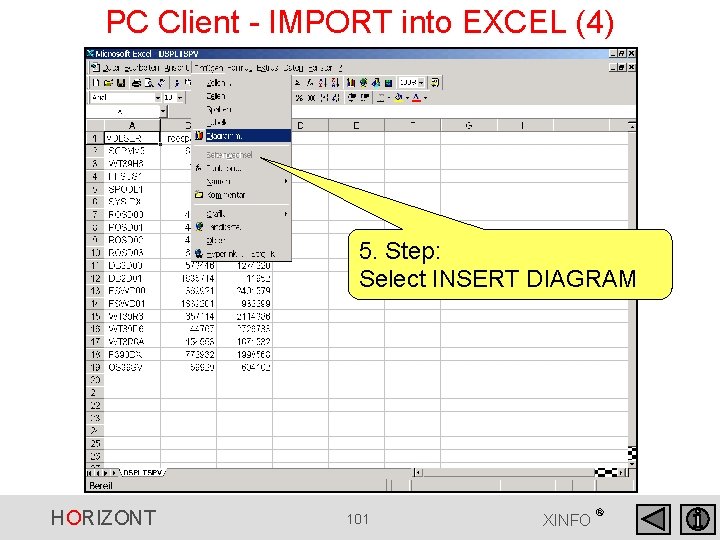
PC Client - IMPORT into EXCEL (4) 5. Step: Select INSERT DIAGRAM HORIZONT 101 XINFO ®
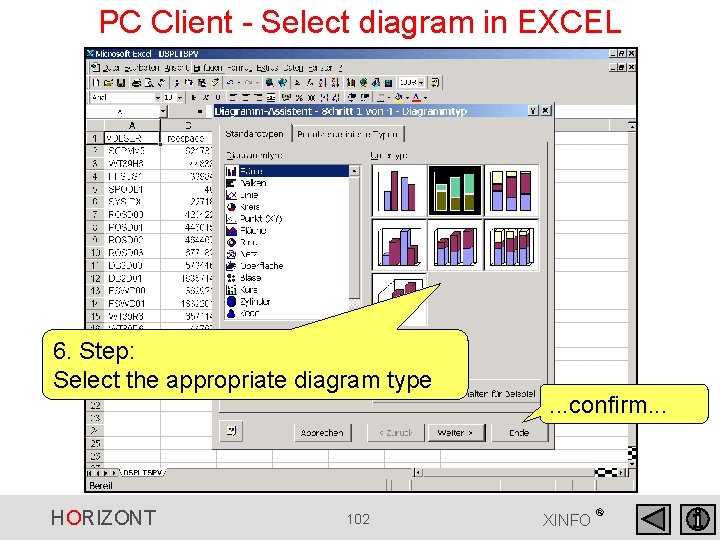
PC Client - Select diagram in EXCEL 6. Step: Select the appropriate diagram type HORIZONT 102 . . . confirm. . . XINFO ®
PC Client - Volume Overview The result: An overview for all VOLUMES HORIZONT 103 XINFO ®
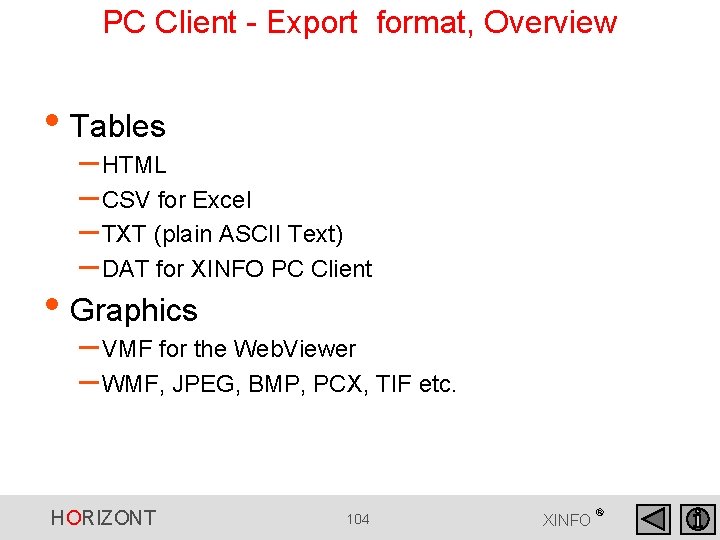
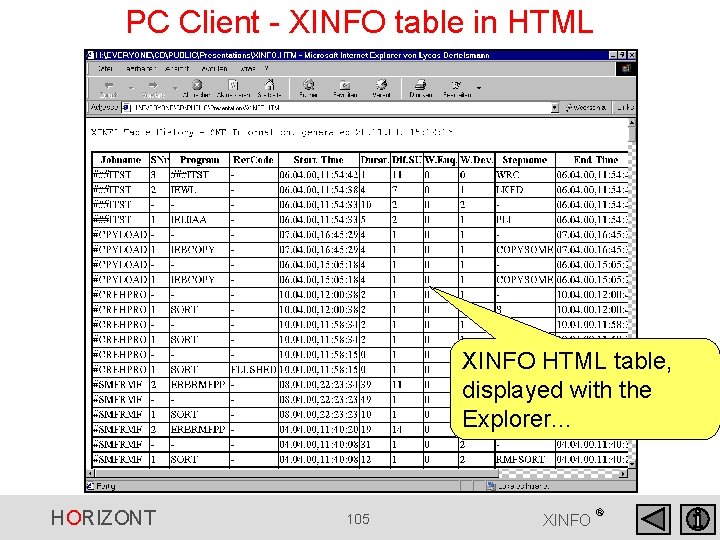
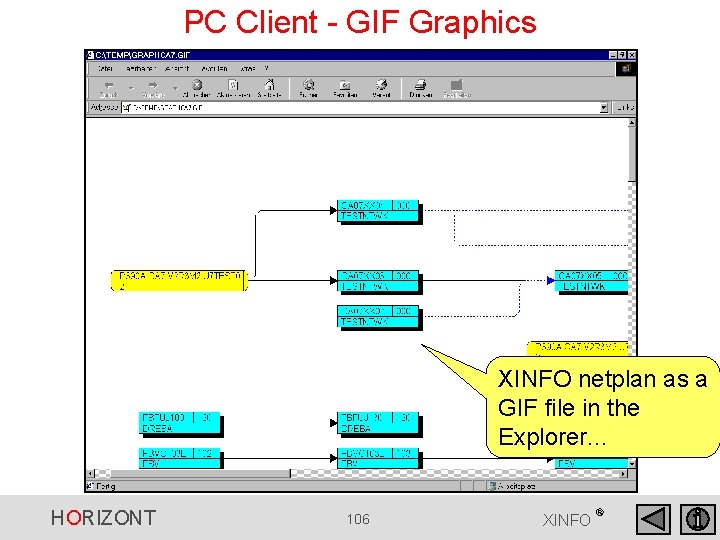
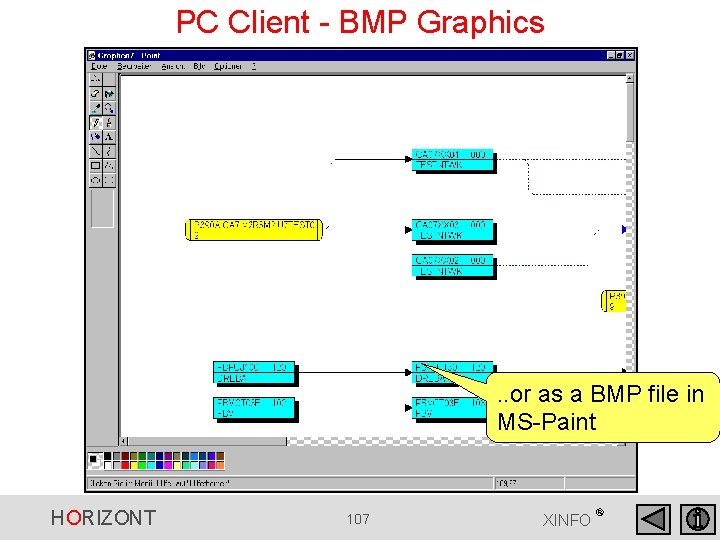
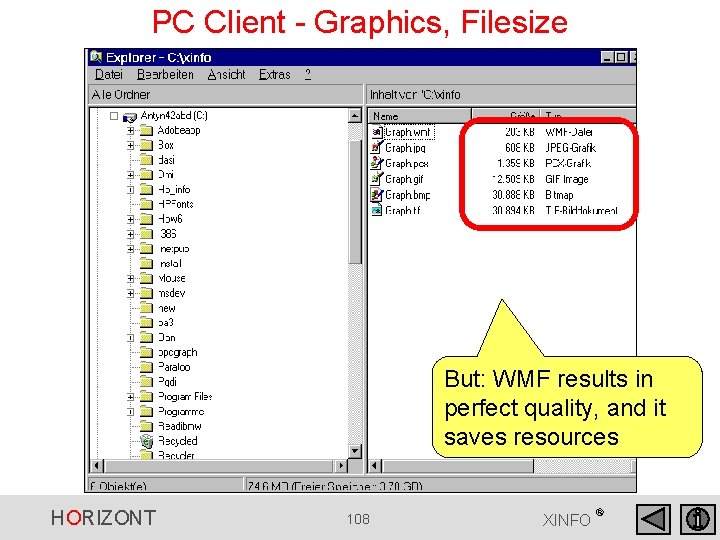
PC Client - Export format, Overview • Tables – HTML – CSV for Excel – TXT (plain ASCII Text) – DAT for XINFO PC Client • Graphics – VMF for the Web. Viewer – WMF, JPEG, BMP, PCX, TIF etc. HORIZONT 104 XINFO ®
PC Client - XINFO table in HTML XINFO HTML table, displayed with the Explorer. . . HORIZONT 105 XINFO ®
PC Client - GIF Graphics XINFO netplan as a GIF file in the Explorer. . . HORIZONT 106 XINFO ®
PC Client - BMP Graphics . . or as a BMP file in MS-Paint HORIZONT 107 XINFO ®
PC Client - Graphics, Filesize But: WMF results in perfect quality, and it saves resources HORIZONT 108 XINFO ®
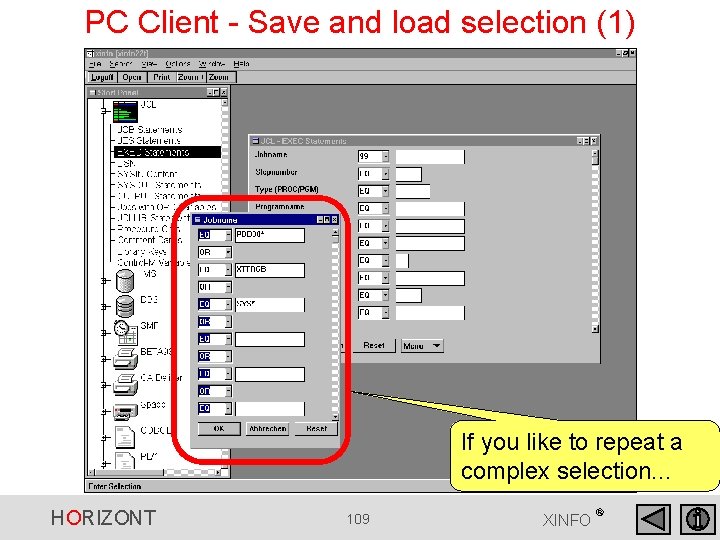
PC Client - Save and load selection (1) If you like to repeat a complex selection. . . HORIZONT 109 XINFO ®
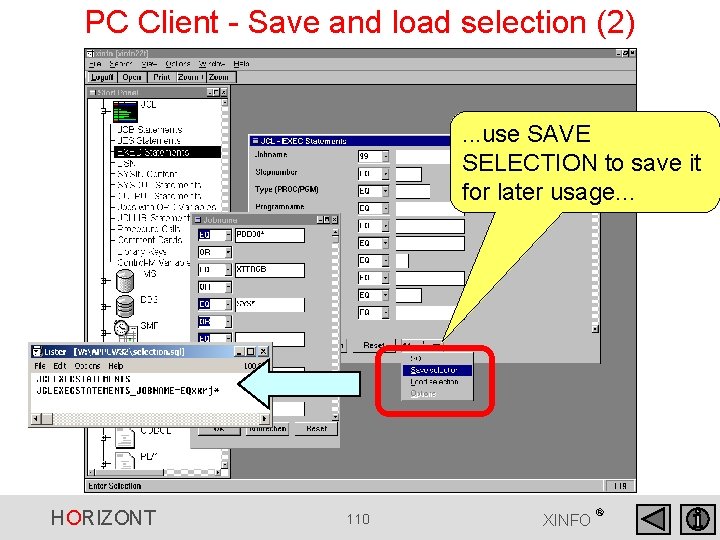
PC Client - Save and load selection (2) . . . use SAVE SELECTION to save it for later usage. . . HORIZONT 110 XINFO ®
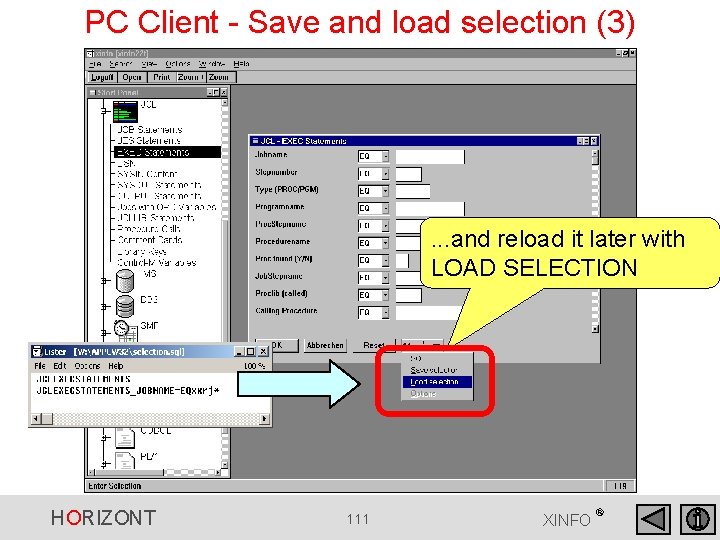
PC Client - Save and load selection (3) . . . and reload it later with LOAD SELECTION HORIZONT 111 XINFO ®
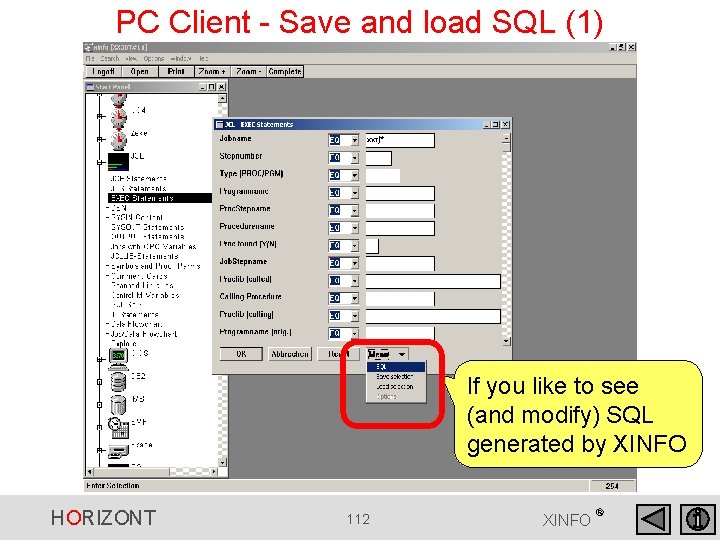
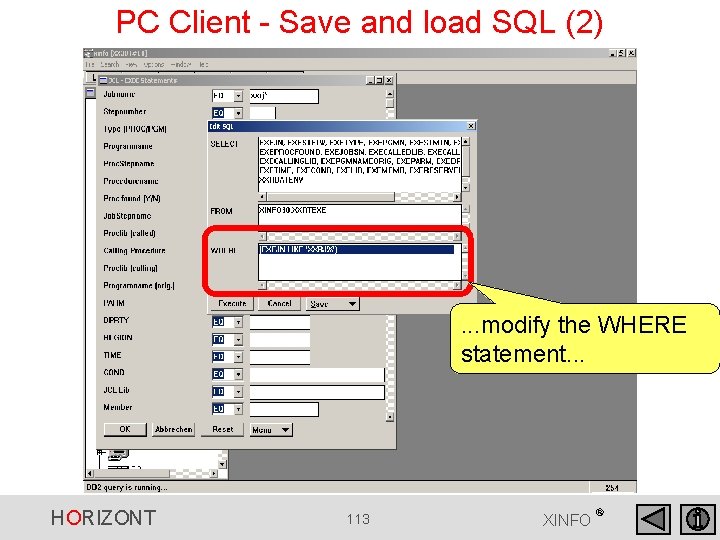
PC Client - Save and load SQL (1) If you like to see (and modify) SQL generated by XINFO HORIZONT 112 XINFO ®
PC Client - Save and load SQL (2) . . . modify the WHERE statement. . . HORIZONT 113 XINFO ®
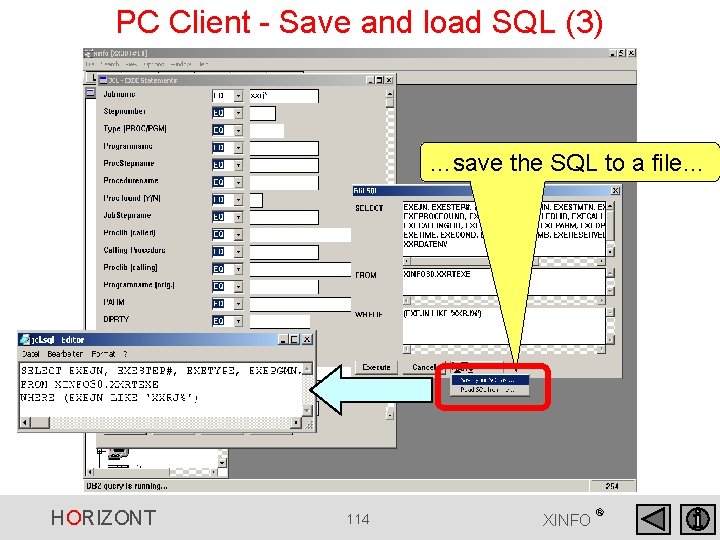
PC Client - Save and load SQL (3) …save the SQL to a file… HORIZONT 114 XINFO ®
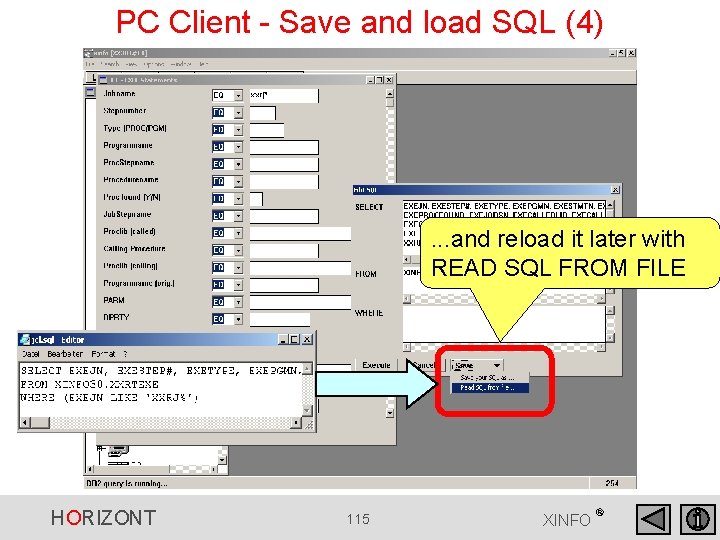
PC Client - Save and load SQL (4) . . . and reload it later with READ SQL FROM FILE HORIZONT 115 XINFO ®
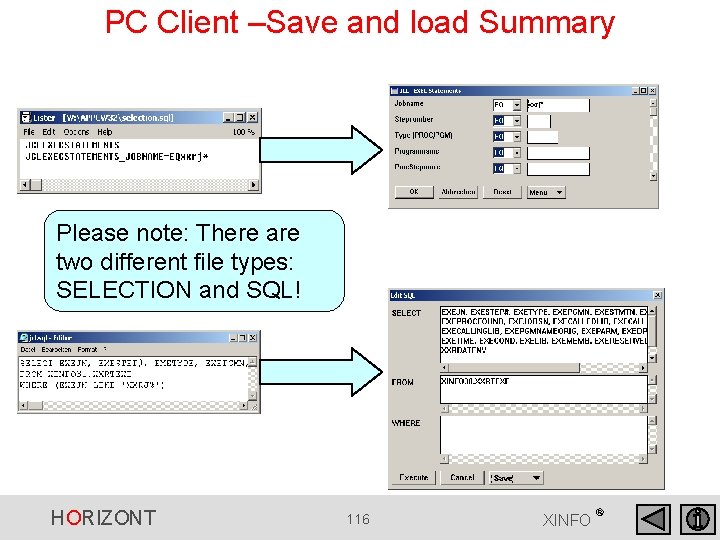
PC Client –Save and load Summary Please note: There are two different file types: SELECTION and SQL! HORIZONT 116 XINFO ®
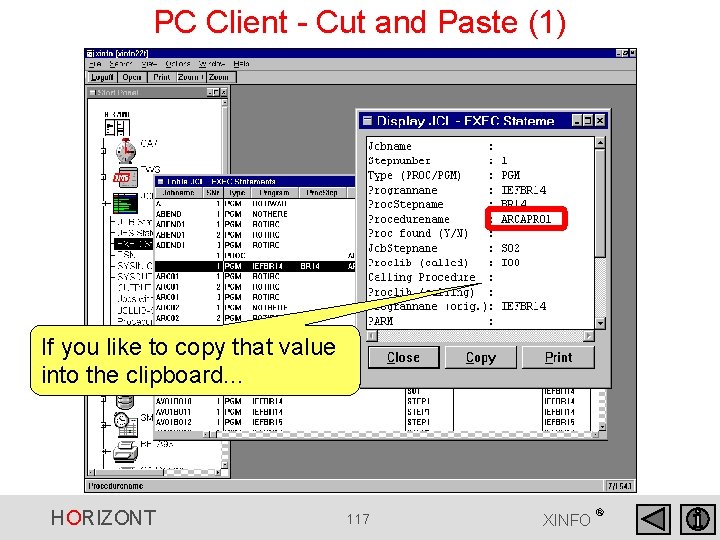
PC Client - Cut and Paste (1) If you like to copy that value into the clipboard. . . HORIZONT 117 XINFO ®
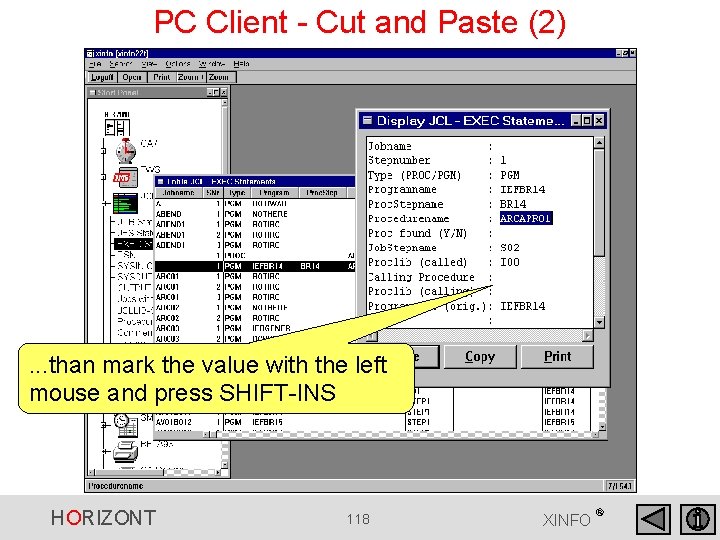
PC Client - Cut and Paste (2) . . . than mark the value with the left mouse and press SHIFT-INS HORIZONT 118 XINFO ®
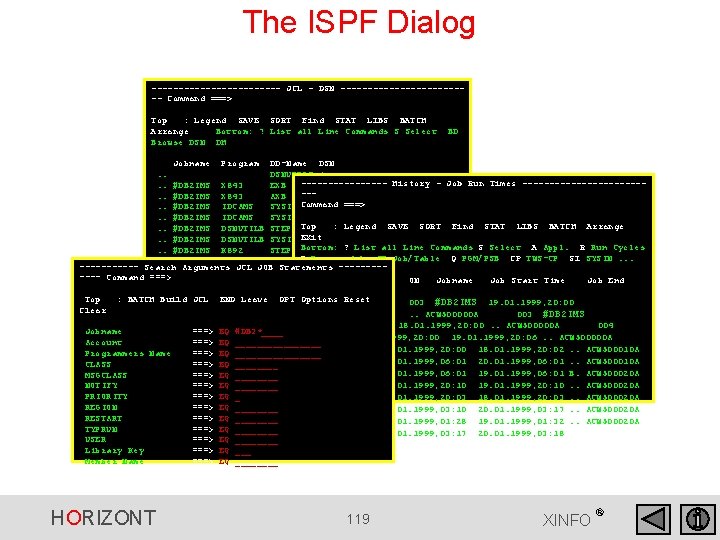
The ISPF Dialog ------------ JCL - DSN ------------ Command ===> Top : Legend SAVE SORT Find STAT LIBS BATCH Arrange Bottom: ? List all Line Commands S Select Browse DSN DH BD Jobname Program DD-Name DSN. . DSNUPROC * --------History - Job Run Times -----------. . #DB 2 IMS X 843 EXB &&SYSUT 2 --- &&X 843. . #DB 2 IMS X 843 AXB ===>. . #DB 2 IMS IDCAMS SYSIN Command *. . #DB 2 IMS IDCAMS SYSIN P 03. KK. ZWBE. DAI 96 S 2. $ Top RZR. DB 21. DSNLOAD : Legend SAVE SORT Find STAT LIBS BATCH Arrange. . #DB 2 IMS DSNUTILB STEPLIB. . #DB 2 IMS DSNUTILB SYSIN EXit* Bottom: ? List all Line Commands S Select A Appl. R Run Cycles. . #DB 2 IMS K 892 STEPLIB RZR. IMS. USERDC B Browse Job JT Job/Table Q PGM/PSB CP TWS-CP SI SYSIN. . . #DB 2 IMS K 892 STEPLIB RZR. IMS. RESLIB ------ Search Arguments JCL JOB Statements ----. . #DB 2 IMS K 892 STEPLIB RZR. IMS. DYNALIB ---- Command ===> ID ON Jobname Job Start Time Job End. . #DB 2 IMS K 892 STEPLIB Application RZR. IMS. USERLIB Time Top : BATCH Build JCL END Leave OPT Options Reset. . ACW 500000 A 003 #DB 2 IMS 19. 01. 1999, 20: 00 Clear 19. 01. 1999, 20: 00. . ACW 500000 A 003 #DB 2 IMS 18. 01. 1999, 20: 00. . ACW 500000 A 004 Jobname ===> EQ #DB 2*____ #DB 2 IMS 19. 01. 1999, 20: 00 19. 01. 1999, 20: 06. . ACW 500000 A Account ===> EQ ________ 004 #DB 2 IMS 18. 01. 1999, 20: 00 18. 01. 1999, 20: 02. . ACW 500010 A Programmers Name ===> EQ ________ 003 #DB 2 IMS 20. 01. 1999, 06: 01. . ACW 500010 A CLASS ===> EQ ____ 003 #DB 2 IMS 19. 01. 1999, 06: 01 B. ACW 500020 A MSGCLASS ===> EQ ____ 003 #DB 2 IMS 19. 01. 1999, 20: 10. . ACW 500020 A NOTIFY ===> EQ ____ PRIORITY ===> EQ _ 003 #DB 2 IMS 18. 01. 1999, 20: 03. . ACW 500020 A REGION ===> EQ ____ 004 #DB 2 IMS 20. 01. 1999, 03: 10 20. 01. 1999, 03: 17. . ACW 500020 A RESTART ===> EQ ____ 004 #DB 2 IMS 19. 01. 1999, 01: 28 19. 01. 1999, 01: 32. . ACW 500020 A TYPRUN ===> EQ ____ 005 #DB 2 IMS 20. 01. 1999, 03: 17 20. 01. 1999, 03: 18 USER ===> EQ ____ Library Key ===> EQ ___ Member Name ===> EQ ____ HORIZONT 119 XINFO ®
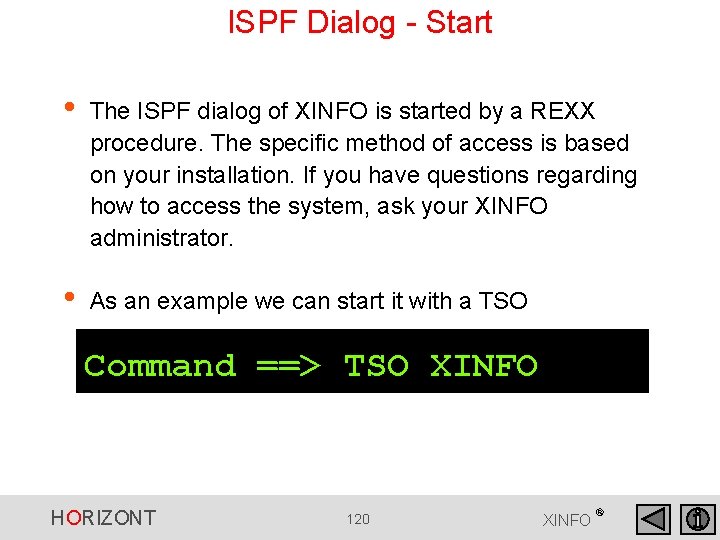
ISPF Dialog - Start • The ISPF dialog of XINFO is started by a REXX procedure. The specific method of access is based on your installation. If you have questions regarding how to access the system, ask your XINFO administrator. • As an example we can start it with a TSO Command: Command ==> TSO XINFO HORIZONT 120 XINFO ®
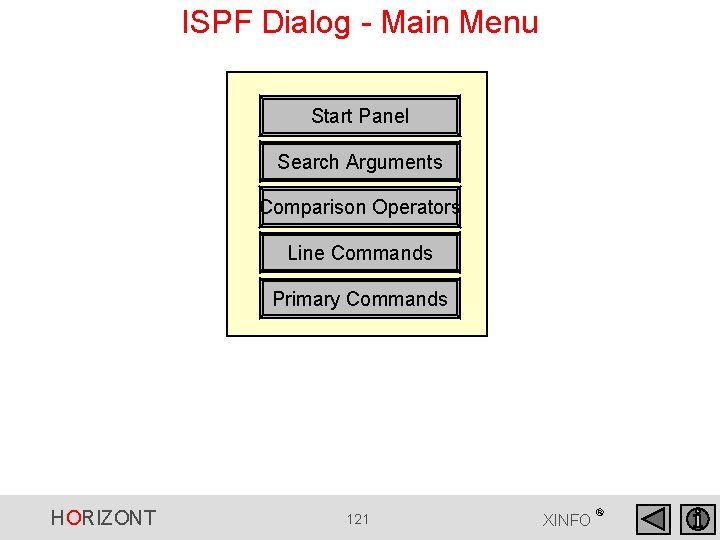
ISPF Dialog - Main Menu Start Panel Search Arguments Comparison Operators Line Commands Primary Commands HORIZONT 121 XINFO ®
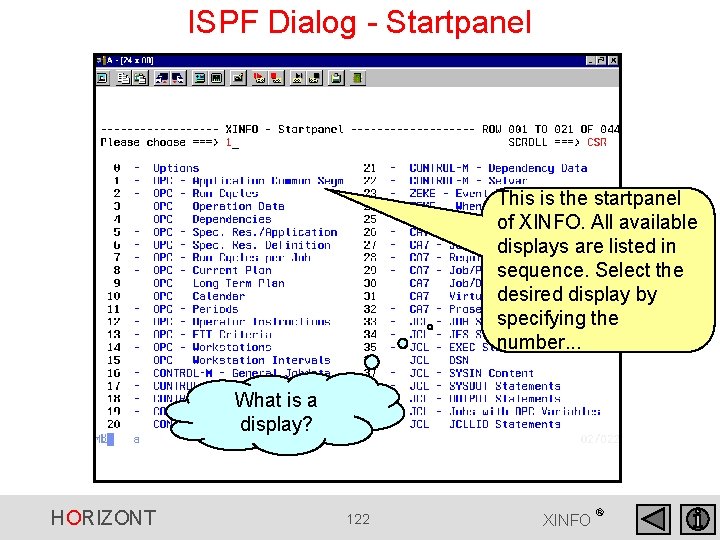
ISPF Dialog - Startpanel This is the startpanel of XINFO. All available displays are listed in sequence. Select the desired display by specifying the number. . . What is a display? HORIZONT 122 XINFO ®
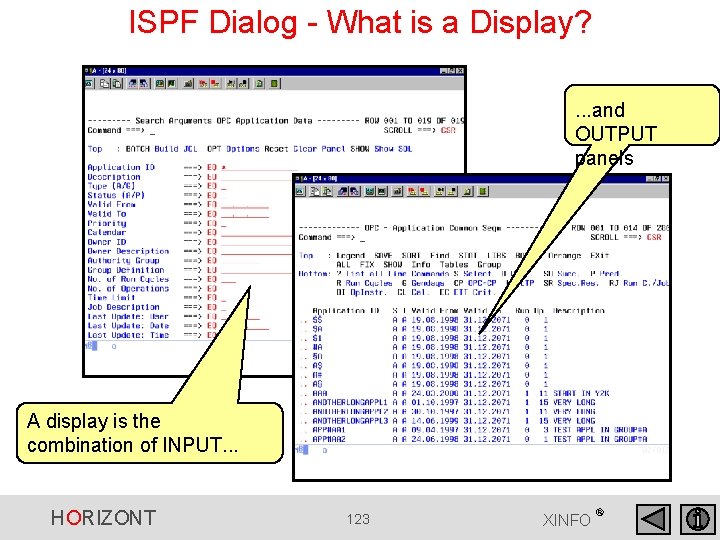
ISPF Dialog - What is a Display? . . . and OUTPUT panels A display is the combination of INPUT. . . HORIZONT 123 XINFO ®
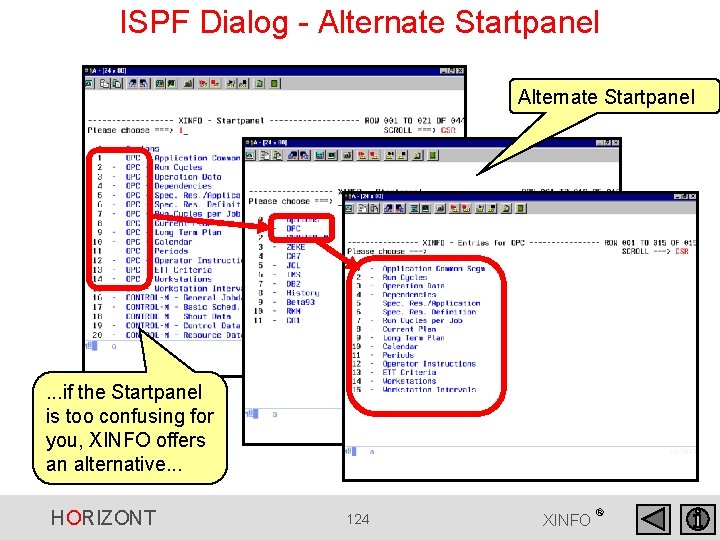
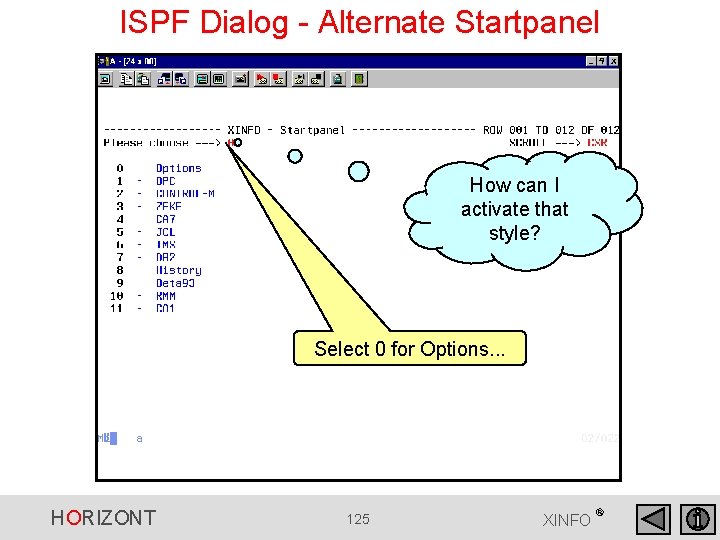
ISPF Dialog - Alternate Startpanel . . . if the Startpanel is too confusing for you, XINFO offers an alternative. . . HORIZONT 124 XINFO ®
ISPF Dialog - Alternate Startpanel How can I activate that style? Select 0 for Options. . . HORIZONT 125 XINFO ®
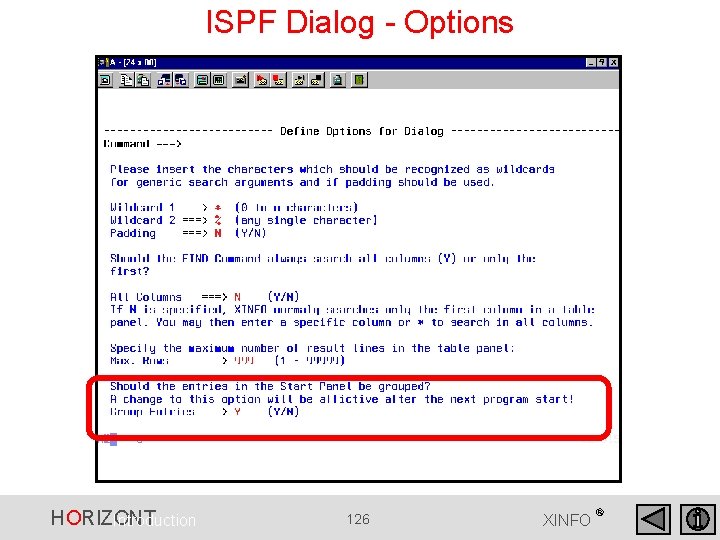
ISPF Dialog - Options HORIZONT Introduction 126 XINFO ®
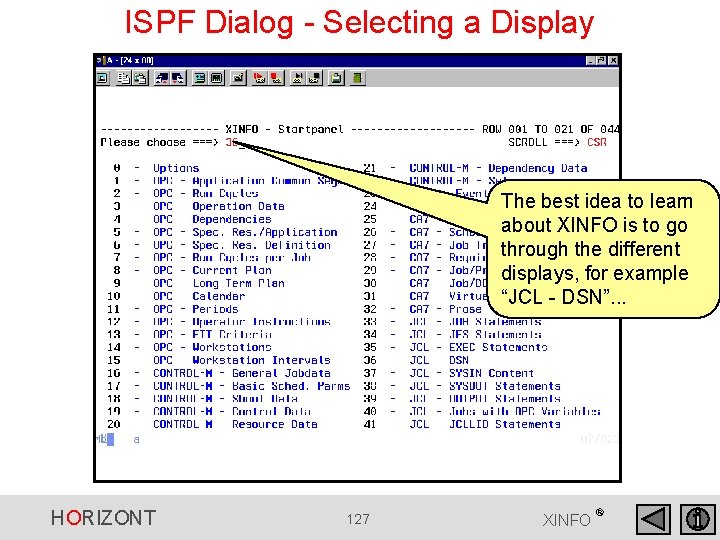
ISPF Dialog - Selecting a Display The best idea to learn about XINFO is to go through the different displays, for example “JCL - DSN”. . . HORIZONT 127 XINFO ®
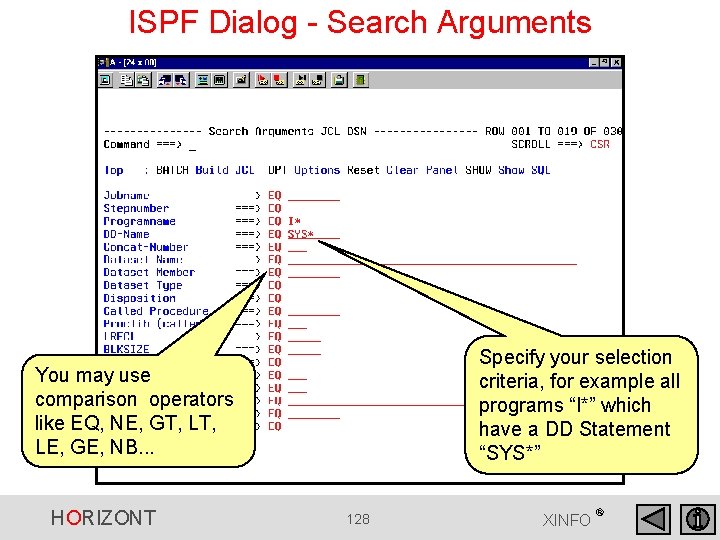
ISPF Dialog - Search Arguments Specify your selection criteria, for example all programs “I*” which have a DD Statement “SYS*” You may use comparison operators like EQ, NE, GT, LE, GE, NB. . . HORIZONT 128 XINFO ®
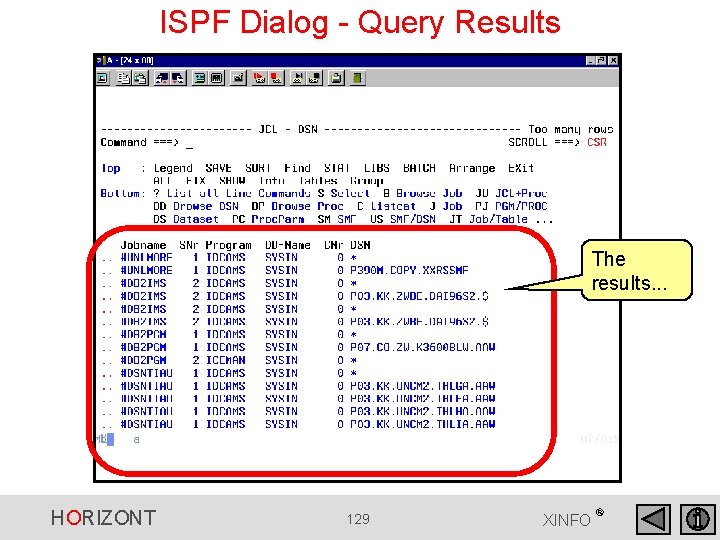
ISPF Dialog - Query Results The results. . . HORIZONT 129 XINFO ®
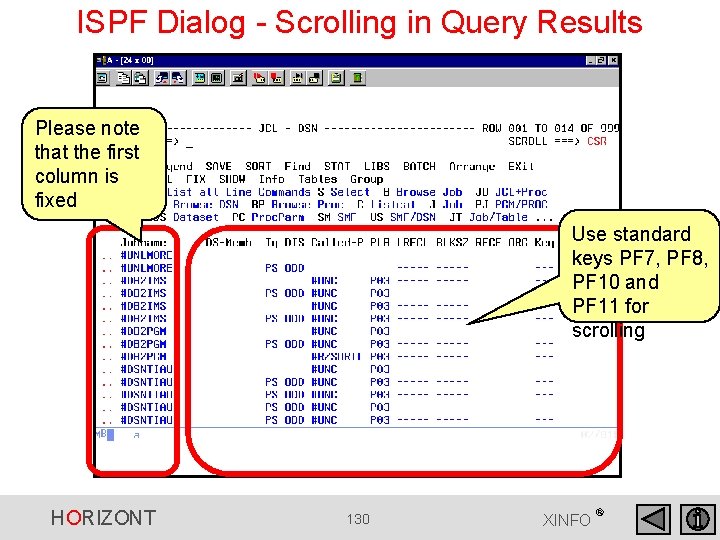
ISPF Dialog - Scrolling in Query Results Please note that the first column is fixed Use standard keys PF 7, PF 8, PF 10 and PF 11 for scrolling HORIZONT 130 XINFO ®
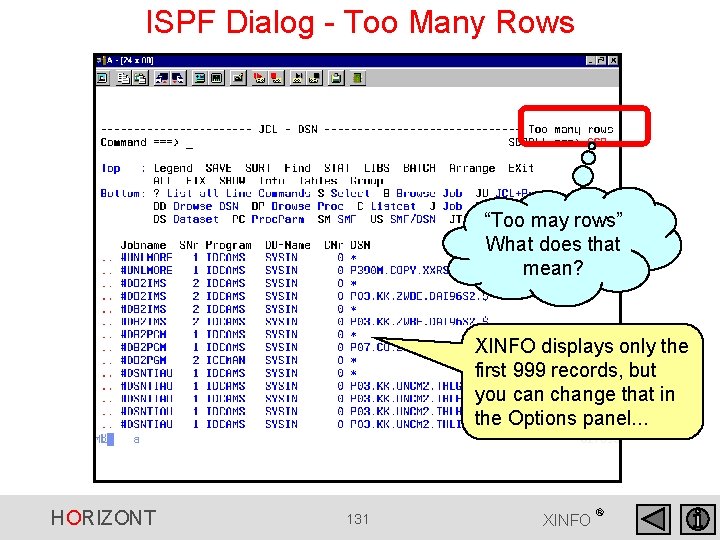
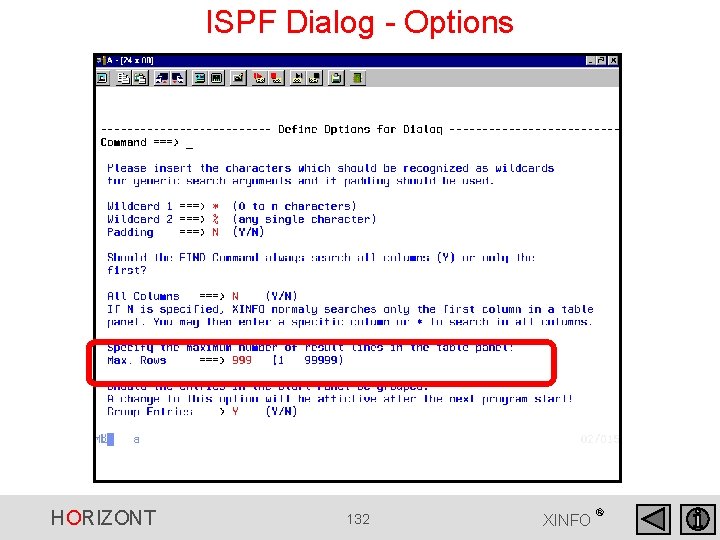
ISPF Dialog - Too Many Rows “Too may rows” What does that mean? XINFO displays only the first 999 records, but you can change that in the Options panel. . . HORIZONT 131 XINFO ®
ISPF Dialog - Options HORIZONT 132 XINFO ®
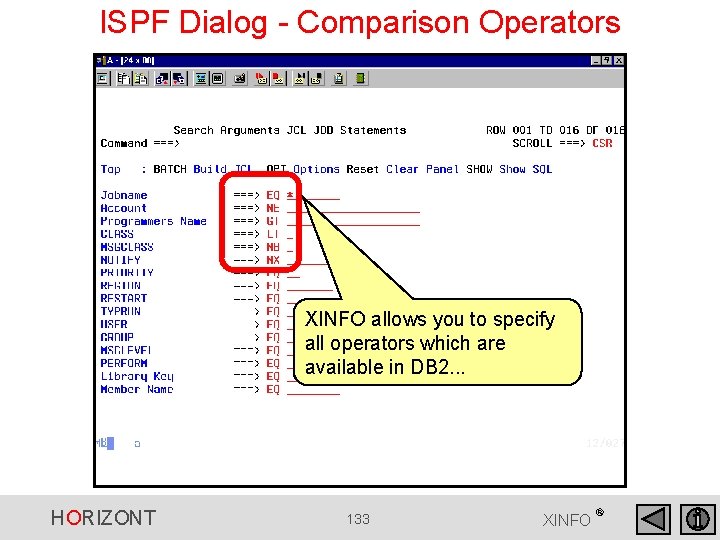
ISPF Dialog - Comparison Operators XINFO allows you to specify all operators which are available in DB 2. . . HORIZONT 133 XINFO ®
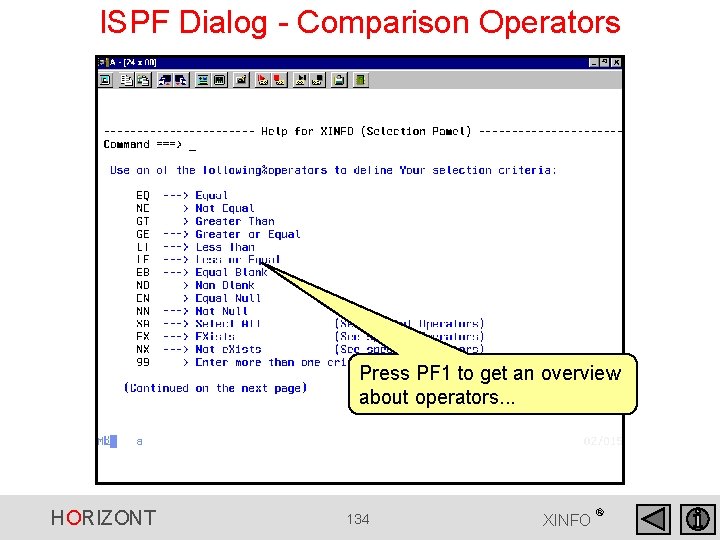
ISPF Dialog - Comparison Operators Press PF 1 to get an overview about operators. . . HORIZONT 134 XINFO ®
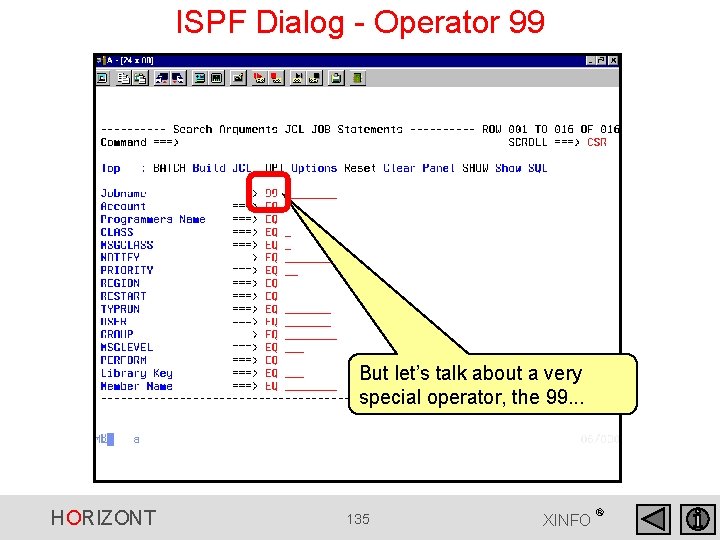
ISPF Dialog - Operator 99 But let’s talk about a very special operator, the 99. . . HORIZONT 135 XINFO ®
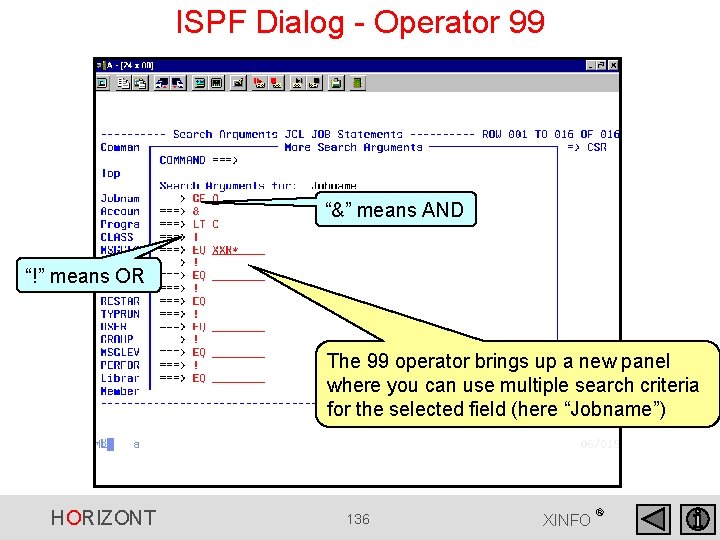
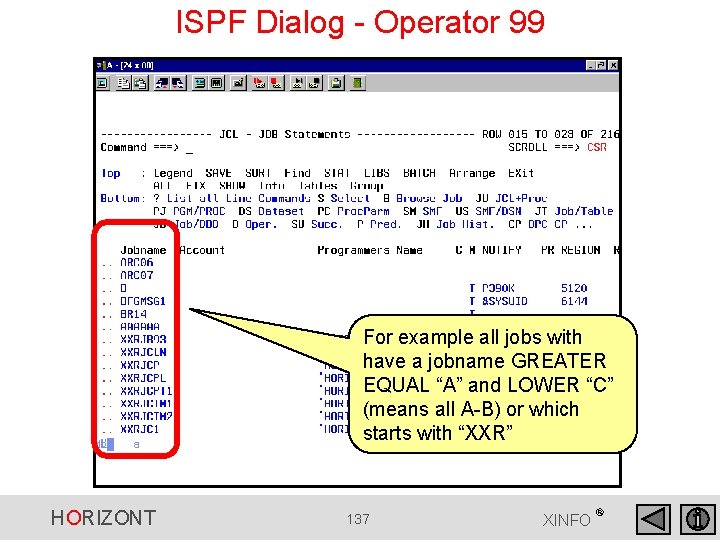
ISPF Dialog - Operator 99 “&” means AND “!” means OR The 99 operator brings up a new panel where you can use multiple search criteria for the selected field (here “Jobname”) HORIZONT 136 XINFO ®
ISPF Dialog - Operator 99 For example all jobs with have a jobname GREATER EQUAL “A” and LOWER “C” (means all A-B) or which starts with “XXR” HORIZONT 137 XINFO ®
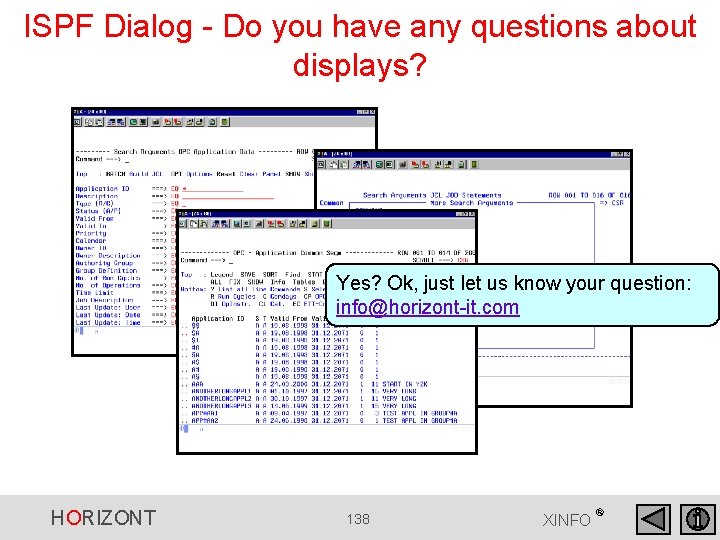
ISPF Dialog - Do you have any questions about displays? Yes? Ok, just let us know your question: info@horizont-it. com HORIZONT 138 XINFO ®
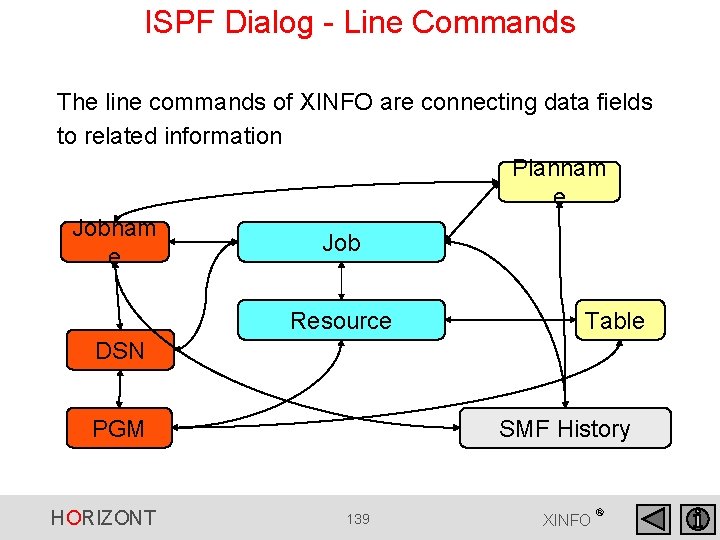
ISPF Dialog - Line Commands The line commands of XINFO are connecting data fields to related information Plannam e Jobnam Job e Resource Table DSN PGM HORIZONT SMF History 139 XINFO ®
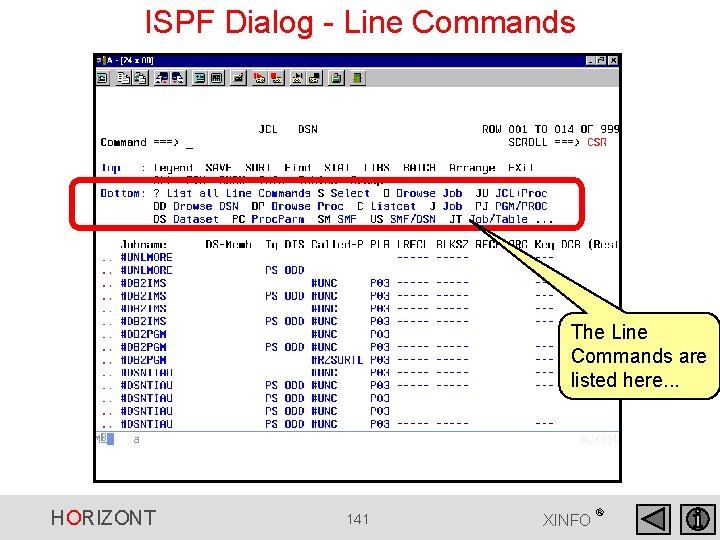
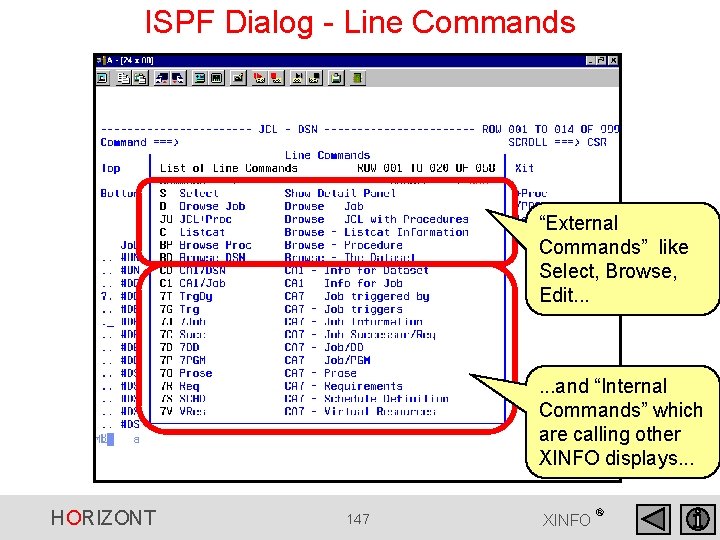
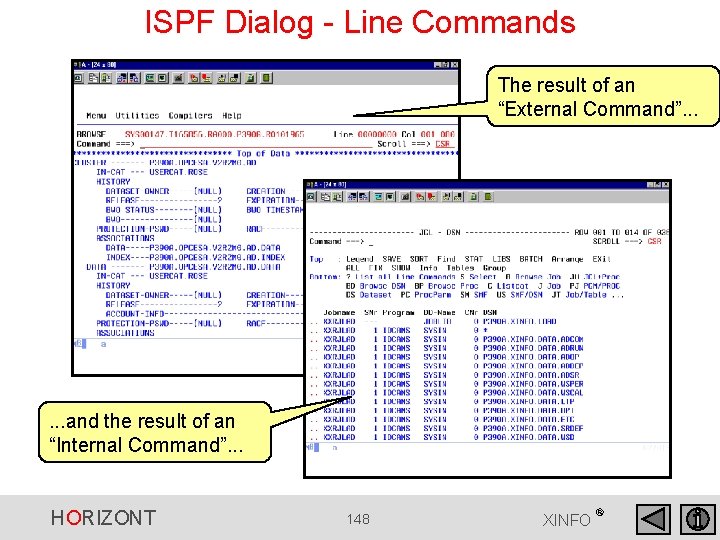
ISPF Dialog - Line Commands XINFO has two different types of Line Commands: • Internal Line Commands are activating other XINFO displays, for example SMF Histories, Table Information, etc. . . • External Line Commands are activating ISPF tools like the Browser, Editor or any other Utility program Every Line Command can be added or removed by the XINFO Administrator! HORIZONT 140 XINFO ®
ISPF Dialog - Line Commands The Line Commands are listed here. . . HORIZONT 141 XINFO ®
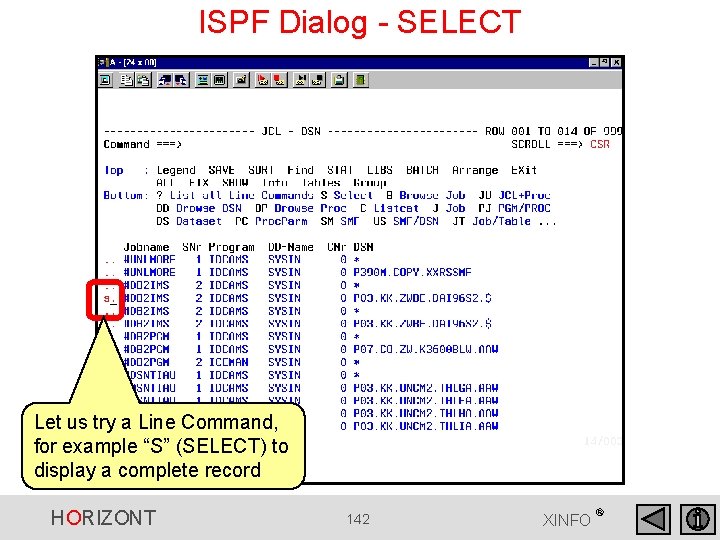
ISPF Dialog - SELECT Let us try a Line Command, for example “S” (SELECT) to display a complete record HORIZONT 142 XINFO ®
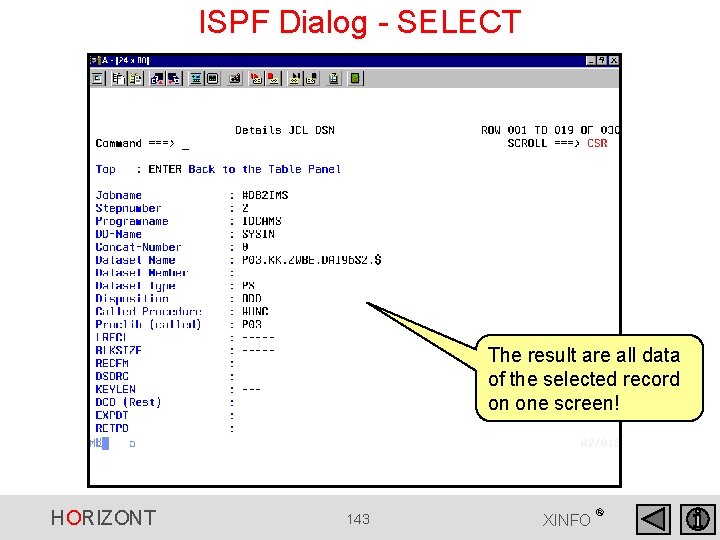
ISPF Dialog - SELECT The result are all data of the selected record on one screen! HORIZONT 143 XINFO ®
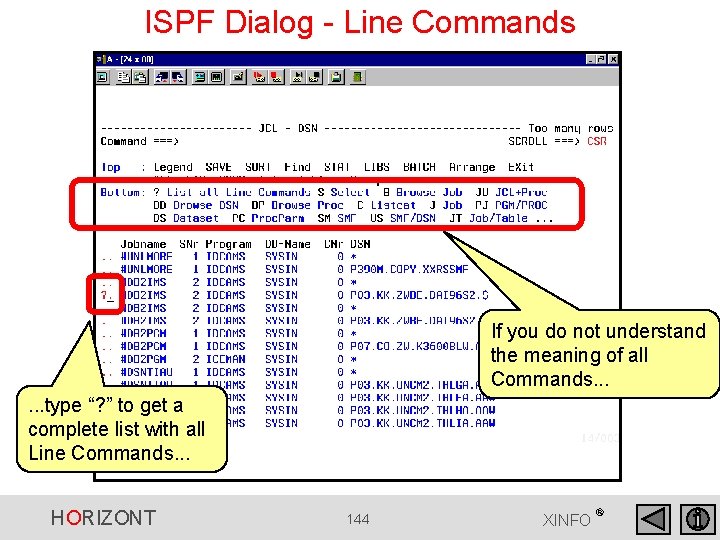
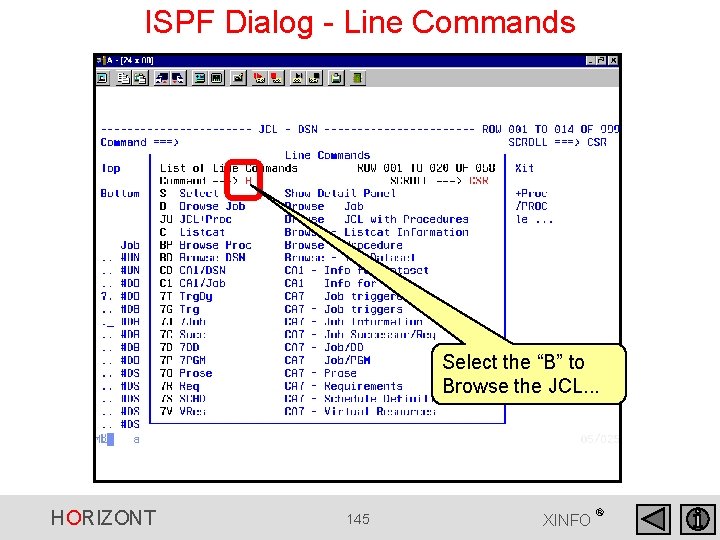
ISPF Dialog - Line Commands If you do not understand the meaning of all Commands. . . type “? ” to get a complete list with all Line Commands. . . HORIZONT 144 XINFO ®
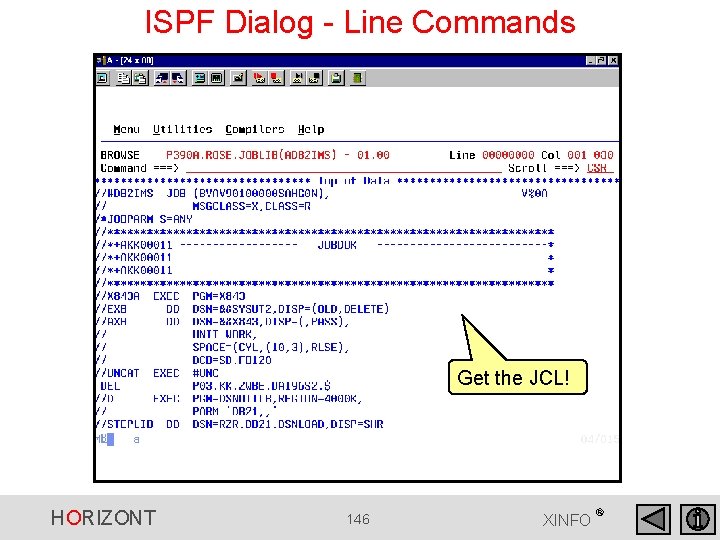
ISPF Dialog - Line Commands Select the “B” to Browse the JCL. . . HORIZONT 145 XINFO ®
ISPF Dialog - Line Commands Get the JCL! HORIZONT 146 XINFO ®
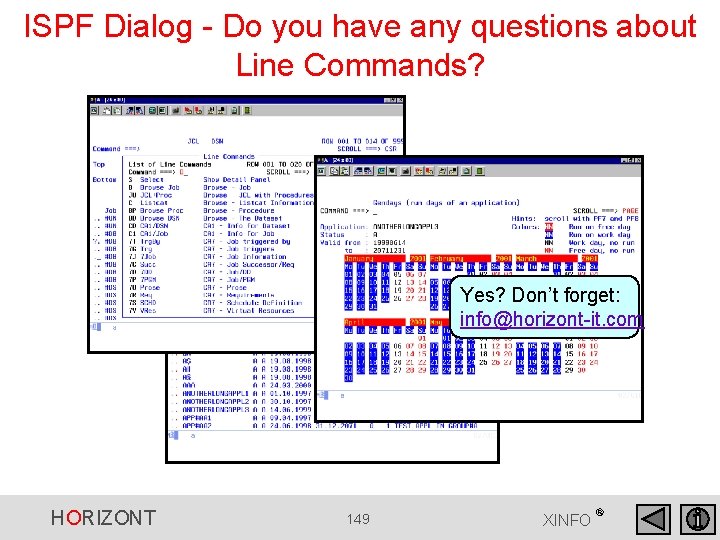
ISPF Dialog - Line Commands “External Commands” like Select, Browse, Edit. . . and “Internal Commands” which are calling other XINFO displays. . . HORIZONT 147 XINFO ®
ISPF Dialog - Line Commands The result of an “External Command”. . . and the result of an “Internal Command”. . . HORIZONT 148 XINFO ®
ISPF Dialog - Do you have any questions about Line Commands? Yes? Don’t forget: info@horizont-it. com HORIZONT 149 XINFO ®
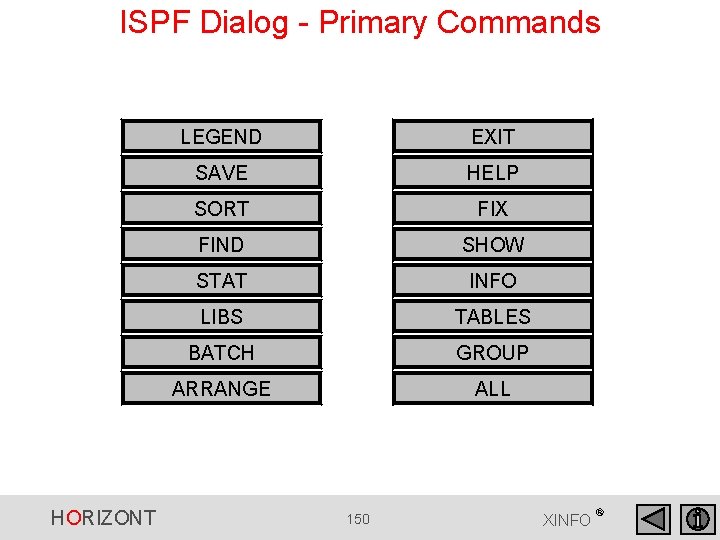
ISPF Dialog - Primary Commands HORIZONT LEGEND EXIT SAVE HELP SORT FIX FIND SHOW STAT INFO LIBS TABLES BATCH GROUP ARRANGE ALL 150 XINFO ®
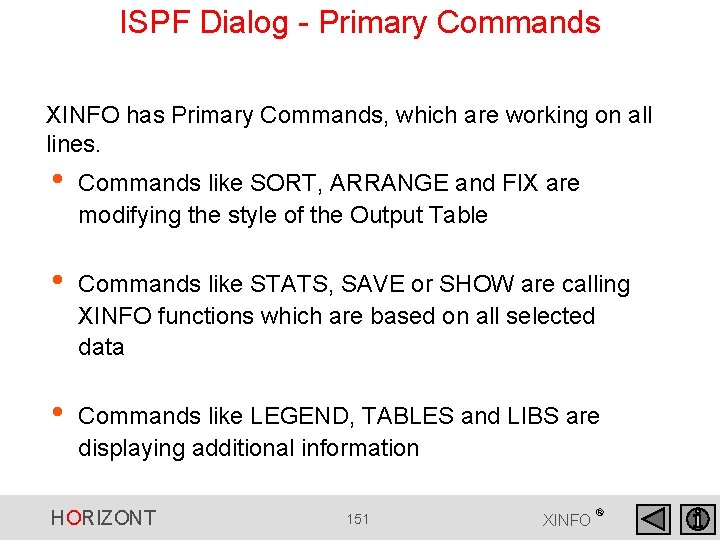
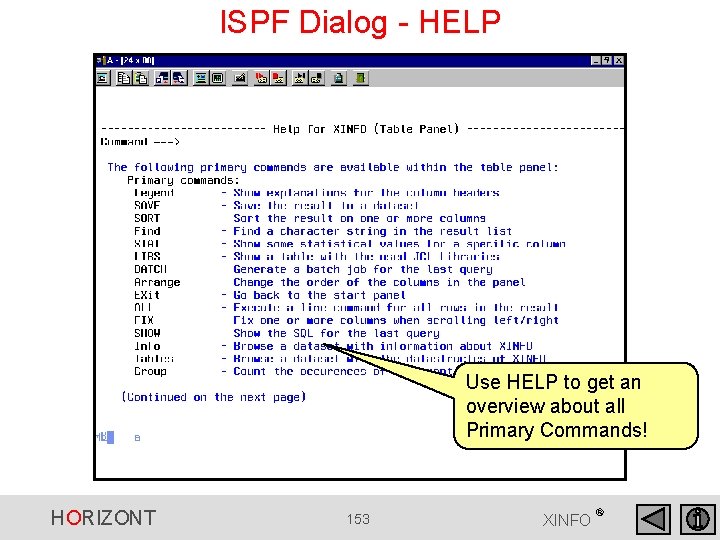
ISPF Dialog - Primary Commands XINFO has Primary Commands, which are working on all lines. • Commands like SORT, ARRANGE and FIX are modifying the style of the Output Table • Commands like STATS, SAVE or SHOW are calling XINFO functions which are based on all selected data • Commands like LEGEND, TABLES and LIBS are displaying additional information HORIZONT 151 XINFO ®
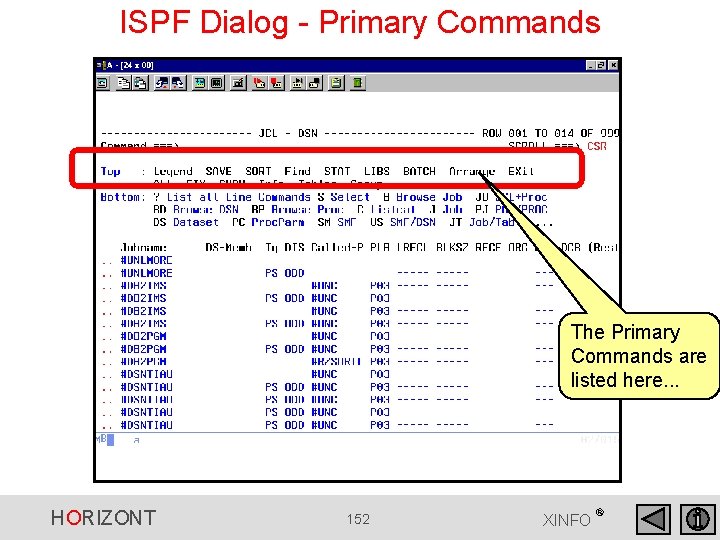
ISPF Dialog - Primary Commands The Primary Commands are listed here. . . HORIZONT 152 XINFO ®
ISPF Dialog - HELP Use HELP to get an overview about all Primary Commands! HORIZONT 153 XINFO ®
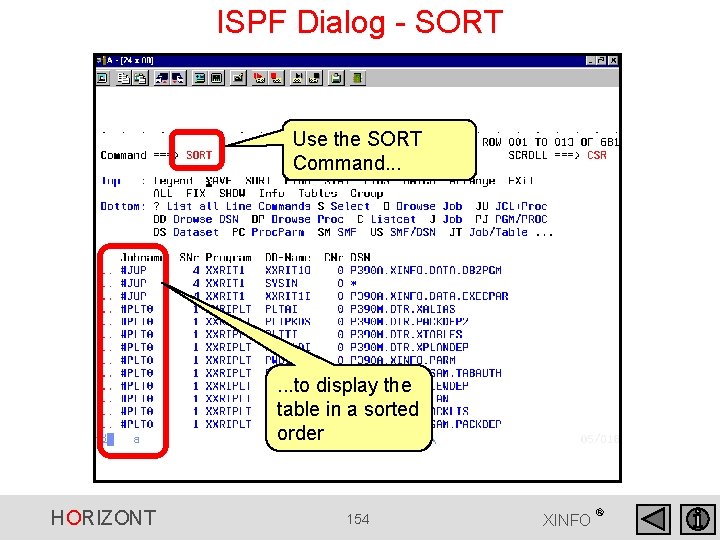
ISPF Dialog - SORT Use the SORT Command. . . to display the table in a sorted order HORIZONT 154 XINFO ®
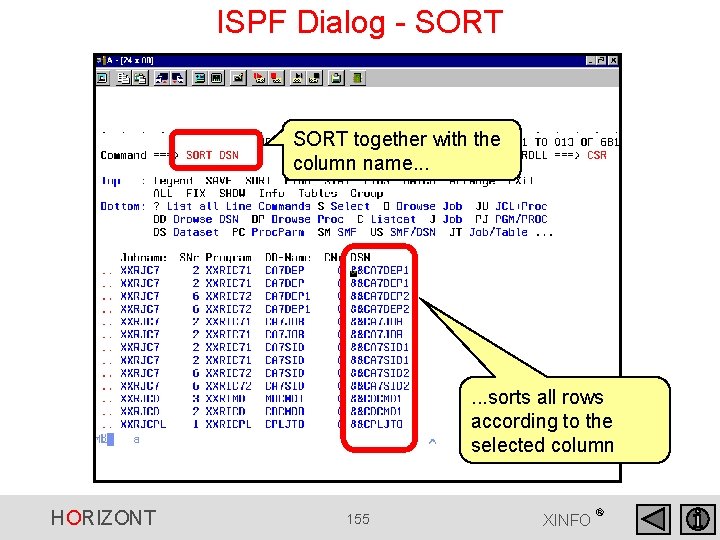
ISPF Dialog - SORT together with the column name. . . sorts all rows according to the selected column HORIZONT 155 XINFO ®
ISPF Dialog - SORT • SORT (without parameter) sorts according to the first column • SORT n sorts according to the nth column (from the left). • SORT Header sorts according to the column “Header”. If a heading contains blanks, it has to be entered in apostrophes, e. g. , SORT 'Valid Form'. • SORT 1 DESC sorts according to the first column, in descending order. • SORT 1 d, 3 a sorts in descending order according to the first column, and in de-scending order according to the third. 156 HORIZONT XINFO ®
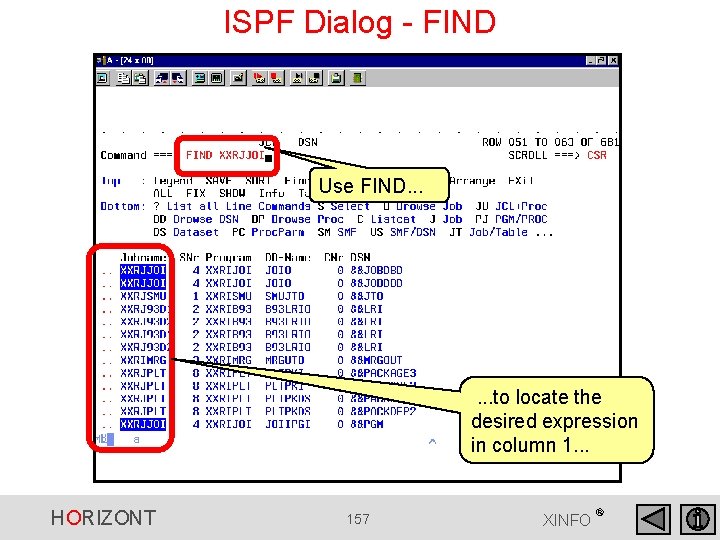
ISPF Dialog - FIND Use FIND. . . to locate the desired expression in column 1. . . HORIZONT 157 XINFO ®
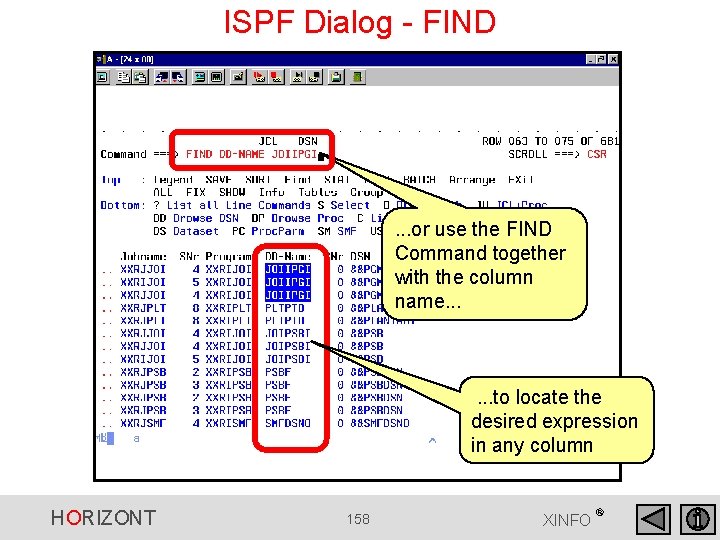
ISPF Dialog - FIND . . . or use the FIND Command together with the column name. . . to locate the desired expression in any column HORIZONT 158 XINFO ®
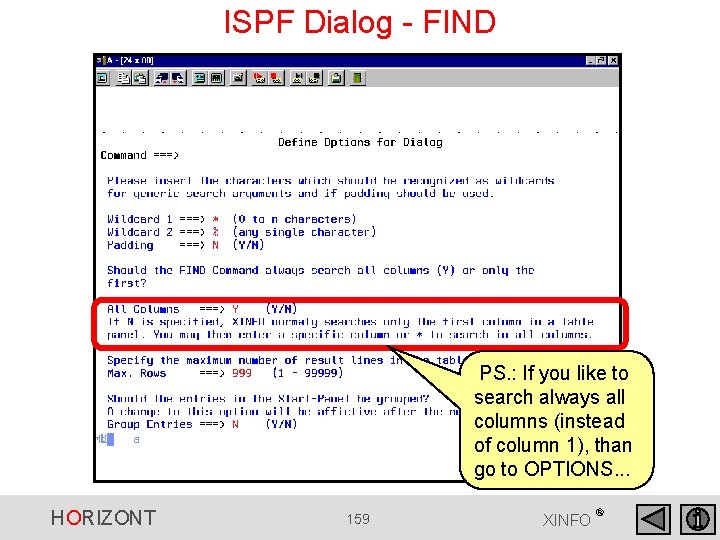
ISPF Dialog - FIND PS. : If you like to search always all columns (instead of column 1), than go to OPTIONS. . . HORIZONT 159 XINFO ®
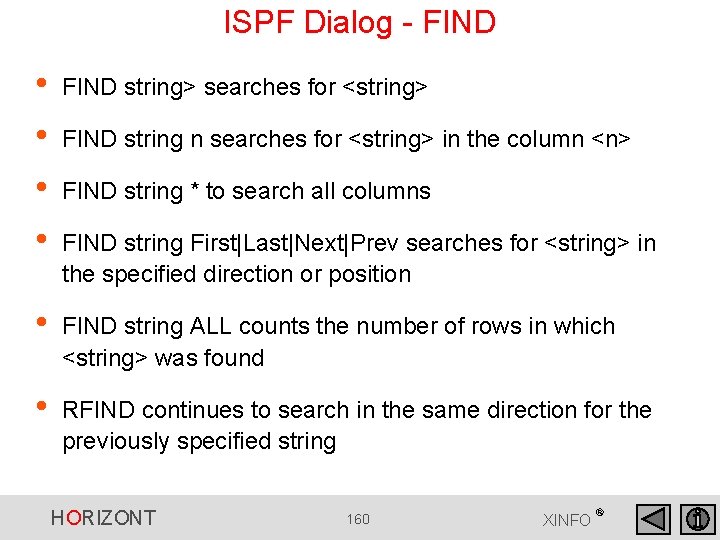
ISPF Dialog - FIND • • FIND string> searches for <string> • FIND string ALL counts the number of rows in which <string> was found • RFIND continues to search in the same direction for the previously specified string FIND string n searches for <string> in the column <n> FIND string * to search all columns FIND string First|Last|Next|Prev searches for <string> in the specified direction or position HORIZONT 160 XINFO ®
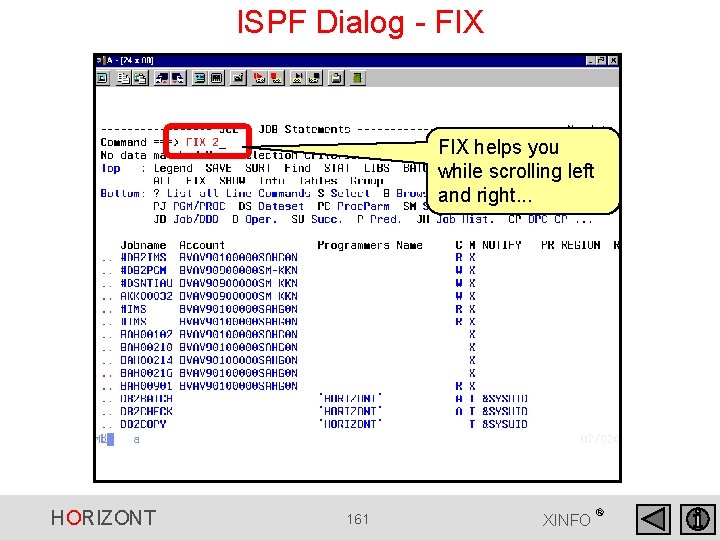
ISPF Dialog - FIX helps you while scrolling left and right. . . HORIZONT 161 XINFO ®
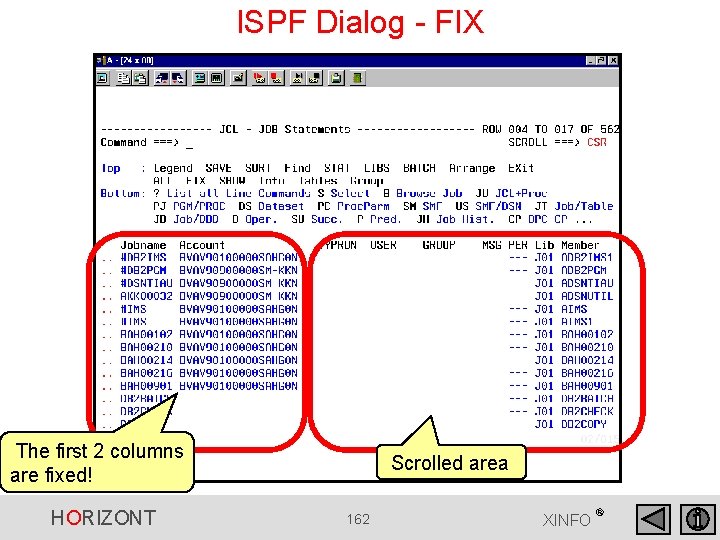
ISPF Dialog - FIX The first 2 columns are fixed! HORIZONT Scrolled area 162 XINFO ®
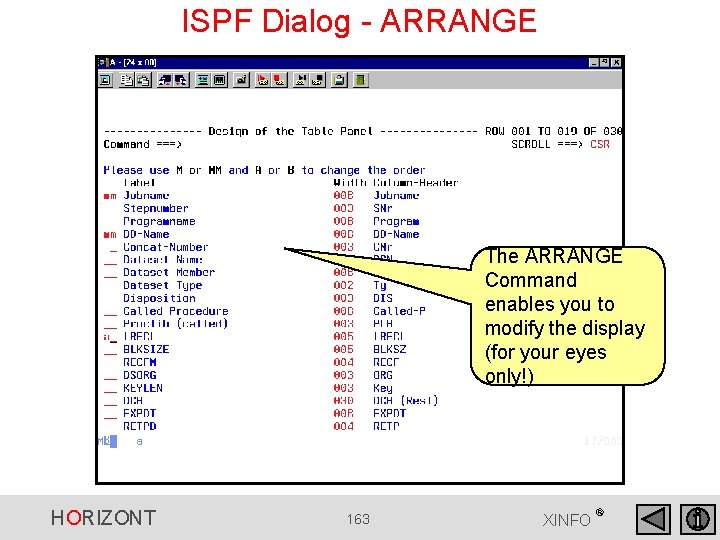
ISPF Dialog - ARRANGE The ARRANGE Command enables you to modify the display (for your eyes only!) HORIZONT 163 XINFO ®
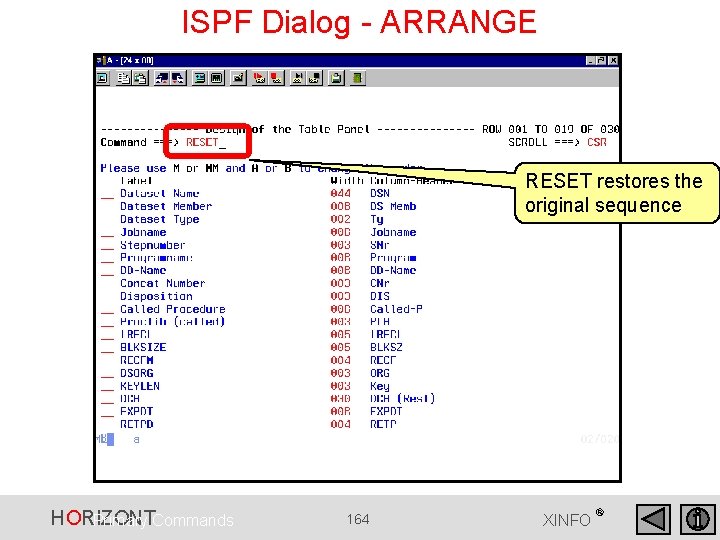
ISPF Dialog - ARRANGE RESET restores the original sequence HORIZONT Primary Commands 164 XINFO ®
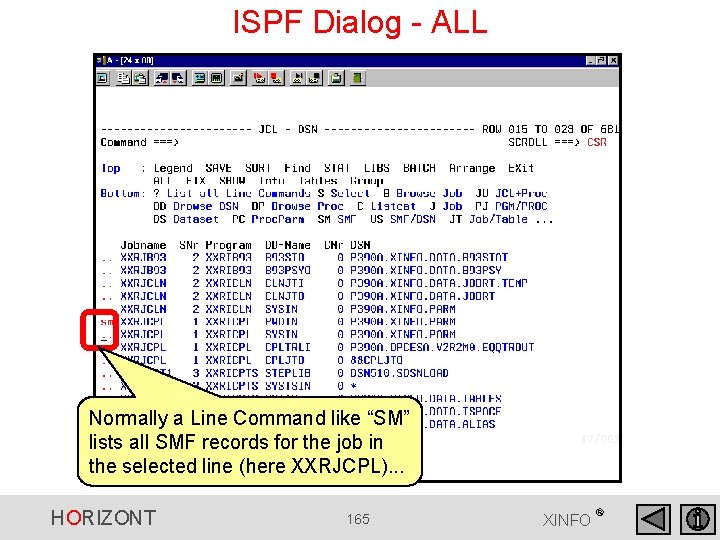
ISPF Dialog - ALL Normally a Line Command like “SM” lists all SMF records for the job in the selected line (here XXRJCPL). . . HORIZONT 165 XINFO ®
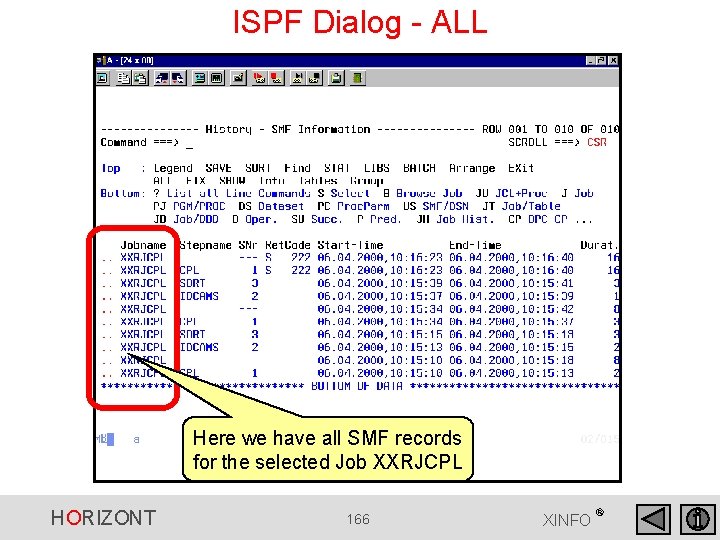
ISPF Dialog - ALL Here we have all SMF records for the selected Job XXRJCPL HORIZONT 166 XINFO ®
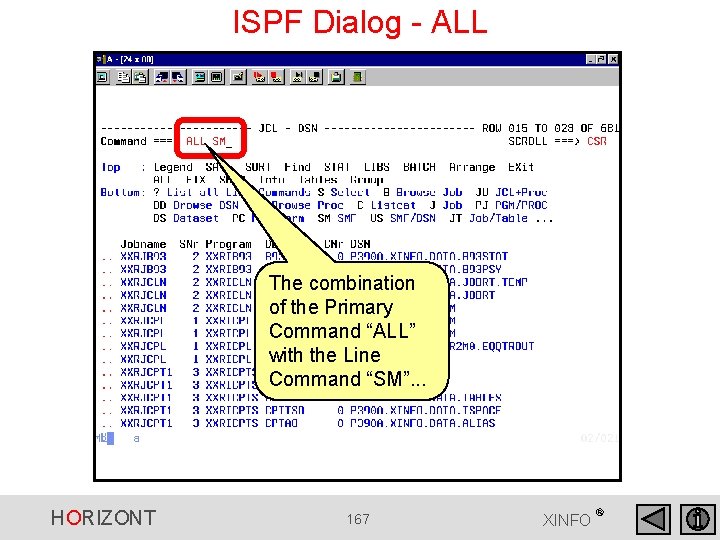
ISPF Dialog - ALL The combination of the Primary Command “ALL” with the Line Command “SM”. . . HORIZONT 167 XINFO ®
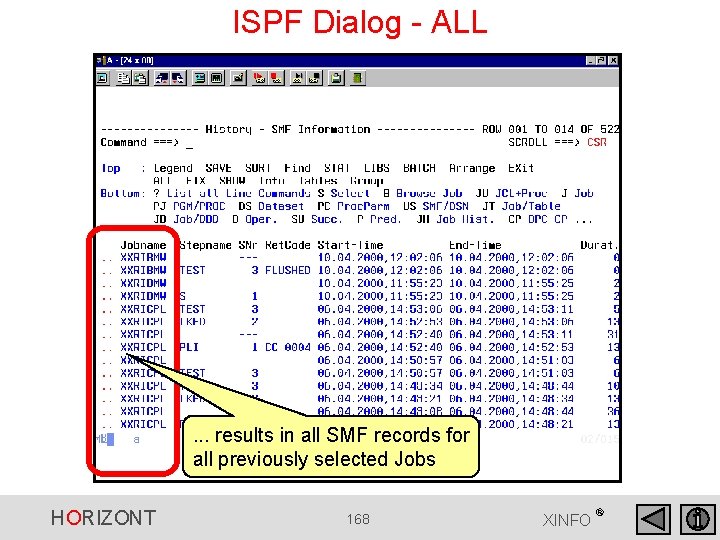
ISPF Dialog - ALL . . . results in all SMF records for all previously selected Jobs HORIZONT 168 XINFO ®
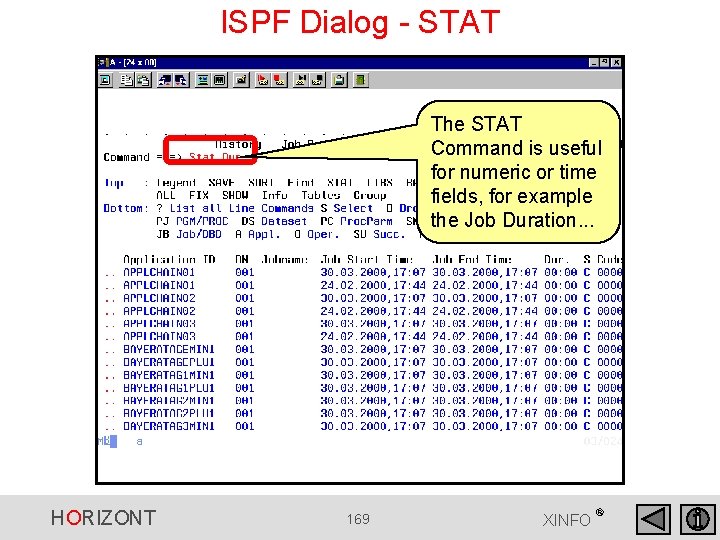
ISPF Dialog - STAT The STAT Command is useful for numeric or time fields, for example the Job Duration. . . HORIZONT 169 XINFO ®
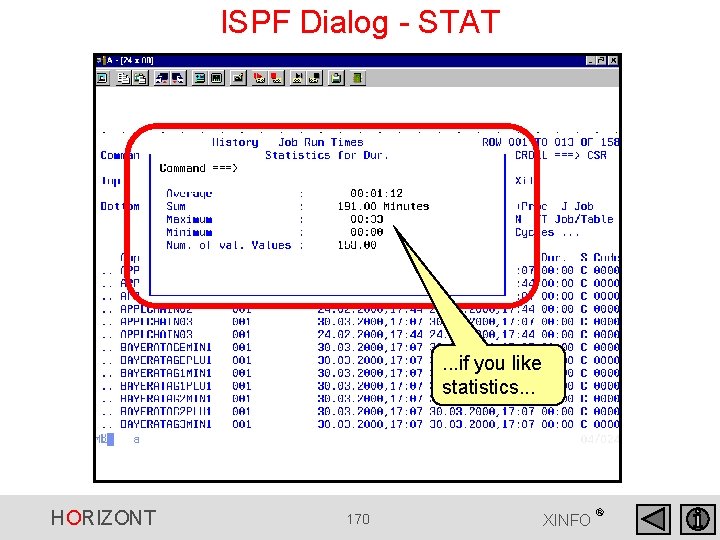
ISPF Dialog - STAT . . . if you like statistics. . . HORIZONT 170 XINFO ®
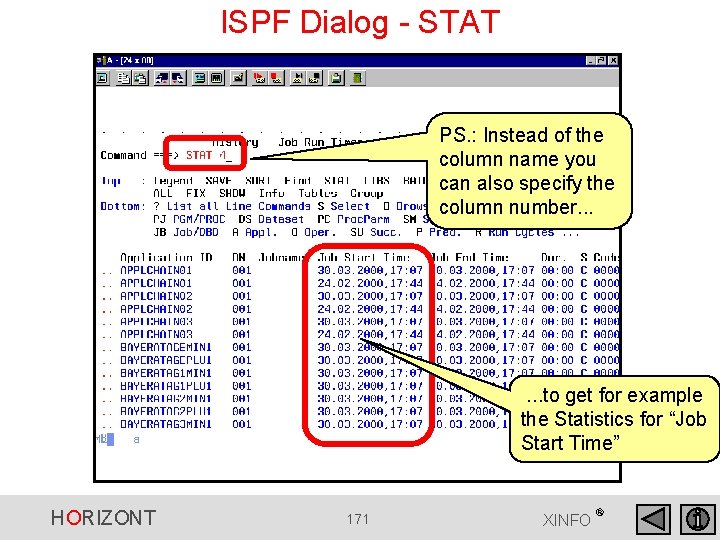
ISPF Dialog - STAT PS. : Instead of the column name you can also specify the column number. . . to get for example the Statistics for “Job Start Time” HORIZONT 171 XINFO ®
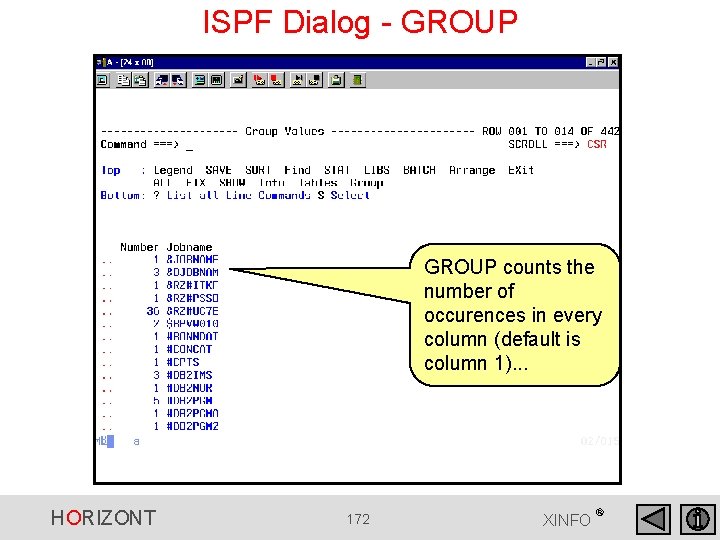
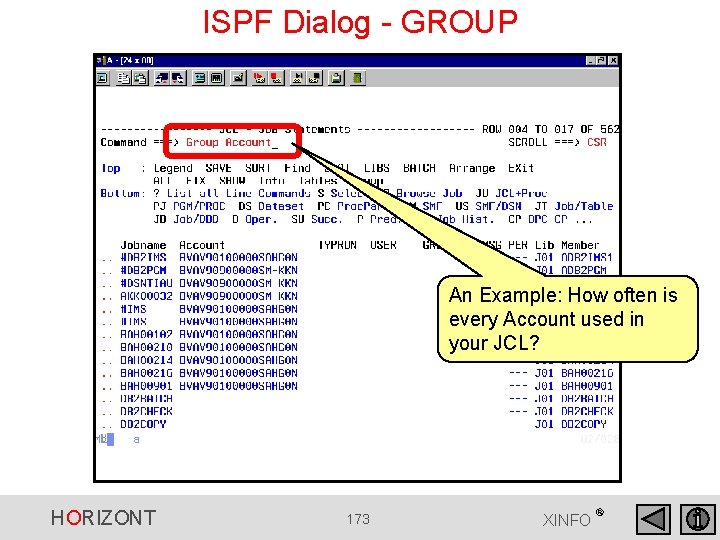
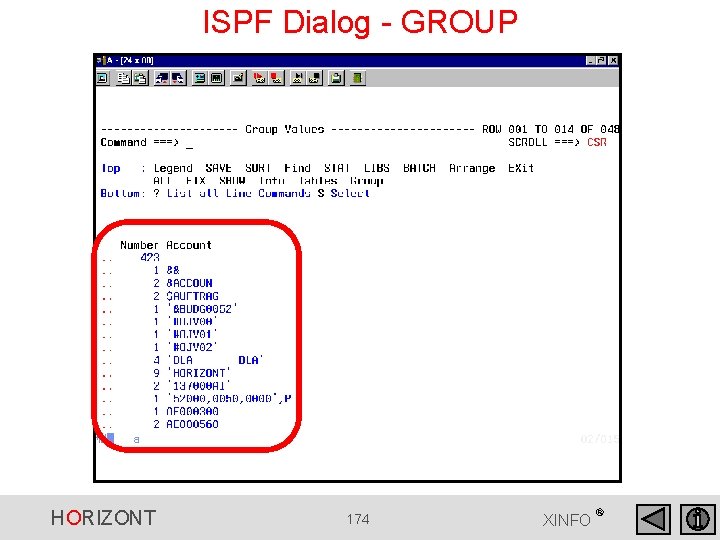
ISPF Dialog - GROUP counts the number of occurences in every column (default is column 1). . . HORIZONT 172 XINFO ®
ISPF Dialog - GROUP An Example: How often is every Account used in your JCL? HORIZONT 173 XINFO ®
ISPF Dialog - GROUP HORIZONT 174 XINFO ®
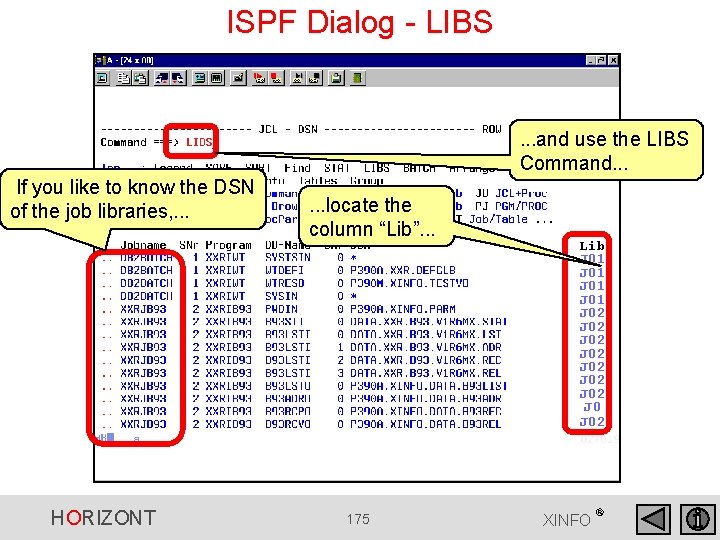
ISPF Dialog - LIBS . . . and use the LIBS Command. . . If you like to know the DSN of the job libraries, . . . HORIZONT . . . locate the column “Lib”. . . 175 Lib J 01 J 02 J 02 J 02 XINFO ®
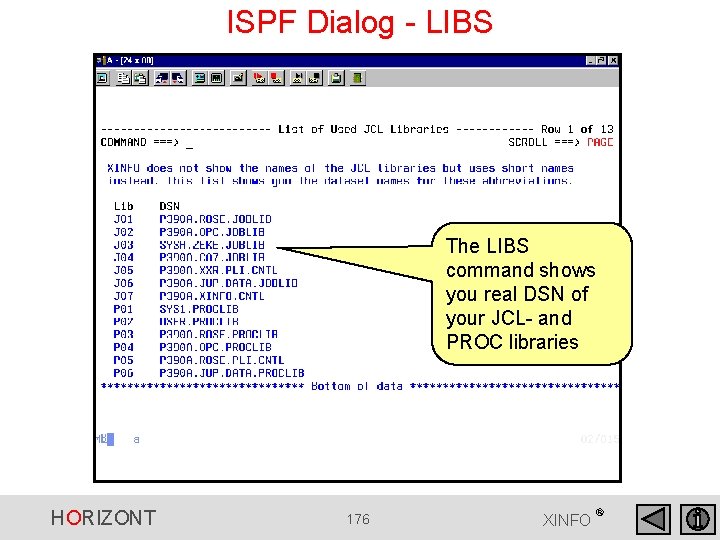
ISPF Dialog - LIBS The LIBS command shows you real DSN of your JCL- and PROC libraries HORIZONT 176 XINFO ®
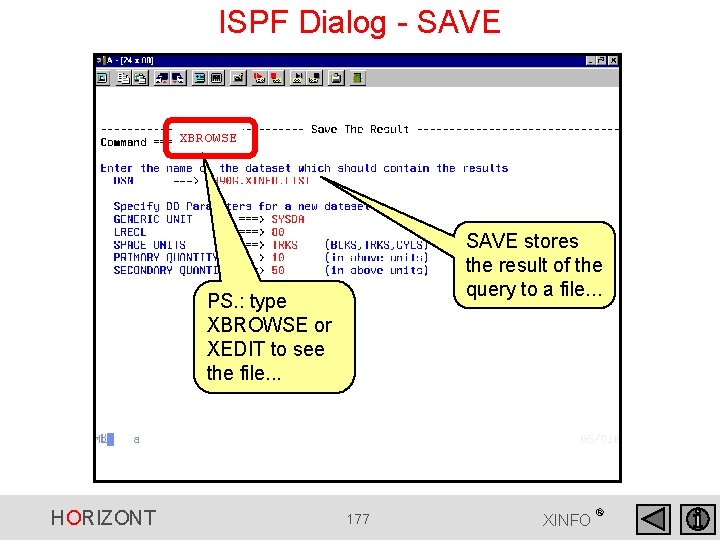
ISPF Dialog - SAVE XBROWSE SAVE stores the result of the query to a file. . . PS. : type XBROWSE or XEDIT to see the file. . . HORIZONT 177 XINFO ®
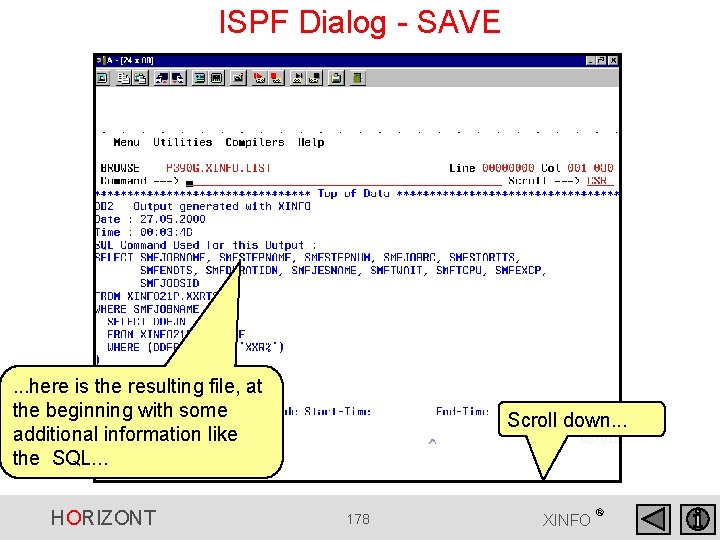
ISPF Dialog - SAVE . . . here is the resulting file, at the beginning with some additional information like the SQL. . . HORIZONT Scroll down. . . 178 XINFO ®
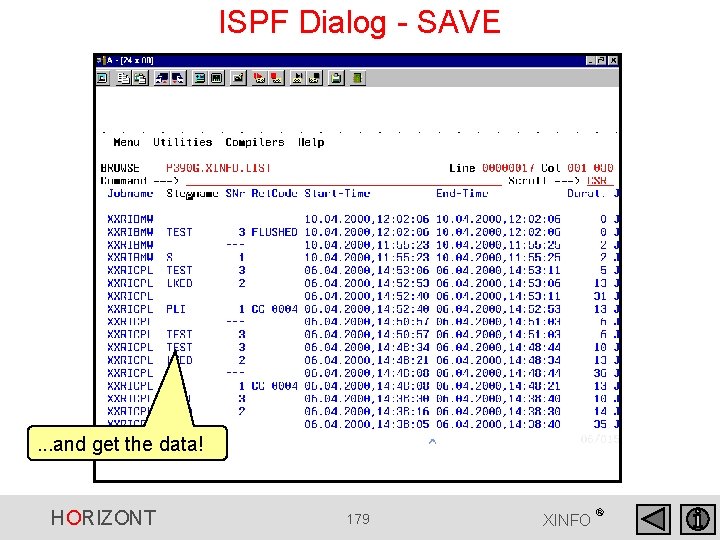
ISPF Dialog - SAVE . . . and get the data! HORIZONT 179 XINFO ®
ISPF Dialog - SAVE • The maximum number of lines defined for the dialog (999) is not used here, the only limit is the size of the output data set. • Columns displayed in an abbreviated form in the panel are displayed in full length. • If the display has been sorted by a certain column, this order is maintained. • Any arrangement of the columns specified using the ARRANGE command will be maintained. HORIZONT 180 XINFO ®
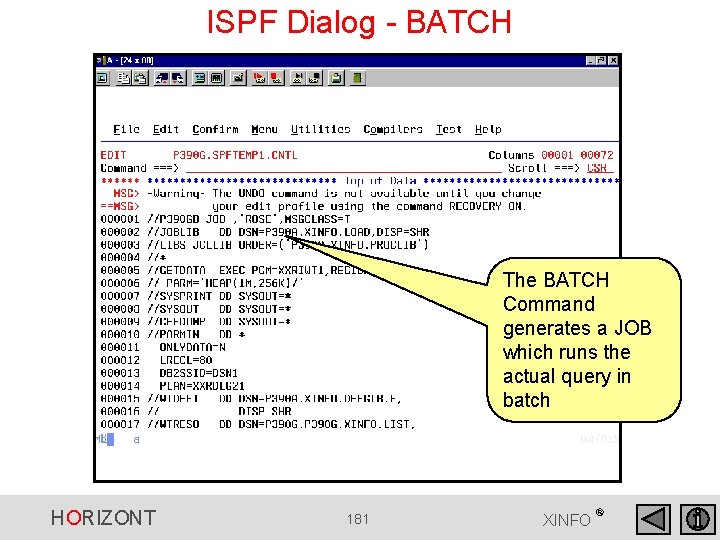
ISPF Dialog - BATCH The BATCH Command generates a JOB which runs the actual query in batch HORIZONT 181 XINFO ®
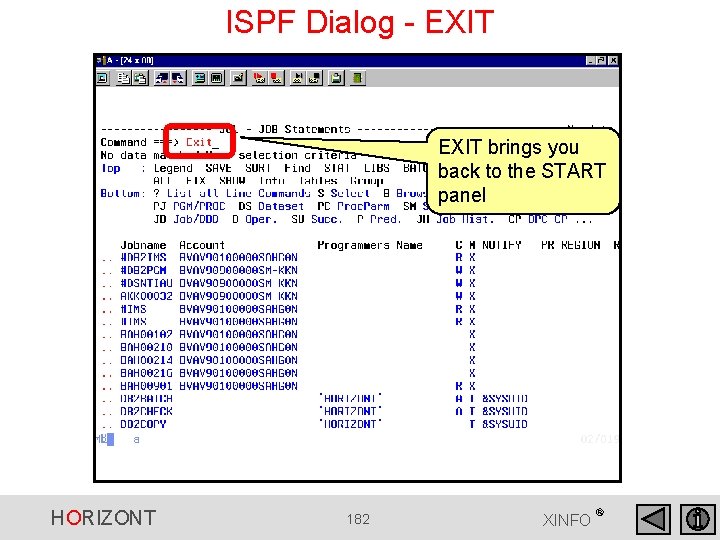
ISPF Dialog - EXIT brings you back to the START panel HORIZONT 182 XINFO ®
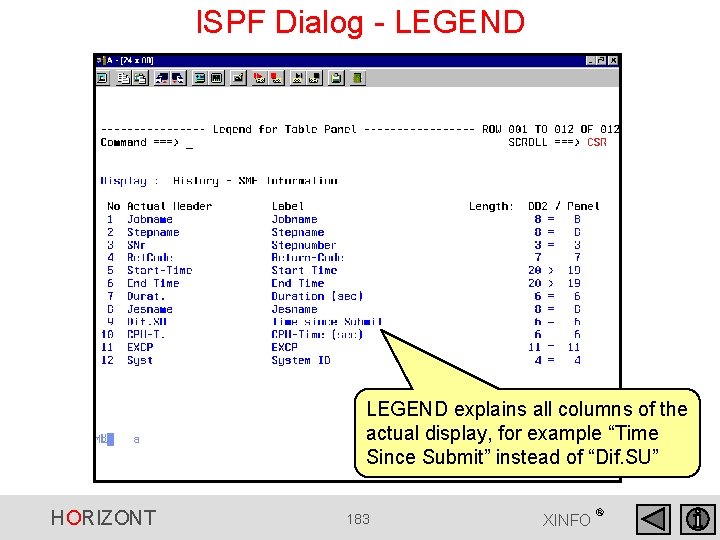
ISPF Dialog - LEGEND explains all columns of the actual display, for example “Time Since Submit” instead of “Dif. SU” HORIZONT 183 XINFO ®
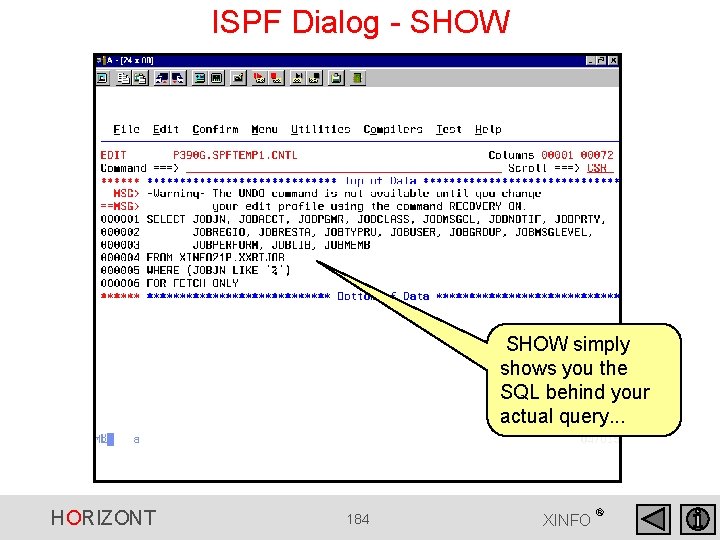
ISPF Dialog - SHOW simply shows you the SQL behind your actual query. . . HORIZONT 184 XINFO ®
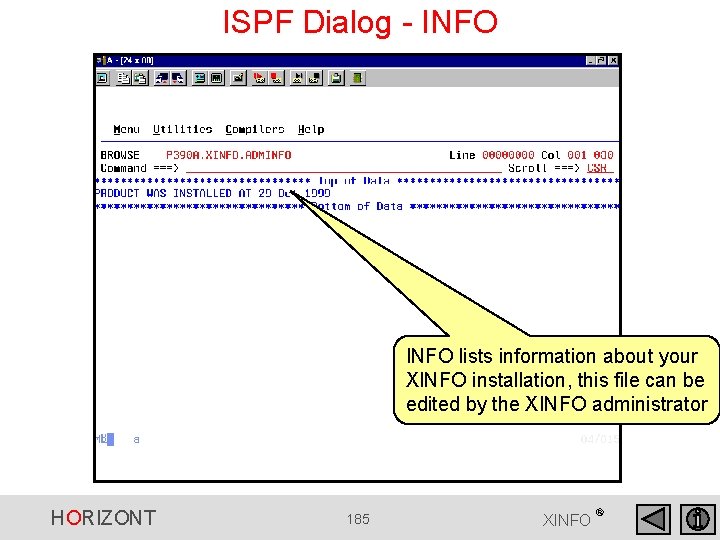
ISPF Dialog - INFO lists information about your XINFO installation, this file can be edited by the XINFO administrator HORIZONT 185 XINFO ®
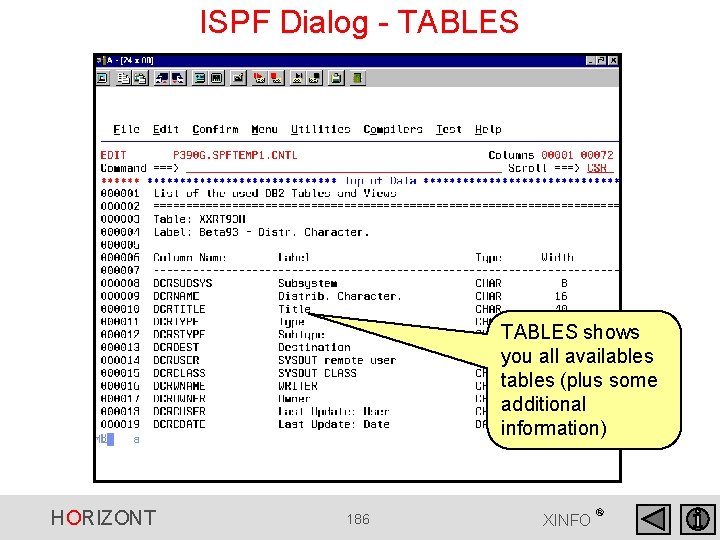
ISPF Dialog - TABLES shows you all availables tables (plus some additional information) HORIZONT 186 XINFO ®
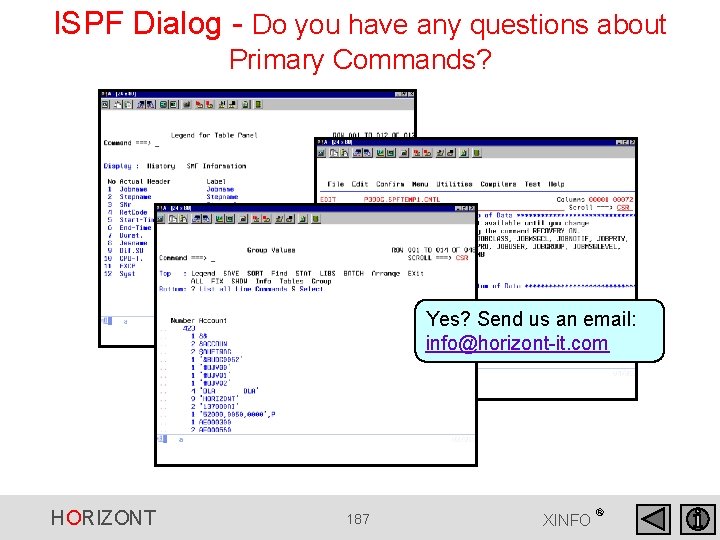
ISPF Dialog - Do you have any questions about Primary Commands? Yes? Send us an email: info@horizont-it. com HORIZONT 187 XINFO ®
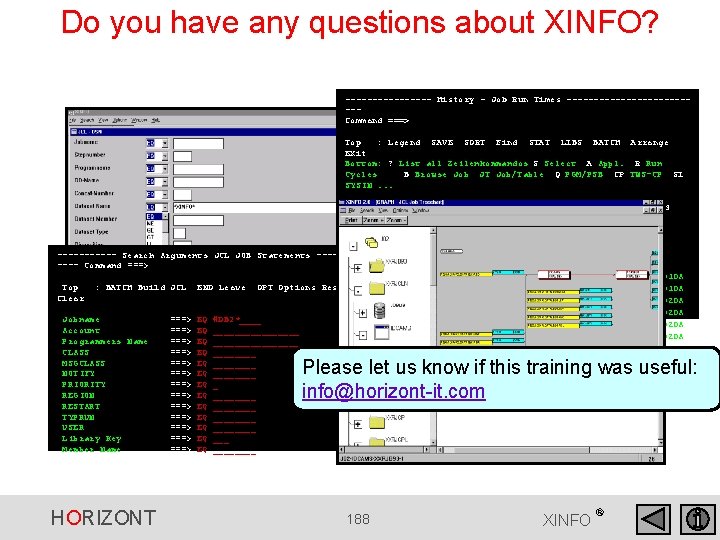
Do you have any questions about XINFO? -------- History - Job Run Times ------------Command ===> Top : Legend SAVE SORT Find STAT LIBS BATCH Arrange EXit Bottom: ? List all Zeilenkommandos S Select A Appl. R Run Cycles B Browse Job JT Job/Table Q PGM/PSB CP TWS-CP SI SYSIN. . . Application ID ON Jobname Job Start Time Job End Time. . ACW 500000 A 003 #DB 2 IMS 19. 01. 1999, 20: 00. . ACW 500000 A 003 #DB 2 IMS 18. 01. 1999, 20: 00. . ACW 500000 A 004 ------ Search Arguments JCL JOB Statements ----#DB 2 IMS 19. 01. 1999, 20: 00 19. 01. 1999, 20: 06. . ACW 500000 A ---- Command ===> 004 #DB 2 IMS 18. 01. 1999, 20: 00 18. 01. 1999, 20: 02. . ACW 500010 A Top : BATCH Build JCL END Leave OPT Options Reset 003 #DB 2 IMS 20. 01. 1999, 06: 01. . ACW 500010 A Clear 003 #DB 2 IMS 19. 01. 1999, 06: 01 B. ACW 500020 A 003 #DB 2 IMS 19. 01. 1999, 20: 10. . ACW 500020 A Jobname ===> EQ #DB 2*____ 003 #DB 2 IMS 18. 01. 1999, 20: 03. . ACW 500020 A Account ===> EQ ________ 004 #DB 2 IMS 20. 01. 1999, 03: 10 20. 01. 1999, 03: 17. . ACW 500020 A Programmers Name ===> EQ ________ 004 #DB 2 IMS 19. 01. 1999, 01: 28 19. 01. 1999, 01: 32. . ACW 500020 A CLASS ===> EQ ____ 005 #DB 2 IMS 20. 01. 1999, 03: 17 20. 01. 1999, 03: 18 MSGCLASS ===> EQ ____ NOTIFY PRIORITY REGION RESTART TYPRUN USER Library Key Member Name HORIZONT ===> ===> EQ EQ ________ ________ Please let us know if this training was useful: info@horizont-it. com 188 XINFO ®
XINFO The IT Information System Many thanks for your attention HORIZONT Software 189 HORIZONT for Datacenters Garmischer Str. 8 D- 80339 München Tel ++49(0)89 / 540 162 - 0 ® www. horizont-it. com XINFO